Store your passwords securely with Bitwarden (online or self-hosted)
- Security
- 06 July 2026 at 08:14 UTC
-

- 10/10
6.4. Create a new item in your Bitwarden secure vault from the mobile app (on Android)
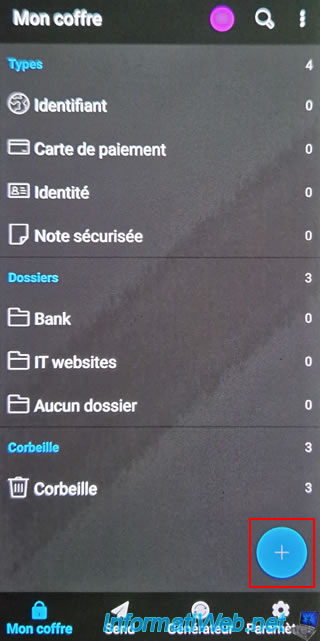
To add a new item to your Bitwarden vault, tap the "+" icon located at the bottom right of your vault.
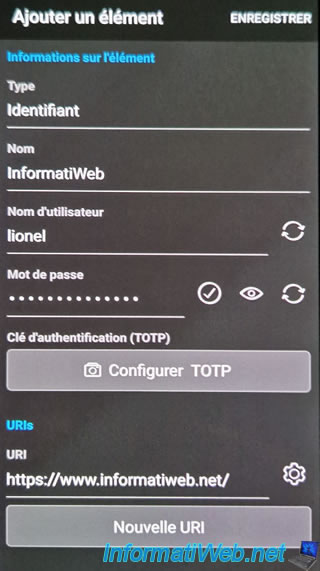
In the "Add an item" form that appears, indicate:
- Type: Identifier. To store credentials (username/password) for a website.
- Name: name of the website in question.
- Username: the username of your account on this website.
- Password: the associated password.
- Authentication key (TOTP): for generating unique codes for 2-factor authentication for the website in question.
However, this requires a Bitwarden Premium subscription. - URI: the address of the website in question, but preferably the address of the login page for this website.
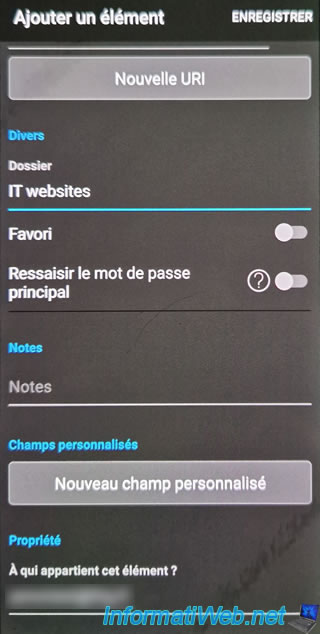
You will also be able to:
- Folder: choose the folder where to store this item in your Bitwarden vault.
- Favorite: add it to the "Favorites" section available in the Bitwarden application.
- Re-enter password: allows you to force the Bitwarden application to ask you for your password again to access this item.
This is useful to better protect sensitive items. This greatly limits unauthorized access when your Bitwarden vault is unlocked. - Note: allows you to add notes to store answers to secret questions for a specific site, for example.
- Custom fields: allows you to add additional fields, in addition to the username and password.
- Ownership: indicates the owner of this item. Typically, this will be the email address of your Bitwarden account.
However, since it is possible to share items with other Bitwarden users, the value here may be different in this case.
Once you have filled in the desired fields, click on "Save" (top right).
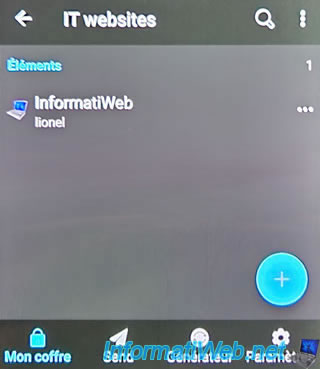
As expected, the number of items in your vault has increased for the "Identifier" type and for the selected folder (if applicable).
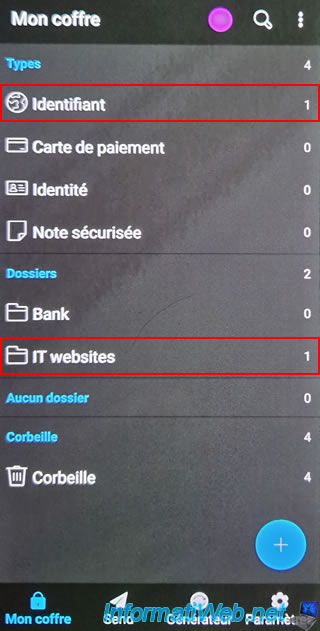
As expected, our new item appears in the "Identifiers" section.
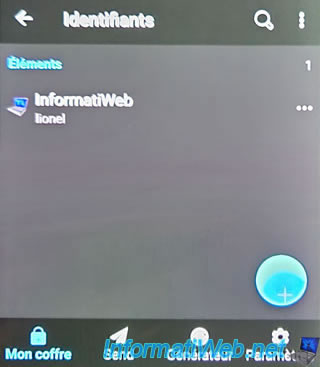
So, that in our "IT websites" folder.
6.5. Create a new item faster from the mobile app (on Android)
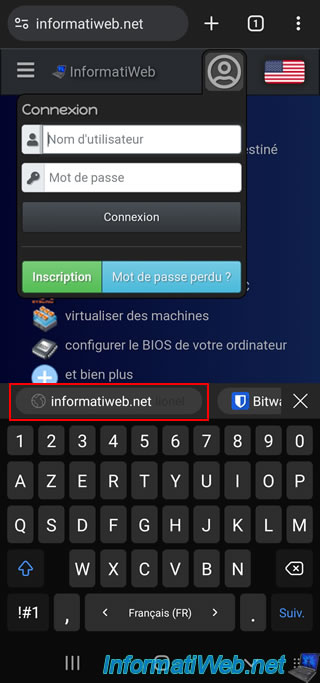
When you visit a website for which you do not have any items in your Bitwarden vault and autofill is enabled (as explained above), you will be able to add items from the "Bitwarden" option that will appear at the top of your virtual keyboard.
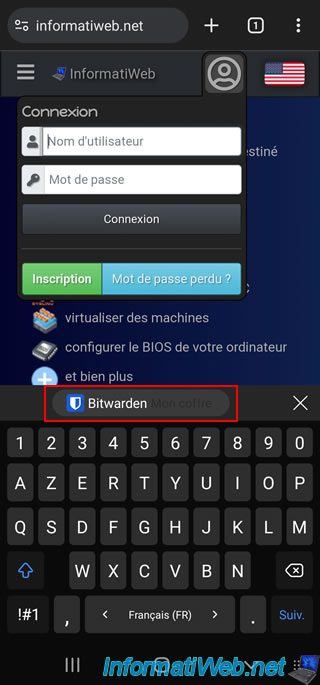
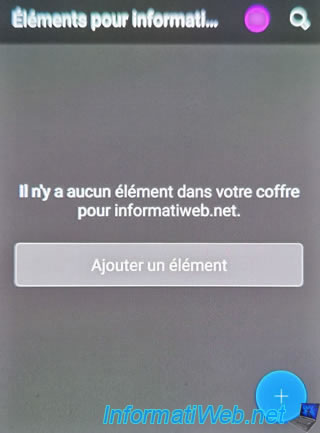
By clicking on this Bitwarden option, you will arrive in the Bitwarden application where you will see this message appear.
Plain Text
There are no items in your vault for [domain name of visited site].
Click the "Add Item" button.
As you can see, the Bitwarden application has already pre-filled some fields in the "Add Item" form:
- Type: Identifier.
- Name: the domain name of the visited site.
- URI: the address of the visited site.
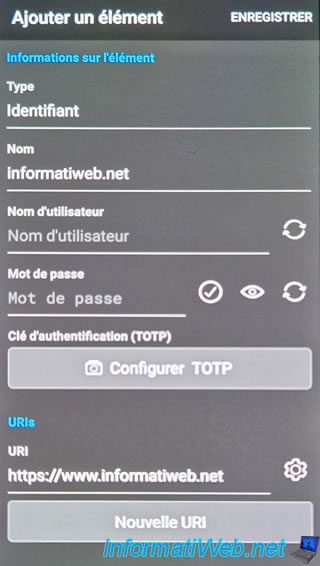
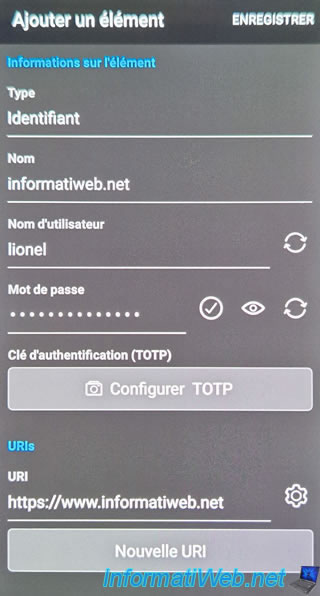
Fill in the username and password for your account on this site and choose a folder from your Bitwarden vault a little further down if you wish.
Then, click on: Save.
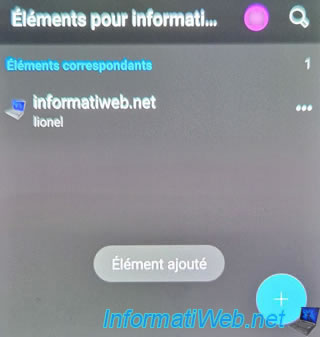
Your new item appears.
Press the "Back" button on your smartphone to return to your web browser.
Click again in the "Username" box of the login form of the site you want to log in to and you will see a "[site domain name] [username]" option appear at the top of the virtual keyboard.
Tap this option.
As expected, the credentials are automatically written into the "Username" and "Password" fields of the desired site.
Share this tutorial
To see also
-
Security 6/26/2015
Automatically uncheck adwares with Unchecky
-

Security 10/26/2026
Avast Antivirus Free - Free renewal
-
Security 5/5/2014
KeePass - Store your passwords securely
-
Security 3/6/2016
Malwarebytes Anti-Exploit - Protection against zero-day
No comment