Store your passwords securely with Bitwarden (online or self-hosted)
- Security
- 06 July 2026 at 08:14 UTC
-

- 9/10
6.3. Use autofill on smartphone from the Bitwarden mobile app (on Android)
6.3.1. Enable autofill in the Bitwarden mobile app (on Android)
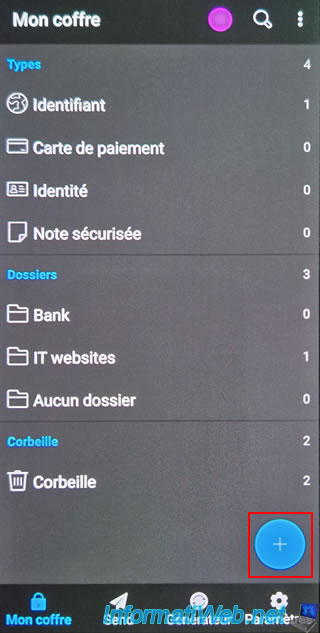
In the Bitwarden app, go to your vault and click on the "+" icon.
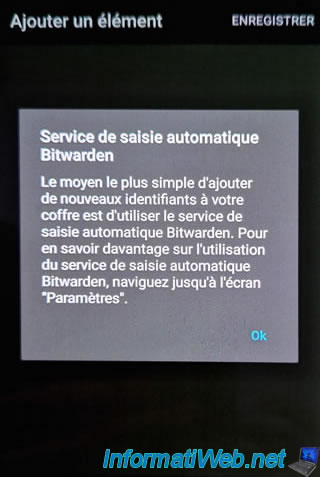
The first time you click on it, a message will appear regarding the Bitwarden autofill service.
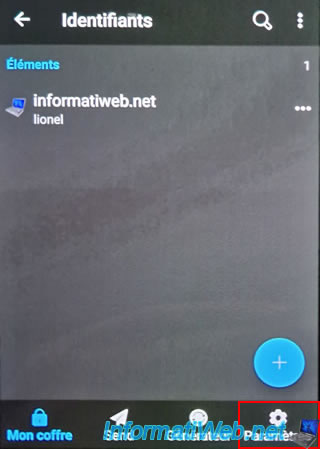
To enable it, go to the "Settings" section (bottom right) of the Bitwarden mobile app.
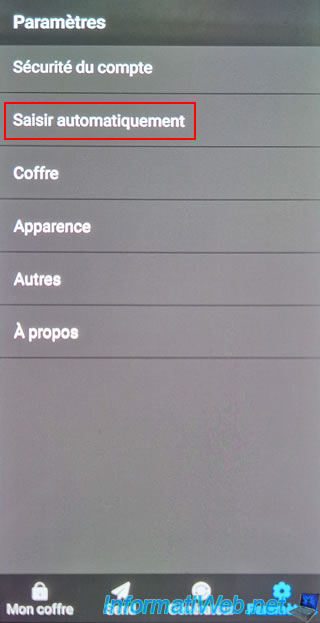
In Bitwarden settings, go to "Autofill".
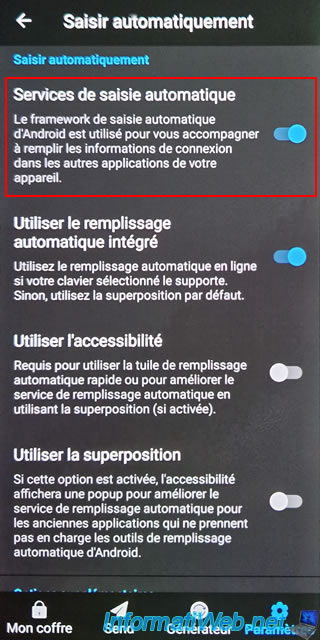
Next, try enabling the "Autofill services" setting.
Note: as stated in the description of this setting, Android's autofill framework will be used.
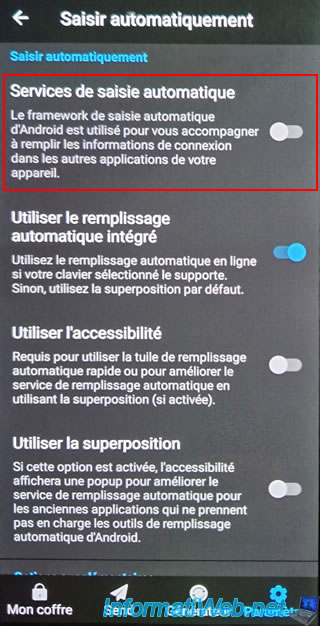
The Bitwarden app will redirect you to the Android "Autofill Service" setting.
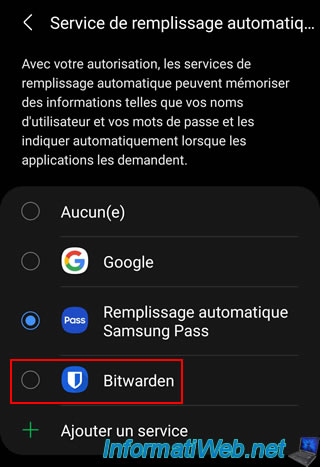
On Samsung Android smartphones, the default selected app is probably "Samsung Pass Autofill".
Select the "Bitwarden" app.
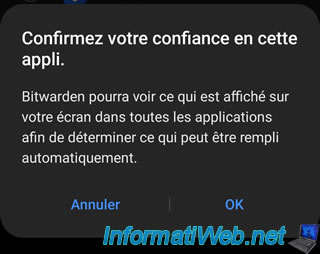
Confirm your trust in this app by clicking OK.
Now, the app used for autofill (from the virtual keyboard) is "Bitwarden".
Press the "Back" key on your smartphone or use the "<" icon located at the top left.
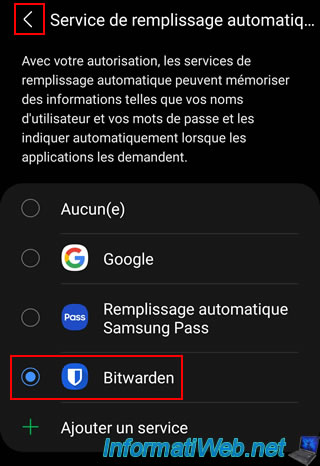
Now, the "Autofill Services" setting of the Bitwarden app is enabled.
6.3.2. Enable floating notifications
If autofill via Bitwarden does not work or does not appear in your case when you visit a website for which you have a corresponding item in your Bitwarden vault, it may be necessary to enable floating notifications on Android.
To do this, search for the "Floating notifications" setting via the search engine of the "Settings" app on Android or go to the "Settings" app and click on "Notifications".
Source : Troubleshooting Android Auto-fill | Bitwarden Help Center.
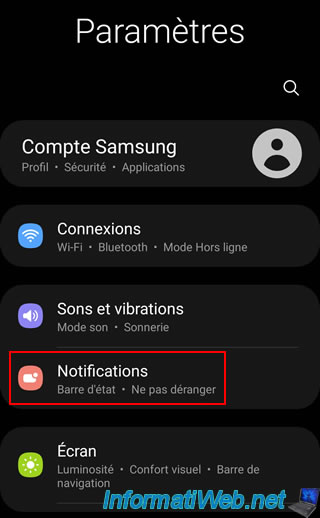
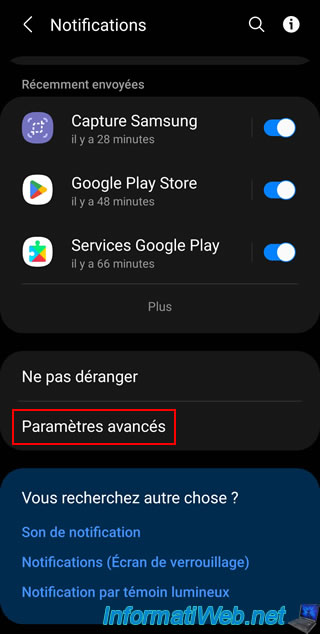
Click on: Advanced settings.
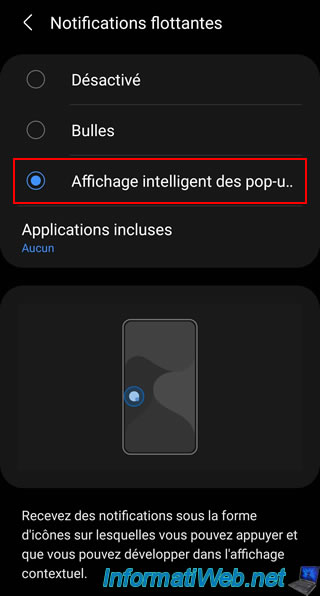
Click on "Floating Notifications".
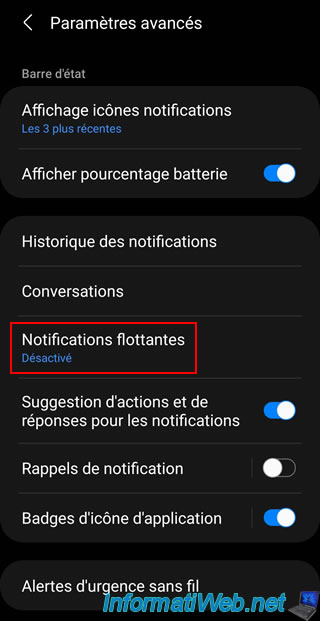
Enable floating notifications.
In our case, we have selected the "Smart display of pop-ups" option.
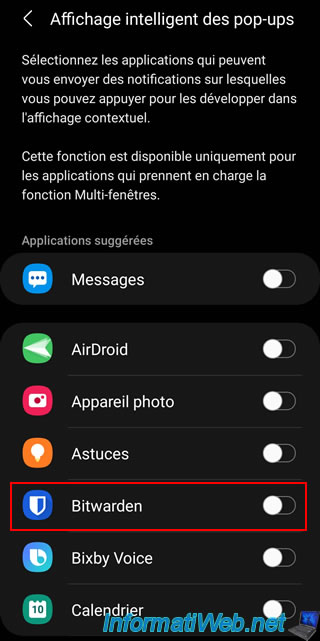
In the "Smart Pop-up Display" section, you will see a list of apps appear, including "Bitwarden".
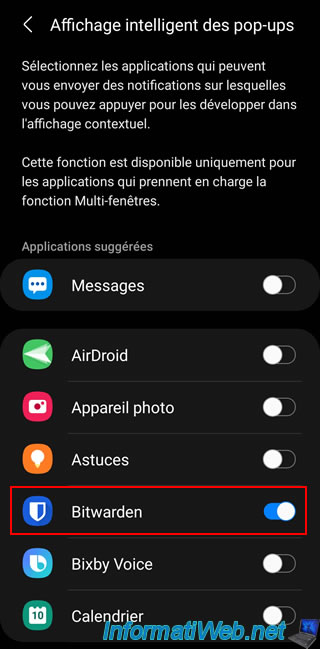
Enable the slider for this Bitwarden app.
Now, floating notifications are enabled for the "Bitwarden" app.
6.3.3. Use autofill in the web browser on your smartphone (Android)
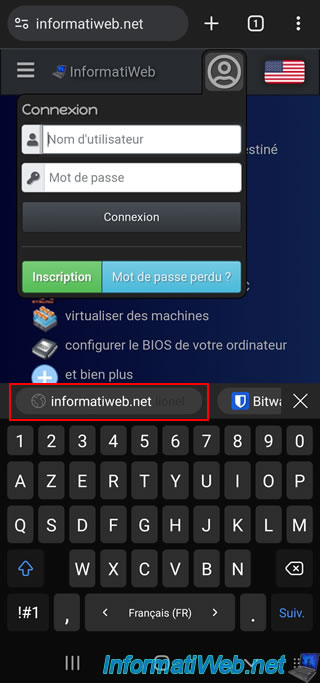
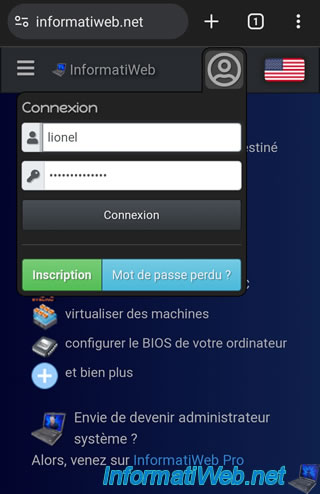
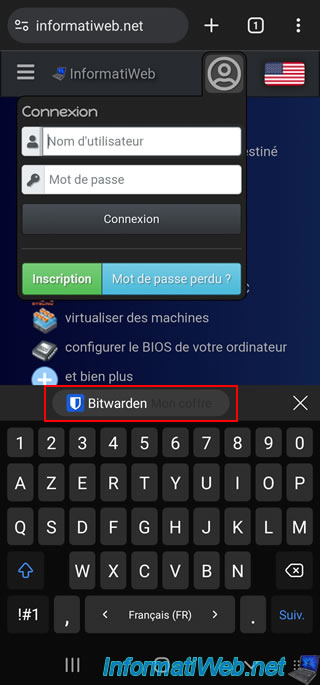
Go to the login page of the desired site and click in the "Username" box.
If your virtual keyboard supports it, you will see the corresponding element ([domain name] [username]) appear at the top of the virtual keyboard.
Click on this option to fill out the login form with the credentials found in this element.
As expected, the credentials are automatically written in the login form.
If no items exist in your Bitwarden vault, you will only see the option "Bitwarden [your vault name]" appear.
Note: if your Bitwarden vault is locked, the option will be named "Bitwarden Vault is locked".
In this case, click on this option to access the Bitwarden app and enter your master password.
Then, press the "Back" key on your smartphone to return to your web browser and click again in the "Username" box of the login form of the visited site.
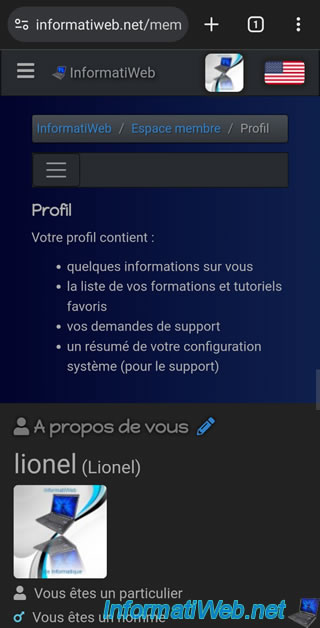
If the credentials are correct, you will be connected to the desired site.
Share this tutorial
To see also
-

Security 3/6/2016
Malwarebytes Anti-Exploit - Protection against zero-day
-

Security 2/29/2016
Malwarebytes Anti-Malware - The best anti-malware
-
Security 3/12/2016
Protect yourself against viruses, hackers, ...
-

Security 5/22/2014
TrueCrypt - Encrypt your data securely
No comment