Store your passwords securely with Bitwarden (online or self-hosted)
- Security
- 06 July 2026 at 08:14 UTC
-

- 8/10
6. Using Bitwarden on your smartphone (Android)
Nowadays, everyone (or almost) has a smartphone and surfs the Internet with it.
So Bitwarden has thought of you and created a mobile application for Android smartphones, as well as another one for those running iOS.
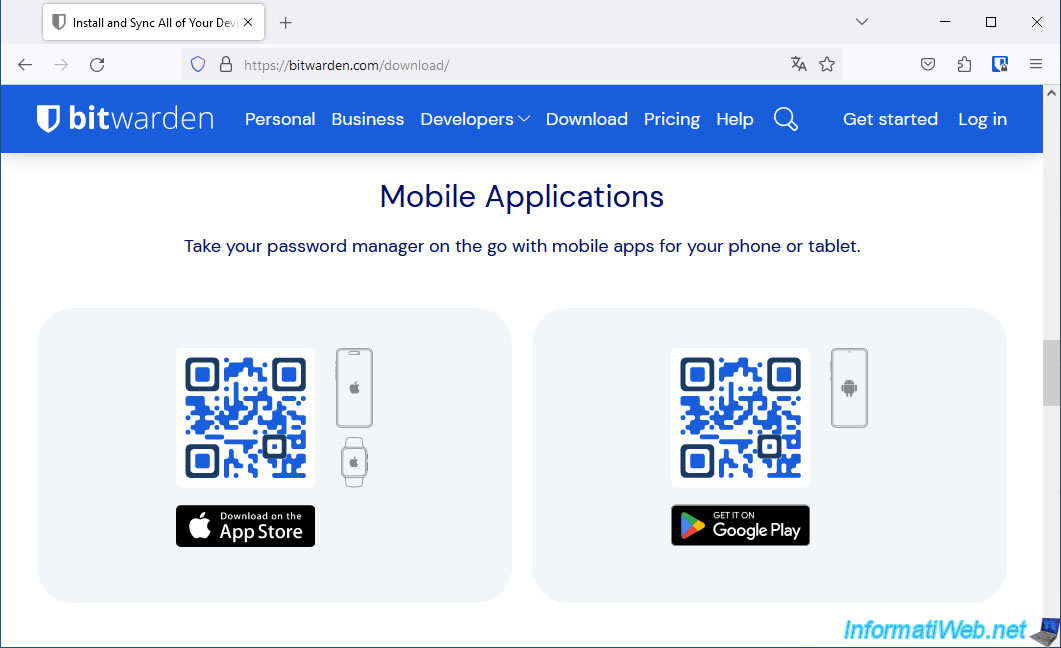
6.1. Download and install Bitwarden app on Android
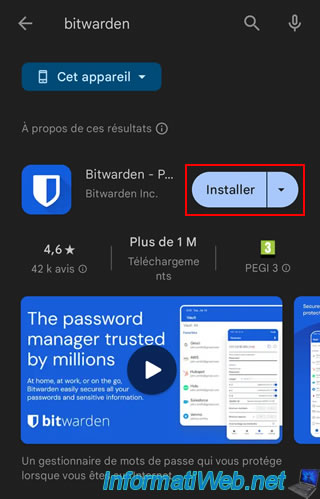
Search for "Bitwarden" in the Play Store, then click "Install".
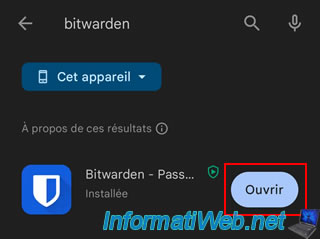
Once installed, click "Open".
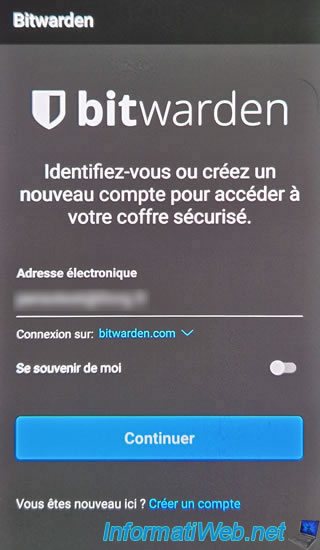
Log in to your Bitwarden account.
Note: as usual, you have the choice between Bitwarden's servers or your own by selecting "self-hosted" (in blue).
Enter your Bitwarden account password.
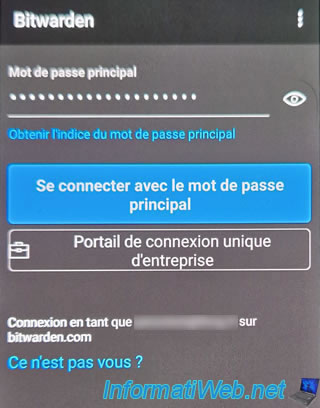
As expected, you have access to your Bitwarden vault.
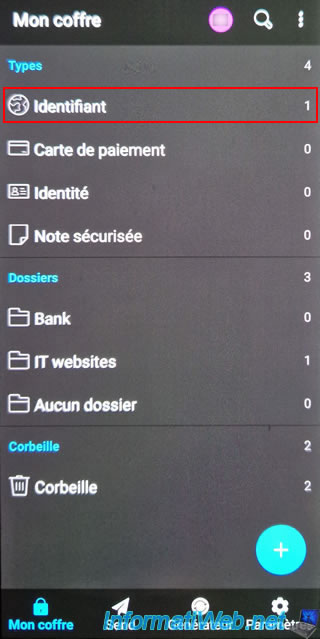
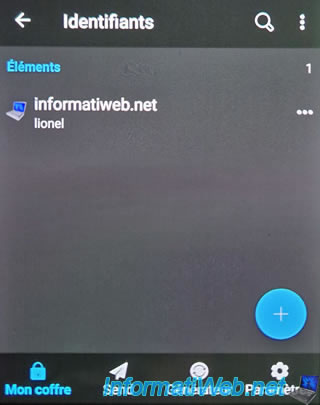
You also have access to the credentials you may have already created in your Bitwarden account.
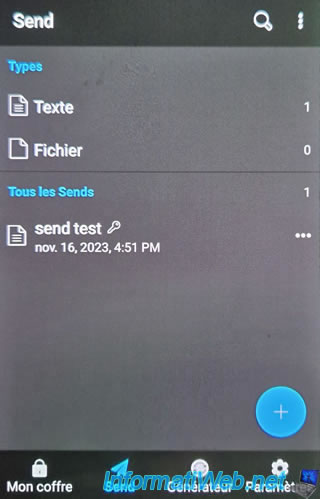
As on the site and in the Windows application, you can create "Send" to send encrypted data to other people.
To do this, go to the "Send" tab available at the bottom of the screen.
At the bottom of the screen, you'll also find a shortcut to Bitwarden's password generator where you can set the length, as well as choose the types of characters to use:
- uppercase letters
- lowercase letters
- numbers
- special characters
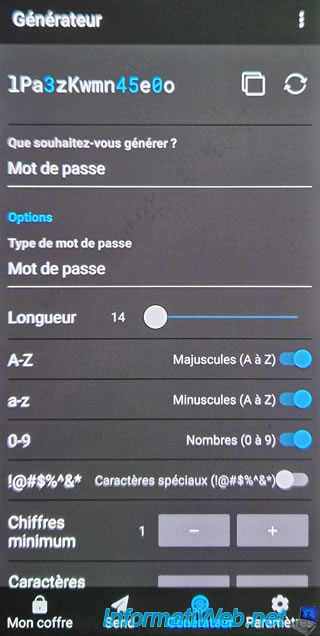
6.2. Manually copy account credentials from the Bitwarden mobile app
To use Bitwarden on your smartphone, the easiest way is to open the item corresponding to the site you want to connect to.
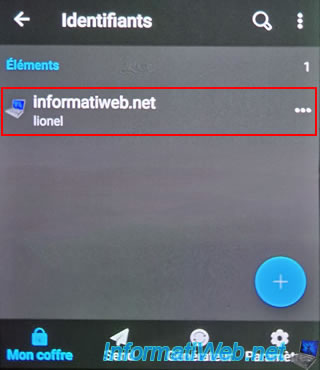
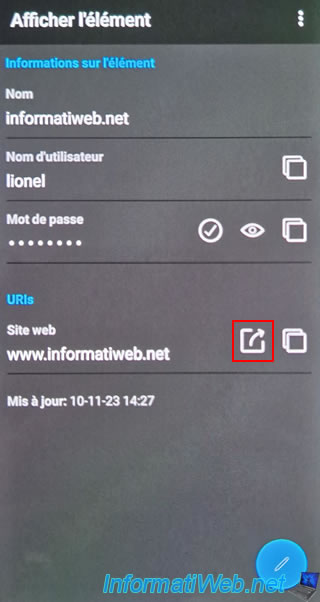
Then, click on the 1st icon to the right of the desired website address to open it in your default web browser.
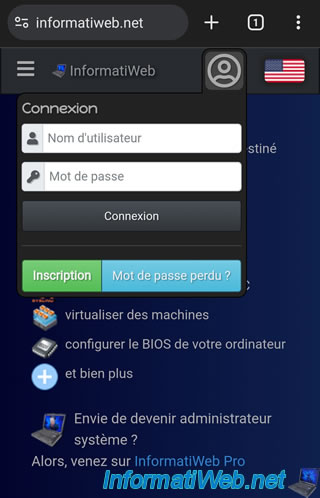
The website appears in your default web browser (defined in Android settings).
In our case, Google Chrome on Android.
In Bitwarden, click on the icon representing 2 overlapping squares located to the right of your username.
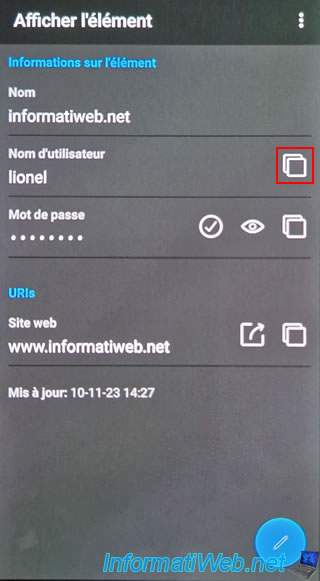
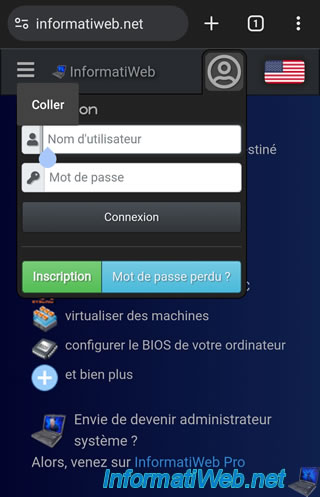
In your web browser, tap and hold the "Username" box for the site you are trying to connect to and tap "Paste".
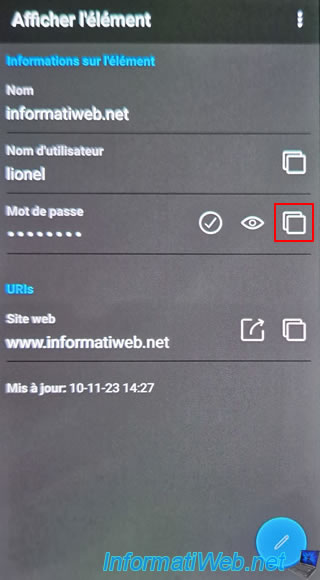
Click on the same icon located to the right of your password (hidden on the screen).
Paste this into the "Password" box of the desired site.
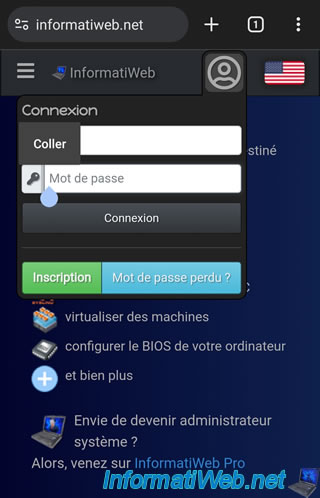
There you go, all you have to do now is click on "Connection".
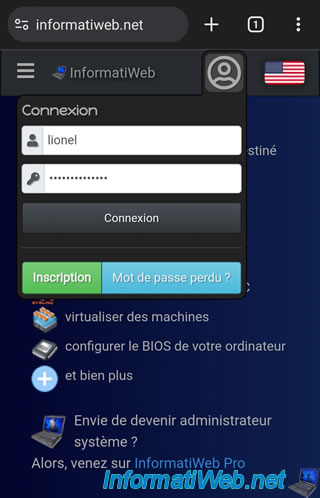
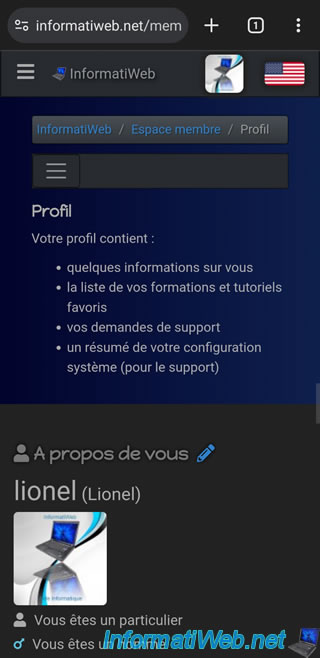
As expected, you are connected to the desired website.
As you can see, it is quite simple and does not require any configuration in the Android settings.
Share this tutorial
To see also
-

Security 12/18/2012
Delete adwares and clean your web browsers
-

Security 6/13/2014
DiskCryptor - Encrypt your USB key
-
Security 3/6/2016
Malwarebytes Anti-Exploit - Protection against zero-day
-

Security 6/5/2016
Secure your Internet connection (VPN)
No comment