Store your passwords securely with Bitwarden (online or self-hosted)
- Security
- 06 July 2026 at 08:14 UTC
-

- 7/10
5.3. Download, install and use the Bitwarden extension for the Opera web browser
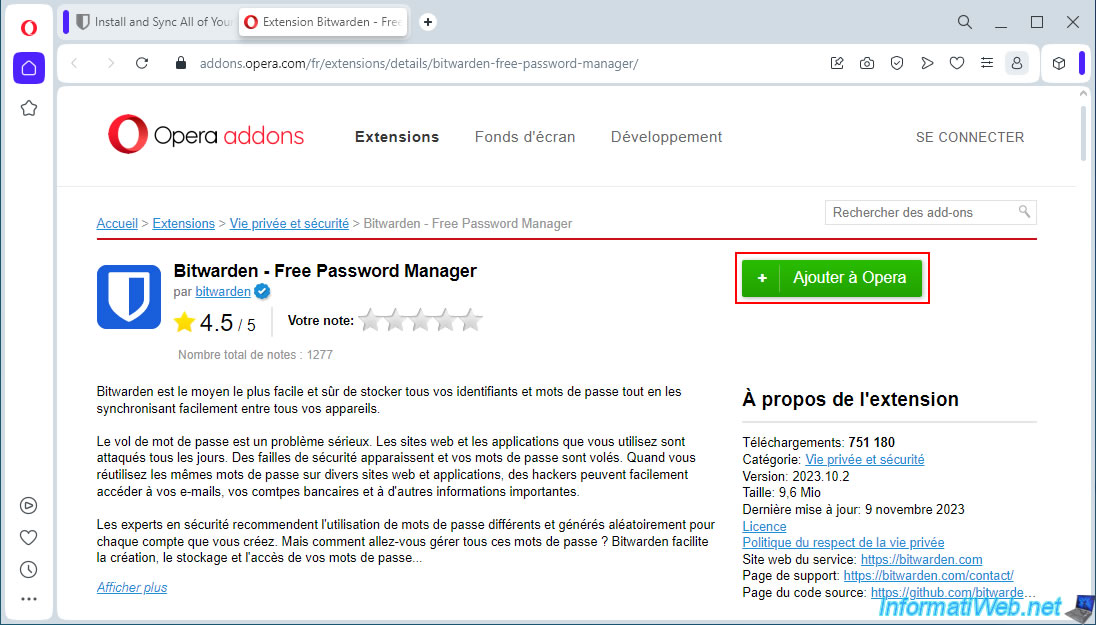
To install the Bitwarden extension on the Opera web browser, go to the "Extension Bitwarden - Free Password Manager - Add-ons Opera" page and click the "Add to Opera" button.
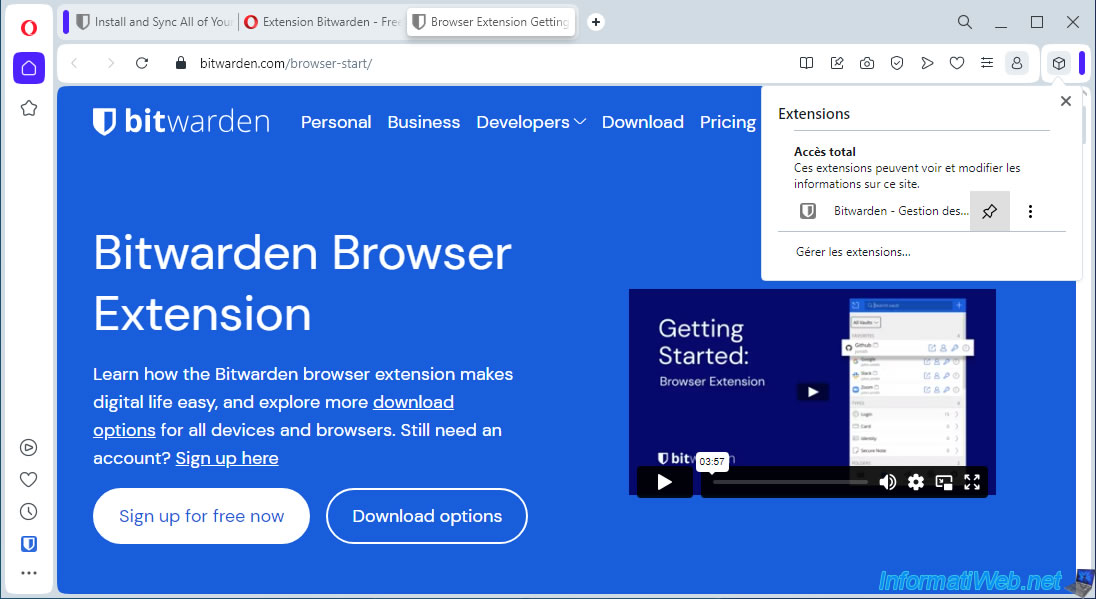
As with other web browsers, to access an extension, you will first need to click on the cube icon.
If you want to access the Bitwarden extension directly from the Opera toolbar, click on the small pin located to the right of this extension.
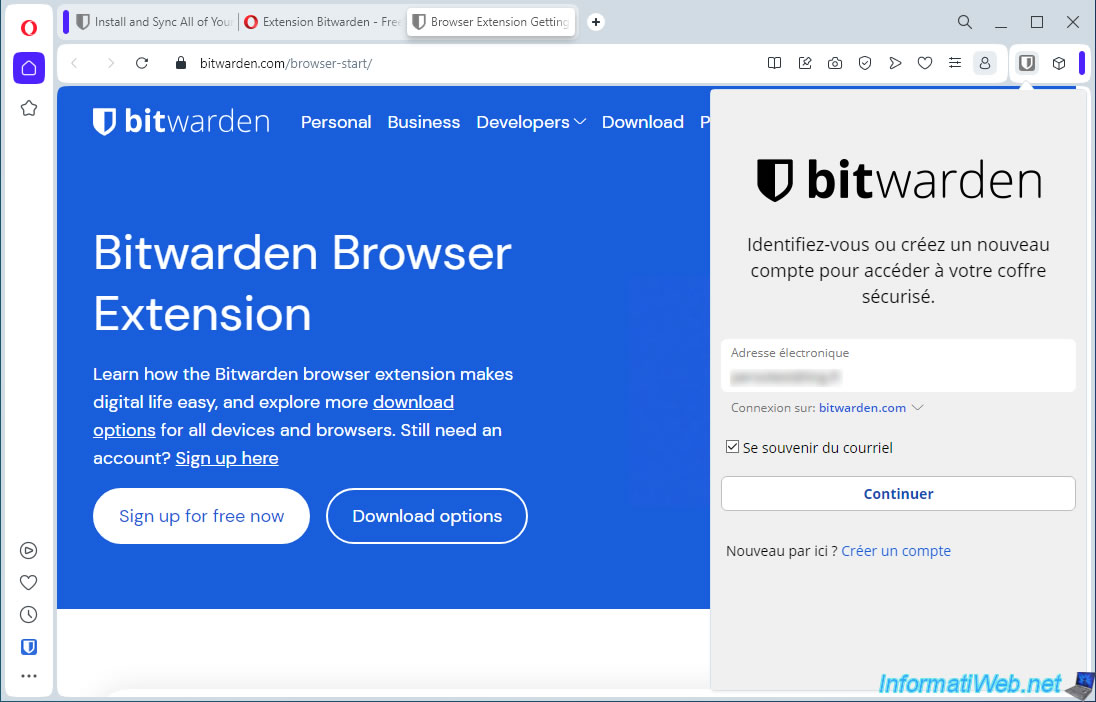
Open the Bitwarden extension and log in to your Bitwarden account.
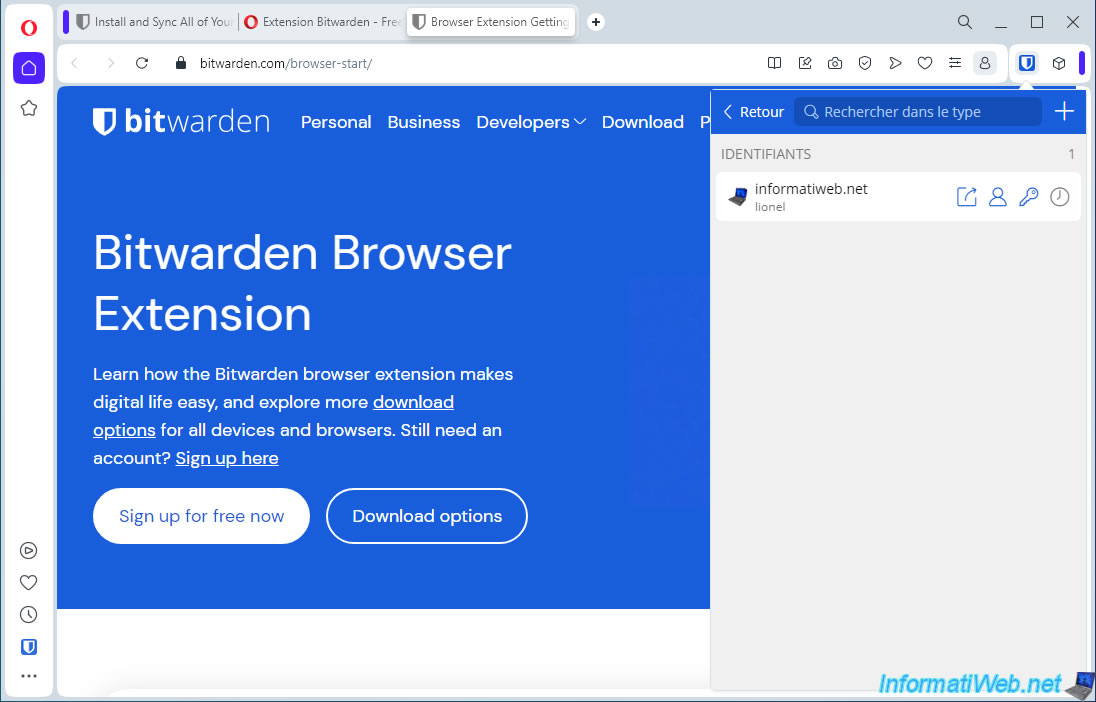
As expected, your Bitwarden vault appears.
Click on an item name from the Bitwarden extension or use the keyboard shortcut "Ctrl+Shift+L" to fill in the fields of the login form of the visited website.
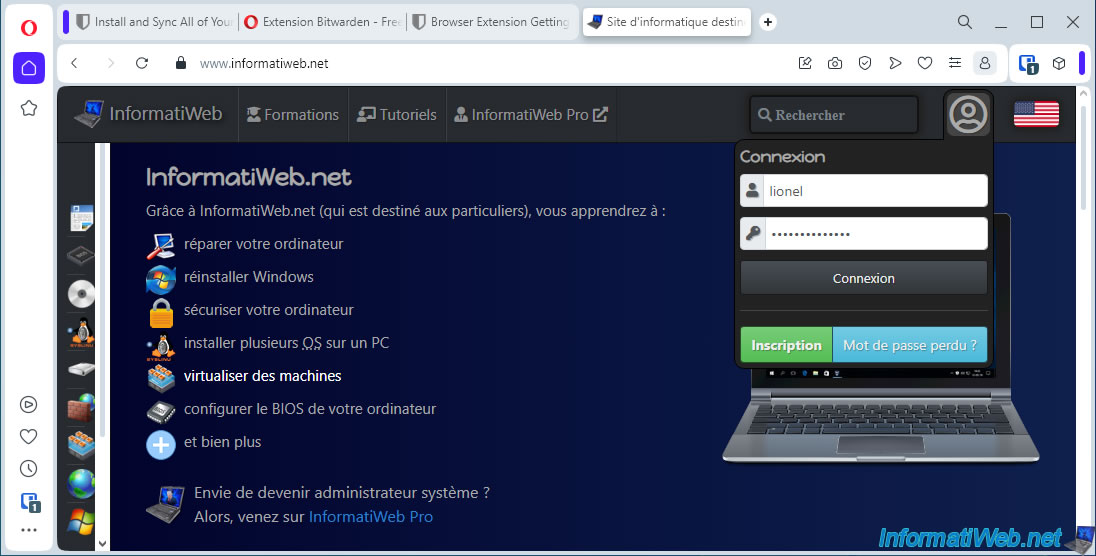
As expected, you are connected to the desired website.
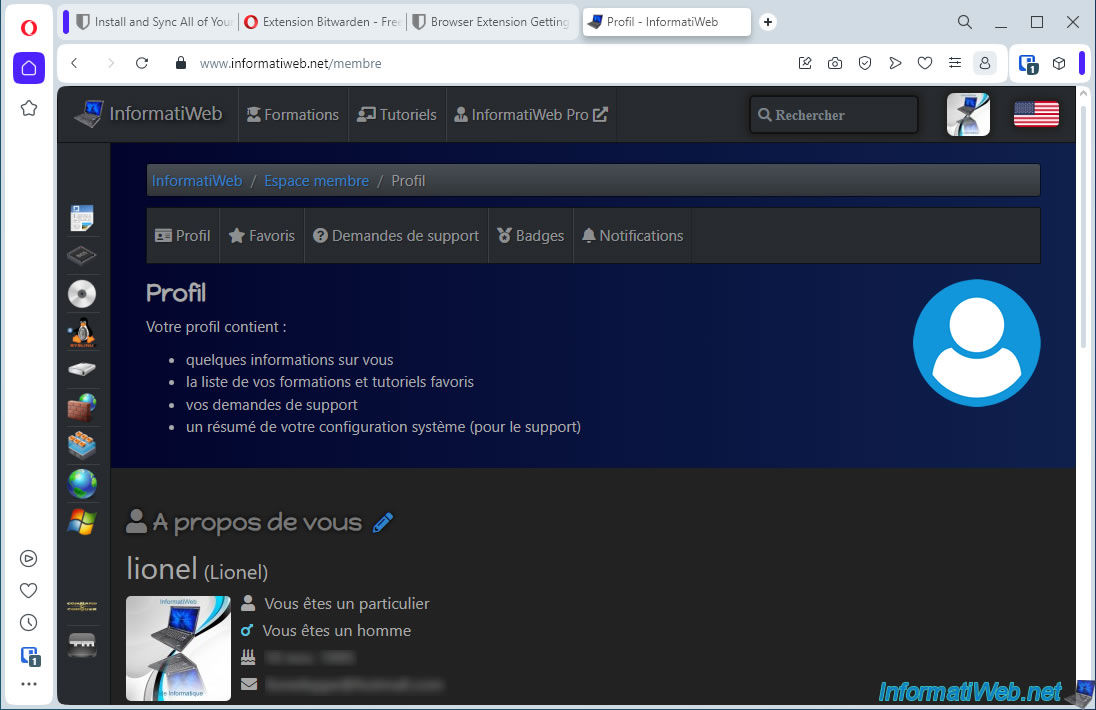
5.4. Download, install and use the Bitwarden extension for the Microsoft Edge web browser
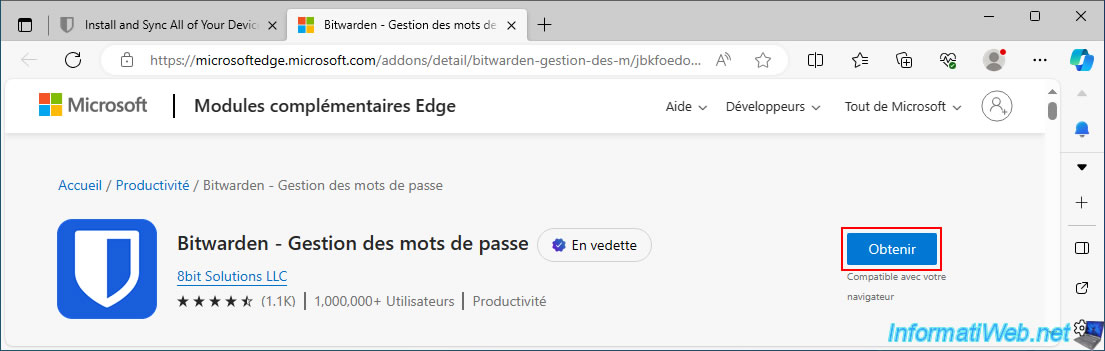
For Microsoft Edge web browser (which replaces Internet Explorer), go to the "Bitwarden - Password Manager - Microsoft Edge Addons" page and click the "Get" button.
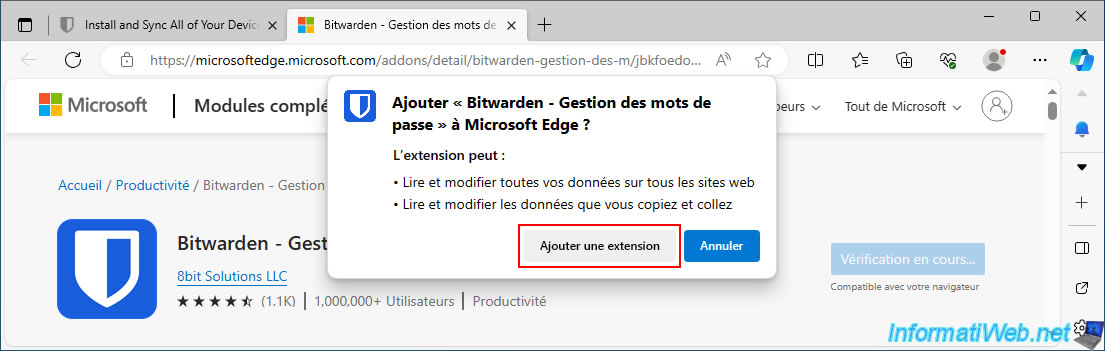
Click on: Add extension.
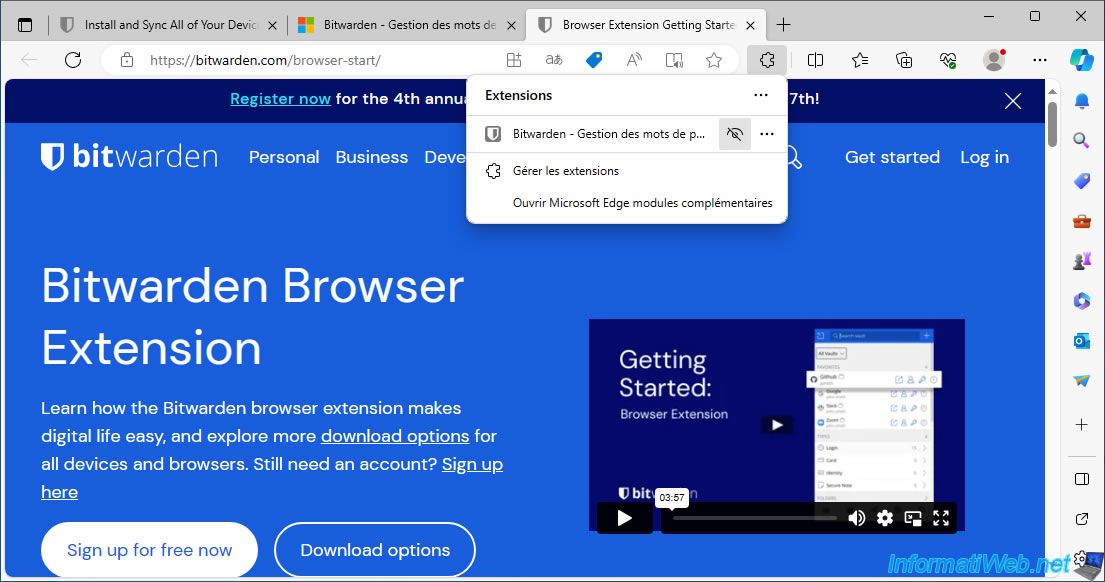
Click the puzzle piece icon, then click the crossed-out eye icon to display the Bitwarden extension icon in the Microsoft Edge toolbar.
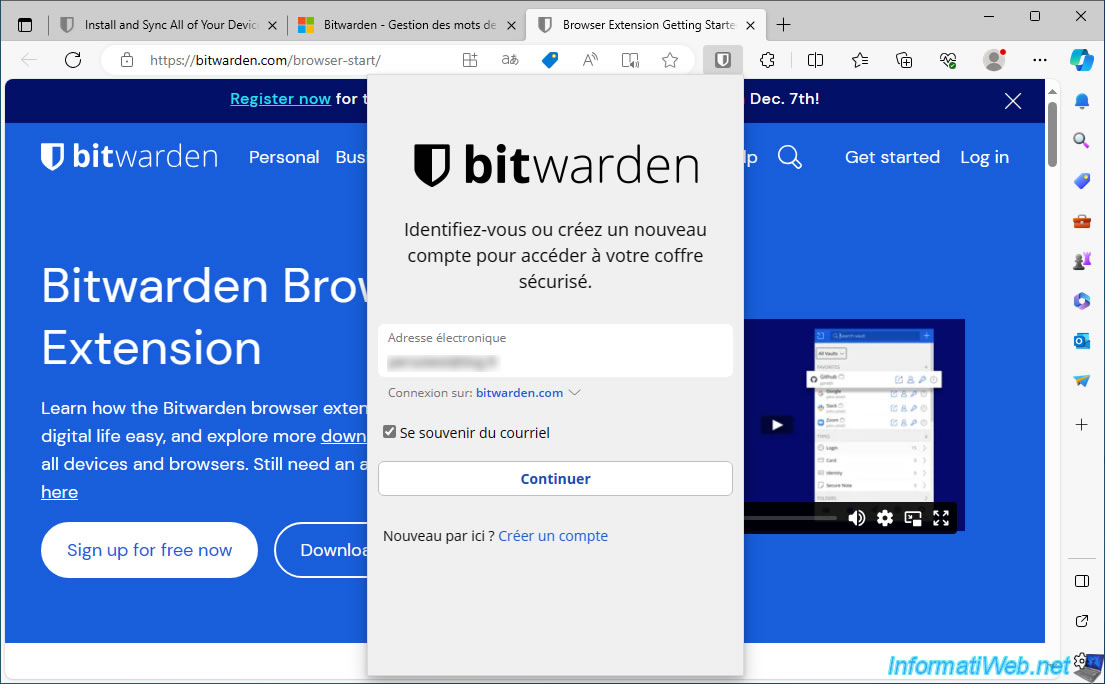
Open the Bitwarden extension and log in to your Bitwarden account.
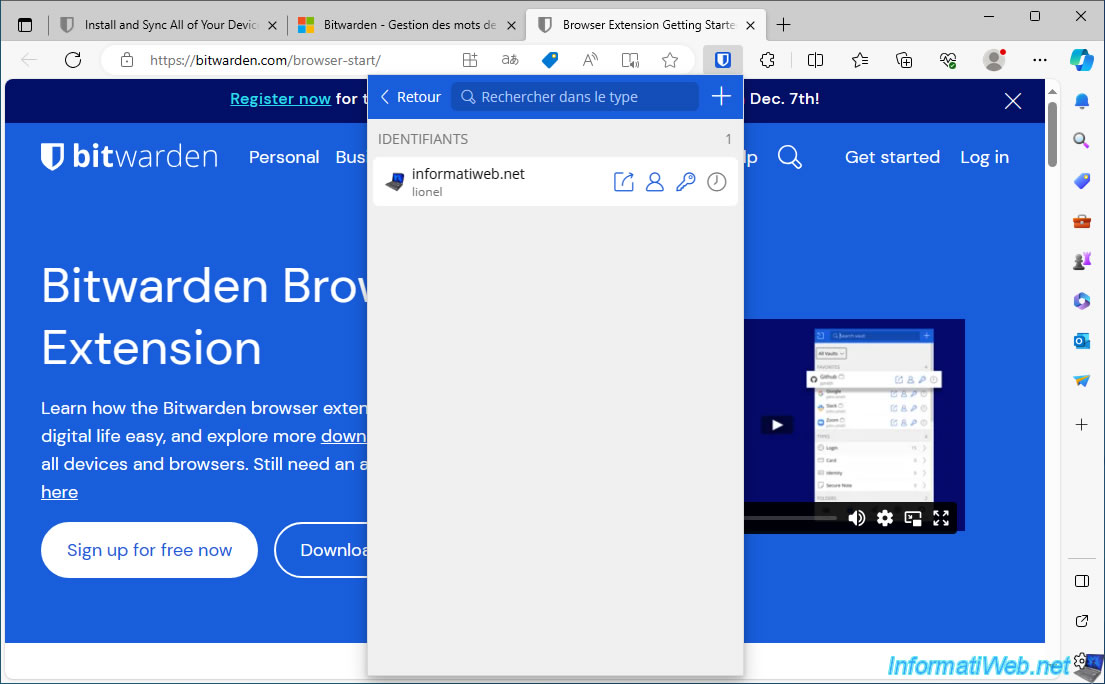
As expected, you have access to your credentials stored in your Bitwarden account.
Go to the login page of the desired website.
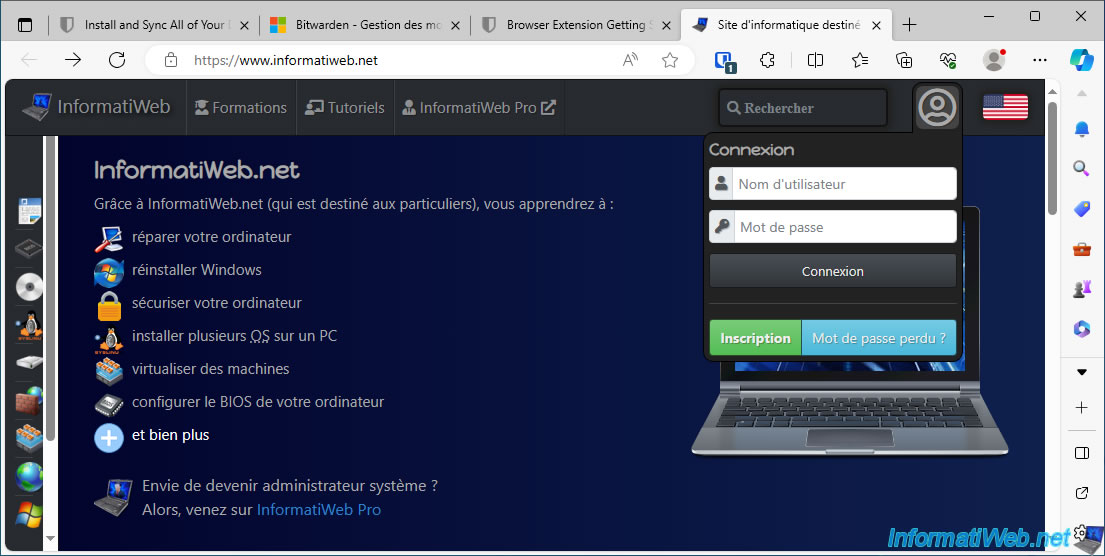
Open the Bitwarden extension and click on an item name to fill in the login form fields of the desired website
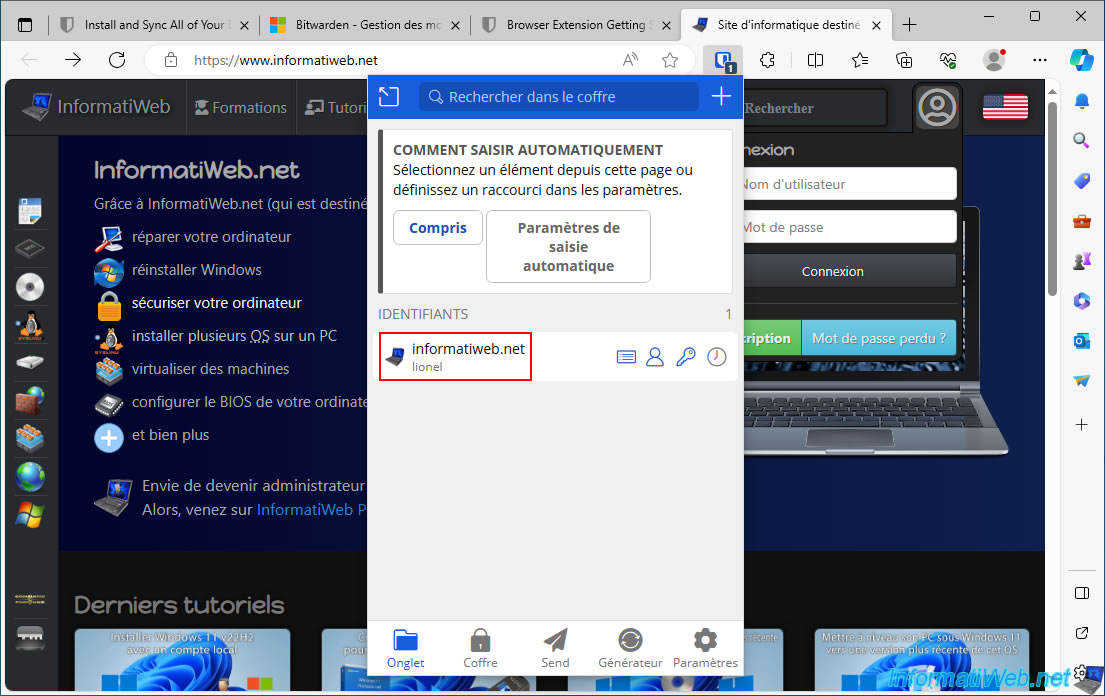
As expected, the corresponding credentials are indicated in the login form.
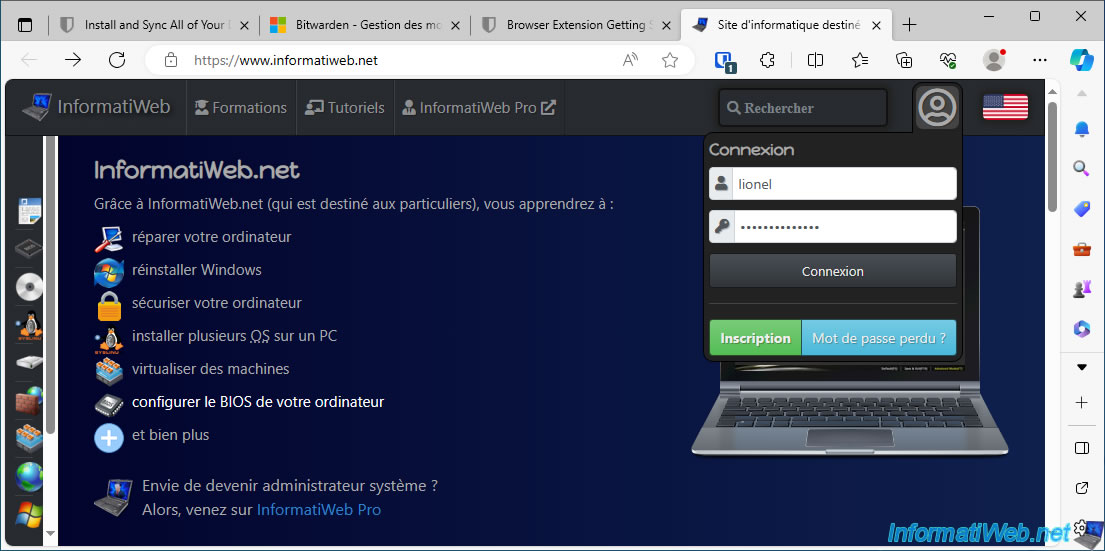
Small detail for the Bitwarden extension installed on Microsoft Edge, you may have noticed that the keyboard shortcut for autofill does not appear for this web browser.
If you want to put it back, click on the "Autofill settings" button.
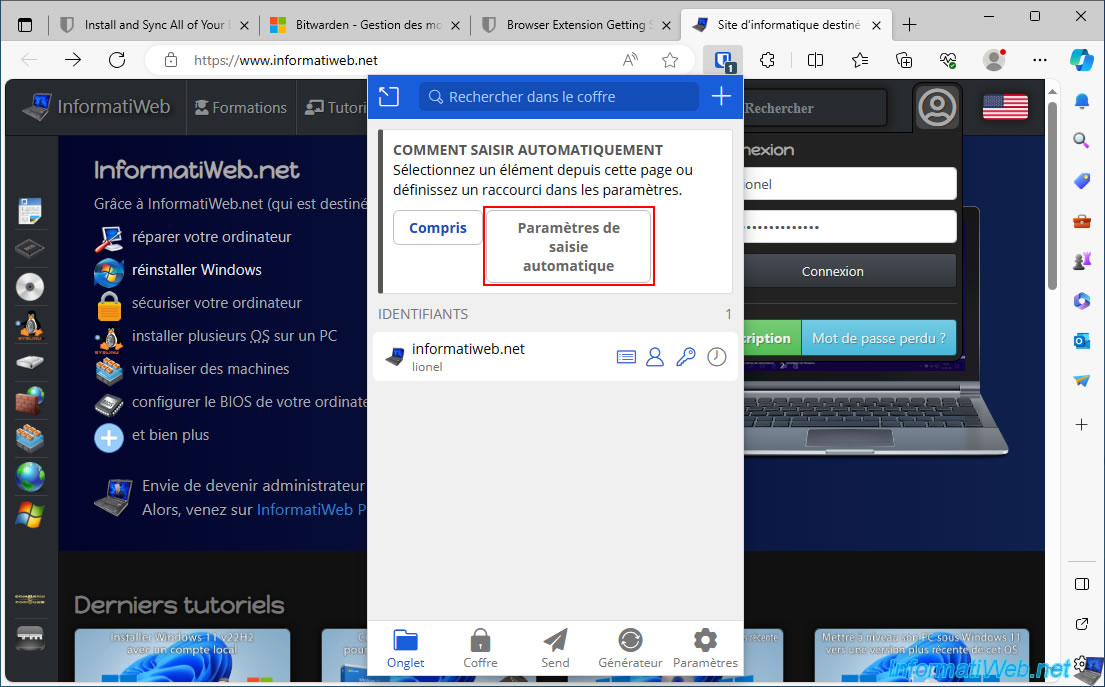
At the bottom, click on "Autofill Keyboard Shortcut".
On the "Keyboard Shortcuts" page that appears, you will notice that the shortcut "Automatically enter last used login for current website" is not set.
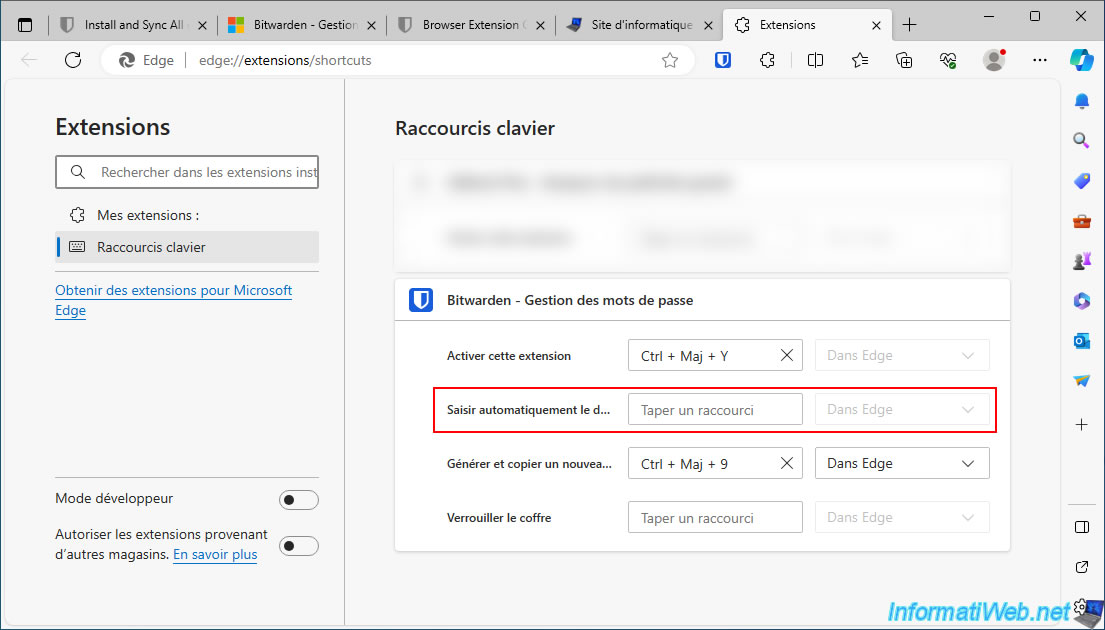
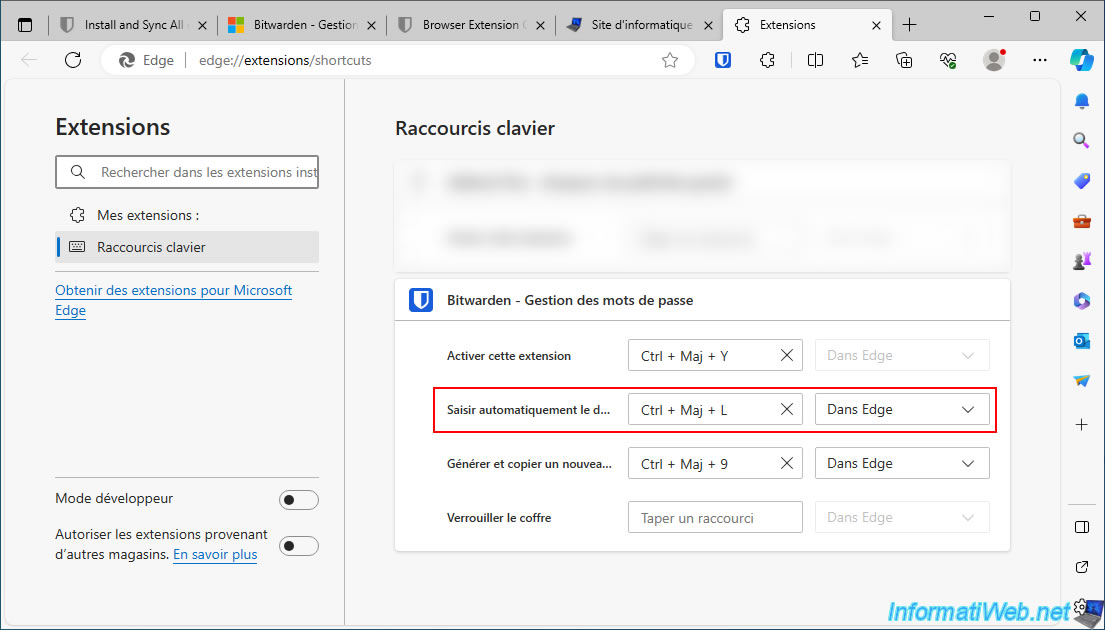
On other web browsers, the Bitwarden extension uses the keyboard shortcut "Ctrl+Shift+L".
So, click in the "Type a shortcut" box and press these 3 keys to use the same keyboard shortcut as on other web browsers where you have already installed the Bitwarden extension.
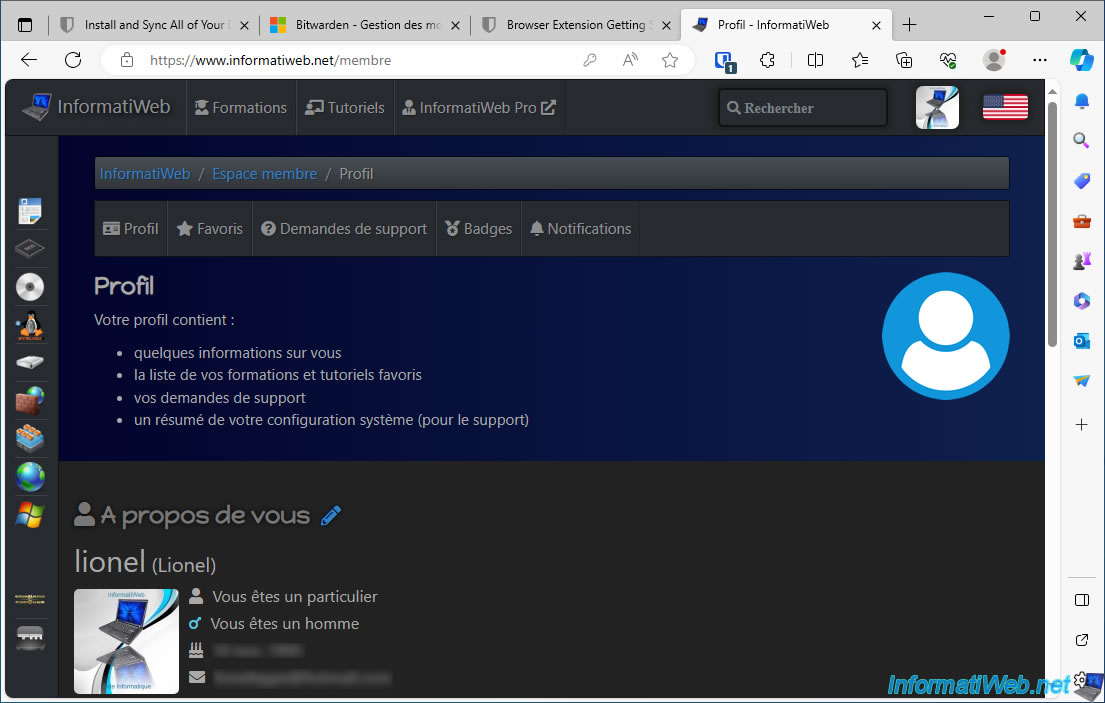
As expected, you are logged into the desired website.
Share this tutorial
To see also
-
Security 6/13/2014
DiskCryptor - Encrypt your USB key
-
Security 3/6/2016
Malwarebytes Anti-Exploit - Protection against zero-day
-
Security 2/29/2016
Malwarebytes Anti-Malware - The best anti-malware
-

Security 5/22/2014
TrueCrypt - Encrypt your data securely
No comment