Store your passwords securely with Bitwarden (online or self-hosted)
- Security
- 06 July 2026 at 08:14 UTC
-

- 6/10
5.1.3. Create an item in your Bitwarden account by logging into a website
If an item does not yet exist for a website where you already have an account, log in manually as you usually do.
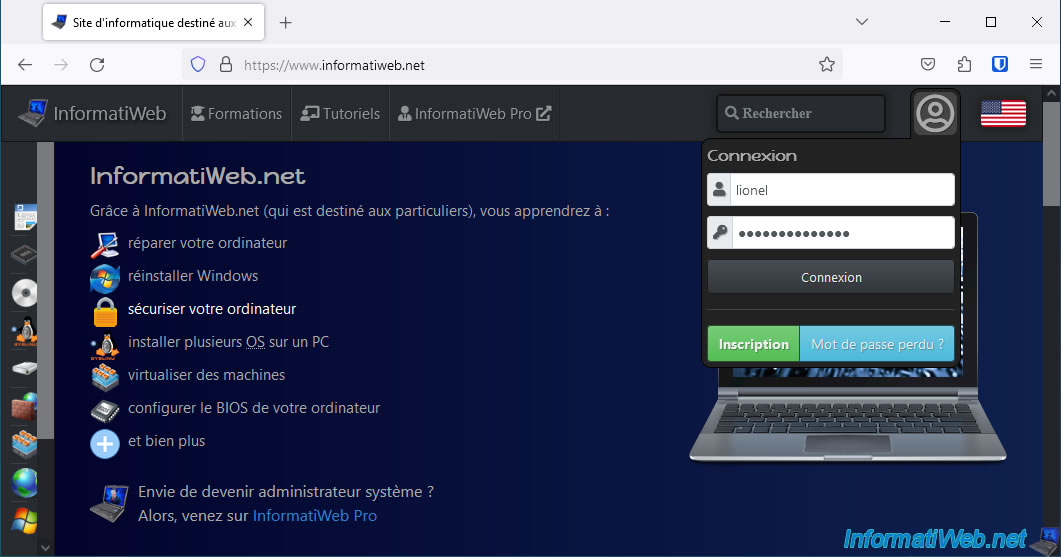
Once you are logged into the desired site, you will see that the Bitwarden extension will ask you if you want it to remember this password.
Select the folder where you want to create the new item, then click: Save.
Plain Text
Does Bitwarden need to remember this password for you?
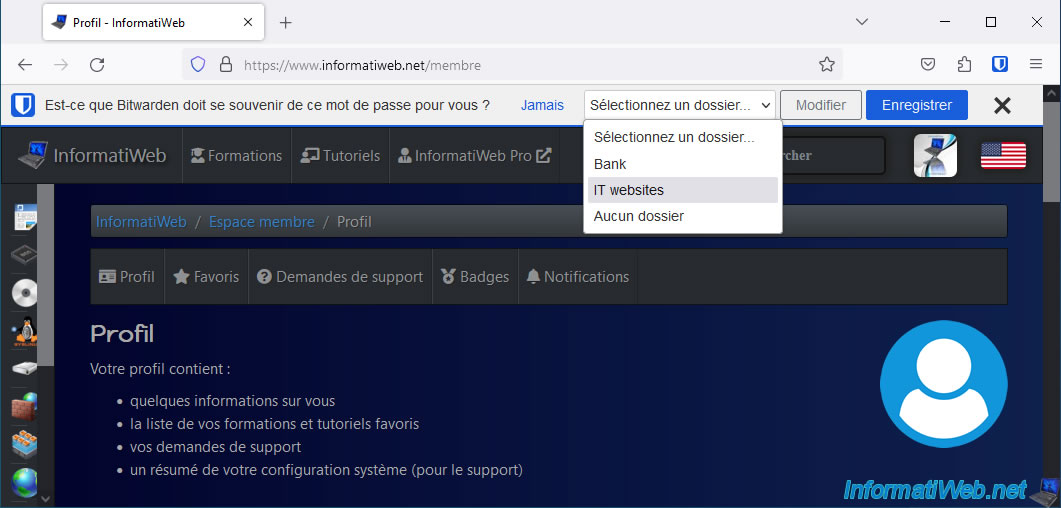
As expected, the new item appears in the "Credentials" section of your Bitwarden account.
To see the data it contains, click on the 1st icon of this item.
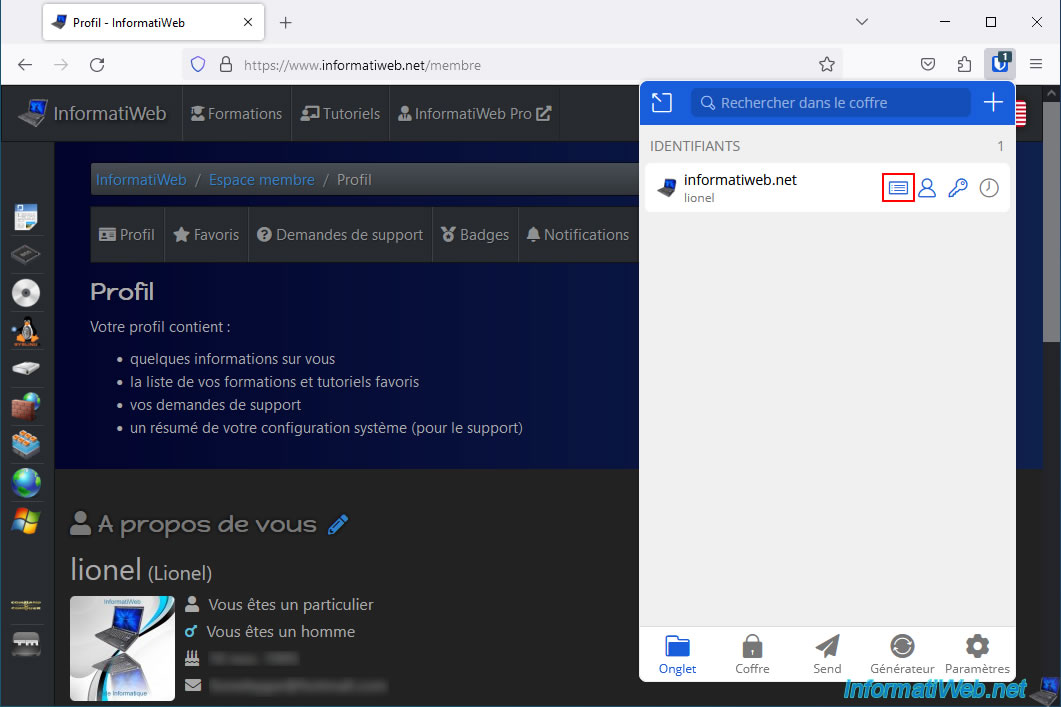
As you can see, the Bitwarden extension automatically indicated:
- the domain of the site as the name for this element.
- the username indicated in the login form of the visited site.
- the associated password.
- the address of the visited site.
- the folder selected from the bar that was displayed at the top of the page.
5.1.4. Manually copy username and password from Bitwarden vault
In case the autofill of credentials does not work on a website, here is how to manually copy the credentials (username/password) from your Bitwarden vault via the Mozilla Firefox extension.
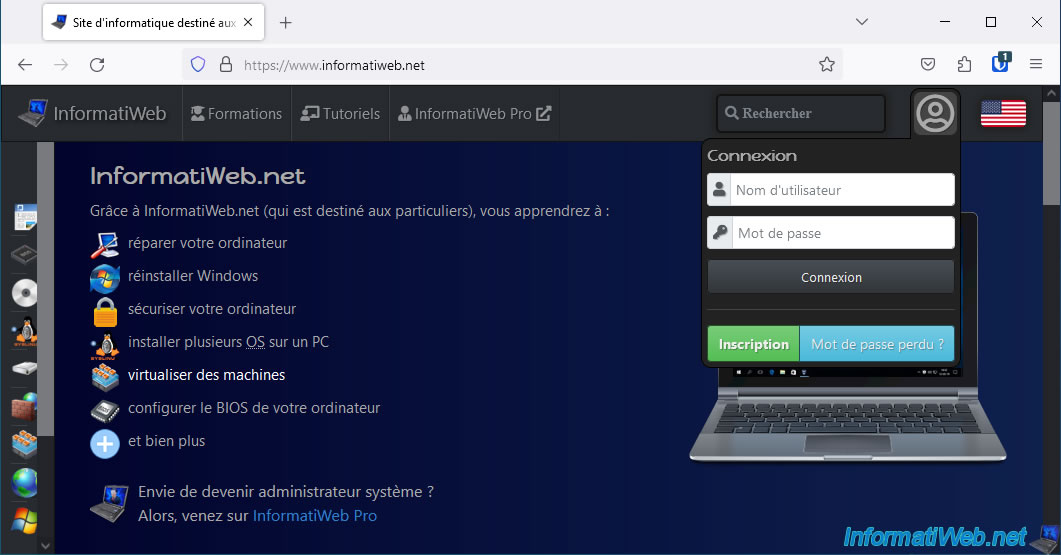
To start, go to the login page of the desired website.
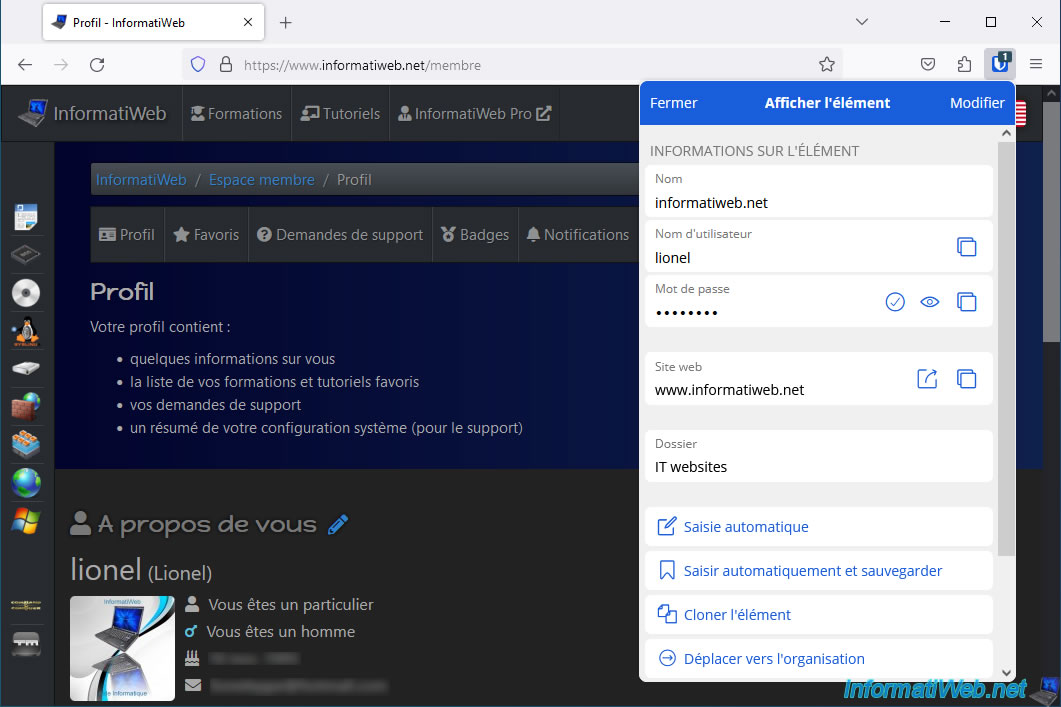
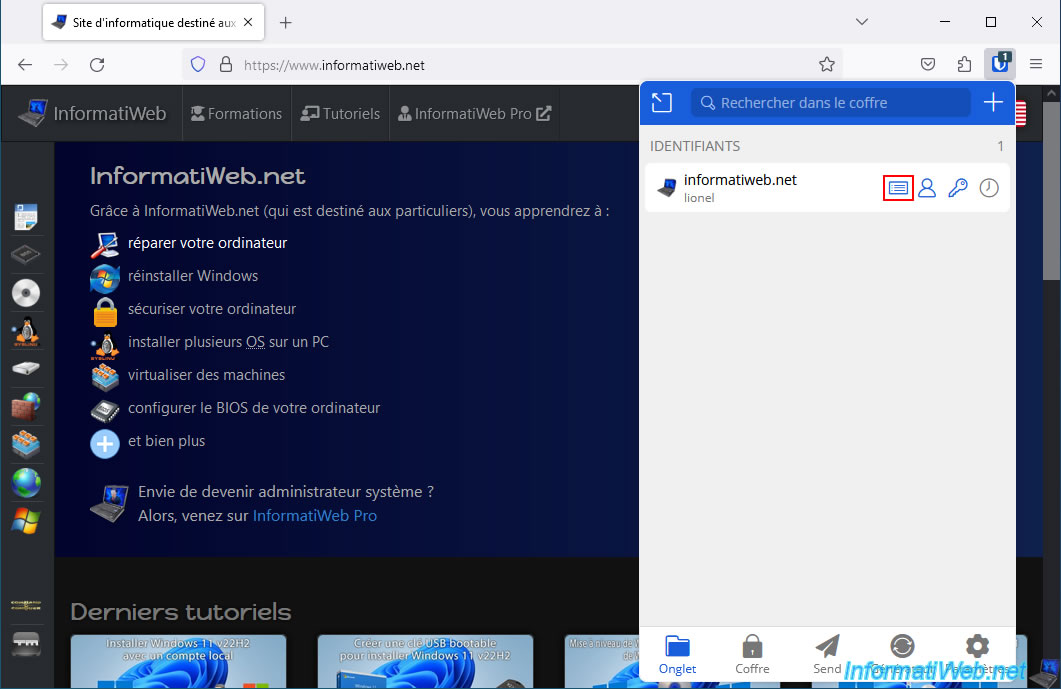
Open the Bitwarden extension and click on the 1st icon (framed in red in the image below) located to the right of the corresponding item.
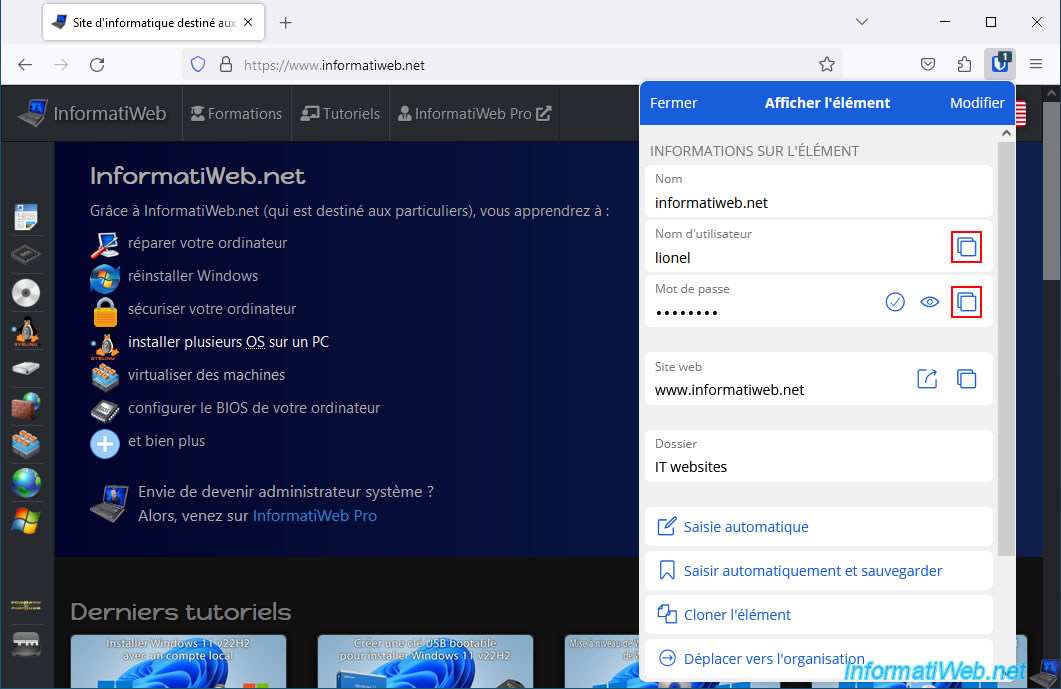
To copy the username and password, use the icon with the 2 overlapping squares located to the right of each identifier.
Then, right-click "Paste" in each box ("Username", then "Password").
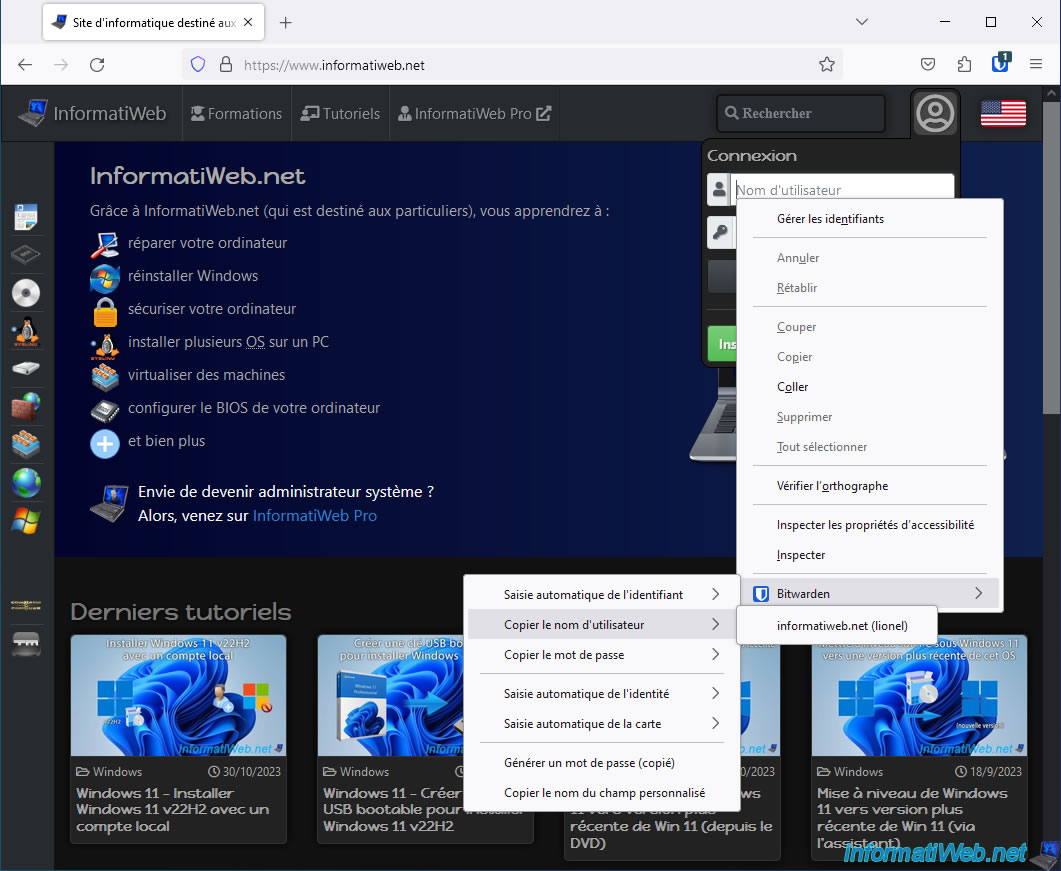
You can also right click in the "Username" box, then go to the menu: Bitwarden -> Copy Username -> [domain name] ([username]).
Then, right click "Paste" in this "Username" box.
Now, right click in the "Password" box and go to the menu: Bitwarden -> Copy Password -> [domain name] ([username]).
Then, right click "Paste" in this "Password" box.
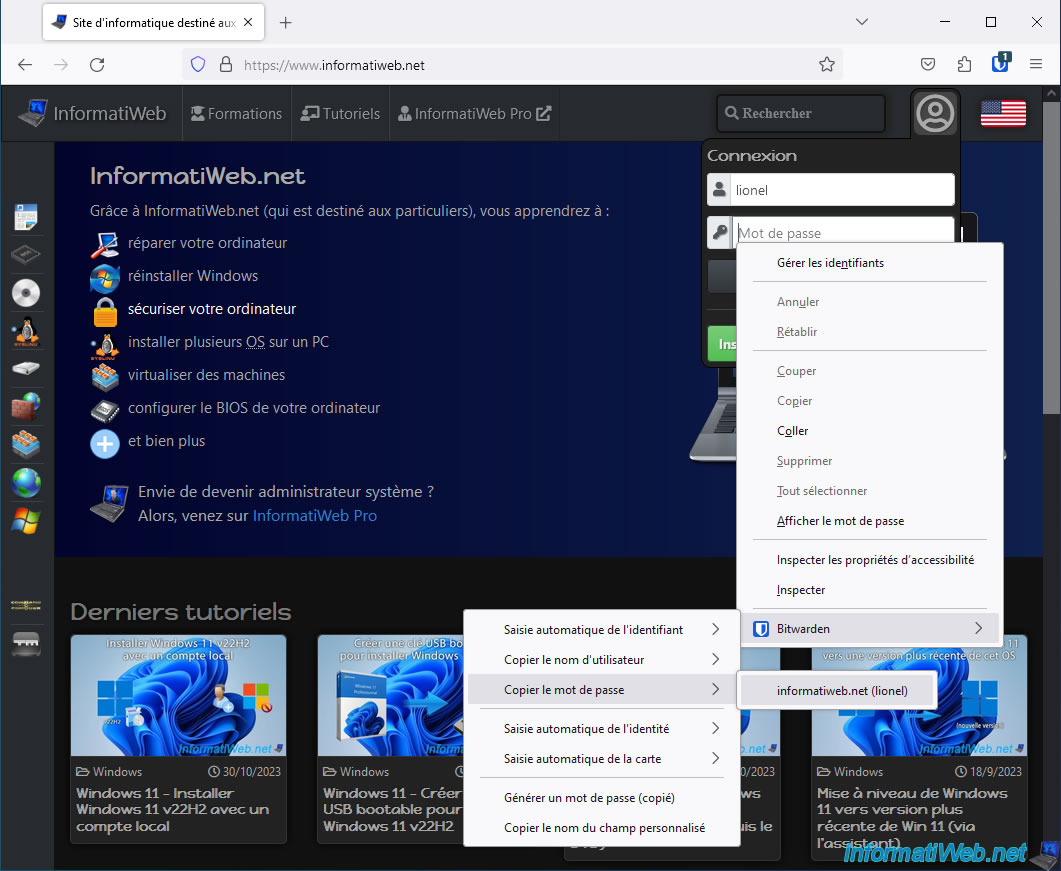
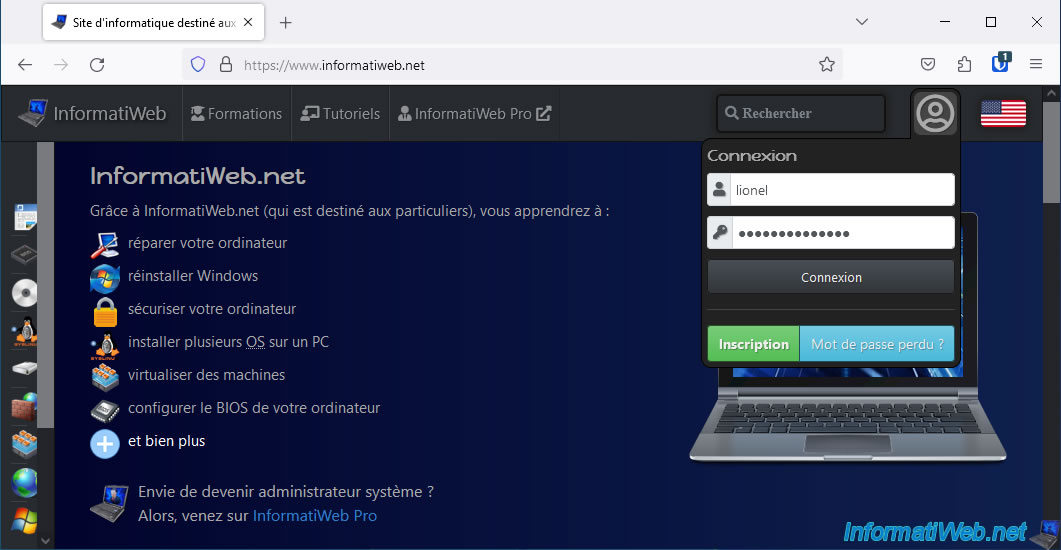
All you have to do is click on the "Connection" button.
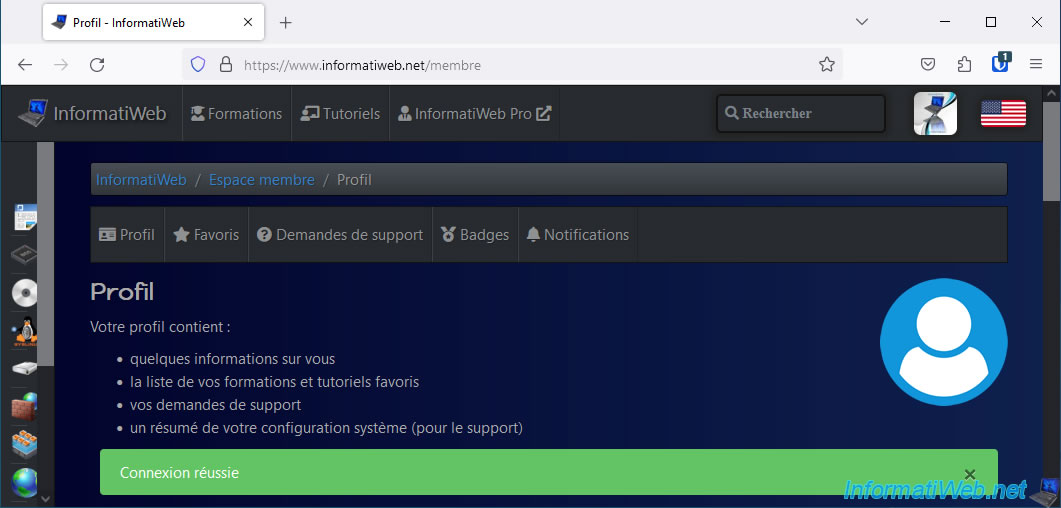
As expected, you are logged into the desired website.
5.2. Download, install and use the Bitwarden extension for the Google Chrome web browser
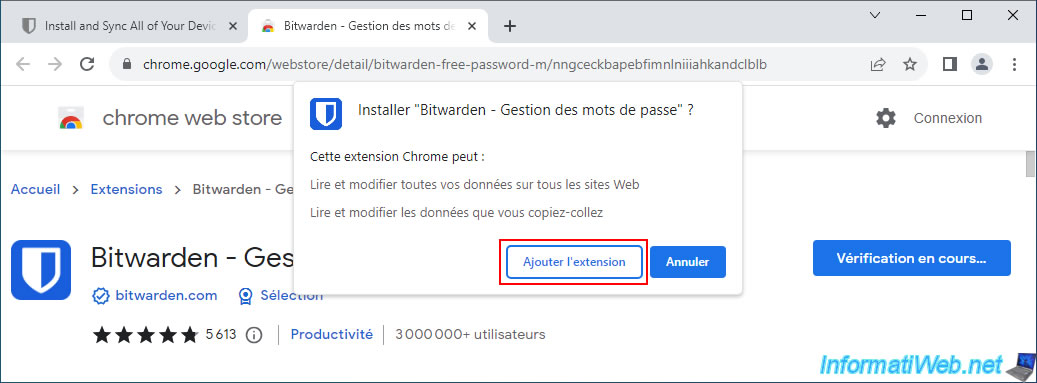
If you are using the Google Chrome web browser, go to the "Bitwarden - Password Manager - Chrome Web Store" page and click "Add to Chrome".
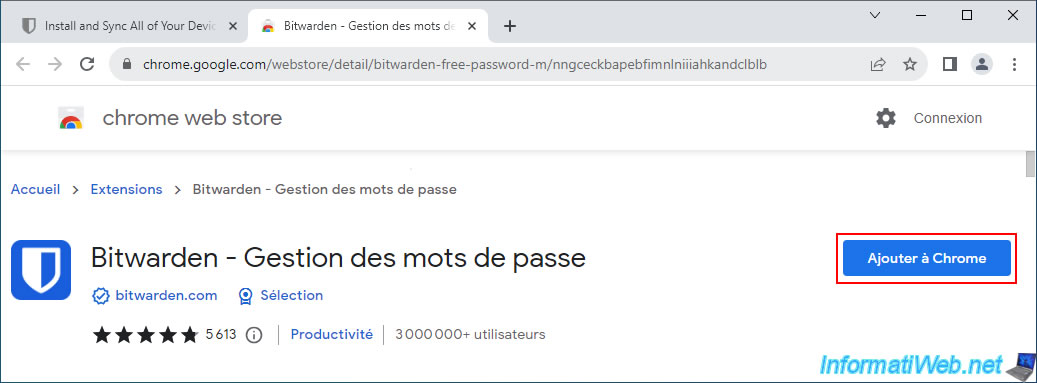
Click on: Add extension.
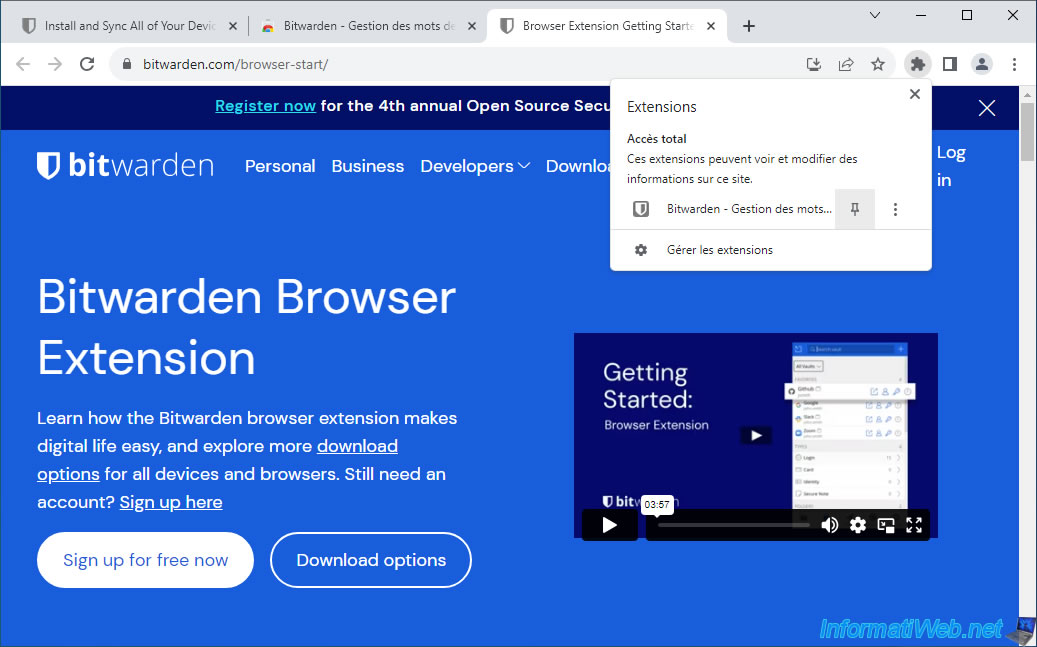
By default, extensions don't appear in the Google Chrome toolbar.
To access them, you will need to click on the puzzle piece icon.
To permanently display it in the Google Chrome toolbar, click on the pin located to the right of this extension.
Open the Bitwarden extension, enter your Bitwarden credentials and you will have access to your Bitwarden vault.
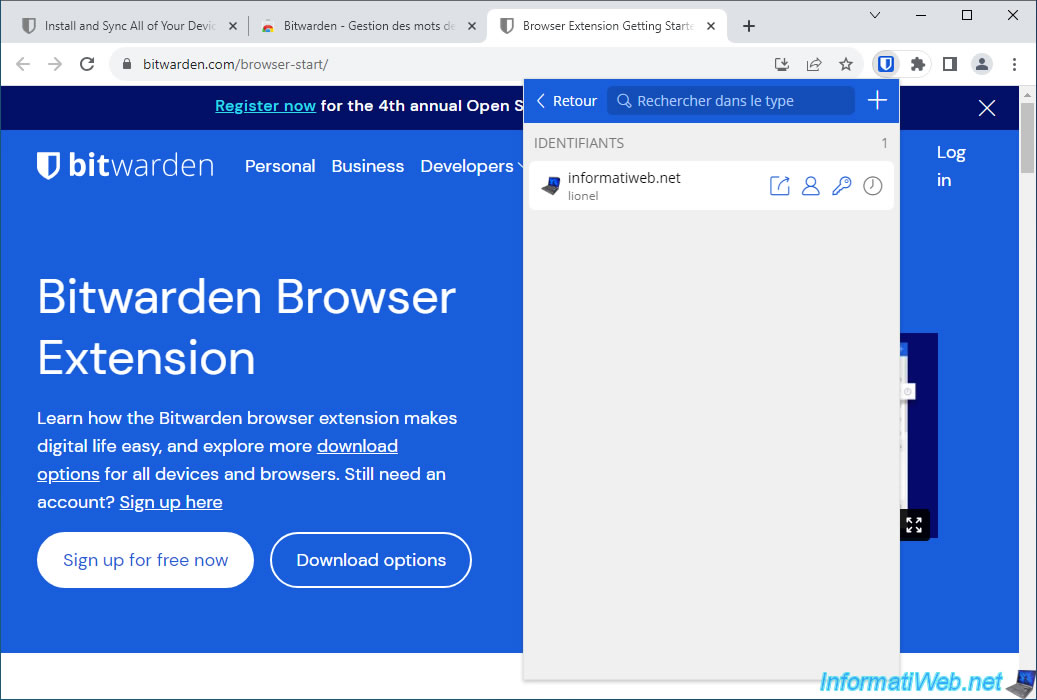
If an item already exists in your Bitwarden vault, click on the name of the corresponding item in the Bitwarden extension or use the keyboard shortcut "Ctrl+Shift+L".
The operation of this Bitwarden extension is identical to that of Mozilla Firefox.
So, to learn more, refer to step "5.1. Download, install and use the Bitwarden extension for the Mozilla Firefox web browser" of this tutorial.
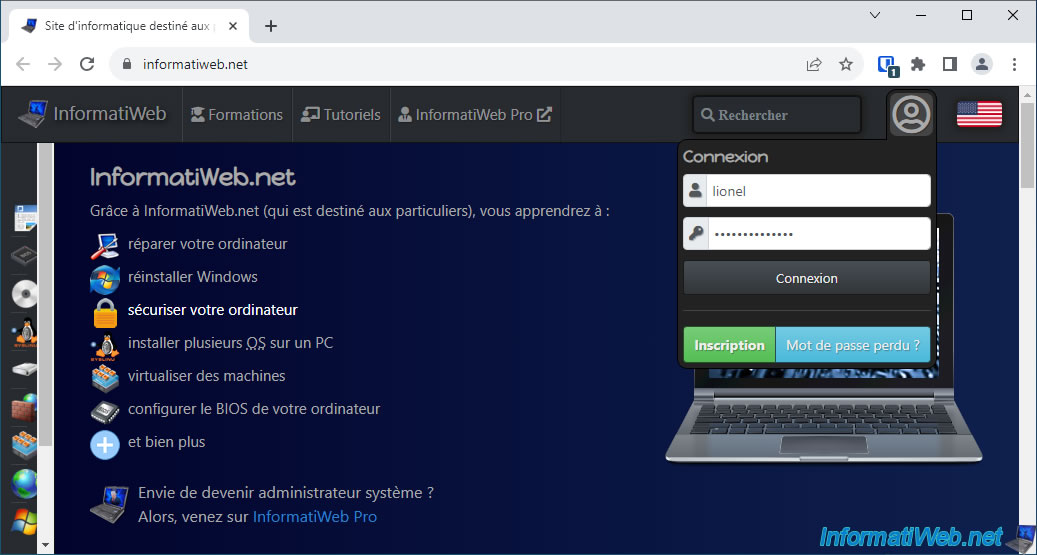
As expected, you are logged into the desired website.
Share this tutorial
To see also
-

Security 12/18/2012
Delete adwares and clean your web browsers
-
Security 3/6/2016
Malwarebytes Anti-Exploit - Protection against zero-day
-
Security 2/29/2016
Malwarebytes Anti-Malware - The best anti-malware
-

Security 6/5/2016
Secure your Internet connection (VPN)
No comment