Store your passwords securely with Bitwarden (online or self-hosted)
- Security
- 06 July 2026 at 08:14 UTC
-

- 5/10
5. Install official Bitwarden extensions in your favorite web browsers
To make it easier to access and manage your passwords while surfing the Internet, Bitwarden provides free extensions for all popular web browsers.
For example, you can automatically fill in the "Username" and "Password" fields on the login form of the desired sites with the Bitwarden extension instead of typing them yourself.
If an account does not yet exist in your Bitwarden account, the extensions will allow you to automatically create the corresponding elements (username, password and site address) in your Bitwarden account when you log in to the new sites.
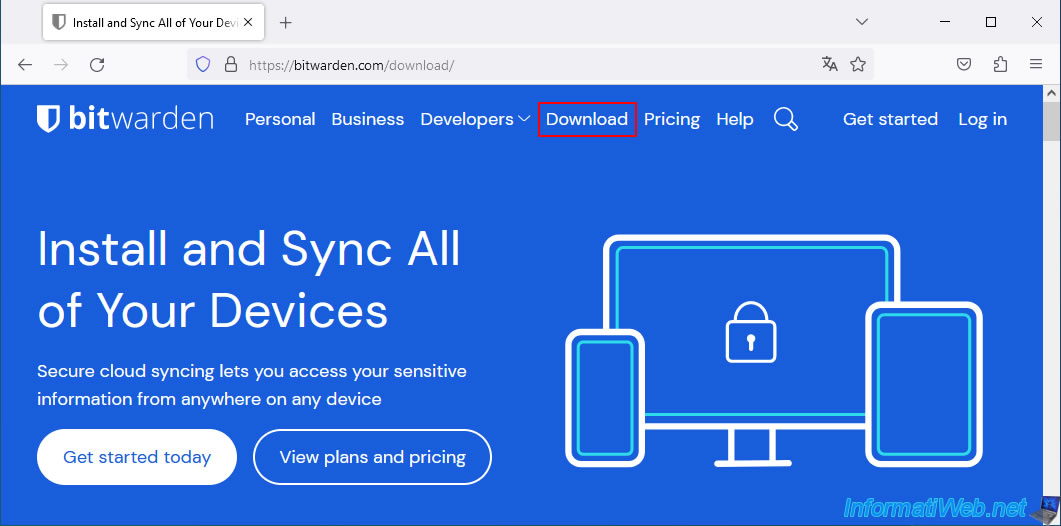
To find the links to the official Bitwarden extensions, go to the "Download" tab on their site.
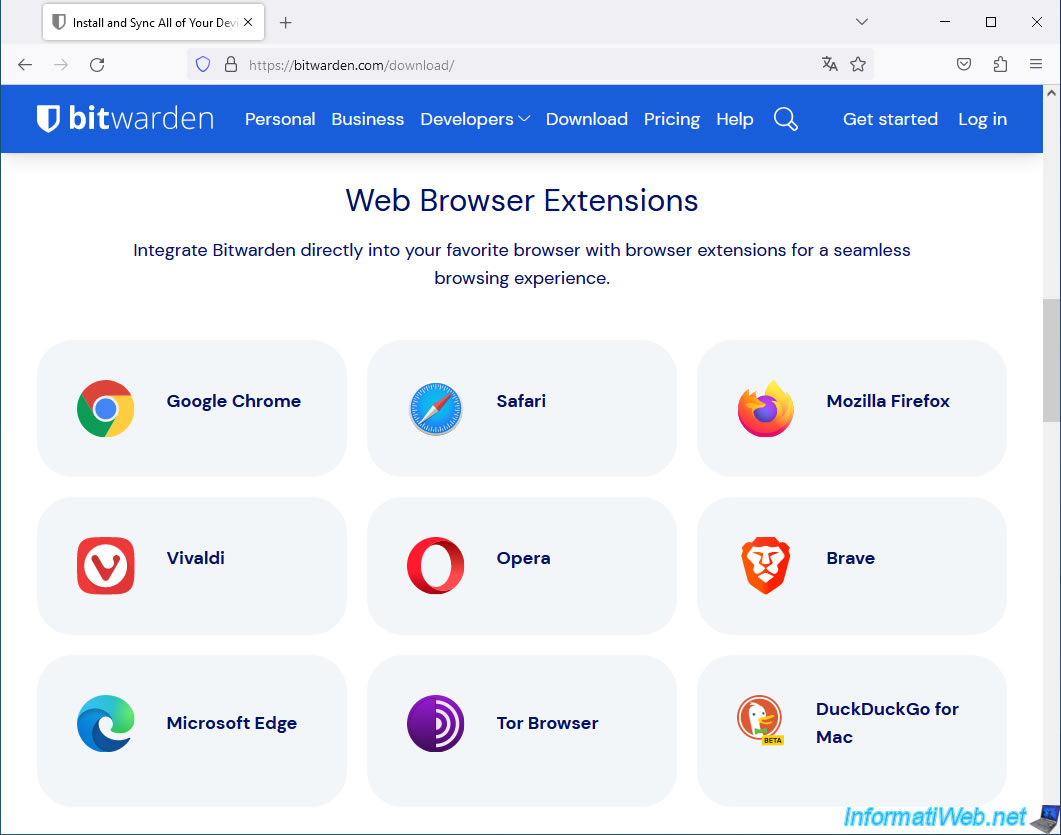
As you can see in the "Web Browser Extensions" section of this page, extensions are available for these web browsers:
- Google Chrome
- Mozilla Firefox
- Opera
- Microsoft Edge
- and more
5.1. Download, install and use the Bitwarden extension for the Mozilla Firefox web browser
5.1.1. Download and install the Bitwarden extension for the Mozilla Firefox web browser
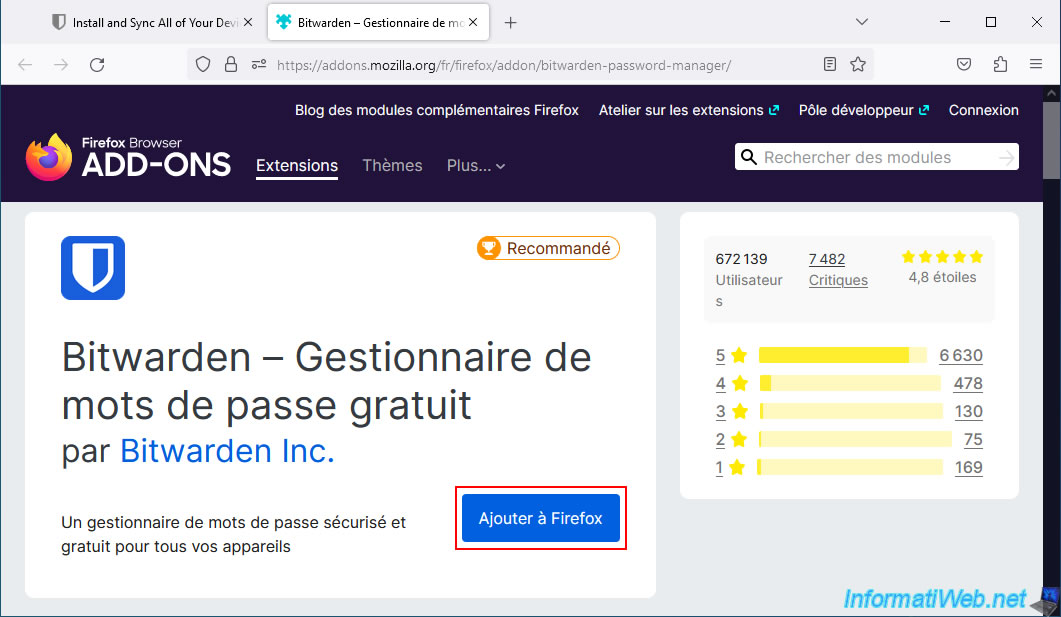
To get started, go to the "Bitwarden Password Manager - Firefox Browser Add-ons" page from Mozilla Firefox and click "Add to Firefox".
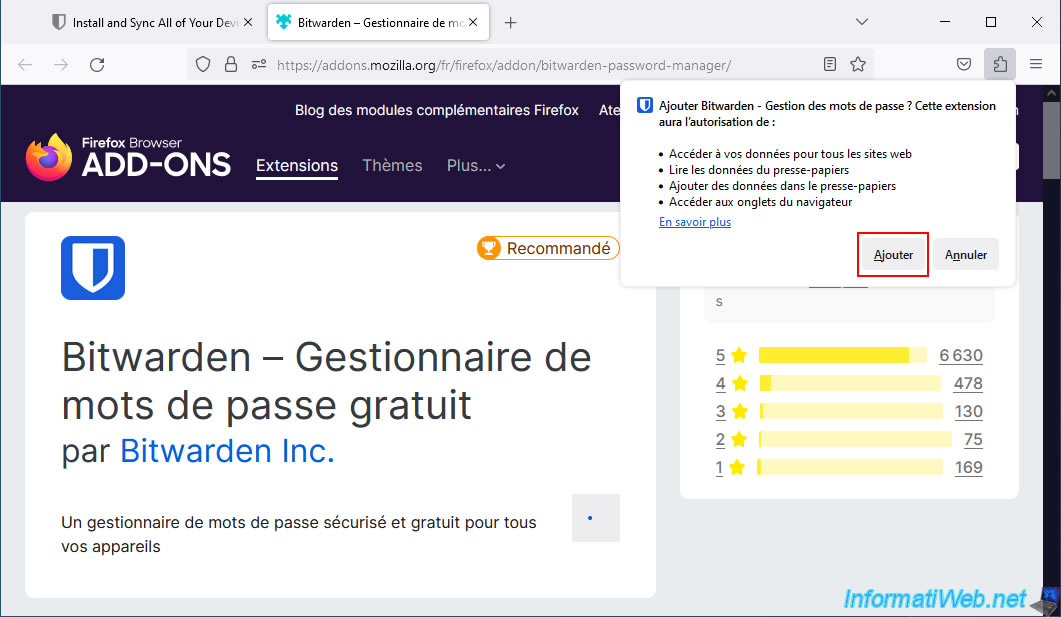
Click "Add" on the small popup that appears.
The extension "Bitwarden - Password Manager" has been added.
Click OK.
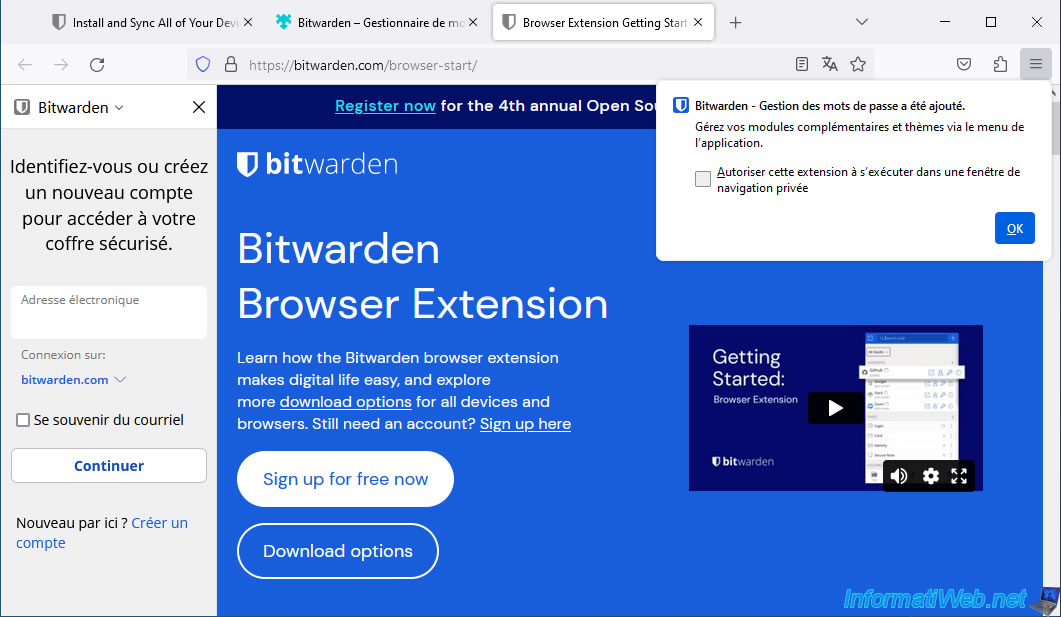
By default, extensions are only visible by clicking on the puzzle piece icon.
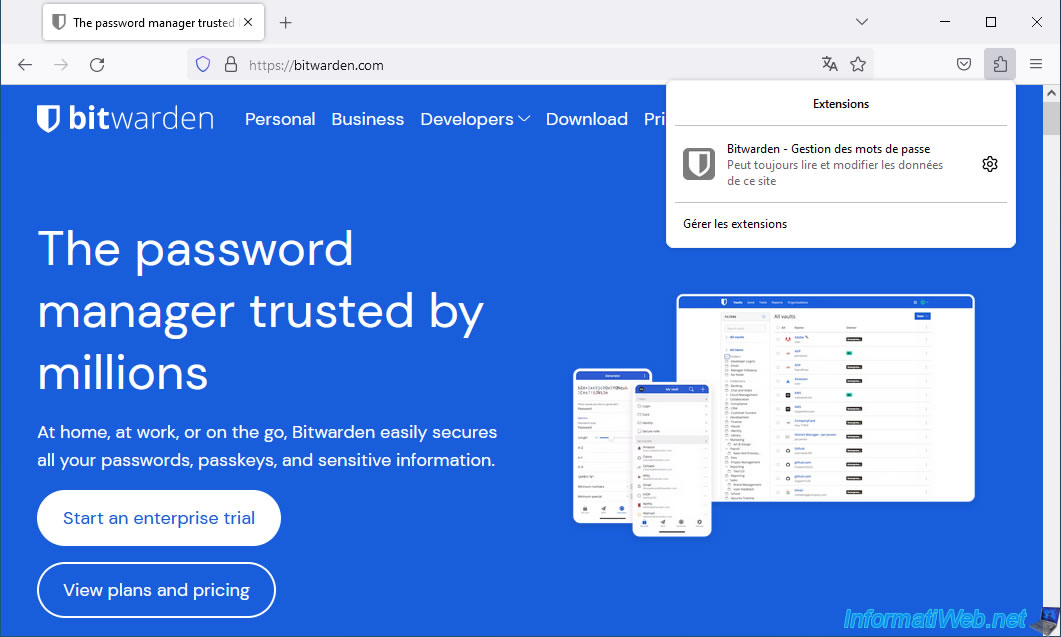
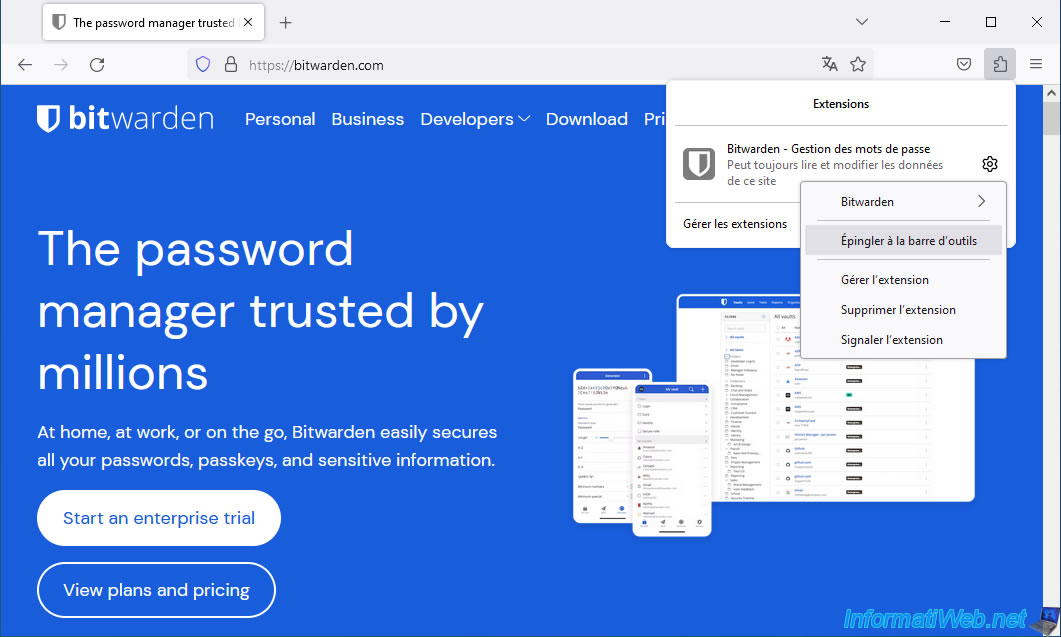
To display it directly in the Mozilla Firefox toolbar, click the gear icon, then click "Pin to toolbar".
The first time you click on the Bitwarden extension icon, you will need to log in to your Bitwarden account.
Note: you can choose to log in to an account hosted on bitwarden.com, bitwarden.eu or self-hosted.
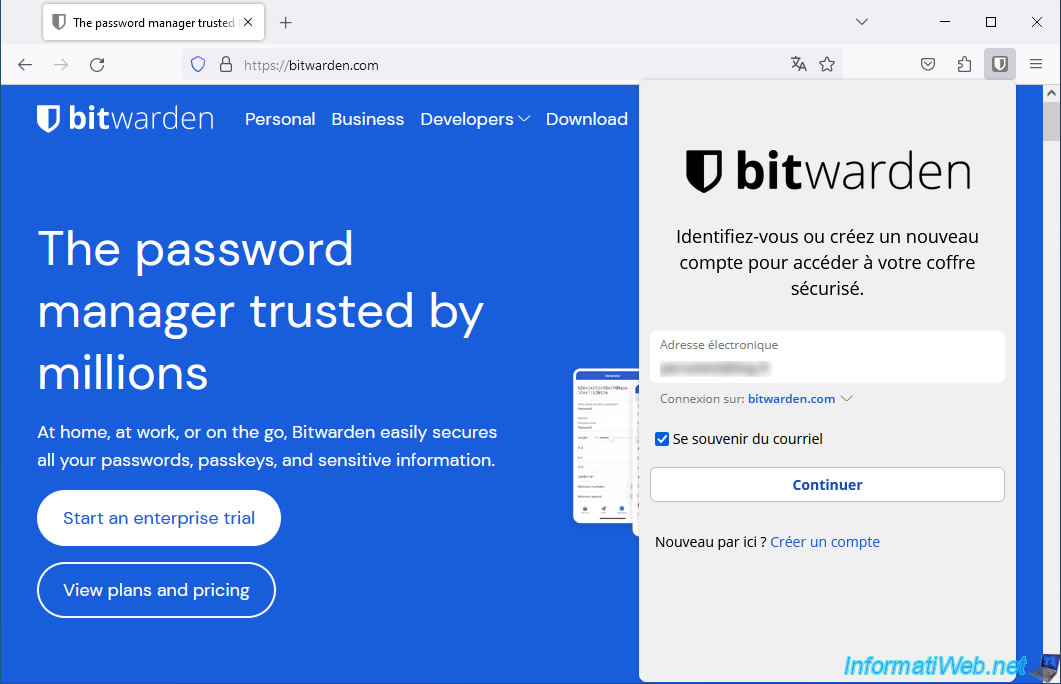
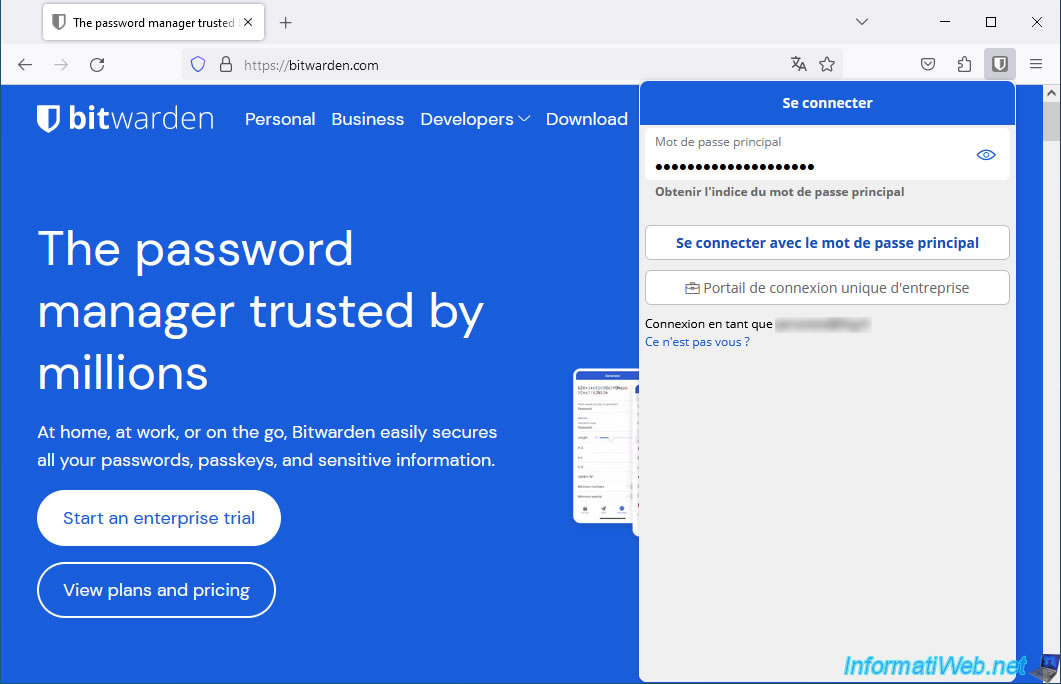
Once connected to your Bitwarden account from the extension, you will be able to access the identifiers, payment cards, files, ... present in your Bitwarden account.
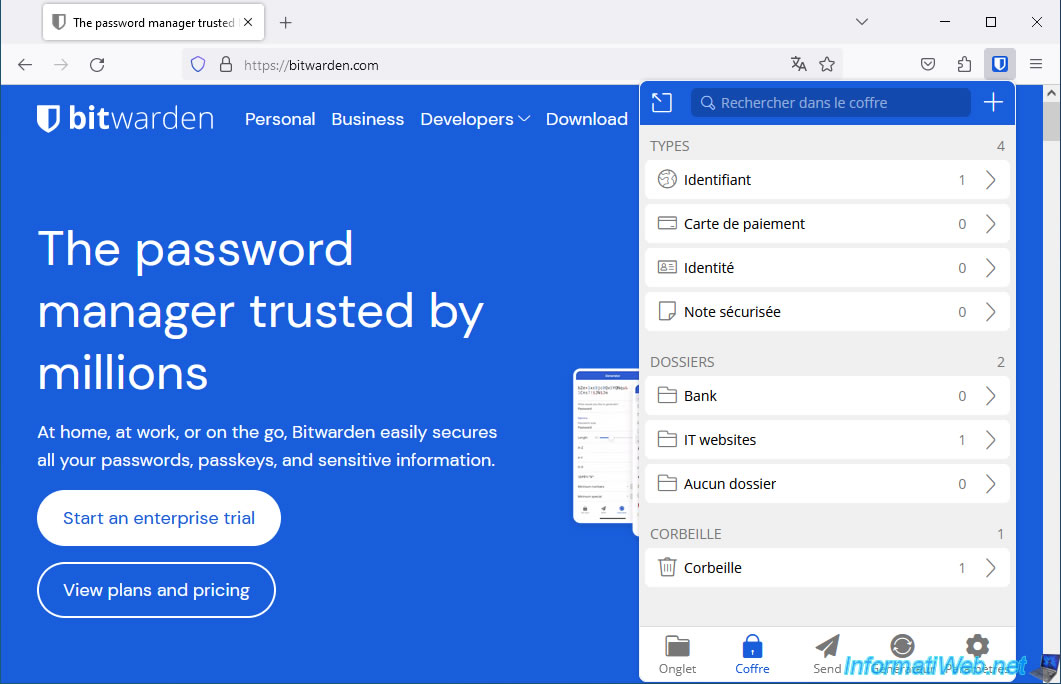
We therefore find our "InformatiWeb.net" element created previously.
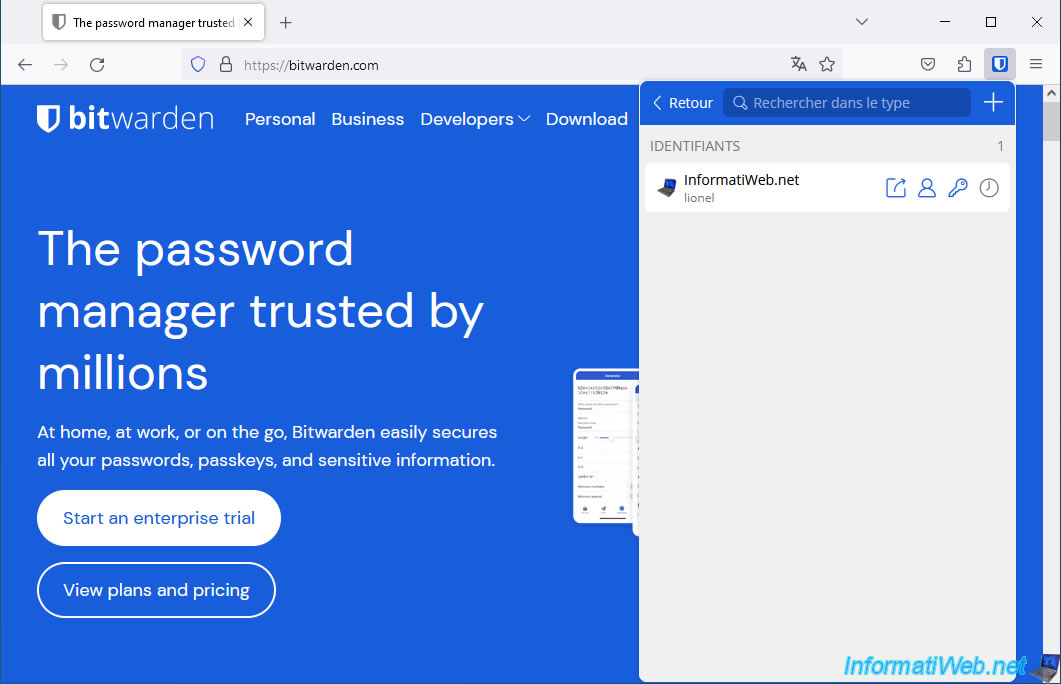
5.1.2. Log in to a site with the credentials stored in your Bitwarden account
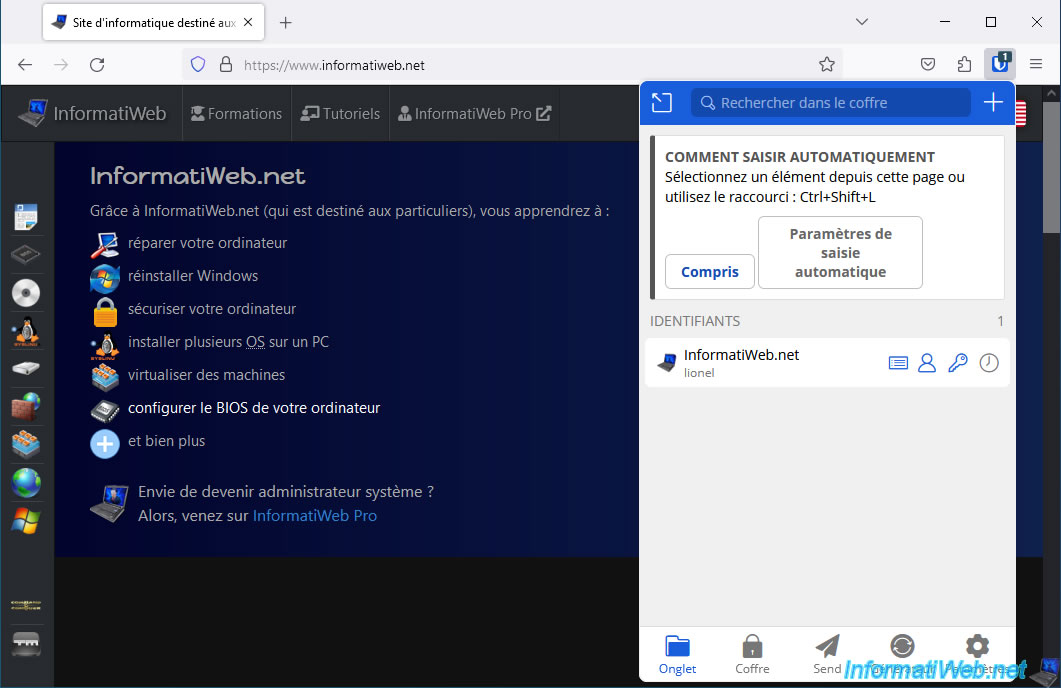
Go to a site that already has an item in your Bitwarden account and you will see a number appear on the Bitwarden extension icon.
This number is the number of items that match the site domain in your Bitwarden account.
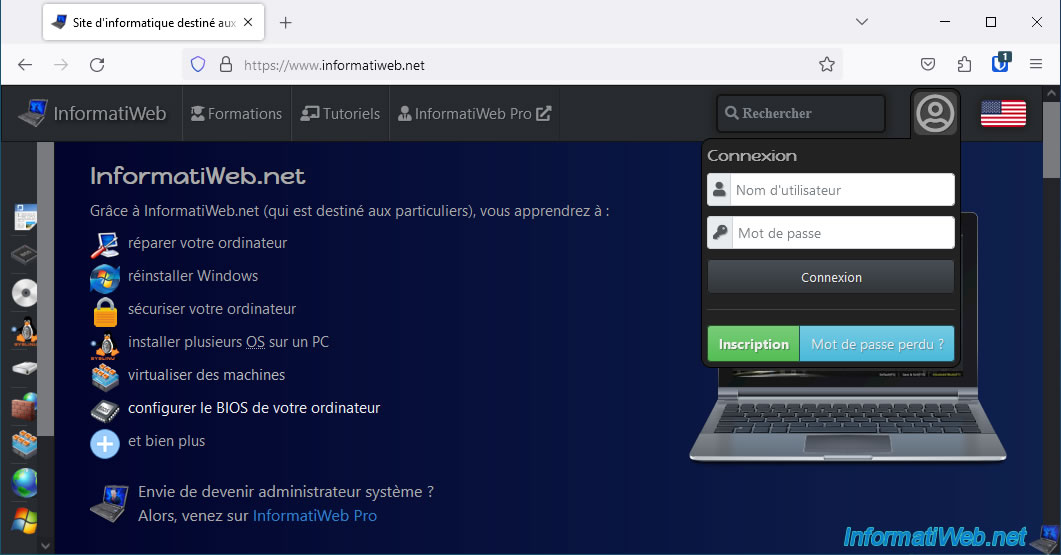
Click on the Bitwarden extension icon and you will see that to automatically fill in the credentials, you just need to click on the name of an item or use the keyboard shortcut "CTRL+Shift+L".
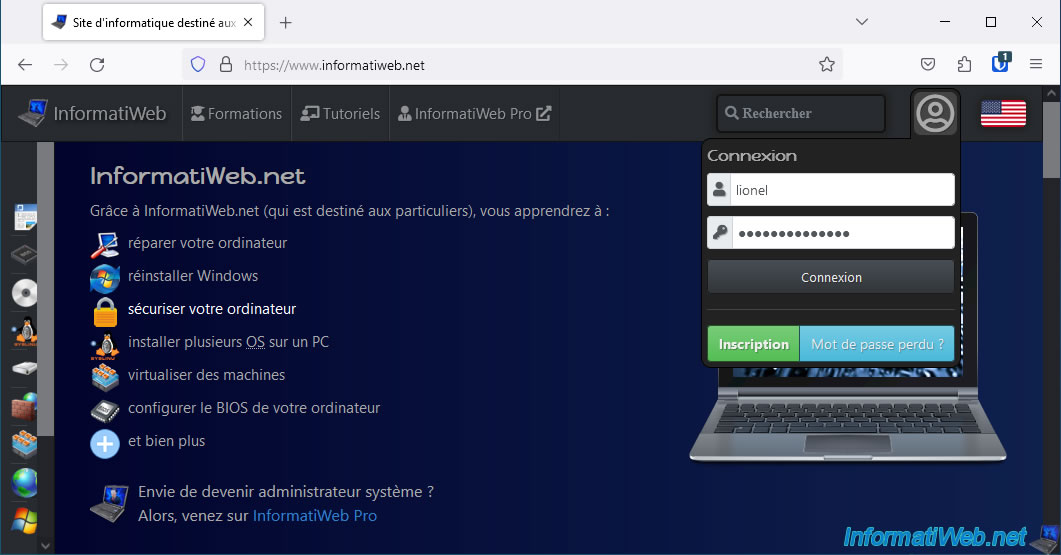
As expected, your identifiers appear in the fields of the login form of the visited site.
All you have to do is click on the "Login" button.
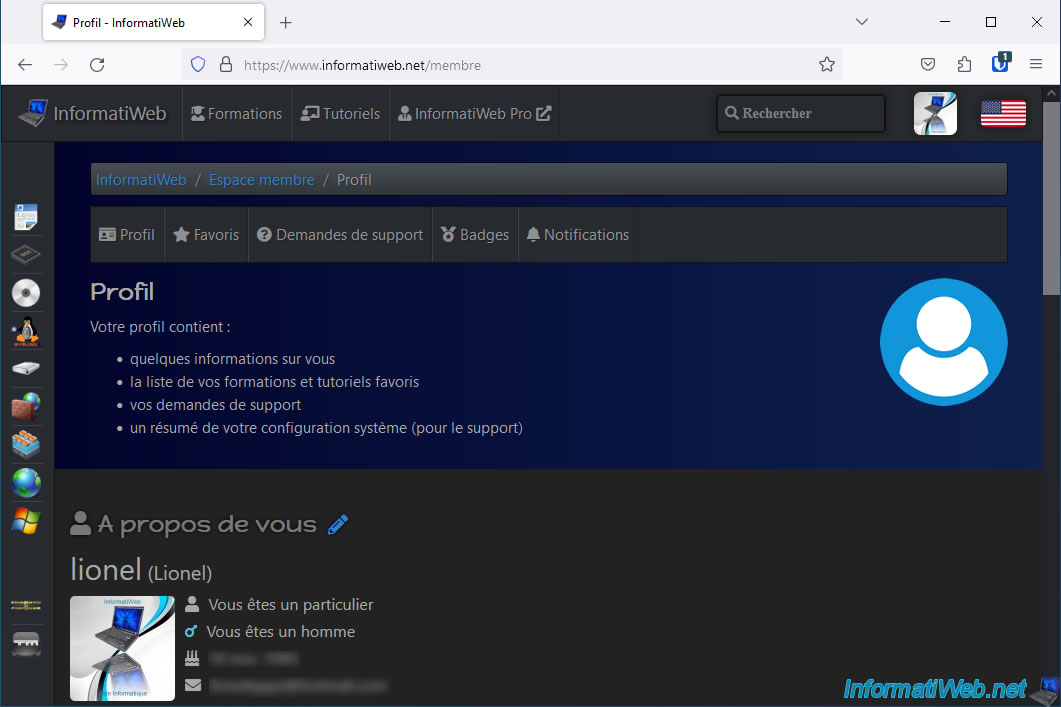
If your credentials are correct, you will be logged into your account on the desired site.
Share this tutorial
To see also
-
Security 10/26/2026
Avast Antivirus Free - Free renewal
-
Security 5/5/2014
KeePass - Store your passwords securely
-
Security 5/25/2014
Protect yourself from the Crypto Locker ransomware
-
Security 6/5/2016
Secure your Internet connection (VPN)
No comment