Store your passwords securely with Bitwarden (online or self-hosted)
- Security
- 06 July 2026 at 08:14 UTC
-

- 4/10
4.4. Send encrypted data via Bitwarden website from Windows application
To send encrypted data (files or texts) from the Bitwarden application, click on "Send" (bottom left), then on the big "+" button (at the bottom of the window).
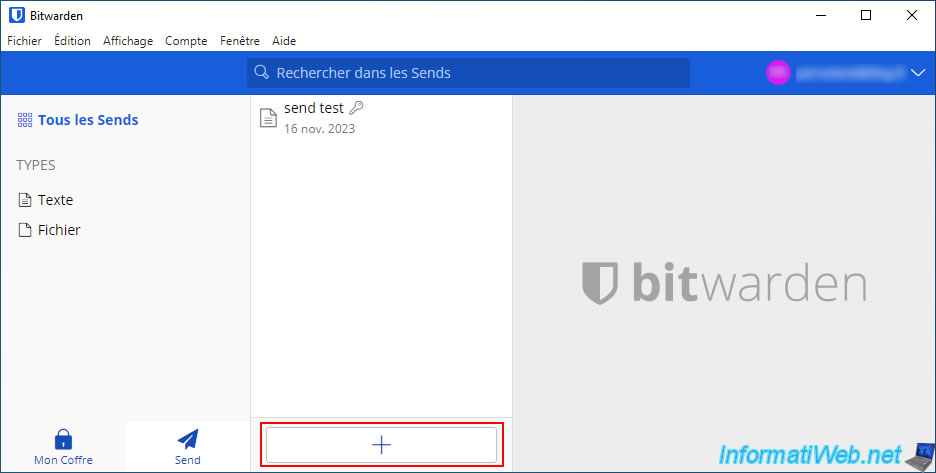
A "Create a Send" section will appear on the right where you can indicate:
- Name: the name under which your Send will appear in Bitwarden.
- What type of Send is it?: whether it is a file to send or just text.
- Text: if you selected "Text" in the previous question, you will be able to indicate the text you want to send encrypted.
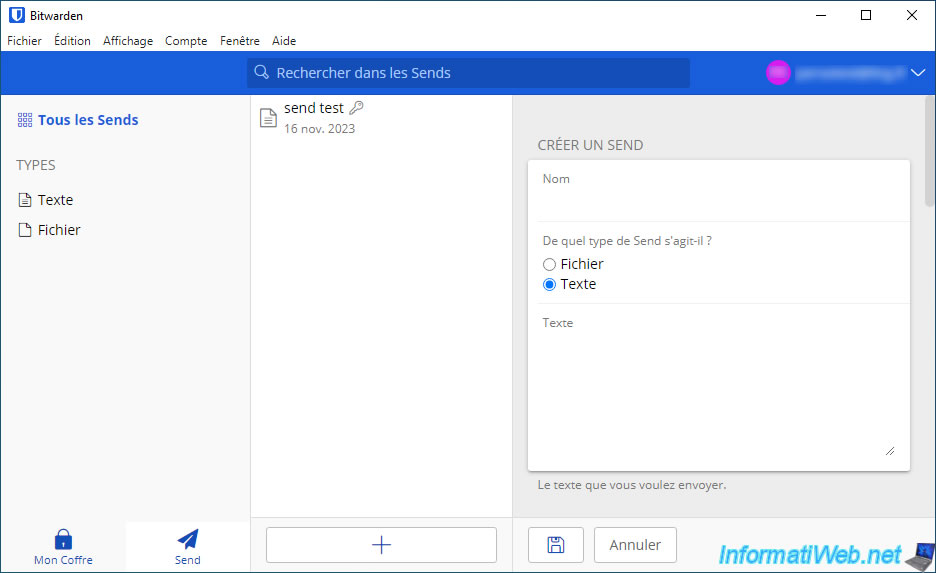
For each Send, you can set a deletion date and/or an expiration date so that a Send is no longer accessible after a certain date.
You can also set a maximum number of accesses so that this Send cannot be opened too many times.
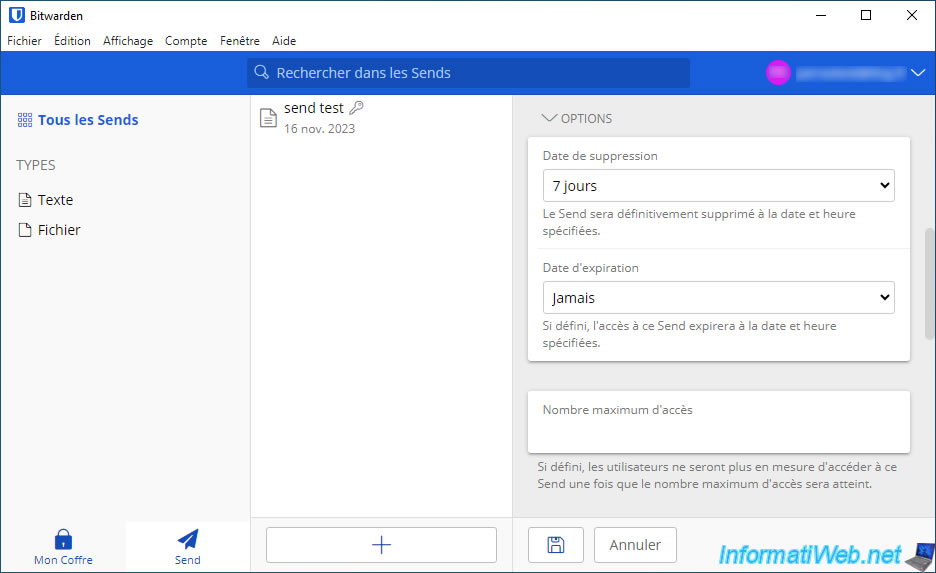
To get the link of a Send in Bitwarden, right-click on it, then click: Copy link.
Note: to see a preview of a Bitwarden Send page, refer to step "3.3. Send encrypted data via the Bitwarden website" of this tutorial.
4.5. Bitwarden settings on Windows
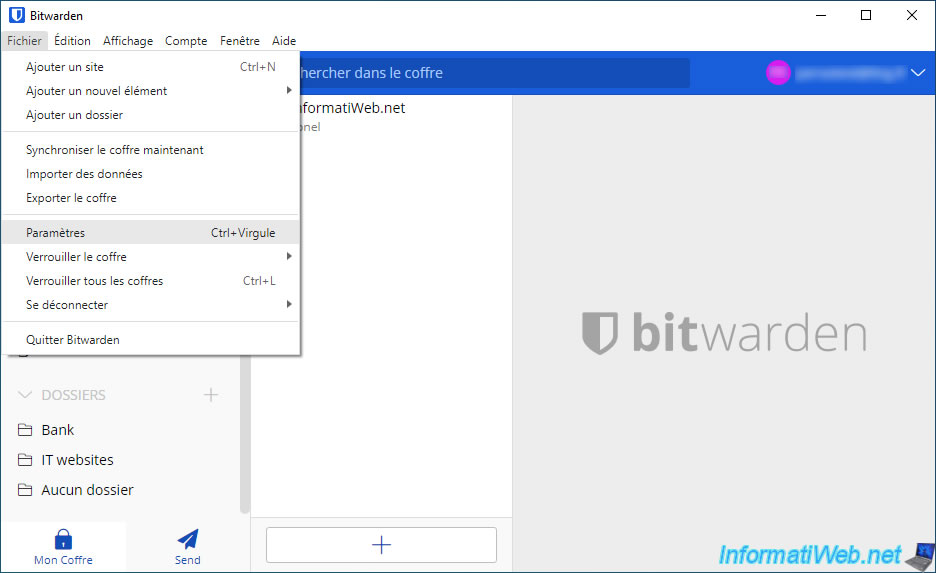
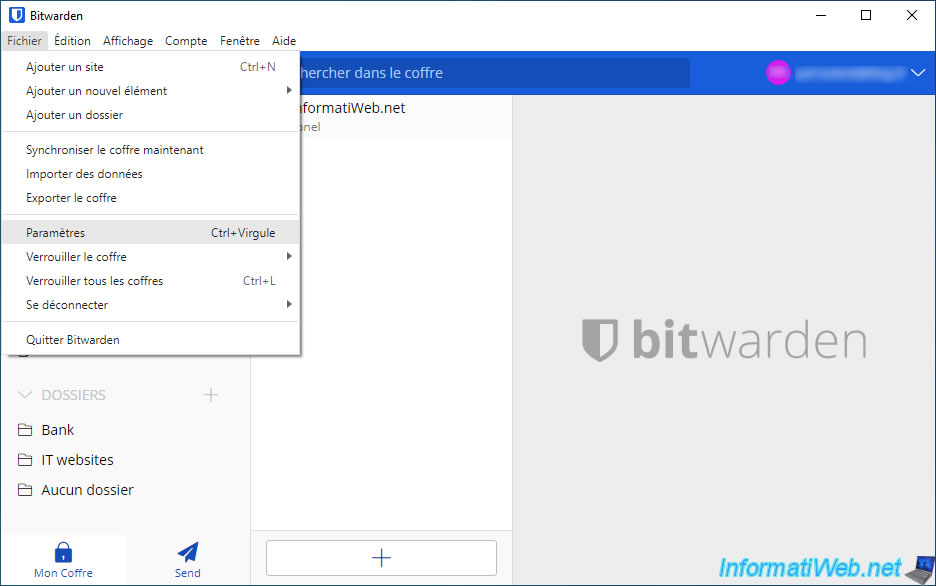
To access the Bitwarden application settings on Windows, go to the menu: File -> Settings.
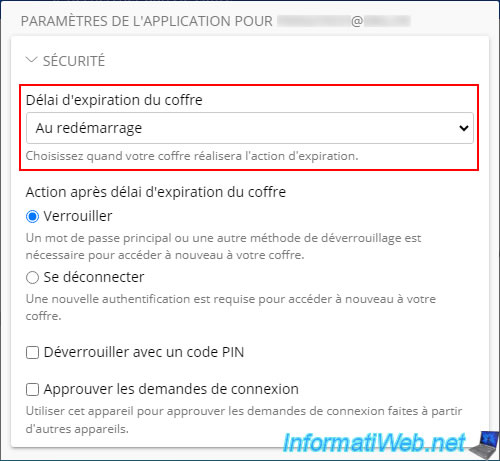
In the "Application settings for [your email address]" section, you can change the vault expiration time.
This is because by default, the vault is only locked when you restart your computer. This means that if you leave your computer and someone walks by, they will be able to easily access all your passwords (except those where you have explicitly asked to re-enter the master password).
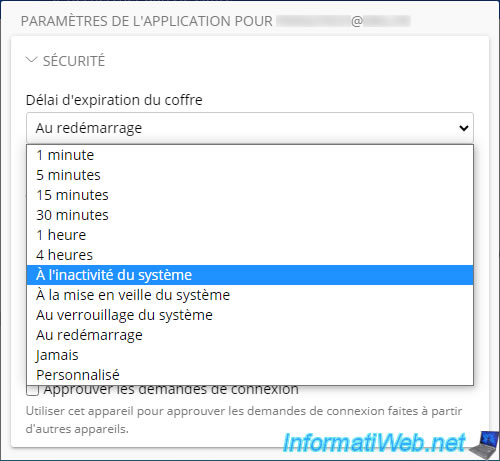
To limit unauthorized access to your passwords, set this vault expiration time to "On system inactivity", or even "1 minute" to ensure that no one can access your passwords without your permission.
However, the shorter the time, the more often you will have to retype your master password. It's up to you to decide what works best for you.
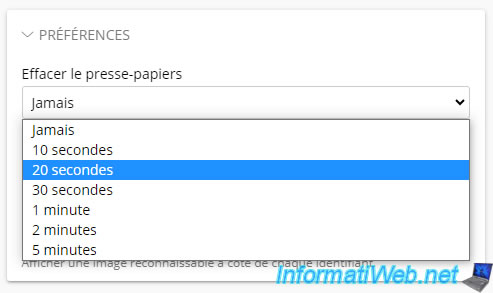
By default, when you copy a username or password, Bitwarden does not clear your clipboard automatically.
Your credentials can therefore be very easily stolen by an application that would check the clipboard, a malicious person who would pass by when you left your PC and who right-click "Paste", ...
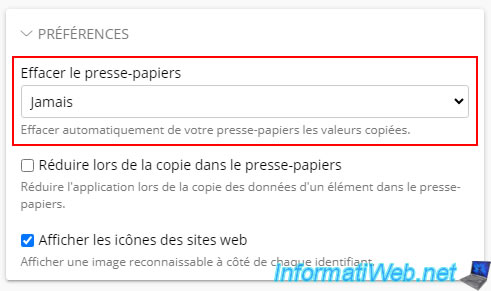
For safety, choose a short timeout instead. For example: 20 seconds.
For comparison, the password manager KeePass automatically clears the clipboard after 12 seconds, by default, when you copy a username or password from its interface.
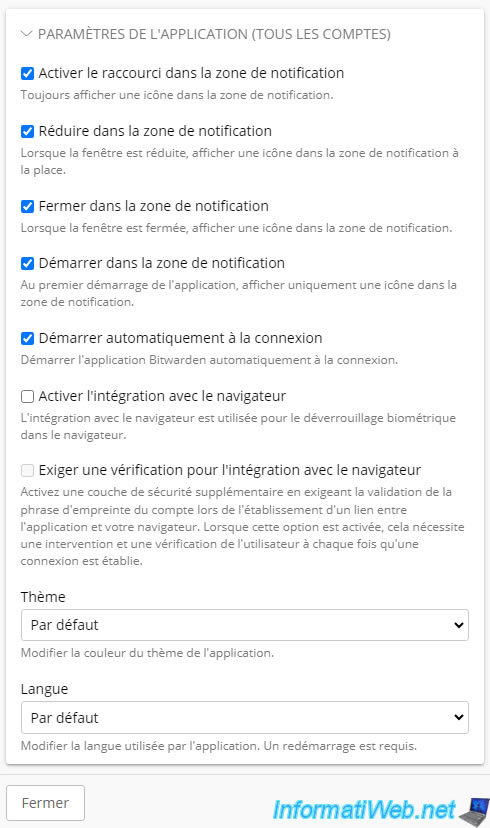
In the "App Settings (All Accounts)" section, you will be able to enable or disable the settings below:
- Enable shortcut in system tray: shows the Bitwarden icon in the taskbar (next to the time) at all times.
- Minimize to system tray: minimizes the Bitwarden window to an icon in the taskbar (next to the time), rather than at the top of the taskbar (as is the case with currently open applications).
- Close to system tray: similar to the previous option, but this will happen when you try to close the Bitwarden window.
- Start in system tray: when you try to launch the Bitwarden application, only the icon will appear in the taskbar (next to the time).
- Start automatically at logon: automatically launch the Bitwarden password manager when you log in to Windows.
- Enable browser integration: this option is only useful for using biometric unlock in a browser.
- Require verification for browser integration: allows you to further secure access to your Bitwarden account by requiring the account fingerprint phrase (visible in your Bitwarden account settings).
- Theme: allows you to choose between the "Light" (white) theme, the "Dark" (black) theme, and the "North" (dark gray) theme.
By default, the "Default" value is selected. In other words, the theme used will depend on whether or not the Windows dark theme is enabled (on Windows 10). - Language: allows you to change the language of the Bitwarden application.
Note: by default, all settings are disabled, but we recommend you to check the first 5 settings (as in the image below) as it is more convenient.
4.6. Use dark theme with Bitwarden app for Windows
To use the dark theme with the Bitwarden application for Windows, go to the menu: File -> Settings.
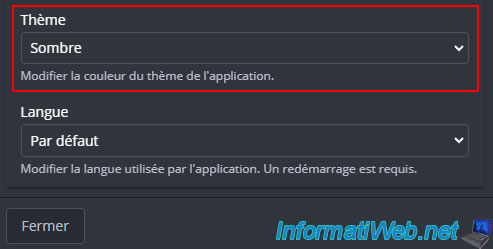
Then, at the bottom of the window, choose "Theme: Dark" and click "Close".
This is what the Bitwarden app dark theme looks like on Windows.
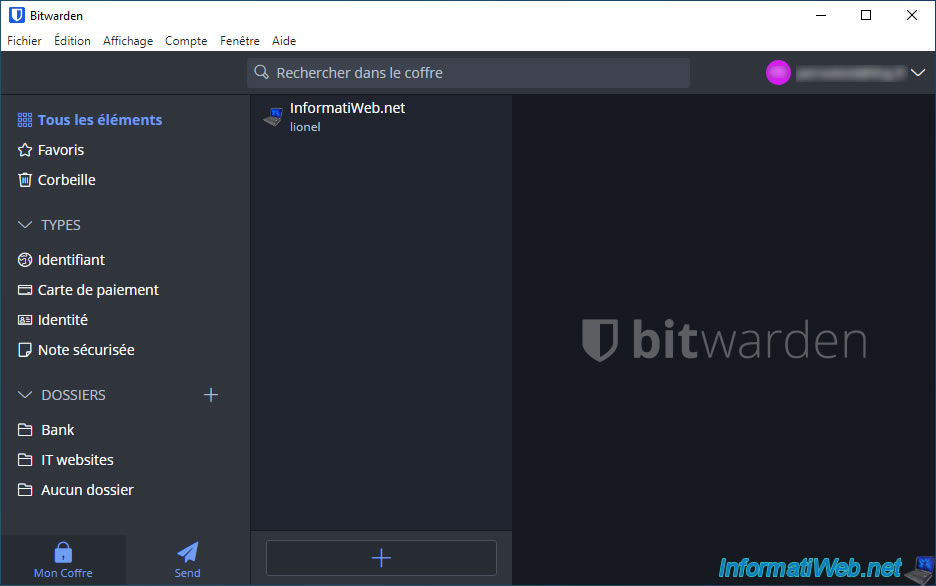
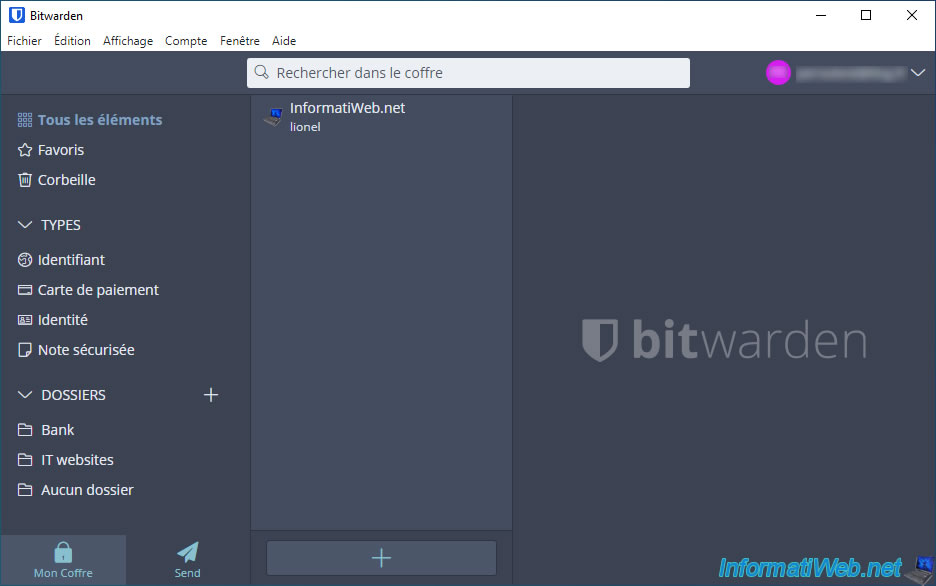
Note that there is also a theme named "North".
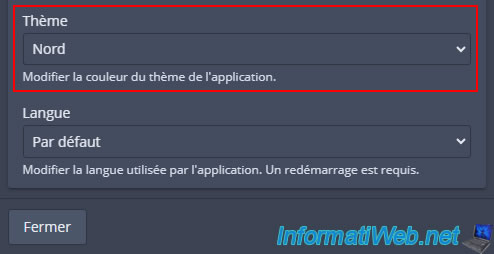
This dark theme is more dark gray than black.
It's up to you to decide which dark theme you prefer for the Bitwarden application on Windows.
4.7. Manually lock your Bitwarden vault
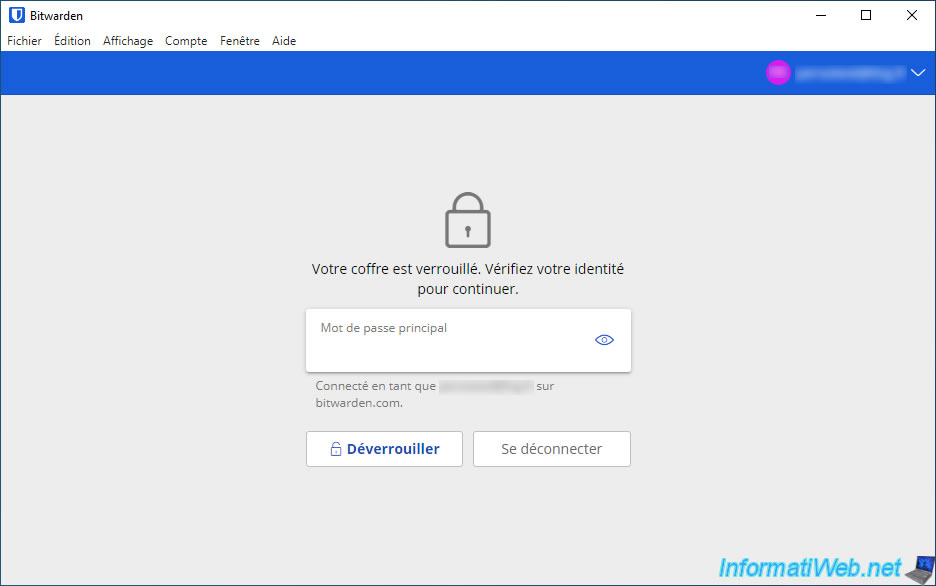
When you leave your computer without turning it off, remember to lock your Bitwarden vault to prevent anyone else from accessing your passwords while you are away.
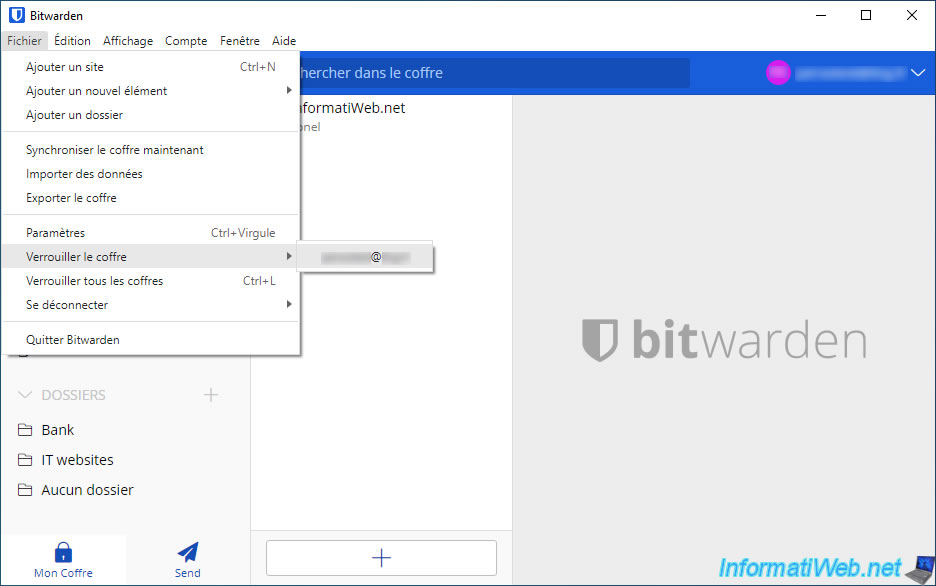
Once the safe is locked, you will be prompted for your master password to regain access to your passwords.
Share this tutorial
To see also
-
Security 10/26/2026
Avast Antivirus Free - Free renewal
-
Security 2/19/2016
Avast Free Antivirus - The best antivirus
-
Security 5/25/2014
Protect yourself from the Crypto Locker ransomware
-
Security 6/24/2014
Remove adwares with AdwCleaner
No comment