Store your passwords securely with Bitwarden (online or self-hosted)
- Security
- 06 July 2026 at 08:14 UTC
-

- 3/10
4. Using Bitwarden on PC (Windows)
4.1. Download and install Bitwarden on Windows
Although you can only use the Bitwarden website to access your passwords, you can also install their password manager on your Windows computer.
Of course, the credentials will remain stored in your Bitwarden account and therefore on Bitwarden's servers. This will allow you to access them from your smartphone later if you wish.
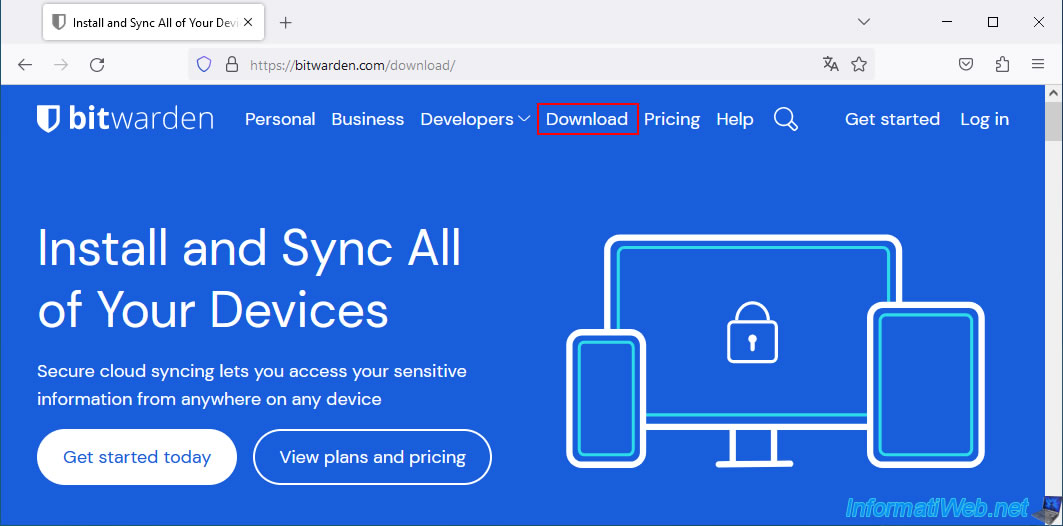
To download the Bitwarden application, go to the "Download" tab on the official Bitwarden website.
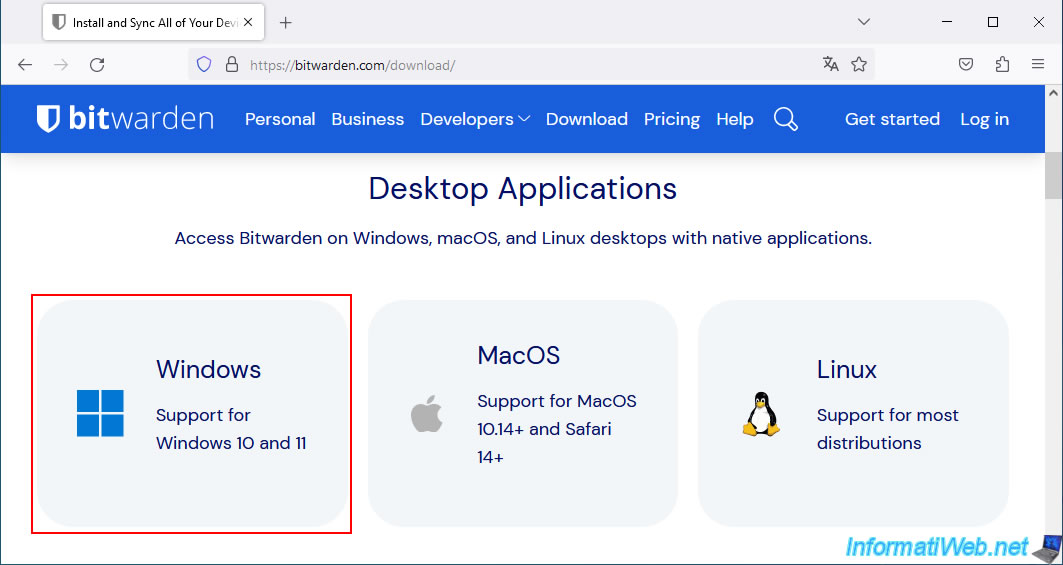
In this "Download" page you will find a "Desktop Applications" section with download links for PC applications compatible with Windows, Linux and Mac.
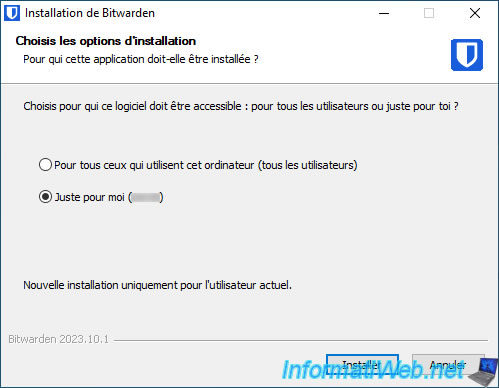
Install Bitwarden leaving the default options.
The only interesting option is to install Bitwarden only for the user currently logged in on Windows or for everyone.
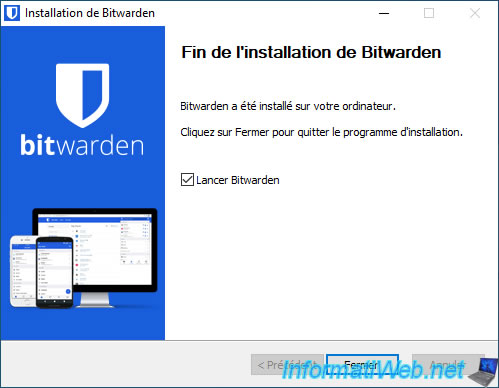
Once Bitwarden installation is complete, click Close.
4.2. Log in to your Bitwarden account from the Windows application
When launching the Bitwarden app, you will need to log in to your Bitwarden account.
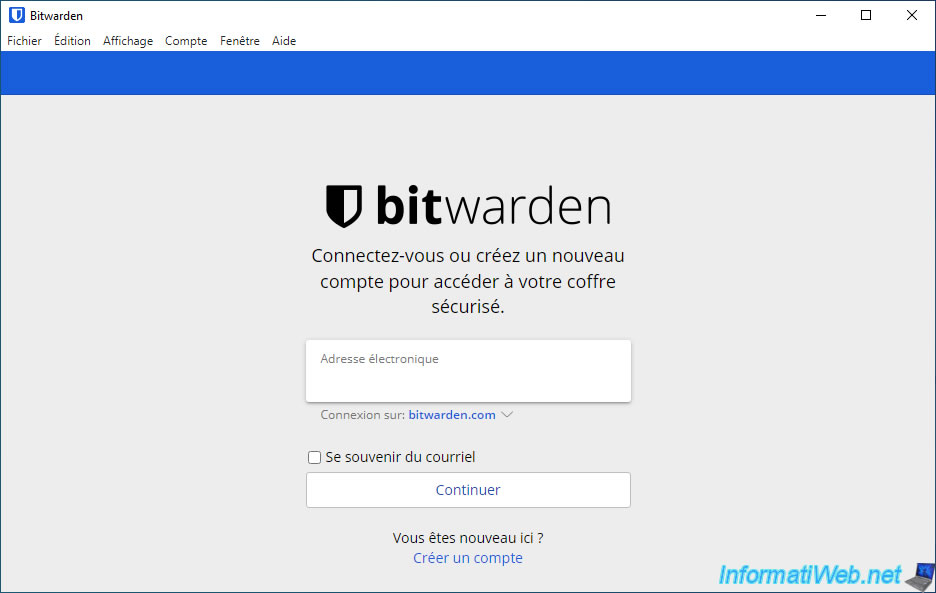
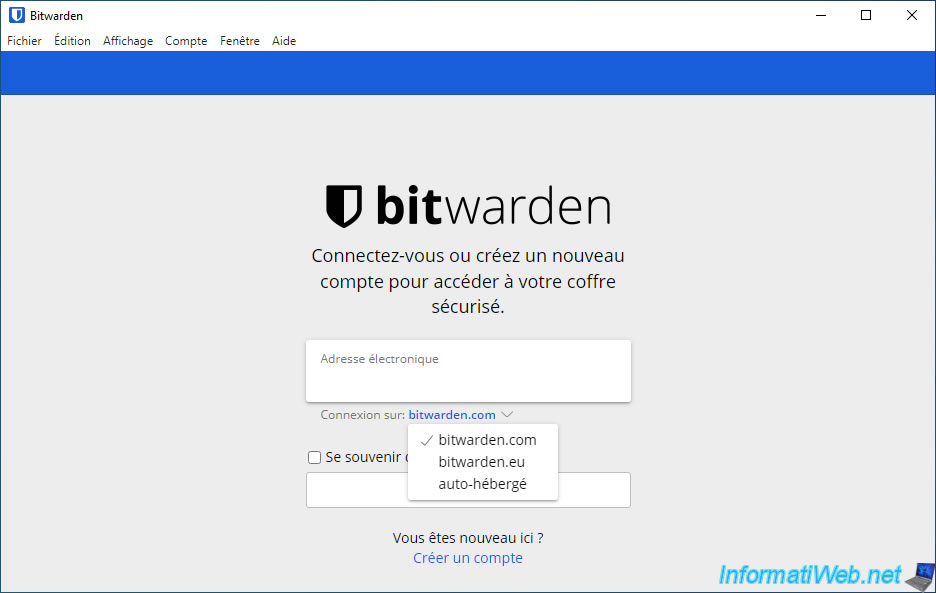
Note that you will be able to log in to your Bitwarden account from:
- bitwarden.com : the official website.
- bitwarden.eu : an alternative domain.
- self-hosted : in case you have installed your own bitwarden server on your NAS, for example.
By default, your account is located at "bitwarden.com".
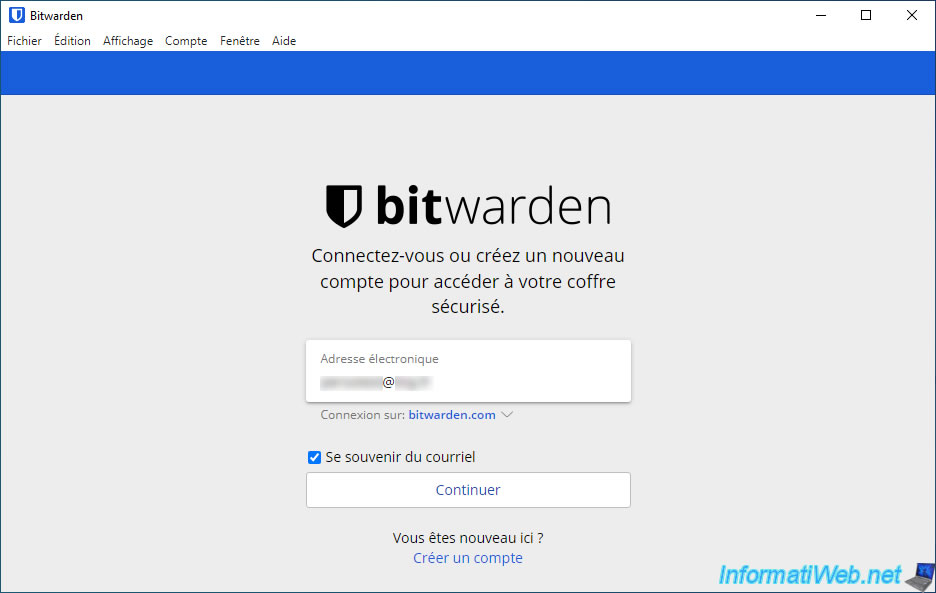
Enter the email address you used when you created your Bitwarden account, check the "Remember email" box (so you don't have to type it again each time), then click: Continue.
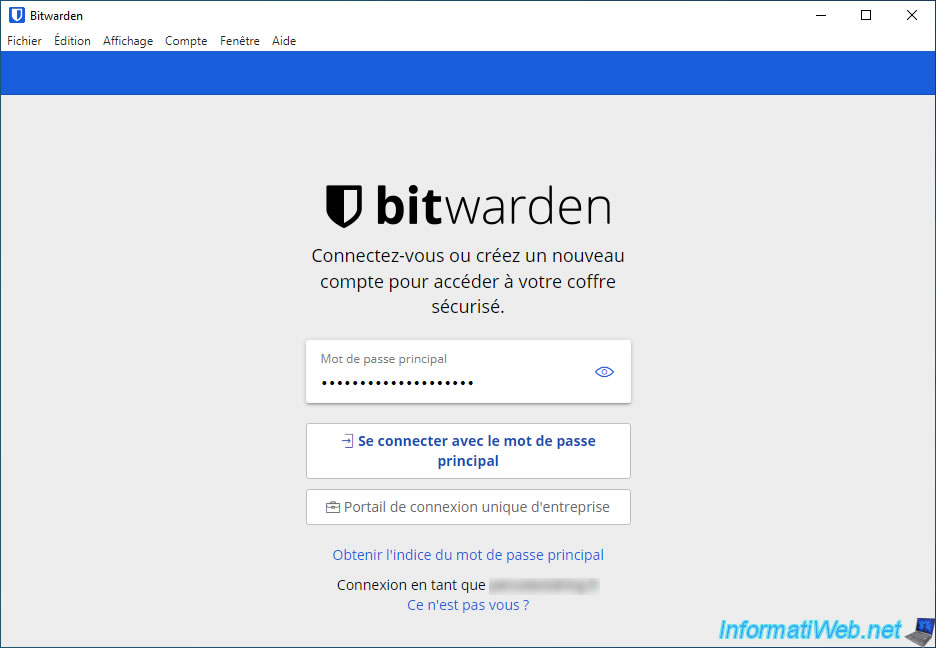
Enter your Bitwarden account password and click "Log in with master password".
The credentials and/or folders you may have already created in your Bitwarden account previously will appear.
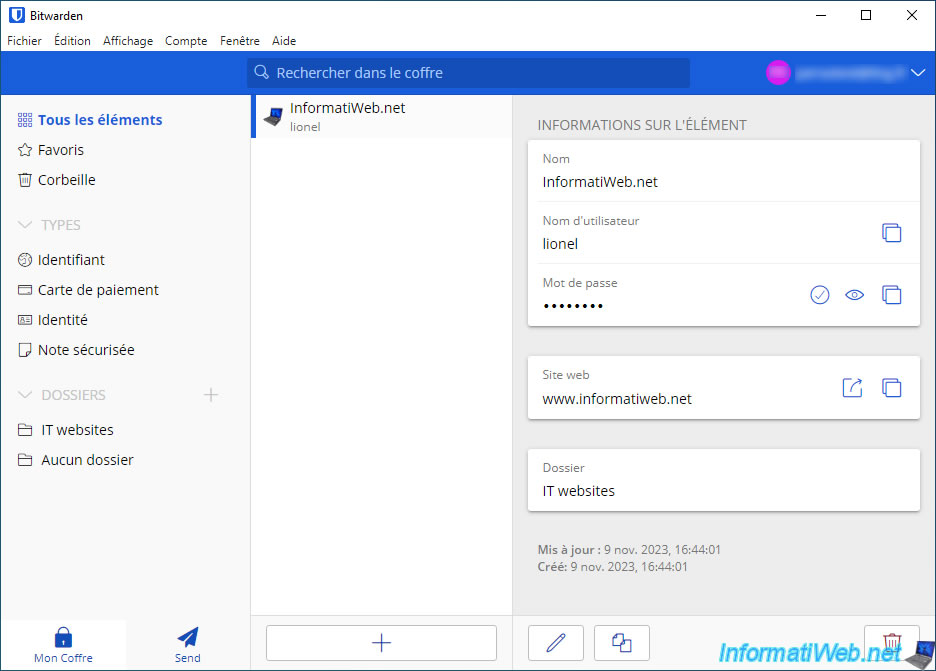
4.3. Create a new item in your Bitwarden vault from the Windows app
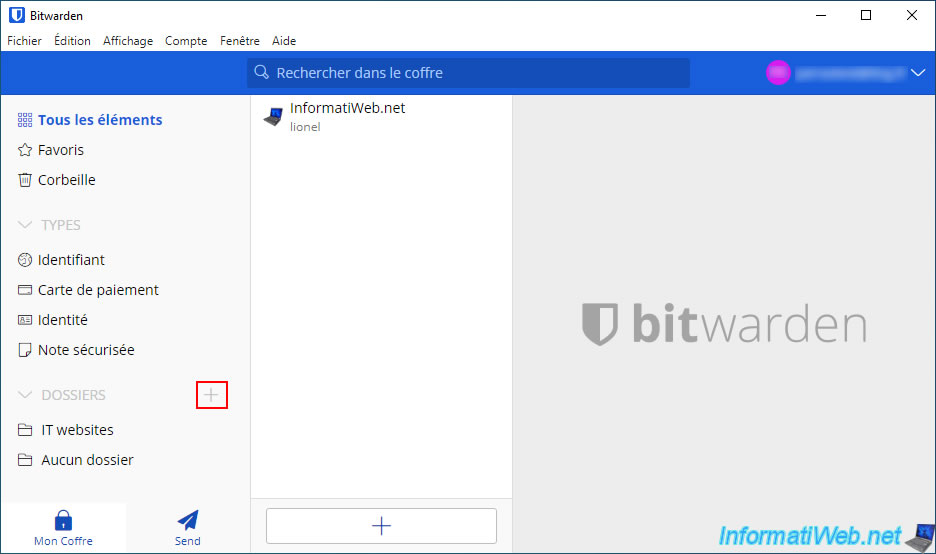
To get started, you can create a new folder by clicking on the "+" to the right of "Folders" (bottom left).
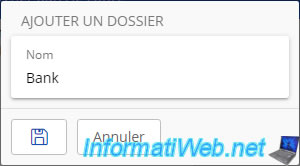
Enter a name for this new folder and click on the small floppy disk.
The created folder appears in your folder list (bottom left).
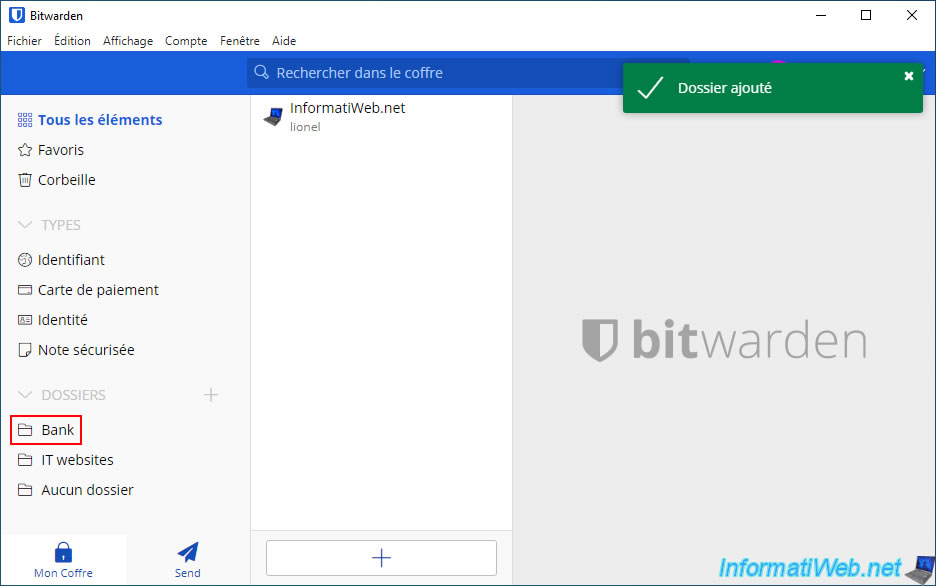
Click on the new folder, then click the "+" button at the bottom to create a new item.
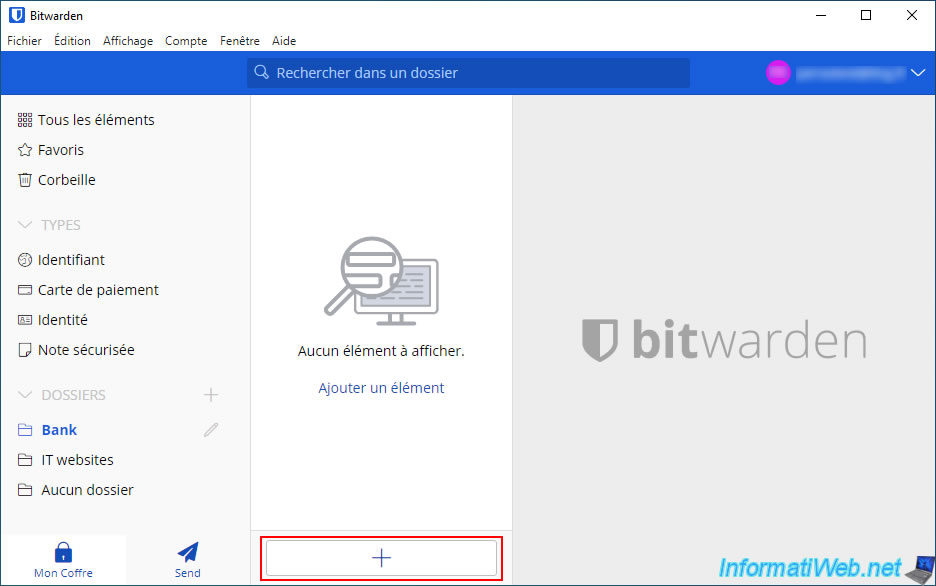
The "Add an item" section appears on the right and allows you to indicate:
- Type: the type of item to create. Most of the time, you will store credentials (username / password).
But you can also store payment cards, identities or secure notes. - Name: the name of the site concerned by the credentials you are going to enter.
- Username: the username of your account on the desired site.
- Password: the password of the account on the desired site. To generate a random one, click on the circle with the 2 arrows.
- Authentication key (TOTP): this concerns the unique codes used with two-factor authentication and requires a Premium subscription.
- URI 1: indicate the address of the site concerned, but preferably, indicate the address of the login page to make it faster to connect to the desired site.
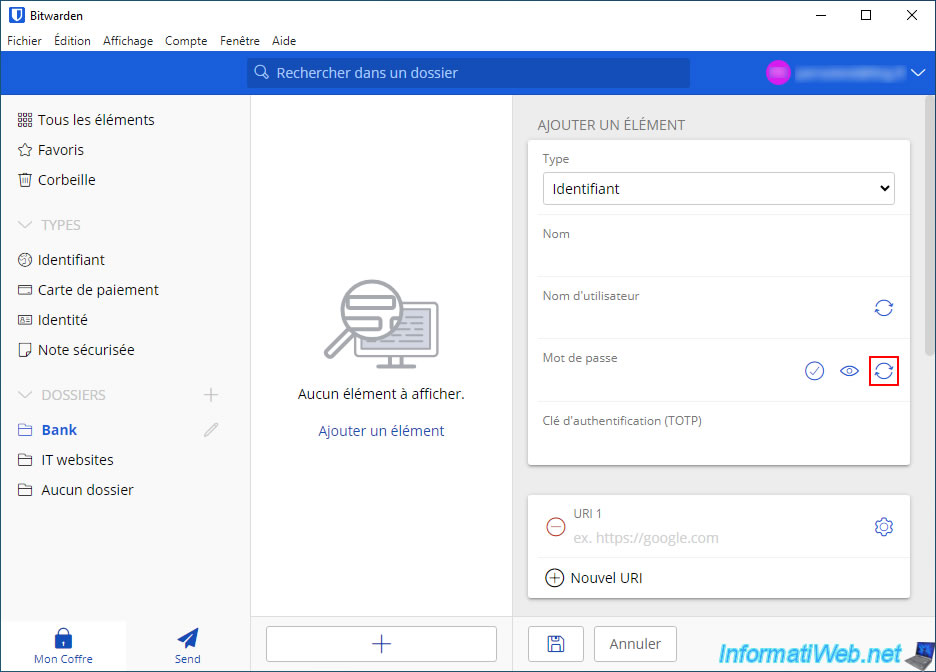
On Windows, if you clicked on the circle with the 2 arrows, you will see a password generator appear where you can set the length, as well as the types of characters to use (uppercase, lowercase, numbers and special characters).
Click on the icon with the 2 superimposed squares to copy the randomly generated password.
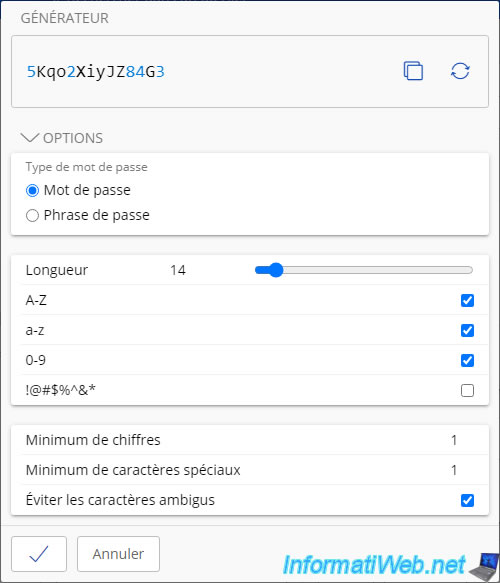
When you want to create a new item, you will also be able to choose:
- Folder: the folder in your Bitwarden account where you want to store this item.
This allows you to group your accounts according to the type of service (social networks, forums, banks, ...) for example. - Favorite: display this item in the "Favorites" section (located at the top left) of the Bitwarden window.
- Re-enter master password: allows you to re-request the Bitwarden master password to access this item.
This is useful to better protect sensitive items. Thus, if you forget to lock your Bitwarden vault, no one else will be able to access this item without knowing the master password of your Bitwarden account. - Notes: allows you to indicate additional notes. For example, the answer to the secret question defined on an account so as not to forget it. Thus, the day you need it, you can indicate it easily.
- Custom fields: login forms usually only ask you for a username and password.
However, if you are a developer, you may need to provide additional information to log in to a specific service of your web hosting, for example.
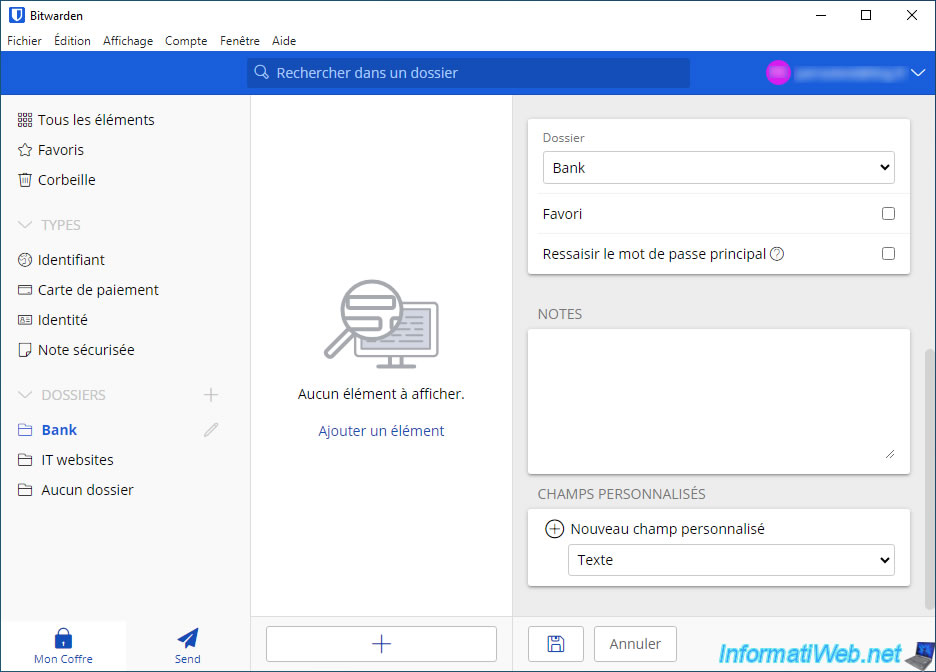
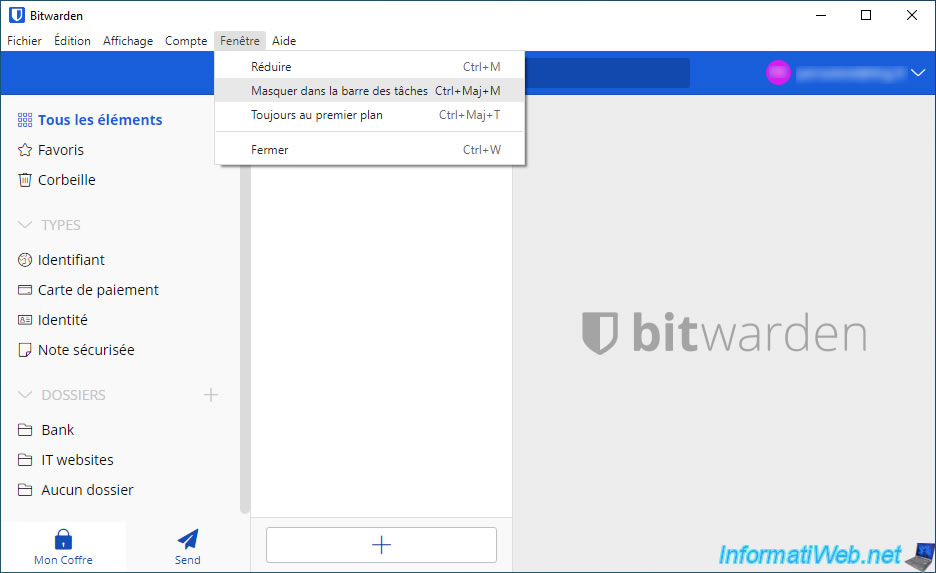
Just for your information, you can minimize the Bitwarden window to an icon (next to the time) by clicking "Window -> Hide to taskbar".
This action can also be set as the default action when you minimize or try to close the Bitwarden window (as explained in step 4.5 of this tutorial).
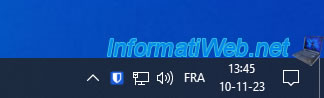
As expected, Bitwarden only appears as an icon next to the time instead of appearing large in the taskbar.
Share this tutorial
To see also
-
Security 10/26/2026
Avast Antivirus Free - Free renewal
-
Security 2/19/2016
Avast Free Antivirus - The best antivirus
-
Security 6/13/2014
DiskCryptor - Encrypt your USB key
-
Security 2/29/2016
Malwarebytes Anti-Malware - The best anti-malware
No comment