- Windows
- Windows XP
- 12 May 2012 at 14:45 UTC
-


If you want to install the .NET Framework 3.5 on Windows XP without an Internet connection, you might try downloading the component's offline installer.
However, you have likely noticed that it is incomplete (even though Microsoft claims it is a full installer).
In reality, this installer is only complete for the English version of Windows. Otherwise, it attempts to download the language pack matching your Windows system language.
In this tutorial, you will learn how to locate the missing file and install the .NET Framework 3.5 on Windows XP offline (including the missing component the installer was trying to download).
Note: this tutorial remains valid in 2026, despite Windows XP support having ended in 2014.
- Download the full installer for Microsoft .NET Framework 3.5 SP1
- Detect the missing file in the full Microsoft .NET Framework 3.5 SP1 installer
- Install Microsoft .NET Framework 3.5 SP1 without Internet
- Microsoft .NET Framework 3.5 SP1 installed on Windows XP SP3
1. Download the full installer for Microsoft .NET Framework 3.5 SP1
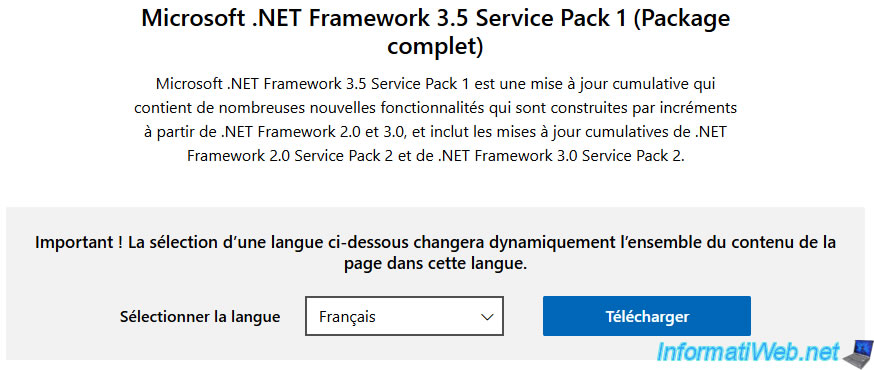
To get started, download the full installer for the .NET Framework 3.5 Service Pack 1.
Notes :
- the downloaded "dotnetfx35.exe" file is approximately 231 MB in size.
- this file allows you to install .NET Framework 2.0 SP2, 3.0 SP2, and 3.5 SP1 (without needing to install an earlier version of the .NET Framework first).
2. Detect the missing file in the full Microsoft .NET Framework 3.5 SP1 installer
To find the missing file, you must first run the downloaded "dotnetfx35.exe" file; this will allow you to locate the download link for the specific file you need (the file to be downloaded depends on your Windows language).
Note: if you do not want to waste time repeating this process at home, here is the download link for the missing file (for systems with the French version of Windows installed): dotnetfx35langpack_x86fr.exe.
Then, proceed to the next step (3. ....) of this tutorial.
Important : if Windows is installed in English, the previously downloaded "dotnetfx35.exe" file is sufficient.
You will not need to find a language pack.
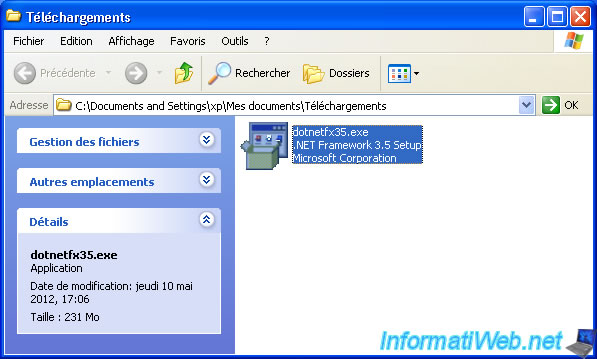
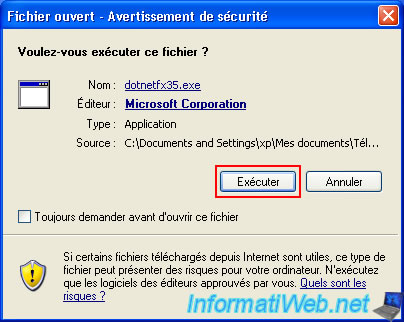
If a security warning appears, simply click "Run".
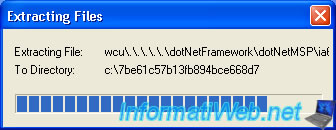
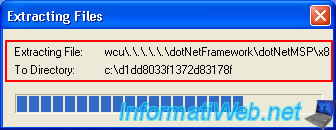
To begin with, you can see that this installer extracts files to the "c:\" partition.
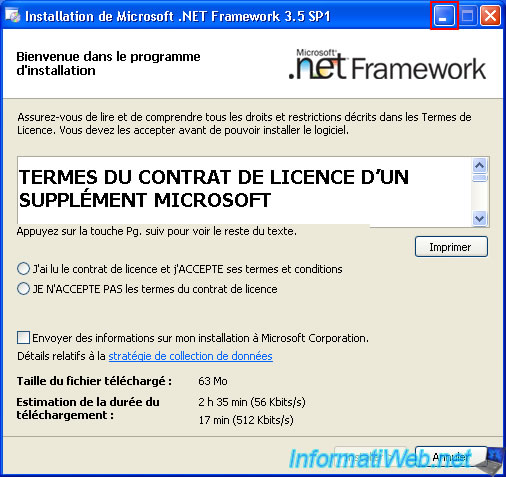
Next, the Microsoft .NET Framework 3.5 SP1 installation program appears.
Select the "I have read..." option and click "Install".
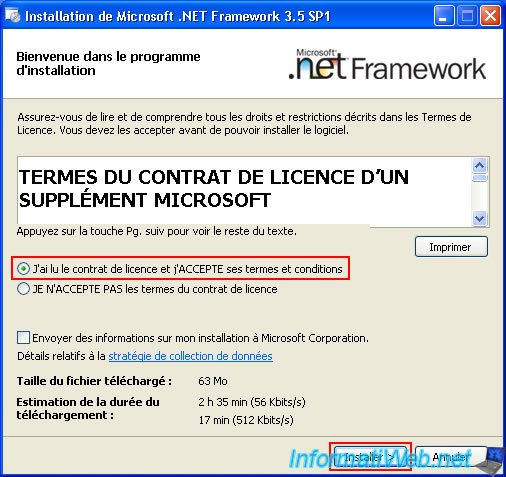
As you can see, this installer attempts to download files, and the download progress defaults to "53 MB / 63 MB".
This indicates that 10 MB of data is missing from this installer, which Microsoft lists as "complete" on its website.
However, on a PC without an Internet connection—or even in 2025—this installer will fail to download the required file.
Either you lack Internet access, or Windows XP is too outdated to communicate with modern Microsoft servers.
This triggers the "Restoring connection to server" message, indicating that the connection is failing.
Click the "Cancel" button.

Ignore the warning by clicking "Yes".

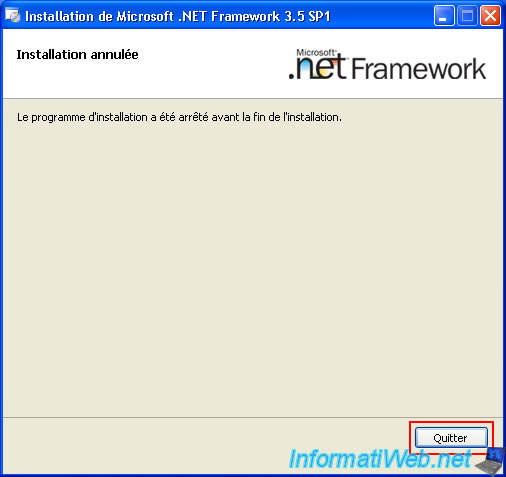
Click "Quit" to close the installer for now.
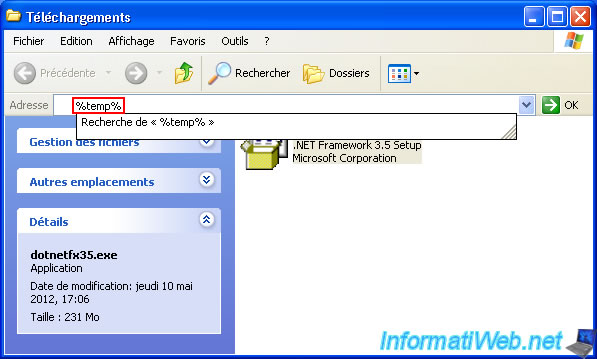
In the File Explorer address bar, type "%temp%" and click OK.
In your "Temp" folder, you will find a text file named "dd_dotnetfx35install.txt".

Open this file with Notepad and go to the menu: Edit -> Find.

Search for the term "langpack" and you will see a filename "dotnetfx35langpack_x86fr.exe" appear.
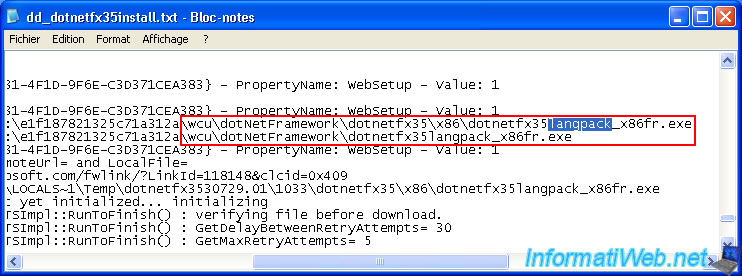
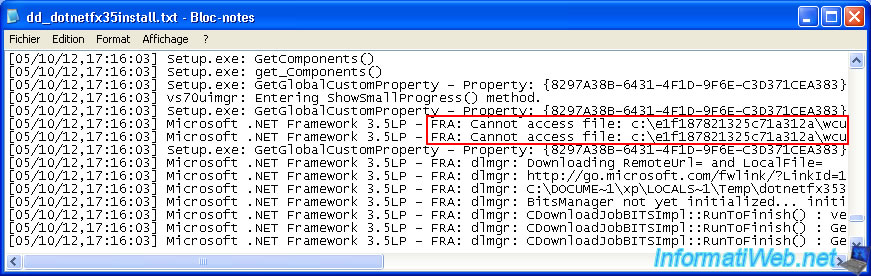
If you look at the beginning of these lines, you will see that the installer tells you it cannot access the files:
- c:\...\wcu\dotNetFramework\dotnetfx35\x86\dotnetfx35langpack_x86fr.exe
- c:\...\wcu\dotNetFramework\dotnetfx35langpack_x86fr.exe
Plain Text
[05/10/12,17:07:59] Microsoft .NET Framework 3.5LP - FRA: Cannot access file: c:\7be61c57b13fb894bce668d7\wcu\dotNetFramework\dotnetfx35\x86\dotnetfx35langpack_x86fr.exe
[05/10/12,17:07:59] Microsoft .NET Framework 3.5LP - FRA: Cannot access file: c:\7be61c57b13fb894bce668d7\wcu\dotNetFramework\dotnetfx35langpack_x86fr.exe
Note: this is obviously the same file, but it is being looked for in two different locations.
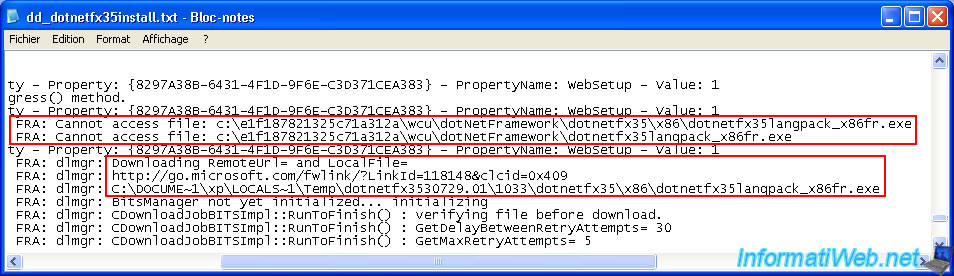
Just below, you can see that since the required file "dotnetfx35langpack_x86fr.exe" was not found, the installer is attempting to download it from the Microsoft website and store it in your temporary folder.
Obviously, without an Internet connection—or indeed at the present time—this download fails.
Plain Text
[05/10/12,17:07:59] Microsoft .NET Framework 3.5LP - FRA: dlmgr: Downloading RemoteUrl= and LocalFile=
[05/10/12,17:07:59] Microsoft .NET Framework 3.5LP - FRA: dlmgr: https://go.microsoft.com/fwlink/?LinkId=118148&clcid=0x409
[05/10/12,17:07:59] Microsoft .NET Framework 3.5LP - FRA: dlmgr: C:\DOCUME~1\xp\LOCALS~1\Temp\dotnetfx3530729.01\1033\dotnetfx35\x86\dotnetfx35langpack_x86fr.exe
That said, if you access this Microsoft link in 2025, you will notice that the file is still located on Microsoft's server.
So, you simply need to download it manually from another PC using a standard web browser (as a first step).
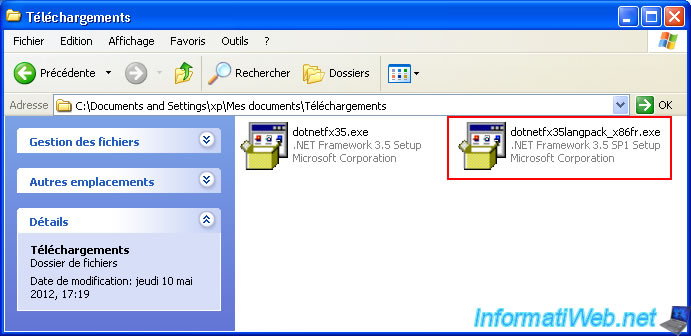
As planned, we downloaded the desired "dotnetfx35langpack_x86fr.exe" file from the Microsoft website using this link (visible above).
3. Install Microsoft .NET Framework 3.5 SP1 without Internet
Now that you have the complete installer (dotnetfx35.exe), as well as the missing file (ex: dotnetfx35langpack_x86fr.exe), you can launch the main installation file "dotnetfx35.exe".
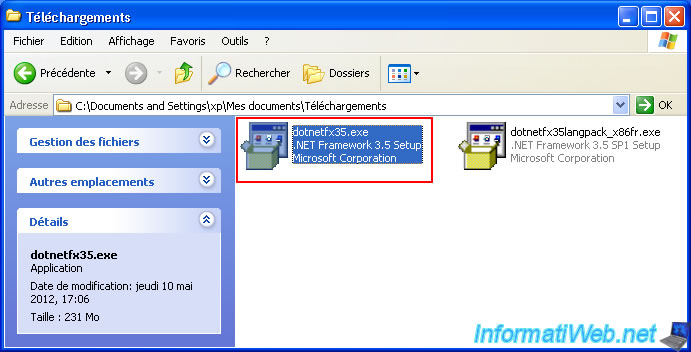
As you can see, the installer extracts several files to a "c:\...\wcu\..." folder.
Once the Microsoft .NET Framework 3.5 SP1 installer appears, minimize it to the taskbar, but do not close it.
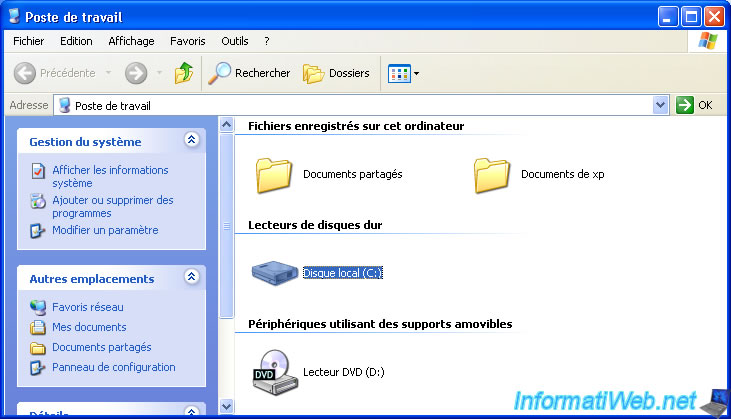
In File Explorer, go to the "C:" partition.
At the root of the "C:" drive, you will find the folder that appeared earlier when the Microsoft .NET Framework 3.5 SP1 installer was launched.
If you are unsure which one it is, open each folder with a name consisting of a random mix of letters and numbers, and look for the one containing a "wcu" subfolder.
In our case, it is the "d1dd80..." folder, though the name changes every time the installer is run.
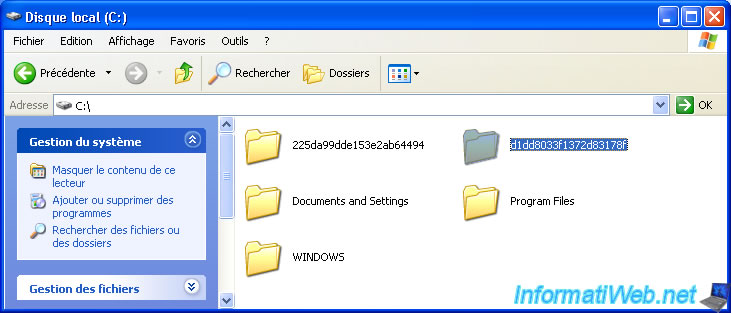
As expected, this folder contains a "wcu" subfolder.
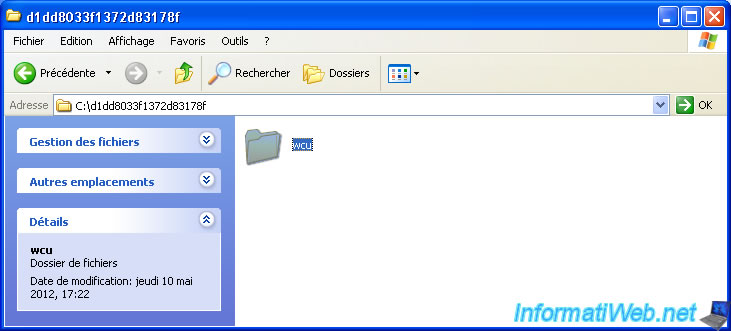
Finally, go to the folder "c:\...\wcu\dotNetFramework\dotNetFX35\x86".

In another window, copy the file you manually downloaded earlier.
In our case, the file "dotnetfx35langpack_x86fr.exe".
Note: its name depends on the Windows language.
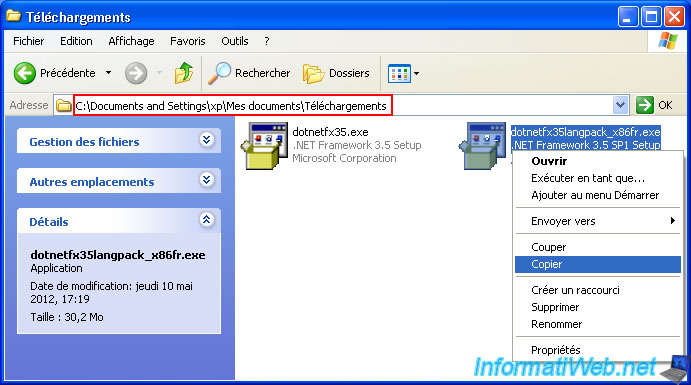
Paste the file "dotnetfx35langpack_x86fr.exe" in the folder "c:\...\wcu\dotNetFramework\dotNetFX35\x86".
Important : the file name and location matter, because the "dd_dotnetfx35install.txt" log file shows that the installer looks for it in that specific location.
If it is not found there, the installer attempts to download it itself.

The installer will automatically detect the presence of this file, thereby skipping the download step that was previously required.

In the installation program still located in the Windows XP taskbar, select the "I have read..." option and click "Install".
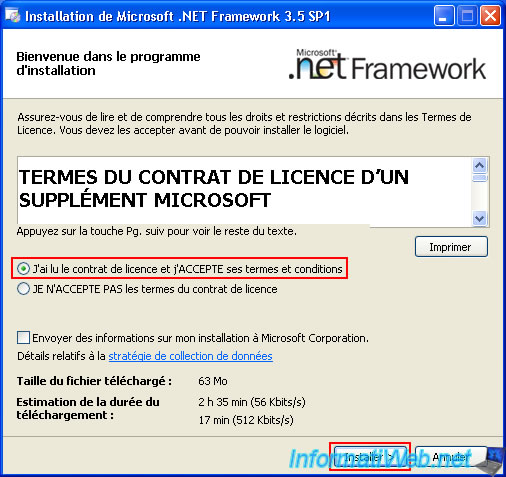
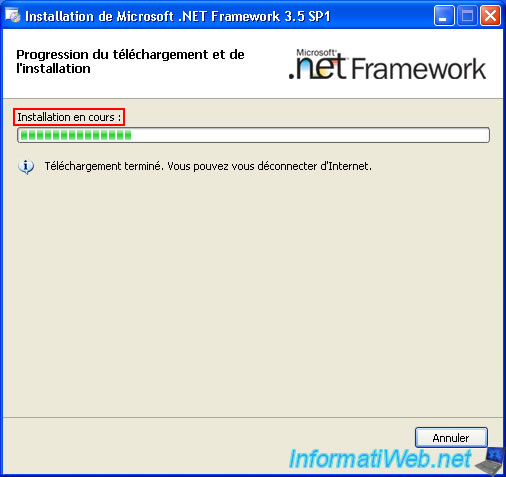
You will notice that the "Download complete" message appears immediately, without even having attempted to download anything.
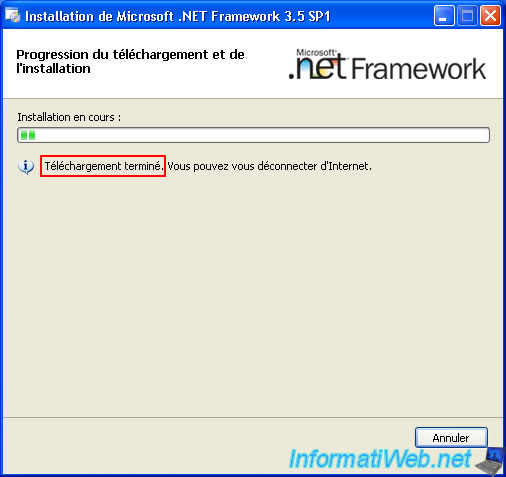
Simply wait while the Microsoft .NET Framework 3.5 SP1 is installed without needing to be connected to the Internet.
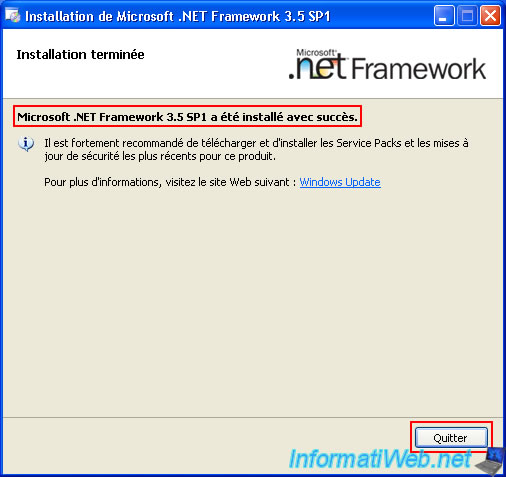
As expected, you will see the message "Microsoft .NET Framework 3.5 SP1 has been successfully installed" appear.
Click "Exit".
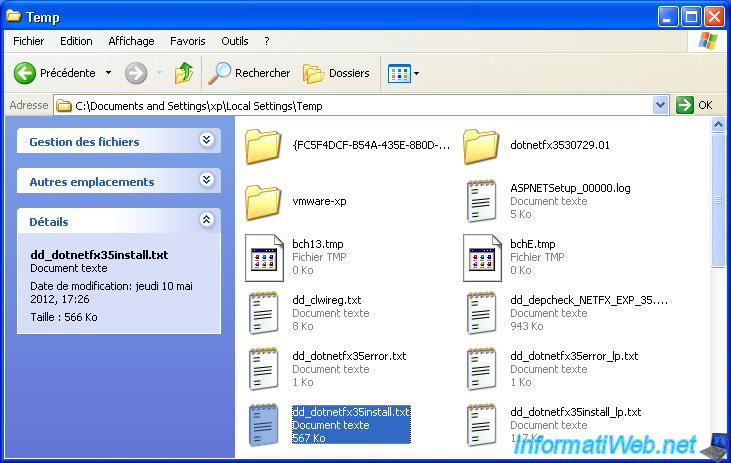
If you wish (just to verify), access your temporary folder again (by typing "%temp%" in the File Explorer address bar).
Then, open the "dd_dotnetfx35install.txt" file again.
Warning : each time you relaunch the installer, the content is appended to this file (the file is not overwritten).
Search for the term "langpack" (as before).
You will first come across the "dotnetfx35langpack_x86fr.exe" file seen earlier.
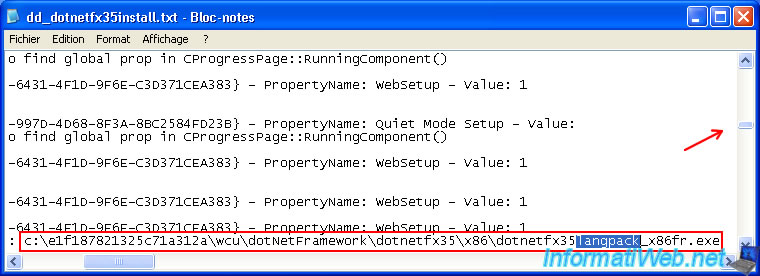
Go back to the "Edit -> Find" menu and click "Next" several times to find the new information.

Further down in this file, you will find the same lines (but they relate to the second run of the installer).
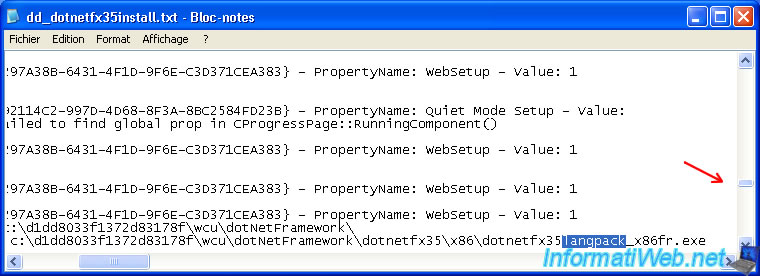
If you look to the left, you will see that this time, the Microsoft .NET Framework 3.5 SP1 installer has detected the presence of the required "dotnetfx35langpack_x86fr.exe" file.
Consequently, the download manager (dlmgr) will use this file ("File fetched") instead of downloading it from the Internet.

4. Microsoft .NET Framework 3.5 SP1 installed on Windows XP SP3
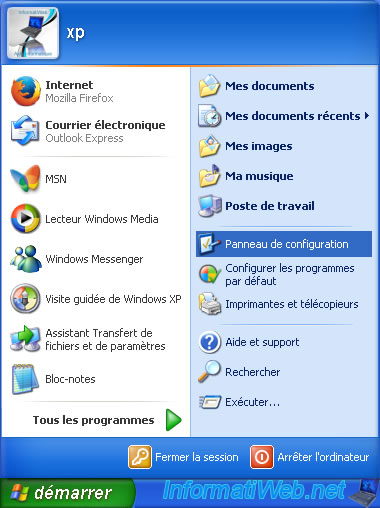
To verify that Microsoft .NET Framework 3.5 SP1 has been correctly installed, go to the Start menu and click "Control Panel".
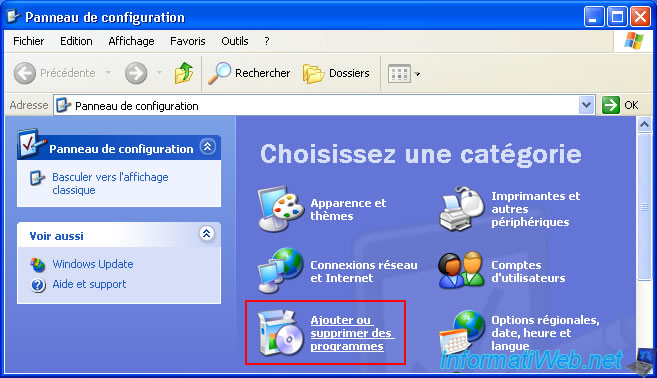
Next, click on "Add or remove programs".
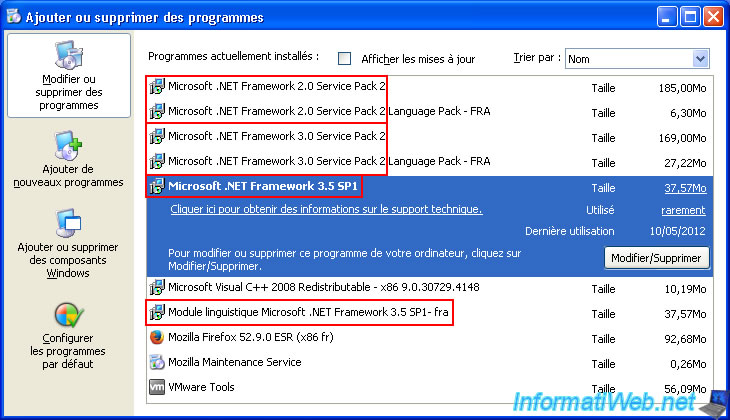
As you can see, this installer will have installed (without an Internet connection):
- Microsoft .NET Framework 2.0 Service Pack 2 (SP2) with its "FRA" language pack.
- Microsoft .NET Framework 3.0 Service Pack 2 (SP2) with its "FRA" language pack.
- Microsoft .NET Framework 3.5 Service Pack 1 (SP1) with its "FRA" language pack.
In other words, the manually downloaded "dotnetfx35langpack_x86fr.exe" file enabled the automatic installation of the "Microsoft .NET Framework 3.5 SP1 Language Pack - fra".
Share this tutorial
To see also
-

Windows 12/25/2012
Windows XP - Install Windows XP on a SATA hard disk
-

Windows 11/18/2012
Windows XP - Startup repair
-

Windows 4/7/2012
Windows XP - Use a Bluetooth headset
-

Windows 1/7/2010
Windows XP - Windows Search - Search engine
You must be logged in to post a comment