Buy a game for less at Gamesplanet (US) thanks to dLcompare
- Good deals
- 23 November 2026 at 09:37 UTC
-

- 4/5
6. Download and install your official game via Ubisoft Connect (Uplay)
To download and install your official game via Ubisoft Connect, first download and install Ubisoft Connect.
Then, launch Ubisoft Connect and log in with your Ubisoft account (the one you used to activate the game on the Gamesplanet website).
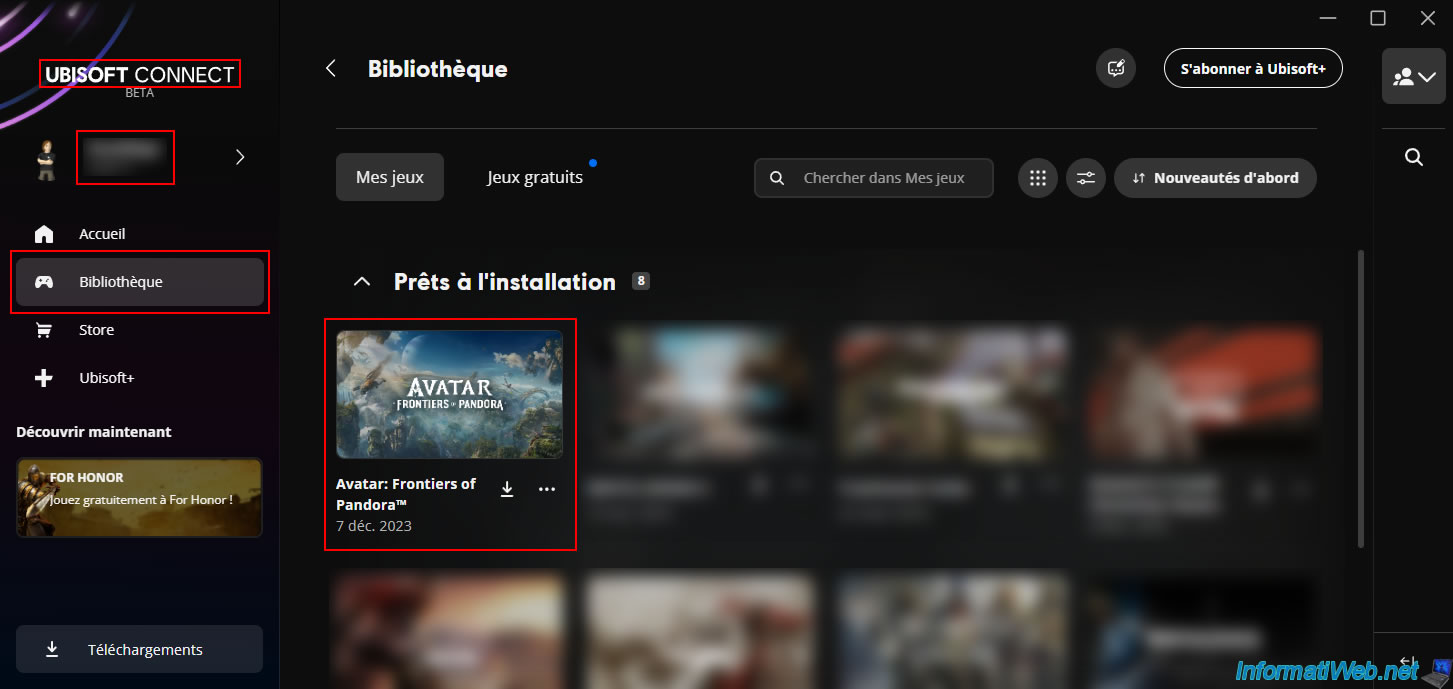
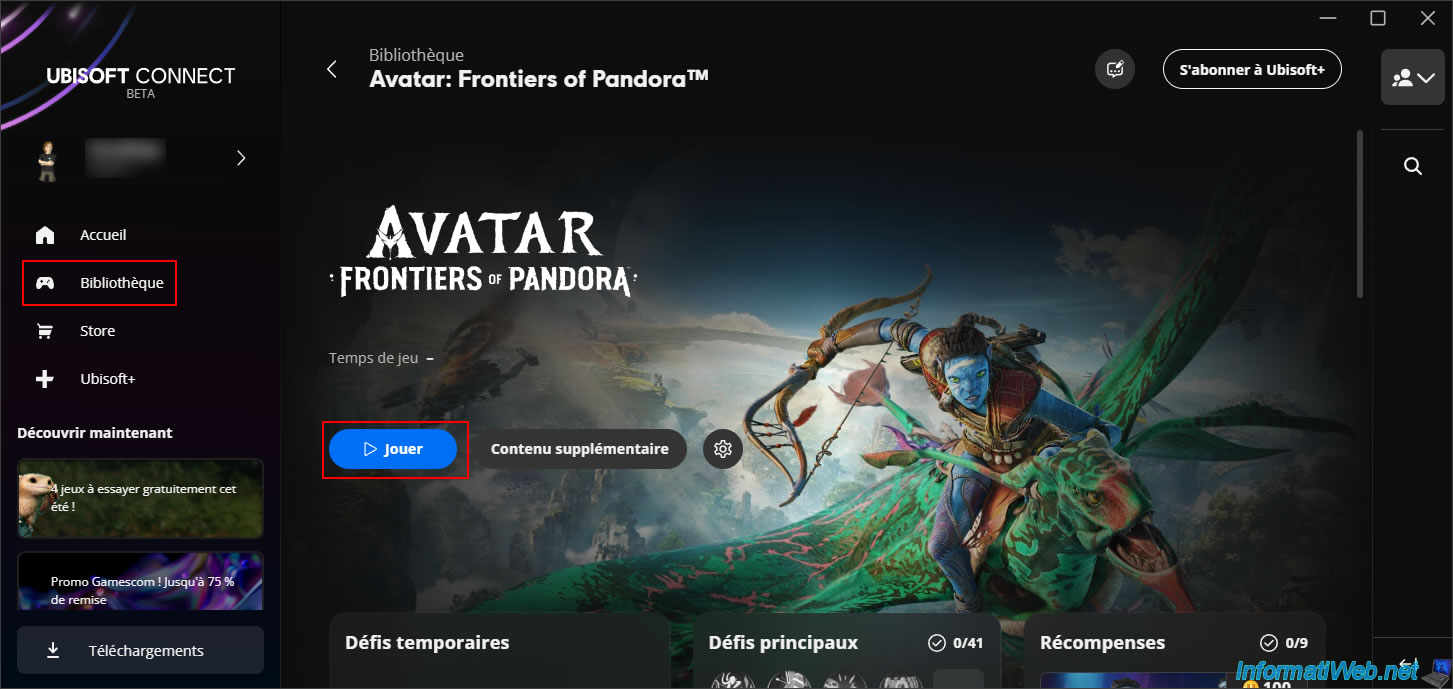
Next, go to the "Library" section and click on the name of the game you purchased (in our case, "Avatar: Frontiers of Pandora").
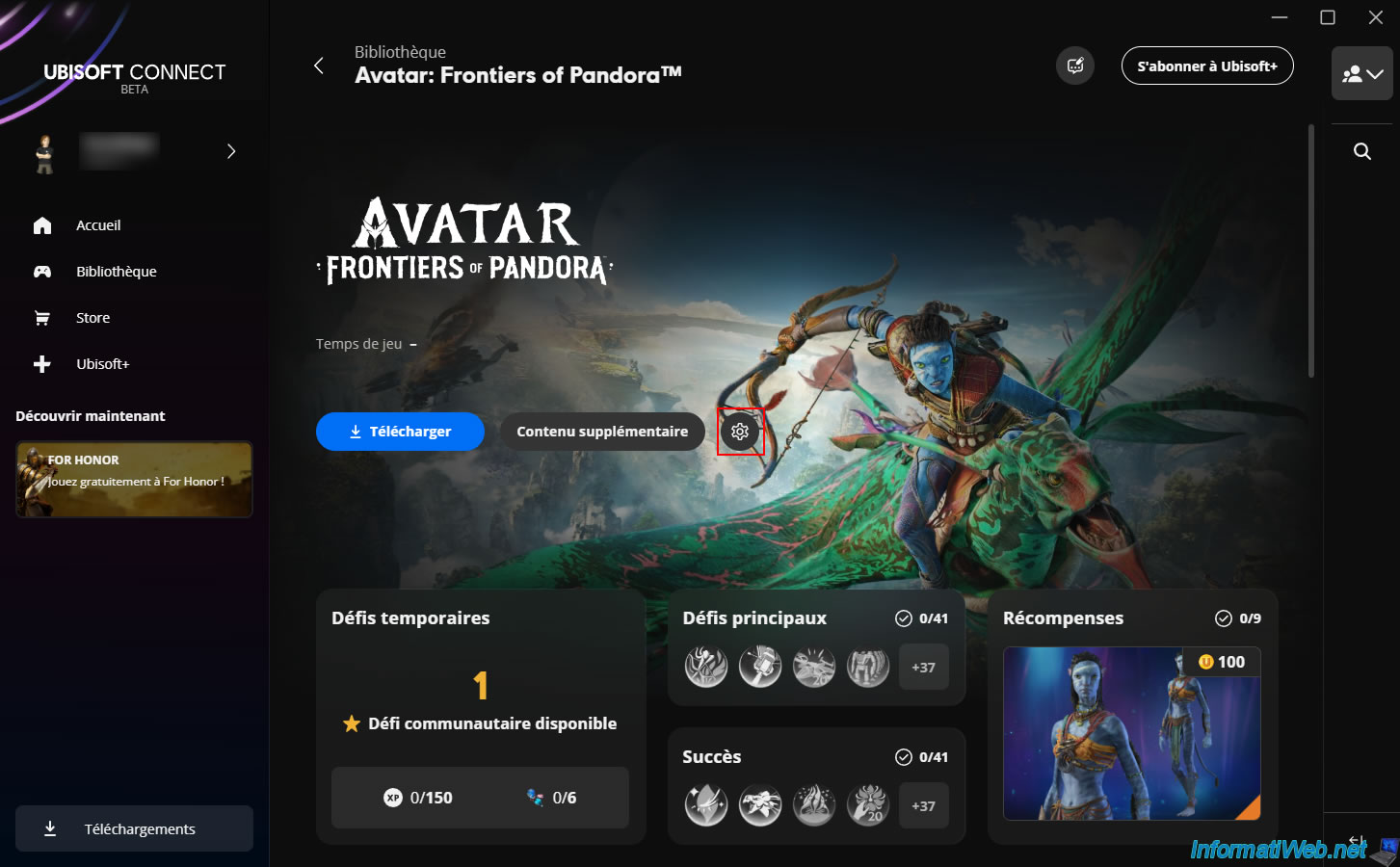
To view information about this game, click on the gear icon located to the right of the download button.
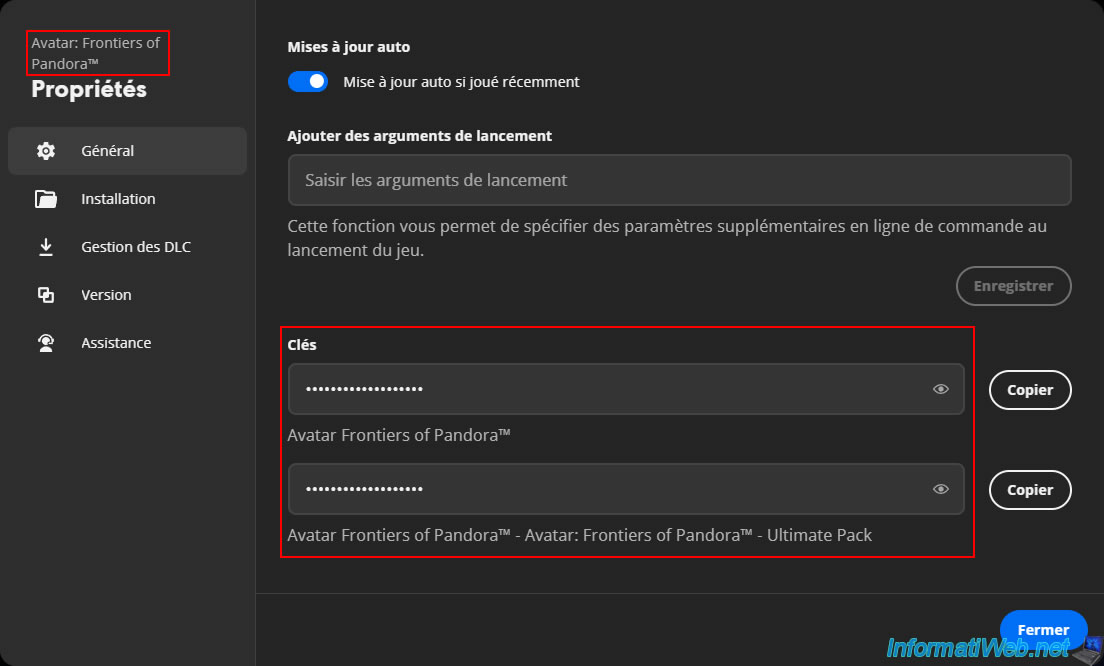
In the game's properties, you can see the associated keys (hidden by default).
In our case, we own the base game "Avatar: Frontiers of Pandora" and the "Ultimate Pack" DLC.
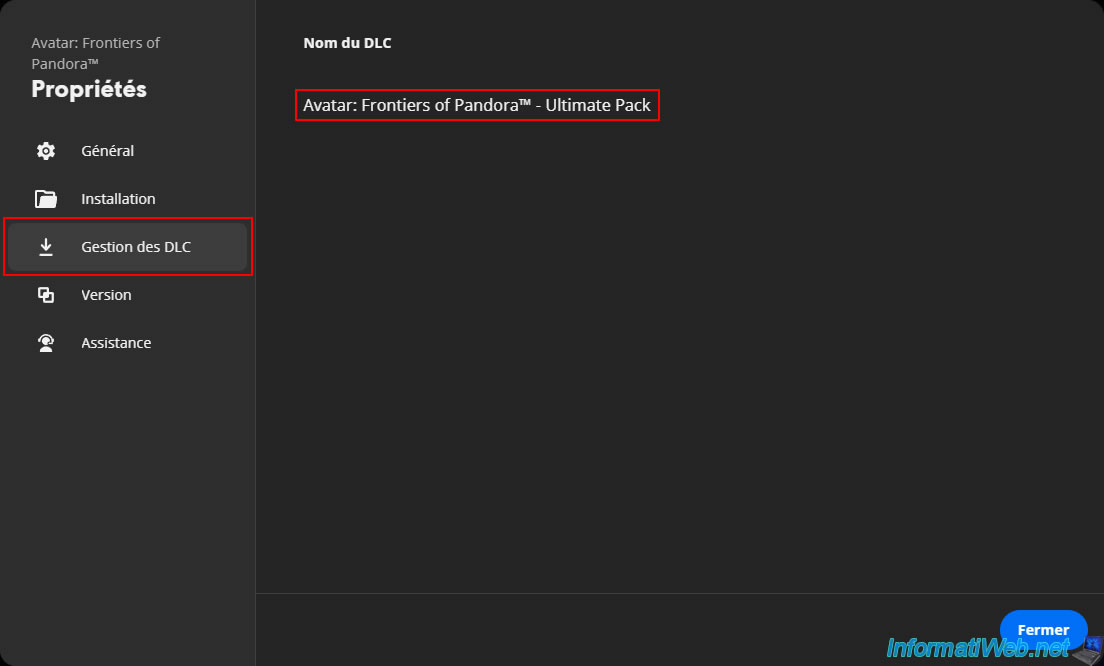
You can also view the list of DLCs in the "DLC Management" section.
To download and install your game via Ubisoft Connect, click the "Download" button.
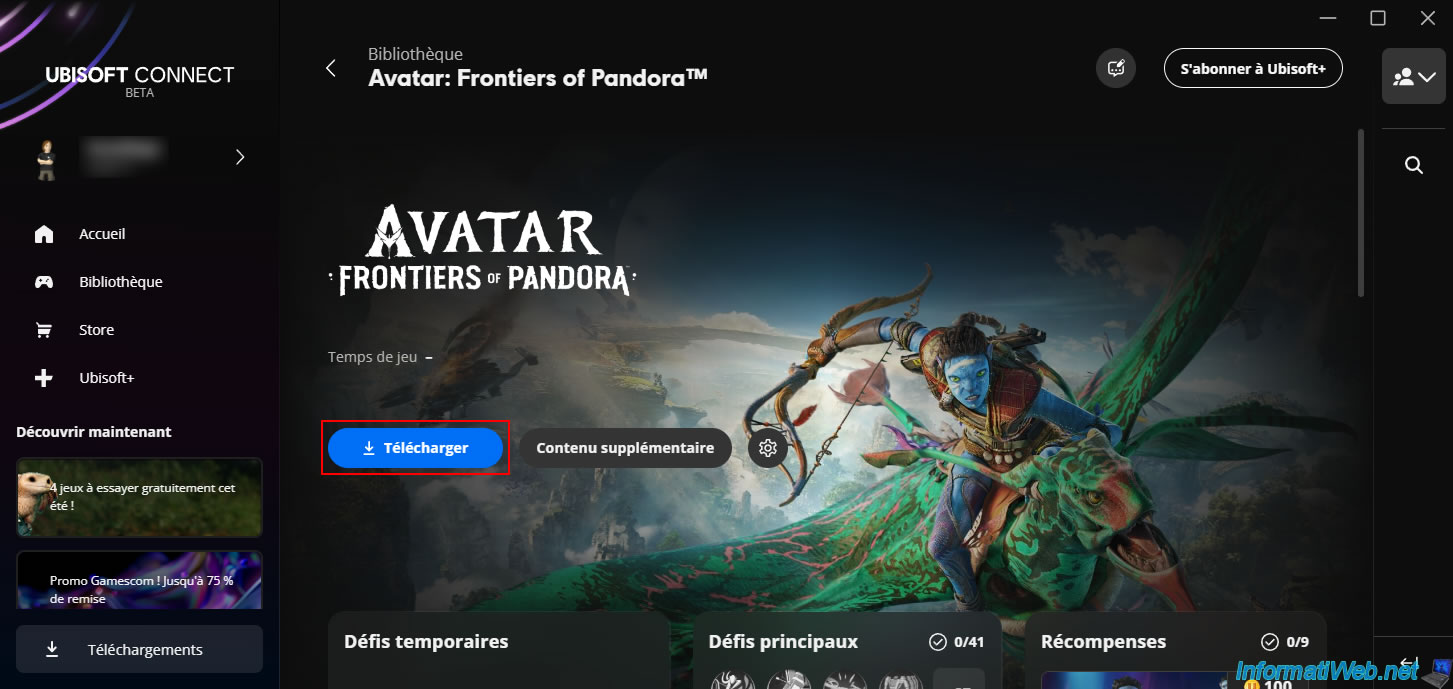
Normally, Ubisoft Connect should select your default language from the list (if your game supports it).
In our case, "French" is already selected.
Next, click "Continue".
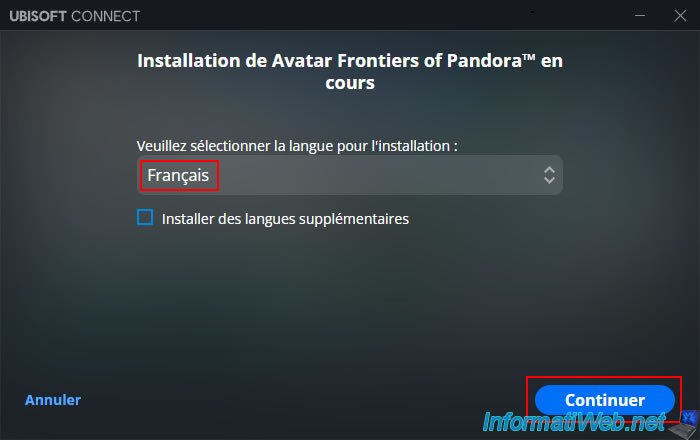
As expected, for this game we have the choice between: French, English, ...
As mentioned on the Gamesplanet website.
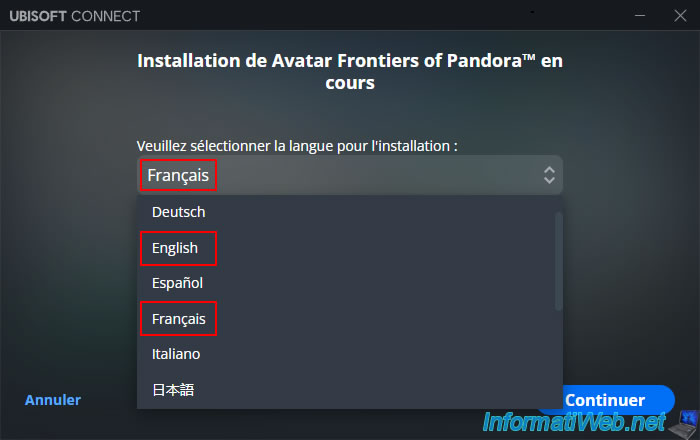
Choose your desired installation folder for the game, then click "Continue."
In our case, we selected the "D" partition.
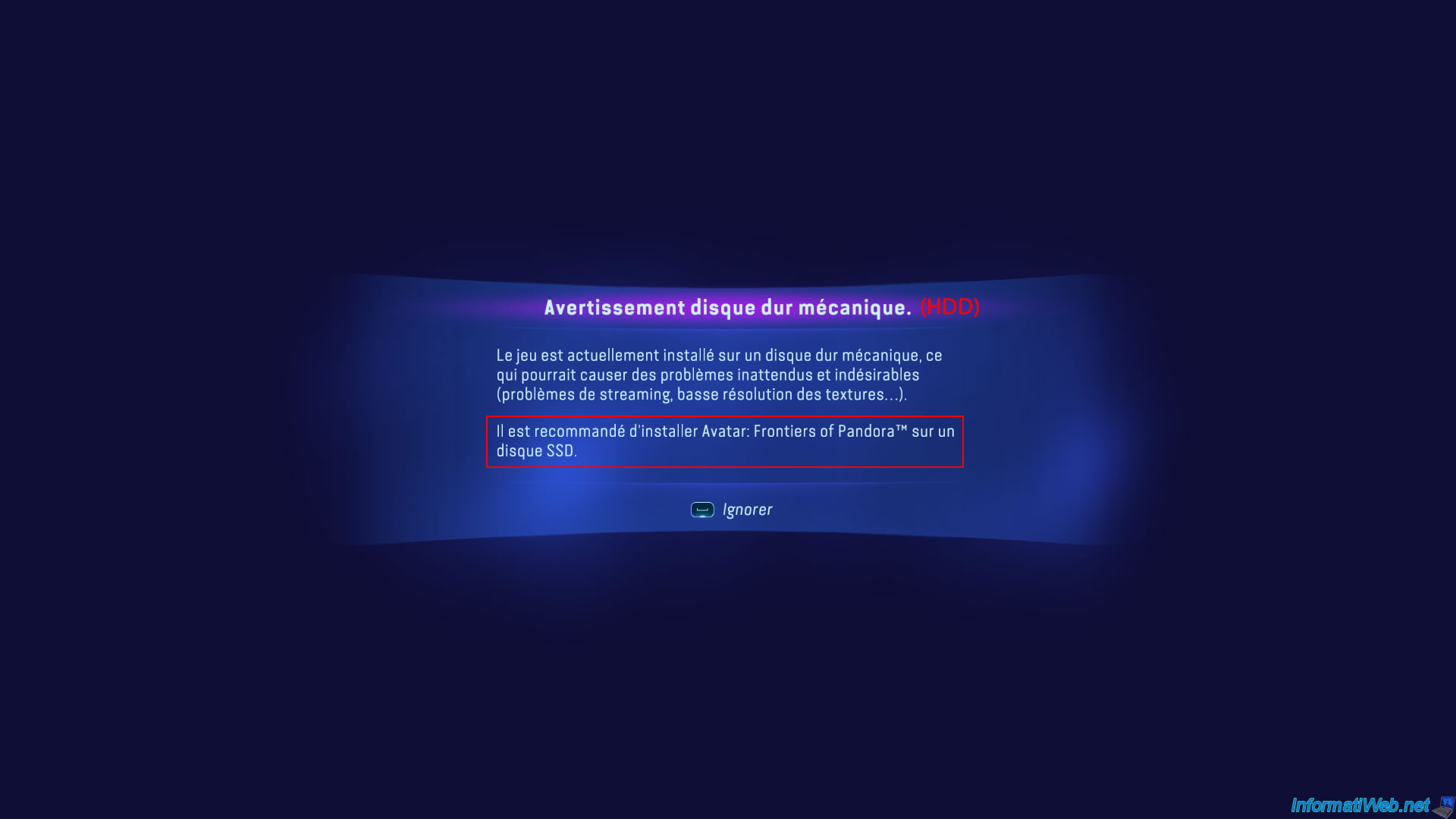
Warning : for the game "Avatar: Frontiers of Pandora," the recommended configuration requires an SSD.
The game will inform you of this when you launch it, and it is indeed highly recommended (as you will experience graphical glitches and even in-game bugs, such as passing through walls and falling into the void, if you install it on a hard disk drive (HDD)).
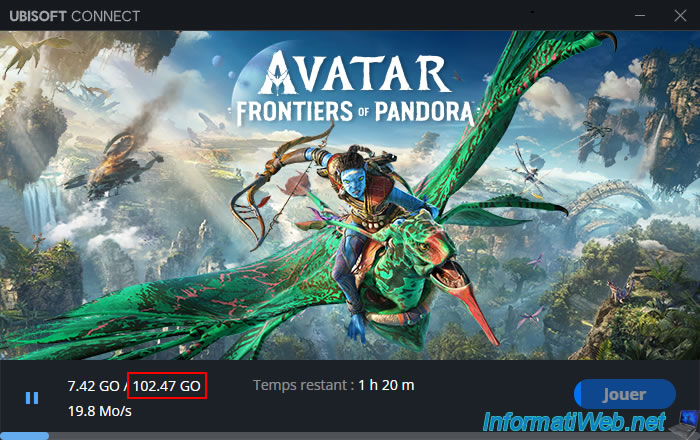
Note: in our case, you can see that the game requires approximately 111 GB of disk space (113839 MB / 1024 = 111 GB).
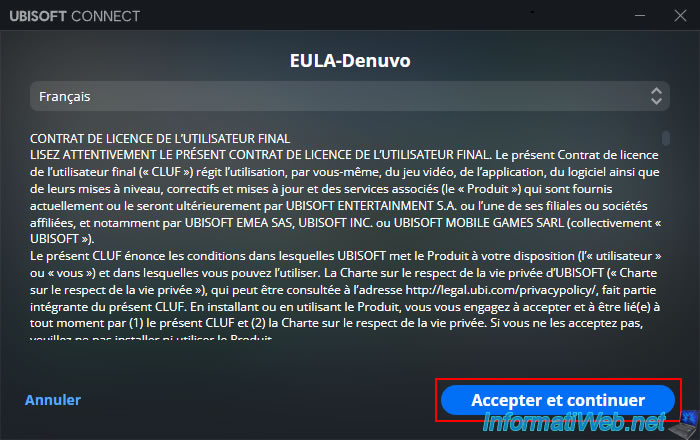
Accept the proposed license agreement.
Your game download (in our case "Avatar: Frontiers of Pandora") begins.
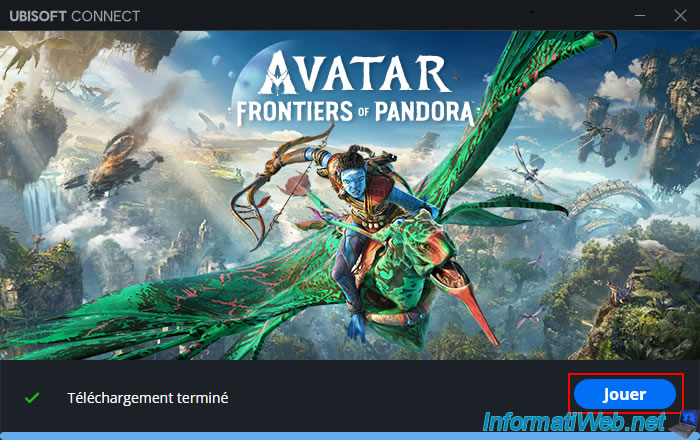
Once the download is complete, click "Play".
If you have closed the download window, you will simply need to click the "Play" button on the game page.
On the first launch of the game, Ubisoft Connect will install the prerequisites for your game (such as "DirectX" for example).
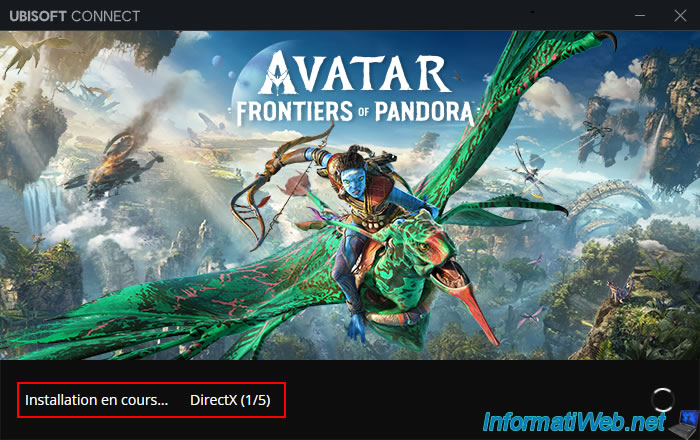
Then, it will launch your game.
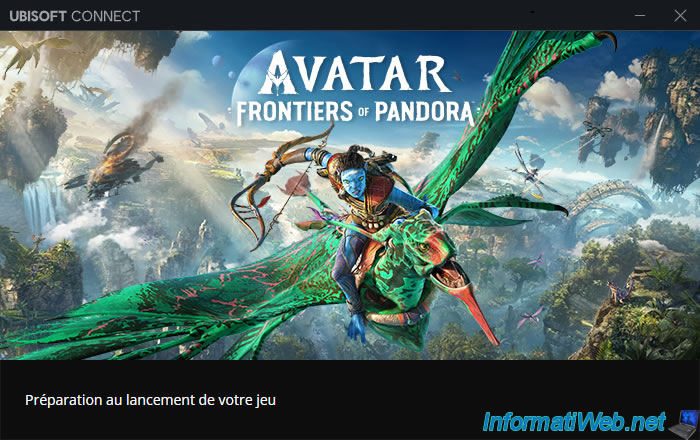
The game launches and a notification appears regarding integration with Ubisoft Connect.

Just for fun, and for those interested in this game, here are some screenshots from the beginning.
Warning : in the case of Avatar: Frontiers of Pandora, if you installed the game on a hard disk drive (HDD), a "Mechanical Hard Drive Warning" message will appear.
As the publisher indicates, installing this game on a mechanical hard disk drive (HDD) can cause unexpected and unwanted problems, and we experienced this right from the start of the game.
- like black rectangles instead of open doors, which, once passed through, allow you to reach the next room in the game.
- passing through a wall of debris (because the game didn't have time to perform the necessary calculations before your arrival).
- or even falling into the void (as you'll see in one of the images in this tutorial).
- music cutting out for a few seconds.
- ambient music for a dangerous area starting a few seconds too late.
- and more.
Note: if you open the Windows Task Manager in the background, you'll see that your hard drive is maxed out (it's constantly at 100% usage) even though the only application open was this game.
However, the game is a little over 100 GB, so you'll need a large SSD to install it.
PS: I know this is off-topic for this tutorial, but if you're thinking of buying this game, consider yourself warned.
Without an SSD, you'll quickly crash the game. So, remember to buy an SSD at the same time as the game to be able to play it properly.
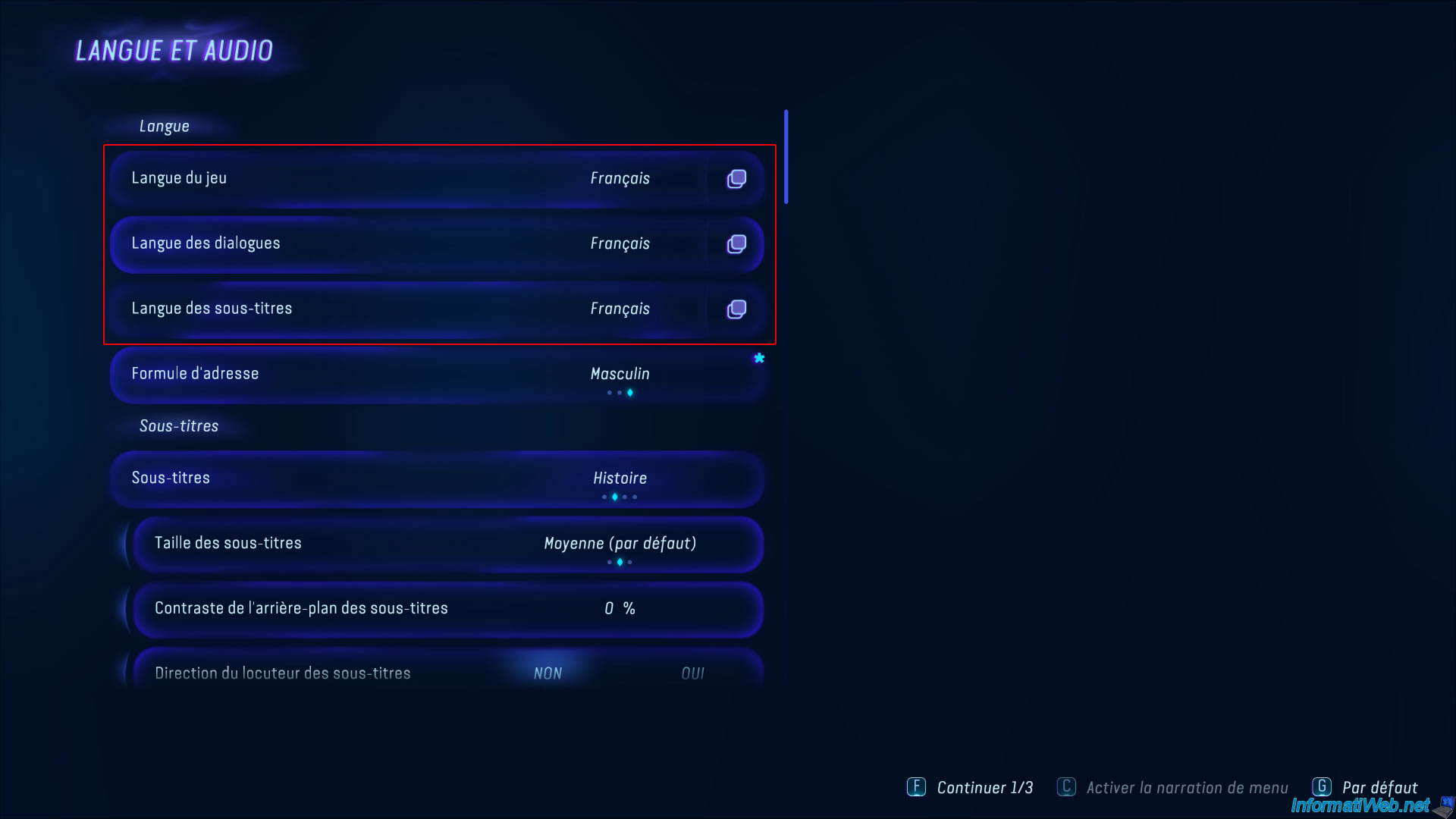
Upon first launching the game, you will be able to adjust several settings, including the game language, dialogue language, and subtitle language.
As expected, you can set everything to French.
Note: occasionally, characters will speak in their own language (Na'vi), but these lines will always be subtitled in French.
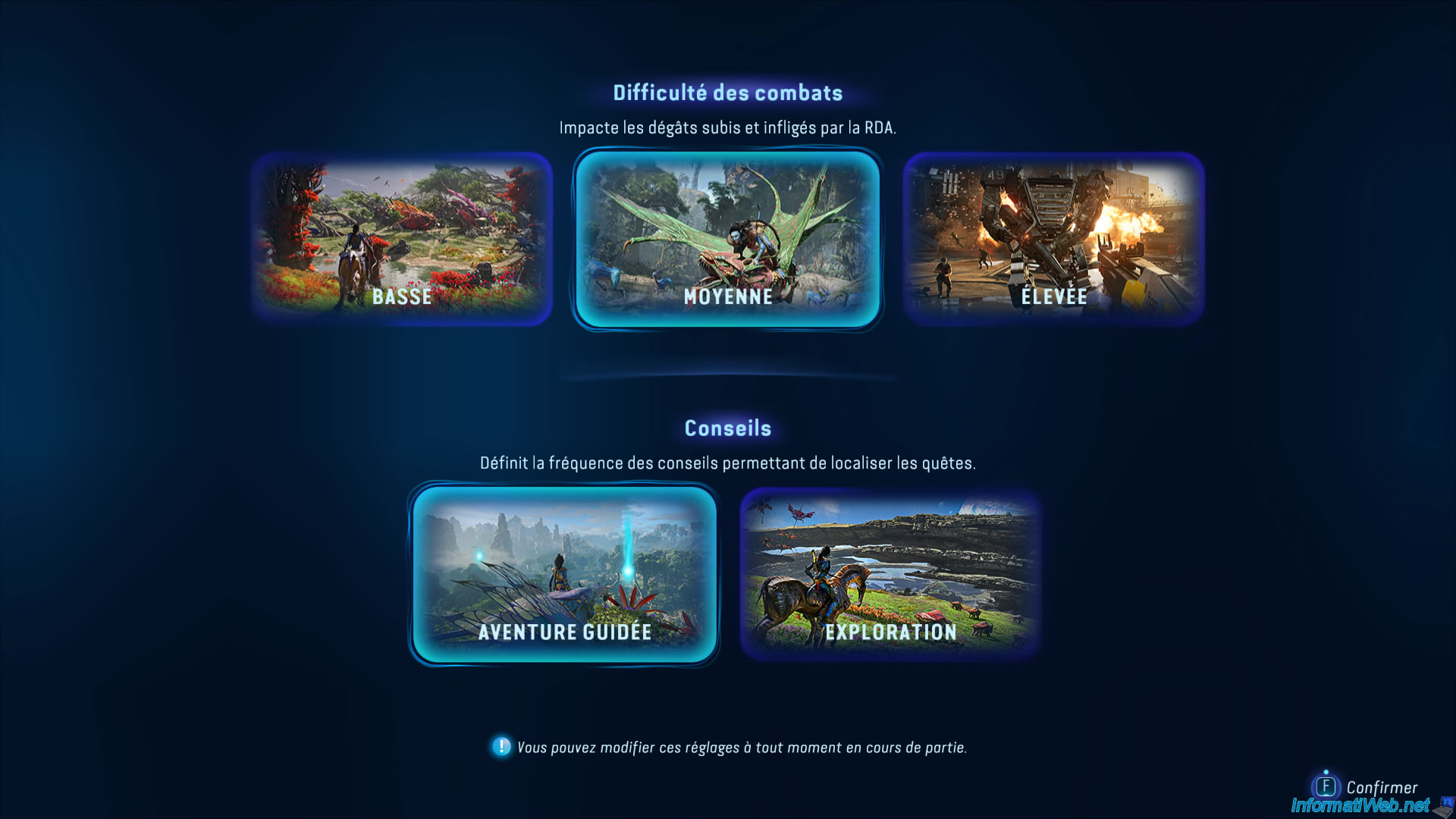
Choose the difficulty of the battles and the level of advice in the game.
The beginning of the game's intro.
Share this tutorial
To see also
-

Good deals 3/10/2025
Cashbacks - Save money on your purchases at MediaMarkt (with Familycard)
-
Good deals 11/16/2026
dLcompare - Buy a game for less at K4G
-
Good deals 11/9/2026
dLcompare - Buy a game for less at Kinguin
-

Good deals 11/2/2026
dLcompare - Price comparison website for gamers
No comment