Buy a game for less at K4G thanks to dLcompare and Widilo
- Good deals
- 16 November 2026 at 14:22 UTC
-

- 4/6
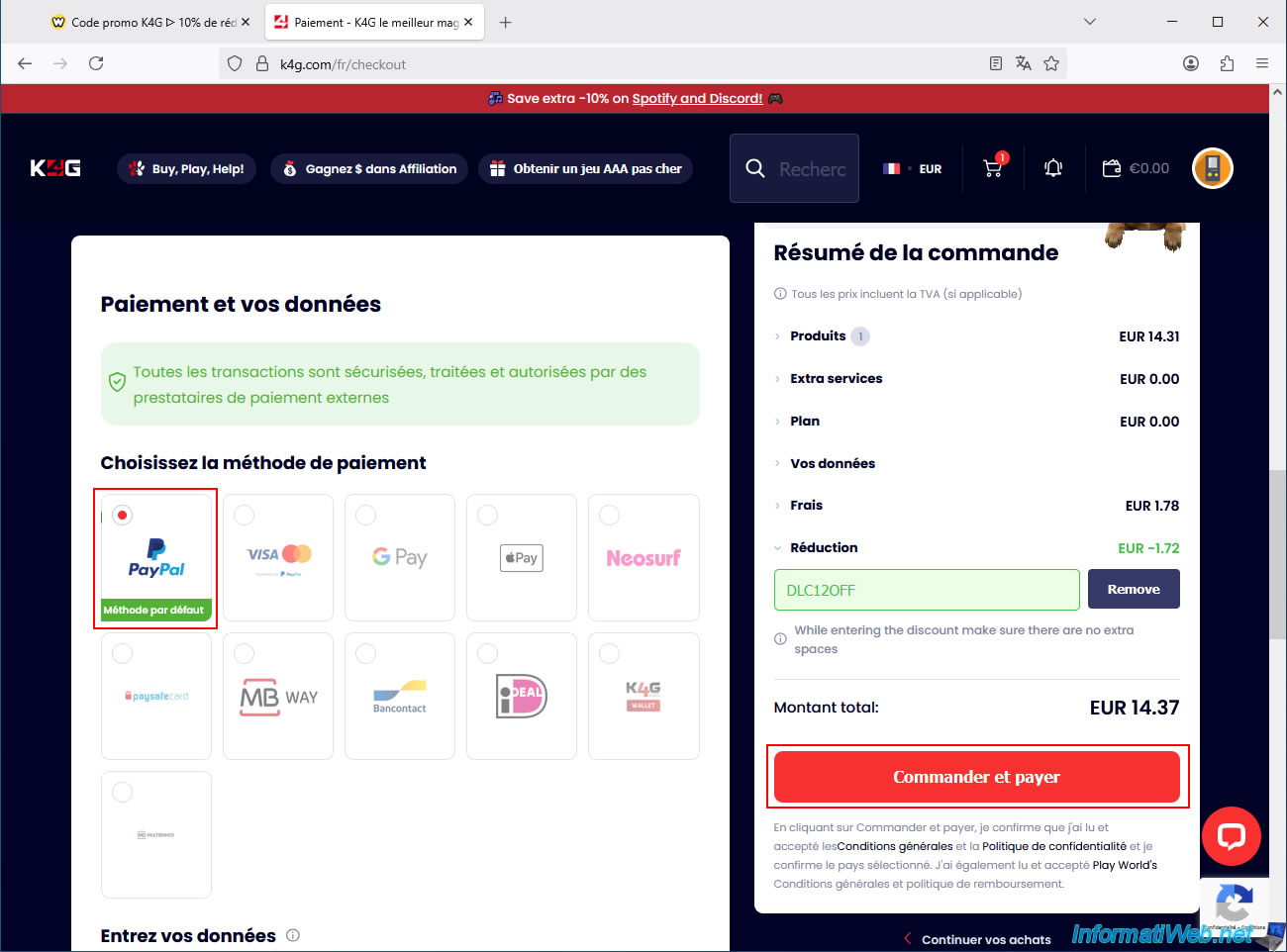
Choose your preferred payment method and click the "Order and Pay" button.
In our case: PayPal.
But you can also pay by VISA/MasterCard, Bancontact, ...
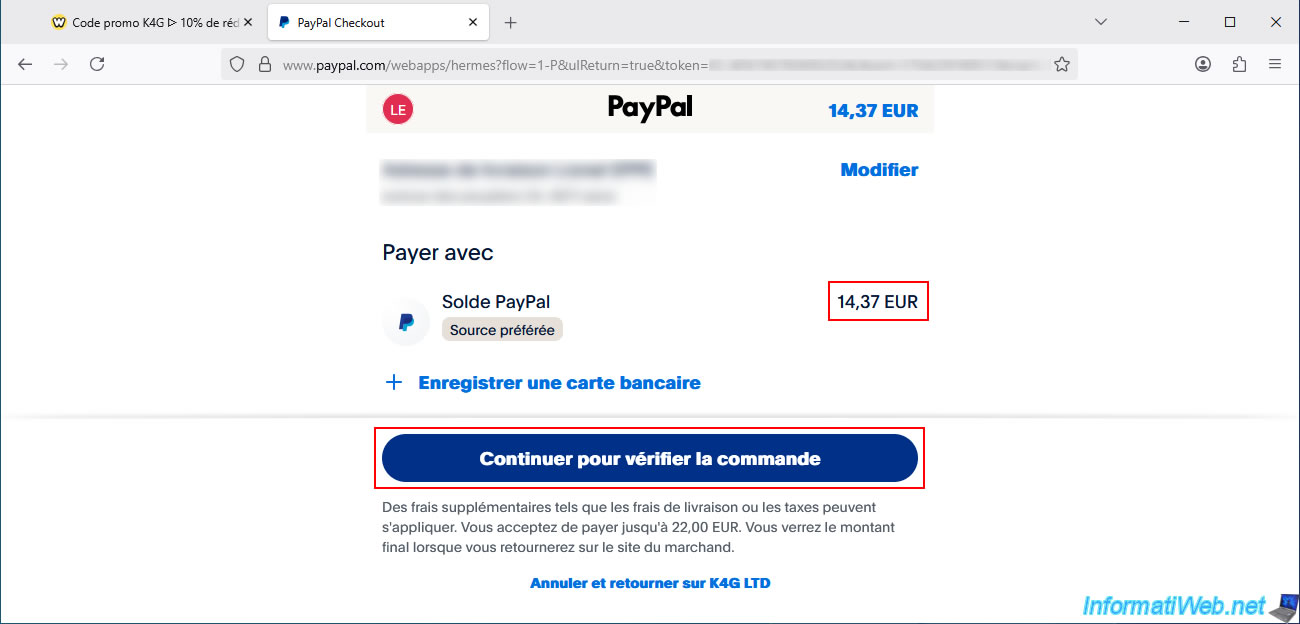
In our case, we arrive at the PayPal site where we pay only €14.37 (for a game worth €69.99 on Steam on the same day, as shown previously).
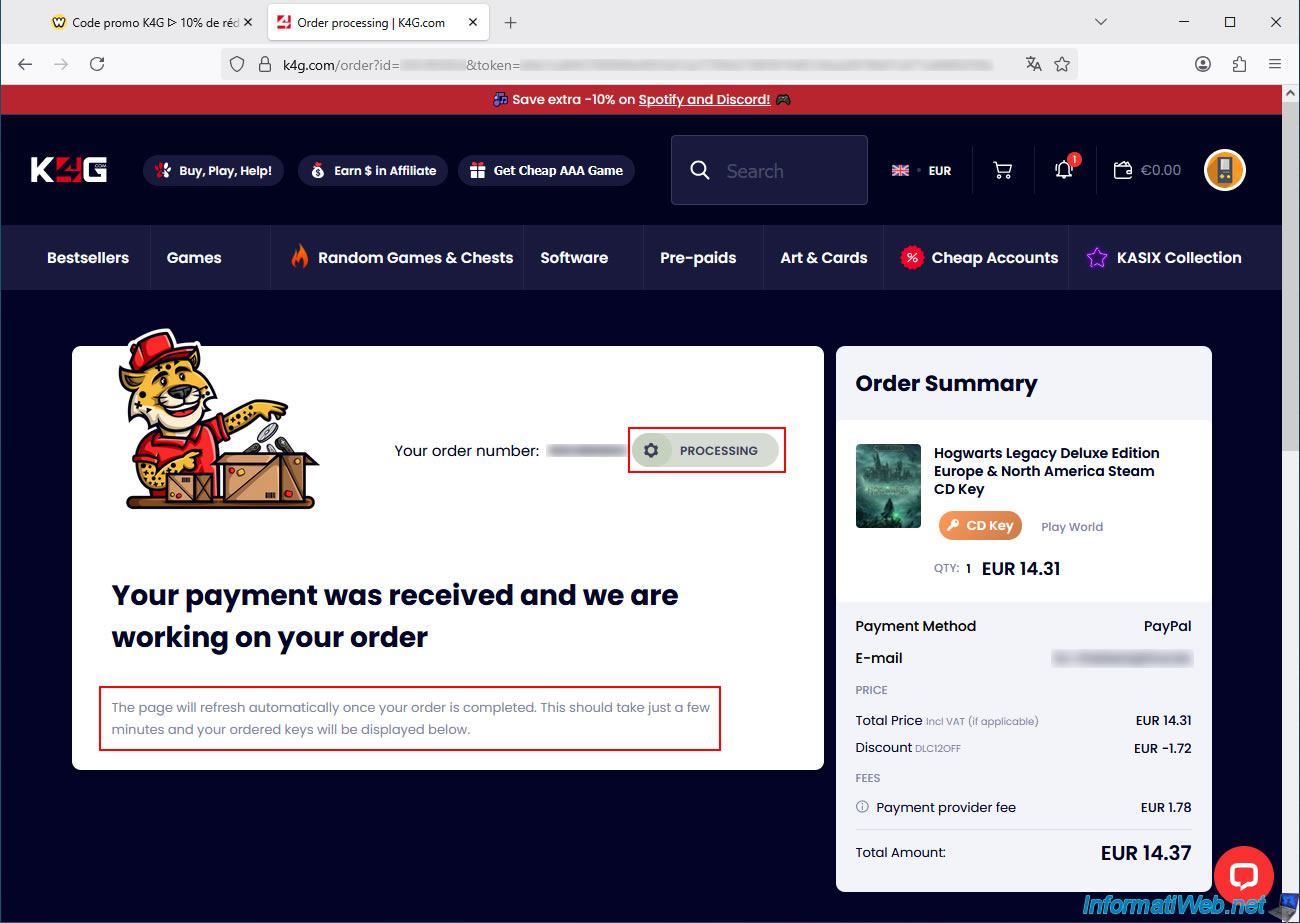
Once your payment is validated, you will arrive at a page where you will see that your order status is "Processing".
You will also see the message "Your payment was received and we are working on your order".
As indicated on the page, this page will automatically refresh when your order has been completed.
This should take a few minutes (approximately 3 or 4 minutes).
A few minutes later, the page will refresh automatically and your order status will be "Completed".
You will also see the message "Your order has been placed successfully".
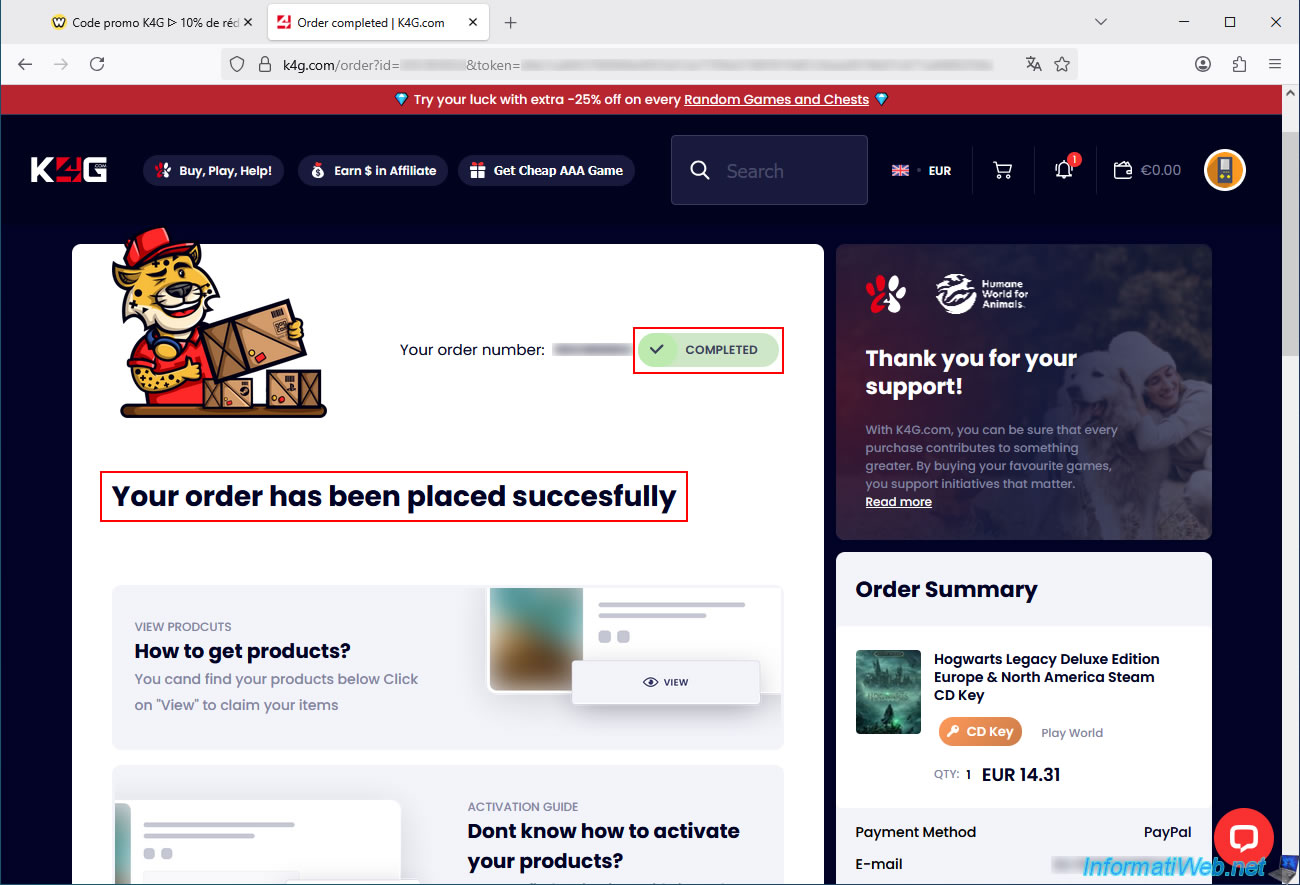
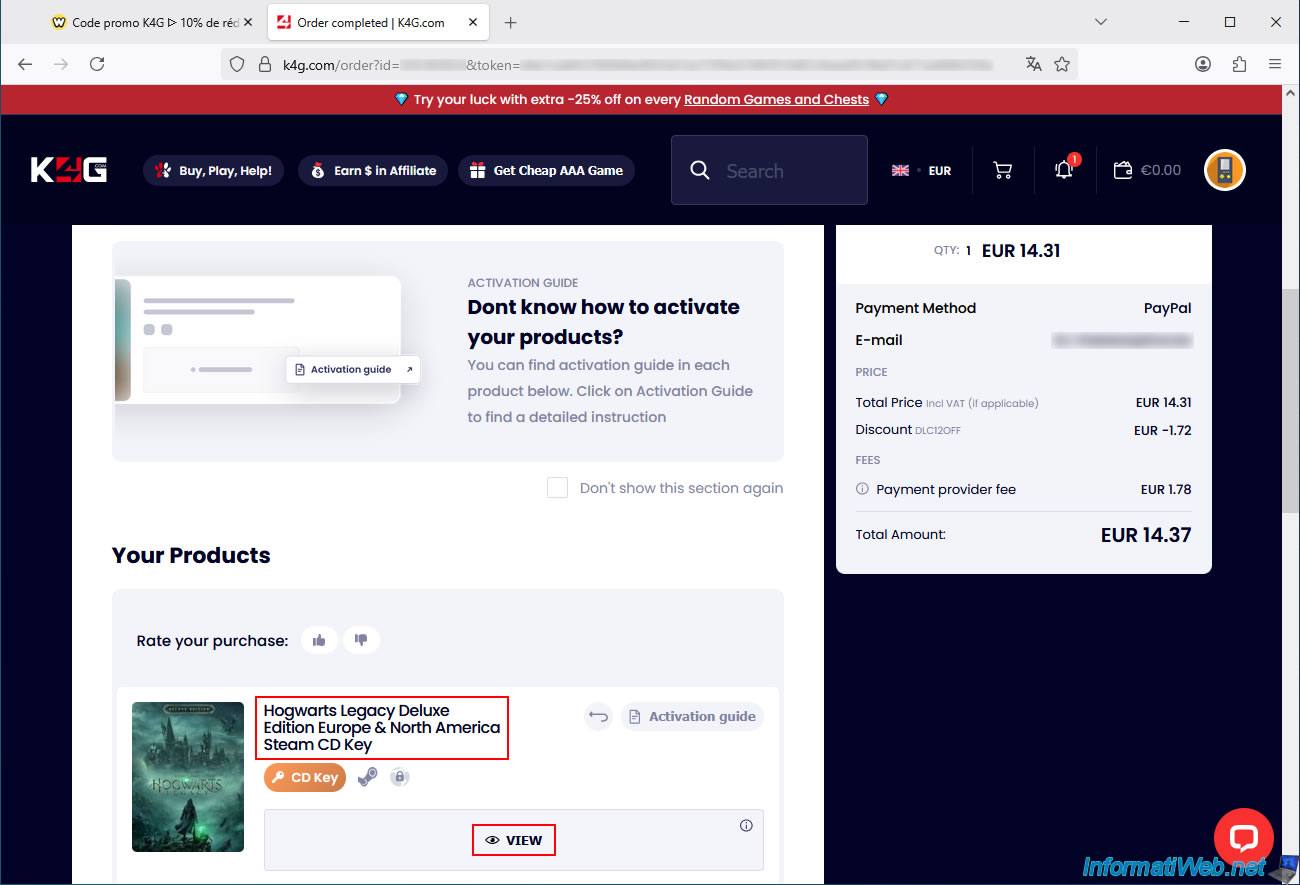
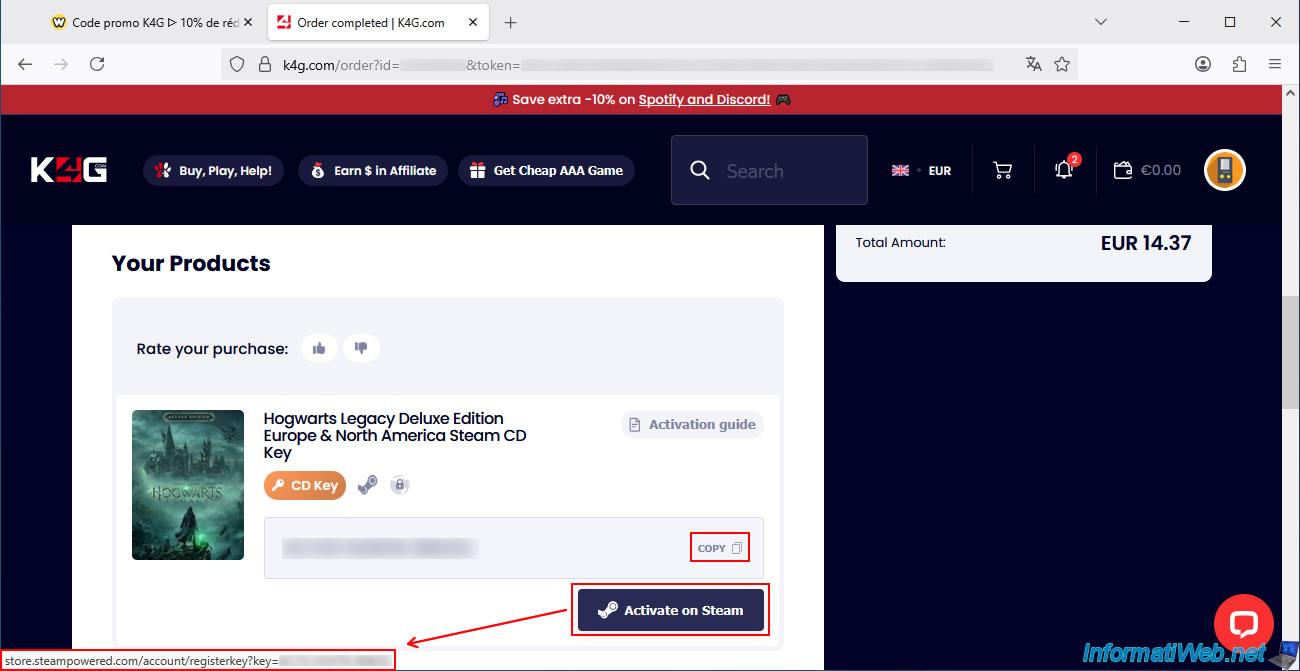
Further down this page, you'll find the "Your Products" section with the game you just purchased.
In our case, it's "Hogwarts Legacy Deluxe Edition Europe & North America Steam CD Key".
Click "VIEW" to see the CD key for the game you purchased.
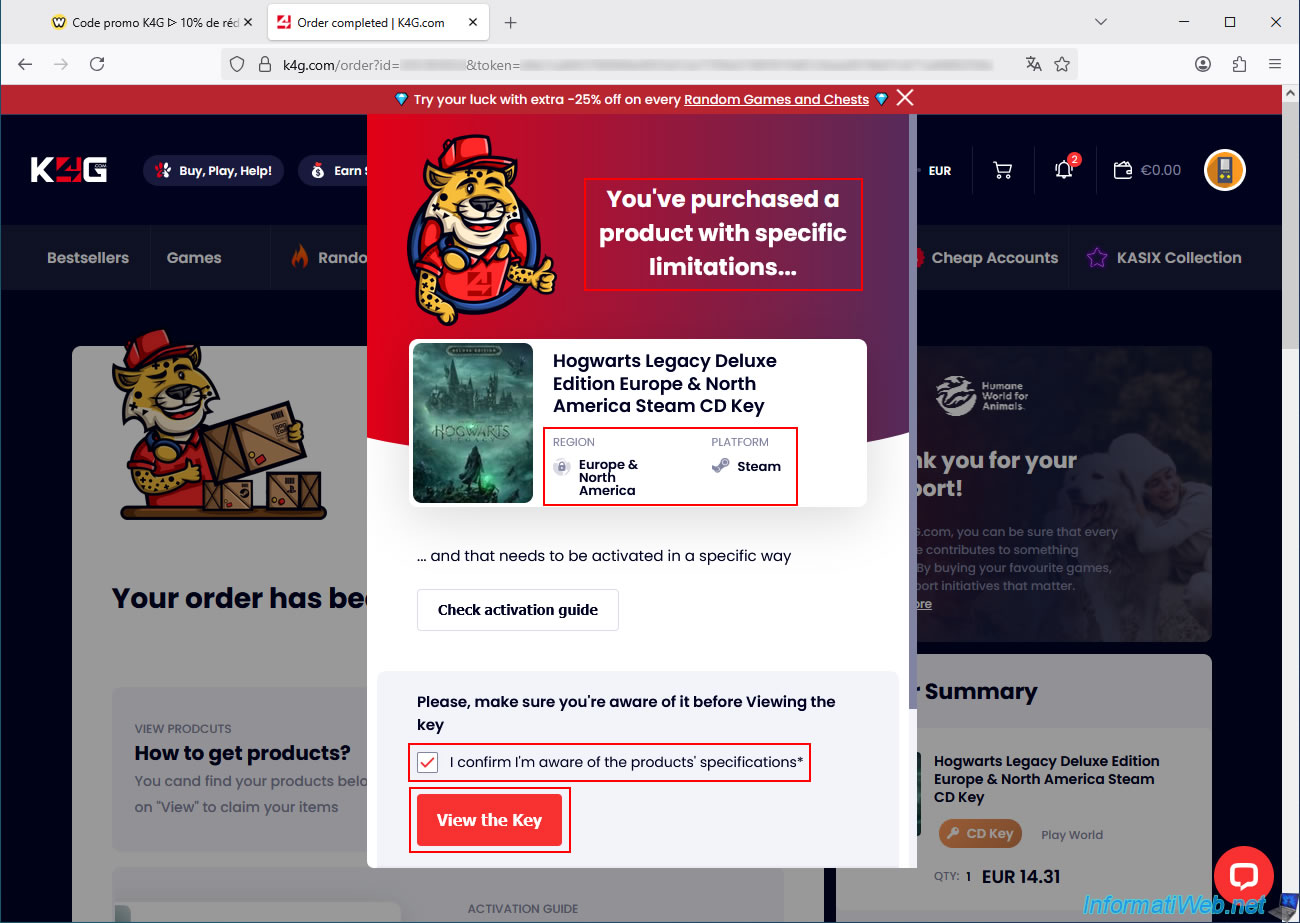
If limits apply to the purchased CD key (as is the case for us), a pop-up window with a red and purple background will appear.
In our case, the limits are:
- Region: Europe & North America.
- Platform: Steam.
Make sure this is not a problem in your case, then tick the box "I confirm I'm aware of the products's specifications*" and click the "View the Key" button.
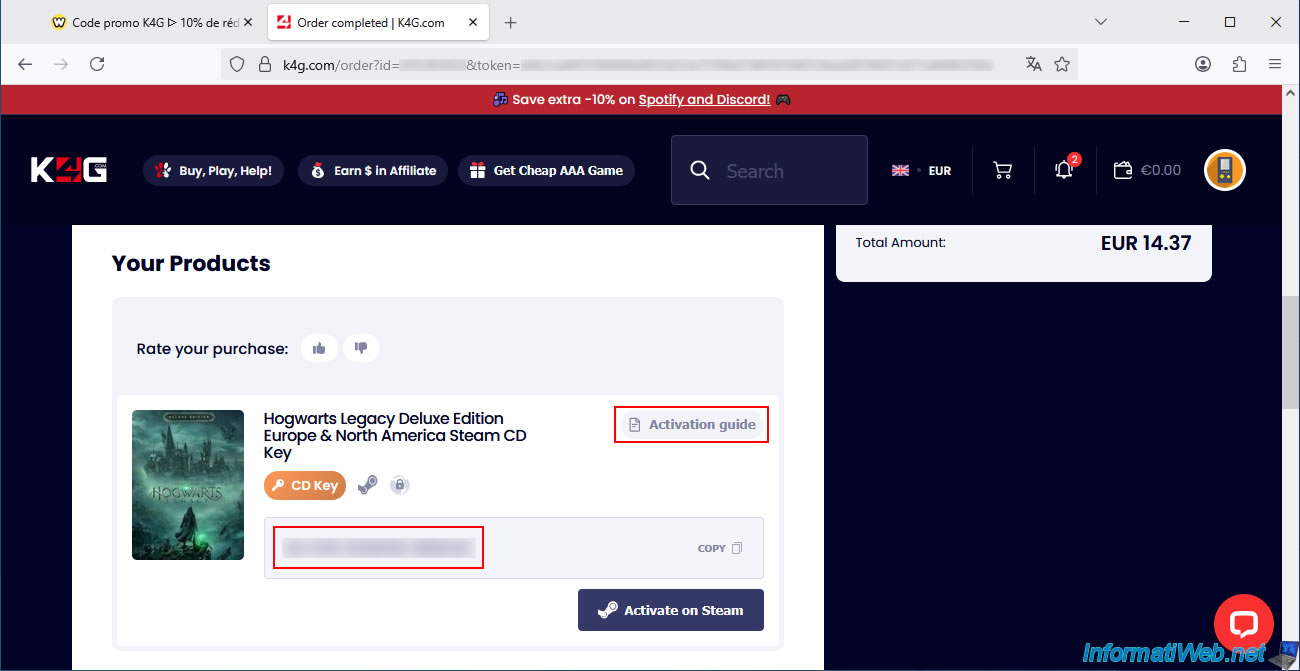
Your game's CD key (serial number) will now appear in the box.
To copy the CD key, click "Copy" (to the right of the CD key).
If you need help activating your game (on Steam, in this case), click "Activation guide" (or follow the steps in our tutorial to do so).
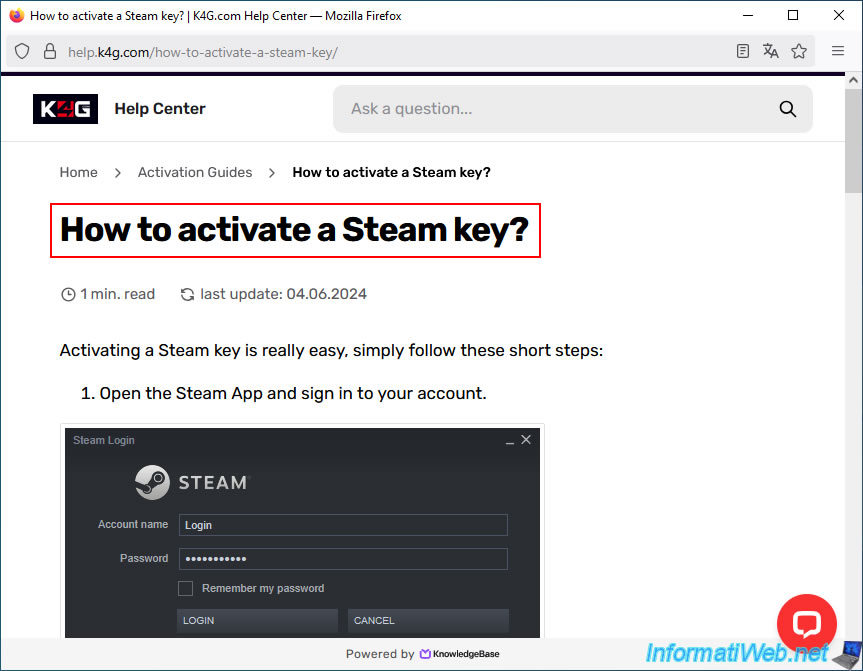
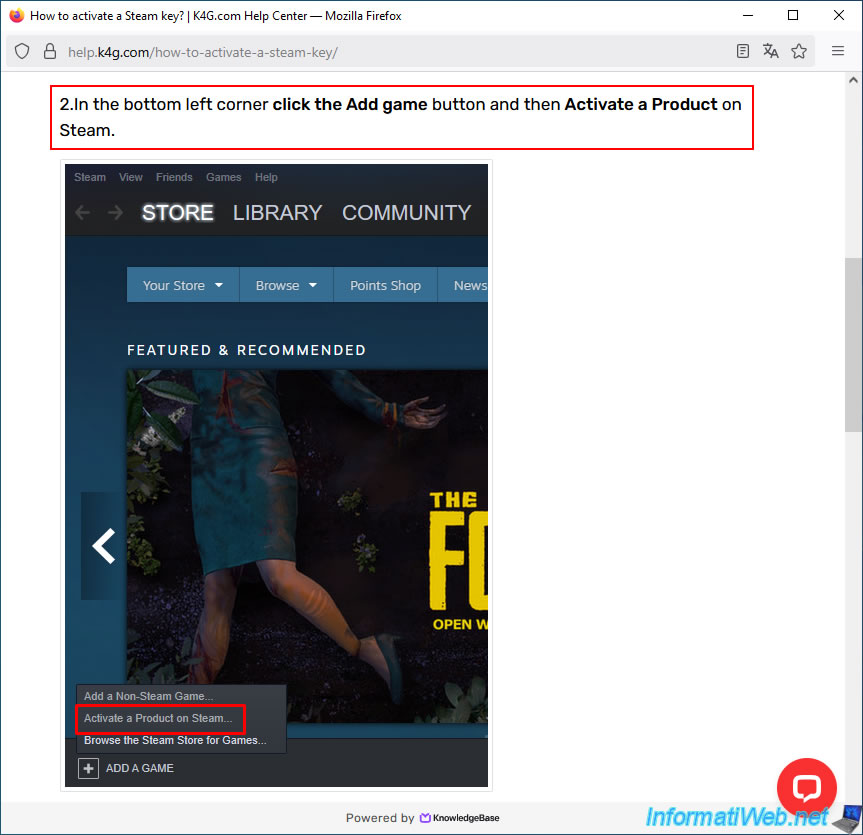
If you clicked on the "Activation guide" button, you will see the "How to activate a Steam key?" page.
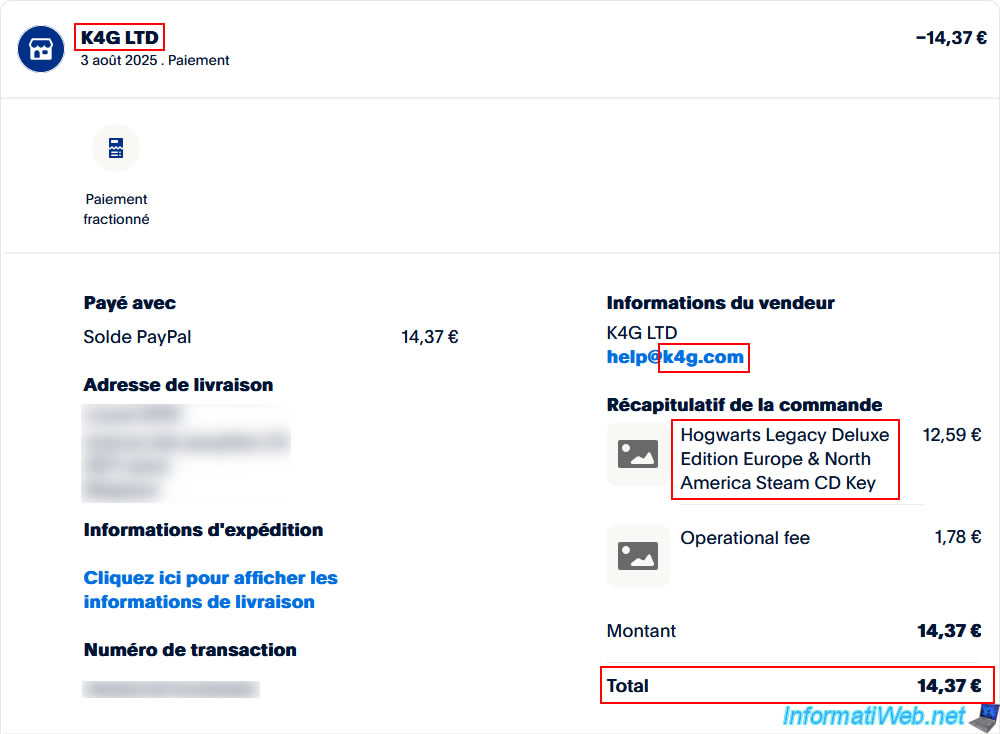
2.5. Payment made to K4G
As you can see, purchasing Hogwarts Legacy Deluxe Edition cost us only €14.37.
That's well below the current official price of €69.99 on Steam on the same day, before any discounts.
3. Activate the game's CD key on Steam to add it to your library
To activate the CD key on the "Steam" platform (in this case), you have 2 options:
- Launch Steam on your computer and go to the correct menu to activate your CD key.
To do this, refer to step "3. Activate the game's CD key on Steam to add it to your library" in our tutorial on buying a Steam game for less through the Kinguin website. (TUTO dlcompare-acheter-jeu-via-kinguin) - Click the "Activate on Steam" button on the current page (after paying for your order on K4G).
You can also find this "Activate on Steam" button by clicking the icon (at the top right), then clicking "Library".
In this case, we used the "Activate on Steam" button to show you another technique (offered by this merchant site).
This link will first take you to a Steam login page (on the Steam website).
Click the "Accept All" button.
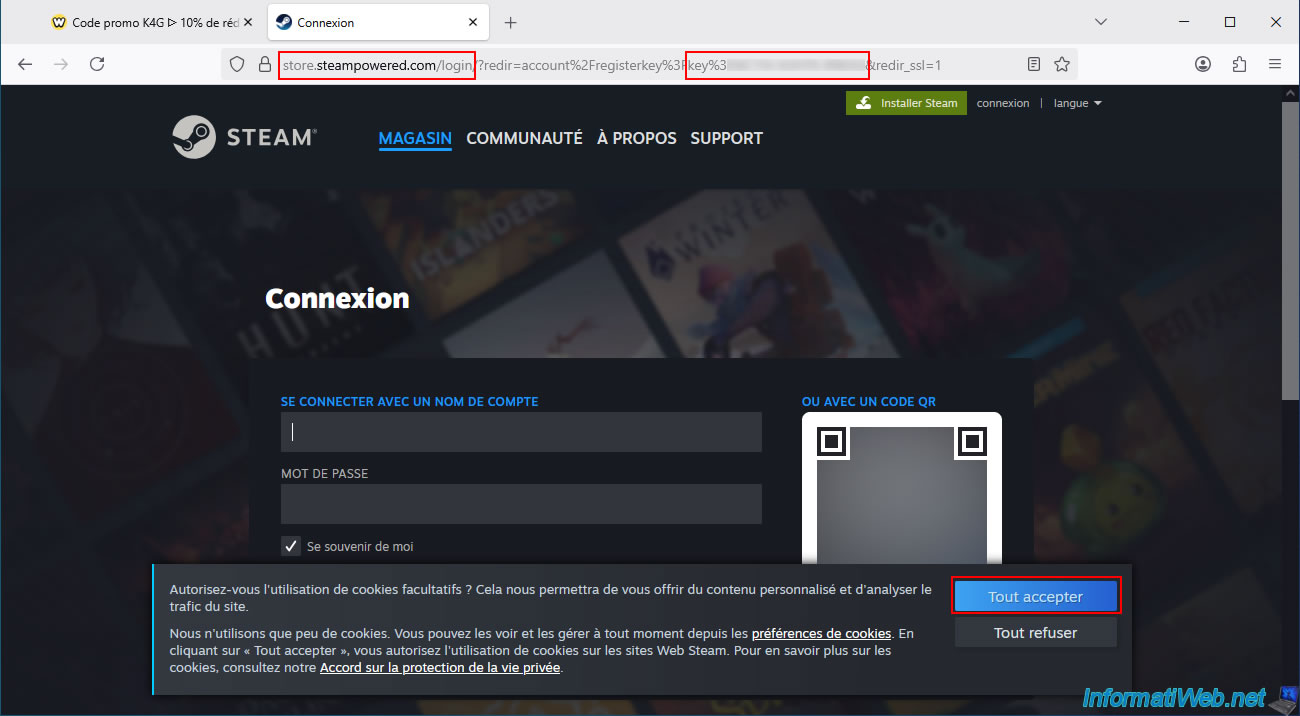
Enter your Steam account username and password and click "Log in".
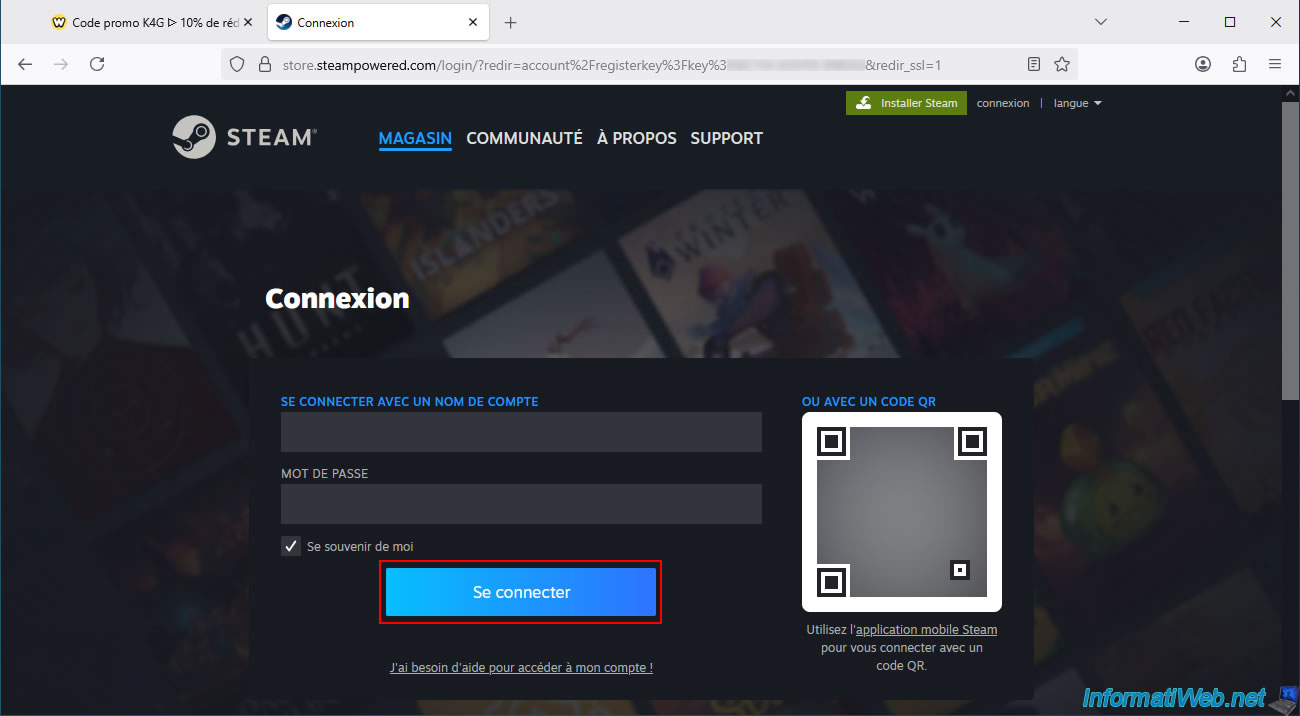
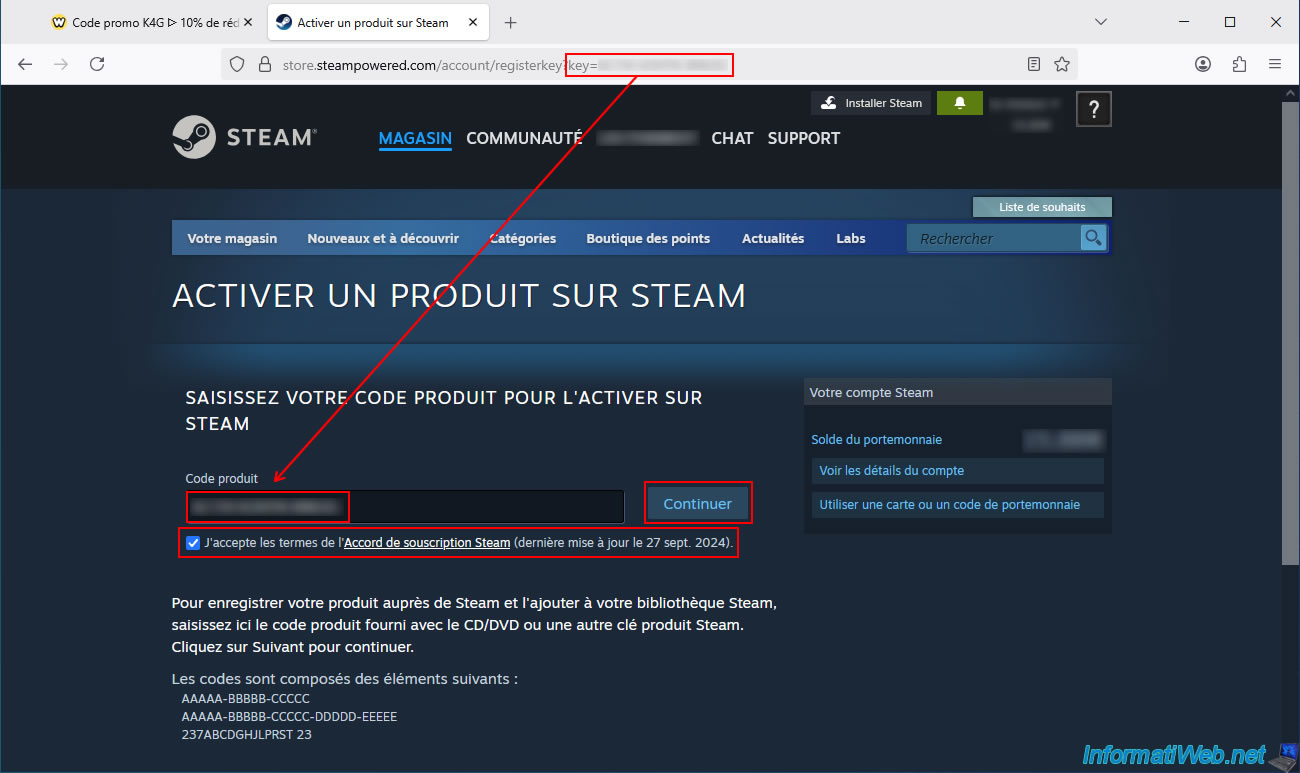
Once logged into Steam, you will automatically be taken to the "Activate a Product on Steam" page.
In the "Product Code" field, your game's CD key (serial number) will automatically appear (as it is already included in the page address via the "key" parameter).
Check the box "I agree to the terms..." and click the "Continue" button.
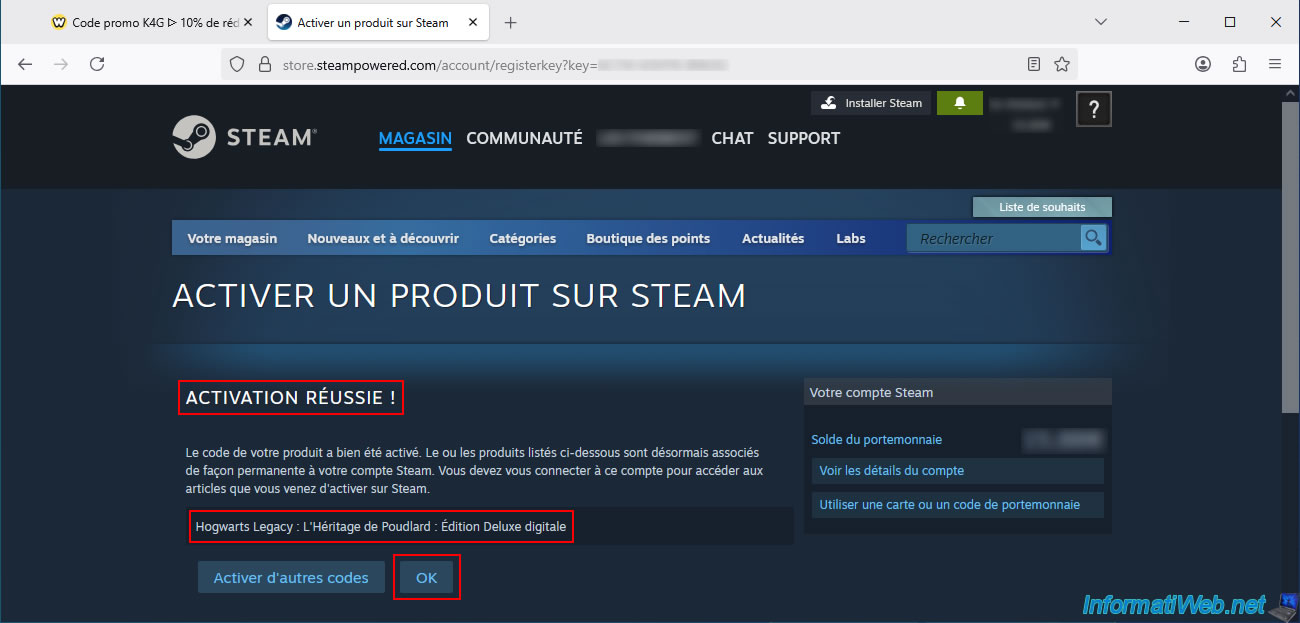
The message "Activation successful!" will appear.
In our case, Steam indicates that we have successfully activated the product "Hogwarts Legacy: Digital Deluxe Edition".
Click OK.
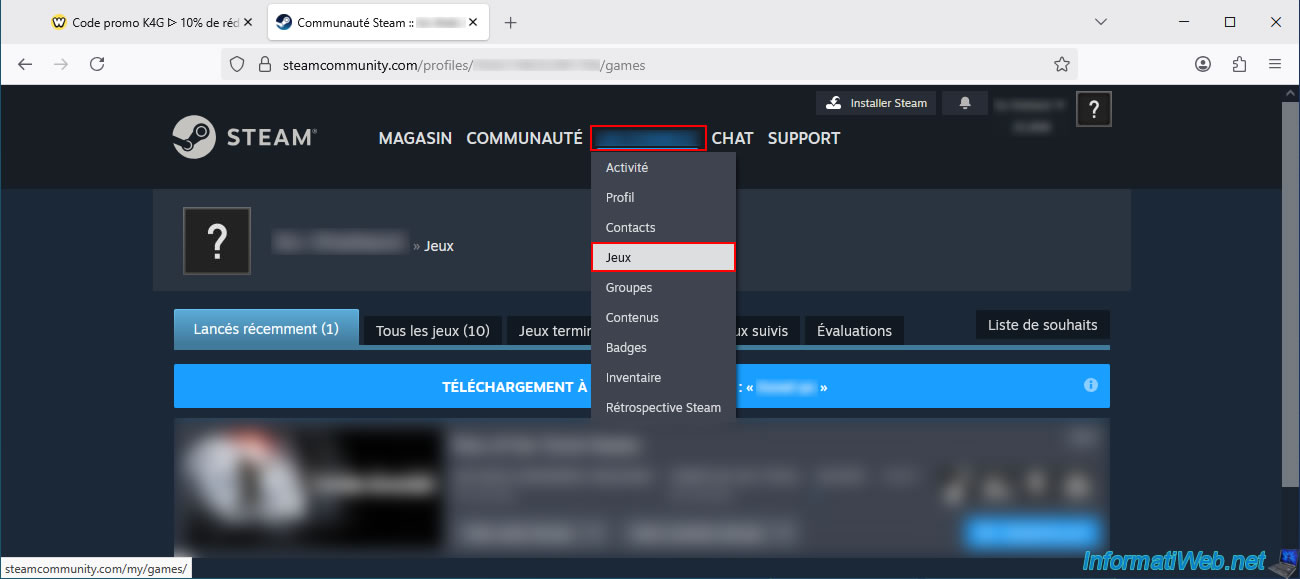
To see the game you just activated (and therefore added to your Steam account), go to the "[Steam username]" menu (located at the top of the page), then click on "Games".
Next, go to the "All Games" tab.
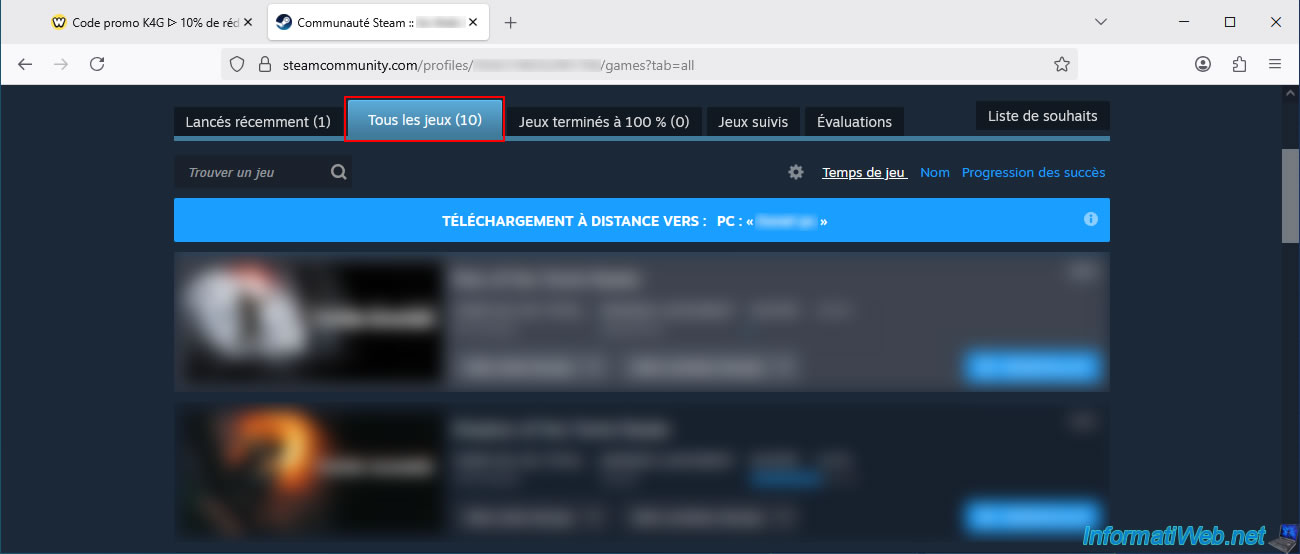
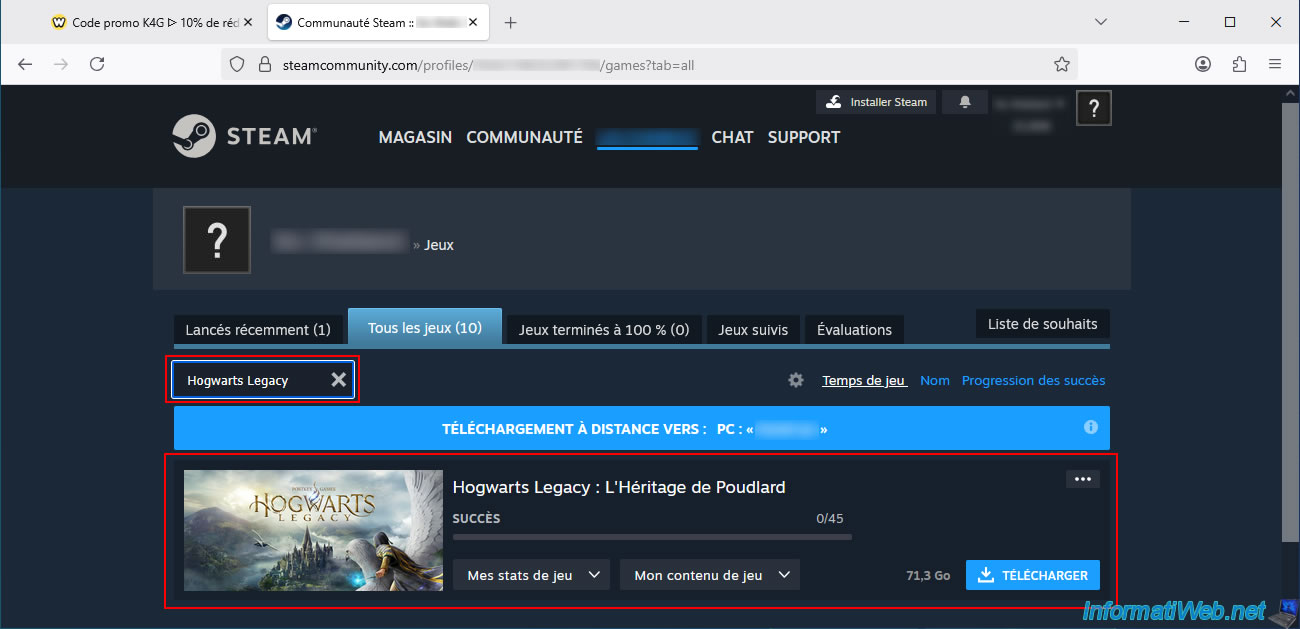
If you have multiple games on your Steam account and don't see the one you just added, type its name in the search box at the top left of the list.
In our case: Hogwarts Legacy.
As expected, the game "Hogwarts Legacy" appears.
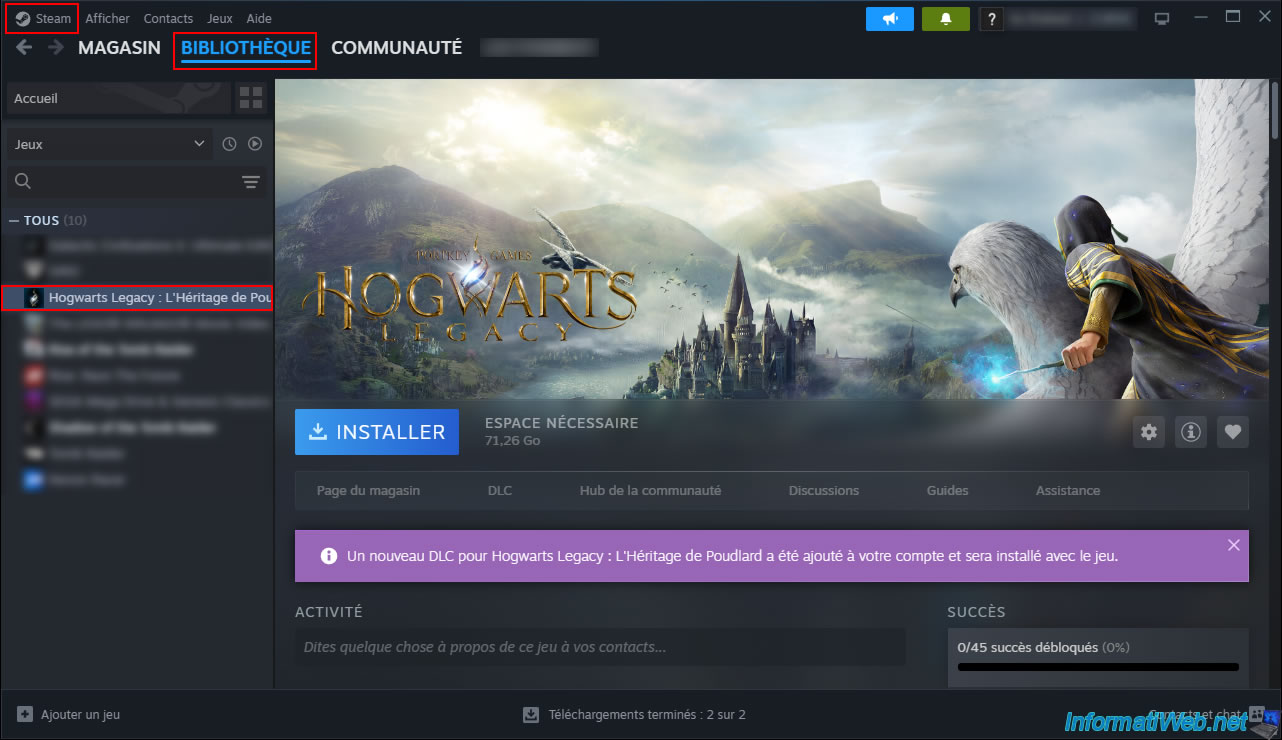
If you open Steam on your PC, you will find your new game in the "Library" section of Steam.
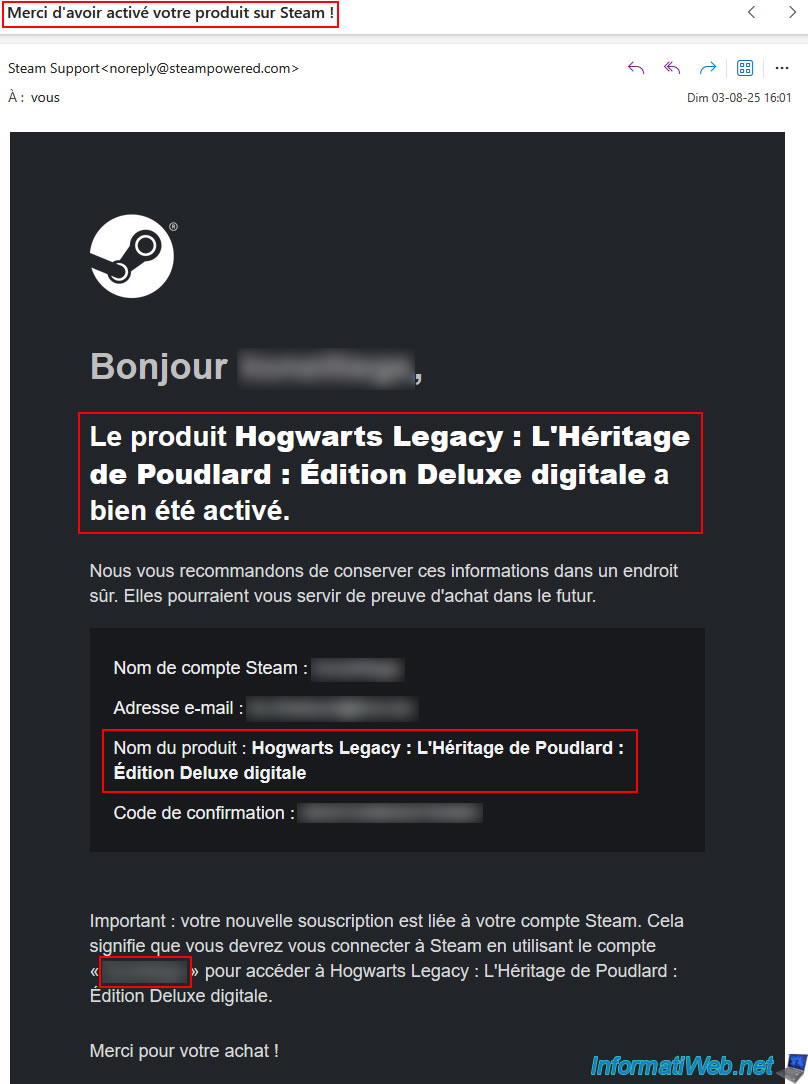
You will find an email in your inbox from Steam Support saying "Thank you for activating your product on Steam!"
In our case, we can see the message "The product Hogwarts Legacy: Digital Deluxe Edition has been successfully activated".
Share this tutorial
To see also
-

Good deals 3/10/2025
Cashbacks - Save money on your purchases at MediaMarkt (with Familycard)
-
Good deals 11/9/2026
dLcompare - Buy a game for less at Kinguin
-

Good deals 11/2/2026
dLcompare - Price comparison website for gamers
No comment