Buy a game for less at Kinguin thanks to dLcompare and Familycard
- Good deals
- 09 November 2026 at 09:09 UTC
-

- 4/6
3. Activate the game's CD key on Steam to add it to your library
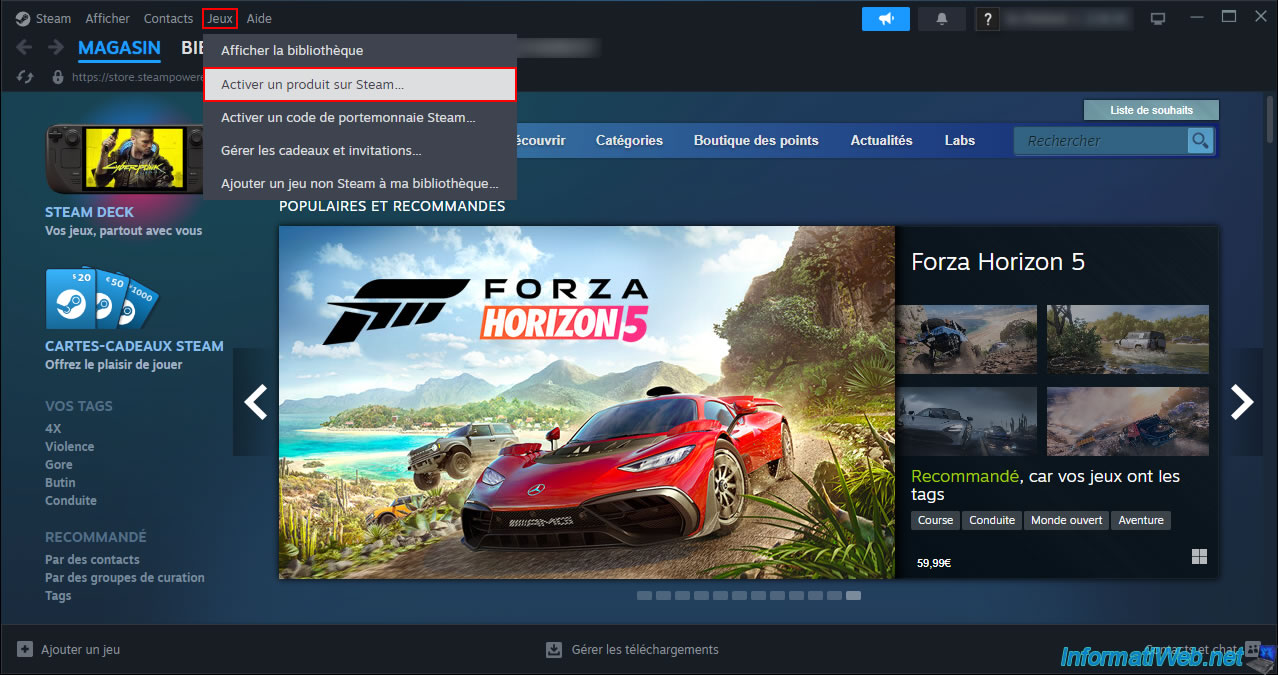
Download and install the Steam application on your computer if you haven't already done so, then go to: Games -> Activate a Product on Steam.
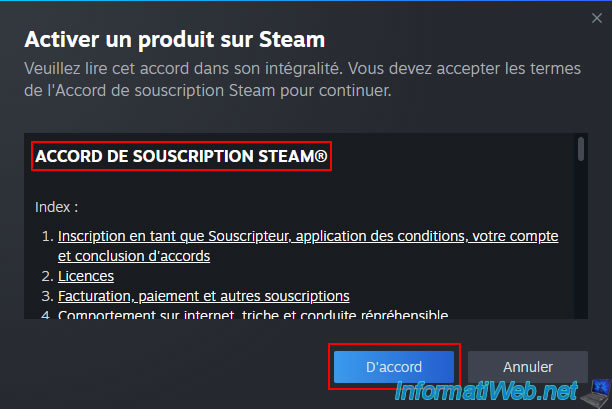
Accept the Steam subscription agreement by clicking "OK".
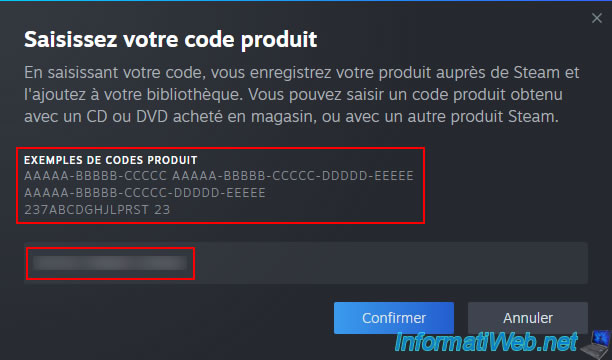
Copy and paste the CD key displayed by Kinguin into the Steam box at the "Enter your product code" step and click "Confirm".
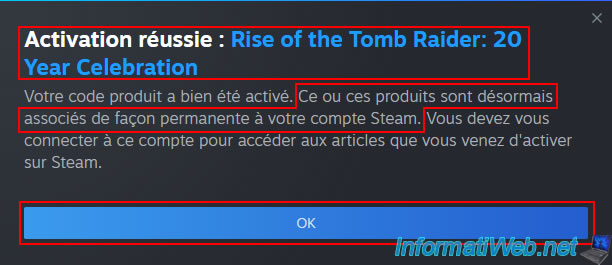
The message "Activation successful: [your game name]" appears.
As Steam indicates, this product is now permanently associated with your Steam account.
This confirms that the CD key, purchased for only €2.56 in our case, is official and valid (since Steam accepted it).
Click OK.
In the "Library" section, you'll see your new game appear.
In our case: Rise of the Tomb Raider.
If the edition of the game you purchased includes DLC, you'll also see a message on a purple background.
Plain Text
A new DLC for Rise of the Tomb Raider has been added to your account and will be installed with the game.
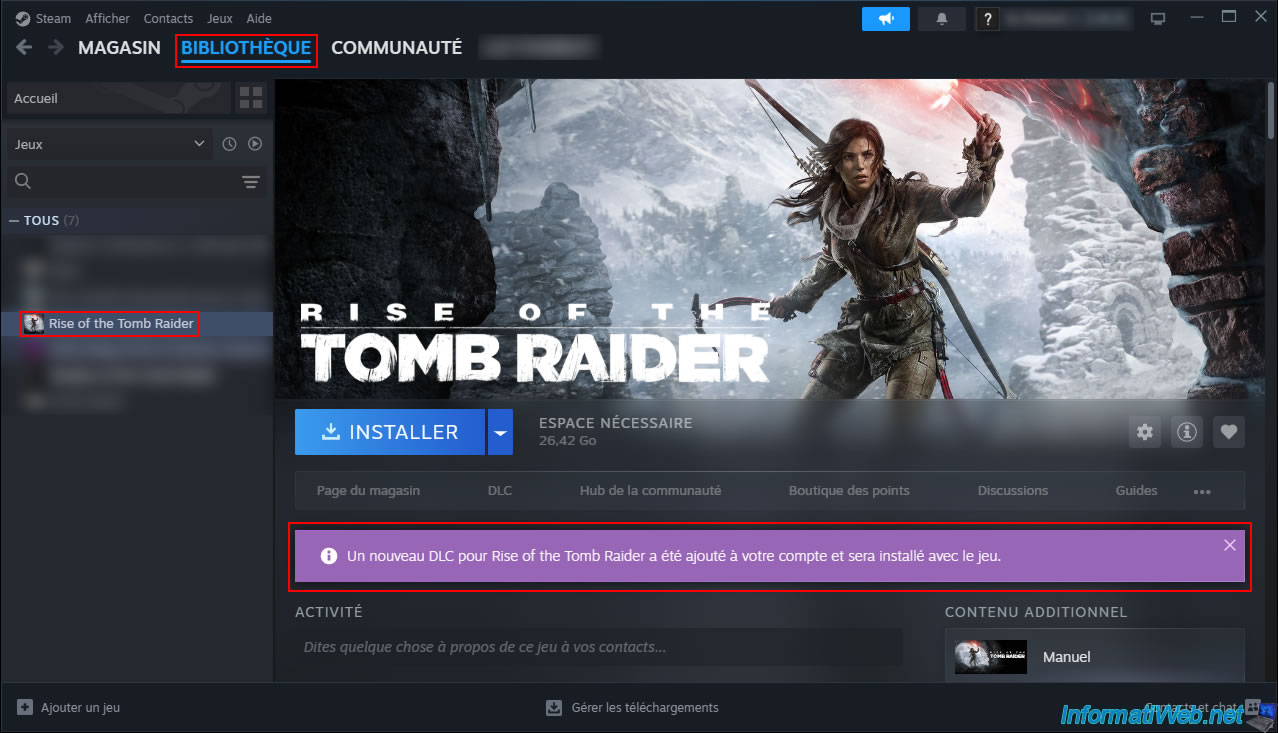
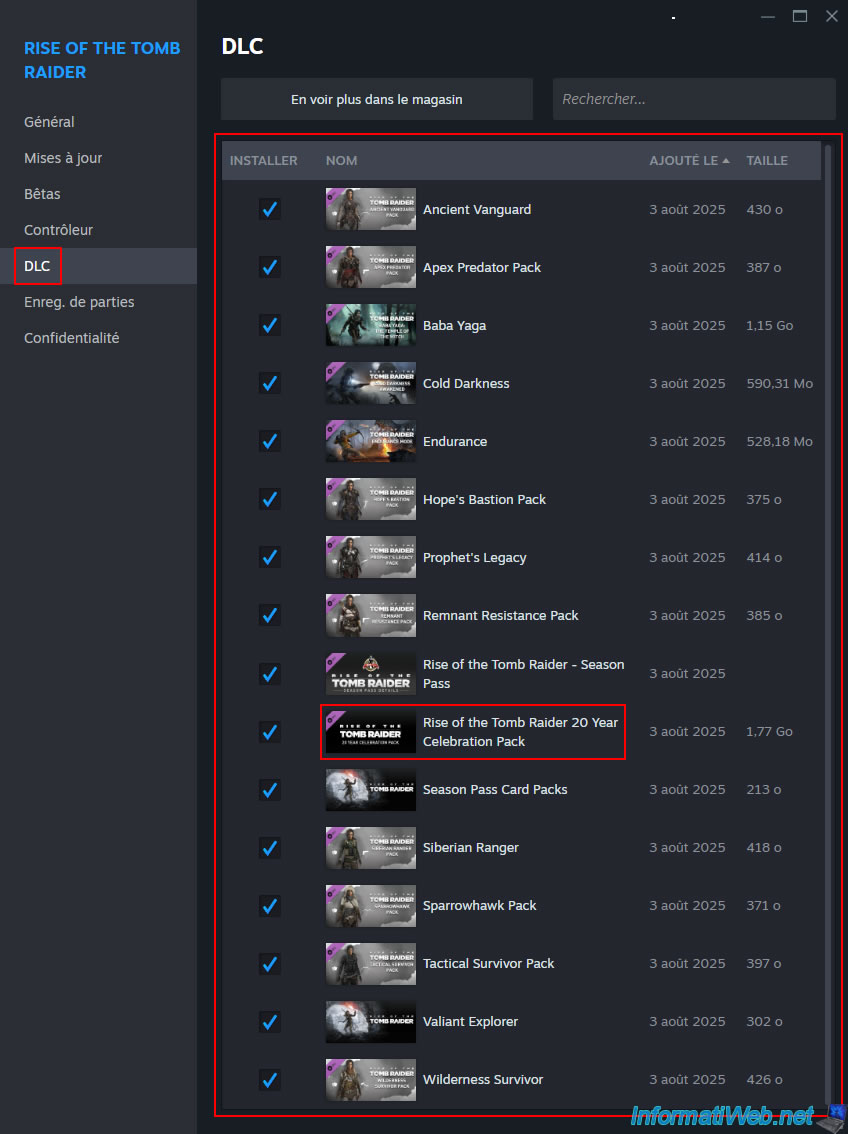
If you click on the message with the purple background (visible above), you can see the list of DLC included in your special (deluxe, ...) edition of the purchased game.
In our case, we can see the "Rise of the Tomb Raider 20 Year Celebration Pack" DLC (which refers to the "20th Anniversary Edition" of the "Rise of the Tomb Raider" game we purchased), as well as the "Rise of the Tomb Raider - Season Pass" DLC, which is part of the same edition (as indicated on the Steam website).
As you can see, by default, Steam will install all purchased DLC when you download and install the game.
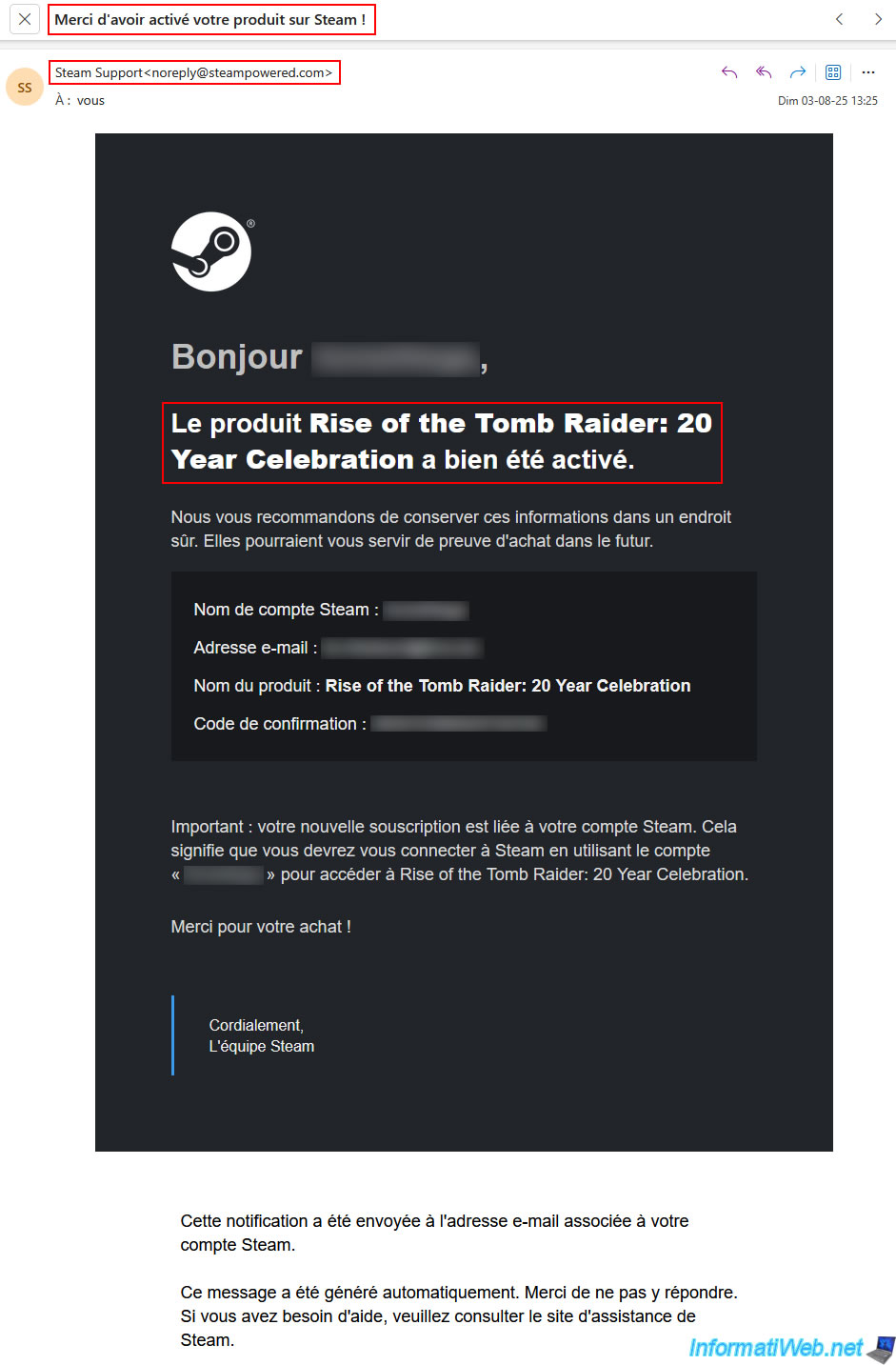
You should have received an email from Steam saying "Thank you for activating your product on Steam!"
In our case, we can see the message "The product Rise of the Tomb Raider: 20 Year Celebration has been successfully activated".
4. View the CD keys purchased on Kinguin
To view your Kinguin CD keys again, click the icon of a user with a crown (like Kinguin's penguin crown) in the top right corner to access your Kinguin account.
Then, go to: Inventory -> Games -> All.
Now, click the "Show key" button for the game you want to purchase.
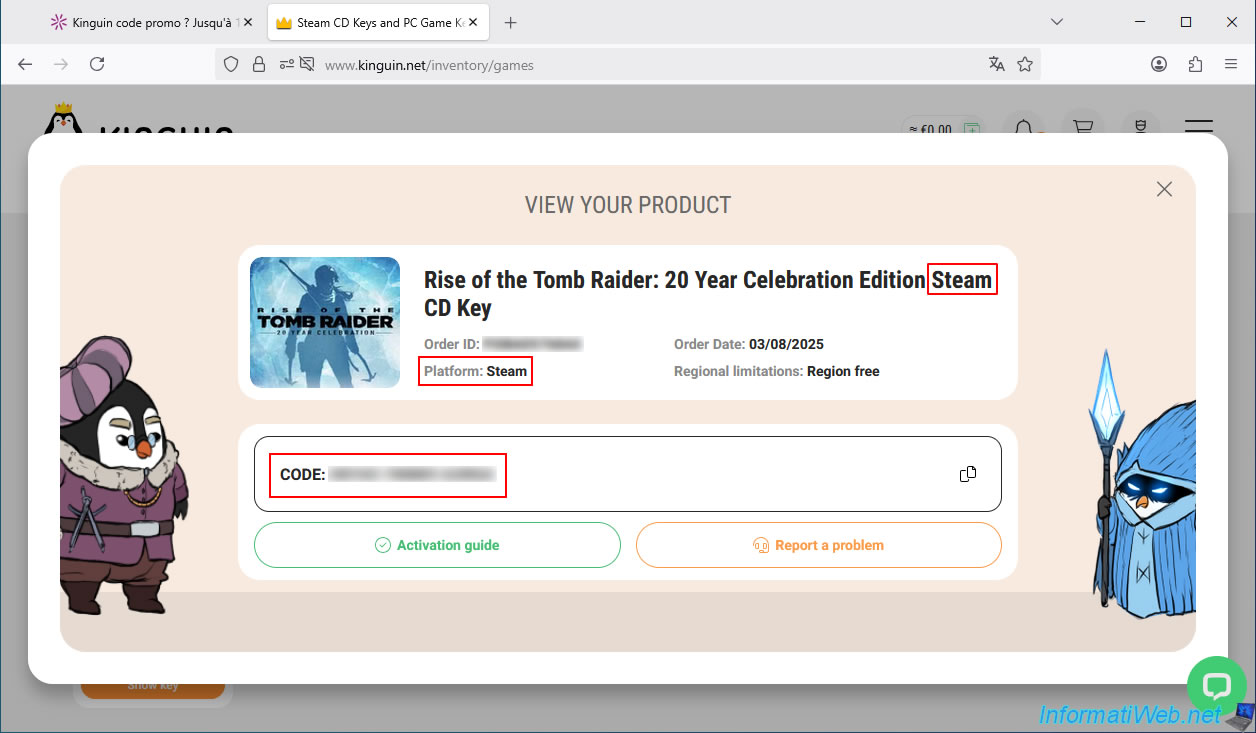
In our case, for the game "Rise of the Tomb Raider: 20 Year Celebration Edition".
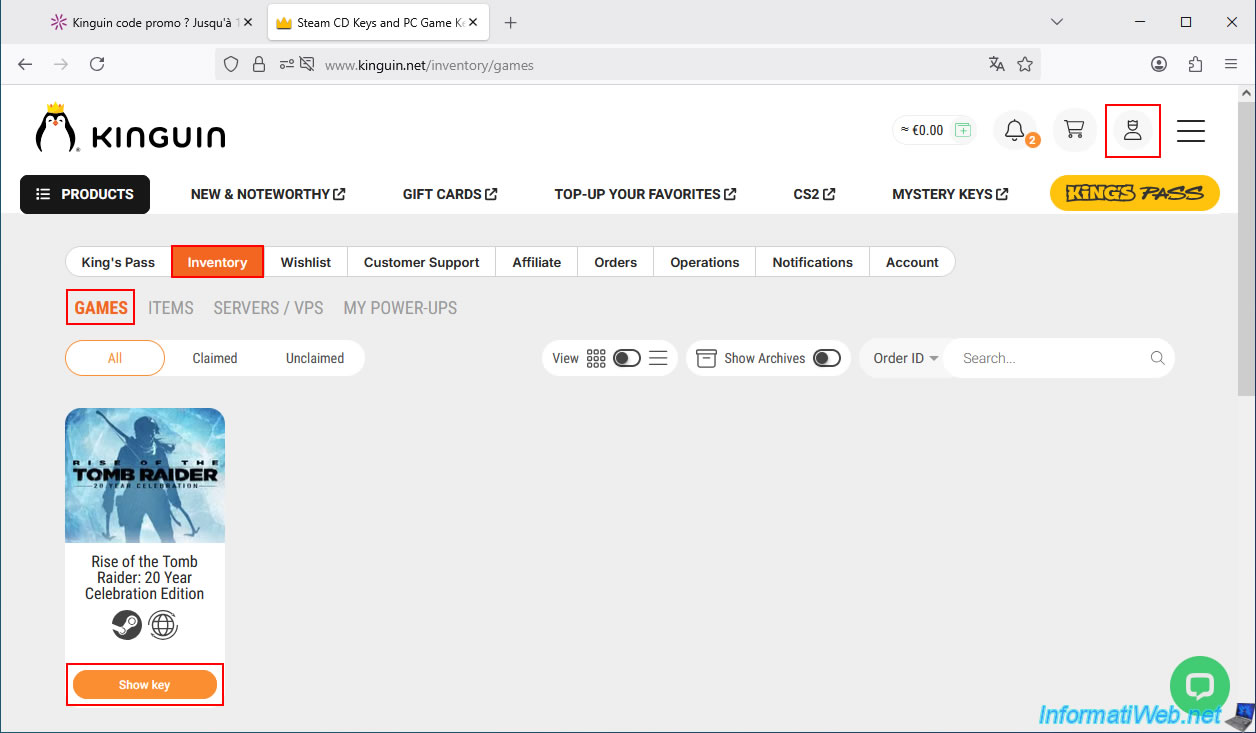
The CD key for the desired game appears, along with the download platform on which it is valid.
In our case: Steam.
5. Cashback for purchases at Kinguin visible on Familycard
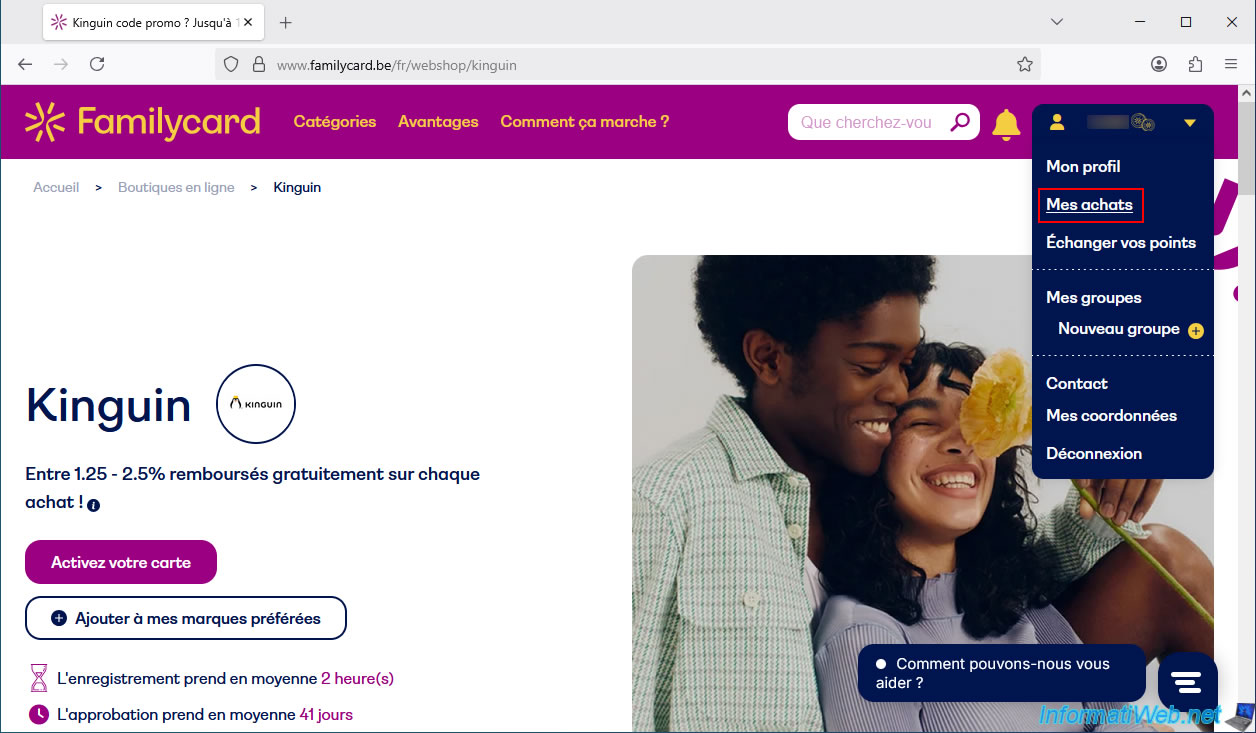
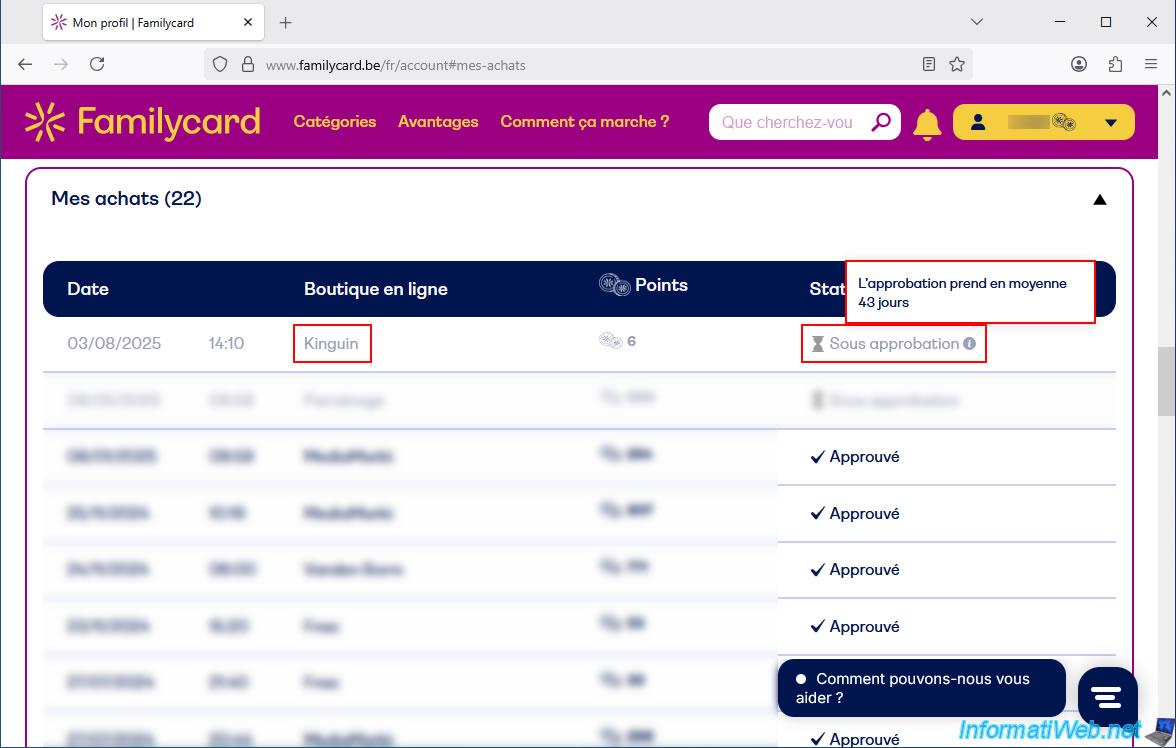
On the Familycard website, go to the menu in the top right corner (where your points balance is displayed), then click on "My Purchases".
Warning : as Familycard indicates, registration takes an average of 2 hours with this partner, "Kinguin".
So if you don't currently see your cashback in the "My Purchases" section, please return to this page in a few hours or tomorrow.
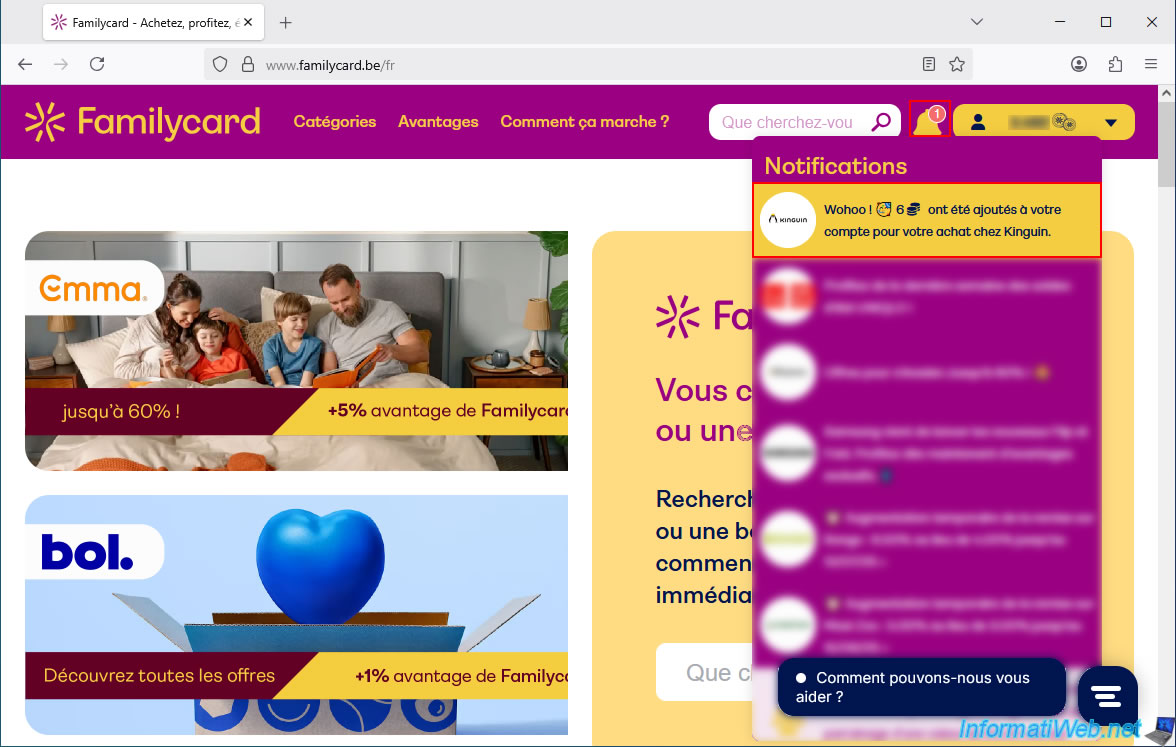
Once the cashback has been registered, you will receive a notification in your Familycard account indicating that a certain number of points have been added to your account for your purchase at Kinguin.
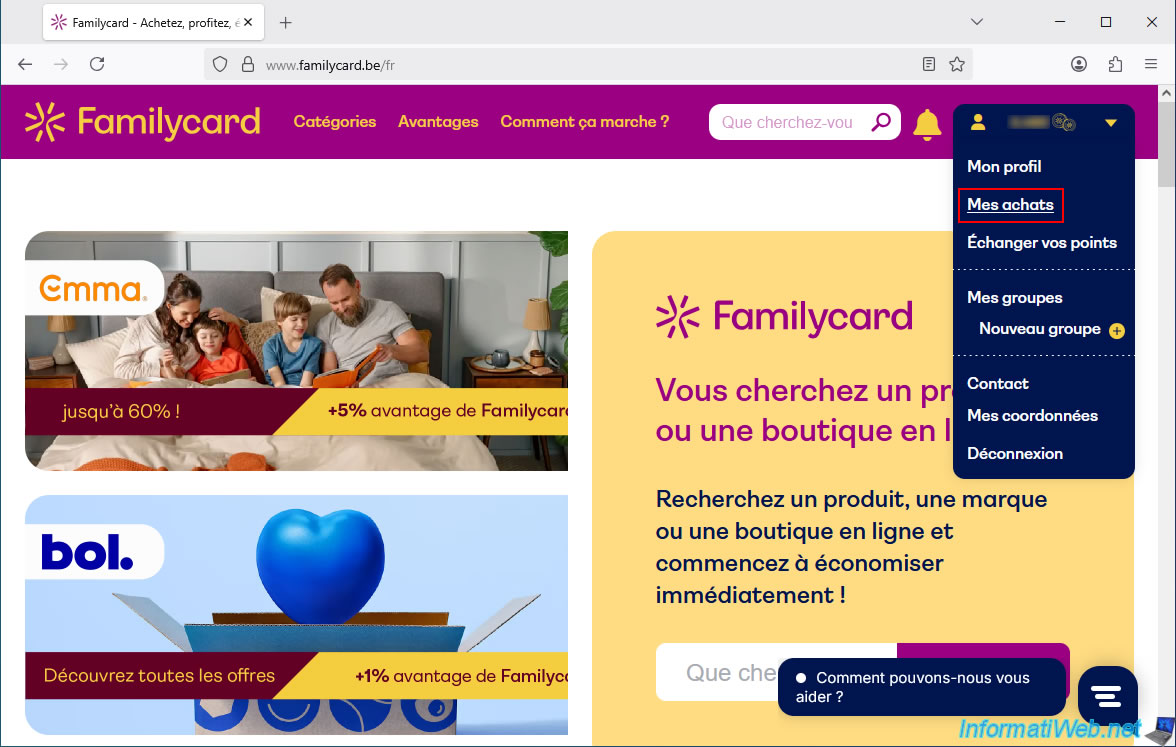
From that point on, you will be able to see it appear in the "My Purchases" section.
Currently, you can see that your cashback for your Kinguin purchase appears with the status "Pending approval".
If you hover your mouse over this status, you'll see that approval (for Kinguin) takes an average of 43 days.
You will also be notified by email.
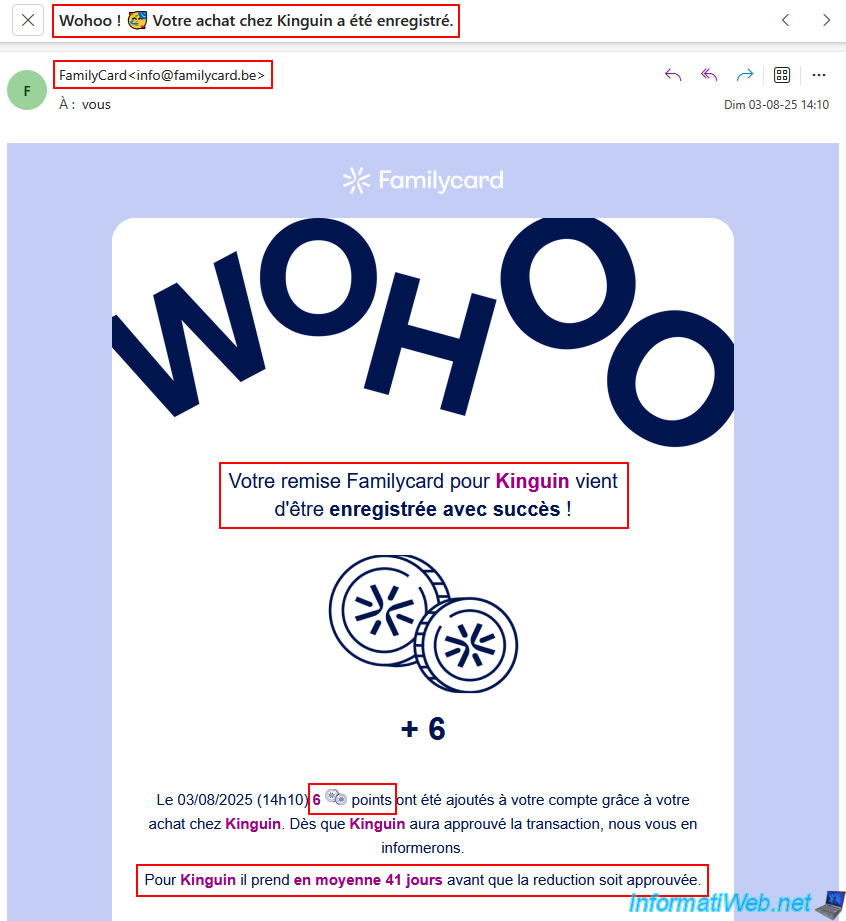
You should soon receive (within a few hours or days) an email from Familycard saying "Wohoo! Your Kinguin purchase has been registered."
Warning : it clearly states that your Familycard cashback for Kinguin has been successfully registered, but that approval for this cashback can take an average of 41 days, depending on the Kinguin partner.
This timeframe is not imposed by Familycard, but by the partner used (in this case, Kinguin) and the affiliate platform used behind the scenes by Familycard (in this case, CJ Affiliate), which allows them to earn a commission on your purchase and then pass a portion of that commission on to you.
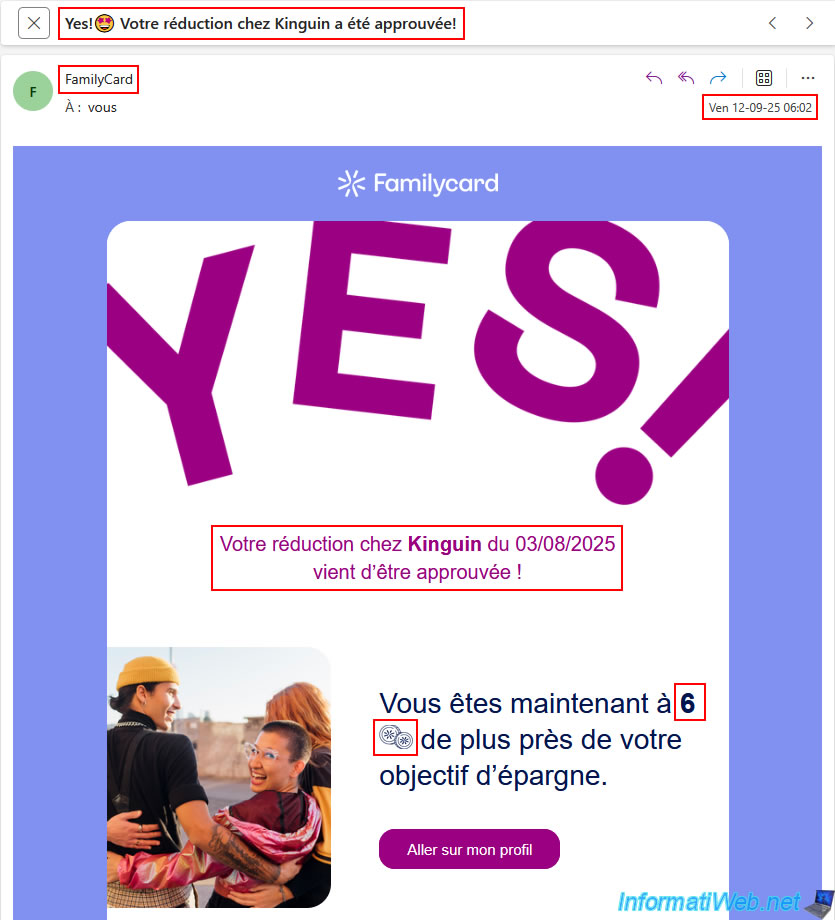
Once your cashback has been validated by Familycard, a month and a half later you will receive an email saying "Yes! Your discount at Kinguin has been approved!".
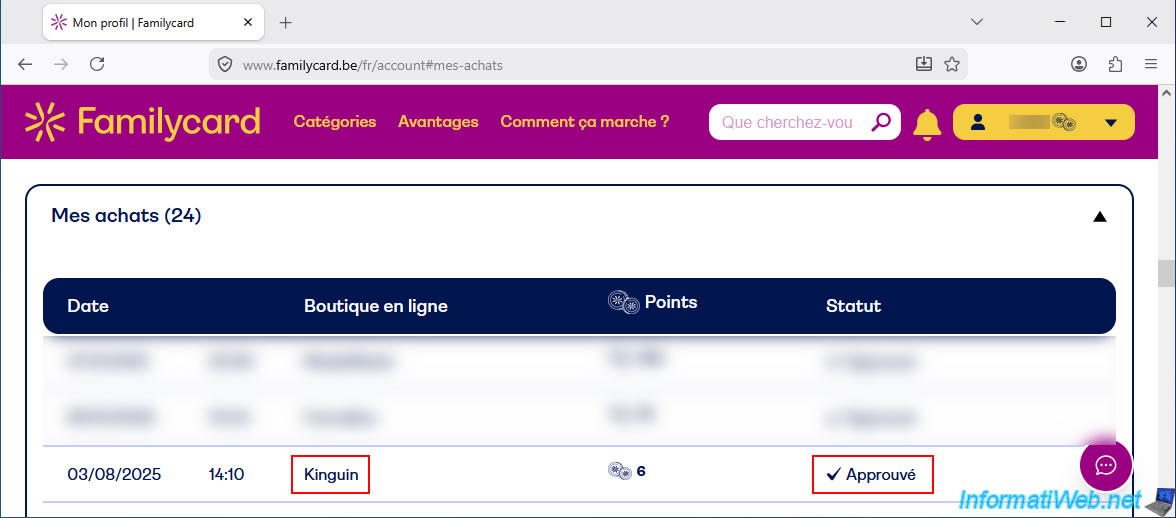
You can also view your new cashback status by returning to the "My Purchases" menu in Familycard.
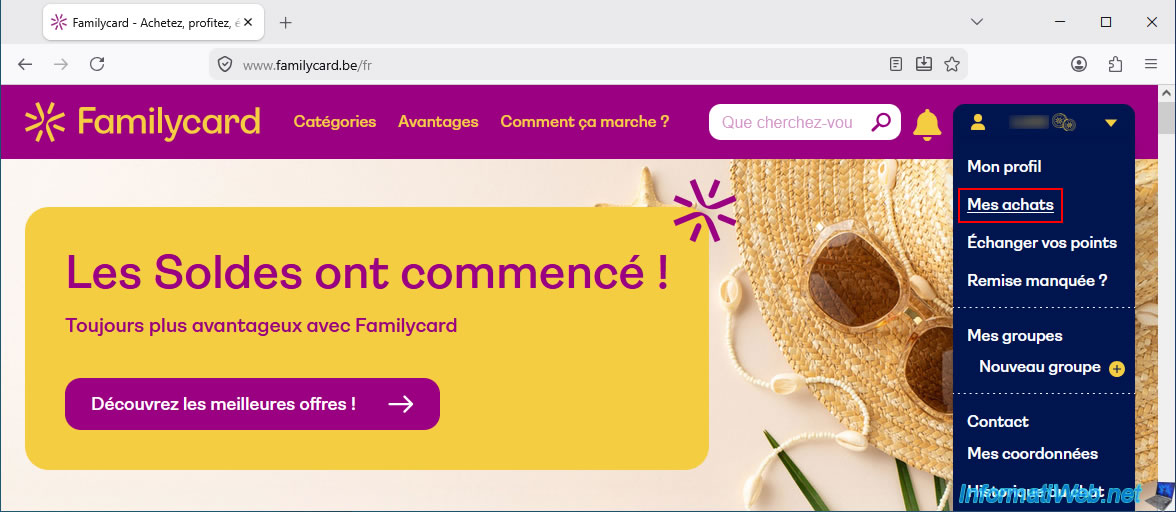
As you can see, the status of our cashback for our purchase at Kinguin has become "Approved".
Share this tutorial
To see also
-

Good deals 3/10/2025
Cashbacks - Save money on your purchases at MediaMarkt (with Familycard)
-

Good deals 11/2/2026
dLcompare - Price comparison website for gamers
No comment