- Backup
- Acronis True Image
- 15 December 2025 at 14:24 UTC
-

In Acronis Cyber Protect Home Office (True Image) tools, you will find a tool called "Clone Disk" that allows you to clone an entire disk to another disk very easily (even if the destination disk size is different).
Which is very useful for:
- upgrade from a hard drive to an SSD without having to reinstall everything.
- or to replace a hard drive at the end of its life (which works, but whose SMART info indicates that it will die soon) with a new hard drive.
- Source hard drive to clone
- Clone a hard drive or SSD with Acronis Cyber Protect Home Office (True Image)
1. Source hard drive to clone
In our case, we used a 500GB hard drive with a partition named "HDD2".
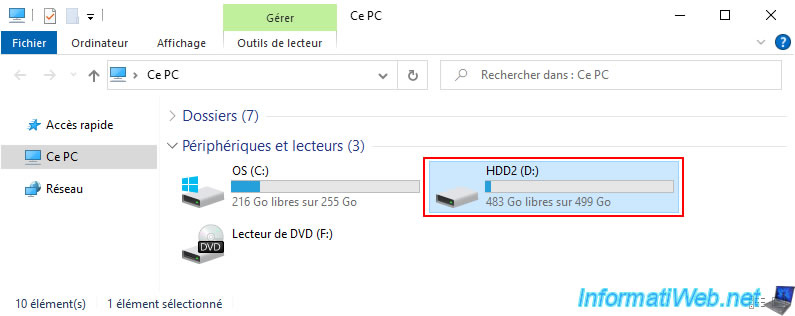
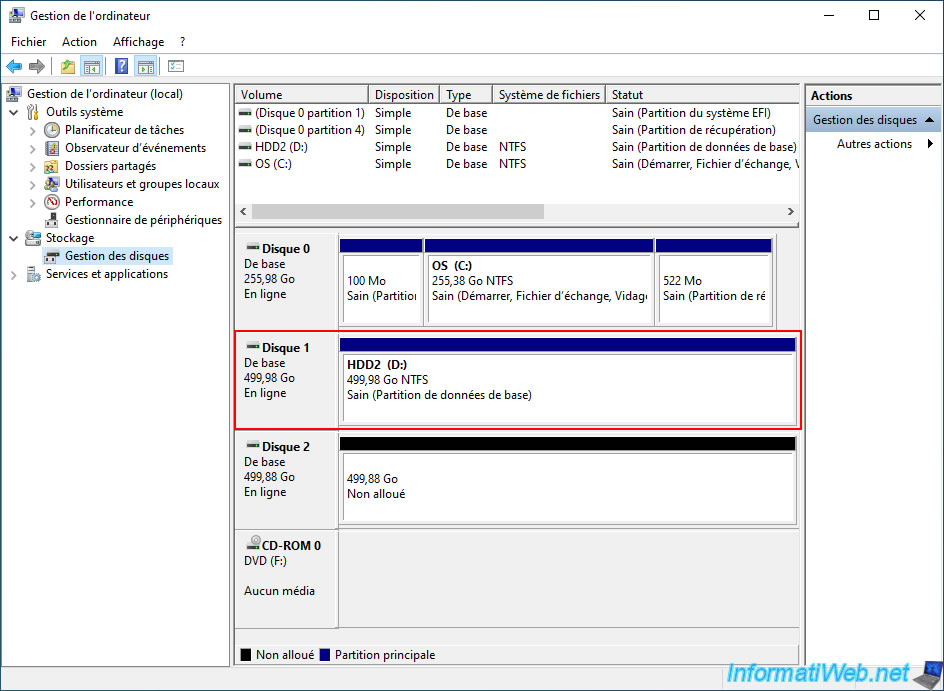
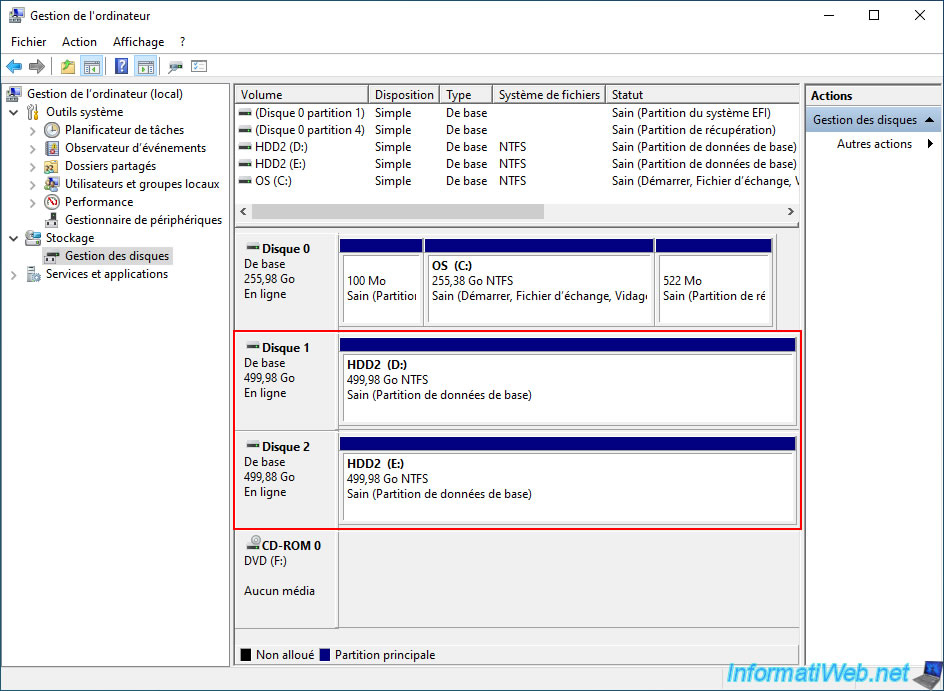
If we right click "Manage" on "This PC", we can see our 2 hard drives appear in disk management.
- Disk 1: the current hard drive with the "HDD2" partition.
- Disk 2: the new hard drive (blank for now) to which we will copy this "HDD2" partition.
2. Clone a hard drive or SSD with Acronis Cyber Protect Home Office (True Image)
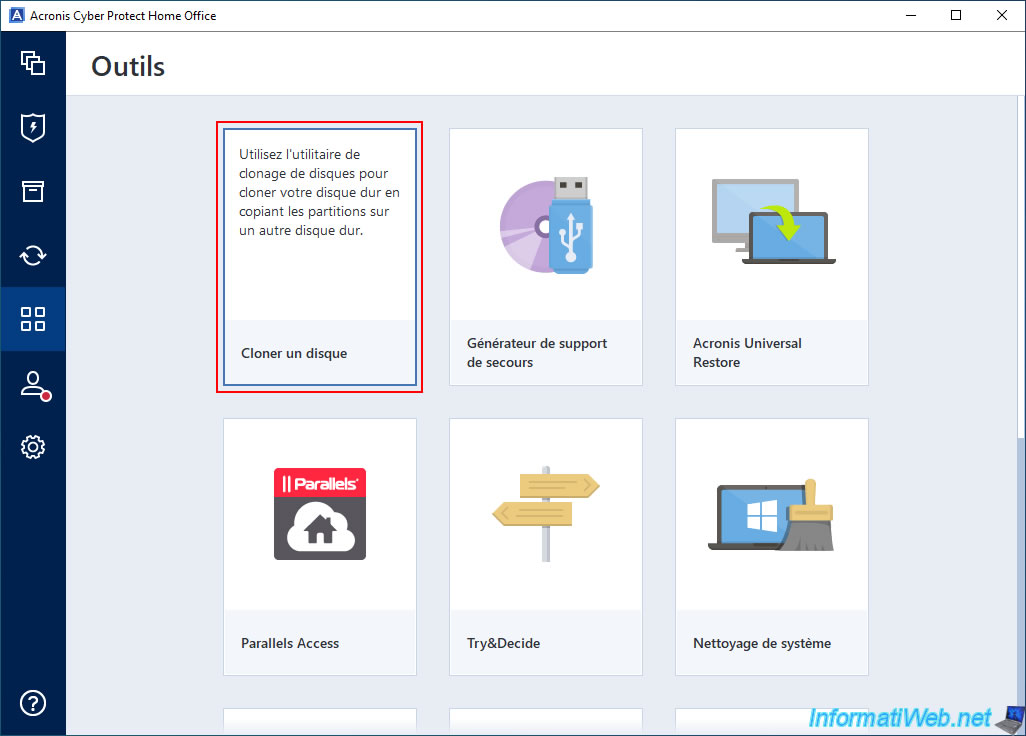
To completely copy your hard drive or SSD with Acronis Cyber Protect Home Office (True Image), go to the "Tools" section and choose the 1st tool (named "Clone Disk").
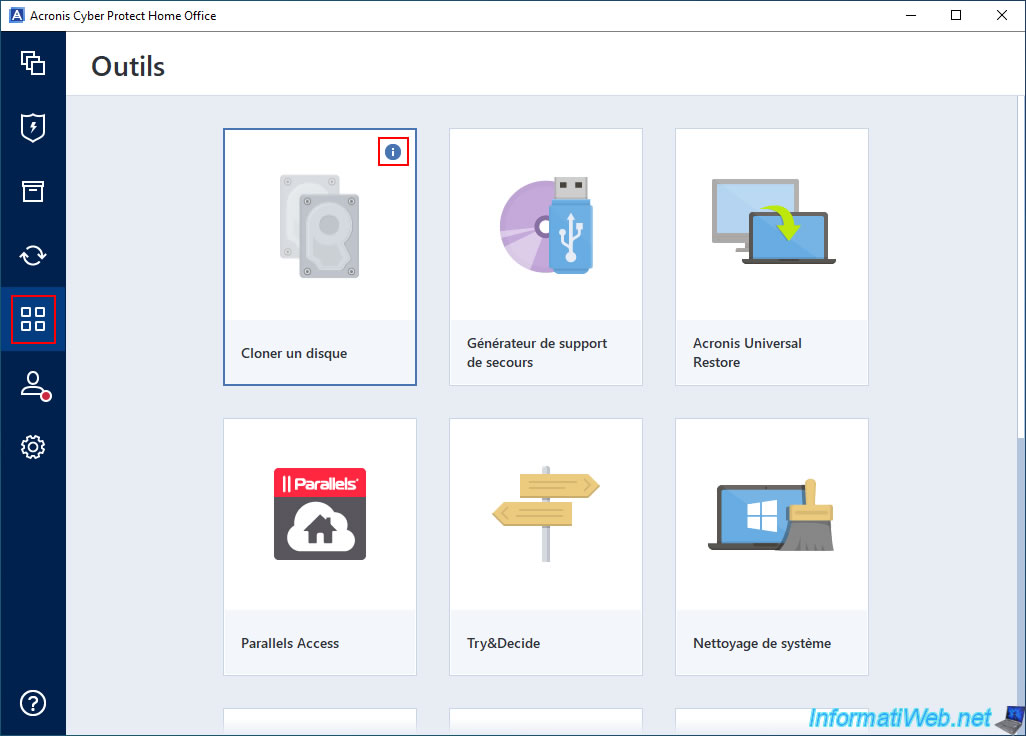
If you hover over this tool, you will see that this utility allows you to clone your hard drive by copying its partitions to another hard drive.
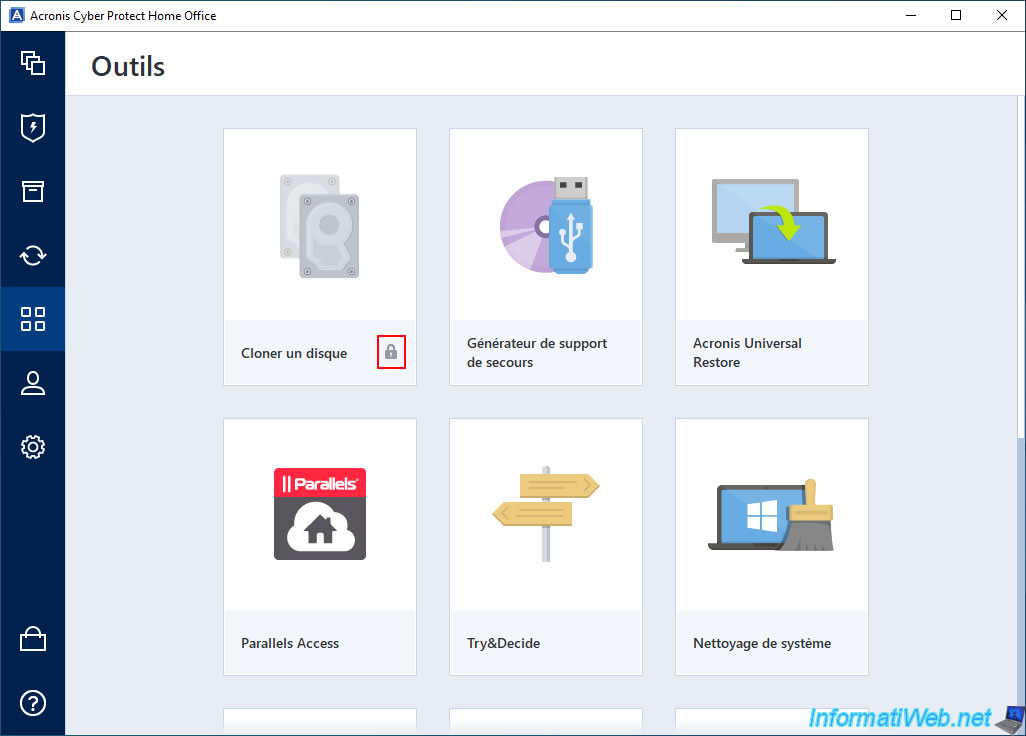
Warning : this tool requires an active subscription for Acronis Cyber Protect Home Office (True Image).
If you are using the trial version of Acronis Cyber Protect Home Office (True Image), you will not have access to this tool.
Hence the small padlock that appears for this tool if you are in the trial period.
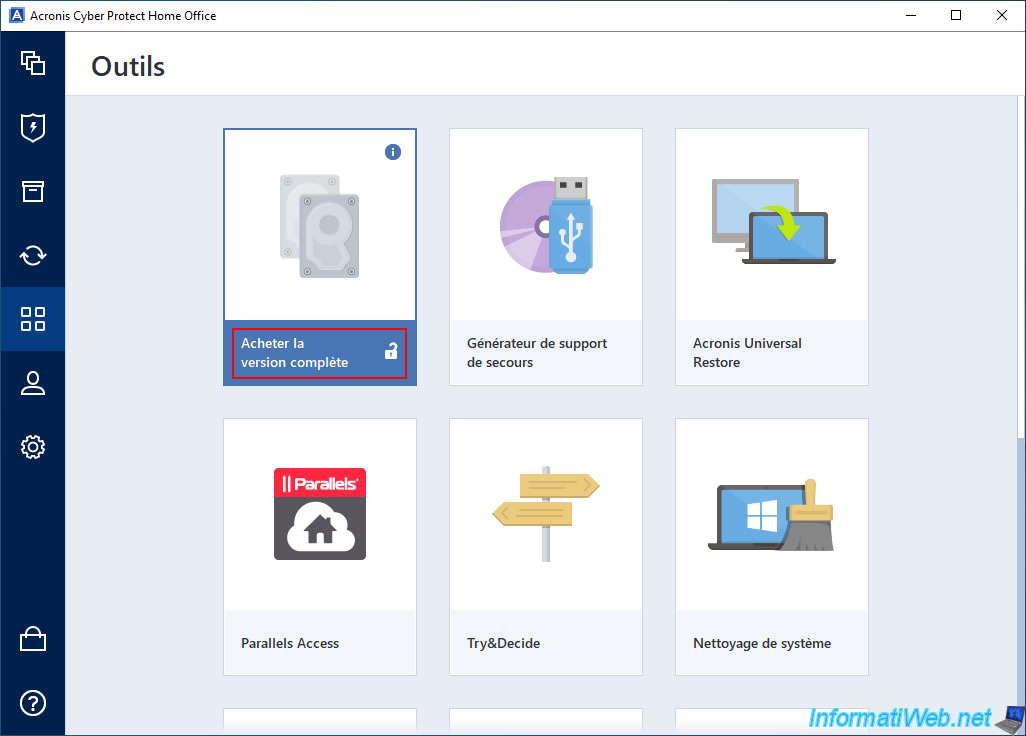
In this case, if you hover over this tool with the mouse, you will see the message "Buy full version" appear.
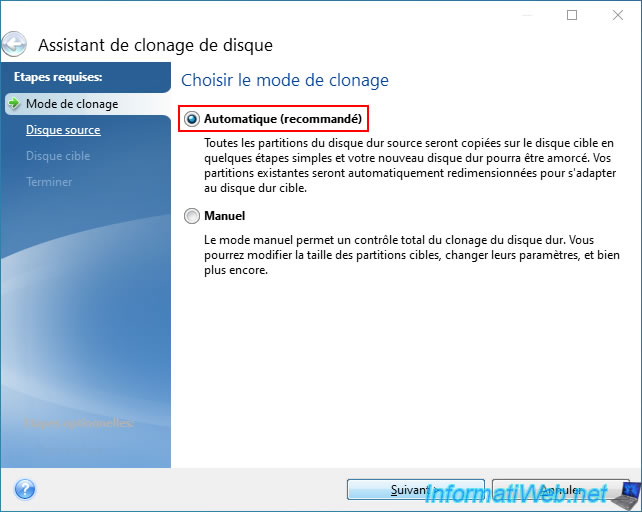
In short, once you launch this tool, you will see a "Disk Clone Wizard" window appear.
Select "Automatic (recommended)" to quickly and easily copy all partitions from one disk to another.
As stated by Acronis Cyber Protect Home Office (True Image), in automatic mode, existing partitions will be automatically resized to fit the target hard drive (or SSD).
Select the source disk (to clone).
In our case, disk 2 with a capacity of 500 GB and whose partition appears in green at the bottom of the window once the source disk is selected.
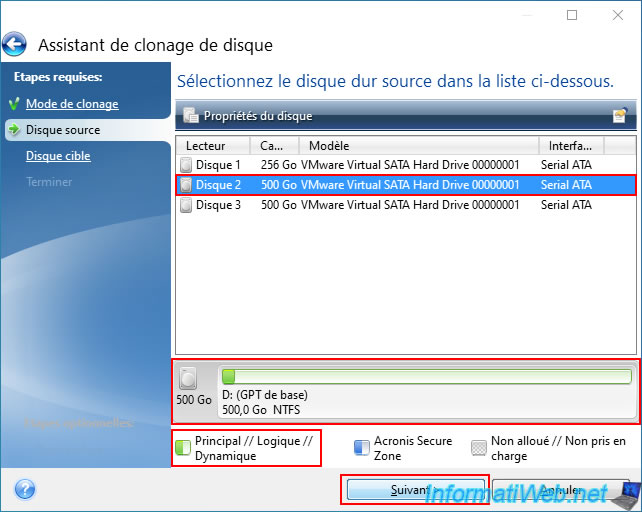
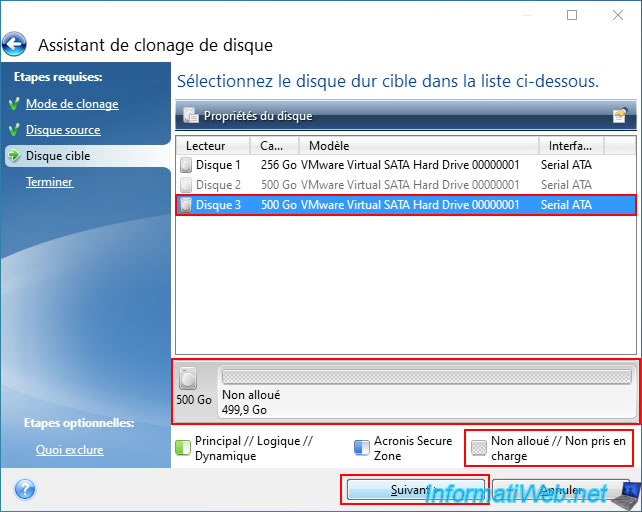
Next, select the target hard drive to which the source disk partitions will be cloned (copied).
In our case, disk 3 with a capacity of 500 GB and which contains only unallocated (unpartitioned) space.
In other words, our disk 3 is empty at the moment.
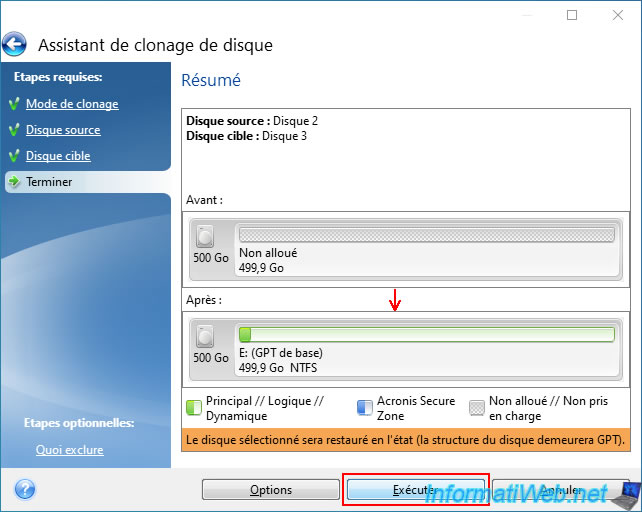
A summary is displayed and indicates that our disk 3 (which is currently unpartitioned and therefore empty) will have an NTFS partition created on it (which corresponds to the partition of the source disk "Disk 2").
Click "Run".
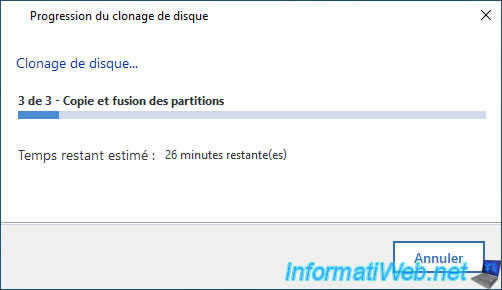
Please wait while your disk is cloning.
Plain Text
3 of 3 - Copying and merging partitions
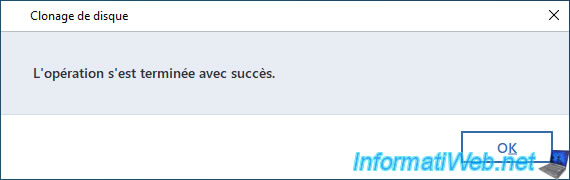
Once the disk cloning is complete, the "The operation completed successfully" message will appear.
Click OK.
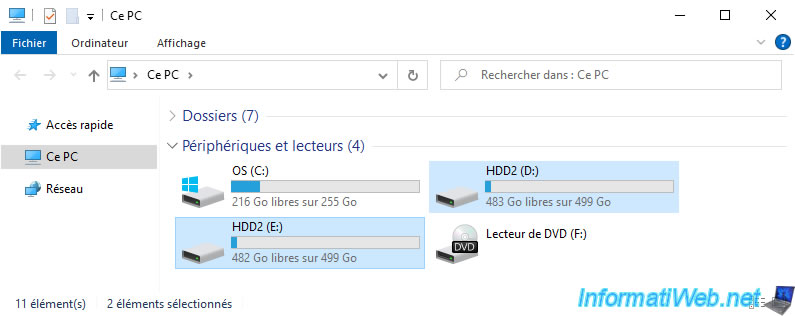
As you can see, in the file explorer, we can see 2 partitions with the same name "HDD2" and the same size appear.
If you right click "Manage" on "This PC", then go to Disk Management, you will see that your 2 disks (the source disk and the destination disk) have exactly the same partitions and the same partition table (MBR or GPT, depending on which one was used on the source disk).
Share this tutorial
To see also
-
Backup 9/8/2025
Acronis True Image - Clean up local smartphone backups
-

Backup 11/13/2025
Acronis True Image - Fix archiving issue: Error opening configuration file
-
Backup 3/30/2026
Acronis True Image - Rescue Media - Check network configuration
-
Backup 6/1/2026
Acronis True Image - Test software risk-free with Try&Decide tool
You must be logged in to post a comment