- Backup
- Acronis True Image
- 10 August 2026 at 13:59 UTC
-

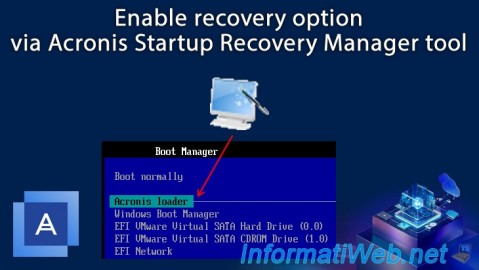
When you install Acronis Cyber Protect Home Office (True Image) on your computer, you have the option to schedule automatic backup of your computer.
You can also manually back up or restore your computer from the Acronis Cyber Protect Home Office (True Image) interface.
However, if Windows stops booting, you will no longer have access to the Acronis Cyber Protect Home Office (True Image) interface.
This would require the use of a previously created Acronis rescue media.
To avoid being stuck in the event of a Windows crash, the easiest way is to simply enable the Acronis recovery option on your computer.
It only takes a few seconds and a few clicks, and you will not need rescue media even if Windows crashes.
- Enable Acronis Startup Recovery Manager recovery environment
- Boot into Acronis Startup Recovery Manager recovery environment
1. Enable Acronis Startup Recovery Manager recovery environment
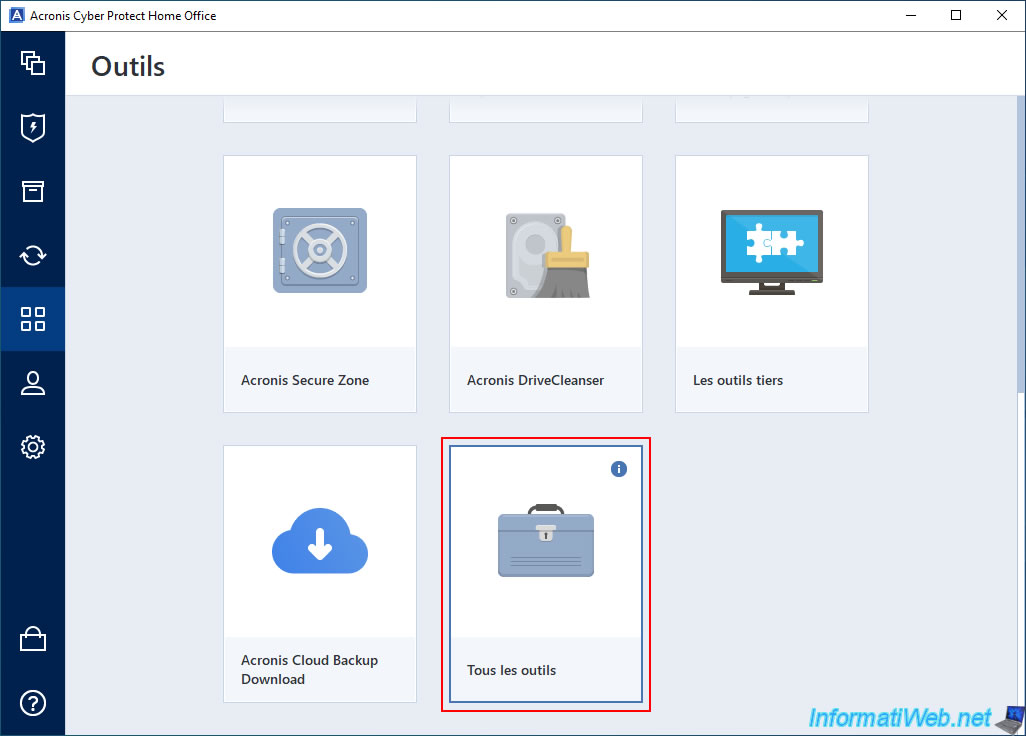
To enable the "Acronis Startup Recovery Manager" recovery environment, go to the "Tools" section of Acronis Cyber Protect Home Office (True Image) and click "All tools".
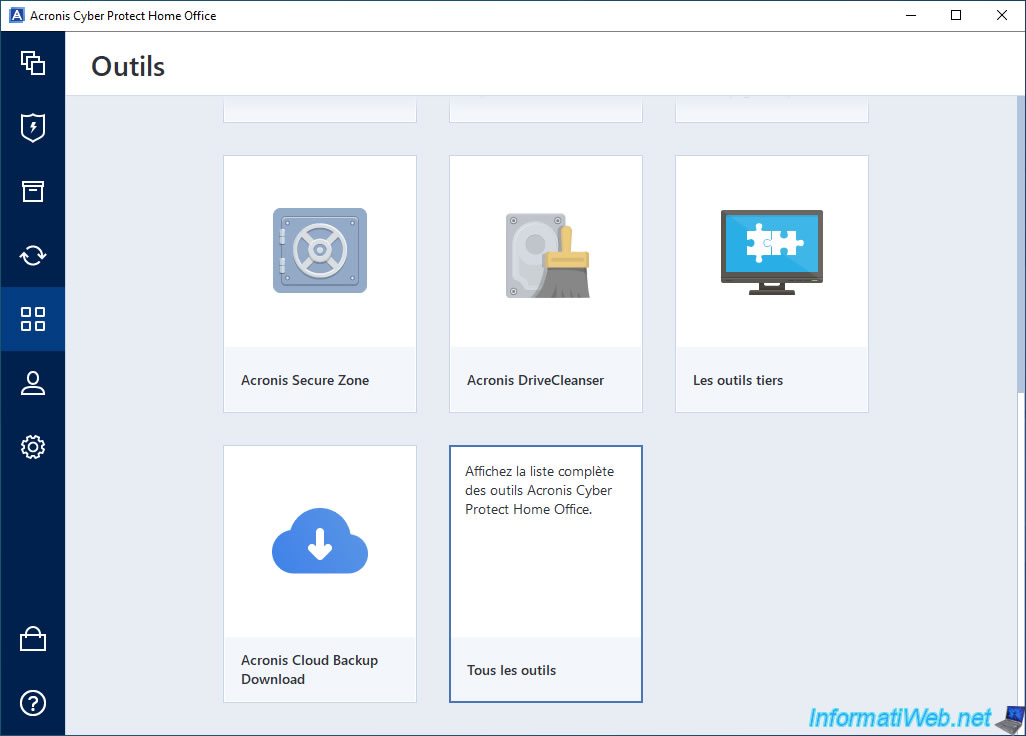
As you can see, this "All tools" option simply allows you to view the full list of Acronis Cyber Protect Home Office (True Image) tools.
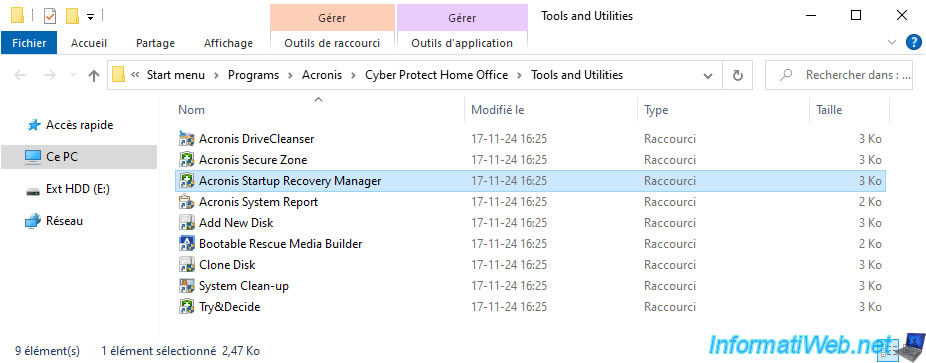
Among the 3 additional tools visible in this folder, you will find the program "Acronis Startup Recovery Manager".
In the "Acronis Startup Recovery Manager" window that appears, simply click "Activate".
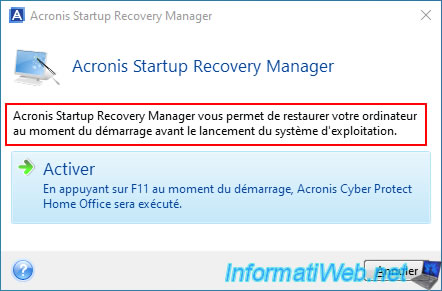
The "Activating Acronis Startup Recovery Manager..." message appears for a few seconds (less than 10 seconds).

Then, the "Acronis Startup Recovery Manager successfully activated" message will appear.
That's it.
Note: to deactivate it later, relaunch the same tool and click on the button that will be named "Deactivate" instead of "Activate".

2. Boot into Acronis Startup Recovery Manager recovery environment
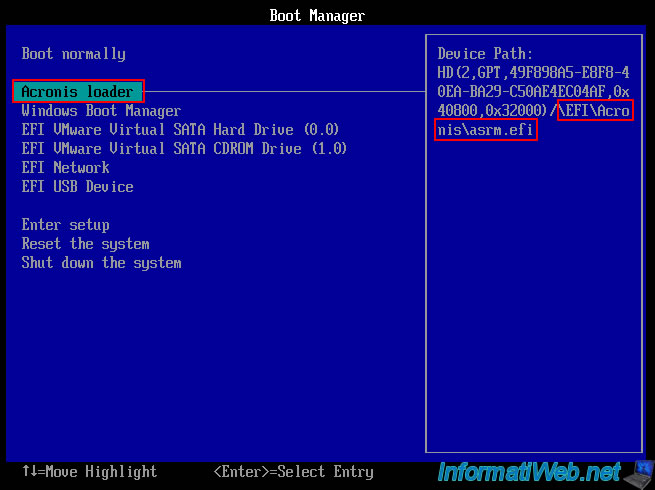
In your motherboard boot menu, you should see an option "Acronis loader".
As you can see, this option allows you to boot to an "EFI\Acronis\asrm.efi" file (if your motherboard is configured to boot in EFI mode).
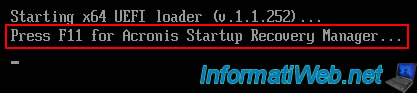
The message below will appear.
Press the "F11" key to enter the "Acronis Startup Recovery Manager" recovery environment.
Plain Text
Starting x64 UEFI loader (v.1.1.252) ...
Press F11 for Acronis Startup Recovery Manager...
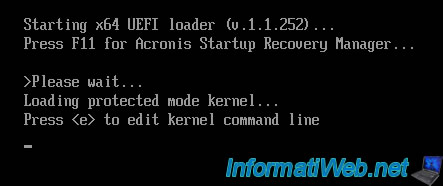
Once you press the "F11" key on your keyboard, you will see this displayed for a few seconds.
Plain Text
>Please wait...
Loading protected mode kernel...
Press <e> to edit kernel command line
As you can see, you will see the program "Acronis Cyber Protect Home Office (True Image)" appear with a sky blue wallpaper.
This program is identical to the one you would have access to via a rescue media created via the rescue media generator in the "Tools" section of Acronis Cyber Protect Home Office (True Image).
From this program, you will just have to click on "Restore".
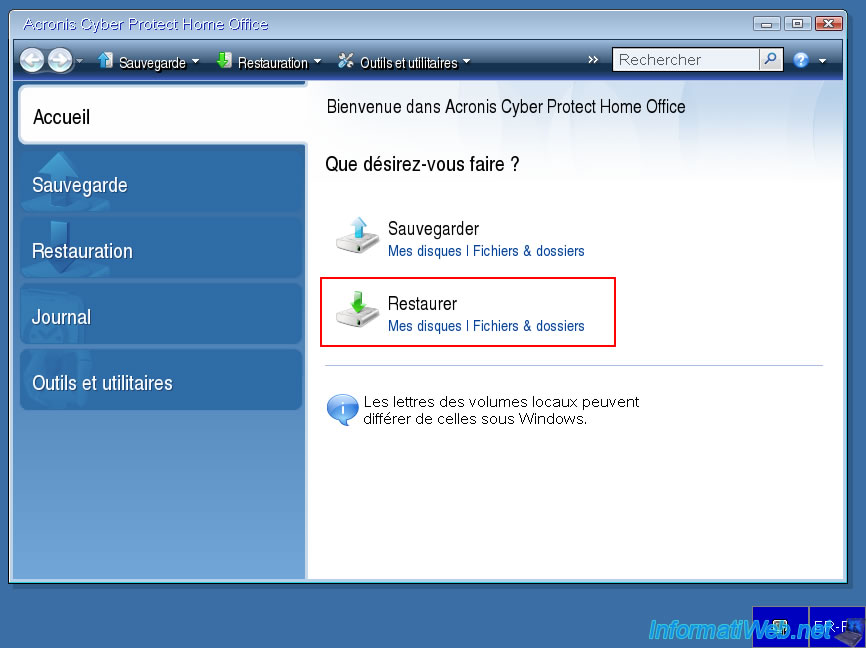
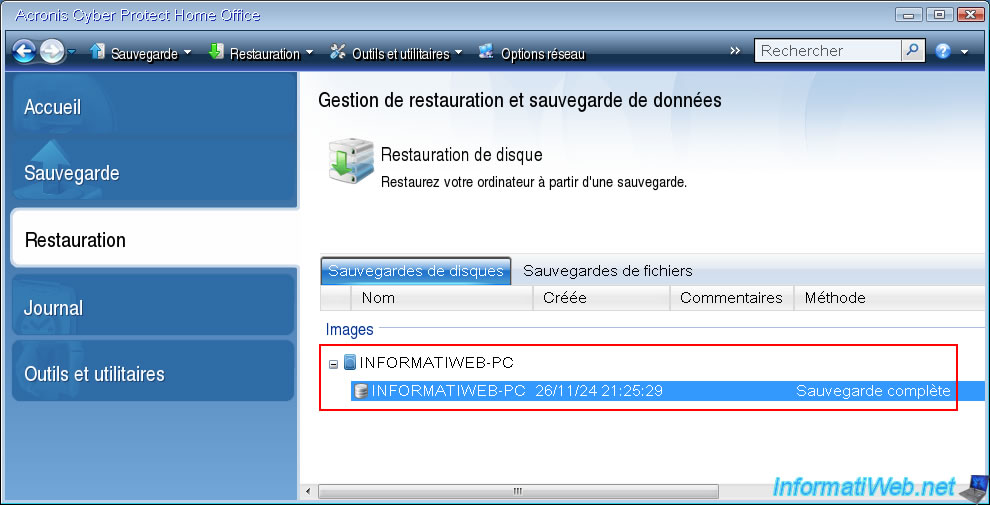
As you can see, you can therefore very easily restore a backup present on your computer from this Acronis program (even if Windows no longer starts).
Share this tutorial
To see also
-
Backup 3/30/2026
Acronis True Image - Rescue Media - Check network configuration
-

Backup 2/9/2026
Acronis True Image - Rescue Media - Create media (Win PE version) on Win 8
-

Backup 2/2/2026
Acronis True Image - Rescue Media - Create media (Win PE version) on Win 8.1
-

Backup 5/11/2026
Acronis True Image - Universal Restore Media - Create media (Win PE version based on Win RE)
You must be logged in to post a comment