- Backup
- Acronis True Image
- 09 February 2026 at 14:02 UTC
-

- 1/2
With Acronis Cyber Protect Home Office (True Image), you can create a rescue media using Microsoft Windows ADK on Windows 8.
Attention: a full version of Acronis Cyber Protect Home Office (True Image) is required to make backup possible from the rescue media you want to create.
- Create Acronis rescue media by installing Windows ADK and Windows PE first
- Boot to your custom Acronis rescue media
1. Create Acronis rescue media by installing Windows ADK and Windows PE first
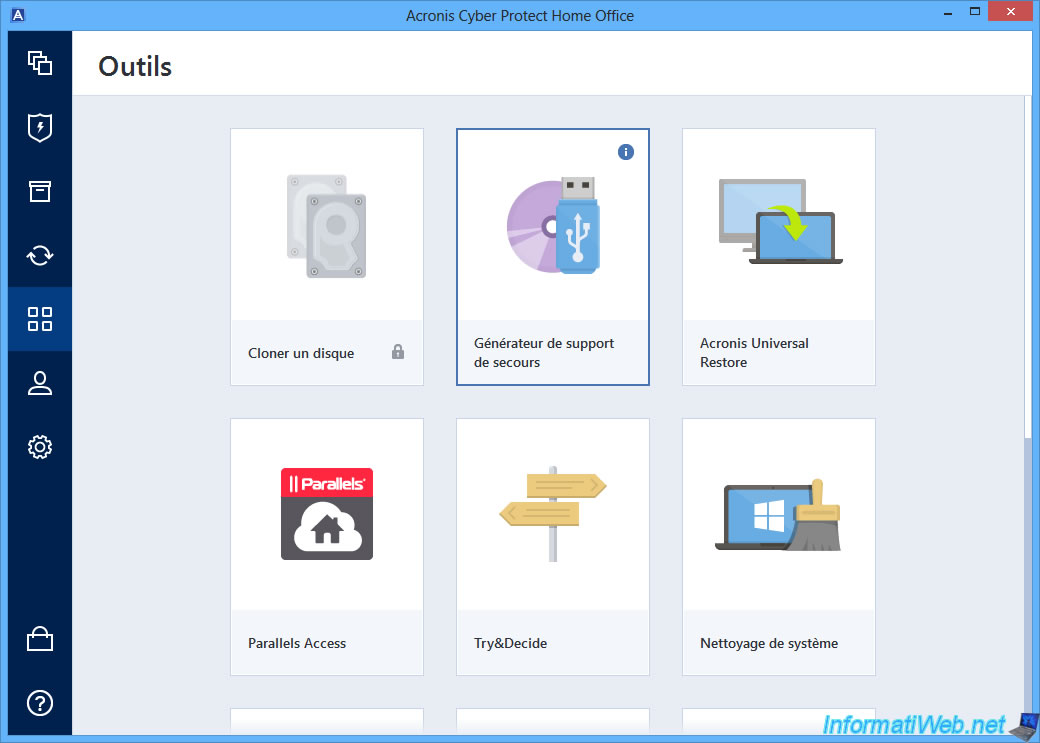
To get started, go to the "Tools" section of Acronis Cyber Protect Home Office (True Image) and click "Rescue Media Generator".
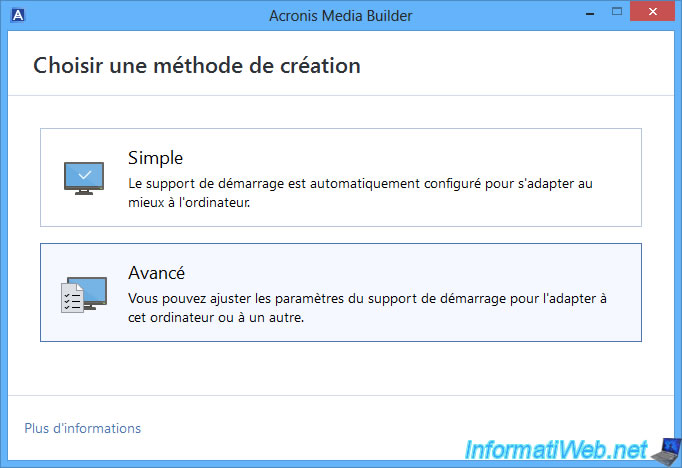
Select the "Advanced" creation method.
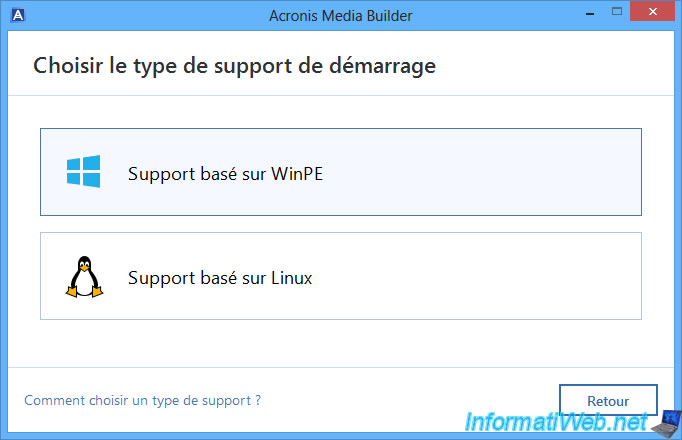
Then, choose "WinPE based support".
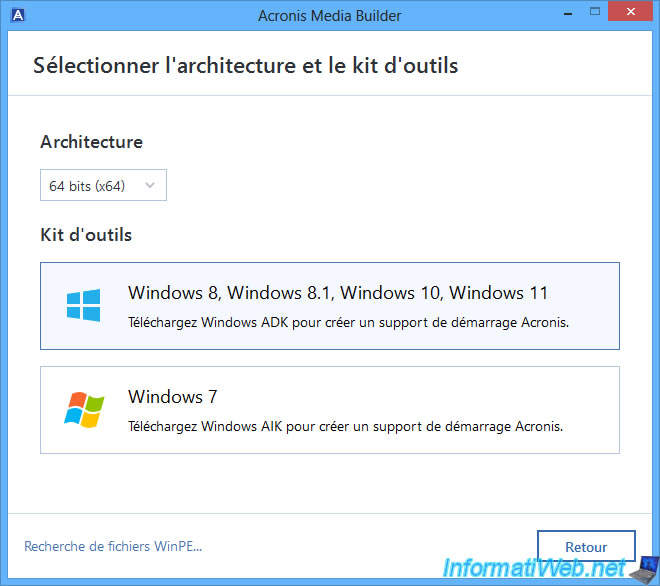
As you can see, on Windows 8, you will need to use the Windows ADK.
Note: the "Windows Recovery Environment" option is also absent here and only appears from Windows 8.1.
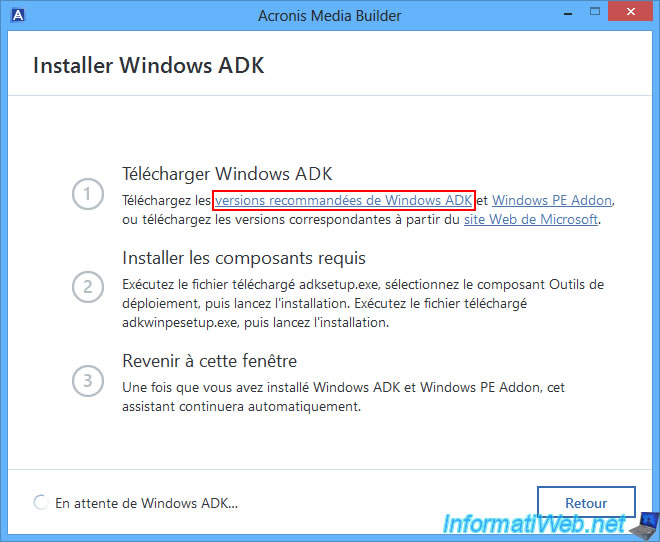
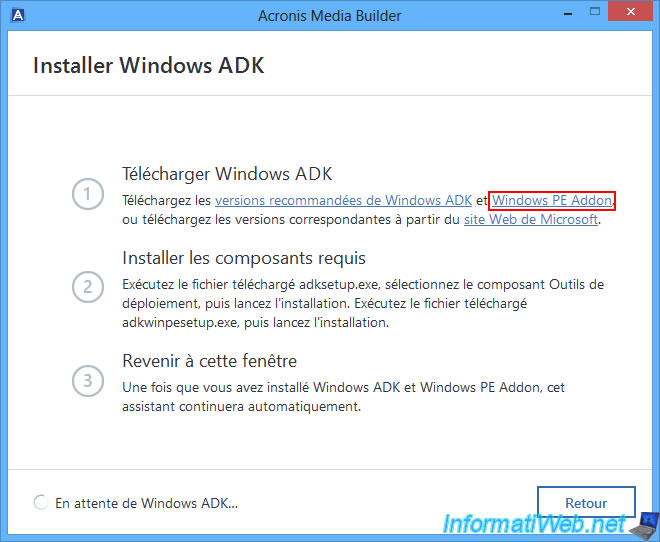
First click on the 1st link to download the Windows ADK.
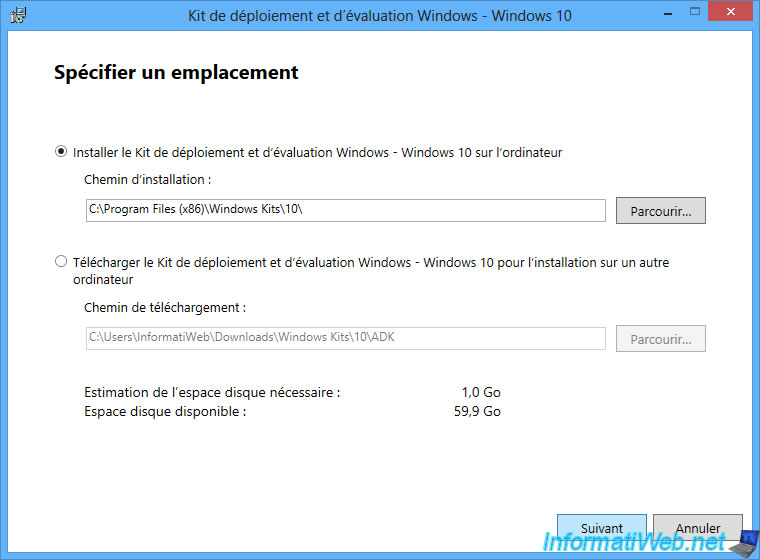
Run the downloaded "adksetup.exe" file and a "Windows Assessment and Deployment Kit - Windows 10" window will appear.
Leave the default installation folder and click "Next".
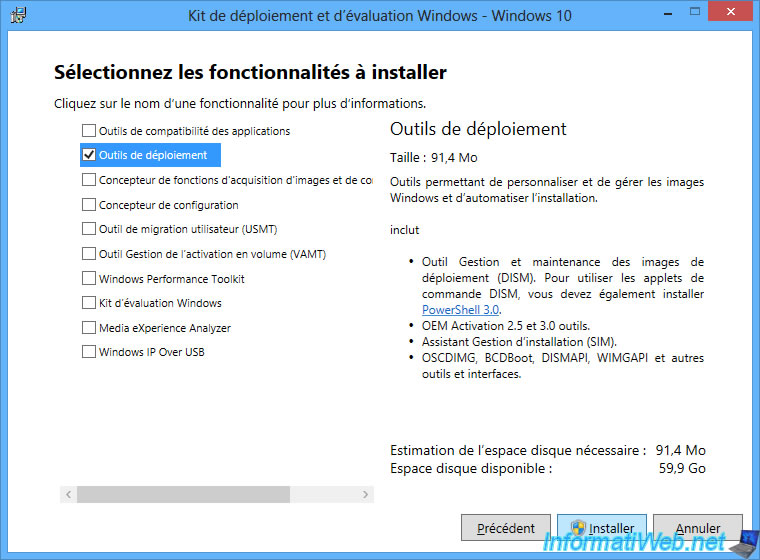
Select only the "Deployment Tools" feature and click "Install".
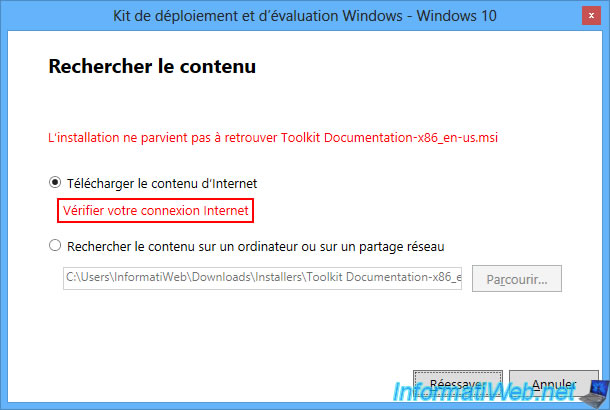
If Windows 8.1 and Internet Explorer are not up to date, you may get the error "Installation cannot locate Toolkit Documentation-x86_en-us.msi".
If you select "Download content from the Internet" and click "Retry", the error "Check your Internet connection" will also be displayed under this option.
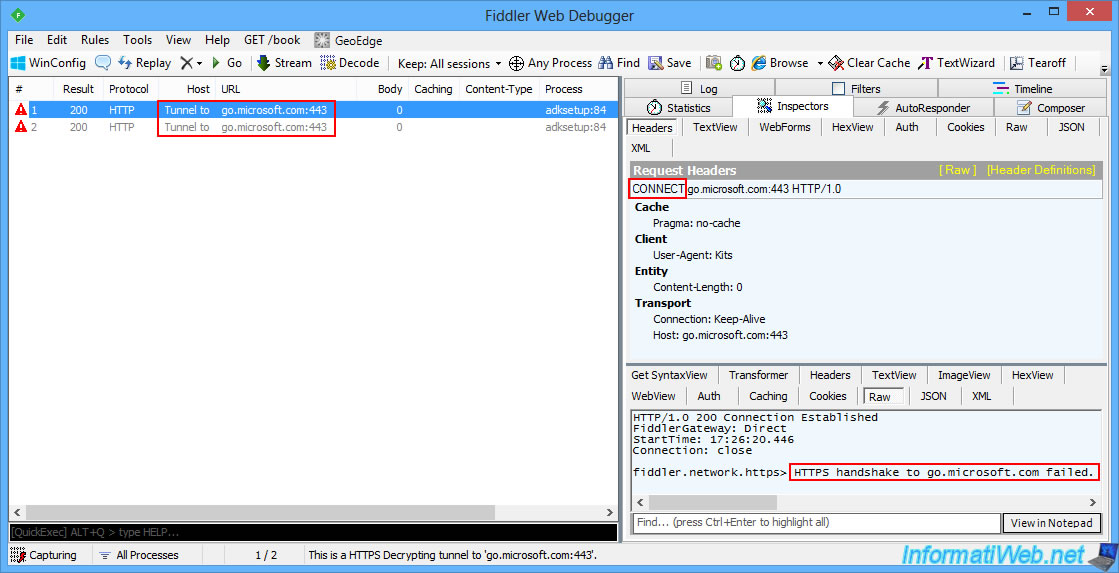
Using a web debugger, you can easily see that the error occurs when establishing the HTTPS connection (using the "CONNECT" keyword to port 443 (HTTPS)).
In the raw response, you can see that the HTTPS negotiation failed. In other words, no correspondence between the SSL/TLS methods supported by the Microsoft server and the web client used was found.
Which is logical since current web servers use new versions of SSL/TLS (for security reasons) and refuse older versions of SSL/TLS (currently used by Windows 8.1 when it is not up to date).
To fix this kind of problem, the best thing to do is to update Windows 8.1 via Windows Update and also update Internet Explorer (which is used in the background by many programs for Windows).
However, we have found a much faster trick for this case. This will save you time with Windows Update.
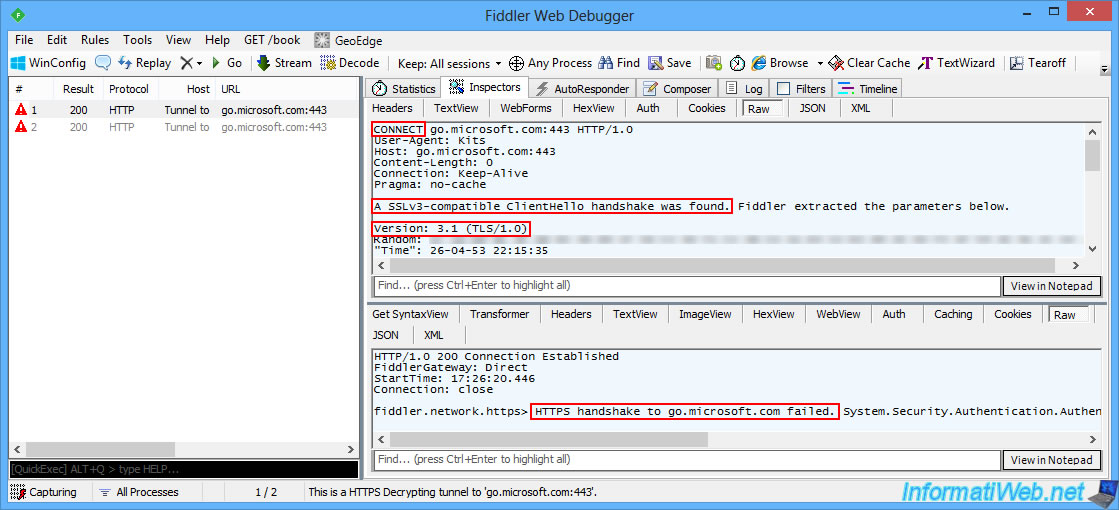
In the raw request sent to Microsoft's server, we can also see that SSLv3 was used.
Note: since the HTTPS tunnel establishment fails, we cannot see the HTTPS URLs that the installer is trying to reach.
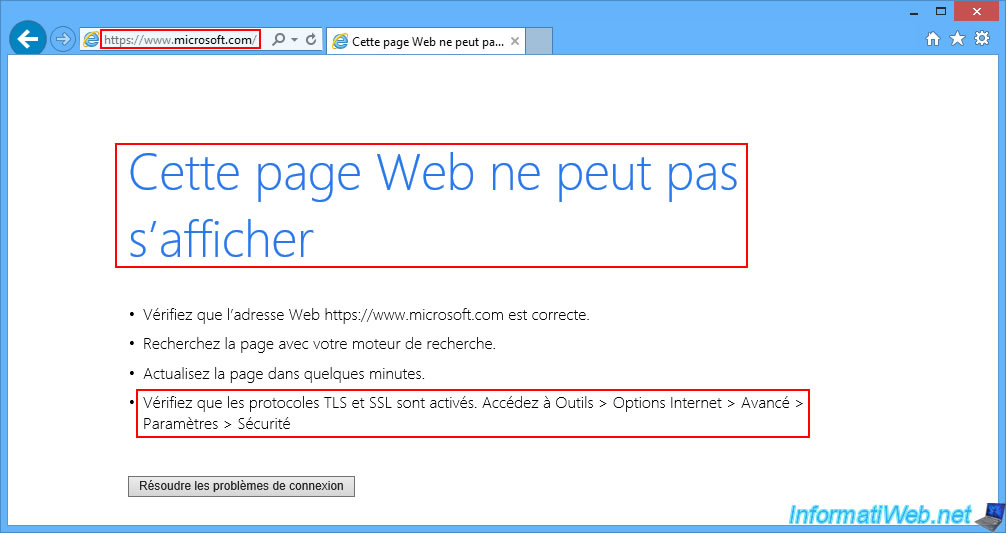
If you open Internet Explorer and try to access the Microsoft site, you will see the error "This webpage cannot be displayed".
Which is normal at present since the versions of SSL/TLS used by the original version of Internet Explorer on Windows 8.1 are too old.
This also explains why the Microsoft installer cannot download the necessary files since Internet Explorer is almost always used in the background by Windows programs.
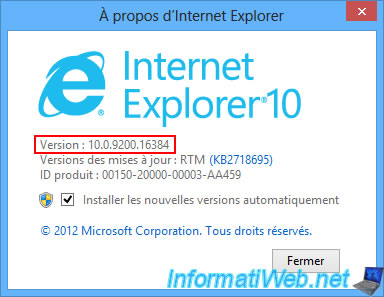
Theoretically, on Windows 8.1, you have Internet Explorer version 10 by default.
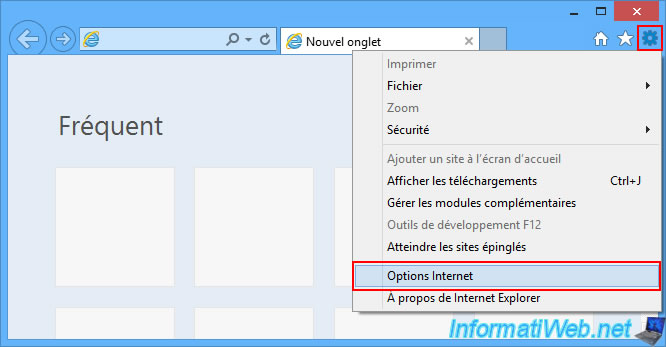
To quickly fix the problem with the Windows ADK installer on Windows 8.1, click the gear icon at the top right of the Internet Explorer window, then click: Internet Options.
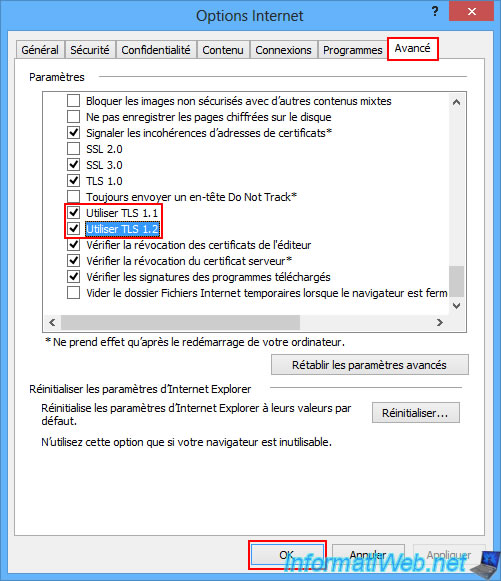
In the "Internet Options" window that appears, go to the "Advanced" tab and check the "Use TLS 1.1" and "Use TLS 1.2" boxes (located at the end of the list of settings displayed).
Then, click OK.
Note: the goal is to use more recent TLS connection methods so that one of these versions is more likely to still be supported by Microsoft's server.
Now, click on "Try Again".
As you can see, downloading the "Deployment Tools" feature works without any problems.
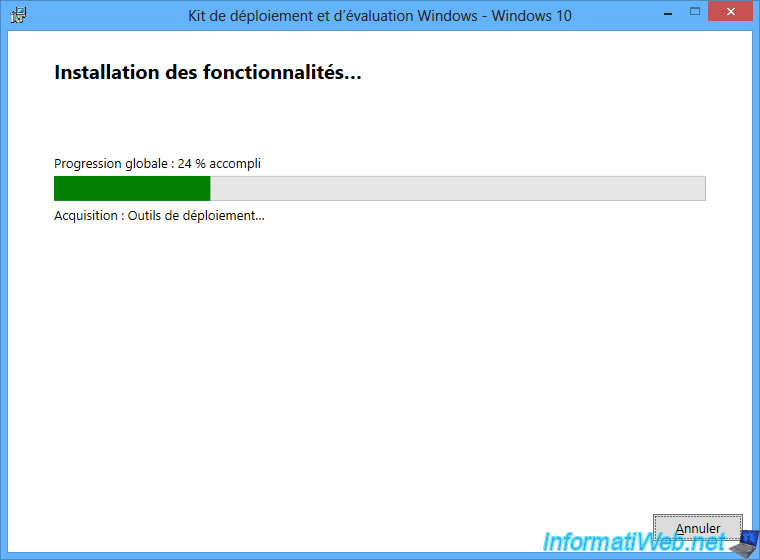
Once the "Deployment Tools" feature is downloaded, wait while it installs.
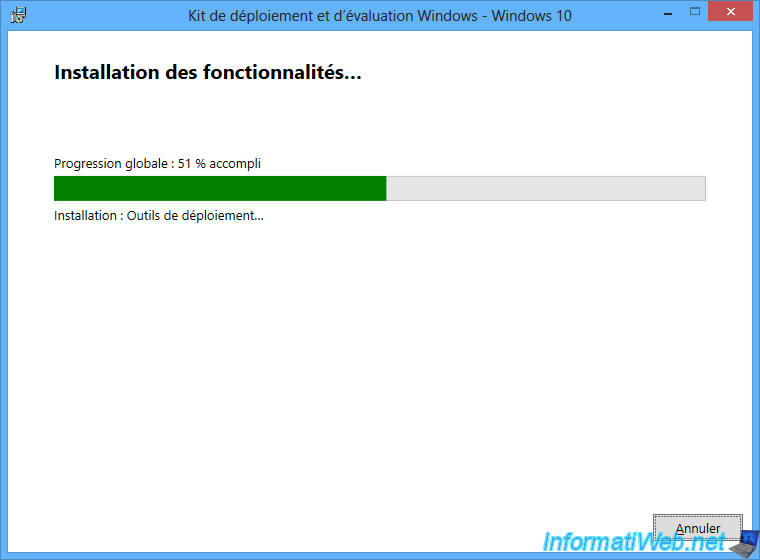
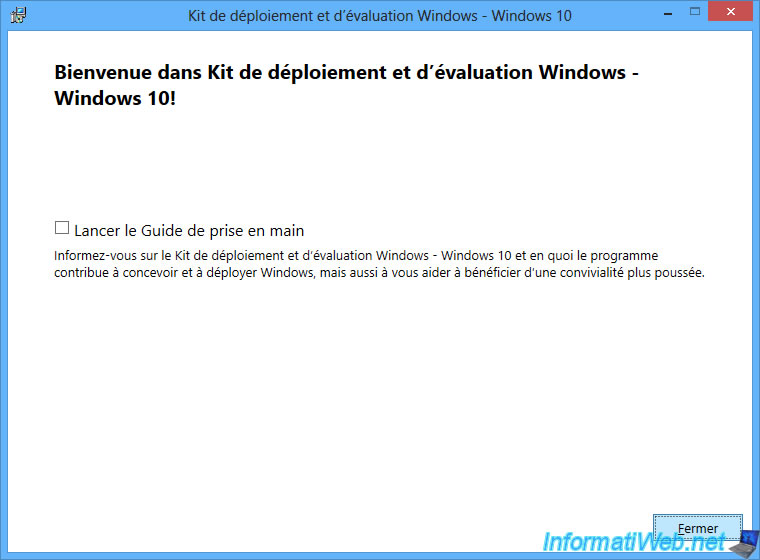
Now, click on "Close".
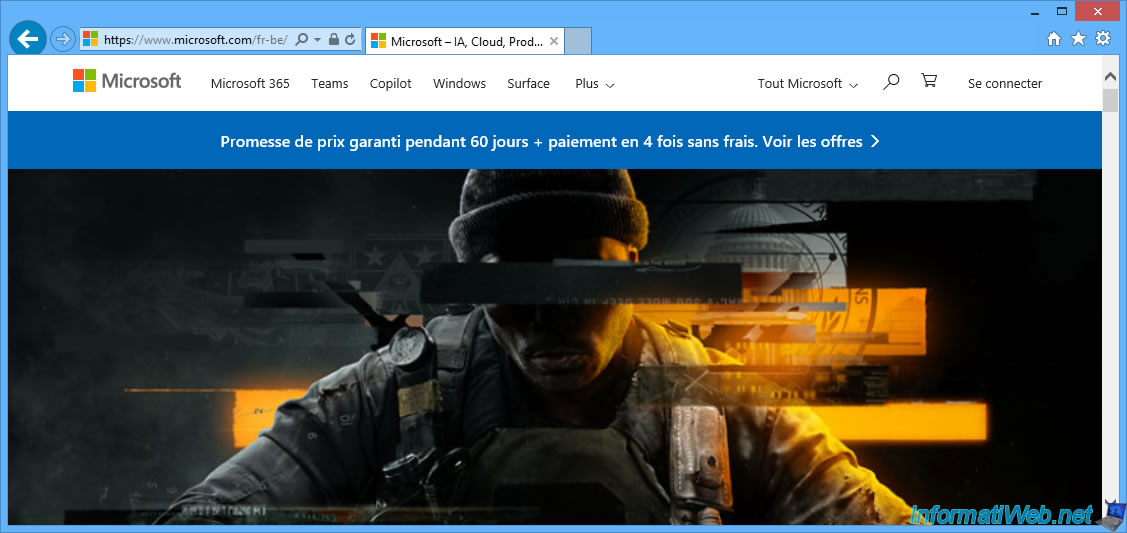
Just for your information, if you try to access the Microsoft website again via Internet Explorer, you will see that it works this time.
Hence the fact that the installer was able to download the necessary files in the background (thanks to the activation of TLS 1.1 and 1.2 in Internet Explorer's Internet options).
Once the Windows ADK is installed on Windows 8, click on the following download link (Windows PE Addon).
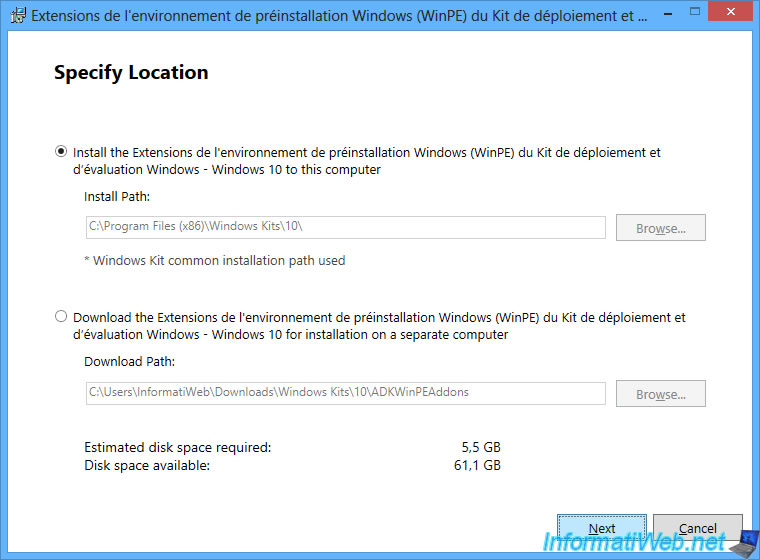
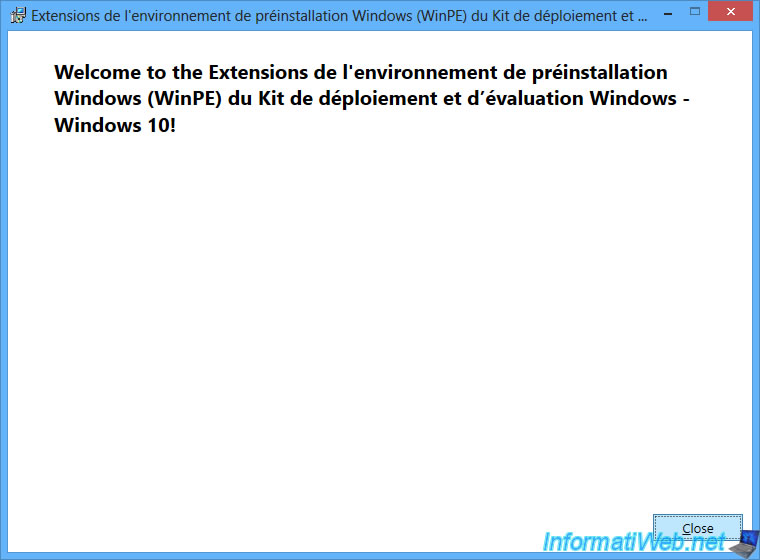
Run the downloaded "adkwinpesetup.exe" file and a "Windows Preinstallation Environment (WinPE) Extensions..." window will appear.
Click "Next".
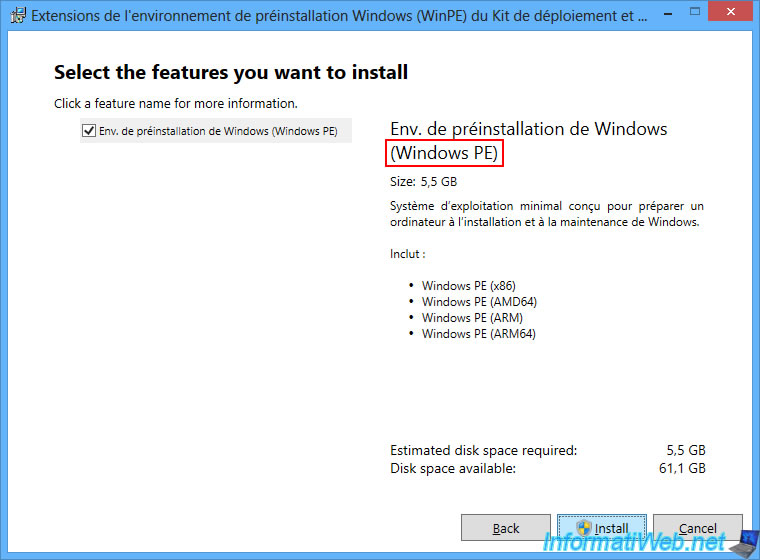
The "Windows Preinstallation Environment (Windows PE)" feature is already checked.
Click "Install".
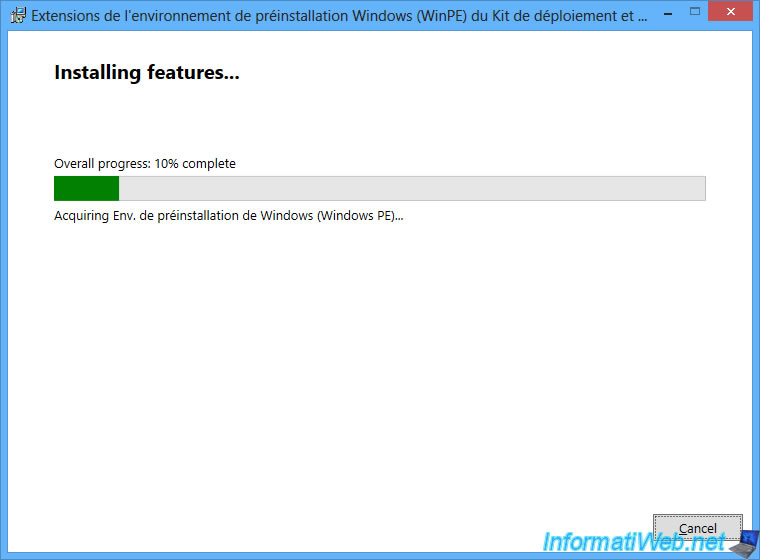
Please wait while this feature "Windows Preinstallation Environment (Windows PE)" is downloaded.
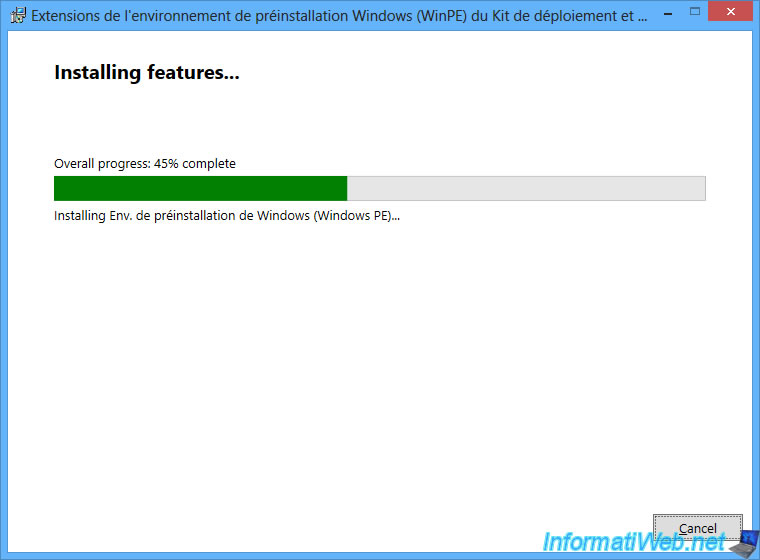
Then, wait while it installs.
Once Windows PE is installed, click "Close".
Share this tutorial
To see also
-
Backup 9/8/2025
Acronis True Image - Clean up local smartphone backups
-
Backup 8/24/2026
Acronis True Image - Partition a new disk
-
Backup 2/2/2026
Acronis True Image - Rescue Media - Create media (Win PE version) on Win 8.1
-
Backup 5/18/2026
Acronis True Image - Universal Restore Media - Create media (Win PE version based on Win ADK)
You must be logged in to post a comment