Create Acronis True Image (Cyber Protect Home Office) rescue media in Windows PE version (based on Win ADK) on Win 8
- Backup
- Acronis True Image
- 09 February 2026 at 14:02 UTC
-

- 2/2
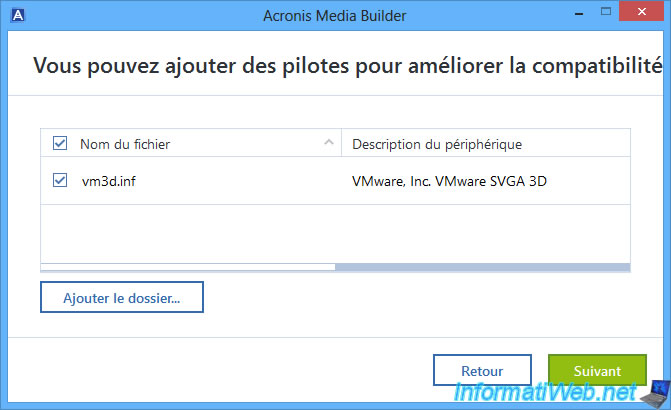
Once the Windows ADK and Windows PE are installed on your Windows 8 computer, the "Acronis Media Builder" wizard will automatically move on to the next step and allow you to add drivers to your Acronis rescue media.
This allows you to add the driver for your network card that would not be natively supported by this rescue media by default, if you wish.
Click "Next".
Warning : you will need to provide drivers with files in the ".inf, .sys, ..." format intended for Windows 10.
Indeed, since Acronis Media Builder will use the Windows ADK (which is intended for Windows 10 as you saw during its installation), the Windows PE environment used will be in Windows 10 version.
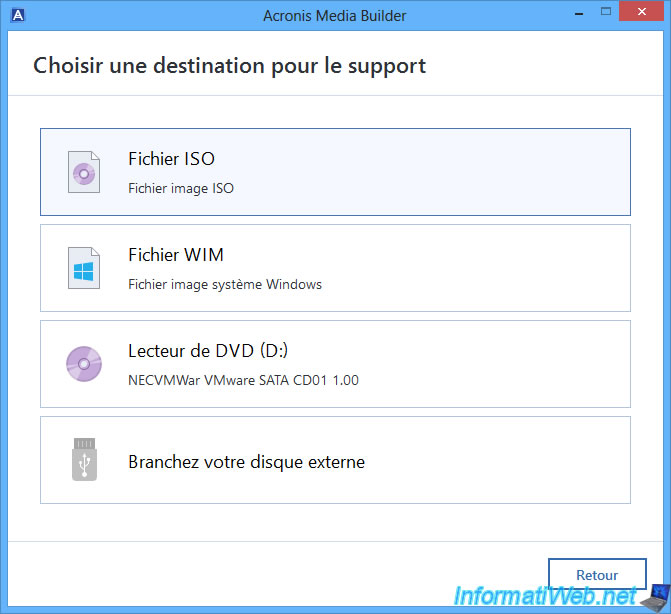
Select the destination for this Acronis rescue media.
In our case, we selected "ISO file".
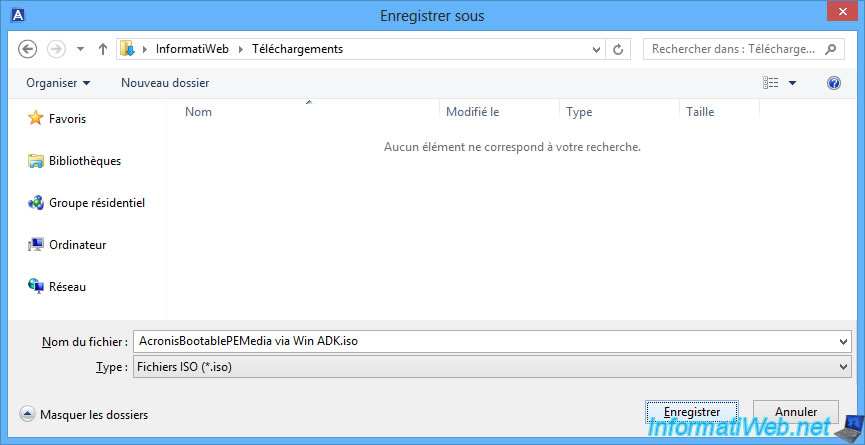
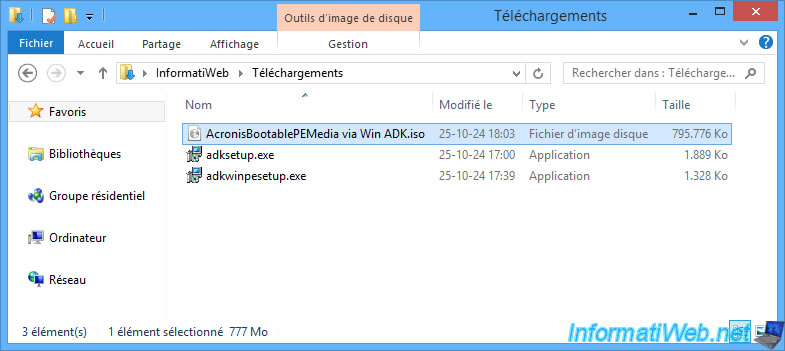
Save this ISO file as "AcronisBootablePEMedia via Win ADK.iso" (for example).
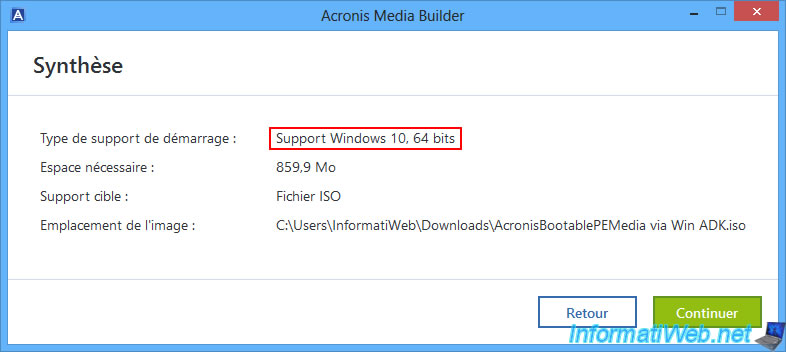
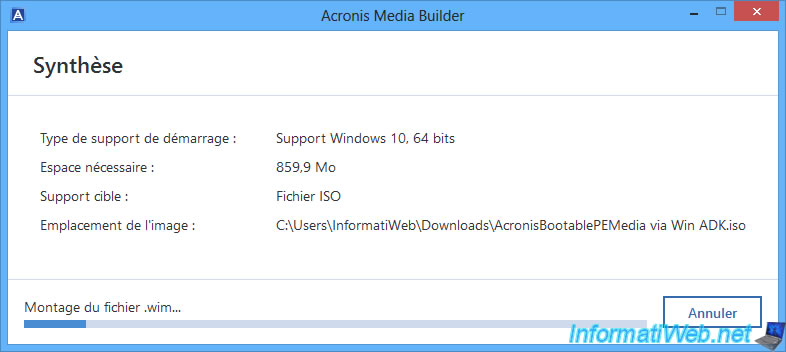
As you can see, Acronis Media Builder will create Windows 10 media in 64-bit, because it will use the "Windows ADK" toolkit (which is Windows 10 version).
Acronis Media Builder will first mount the Windows PE .wim file so that you can modify it (add the Acronis program, your previously added drivers, ...).
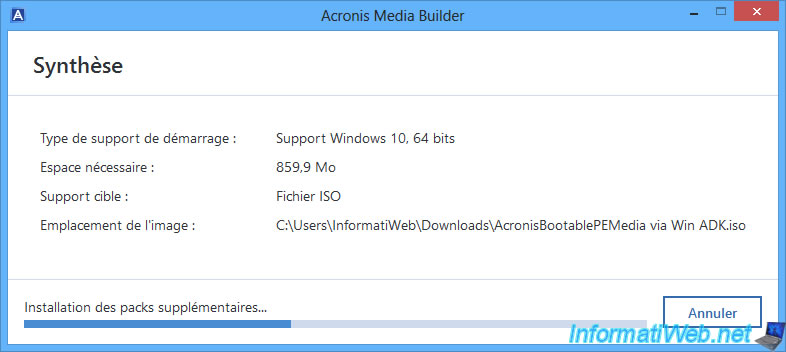
Acronis Media Builder will install additional packages.
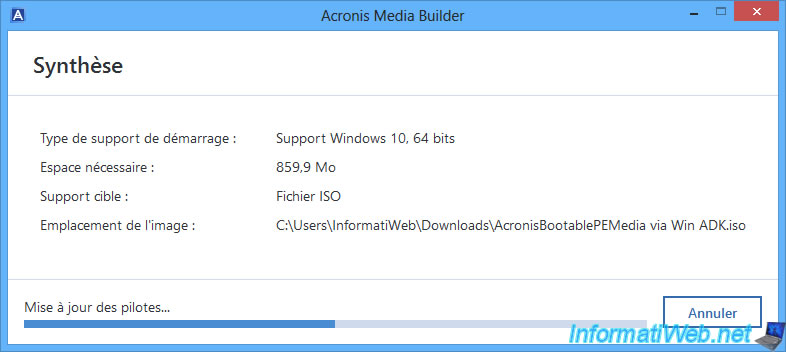
Acronis Media Builder will also add the drivers added via this wizard into the Windows PE image.
This will allow your Acronis rescue media to support the devices (network cards and others) affected by these drivers.
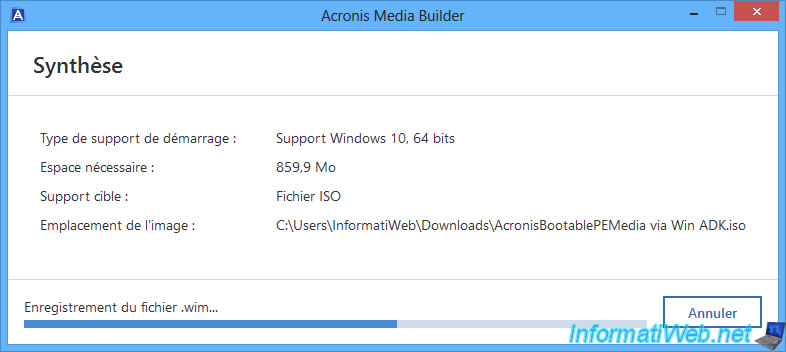
Then Acronis Media Builder will save the modified .wim file.
Finally, Acronis Media Builder will build the ISO file containing the Windows PE-based .wim file in Windows 10 x64 version.
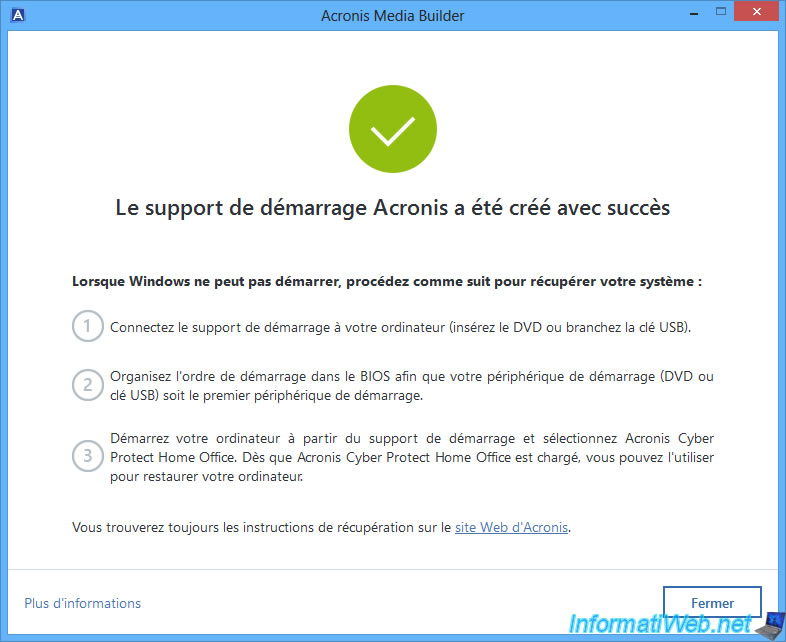
Once your Acronis rescue media is created, click "Close".
Burn the resulting ISO file onto a CD, referring, if necessary, to our tutorial: Burn a CD/DVD.
2. Boot to your custom Acronis rescue media
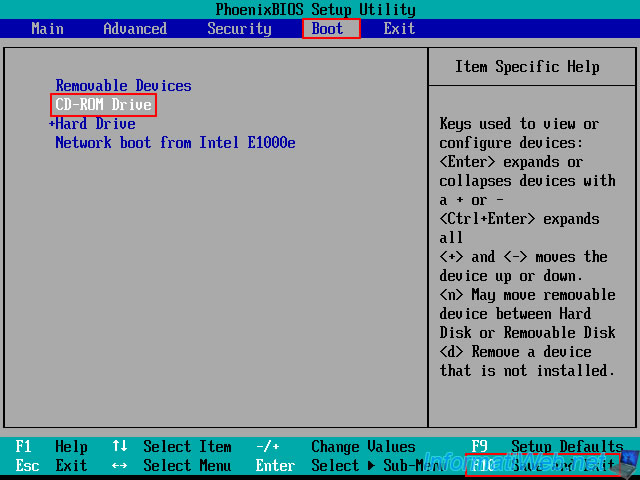
Once you have your Acronis rescue media burned to a CD, configure your motherboard BIOS/UEFI firmware boot order to boot first from your CD/DVD drive, then from your hard drive (or SSD) where Windows is installed.
Restart your computer and you should see the message "Press any key to boot from CD or DVD".
Press Enter to boot to your Acronis rescue media.

The Windows PE logo appears at startup.

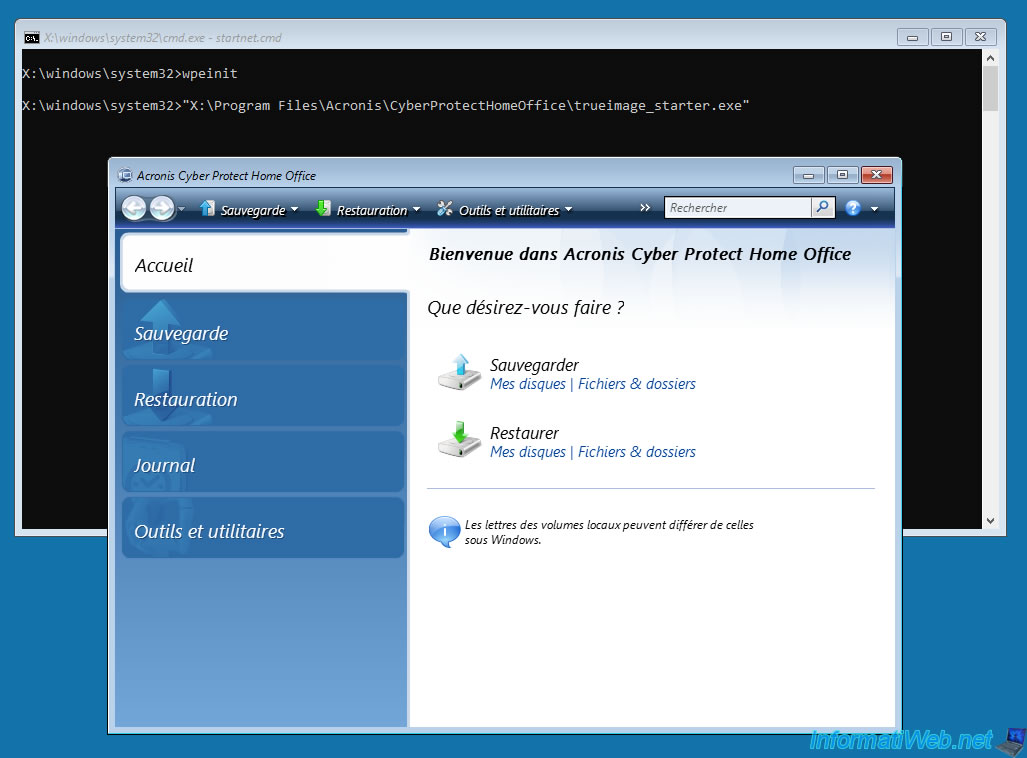
Wait a few seconds and you will see a command prompt (black window) appear, then the Acronis Cyber Protect Home Office (True Image) window.
Share this tutorial
To see also
-

Backup 9/11/2025
Acronis True Image - Backing up your smartphone to Acronis Cloud
-

Backup 10/19/2026
Acronis True Image - OEM version (free) of Seagate
-
Backup 8/4/2025
Acronis True Image - Search for files in a backup
-

Backup 8/7/2025
Acronis True Image - Search for files in a Cloud backup
No comment