- Backup
- Acronis True Image
- 17 August 2026 at 08:02 UTC
-

If you have any problems with Acronis Cyber Protect Home Office (True Image), if you contact Acronis Support or ask for help on the Acronis forum, you may be asked to generate a report of your system.
To do this, simply use the "Acronis System Report" utility installed with Acronis Cyber Protect Home Office (True Image).
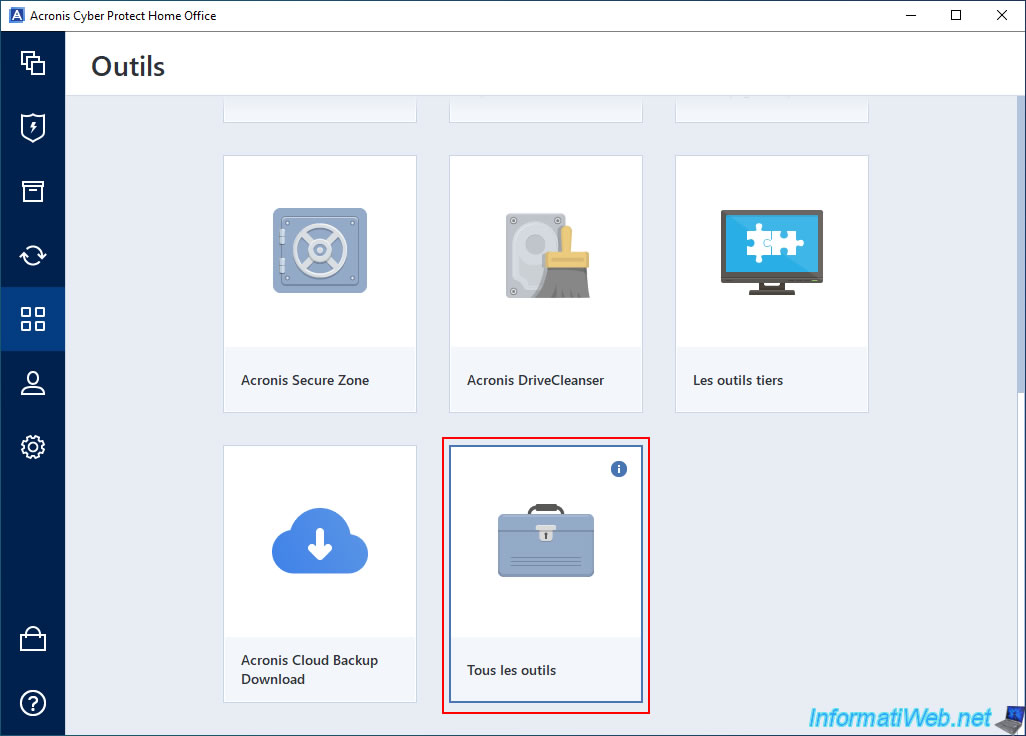
To launch it, go to the "Tools" section of Acronis Cyber Protect Home Office (True Image), then click "All tools".
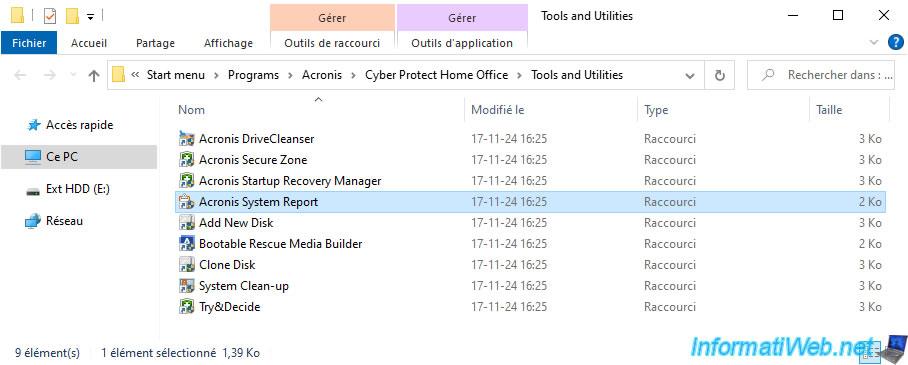
Then, launch the "Acronis System Report" program present in the list that appears.
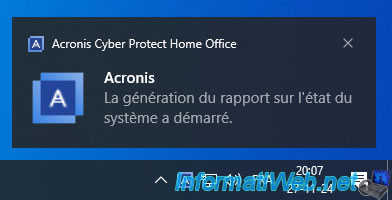
An Acronis notification will appear at the bottom right of your screen with the message "System Status Report generation has started".
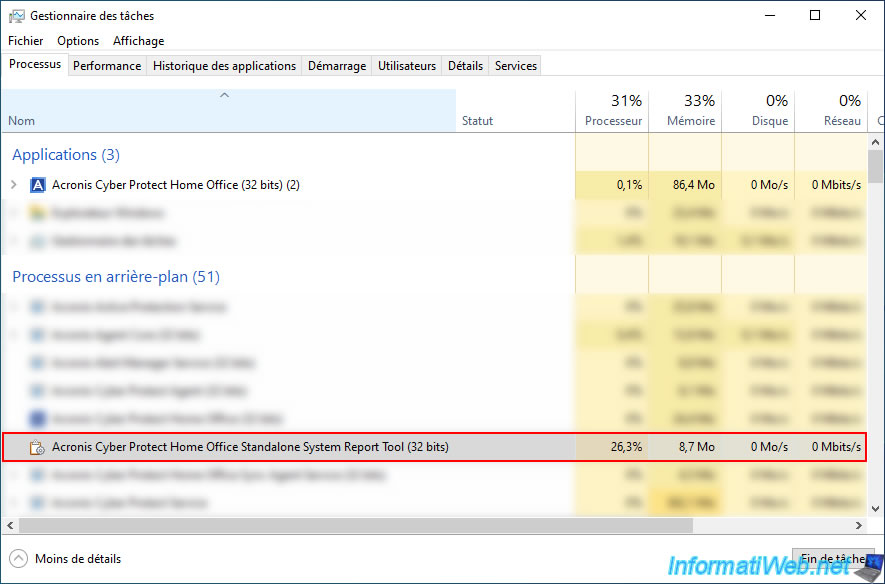
Then you will have to wait while this program is running in the background.
You can see it with the Windows Task Manager.
Indeed, it is a background process. Hence the fact that you do not see it on the screen currently.
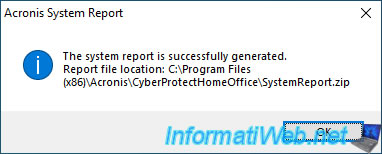
After about a minute, a small "Acronis System Report" window will appear with the message below.
Plain Text
The system report is successfully generated.
Report file location: C:\Program Files (x86)\Acronis\CyberProtectHome Office\SystemReport.zip
Click OK.
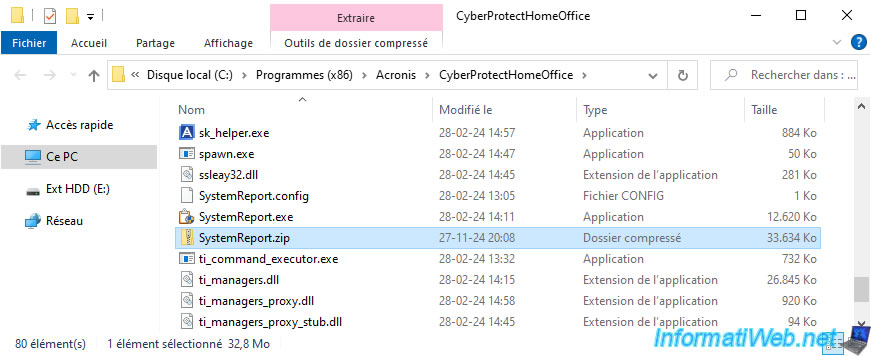
Open file explorer and go to the folder "C:\Program Files (x86)\Acronis\CyberProtectHome Office".
As expected, you will find a file "SystemReport.zip" there.
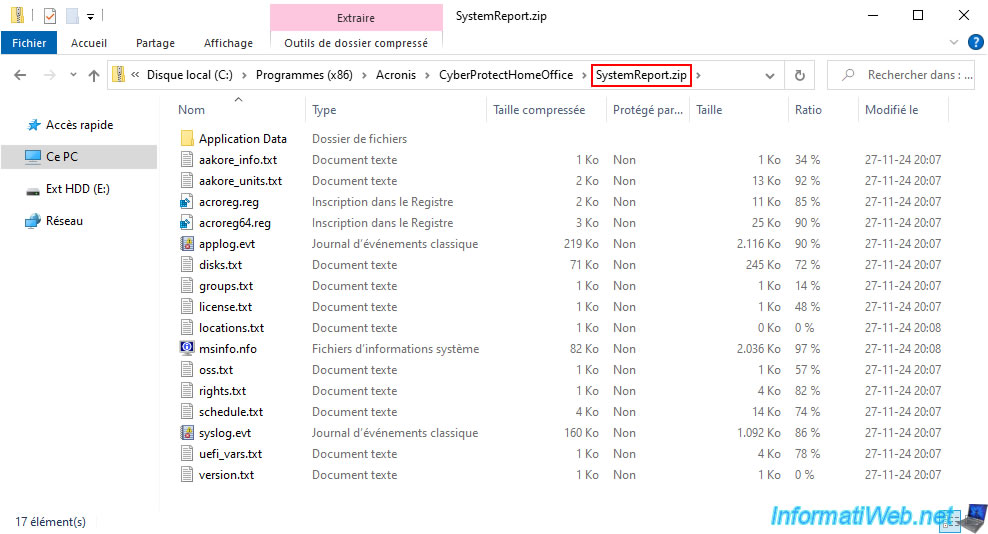
If you go into this file, you will see that it contains several text files, as well as Acronis registry keys, Windows event logs, system information about your computer and Windows, ...
All this information is potentially useful for Acronis support in case of a problem.
Share this tutorial
To see also
-
Backup 12/22/2025
Acronis True Image - Clone a disk (manual mode)
-

Backup 5/29/2025
Acronis True Image - Presentation of features
-

Backup 8/21/2025
Acronis True Image - Replicate encrypted backups to Acronis Cloud
-

Backup 4/13/2026
Acronis True Image - Rescue Media - Create an incremental backup
You must be logged in to post a comment