- Backup
- Acronis True Image
- 29 June 2026 at 16:17 UTC
-

- 1/5

From the "Tools" section of Acronis Cyber Protect Home Office (True Image), you have the possibility to access third-party tools created by experts (who know a lot about Acronis products), but which are not developed or maintained by Acronis company.
- MVP Assistant Tool
- Log Viewer
- Custom WinPE-based Media Builder (obsolete)
To do this, go to the "Tools" section of Acronis Cyber Protect Home Office (True Image), then click on the "Third-party tools" option.
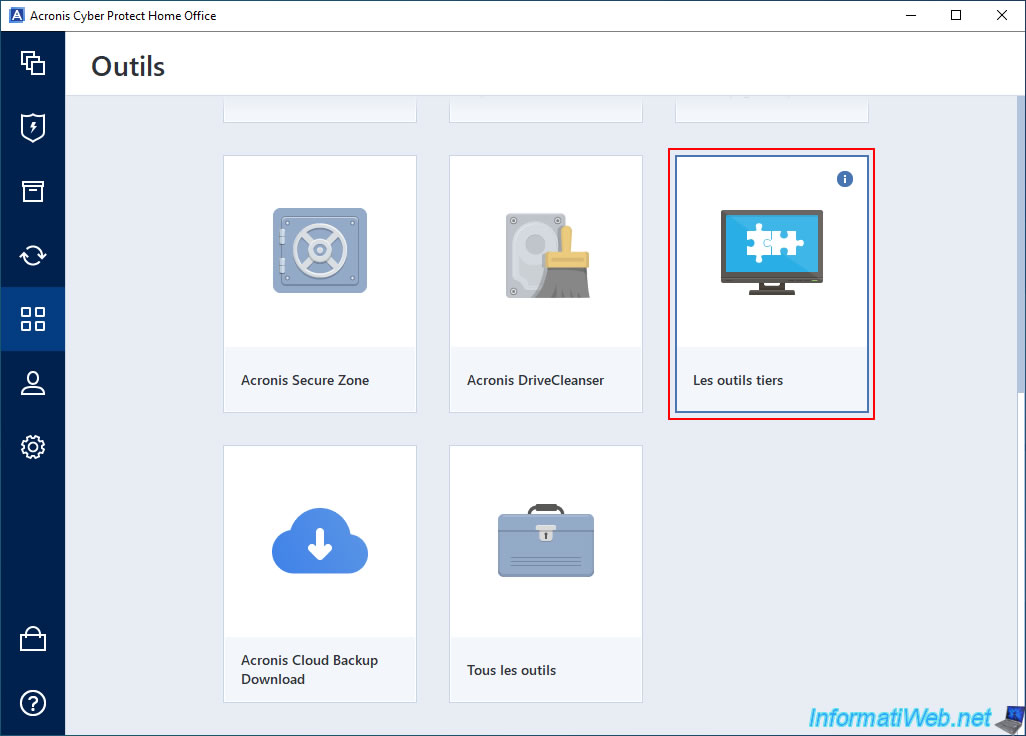
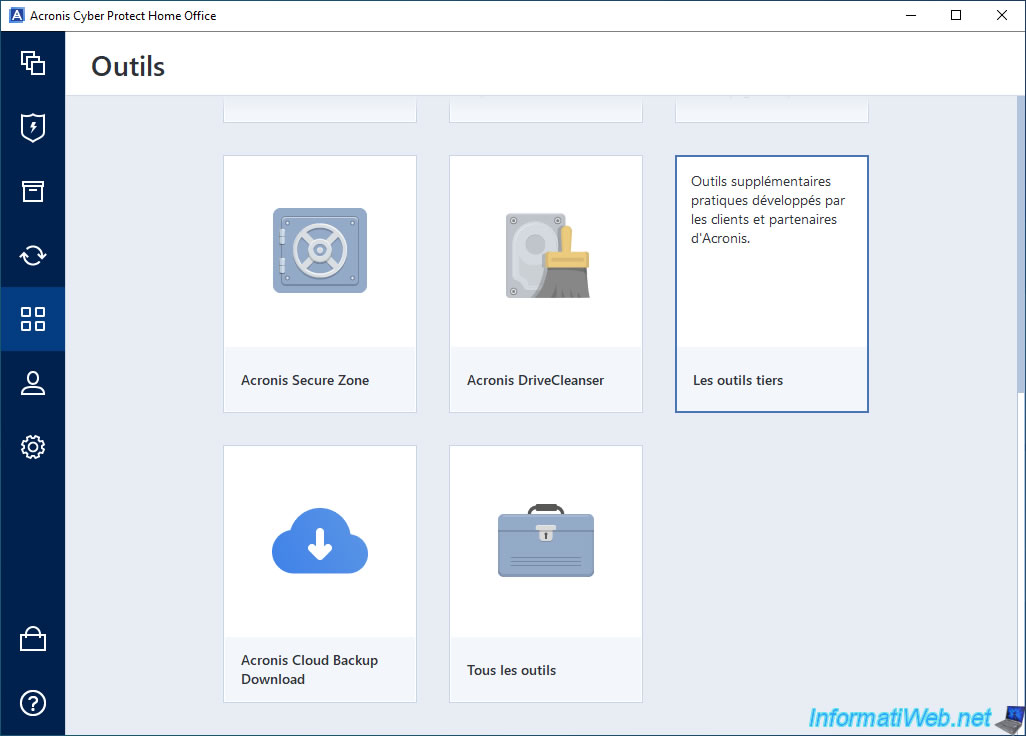
As you can see by hovering over the small "i" in this "Third-party tools" option, these are additional tools developed by Acronis partners and customers.
But they are therefore not developed by Acronis company.
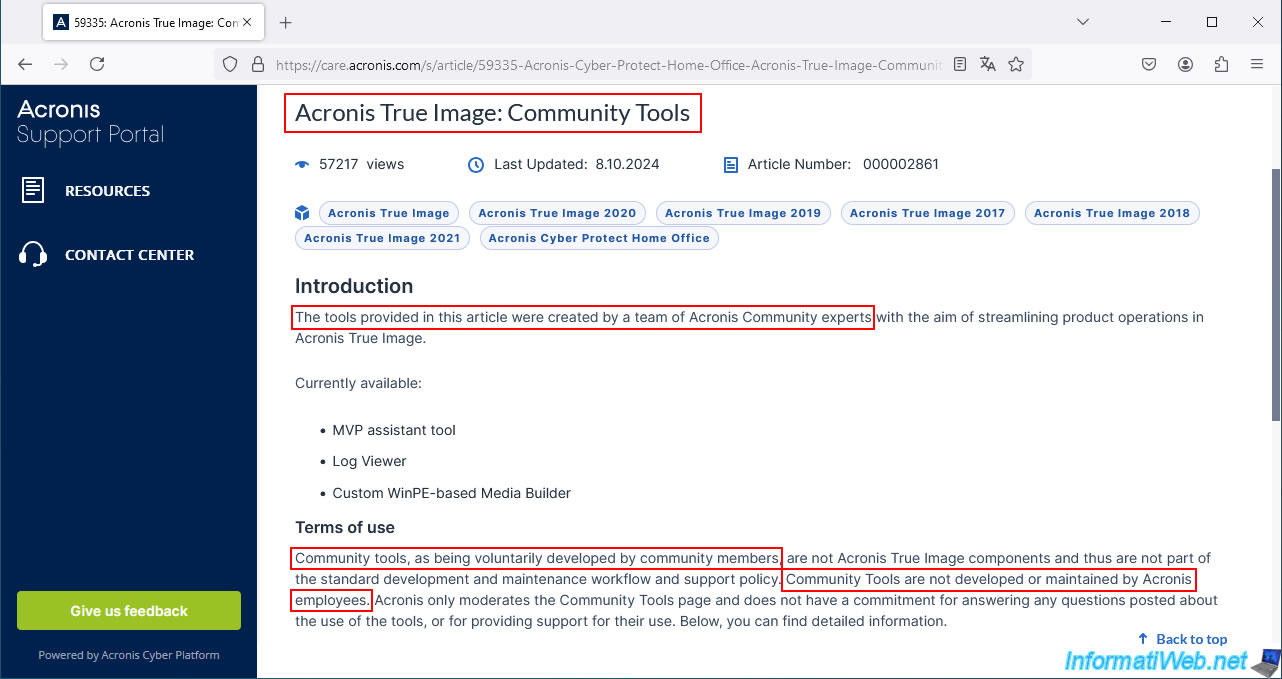
This "Third-party tools" option will send you to the "Acronis True Image: Community Tools" page on the Acronis website.
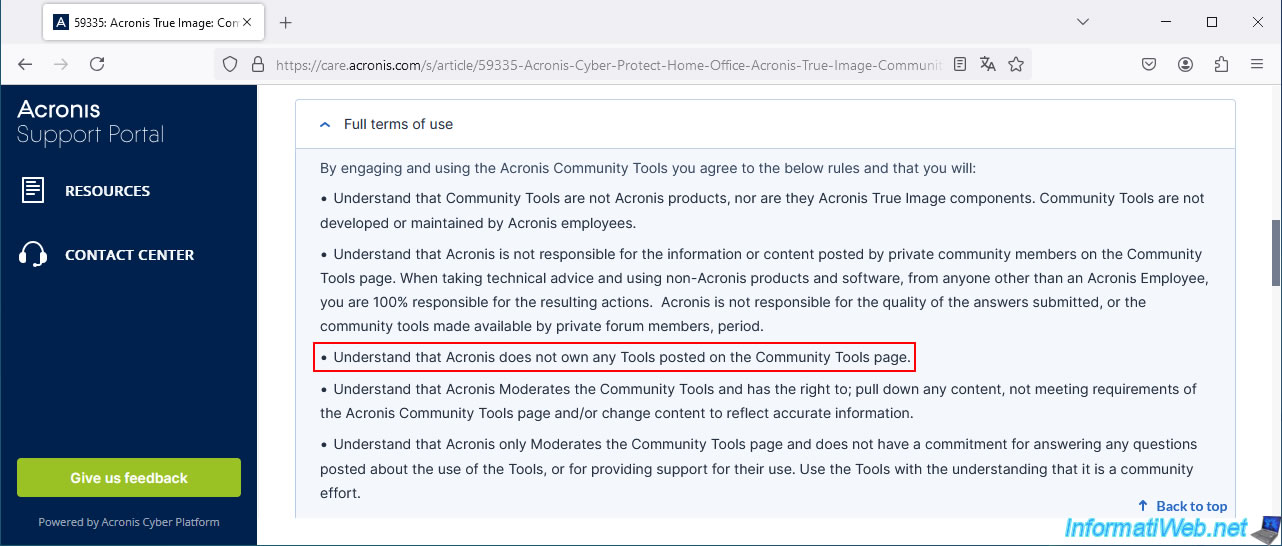
As stated in the terms of use of these tools, they do not belong to Acronis.
1. MVP Assistant Tool
1.1. Download MVP Assistant Tool
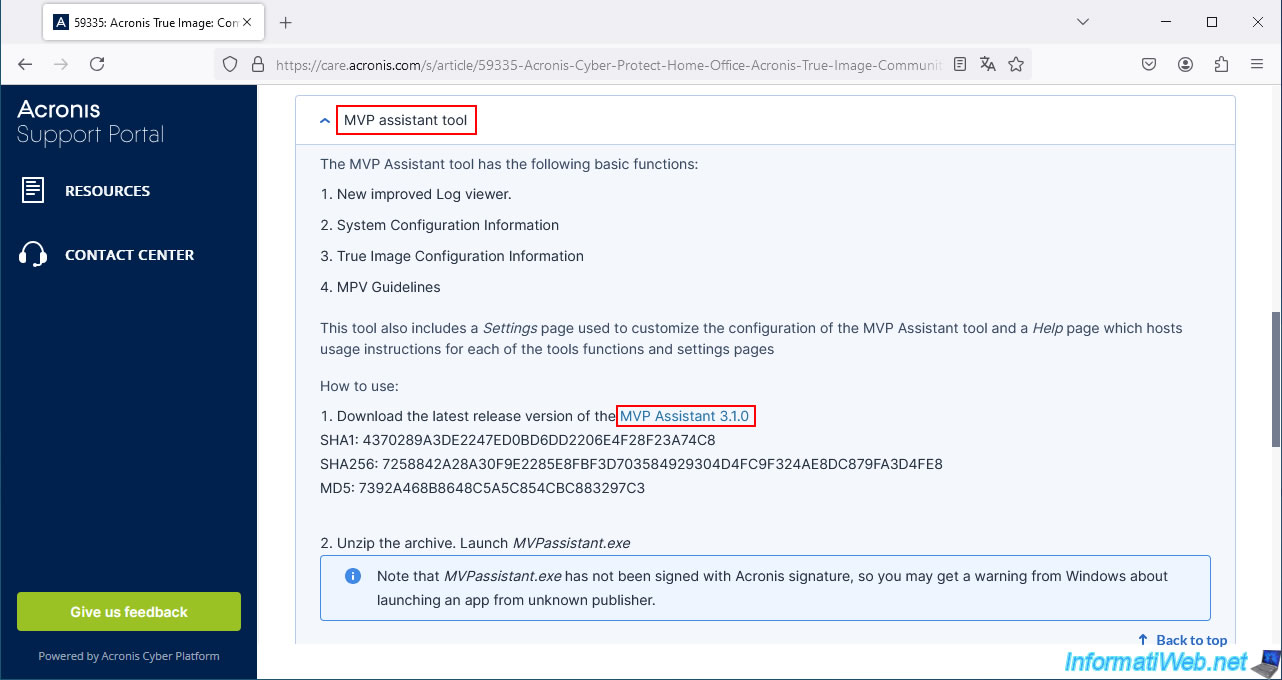
The 1st tool offered on this page is "MVP Assistant Tool" and it allows you to get information about your system configuration and True Image configuration, as well as access the different logs of Acronis Cyber Protect Home Office (True Image).
To download it, you should click on the "MVP Assistant 3.1.0" link located at the 1st step of this tool.
Important : the new version 3.2.0 presented in this tutorial supports Acronis True Image, as well as Acronis Cyber Protect Home Office.
However, you will arrive at a Google Drive error page with the message "Sorry, the file you requested does not exist".
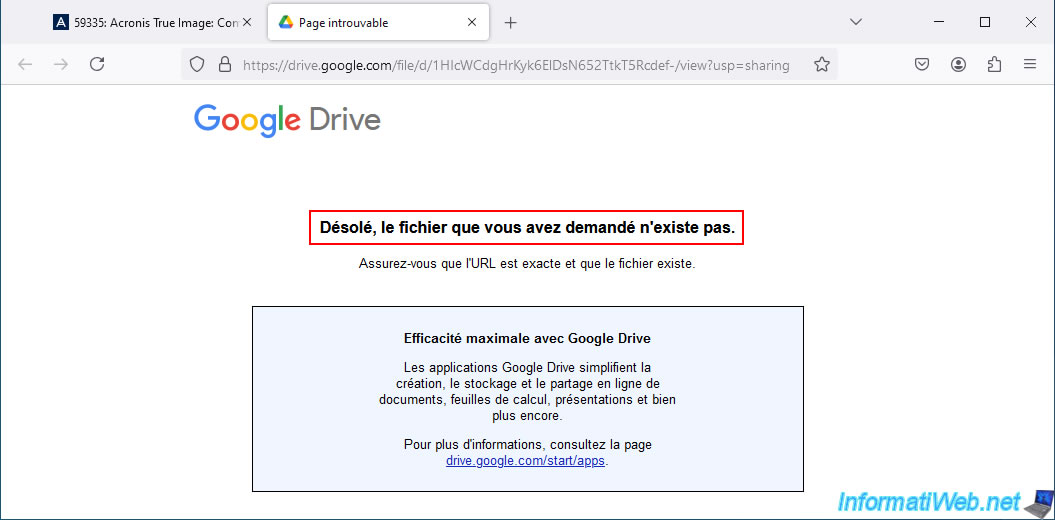
Indeed, version 3.1.0 is no longer available for download.
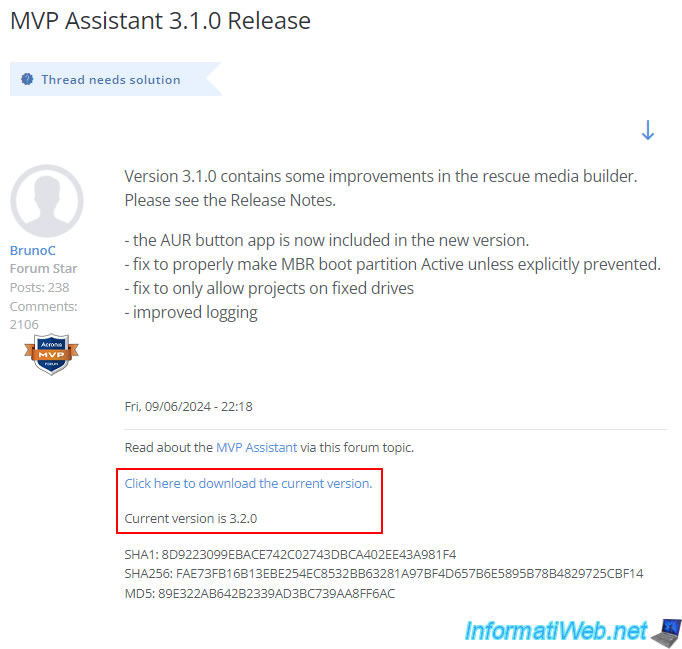
However, if you go to the page "MVP Assistant 3.1.0 Release | Acronis Forum", you will find the new download link for version 3.2.0 in the signature of the 1st message of this Acronis forum.
Click on the link "Click here to download the current version" which corresponds to version 3.2.0 of this tool "MVP Assistant".
As you can see, you will arrive at a Google Drive download page with a file "MVPAssistant_Release.zip".
Click on the download icon displayed at the top right.
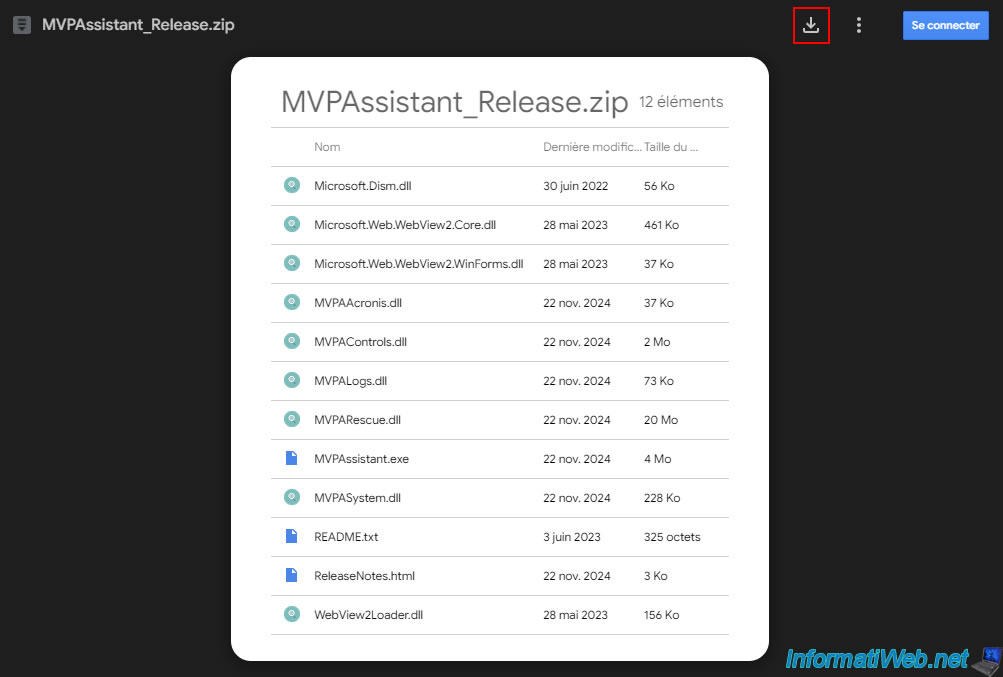
Unzip the downloaded "MVPAssistant_Release.zip" file.
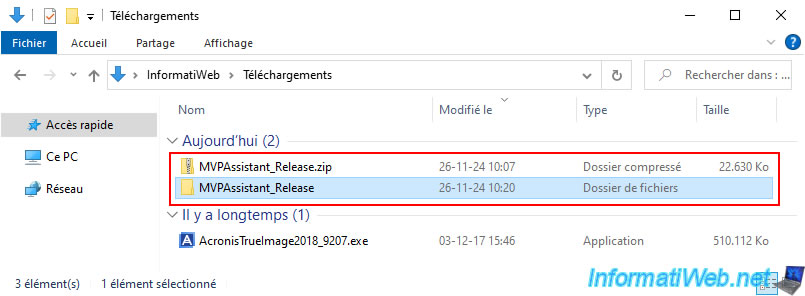
1.2. 1st launch of MVP Assistant
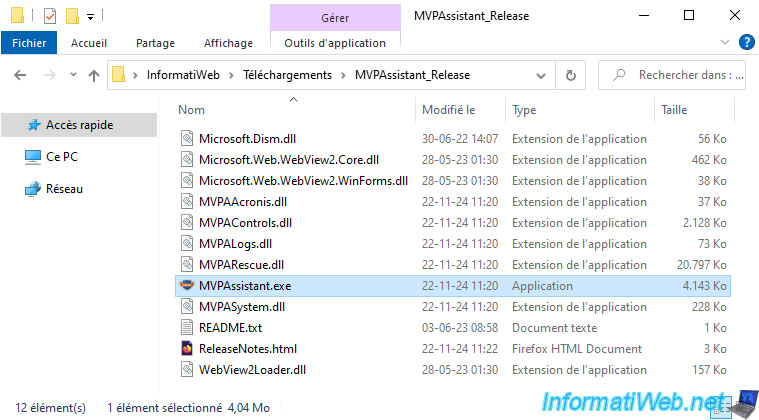
In the "MVPAssistant_Release" folder, launch the "MVPAssistant.exe" file located there.
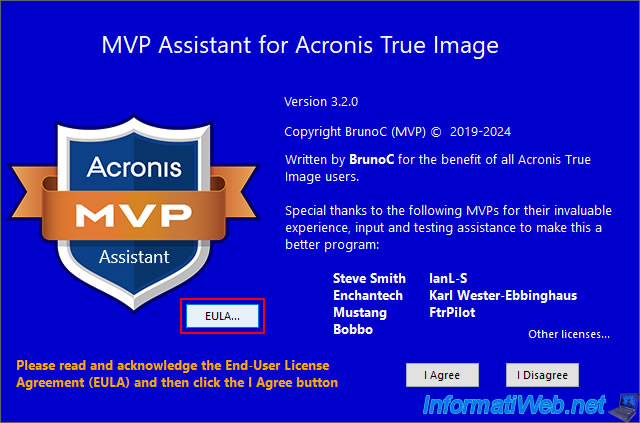
The "MVP Assistant for Acronis True Image" program appears.
First click on the "EULA" button to read the legal information of this tool.
Warning : you are required to read this EULA before clicking on the "I Agree" button, otherwise the tool will refuse to launch and will tell you that you must read the EULA first.
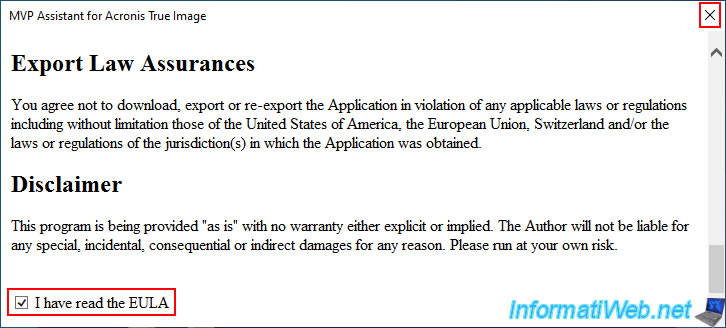
The license for this tool appears.
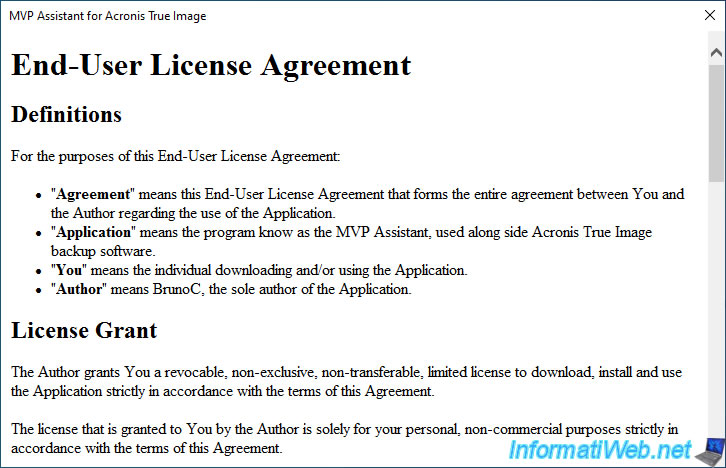
At the very bottom of this license, check the box "I have read the EULA", then close this window.
Now, click on the "I Agree" button.
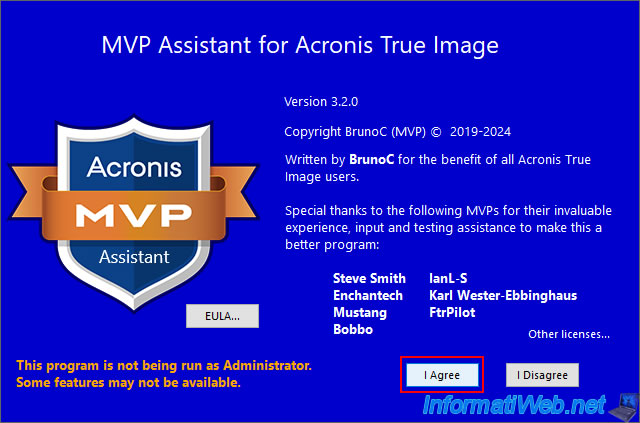
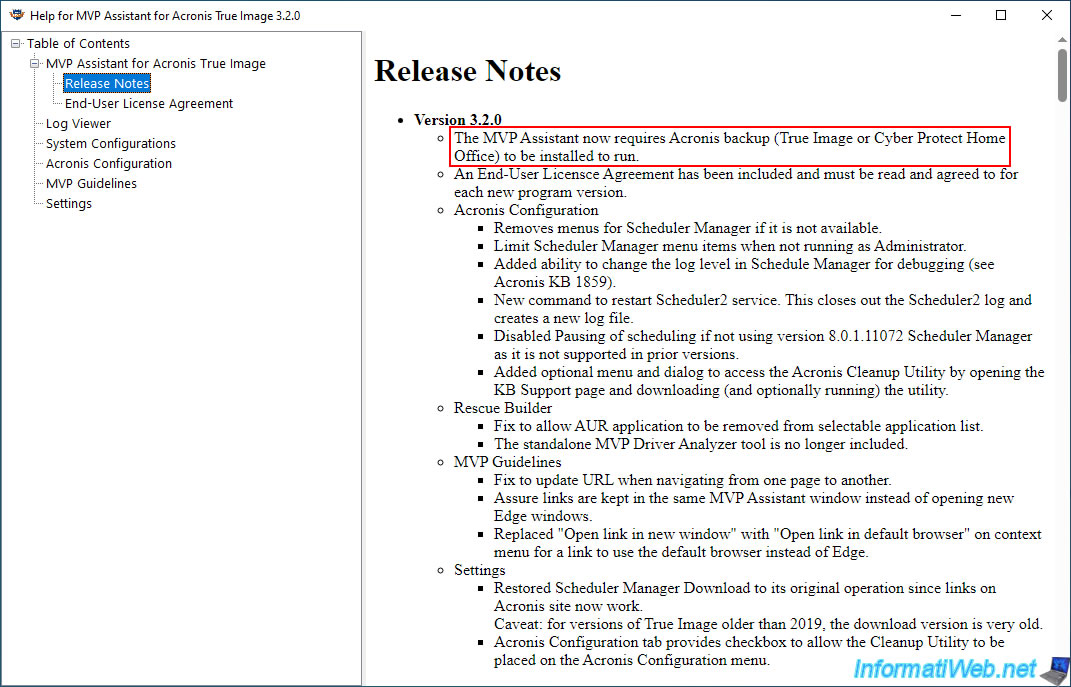
By default, information about the current version of this tool is displayed.
As you can see, MVP Assistant tool version 3.2.0 works with Acronis True Image and Acronis Cyber Protect Home Office (which is another name for Acronis True Image).
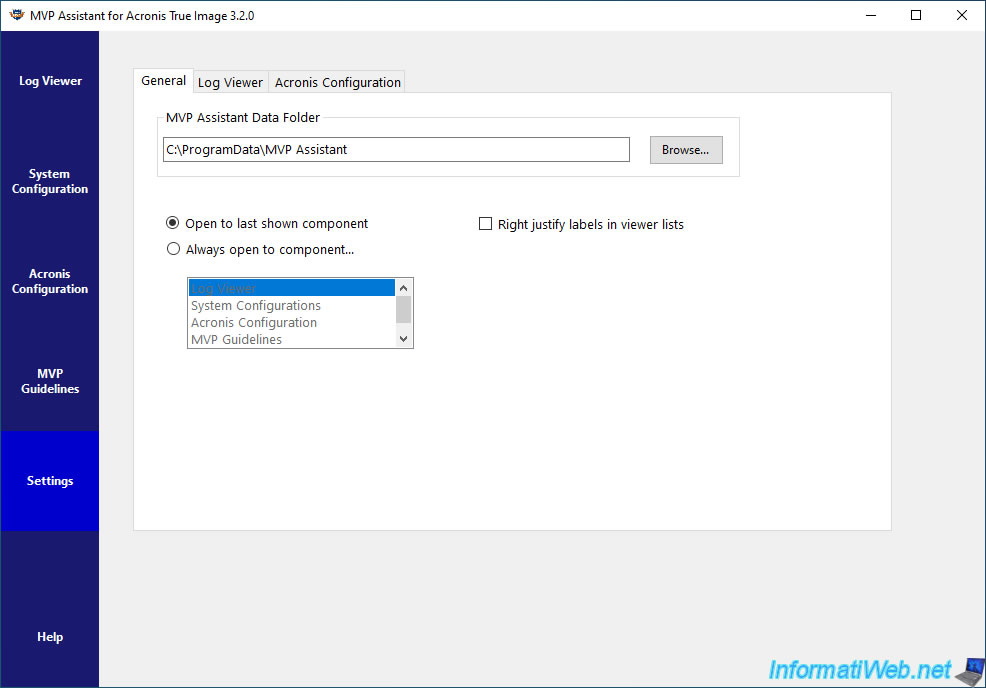
Then, the "MVP Assistant for Acronis True Image 3.2.0" window will also appear and the "Settings" section will be displayed by default.
1.3. Log Viewer (view Acronis logs)
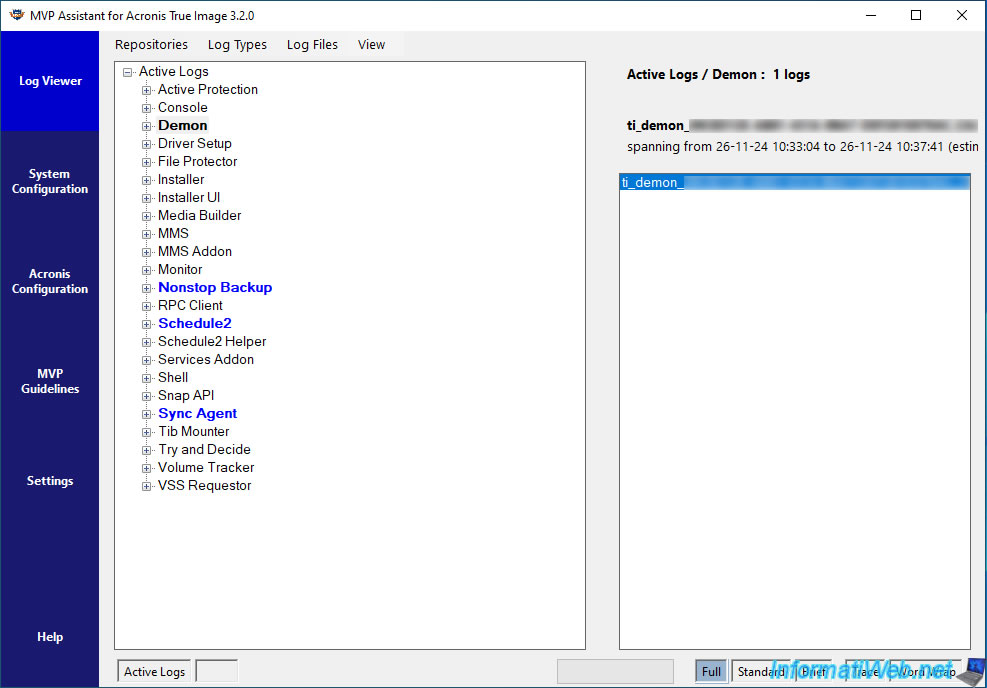
By going to the "Log Viewer" section of the "MVP Assistant" tool, you can easily view all the Acronis Cyber Protect Home Office (True Image) logs.
Especially those concerning backups made via Acronis Cyber Protect Home Office (True Image) which are located in the "Active Logs -> Demon" section.
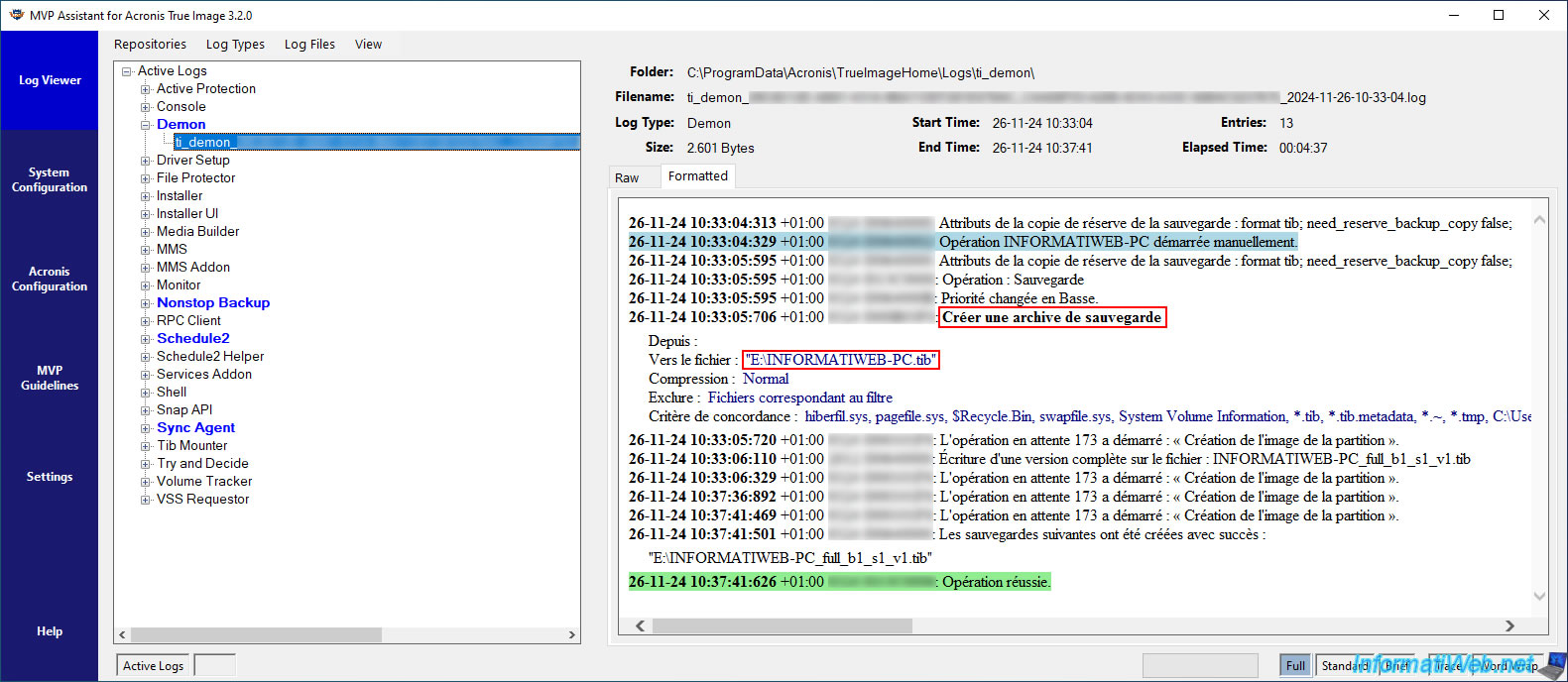
On the right, double-click on the desired "ti_demon_..." log to open it in this "MVP Assistant" tool.
As you can see, in our case it is a backup made manually and which is stored on the "E" partition of our computer.
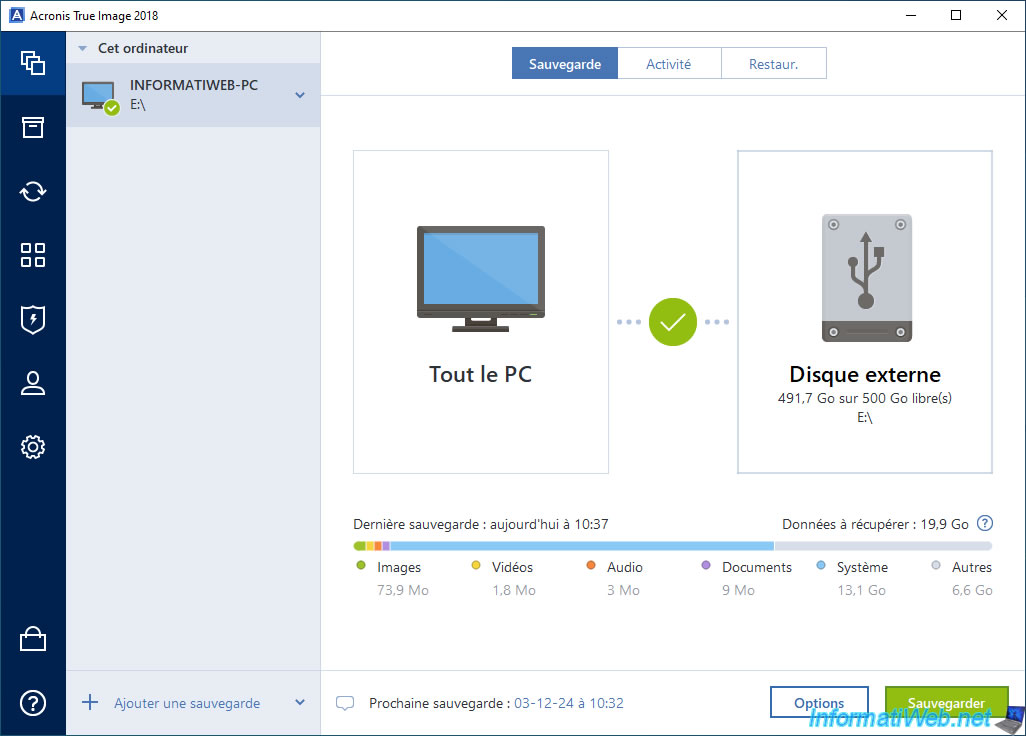
Which corresponds to the backup visible in the Acronis Cyber Protect Home Office interface (True Image).
Share this tutorial
To see also
-
Backup 8/17/2026
Acronis True Image - Generate a report of your system
-
Backup 8/21/2025
Acronis True Image - Replicate encrypted backups to Acronis Cloud
-
Backup 3/2/2026
Acronis True Image - Rescue Media - Create an Acronis Secure Zone
-
Backup 2/2/2026
Acronis True Image - Rescue Media - Create media (Win PE version) on Win 8.1
You must be logged in to post a comment