Access Acronis logs, get detailed information, ... with third-party tools for Acronis True Image (Cyber Protect Home Office)
- Backup
- Acronis True Image
- 29 June 2026 at 16:17 UTC
-

- 5/5
3.4.3. Boot to your custom Acronis MVP CD
To boot your new Acronis MVP CD, configure your motherboard boot order to boot from your CD/DVD drive first.
Then, restart your computer and press Enter when you see the message "Press any key to boot from CD or DVD". Unless you have suppressed this message via the tool you used earlier, in which case your computer will boot directly from this CD (if your motherboard BIOS/UEFI firmware is configured correctly).

The Windows logo appears.
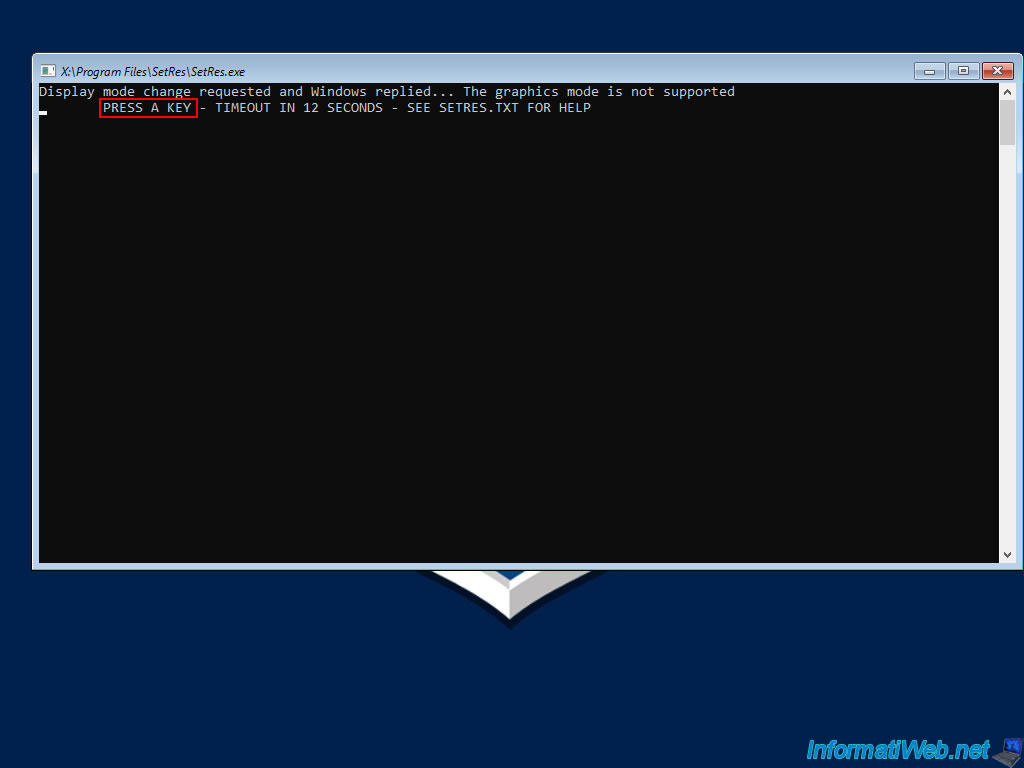
If you have set a specific resolution via the tool, but it is not supported (because you did not include your computer's graphics driver in the SO created via the tool), you will see this message for about ten seconds.
Press Enter to ignore this message.
Plain Text
Display mode change requested and Windows replied... The graphics mode is not supported.
PRESS A KEY - TIMEOUT IN 15 SECONDS - SEE SETRES.TXT FOR HELP.
Note that you will be able to change the screen resolution to use again via the start menu by choosing the "SetRes" option.
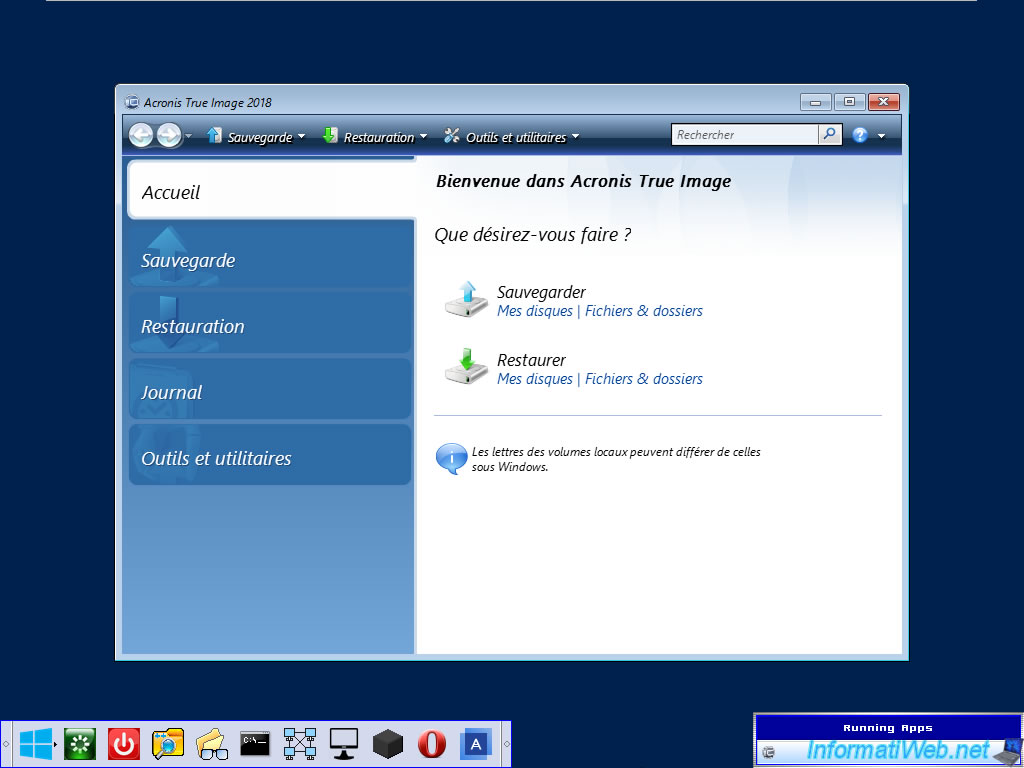
The "Acronis MVP Forum" wallpaper appears.

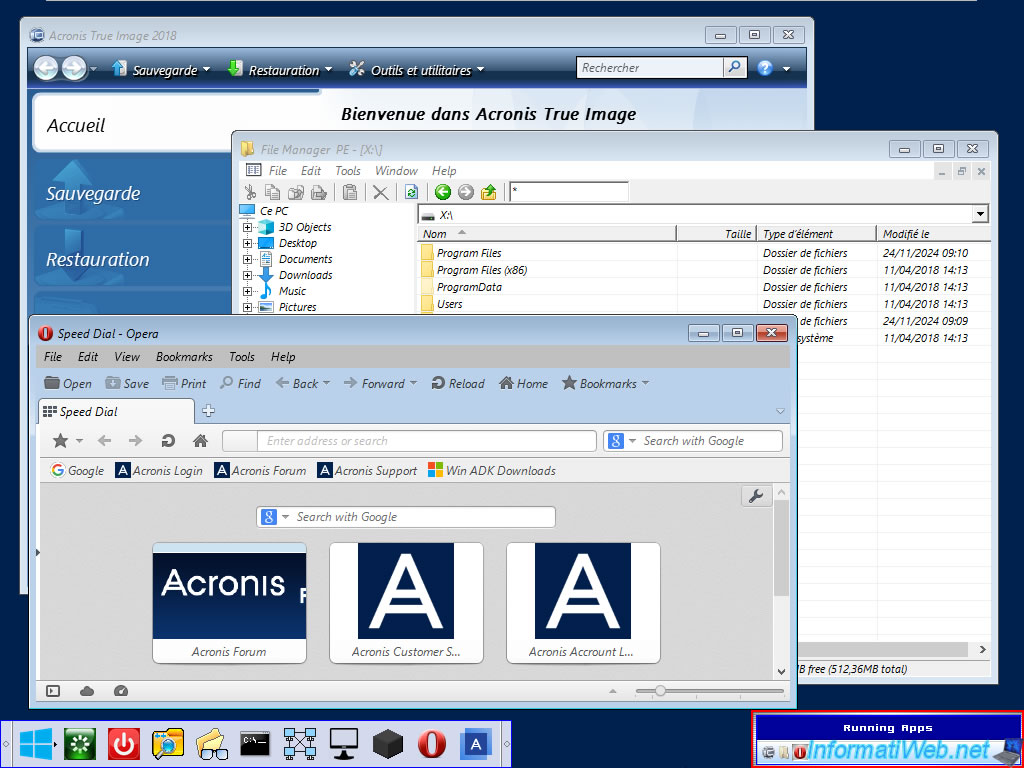
A small taskbar will appear at the bottom left and a small "Running Apps" window (allowing access to applications opened in this Windows PE environment) will appear at the bottom right.

A little later, the "Acronis True Image" program (whose version depends on the one installed on your computer since the tool simply copied it to the Windows PE environment) will appear.
Warning : if this Acronis program does not appear by itself in your case and it is not present either in the taskbar (bottom left) or in the Windows PE start menu (also bottom left), it is because you have installed a too recent version of Acronis True Image on your computer and the tool was not able to copy it to this Windows PE environment.
In the start menu, you will find an "Administrative Tools" menu allowing you to:
- Add Wireless Profile: allows you to add a network profile to connect to a wireless network (if the Wi-Fi network card is recognized by Windows PE).
- Command Prompt: allows you to open a command prompt.
- Map Network Drive: allows you to create a network drive on a network share accessible from this computer (by specifying identifiers if necessary, if this network share is protected).
- Notepad: allows you to open the Windows PE notepad.
- Regedit: allows you to open the Windows PE registry editor.
Warning: what you see is the registry of this Windows PE environment and not of the Windows installation on your computer. - SetRes: allows you to change the screen resolution manually (based on the examples of commands that will appear).
- Task Manager: allows you to launch the Windows PE task manager.

In the "Programs" menu of the start menu, you can launch the programs:
- 7-zip: a very well-known free file manager that will also allow you to enter known compressed files (zip, rar, 7z, ...).
- A43 File Explorer: the "File Manager PE" file explorer (which is also included by Acronis Cyber Protect Home Office (True Image) when you create an official Acronis Universal Restore bootable media).
- Acronis True Image: the Acronis True Image program in the same version as the one currently installed on your computer that was detected and added by the "WinPE-based Media Builder" tool in this Windows PE environment.
If this option does not exist in your case, it is because your version of Acronis True Image is not supported (because it is probably too recent) by the "WinPE-based Media Builder" tool or you have installed Acronis Cyber Protect Home Office (which is also not supported by this tool). - BlackBox PE Shell: system component running in the background allowing you to benefit from a simple Windows user experience.
- Capture Screenshots - IrfanView Image Editor: allows you to open the free image editor "IrfanView" to save screen prints made in this Windows PE environment, for example.
- Explore++ File Explorer: allows you to open another file explorer.
- It is therefore simply an alternative to the "A43 File Explorer" program (File Manager PE).
- Notepad++: allows you to open a more advanced but free editor called "Notepad++".
- Opera Web Browser: allows you to open the Opera web browser.
- PENetwork: allows you to open the "PE Network Manager" program to manage the network configuration (wired or wireless) of this computer under Windows PE, as well as manage network drives, Windows PE file sharing, ...
- Sumatra PDF Viewer: allows you to open PDF files and is a free alternative to Adobe Reader.
Source : bbLean - Readme.
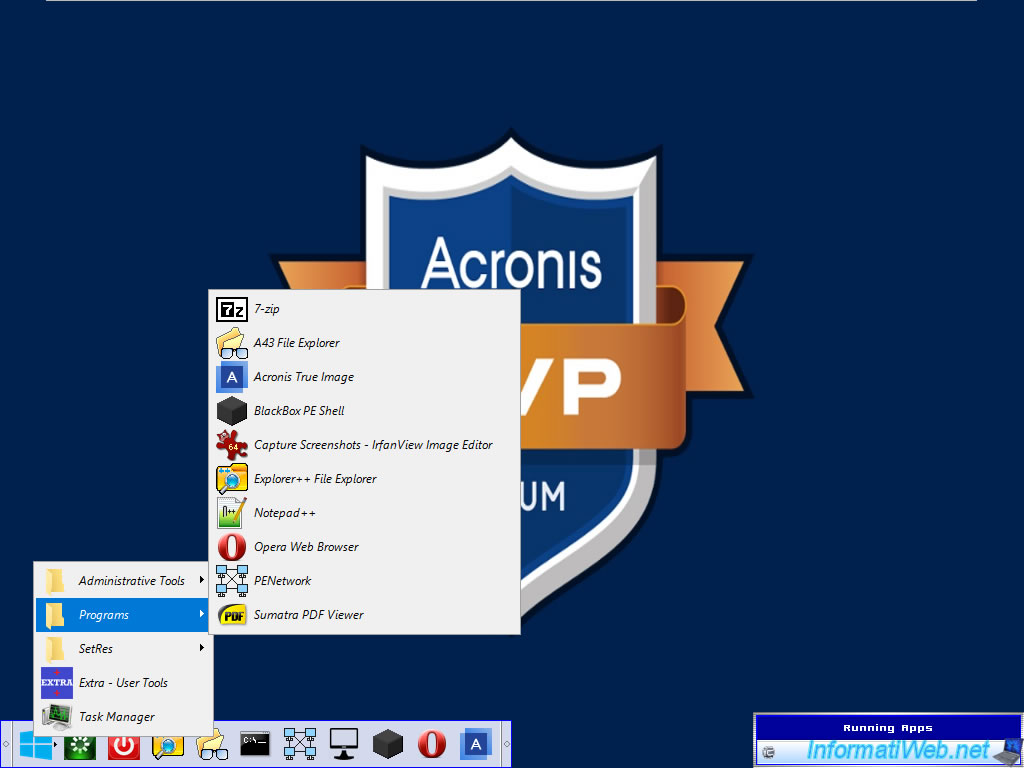
As you can see, the program "A43 File Explorer" actually corresponds to the program "File Manager PE".
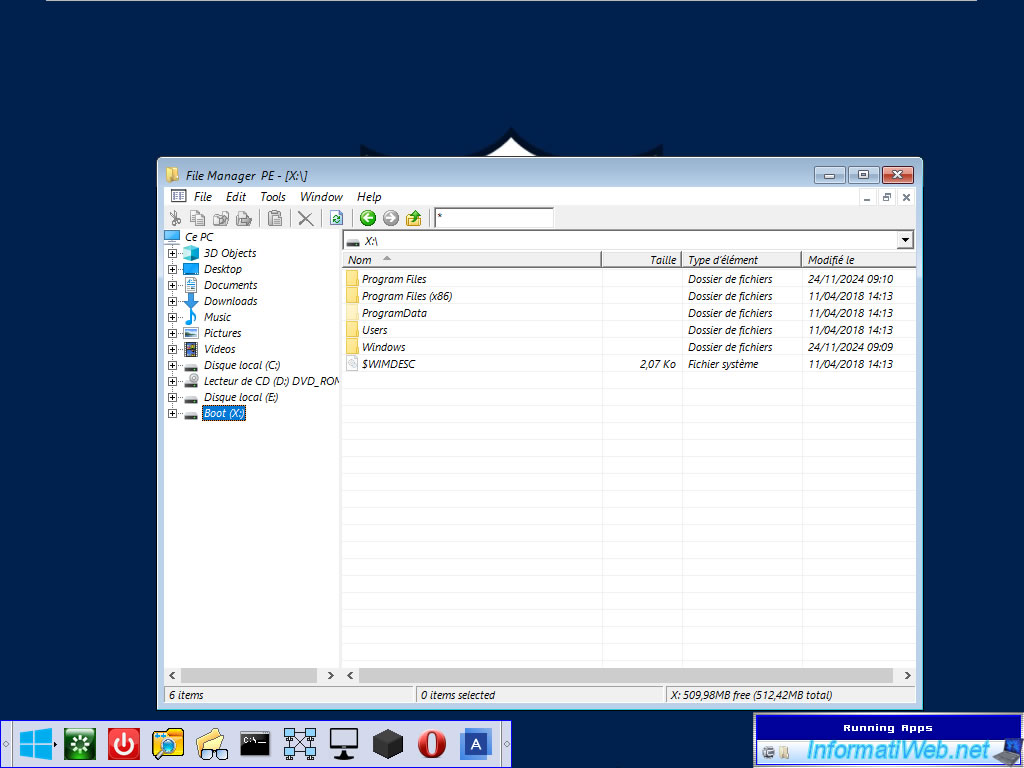
In the "SetRes" menu of the start menu, you can change your screen resolution among the choices offered: 1024x768, 1920x1080, 800x600, ...
Or, specify one manually by clicking on "SetRes Manually".
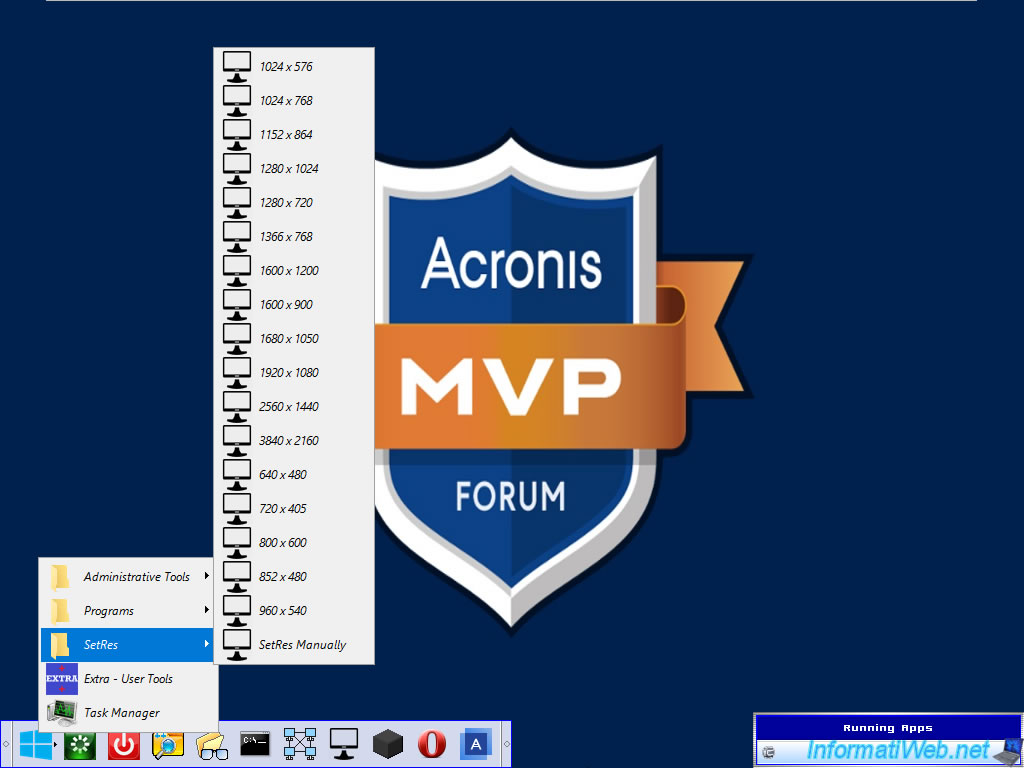
In the start menu, you will also find an option "Extra - User Tools".

You will arrive in the folder "X:\Program Files\Extra" (which is therefore part of the Windows PE environment).
To use this option, open the file "READ_ME.txt" located there.
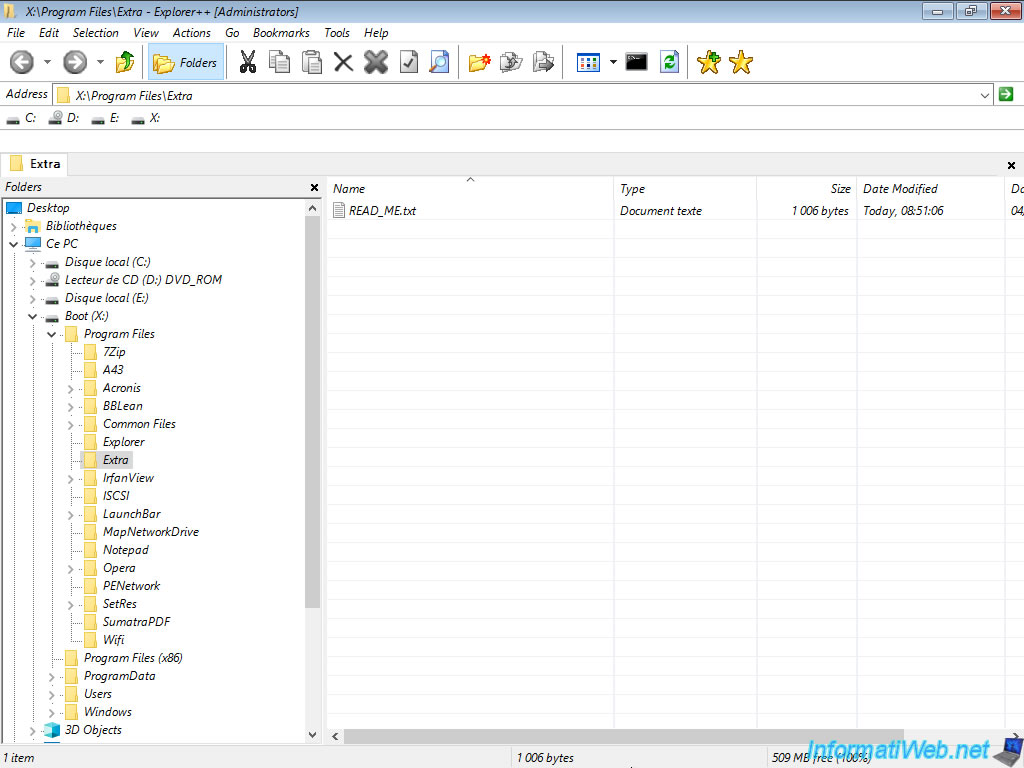
In this file "READ_ME.txt", you will see how to use this feature.
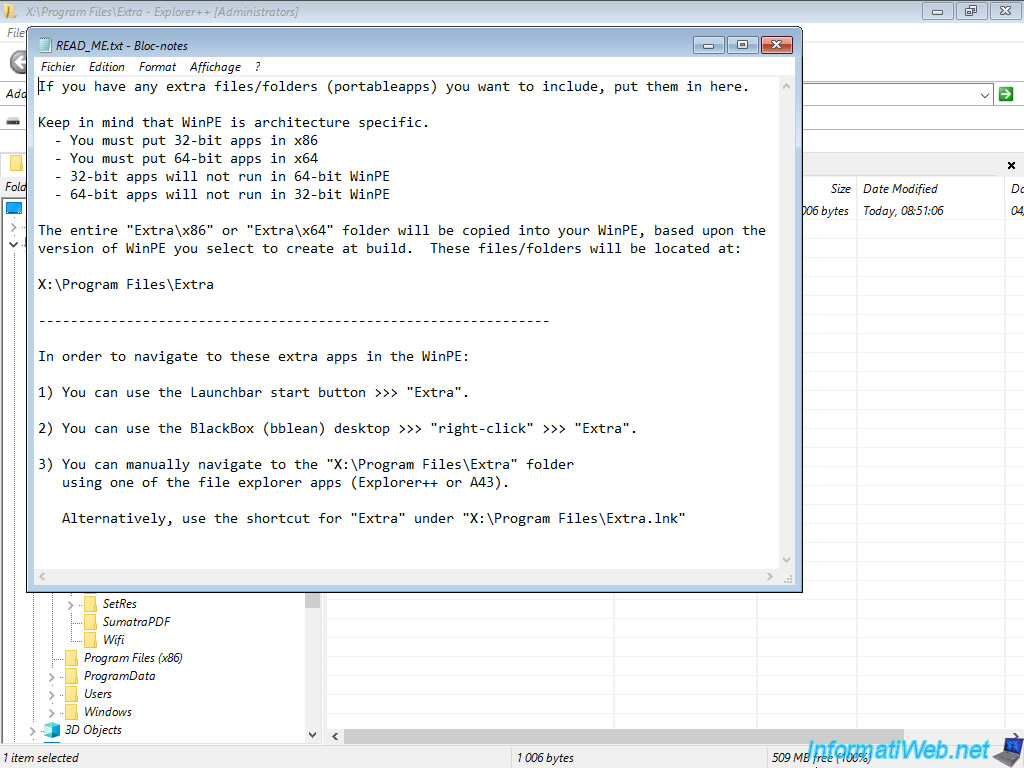
As you can see, if you launch several programs in this Windows PE environment, their icons will appear in the small "Running Apps" window (bottom right of your screen).
This will allow you to access them, even if you accidentally minimize some of them in the meantime or if a program hides another on the screen.
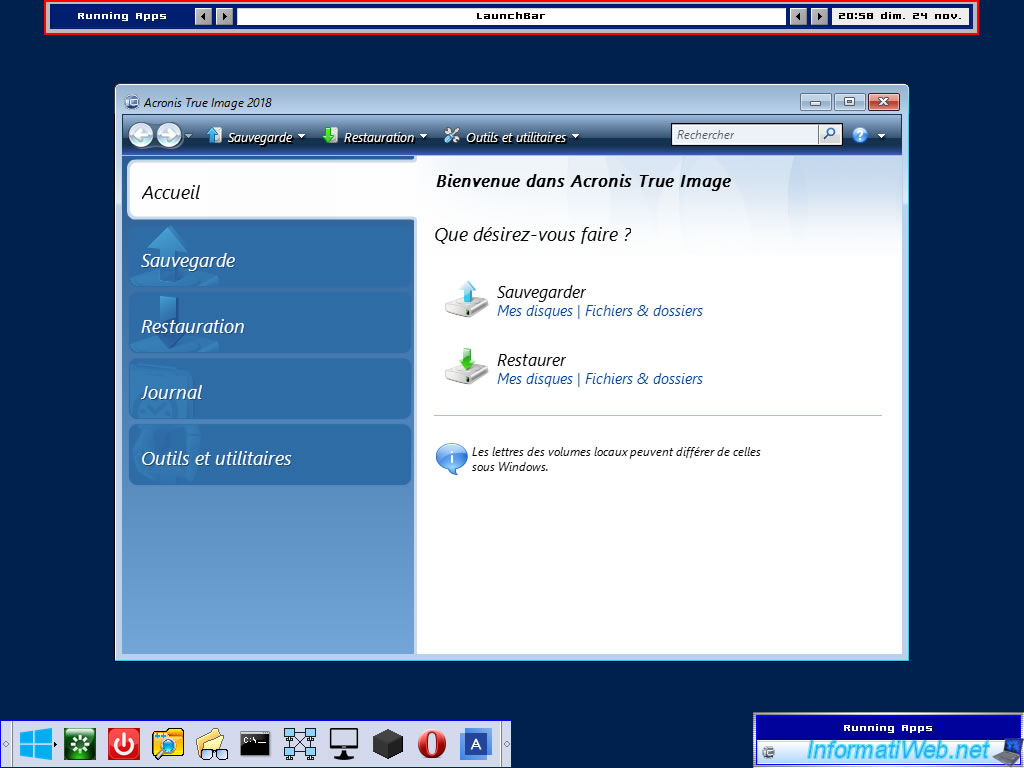
Finally, if you move your mouse against the top edge of your screen, you will see a "LaunchBar" appear with the current date / time.
In the taskbar (bottom right), you will find the icons allowing respectively: to open the start menu, to restart your computer, to turn off your computer, then to start some useful programs, the last of which obviously corresponds to Acronis True Image.
3.5. Re-enable Acronis True Image file protection
Once your Acronis MVP ISO is created, don't forget to re-enable Acronis True Image file protection.
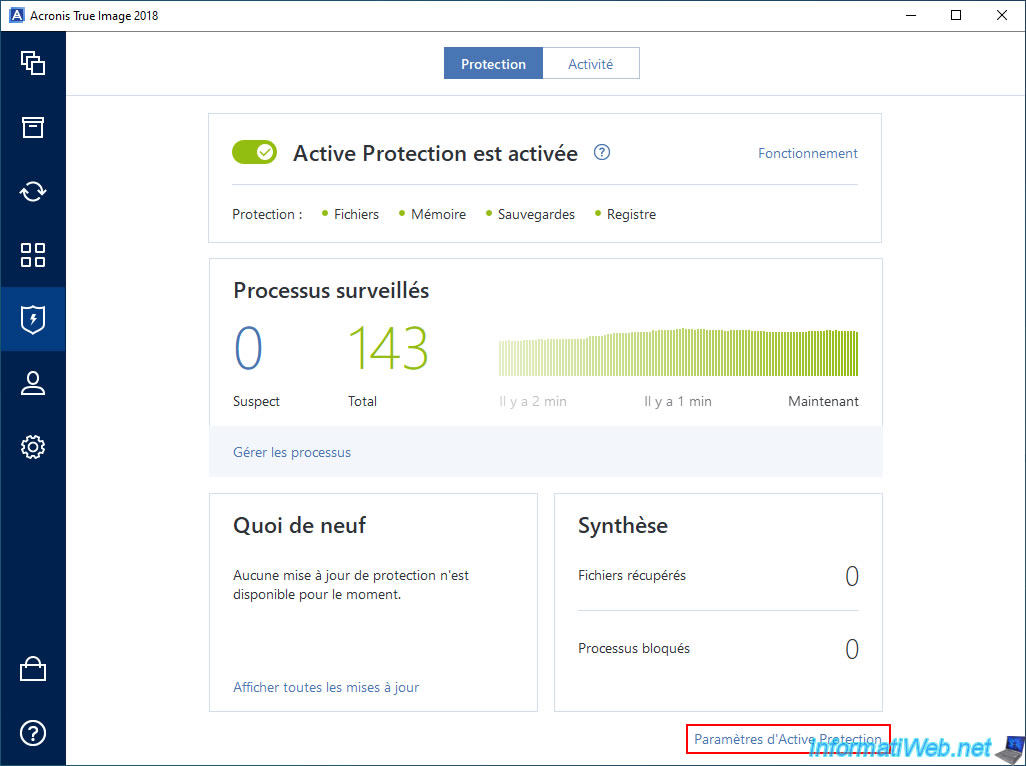
To do this, go back to the "Active Protection" section of Acronis True Image and click on the "Active Protection Settings" link (located at the bottom right).
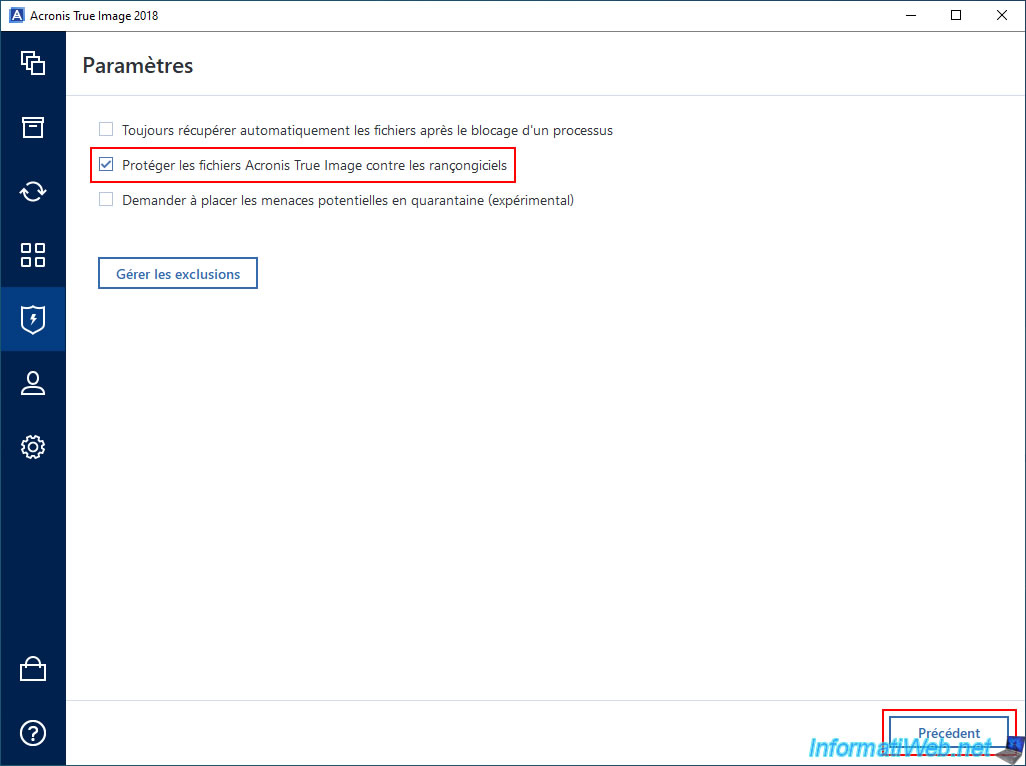
Check the box "Protect Acronis True Image files from ransomware" (which you unchecked earlier), then click the "Back" button (bottom right).
Share this tutorial
To see also
-

Backup 9/4/2025
Acronis True Image - Backing up your smartphone to your PC (encrypted backup)
-
Backup 8/11/2025
Acronis True Image - Create Acronis Survival Kit media
-
Backup 7/31/2025
Acronis True Image - Create backups (single version)
-
Backup 3/30/2026
Acronis True Image - Rescue Media - Check network configuration
No comment