- Backup
- Acronis True Image
- 23 February 2026 at 14:28 UTC
-

From your Acronis rescue media, you can use the "Acronis DriveCleaner" utility which allows you to securely erase a disk using the desired erasure standard.
- Securely erase a disk from Acronis rescue media
- Disk erased
- Data recovery impossible after secure erase
1. Securely erase a disk from Acronis rescue media
To securely erase a disk from your Acronis rescue media, go to the "Tools and Utilities -> Acronis DriveCleaner" menu on the toolbar.
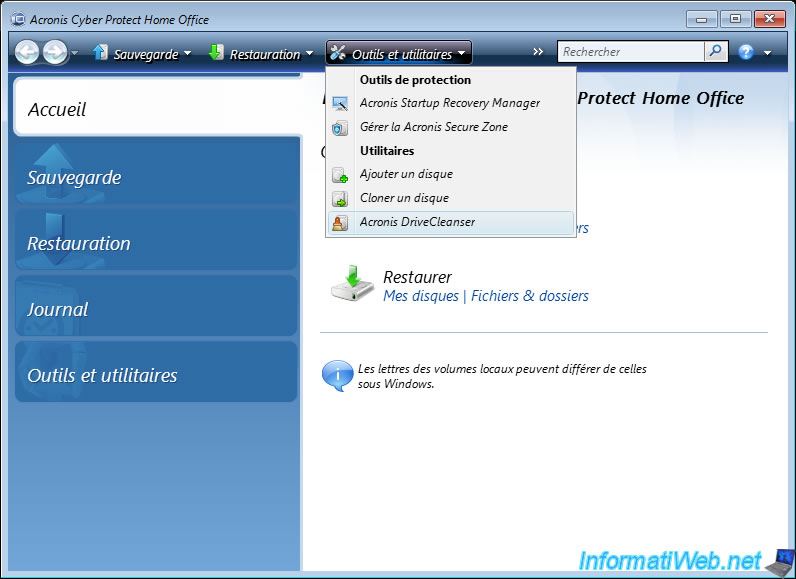
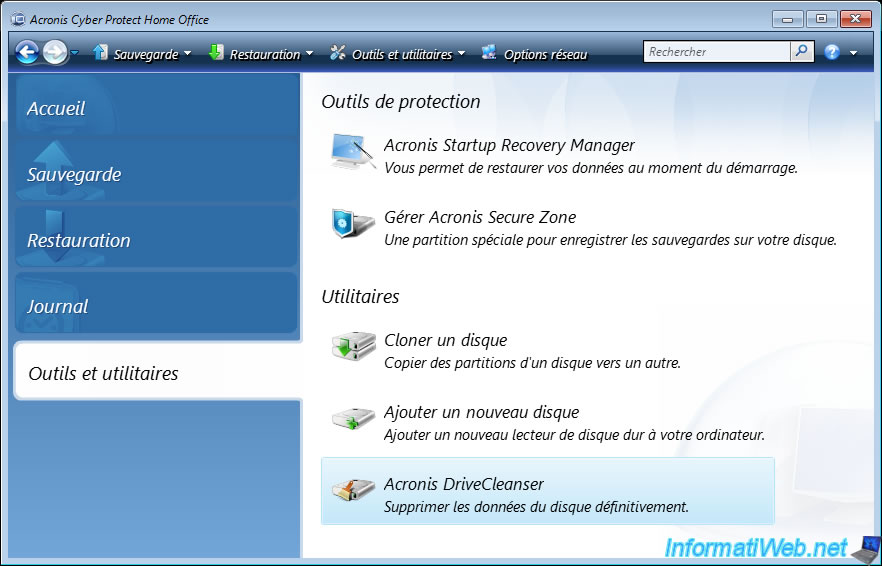
Or go to the "Tools and Utilities" section and launch the "Acronis DriveCleaner" utility.
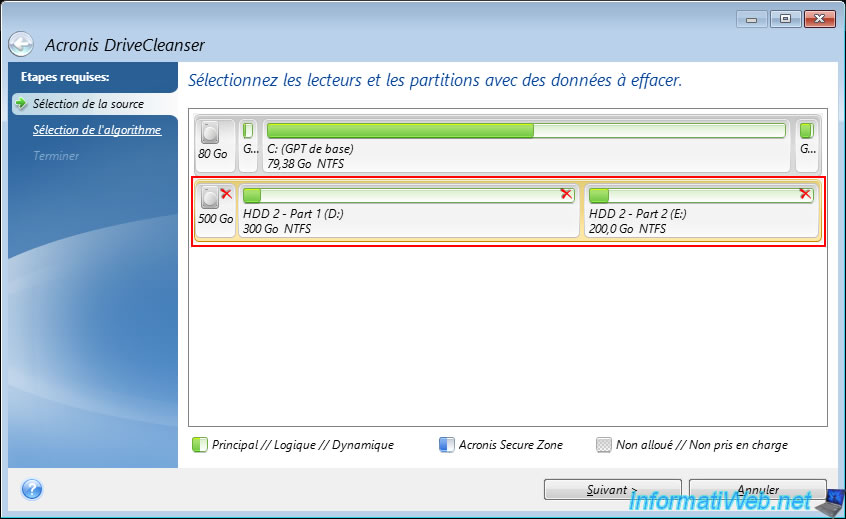
In the "Acronis DriveCleaner" utility that appears, select the disk or partitions that you want to erase.
The selected partitions (as well as the 1st part of the disk) will have a red cross.
Then, click "Next".
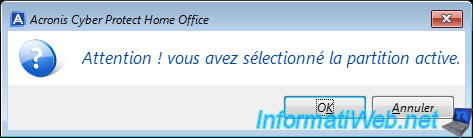
If you selected a partition marked as active (which usually indicates that an operating system is on it), Acronis will show you the message below.
Plain Text
Attention ! vous avez sélectionné la partition active.
In our case, this "active" flag was set on the partition for no reason since this disk only contains data (and not an operating system).
So, we can ignore this message by clicking OK.
Note: the purpose of this check is simply to avoid accidentally deleting your operating system.
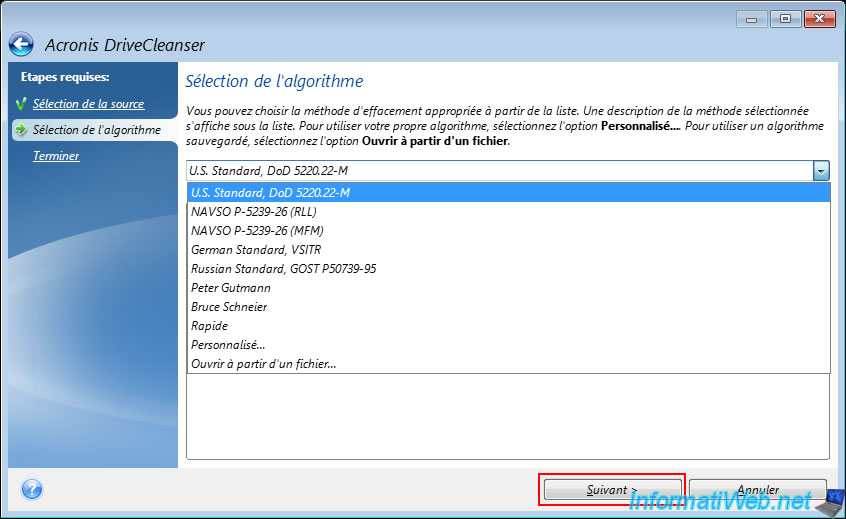
By default, Acronis DriveCleaner uses the "U.S. Standard, DoD 5220.22-M" erasure algorithm, which consists of writing random data 3 times to the entire selected disk (or partitions) to make any data recovery impossible once the disk erasure is complete.
Source : Hard Disk Wiping methods - Acronis Cyber Protect Home Office - User Guide for Windows.

Select the specific algorithm you want to use to erase your disk or leave the default one selected (U.S. Standard, DoD 5220.22-M), then click "Next".
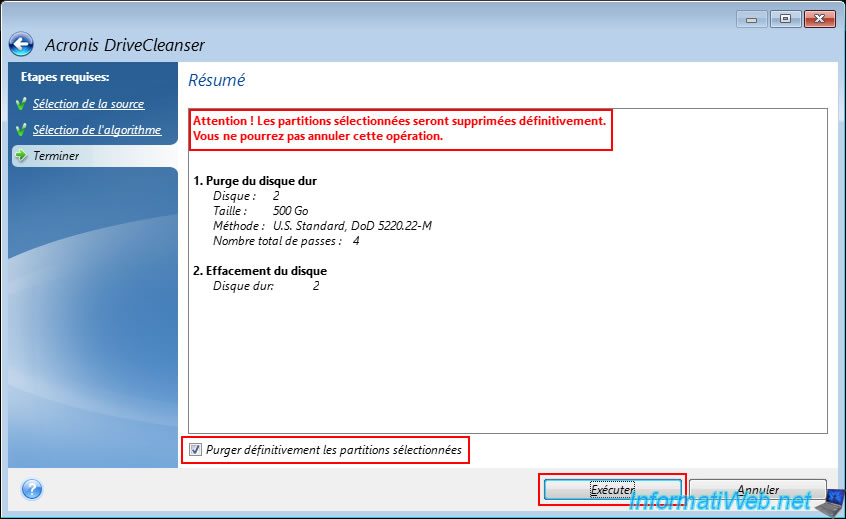
Warning : As indicated by Acronis DriveCleaner, your partitions will be permanently deleted and you will not be able to cancel this operation.
Especially since any data recovery will be impossible after this secure erasure process of your data.
Check the "Permanently purge selected partitions" box and click "Run".
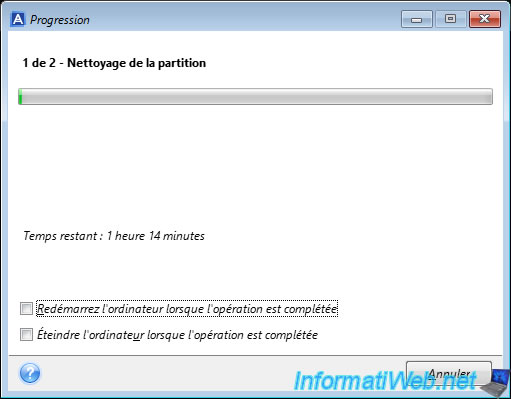
Please wait while your disk is securely erased and thus while data is triple written to your disk before making it completely empty once the random data has been written to it.
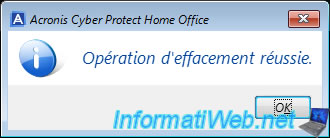
Once the secure erase is complete, the message "Erase operation successful" will appear.
2. Disk erased
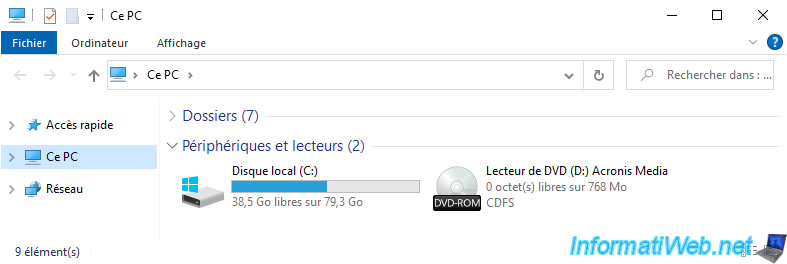
Restart your computer and open File Explorer.
As you can see, the deleted partitions are indeed gone from File Explorer.
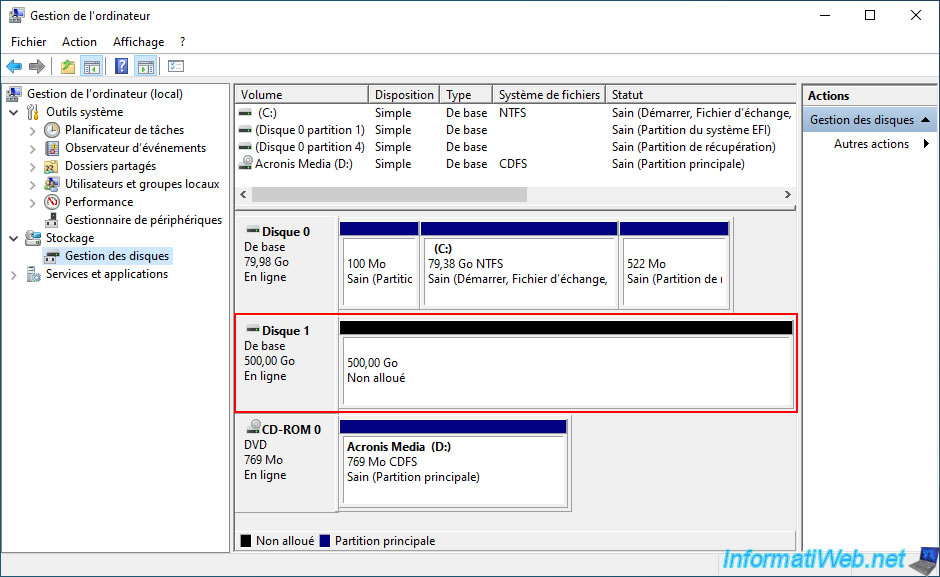
If you right click "Manage" on "This PC" and go to Disk Management, you will see that your disk is indeed empty.
Hence the unallocated space that appears here.
3. Data recovery impossible after secure erase
Even if you delete all partitions on a disk, it is normally possible to recover data by targeting the physical disk in question.
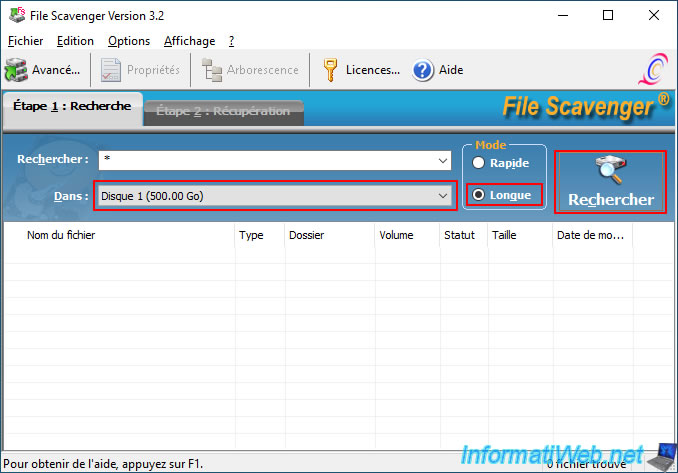
Which is possible with File Scavenger for example.
As you can see, we can select our 500 GB hard drive that we just erased.
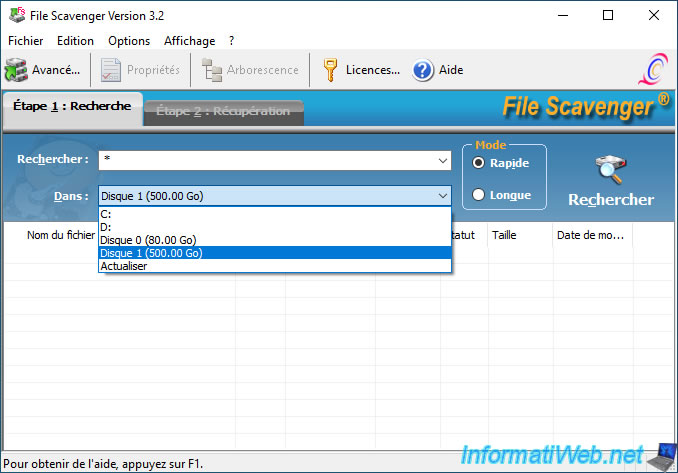
Then, you select the "Long" mode to increase the chances of finding deleted data and click on "Search".
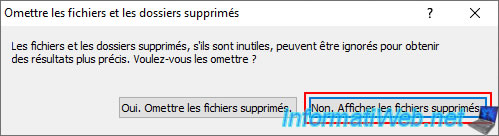
You click the "No. Show deleted files" button to try to recover the data that was deleted.
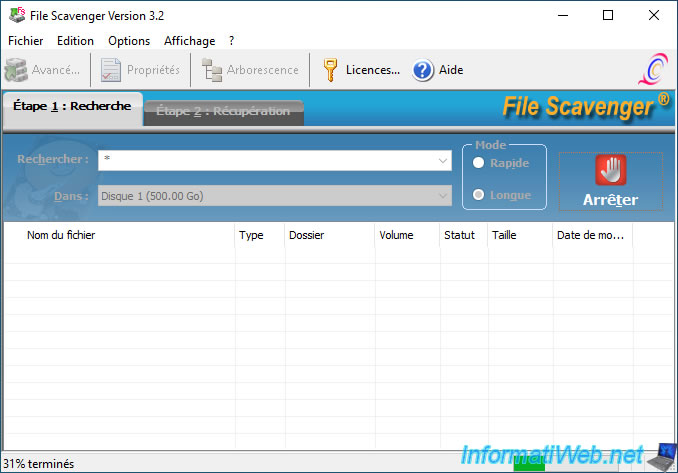
You wait a long time hoping to find something.
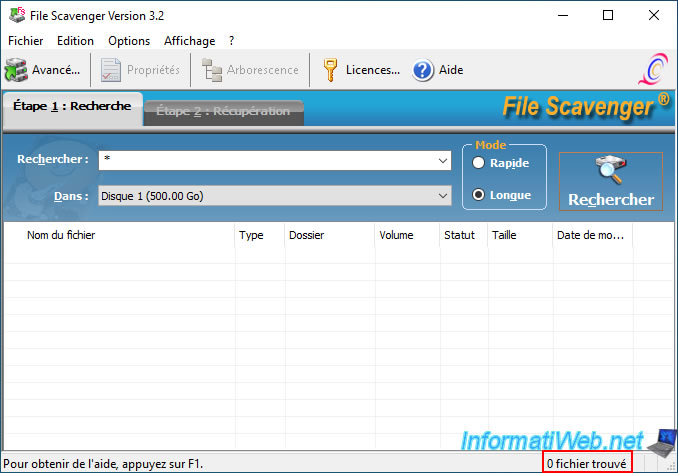
But once the search is complete, you notice that the recovery software found absolutely nothing.
File Scavenger will tell you "0 files found" at the bottom right of the window.
Share this tutorial
To see also
-

Backup 9/1/2025
Acronis True Image - Backing up your smartphone to your PC
-
Backup 8/14/2025
Acronis True Image - Move a backup
-
Backup 8/21/2025
Acronis True Image - Replicate encrypted backups to Acronis Cloud
-
Backup 2/16/2026
Acronis True Image - Rescue Media - Create media (Win PE version) on Win 7
You must be logged in to post a comment