- Backup
- Acronis True Image, Acronis Cloud Backup DL
- 13 July 2026 at 13:12 UTC
-

- 1/2
With Acronis Cyber Protect Home Office (True Image), you can back up your computer to an external hard drive, another internal hard drive, over the network, or even to Acronis Cloud.
If you backed up your computer to Acronis Cloud, the restore will take longer than if the restore had been launched from a local backup.
Also, if your Internet connection is not stable, it would be better to download the desired backup from Acronis Cloud before launching the restore of your computer from the downloaded backup file.
To do this, you can use a free Acronis tool called "Acronis Cloud Backup Download".
- Current Cloud backup
- Download Acronis Cloud Backup Download tool
- 1st launch of Acronis Cloud Backup Download tool
- Download your backup from Acronis Cloud via the tool: Acronis Cloud Backup Download
- Add an existing backup to Acronis Cyber Protect Home Office (True Image)
- Reconfigure added backup
- Restore your PC from the backup downloaded from the Cloud
1. Current Cloud backup
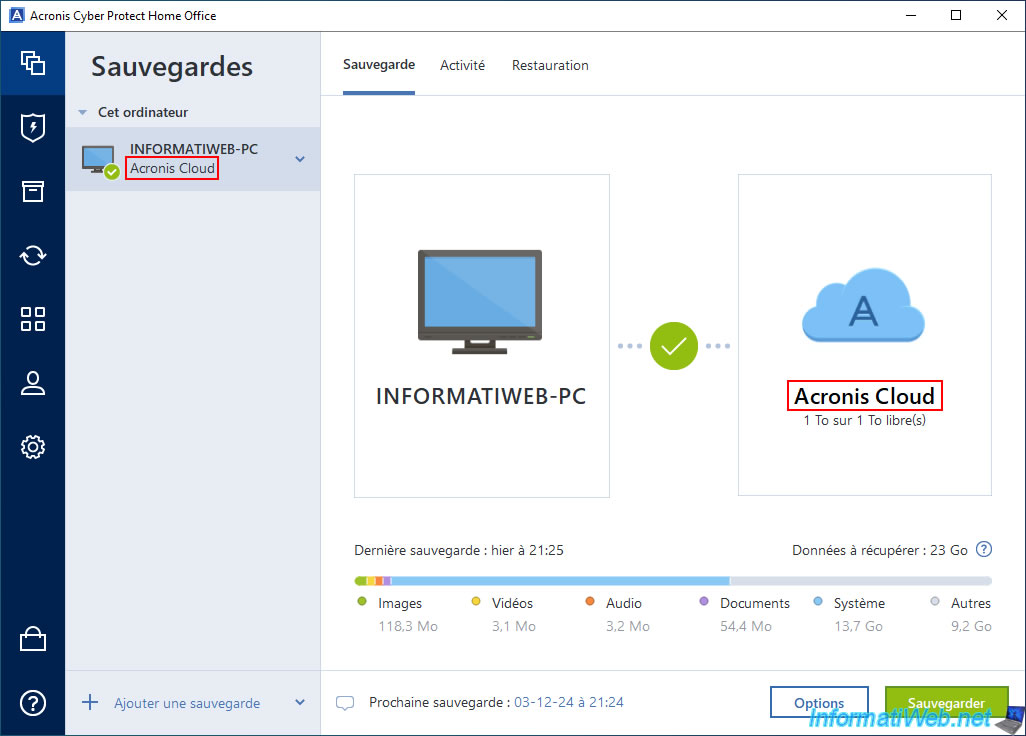
As you can see below, we have already backed up our computer "INFORMATIWEB-PC" to Acronis Cloud.
Note: the backup is therefore stored only on Acronis Cloud. There is no option in Acronis Cyber Protect Home Office (True Image) to add a local replica from Acronis Cloud (even if the opposite would have been possible from this program).
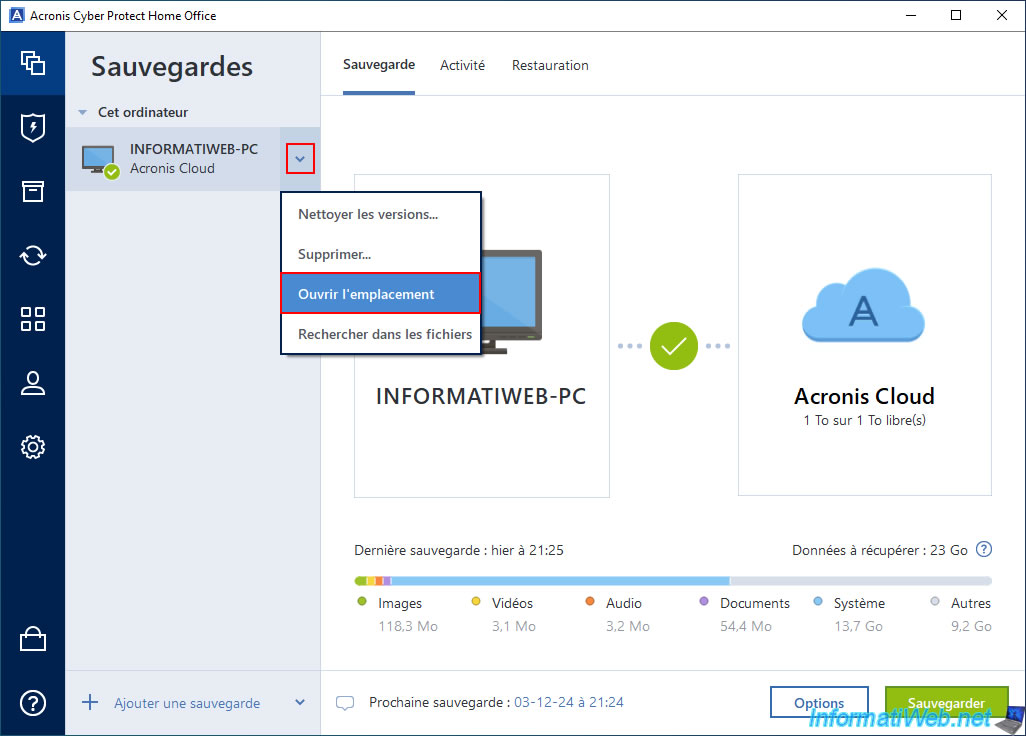
To view your backup stored on Acronis Cloud, you can click the arrow to the right of your backup and then click "Open location".
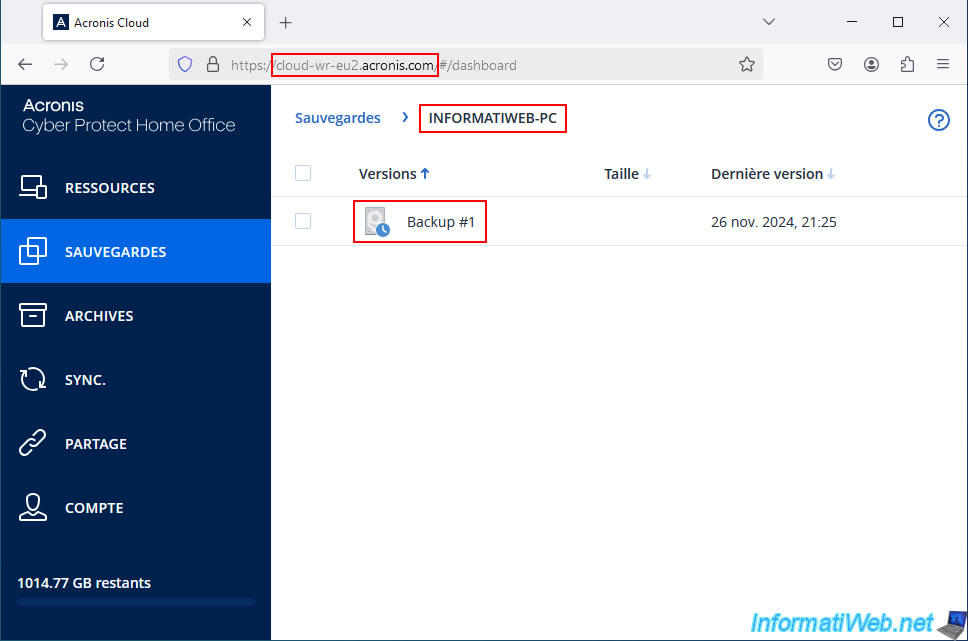
You will arrive at the Acronis Cloud website and you will be automatically logged in with your Acronis account.
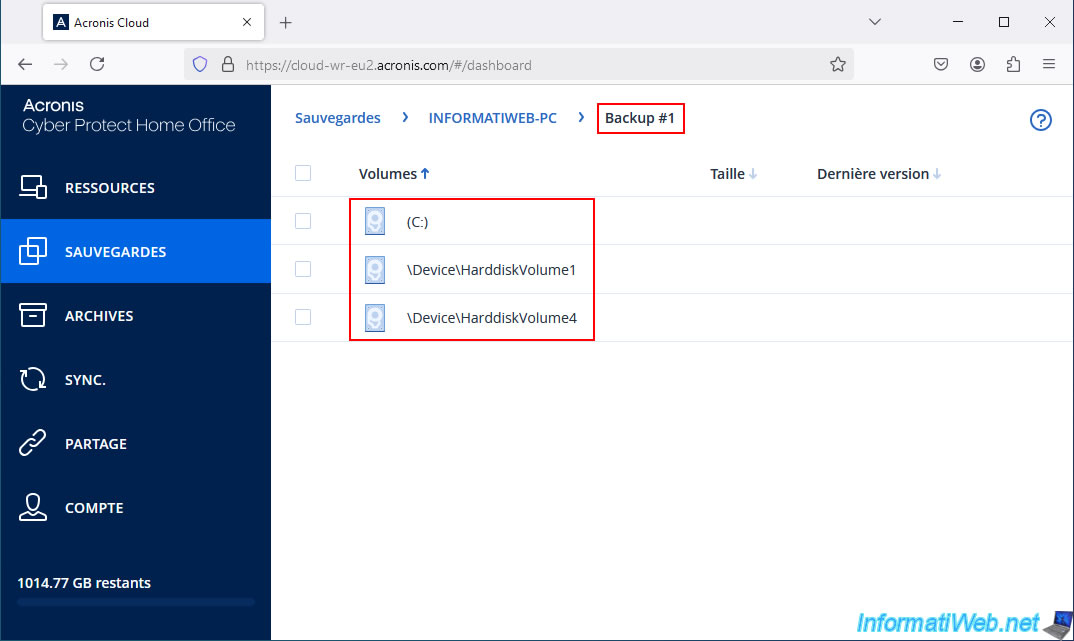
As expected, we see our backup concerning our computer "INFORMATIWEB-PC".
As expected, this backup contains a copy of our computer's partitions.
2. Download Acronis Cloud Backup Download tool
To download one of your backups stored on Acronis Cloud, you need to go to the "Tools" section of Acronis Cyber Protect Home Office (True Image), then click on "Acronis Cloud Backup Download".
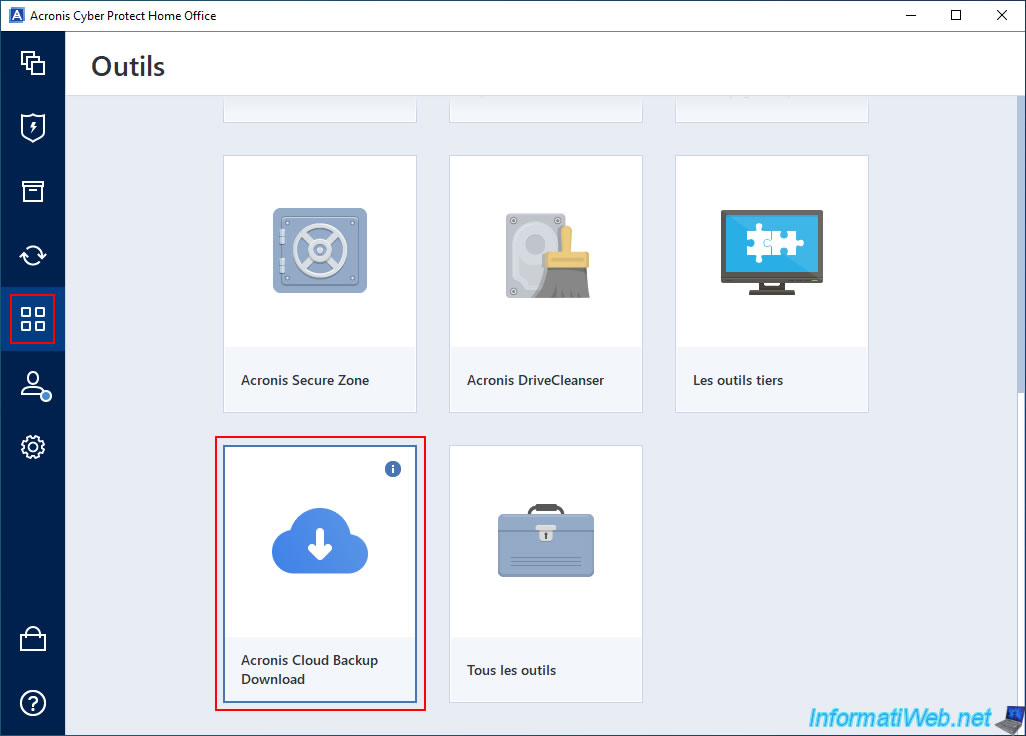
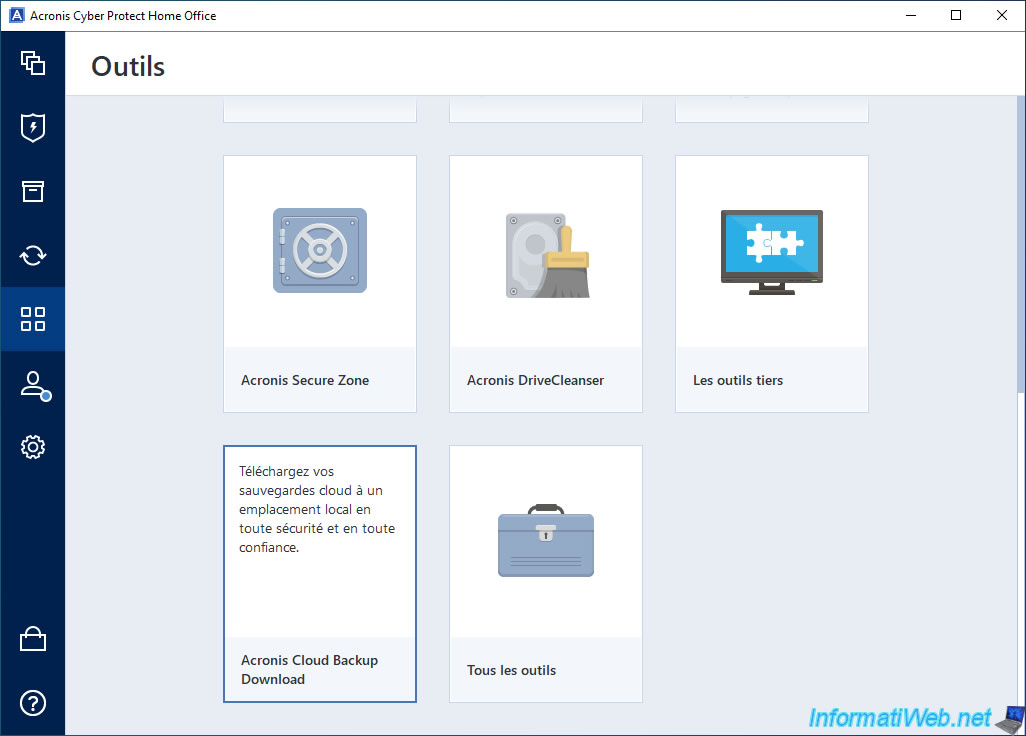
As you can see, this "Acronis Cloud Backup Download" tool will allow you to download your Cloud backups to your computer (locally).
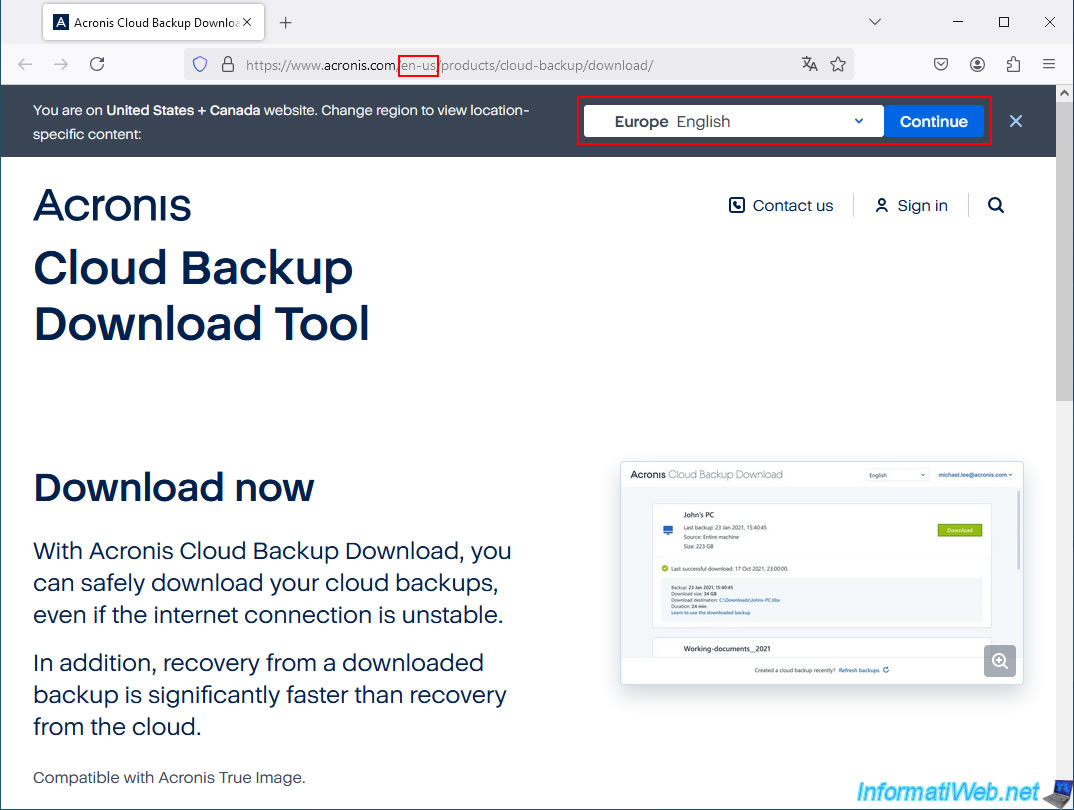
By default, you will arrive at the "Acronis Cloud Backup Download Tool" page (in English).
To view the page in a language, use the banner at the top of the page.
The main advantages of this tool are that it allows you to:
- download your backups from the Cloud securely.
- download your backups from Acronis Cloud even if your Internet connection is not stable.
- restore your computer faster later (from a local backup file instead of the Cloud).
To download the "Acronis Cloud Backup Download" tool, click on the green "Download for PC" button.
Important : this download button allows you to download the latest version of this tool which is only compatible with the 64-bit (x64) architecture of Windows.
Which is the case for recent PCs.
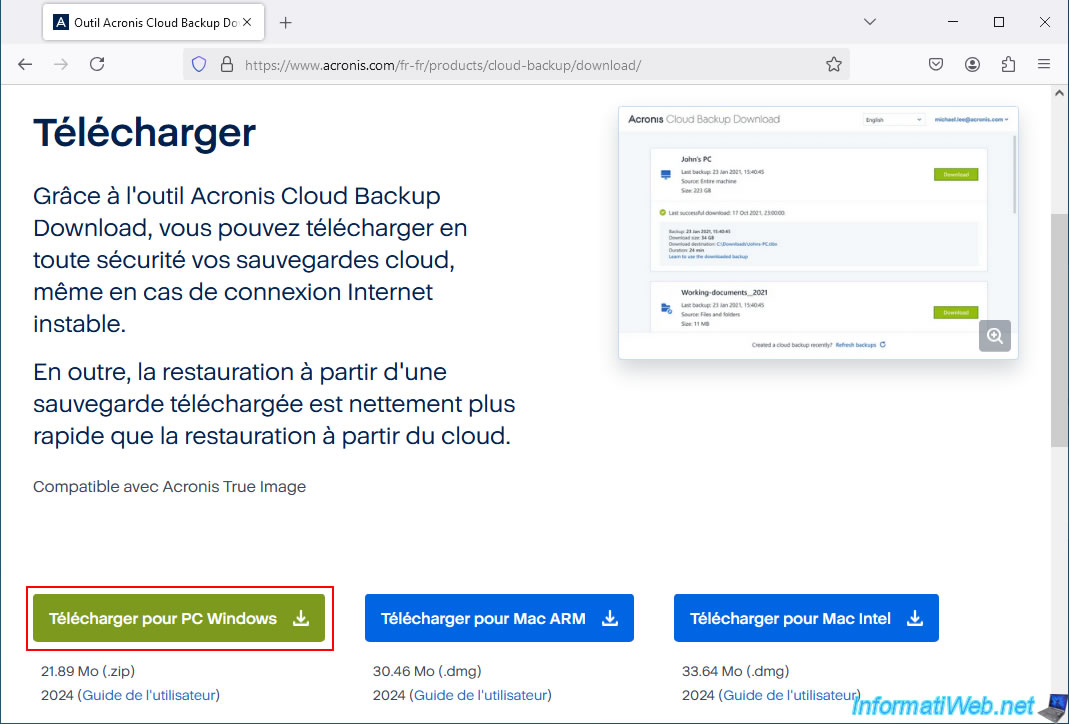
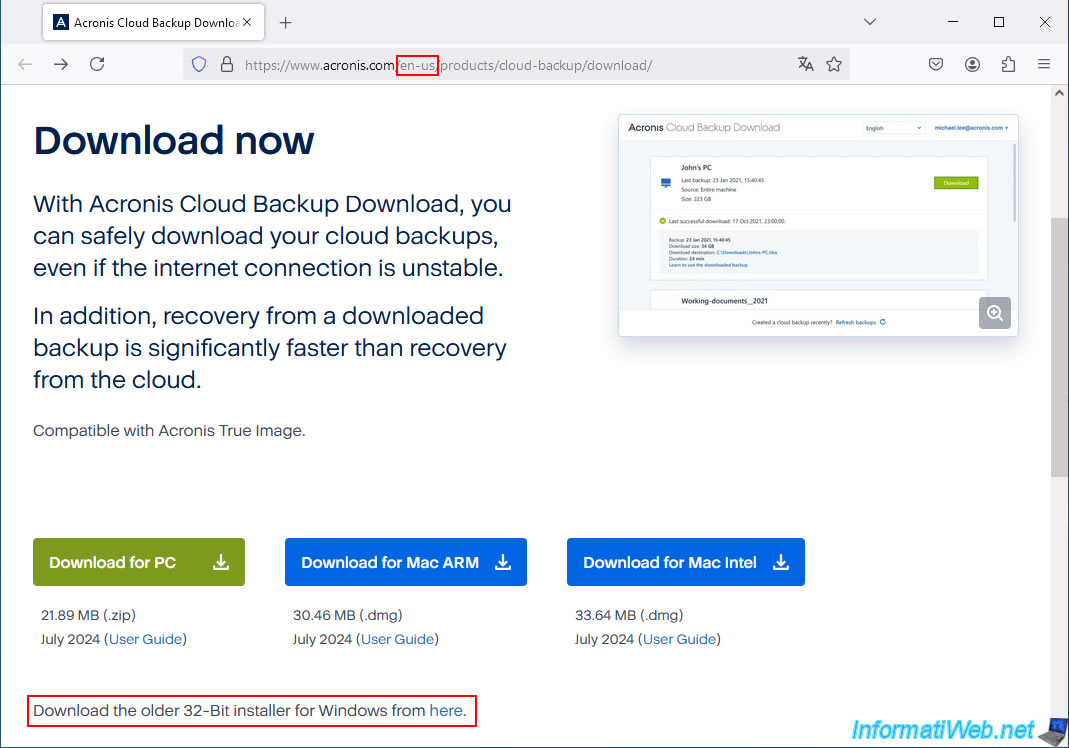
If you have an older computer and need a 32-bit (x86) version of this "Acronis Cloud Backup Download" tool, you will need to go to the English version of this page.
Below the download buttons, you will find a "here" link that you can click to download this program in a 32-bit (x86) version.
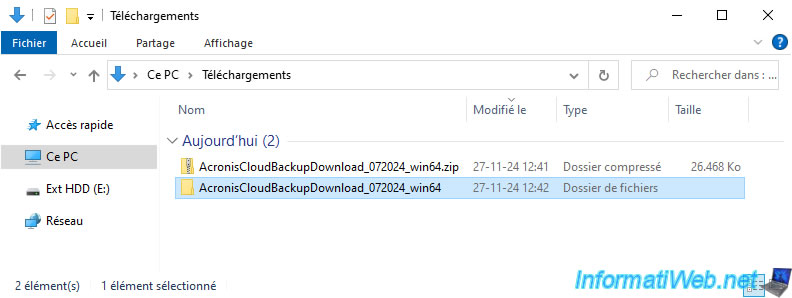
Once the download is complete, unzip the downloaded "AcronisCloudBackupDownload_072024_win64.zip" file.
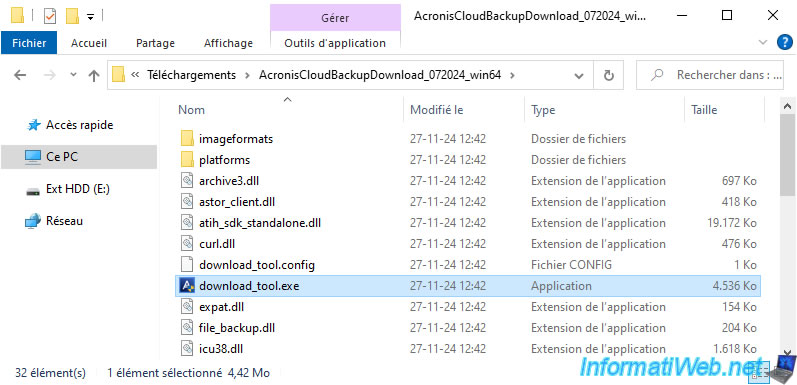
3. 1st launch of Acronis Cloud Backup Download tool
To use this tool "Acronis Cloud Backup Download", just launch the file "download_tool.exe" which is located in the created folder.
There is nothing to install.
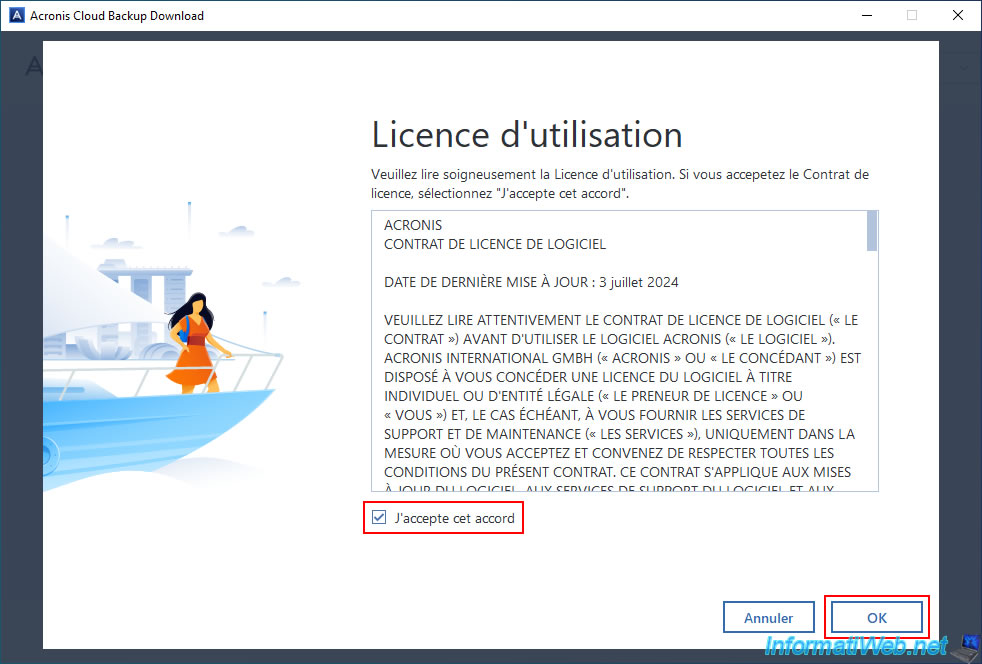
Accept the Acronis license agreement by checking the "I accept this agreement" box and click OK.
This tool will ask you to connect with your Acronis to allow you to download your backups from Acronis Cloud.
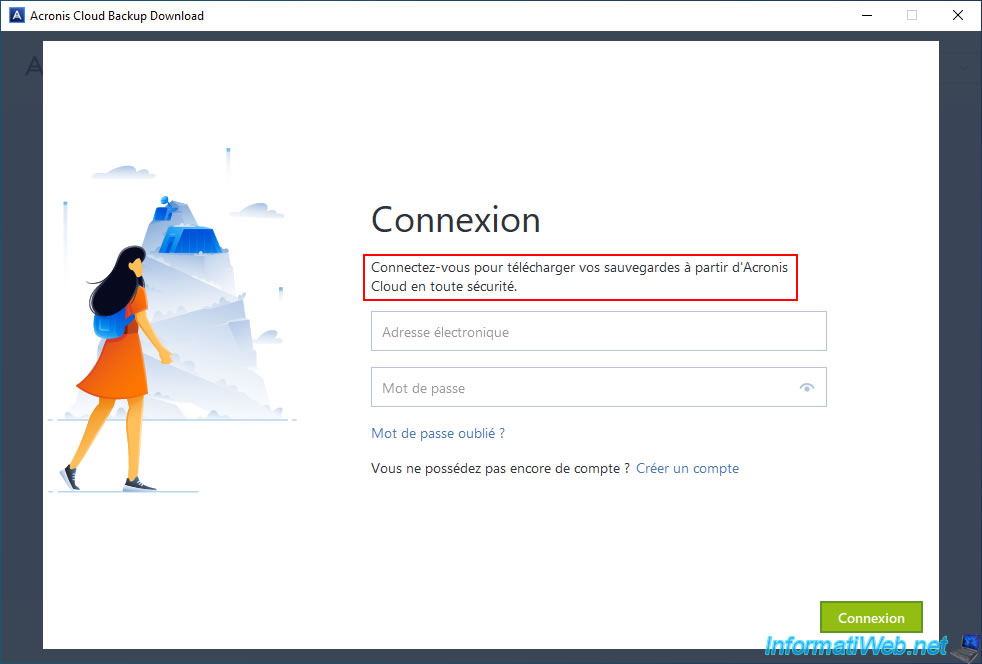
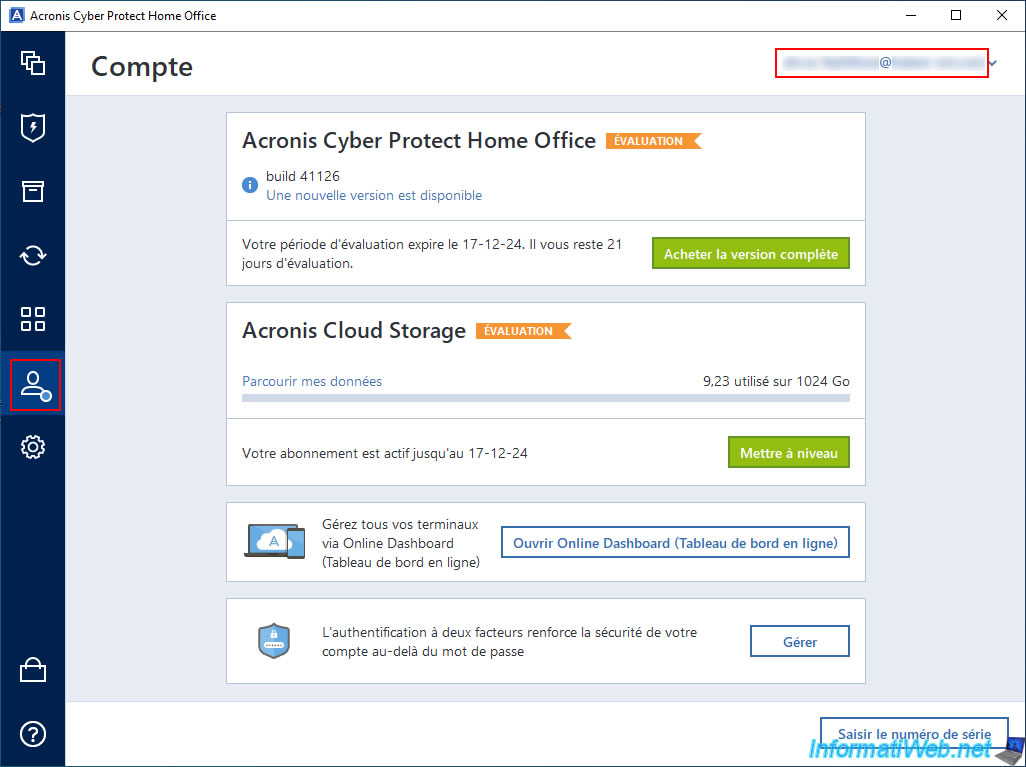
Obviously, you need to log in with the same account that you used with Acronis Cyber Protect Home Office (True Image) to back up your computer to Acronis Cloud in the past.
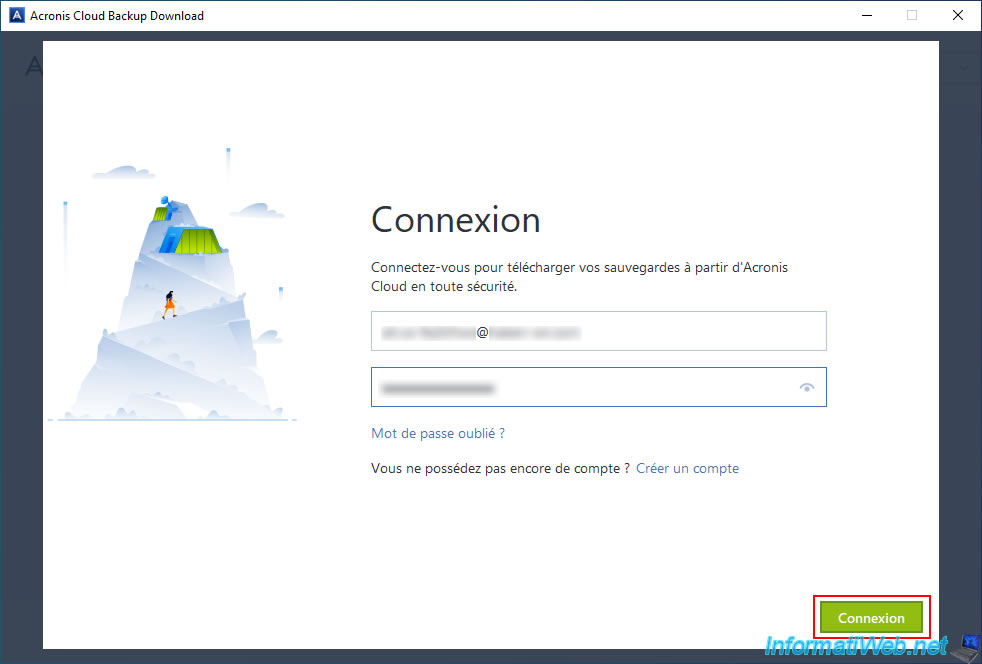
Enter your Acronis account credentials and click "Sign in".
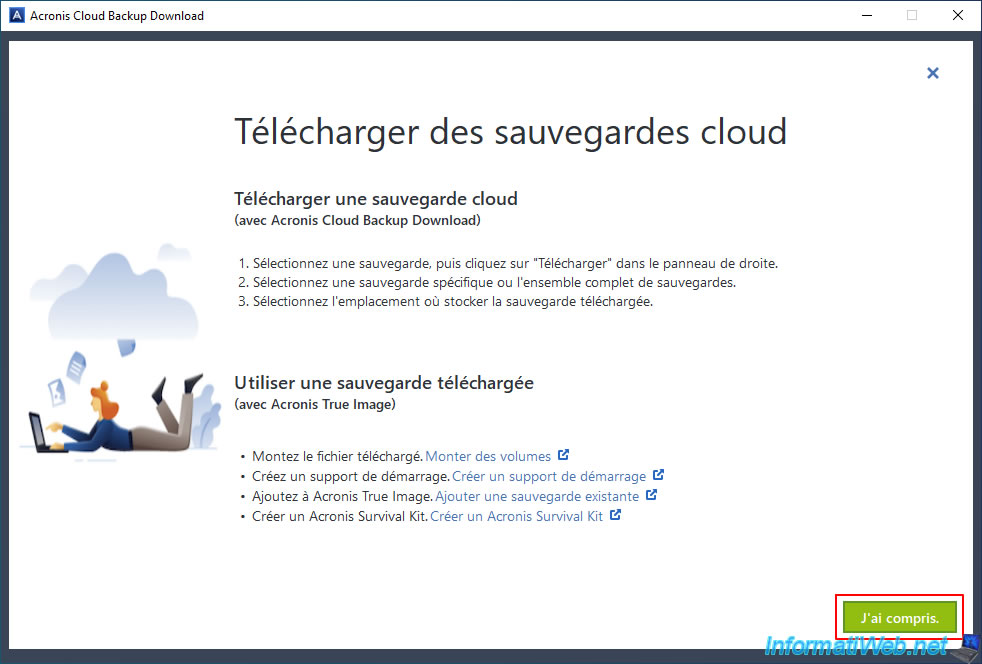
This tool quickly tells you that to download one of your Cloud backups, you just need to select the desired backup and then click the "Download" button for it.
Then, to add it to Acronis True Image, you can follow the "Add an existing backup" link.
However, you will also see in this tutorial how to do it.
Click "I understand" to hide this information.
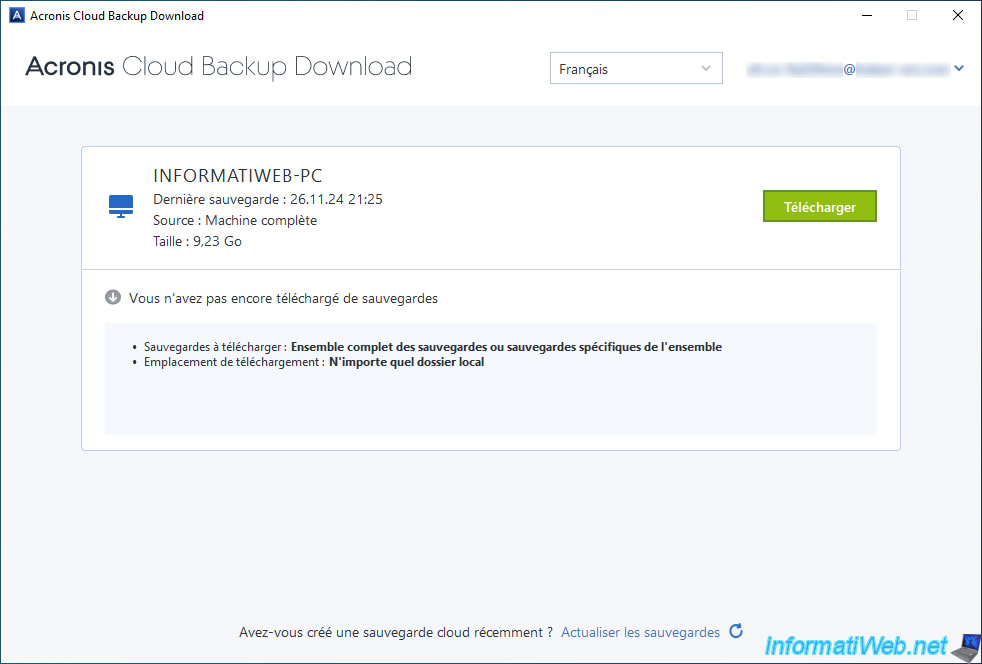
The "Acronis Cloud Backup Download" tool appears and our Cloud backup appears in it.
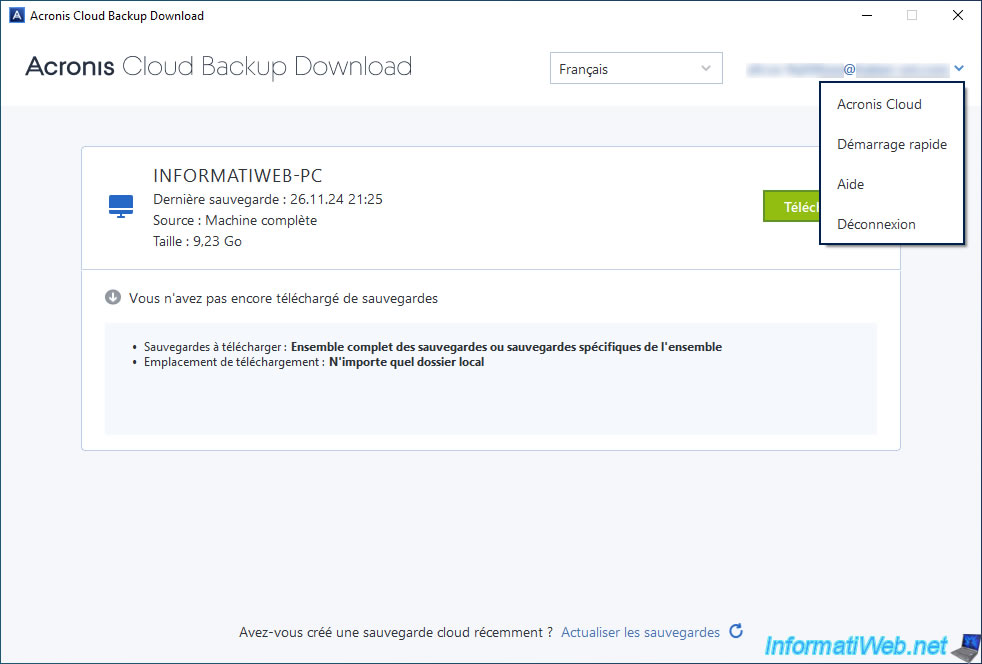
By clicking on your email address at the top right, you can choose between:
- Acronis Cloud: allows you to access the Acronis website (if you are not logged in with your Acronis account in your web browser), and then to Acronis Cloud once logged in.
- Quick Start: allows you to display the "Download Cloud Backups" information displayed previously again.
- Help: allows you to display some information about this tool. Such as: its version, the technical support link, the link to download the latest version of this tool, ...
- Logout: allows you to simply disconnect your account from this tool (for security reasons).
Share this tutorial
To see also
-
Backup 10/27/2025
Acronis True Image - Archive your files locally (encrypted archive)
-

Backup 6/16/2025
Acronis True Image - Backing up your PC to a Synology NAS
-
Backup 8/17/2026
Acronis True Image - Generate a report of your system
-
Backup 2/23/2026
Acronis True Image - Rescue Media - Secure disk erase
You must be logged in to post a comment