- Backup
- Acronis True Image
- 16 February 2026 at 11:34 UTC
-

If you are on Windows 7, you can create an Acronis rescue media using the Microsoft Windows AIK via Acronis Cyber Protect Home Office (True Image).
Warning : backing up from this Acronis rescue media is only possible if you have a full version of Acronis Cyber Protect Home Office (True Image).
Indeed, otherwise (if you are currently using the trial version of Acronis Cyber Protect Home Office (True Image)), it will not be possible.
1. Create Acronis rescue media by installing Windows AIK first
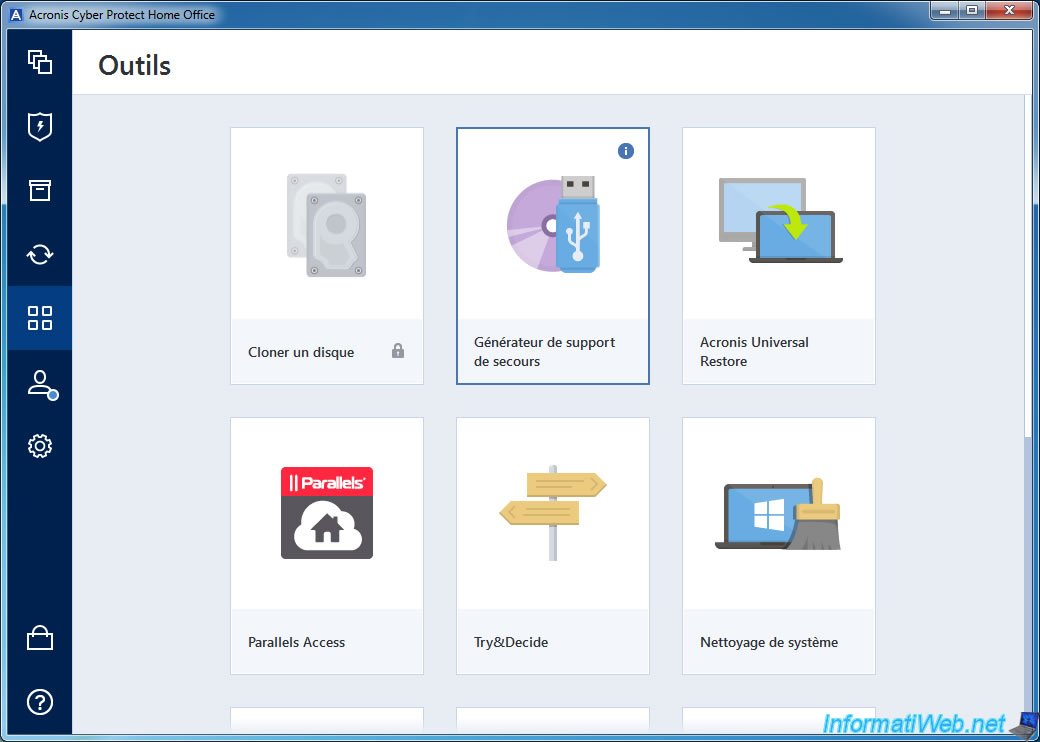
To get started, go to the "Tools" section of Acronis Cyber Protect Home Office (True Image) and launch the "Rescue Media Generator" tool.
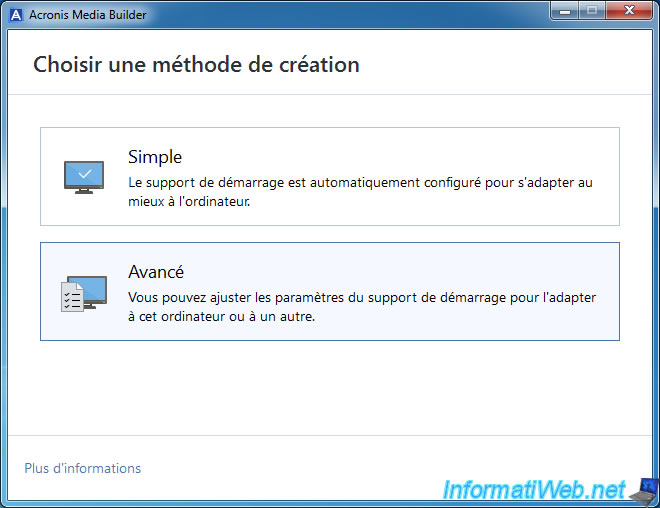
Click on: Advanced.
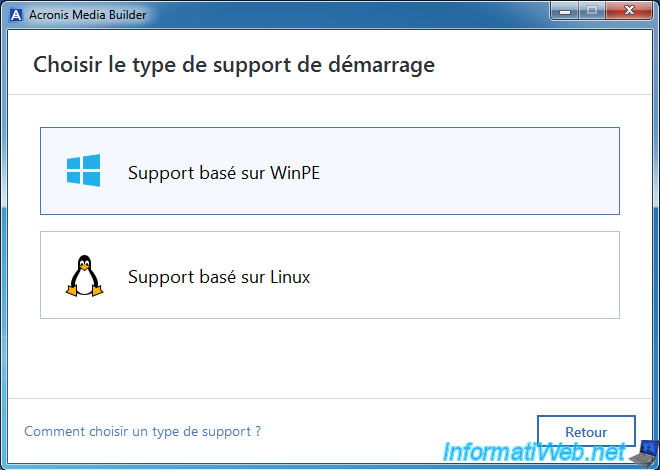
Choose: WinPE based support.
On Windows 7, you will be able to use the "Windows AIK" toolkit (as specified by Acronis Media Builder).
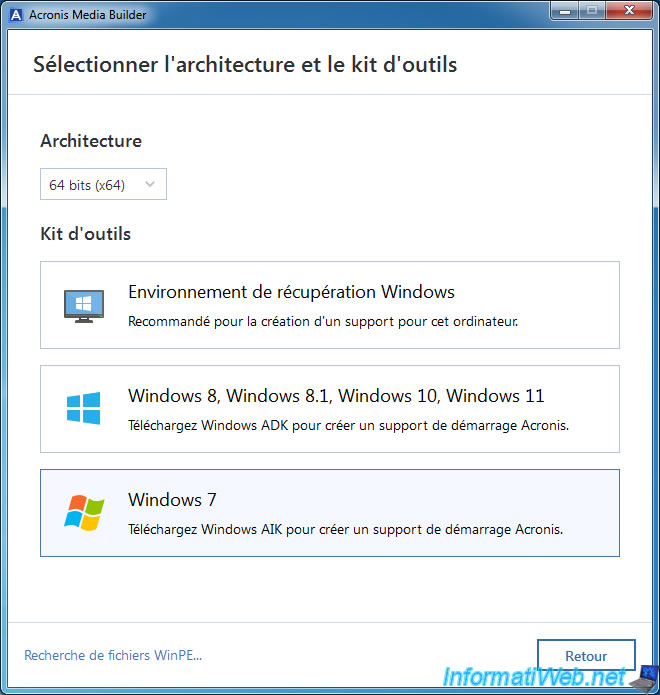
If this toolkit is not installed, Acronis Media Builder will ask you to download it from the link provided here.
Click on this link "Microsoft website".
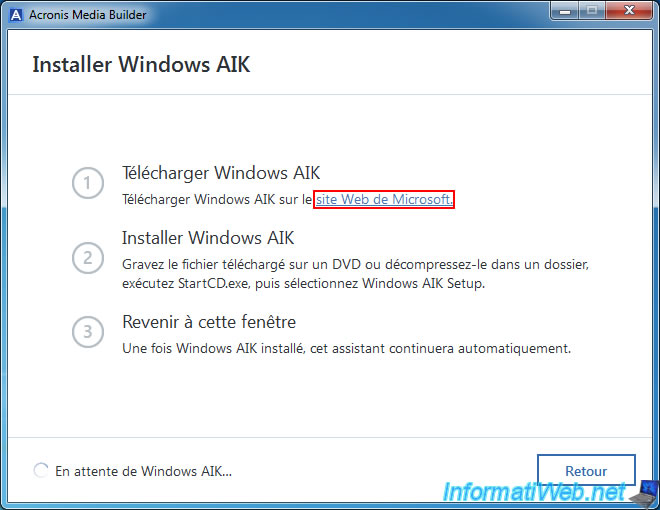
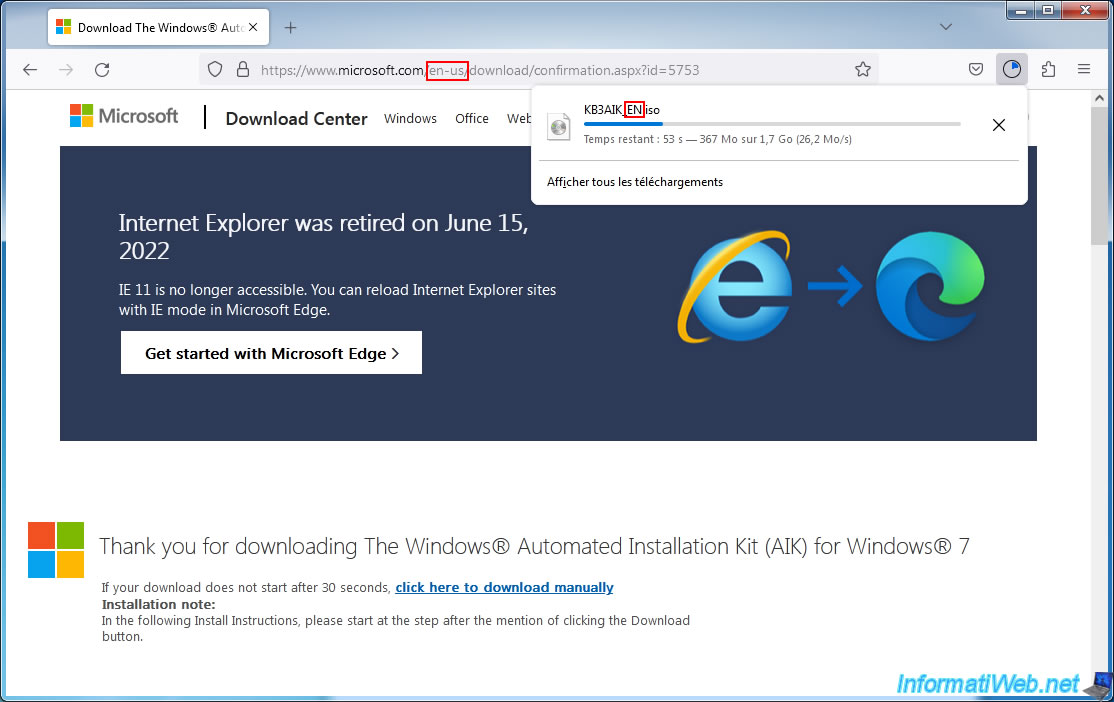
By default, this download link allows you to download the English version of the Windows AIK intended for Windows 7.
So, the downloaded file will be: KB3AIK_EN.iso.
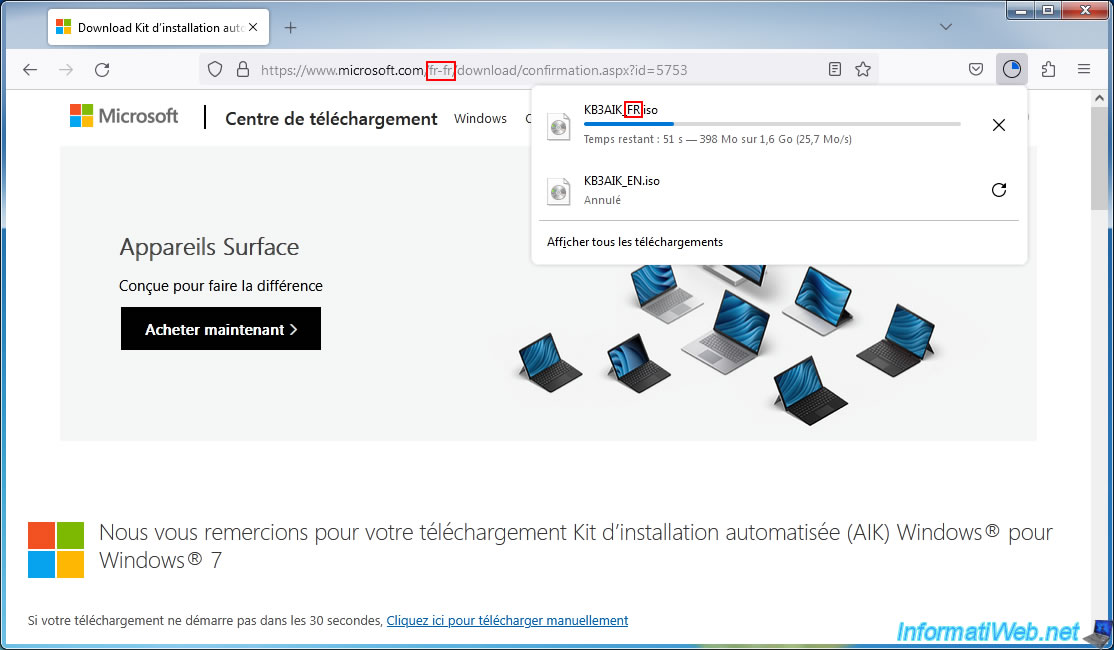
To download the French version of the Windows AIK, change the "en-us" of the URL to "fr-fr".
Thus, the downloaded file will be: KB3AIK_FR.iso.
Once this ISO file is downloaded, open the folder where it is located.
Then, burn this ISO file to a CD or use a software that allows you to create a virtual CD drive like DAEMON Tools Lite (which is free).
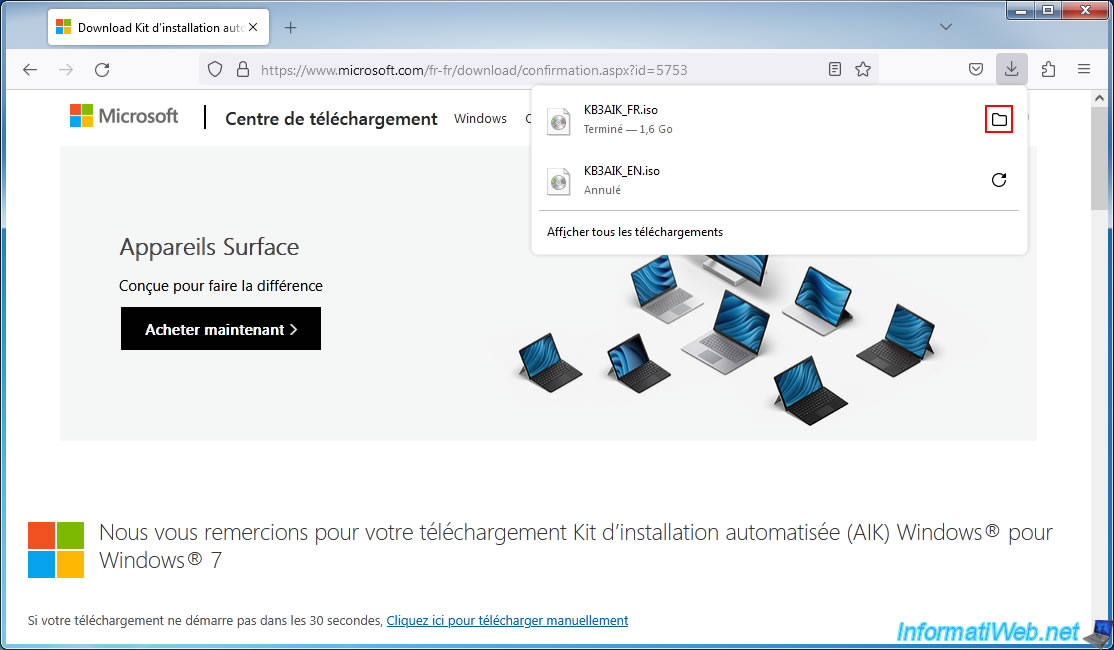
Once the ISO file is mounted in a CD/DVD drive, double-click on that CD/DVD drive.
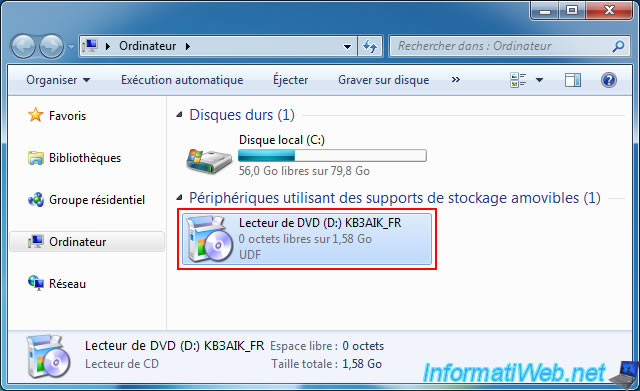
In the "Welcome to the Windows Automated Installation Kit (AIK)" window that appears, click "Install kit".
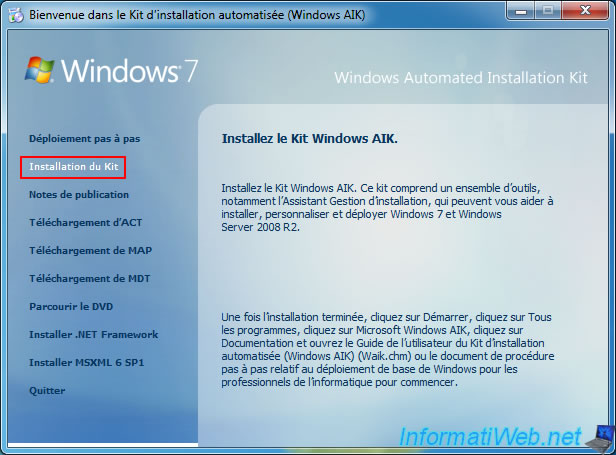
Then, the Windows Automated Installation Kit (AIK) Installation Wizard appears.
Just click "Next" at each step.
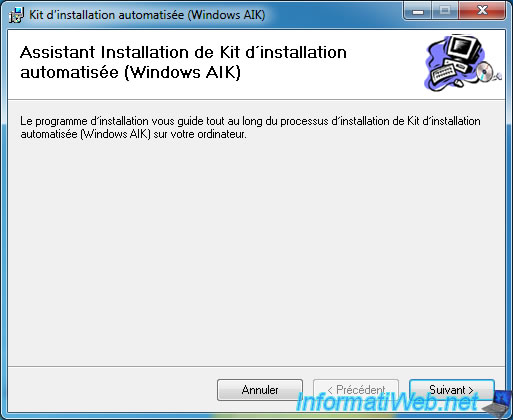
Leave the default installation folder.
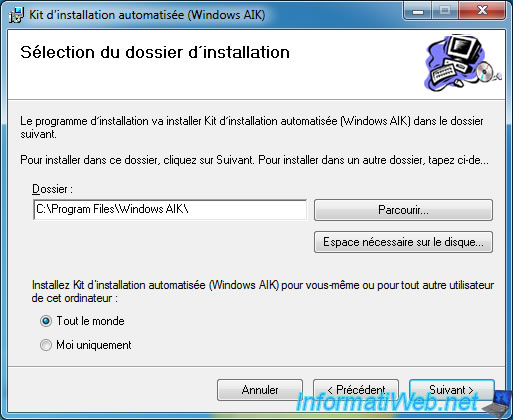
Confirm the installation of this automated installation kit.
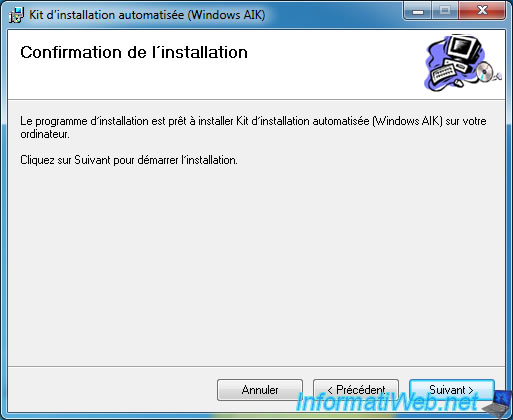
Please wait while the Windows AIK is installed.
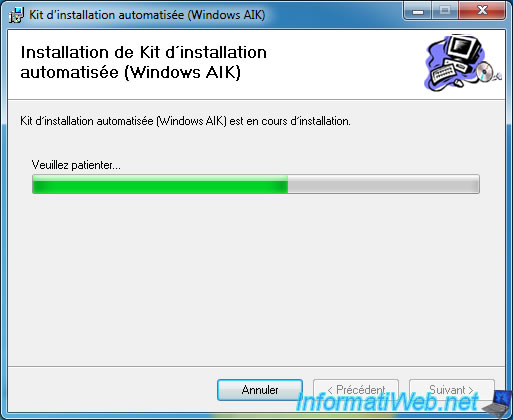
Click "Close".
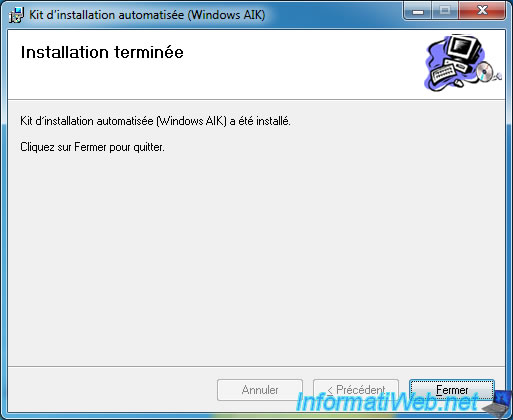
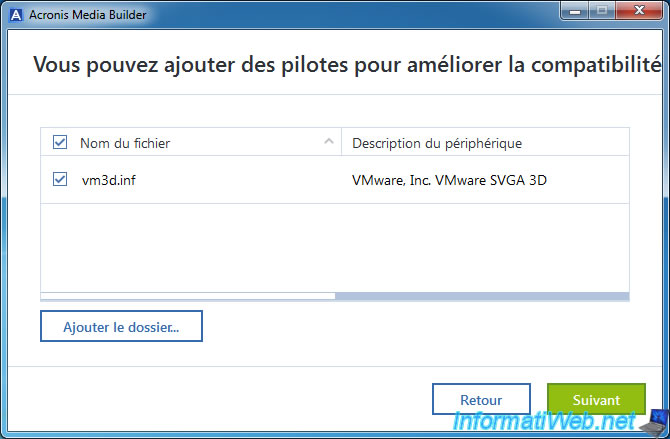
Once the Windows AIK is installed, Acronis Media Builder will automatically go to the next step and offer to add drivers to your future Acronis rescue media.
This will allow you to support a network card that is not natively supported by this rescue media, for example.
Important : the drivers added here must be those compatible with Windows 7 since the Windows AIK allows you to create a Windows PE environment in Windows 7 version.
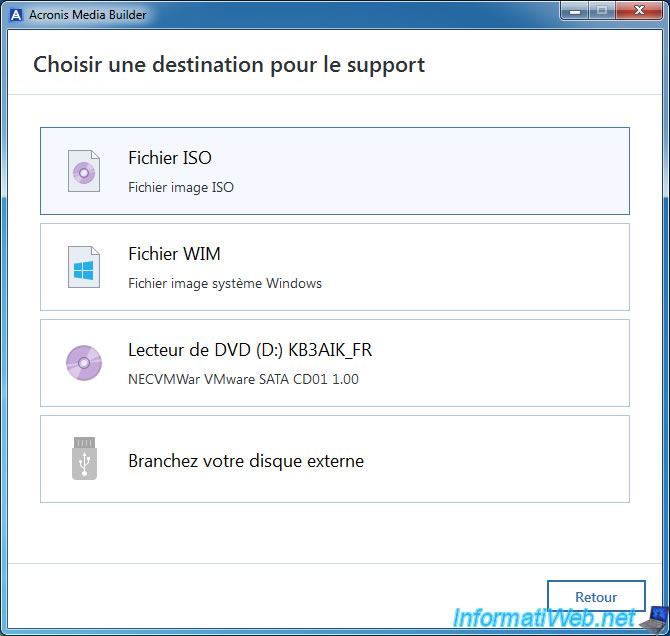
Select the desired destination.
In our case: an ISO file.
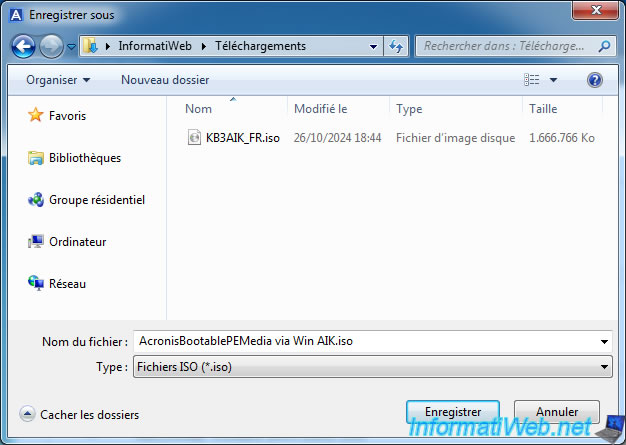
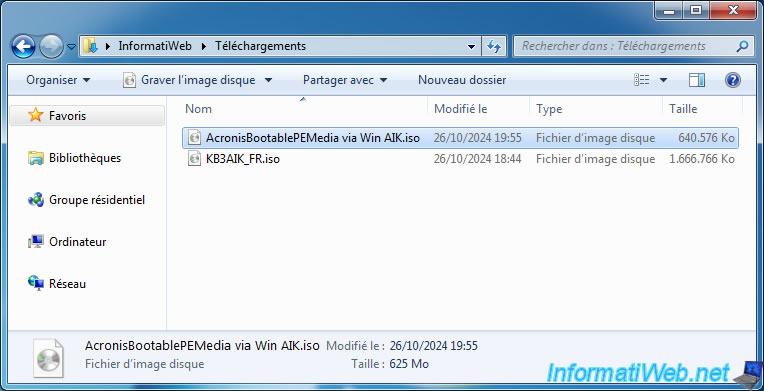
Save the file as "AcronisBootablePEMedia via Win AIK.iso" (for example).
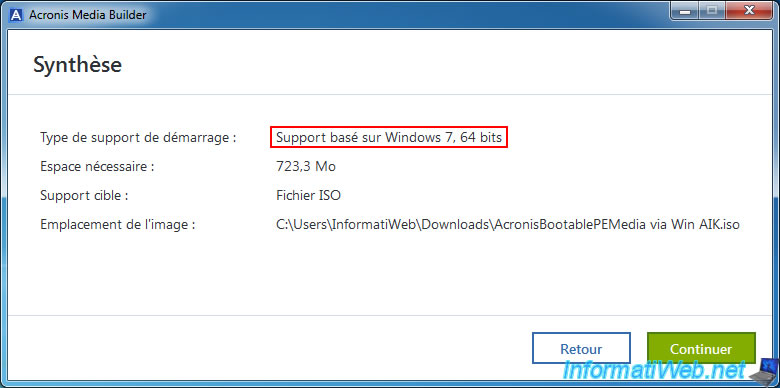
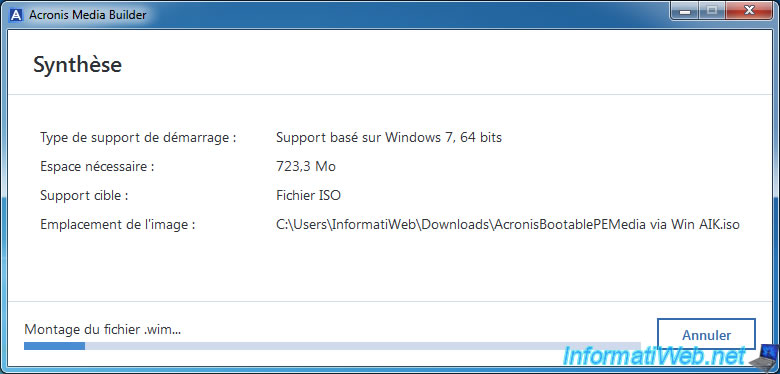
As you can see, Acronis Media Builder will create media based on Windows 7 64-bit.
Wait while the .wim file is mounted (using the Windows AIK). This allows Acronis Media Builder to modify it to add its Acronis programs.
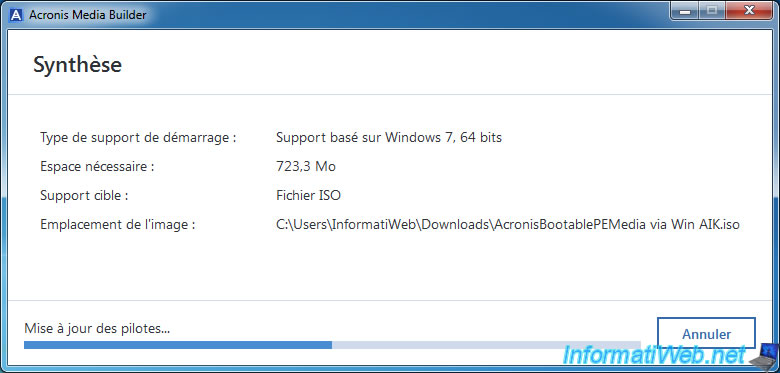
Acronis Media Builder adds the desired drivers into the Windows PE environment based on Windows 7.
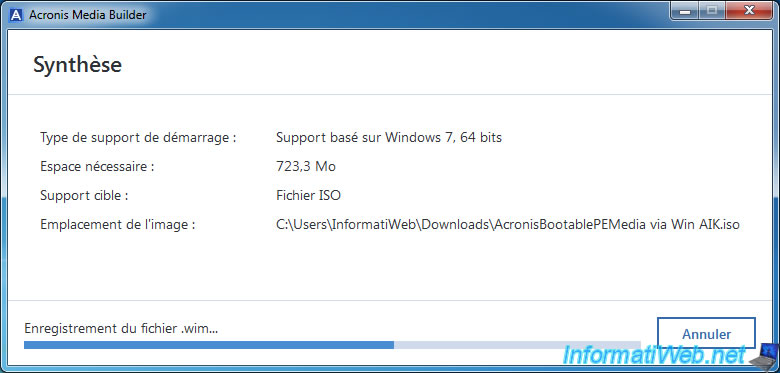
Please wait while the newly modified .wim file is saved by Acronis Media Builder.
Then, Acronis Media Builder will create an ISO file including the modified .wim file.
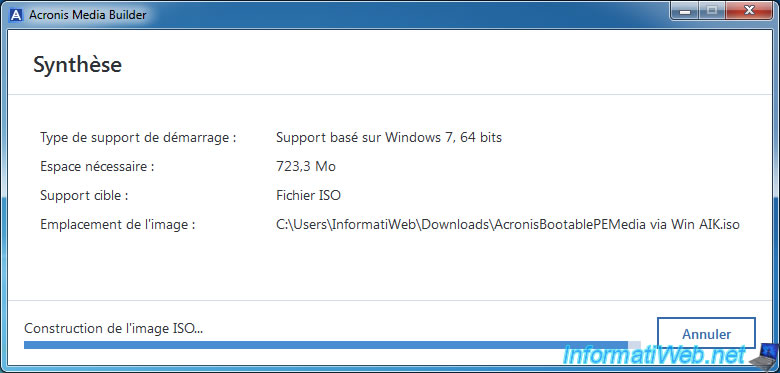
Once your Acronis rescue media is created, click Close.
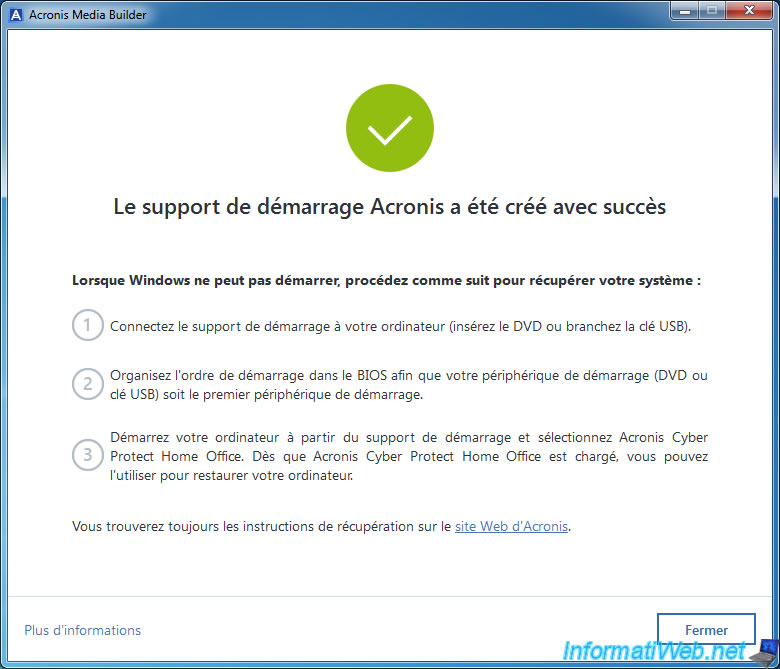
Burn this ISO file to a CD following our "Burn a CD/DVD" tutorial if needed.
2. Boot to your custom Acronis rescue media
To be able to boot to your custom Acronis rescue media, you must first configure your motherboard's boot order so that your computer boots to your CD/DVD drive first.
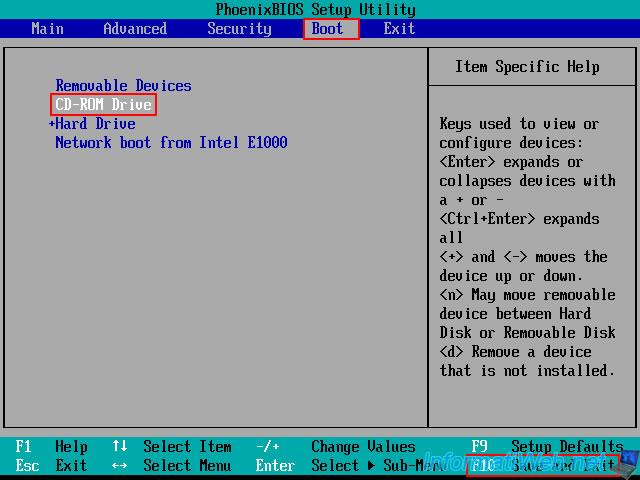
Then, when your computer starts, you will see the message "Press any key to boot from CD-ROM or DVD-ROM" appear.
Press Enter to boot to your Acronis rescue media.

Then, the message "Windows is loading files..." will appear.

Then, a loading bar will appear.

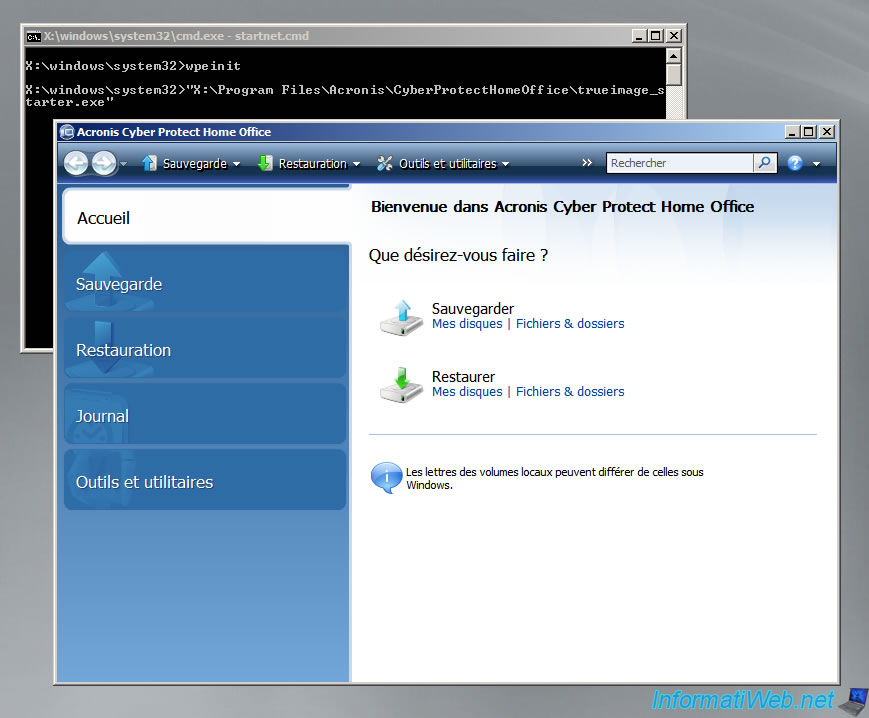
Finally, a command prompt (black window), then the "Acronis Cyber Protect Home Office (True Image)" tool will appear.
This will allow you to save your computer or restore it using a backup on your hard drive, even if Windows no longer starts.
Share this tutorial
To see also
-
Backup 6/9/2025
Acronis True Image - Backing up your PC to a FTP server
-
Backup 7/13/2026
Acronis True Image - Download backup from Acronis Cloud
-
Backup 1/5/2026
Acronis True Image - Rescue Media - Create media easily (in ISO format)
-

Backup 6/29/2026
Acronis True Image - Third-party tools
You must be logged in to post a comment