- Backup
- Acronis True Image
- 05 October 2026 at 13:12 UTC
-

- 1/7
Acronis True Image is a high-performance and sophisticated backup and restore software.
This software is not free, but if you have at least one Western Digital hard drive in your computer, you can use the OEM version of Acronis True Image provided by Western Digital (WD).
The main advantage is that Acronis True Image is very powerful, sophisticated, and reliable.
But the advantage of using the OEM version provided by Western Digital (WD) is that you can use the backup and restore features without any limitations.
In this OEM version provided by Western Digital (WD), the backup and restore options are unlimited. This is unlike other OEM versions of the same program (notably the OEM version provided by Seagate and renamed Seagate DiscWizard). You can therefore schedule your automatic backups, use the various backup templates created by Acronis, and more, without any restrictions.
Warning : the OEM version of Acronis True Image provided by Western Digital (WD) only works if you have at least one Western Digital (WD) hard drive in your computer.
However, Windows does not need to be installed on your Western Digital (WD) drive. It can also be installed on a drive from another brand, as long as a Western Digital (WD) drive is connected to your computer.
Furthermore, the backup can be stored in various locations, including hard drives or NAS devices that are not Western Digital (WD).
- Western Digital (WD) hard drive required
- Download Acronis True Image for Western Digital (OEM version)
- Install Acronis True Image for Western Digital (OEM version)
- OEM version limitations: Acronis True Image for Western Digital
- Back up your computer using Acronis True Image for Western Digital (OEM version)
- Restore your computer using Acronis True Image for Western Digital (OEM version)
- Create the Acronis True Image for Western Digital (OEM version) rescue media
- Introducing the Acronis True Image for Western Digital rescue media
- Backing up your PC to an external hard drive of another brand
- Backing up your PC to a NAS of another brand
1. Western Digital (WD) hard drive required
To test the OEM version of Acronis True Image available on the Western Digital (WD) website, we connected a Western Digital (WD) external hard drive via USB to a computer.
This is all that's needed to use this OEM version of Acronis True Image for free.
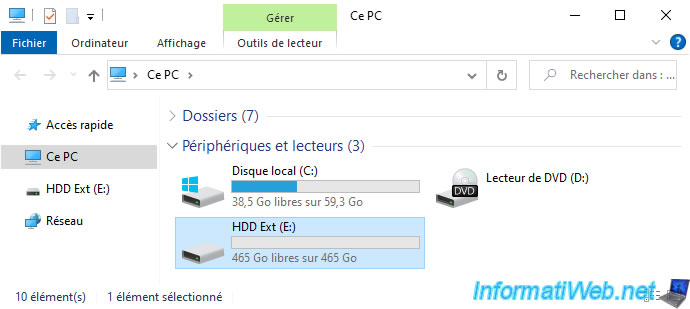
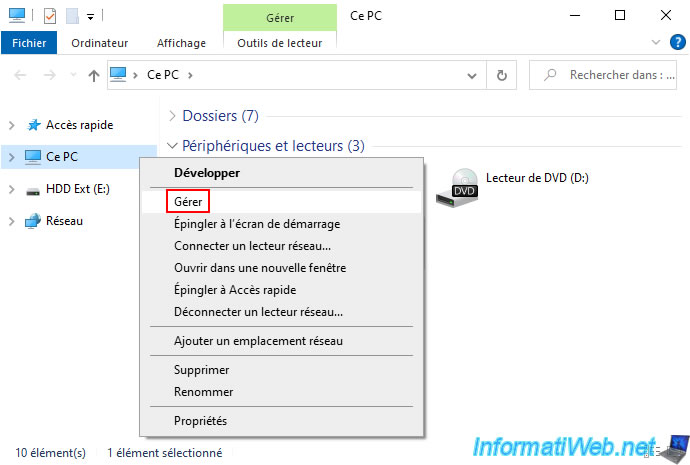
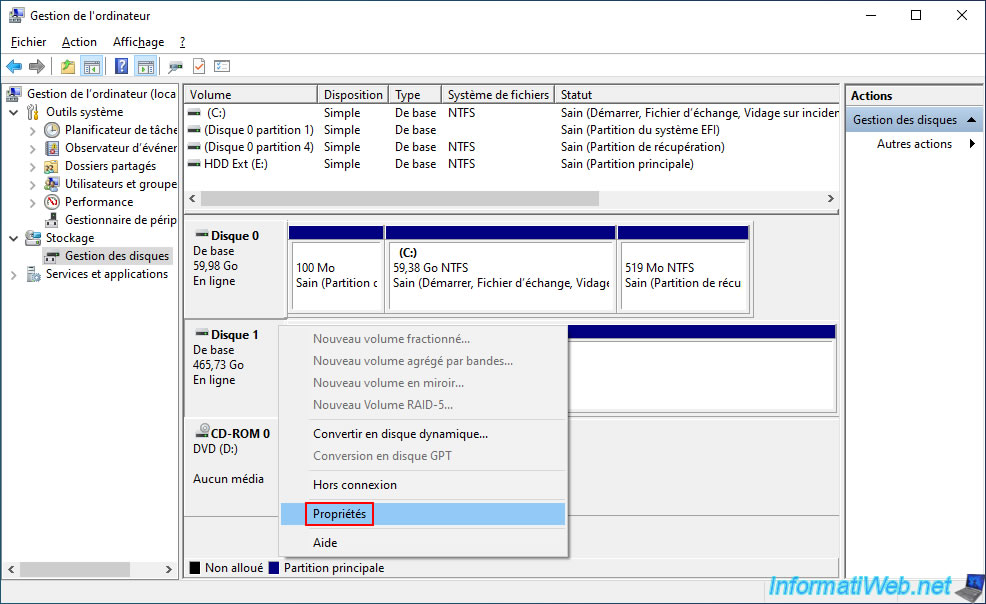
To see the brand of your discs, right-click "Manage" on "This PC" (in Windows file explorer).
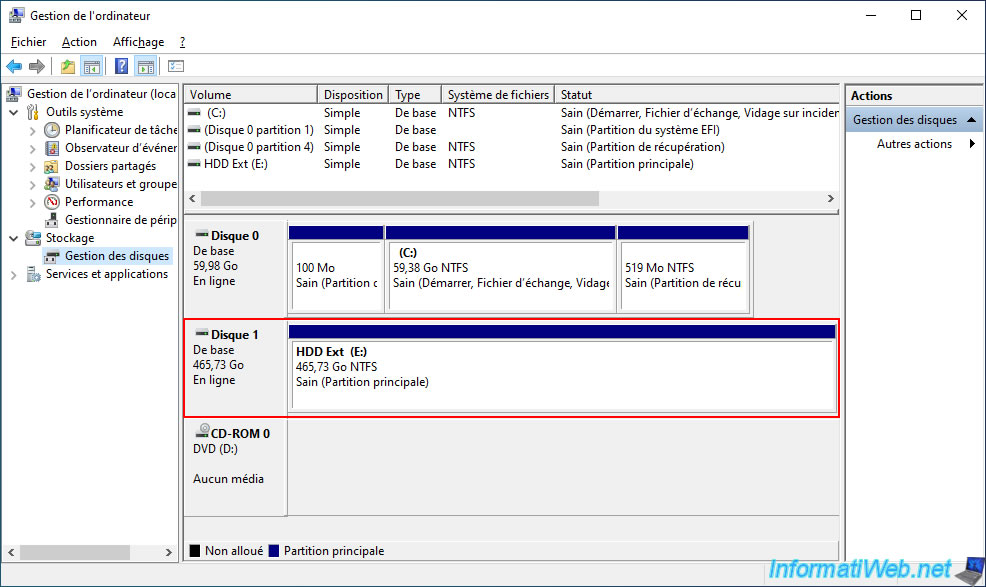
In the "Computer Management" window that appears, go to the "Disk Management" section.
In our case, we see our 500 GB external hard drive.
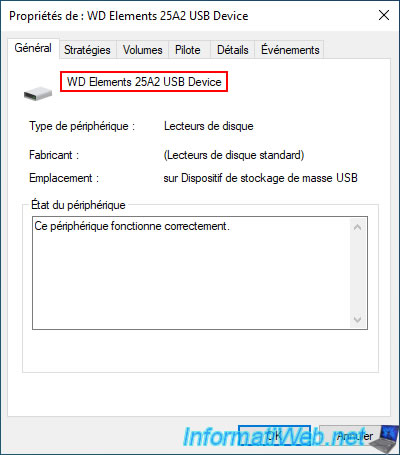
To see the name of this hard drive, right-click on it and select "Properties".
As you can see, in our case, it's a "WD Elements 25A2 USB Device" hard drive.
This clearly shows that it's a Western Digital (WD) external hard drive connected to this computer via USB.
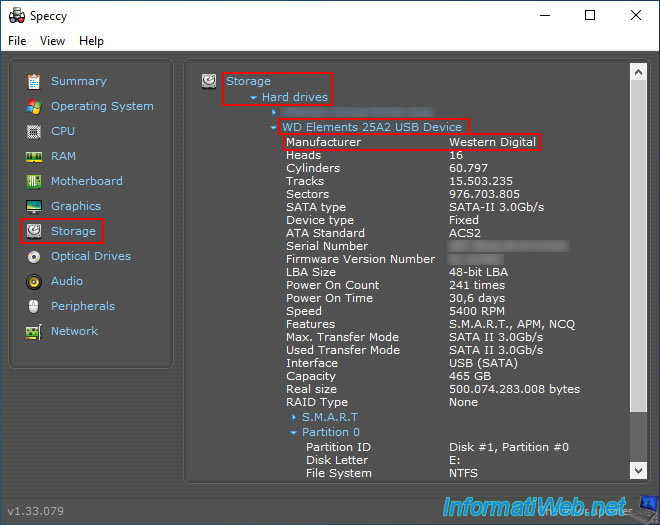
If needed, you can use Speccy (free) and go to the "Storage" section to see the manufacturer of your hard drives and SSDs.
In our case, Speccy tells us that the manufacturer of our "WD Elements 25A2 USB Device" hard drive is "Western Digital".
2. Download Acronis True Image for Western Digital (OEM version)
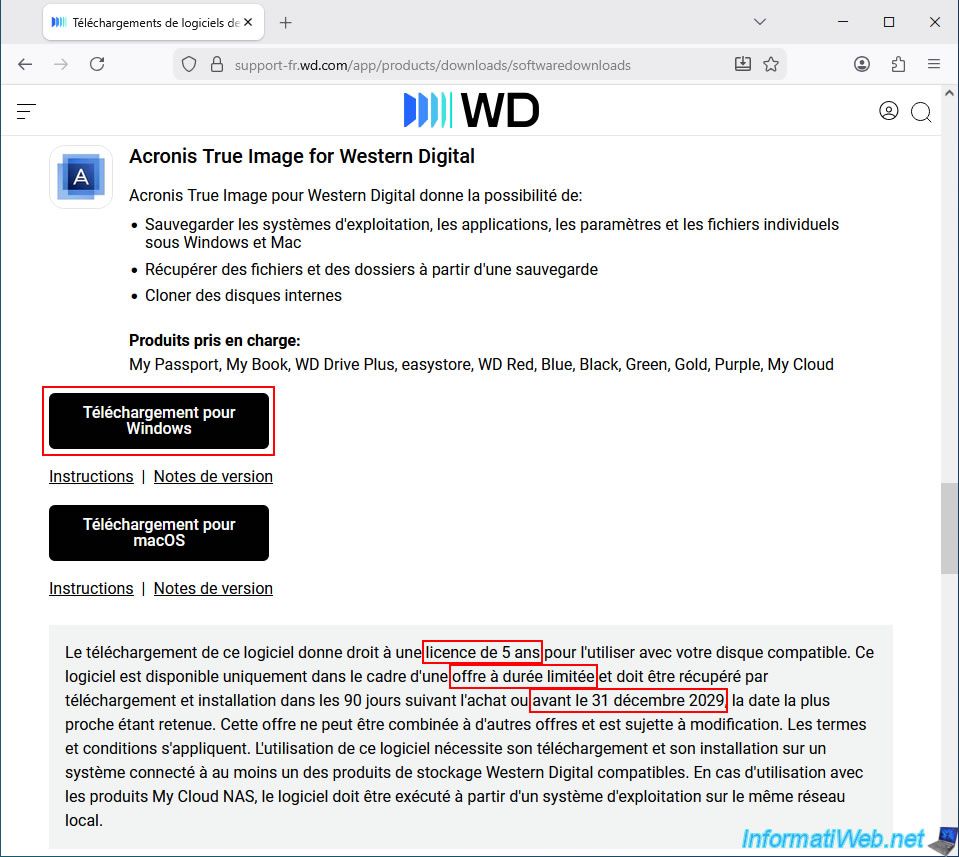
To download Acronis True Image for Western Digital, so the OEM (and free) version of Acronis True Image offered by Western Digital, go to the "Western Digital Product Software Downloads" page.
Then, scroll down the page and click the "Download for Windows" button.
Important : as Western Digital (WD) indicates, downloading this program allows you to use Acronis True Image for Western Digital for 5 years, and it must be downloaded before December 31, 2029.
Although this date seems to be updated from time to time to always be in the future.
Indeed, if you look at the "Acronis True Image for Western Digital - Software / Acronis True Image for Western Digital - WD Community" page on the official Western Digital forum, you will see that the message from June 2025 displayed a very similar message with an end date of "December 31, 2025" (while the current date on the Western Digital website is "December 31, 2029").
Please wait while the "AcronisTrueImageWD_WIN.zip" file downloads.
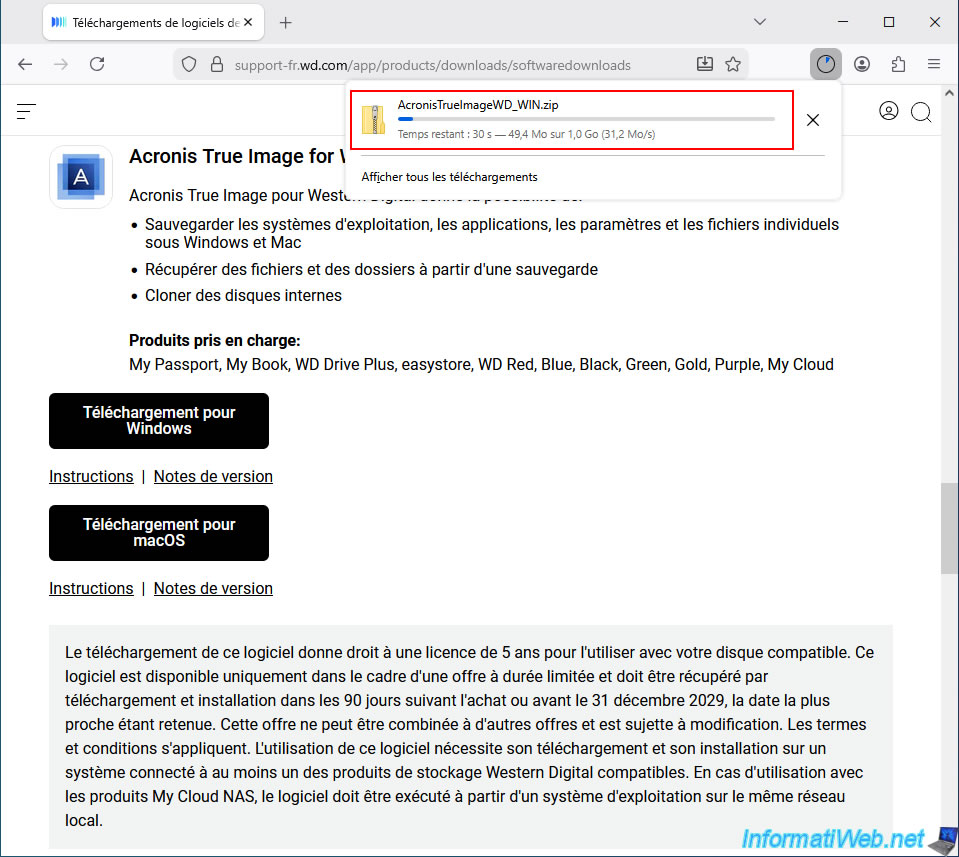
As you can see, the OEM version of Acronis True Image provided by Western Digital weighs approximately 1 GB.
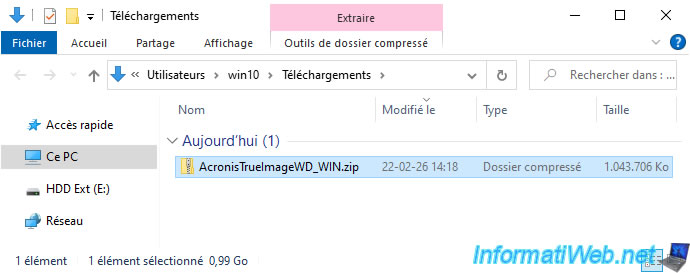
3. Install Acronis True Image for Western Digital (OEM version)
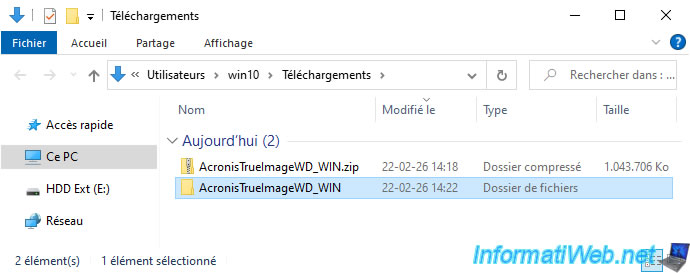
To install Acronis True Image for Western Digital, unzip the downloaded "AcronisTrueImageWD_WIN.zip" file.
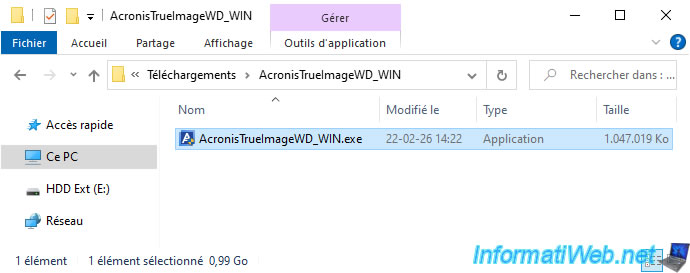
Then, launch the "AcronisTrueImageWD_WIN.exe" file located there.
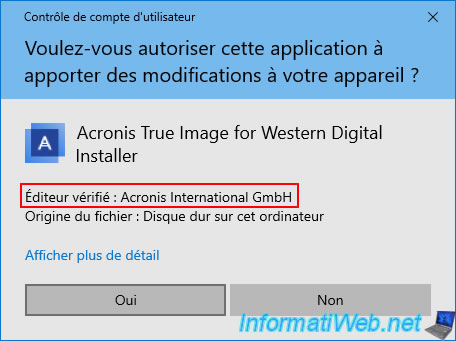
As you can see, even though Western Digital provides this OEM version, it's Acronis (the actual author of this program) that digitally signed this "Acronis True Image for Western Digital Installer" installation file.
Click "Yes".
Please wait while the installation files are being unpacked.

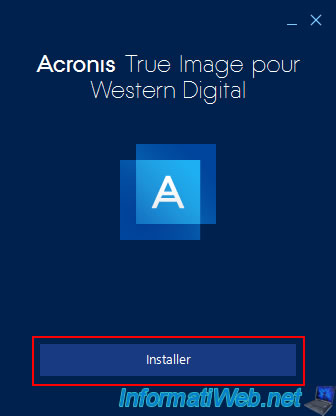
In the case of the OEM version offered by Western Digital (WD), the original Acronis True Image logo appears in the installer.
Click the "Install" button.
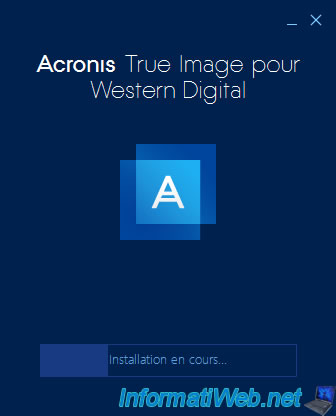
Please wait while Acronis True Image for Western Digital is being installed.
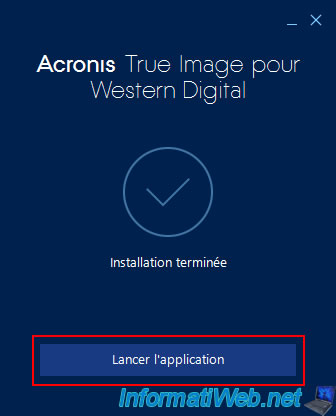
Once the installation of Acronis True Image for Western Digital is complete, click the "Launch Application" button.
The "Acronis True Image for Western Digital" program is starting.
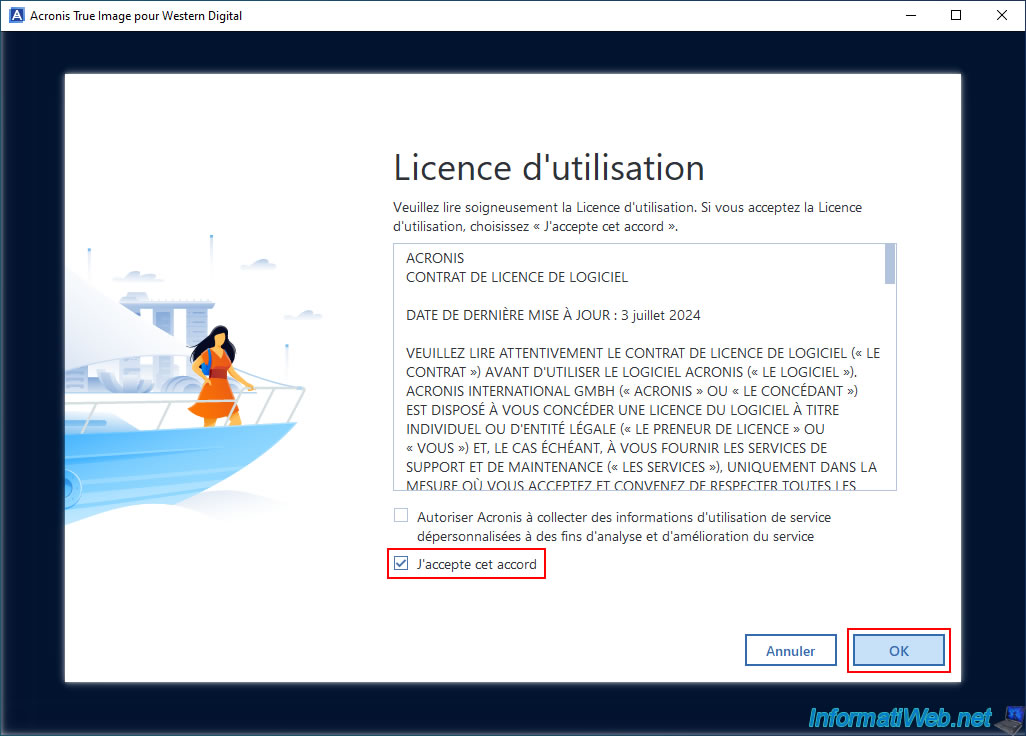
Check the "I agree..." box and click OK.
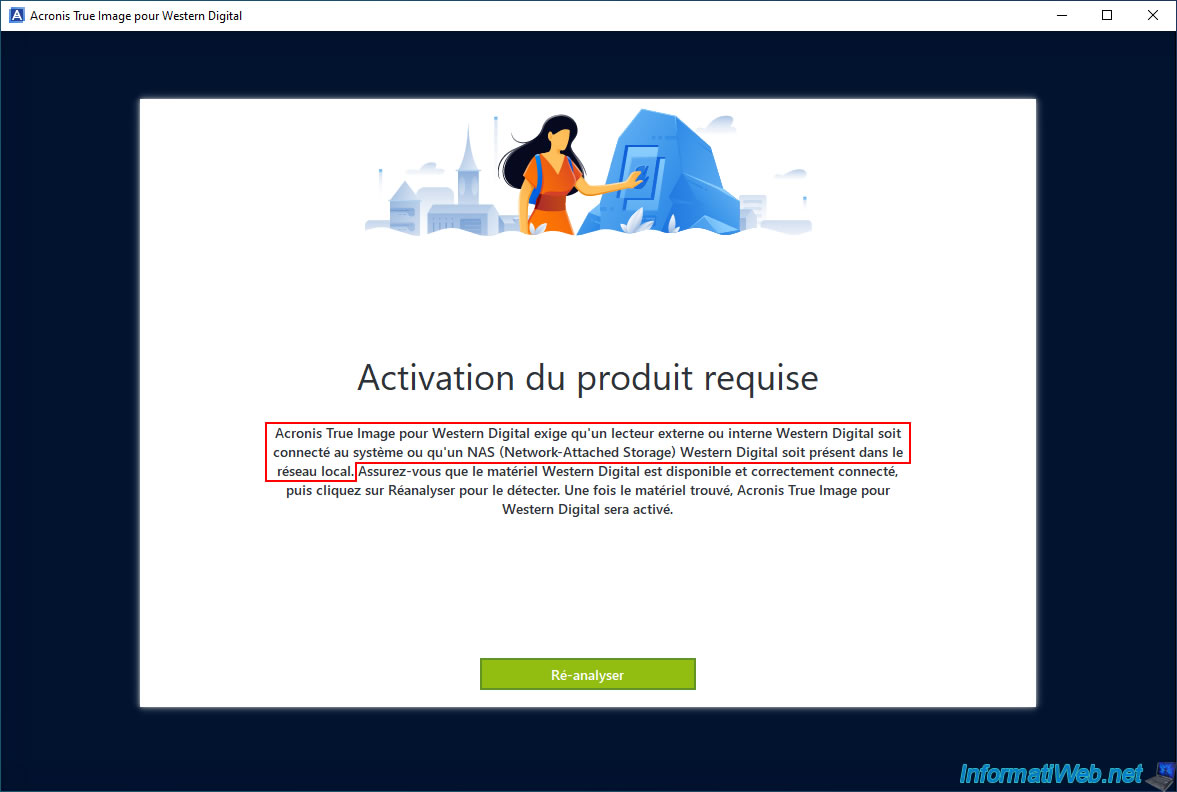
Warning : if no Western Digital hard drive is present in your computer, this "Acronis True Image for Western Digital" program will refuse to launch and you will see the message "Product activation required".
Plain Text
Acronis True Image for Western Digital requires that an external or internal Western Digital drive be connected to the system or that a Western Digital NAS (Network-Attached Storage) be present on the local network.
Once your drive is connected to your computer or on your local network, click "Re-analyze" to access the program.
Note: if you already have a Western Digital hard drive in your computer, this message will not appear and the program will launch without any problems.
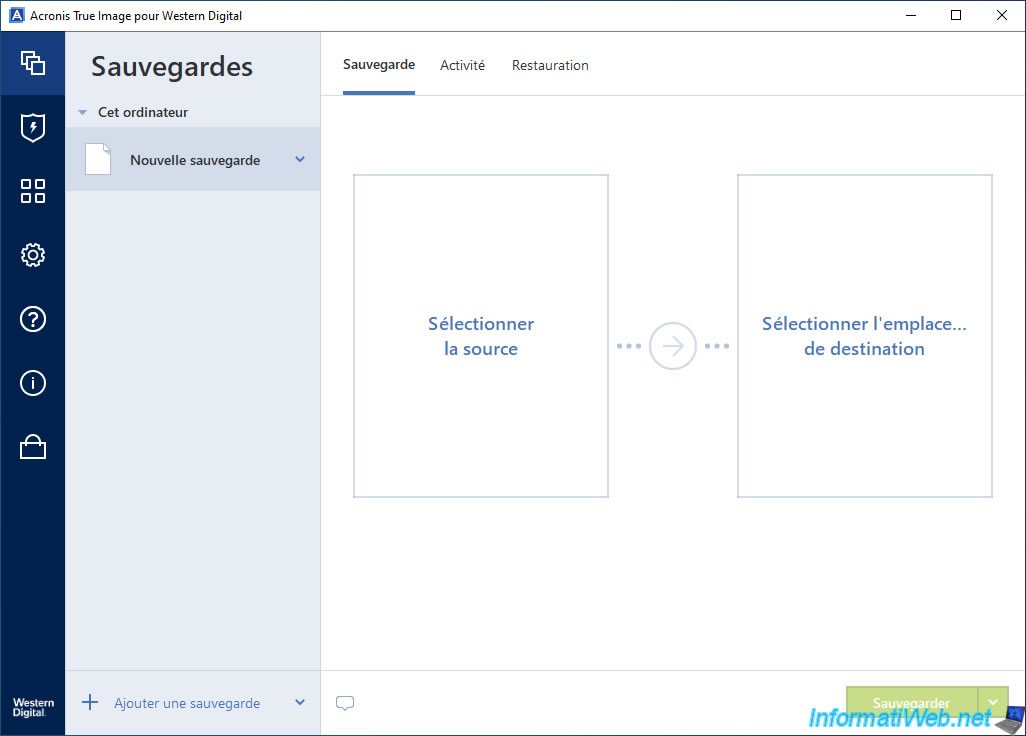
As expected, you see the Acronis True Image interface, even though you haven't paid anything.
Owning a Western Digital hard drive is all you need to use this software for free, thanks to the partnership between Acronis and Western Digital.
Note that you will also benefit from Acronis True Image's ransomware and cryptomining protection.
This is not available in the OEM version offered by Seagate, for example.
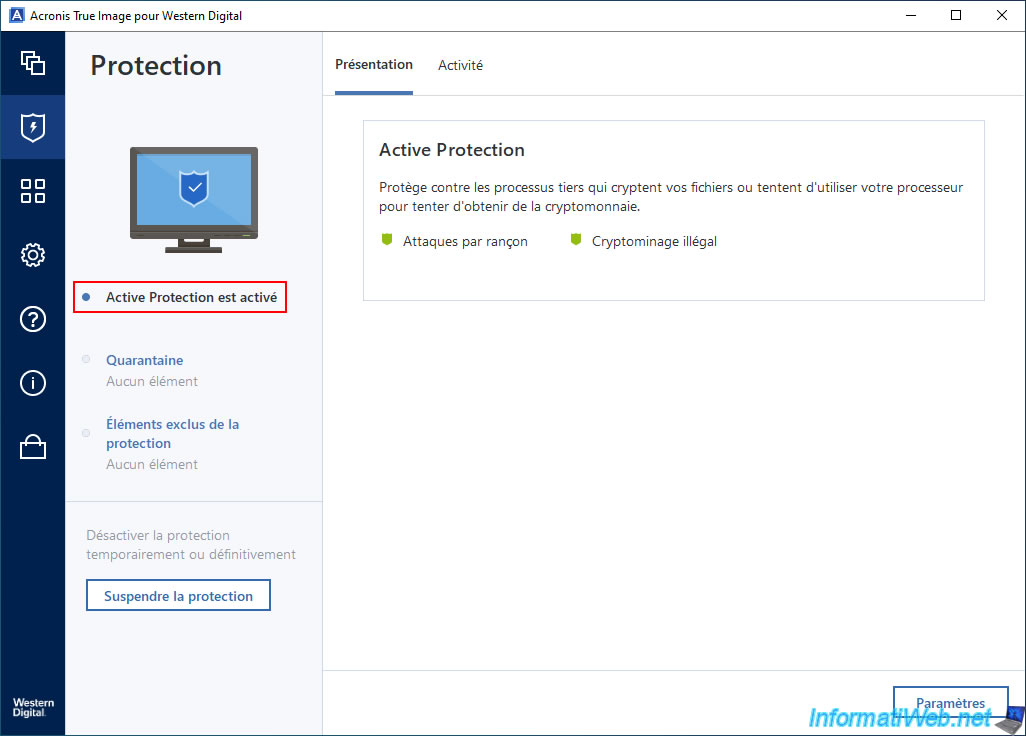
Note: if you access the "Protection" section of Acronis True Image for Western Digital directly, the message "Checking protection status" may appear for 30 seconds.
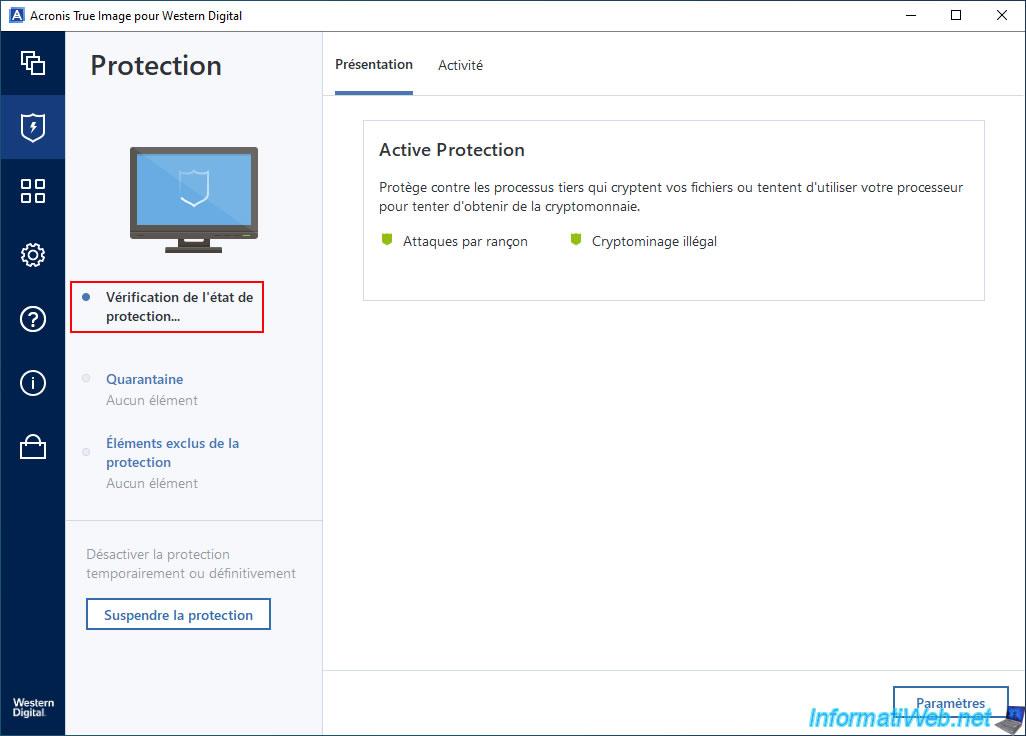
Next, the protection will be activated.
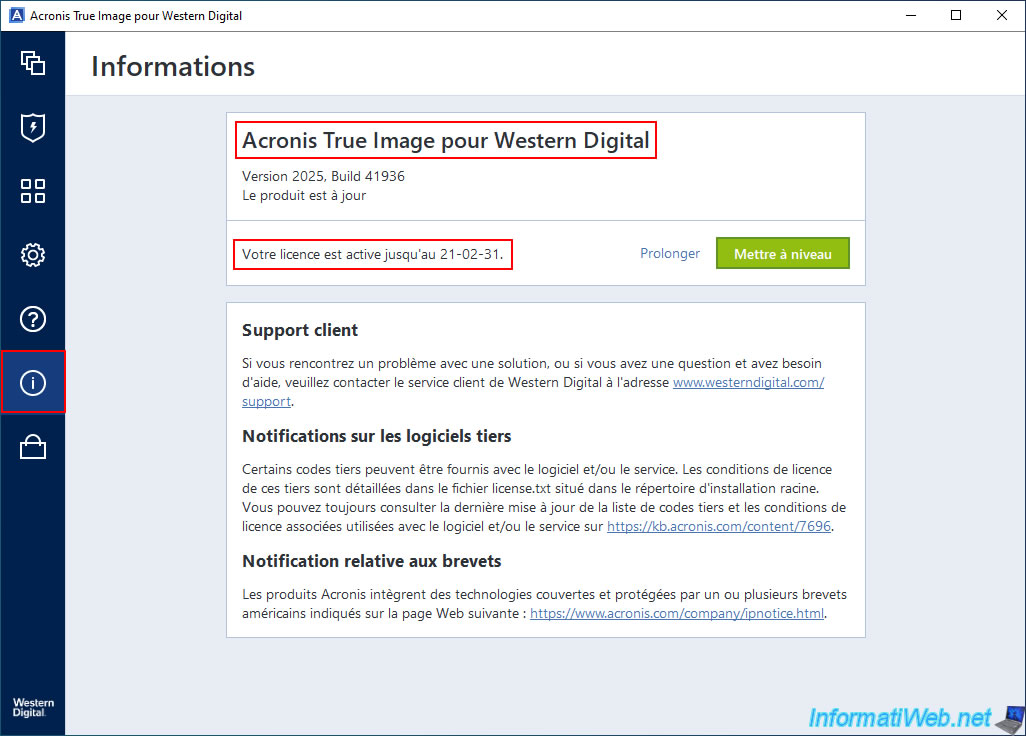
If you click on the "i" in the left menu, you will see that your license is valid for 5 years from the moment you activated it (installed the program) and that you are using the "Acronis True Image for Western Digital" version.
Share this tutorial
To see also
-
Backup 9/18/2025
Acronis True Image - Clean up Cloud smartphone backups
-
Backup 1/19/2026
Acronis True Image - Rescue Media - Create media (Linux version)
-
Backup 6/1/2026
Acronis True Image - Test software risk-free with Try&Decide tool
-

Backup 6/29/2026
Acronis True Image - Third-party tools
You must be logged in to post a comment