Back up your PC for free with the OEM version of Acronis True Image offered by Western Digital (WD)
- Backup
- Acronis True Image
- 05 October 2026 at 13:12 UTC
-

- 3/7
5. Back up your computer using Acronis True Image for Western Digital (OEM version)
To back up your computer using Acronis True Image for Western Digital, the procedure remains the same as with the full version of Acronis True Image.
Go to the "Backups" section (top left), then click on "Select source".
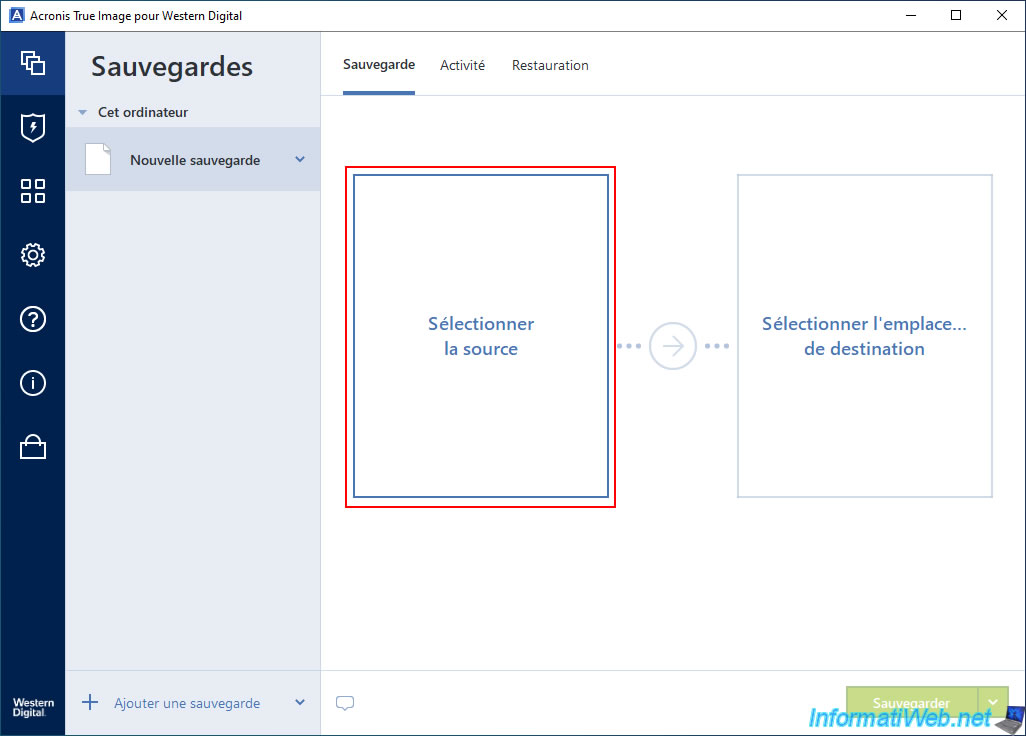
On a PC with a single drive (hard drive or SSD), select the "Entire PC" option.
On a PC with multiple drives, it becomes more practical and preferable to use the "Disks and Partitions" option to back up only the drive where Windows is located (which is generally what you want to do).
Note: if you prefer to use the "Disks and partitions" option, you can see the detailed steps in our tutorial "Acronis True Image - Backup disks or partitions".
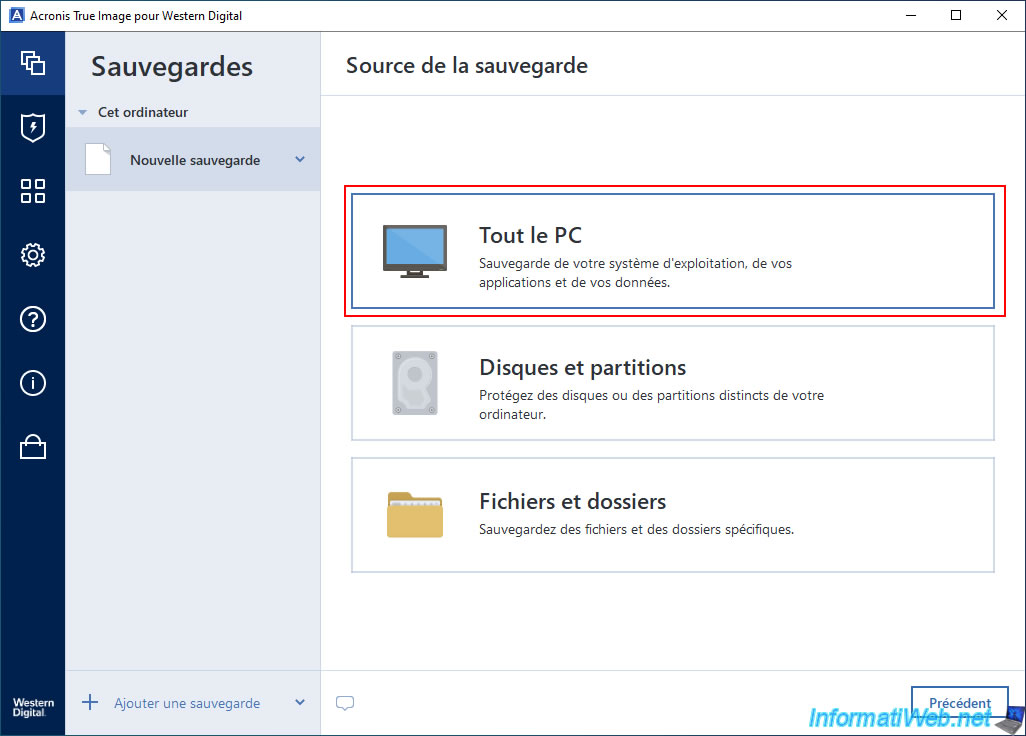
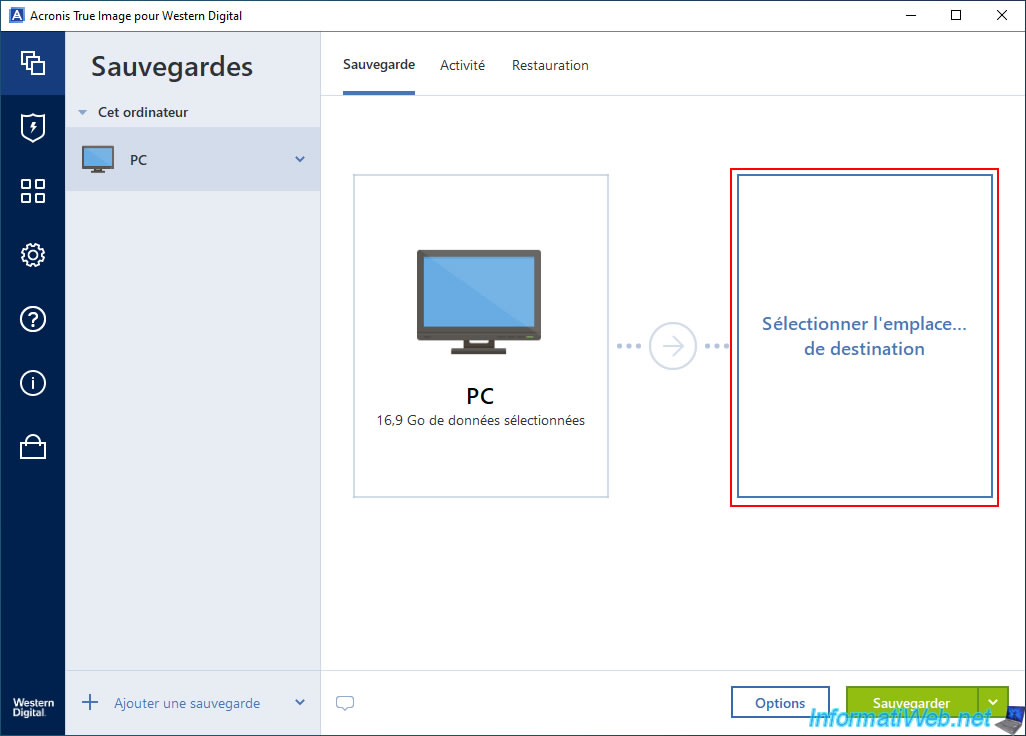
The source selected for this backup appears on the left.
Now, click "Select destination location".
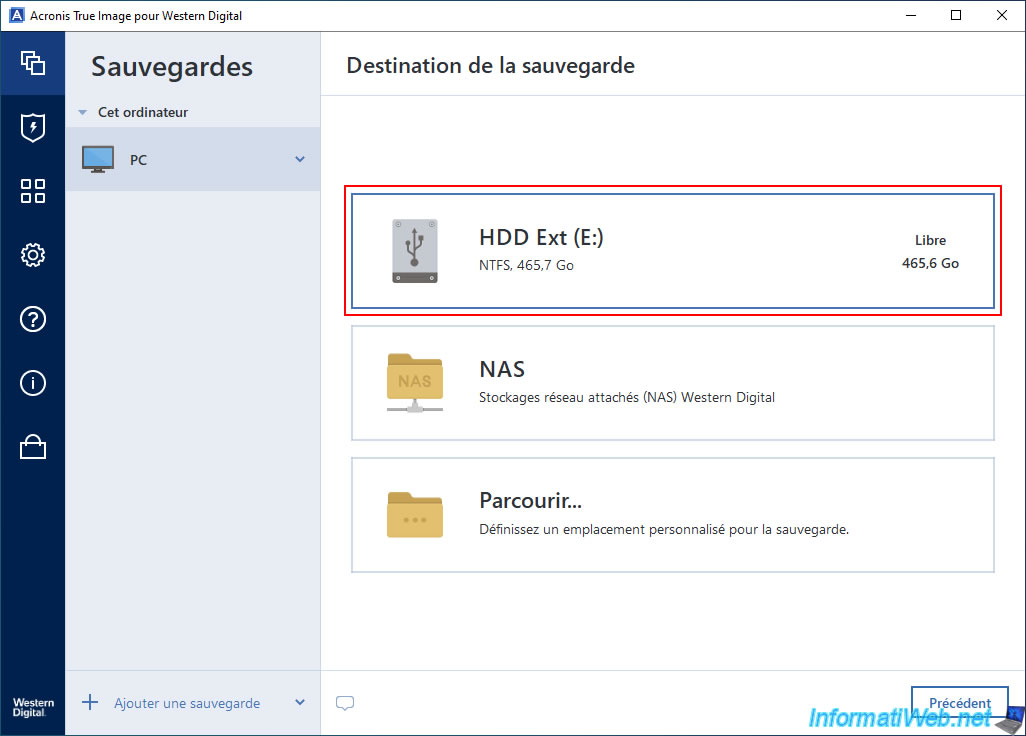
Select the location where you want to store your computer backup.
For example: an external hard drive.
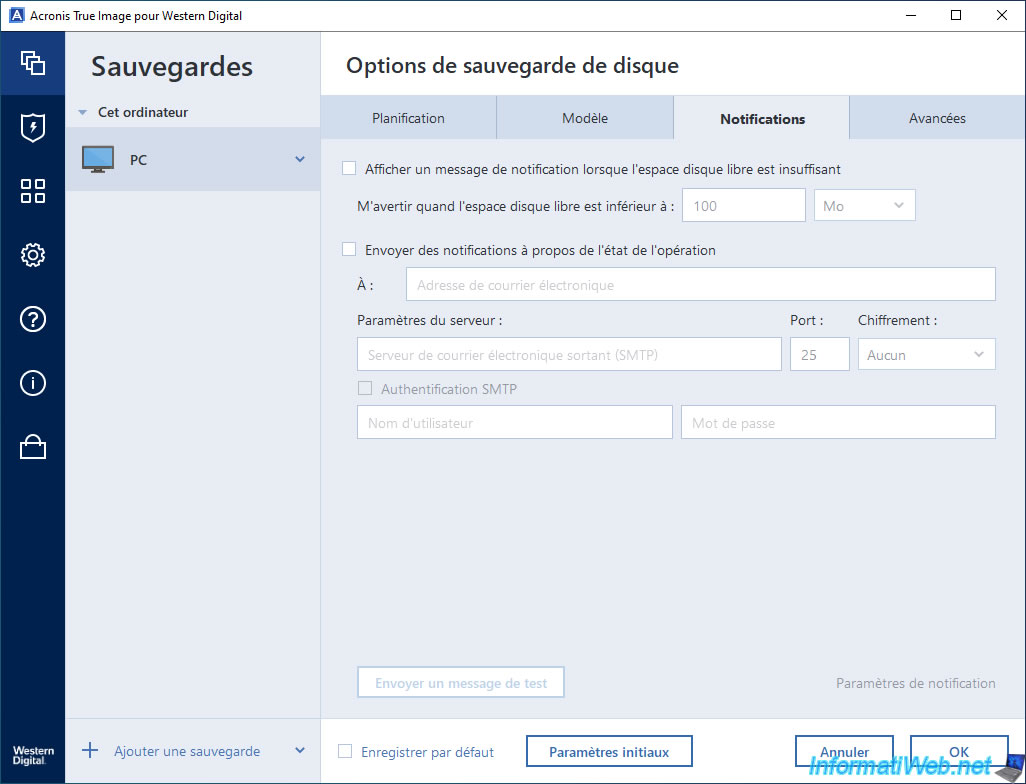
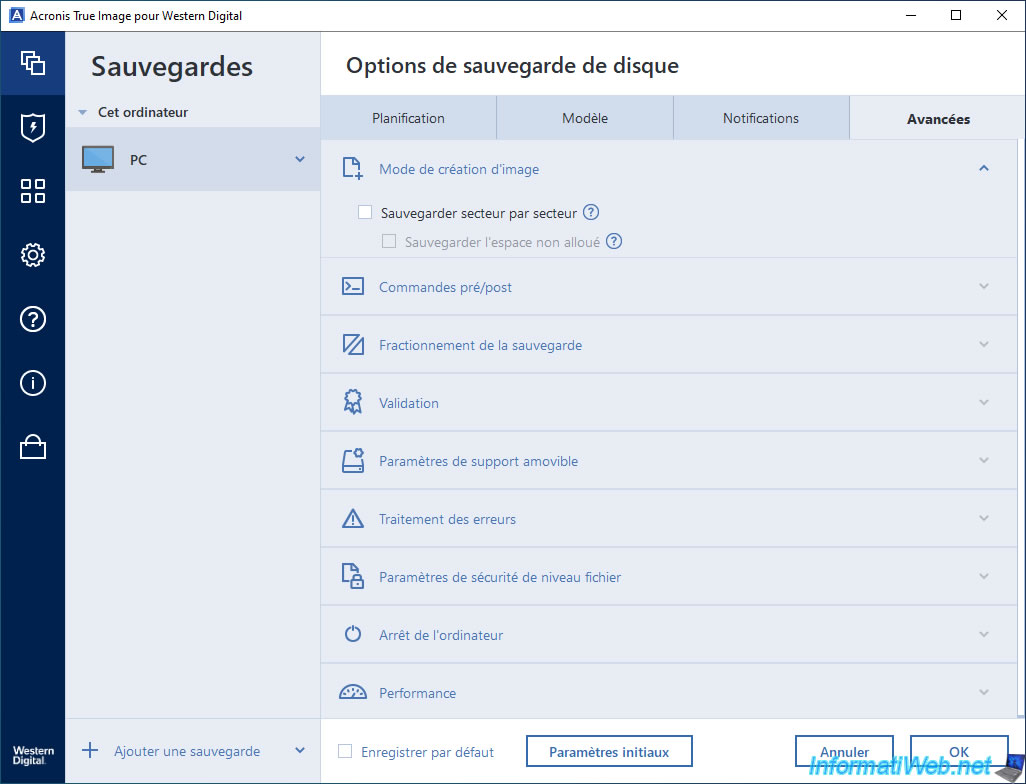
If you wish, you can customize the backup options of Acronis True Image.
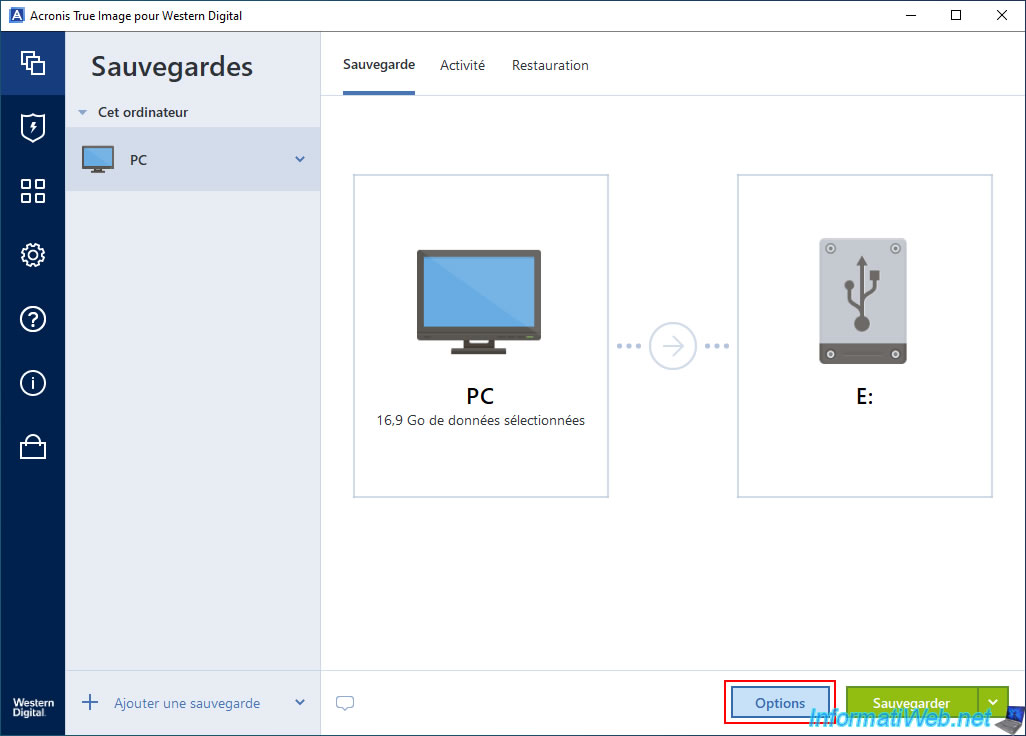
As you can see, all disk backup options are available in the OEM version of Acronis True Image offered by Western Digital.
This is a real plus for those who want free access to the advanced and professional features of Acronis True Image.
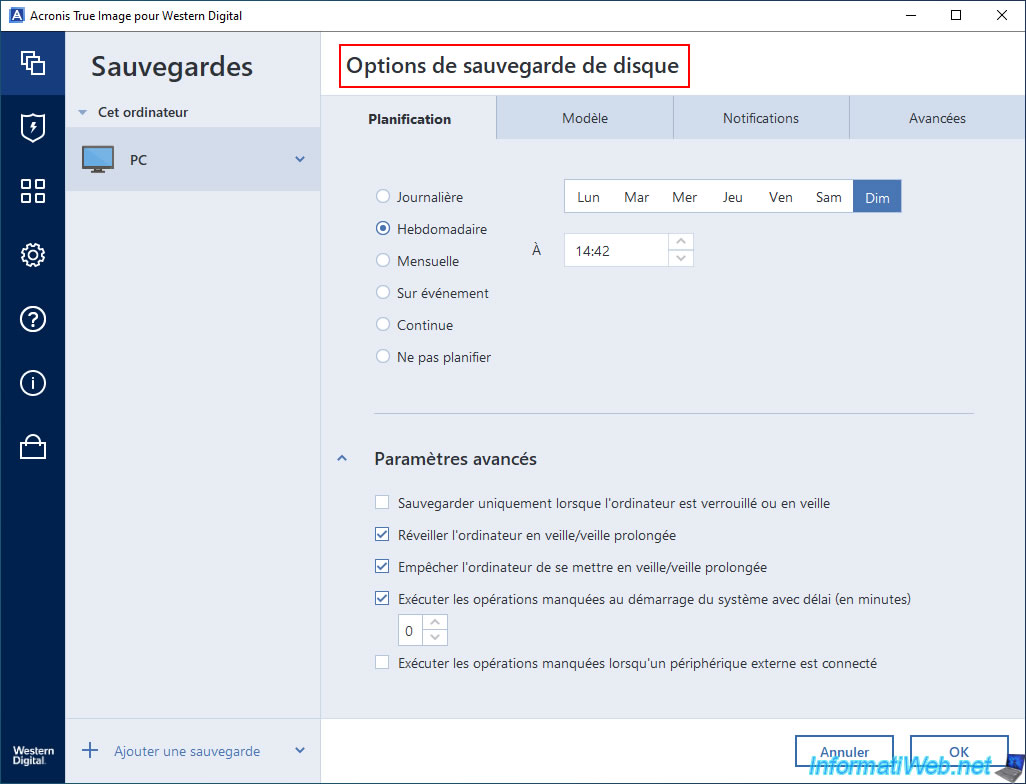
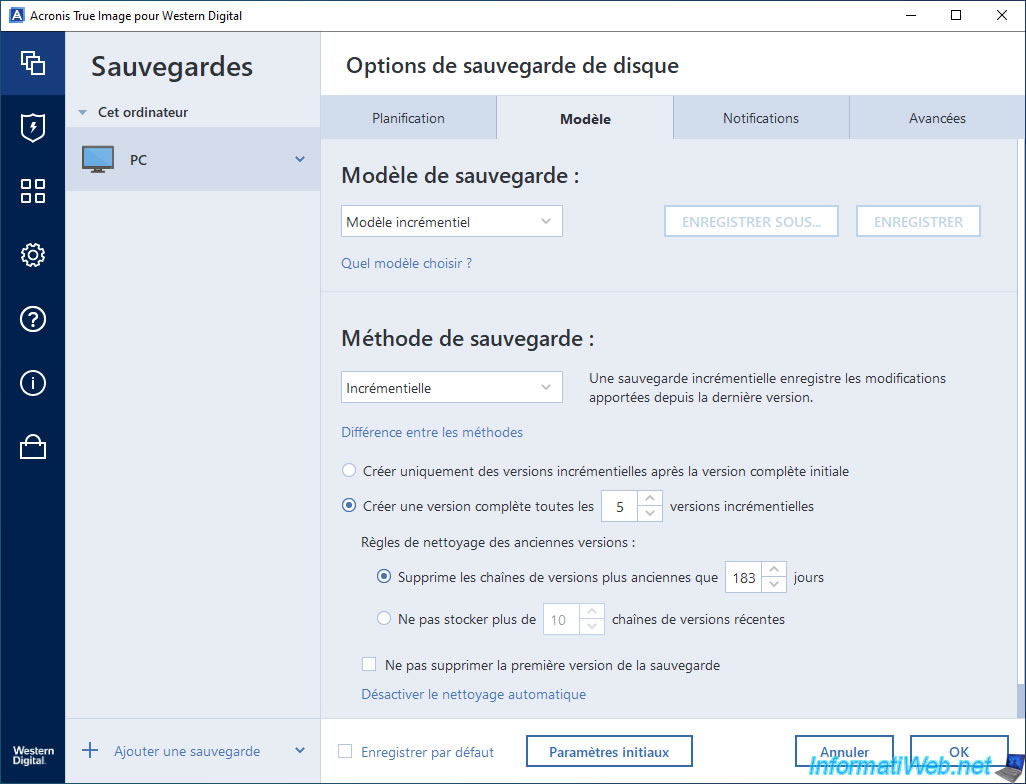
You can even use the various backup templates of Acronis True Image as if you had actually purchased it.
And yet, this OEM version is free and official thanks to the partnership between Acronis and Western Digital.
If you need help with these different backup templates, refer to the relevant tutorial among our Acronis True Image tutorials:
- Single version scheme : Acronis True Image - Create backups (single version).
- Version chain scheme : Acronis True Image - Create backups (via the version chain scheme).
- Incremental scheme : Acronis True Image - Create incremental backups.
- Differential scheme : Acronis True Image - Create differential backups.
- Custom scheme : allows you to customize the suggested settings and save them under a new model name.
By default, the "Incremental scheme" backup scheme is used.
This is efficient and consumes less disk space over time compared to performing full backups each time.
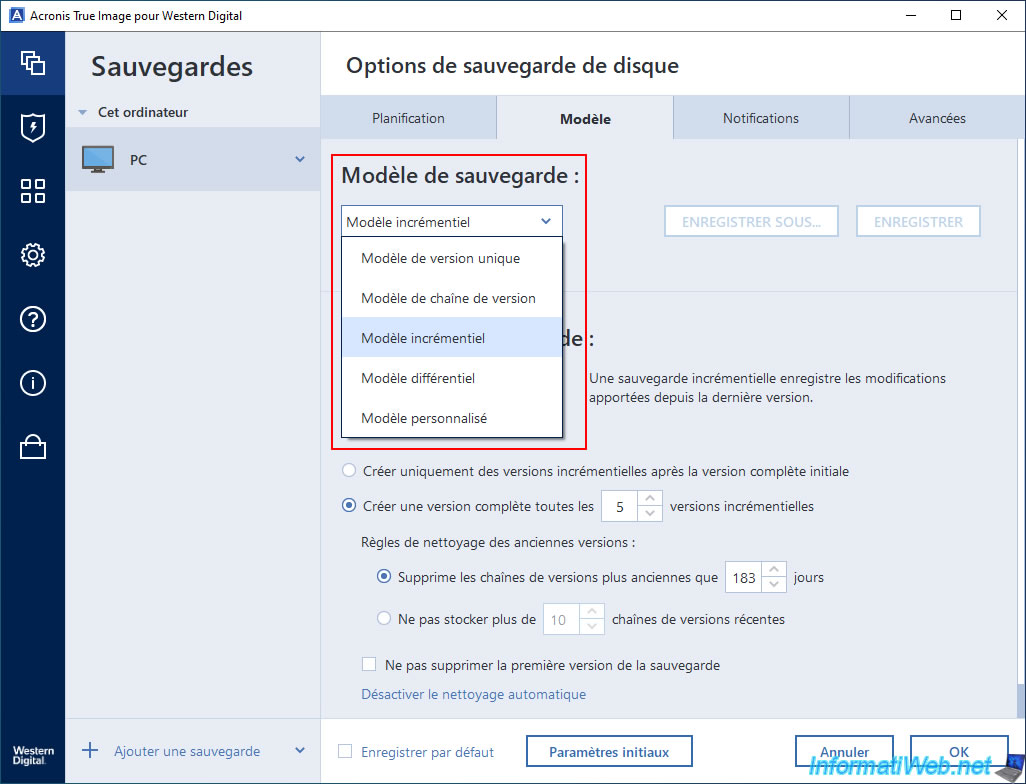
As you can see, all other backup options are also available.
This is not the case with the OEM version offered by Seagate, which is very limited, including for backing up and restoring your PC or drives.
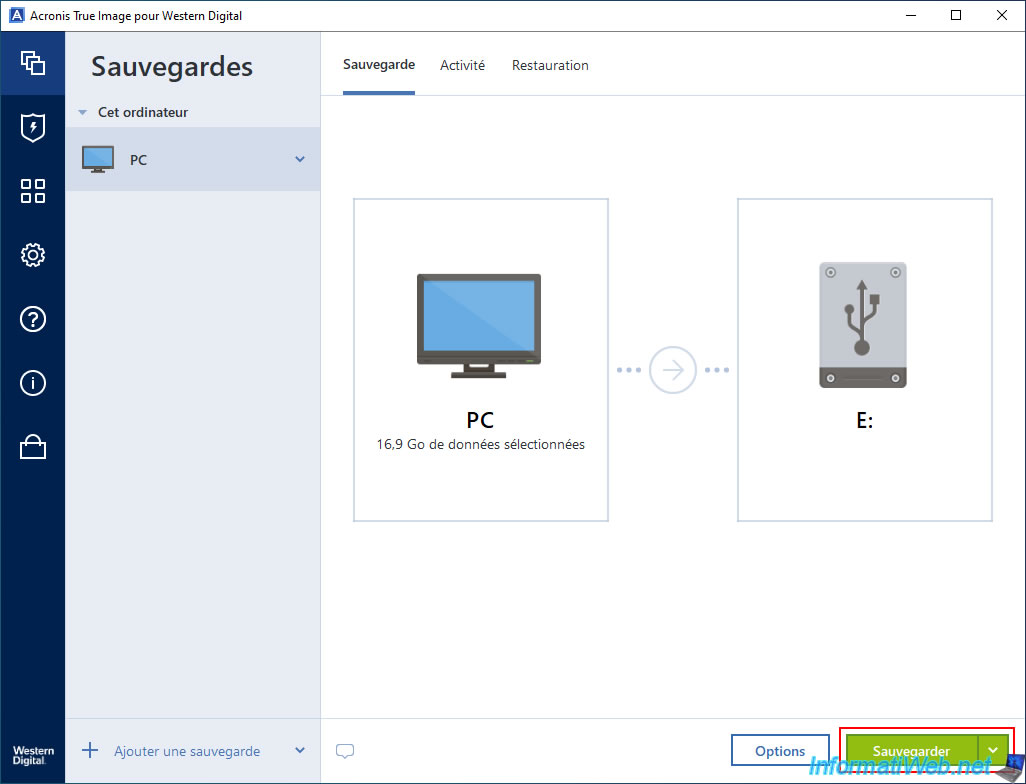
Click on the green "Backup" button.
The "Preparing data" message appears temporarily.
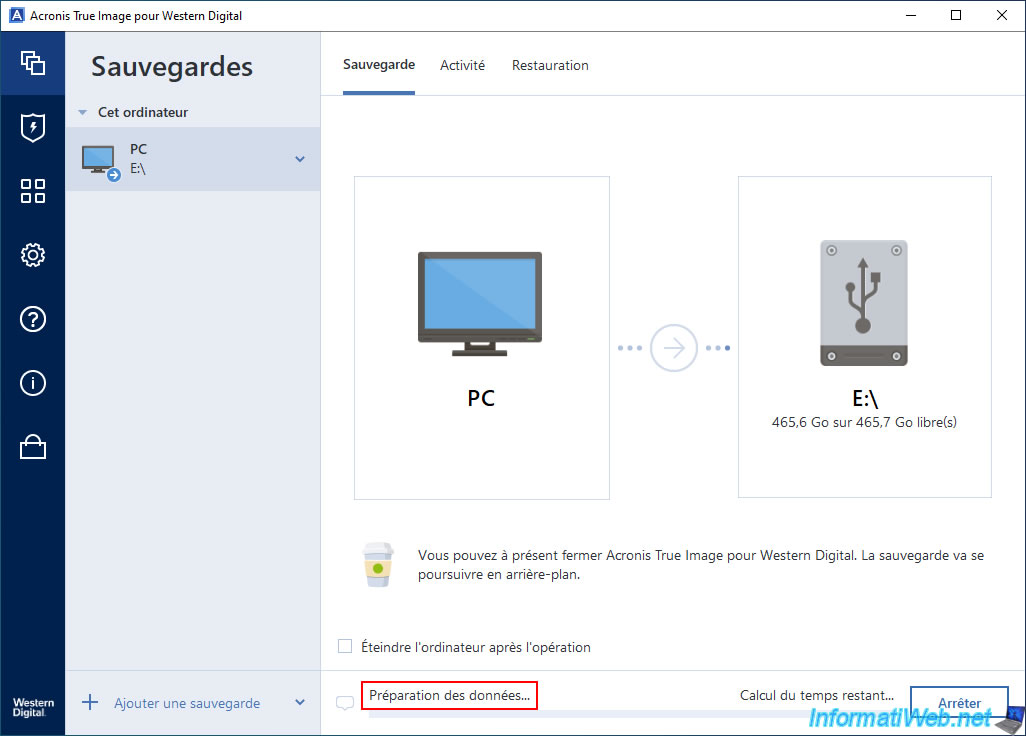
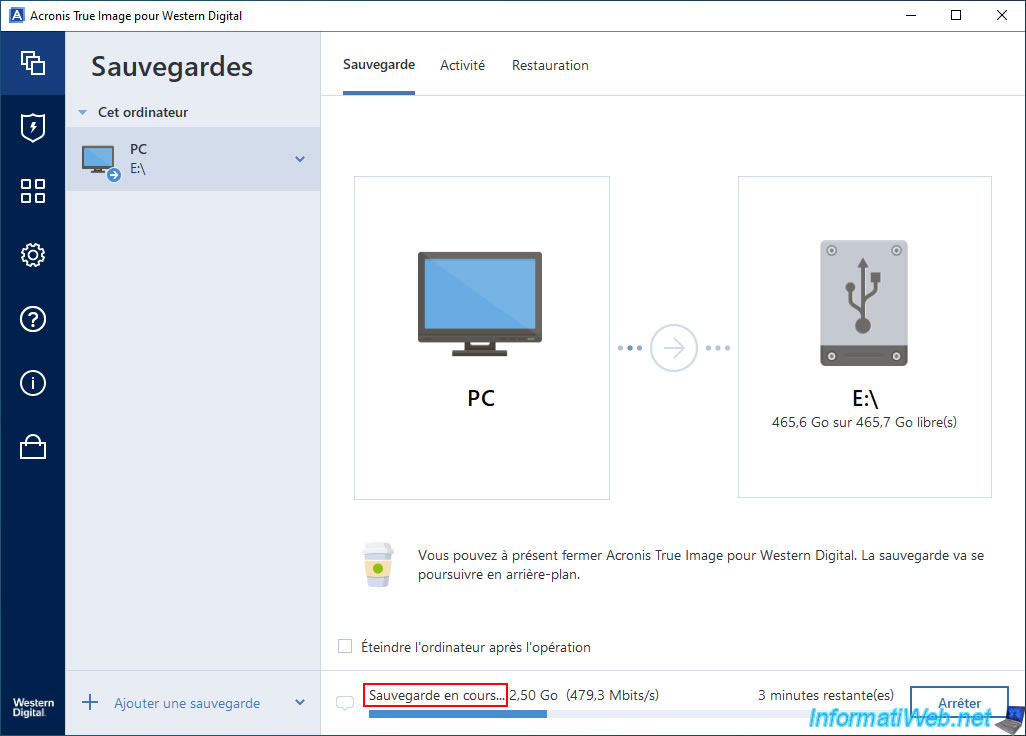
Next, the message "Backup in progress" will appear while your computer is being backed up.
As you can see, your computer is being backed up while Windows is running.
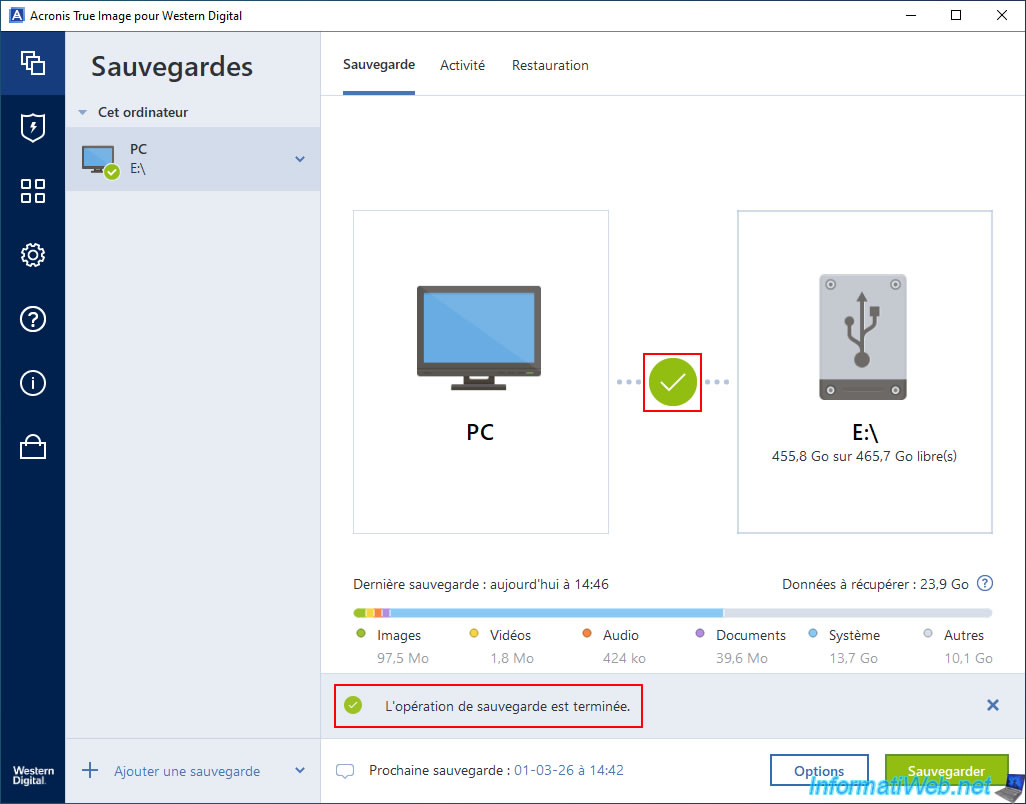
Once the backup of your PC or disk is complete, the message "Backup operation complete" will appear.
Share this tutorial
To see also
-
Backup 6/9/2025
Acronis True Image - Backing up your PC to a FTP server
-
Backup 8/24/2026
Acronis True Image - Partition a new disk
-

Backup 4/13/2026
Acronis True Image - Rescue Media - Create an incremental backup
-
Backup 10/9/2025
Acronis True Image - Validate a backup
No comment