Back up your PC for free with the OEM version of Acronis True Image offered by Western Digital (WD)
- Backup
- Acronis True Image
- 05 October 2026 at 13:12 UTC
-

- 2/7
4. OEM version limitations: Acronis True Image for Western Digital
In short, the OEM version of Acronis True Image offered by Western Digital is almost fully featured in terms of backup and restore capabilities.
However, the tools included are quite limited.
Nevertheless, it still provides a very comprehensive backup and restore solution, comparable to the paid version of Acronis True Image.
If you're looking to buy a hard drive, choose a Western Digital one.
They are of very high quality, and you also get access to Acronis True Image for Western Digital for 5 years to reliably back up and restore your computer completely free of charge.
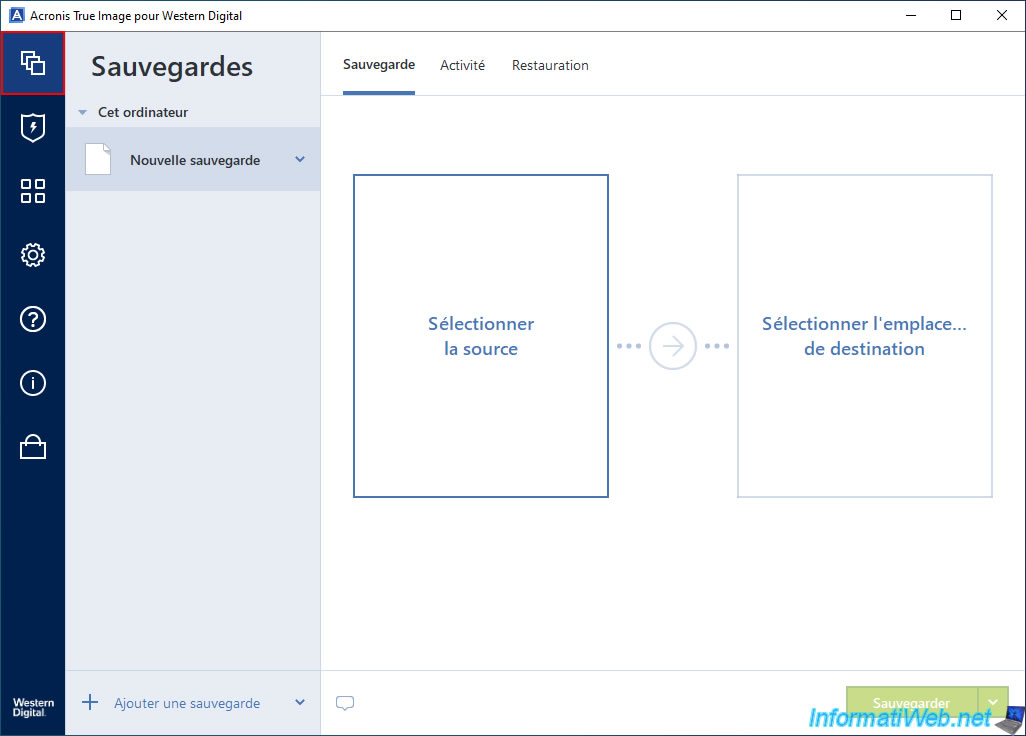
For the backup source, you have access to 3 main options:
The only options that are not available and therefore not displayed in this OEM version are:
- Files to notarize : however, it's unlikely that you will want to use it and it basically requires a Premium subscription (hence the fact that it is not available in the OEM version).
- Mobile device : allowed you to back up your smartphone data to your computer or to Acronis Cloud.
- Cloud Service : allowed you to back up your Microsoft account (Outlook/OneDrive) to Acronis Cloud.
However, since Acronis Cloud is not available with the OEM version of Acronis True Image, this feature is also unavailable.
So, ultimately, you don't lose anything important with this OEM version offered by Western Digital.
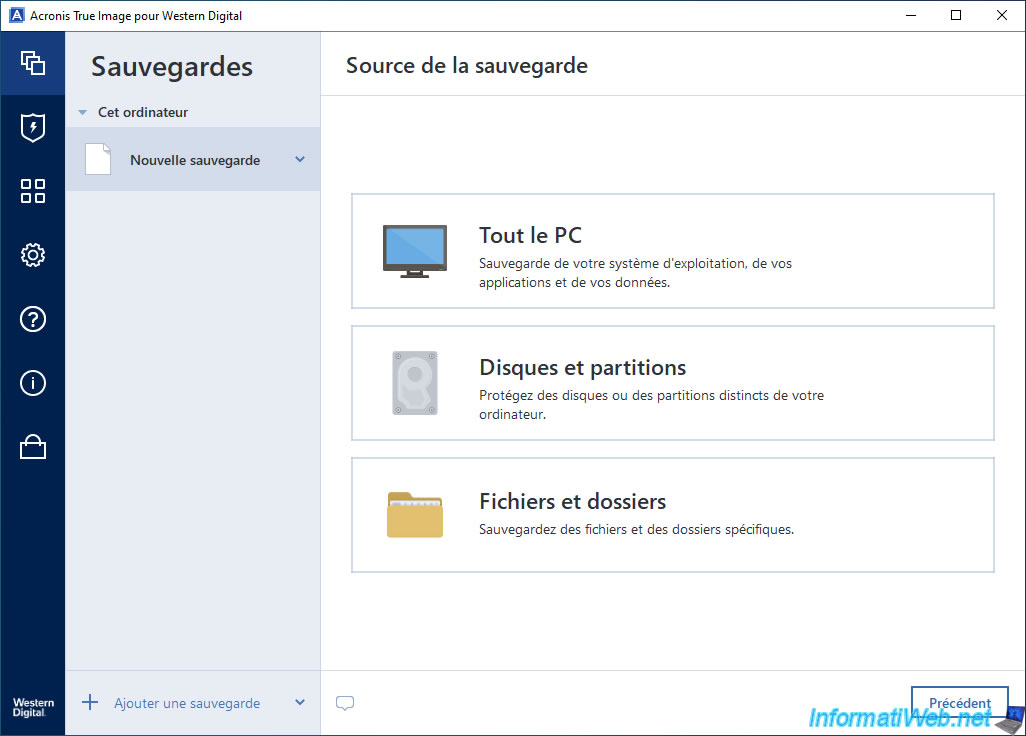
For the backup destination, you have access to all options (except for the one concerning Acronis Cloud):
- Backup to a Western Digital (WD) external hard drive only*.
If you want to store your backup on an external hard drive from another brand, you will need to click the "Browse" option, then select the name of your external hard drive.
By default, this OEM version for Western Digital only displays your external hard drive here if its brand is "Western Digital".
If needed, refer to step "9. Backing up your PC to an external hard drive from another brand" in this tutorial. - Backup to a Western Digital (WD) NAS only*.
Again, this OEM version for Western Digital only displays NAS devices from the "Western Digital (WD)" brand.
If you want to back up your computer to a NAS from another brand (e.g., Synology), you will need to click the "Browse" option, then expand the "Network" node.
If needed, refer to step "10. Backing up your PC to a NAS from another brand" in this tutorial. - backup to the disk or folder of your choice, including to an FTP server if you wish.
Important : this OEM version provided by Western Digital filters the display of external hard drives and NAS devices available on your system for the "External Drive" and "NAS" options (as indicated in the description of these options in this OEM version).
However, selecting an external hard drive or NAS remains possible via the "Browse" option.
All external hard drives are visible via the "Browse" option, and NAS devices from other brands are visible via the "Browse -> Network" option.
Warning : if the "Browse" option is disabled on your system, ensure that your Western Digital (WD) drive is always connected to your computer, or to your computer if it is a Western Digital external hard drive.
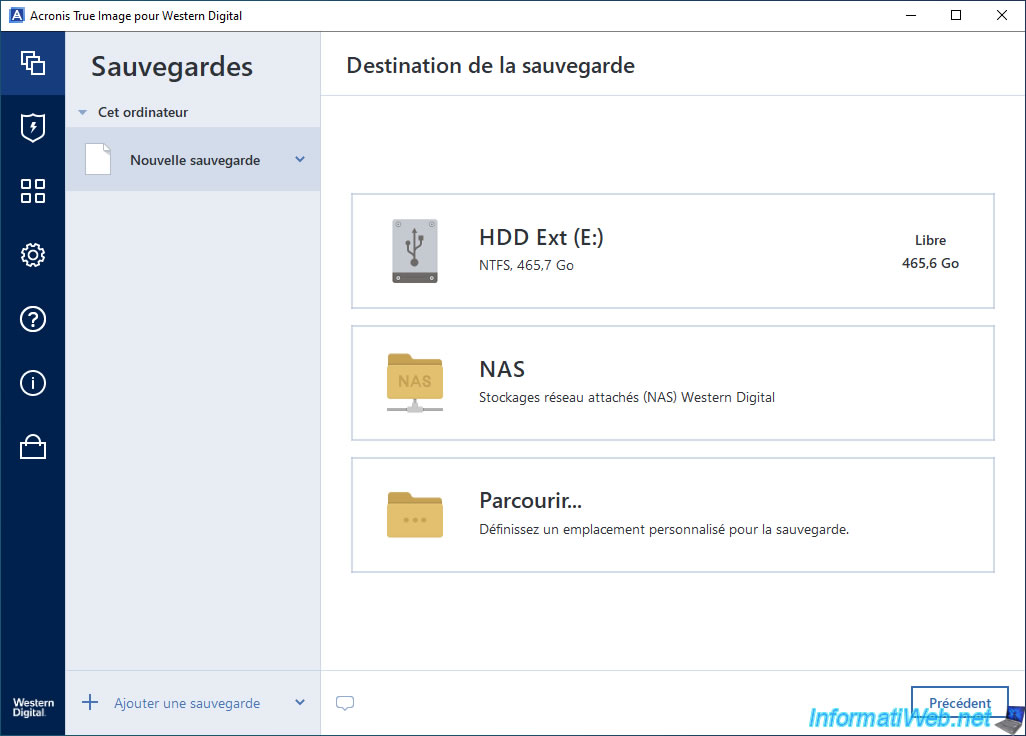
The OEM version of Acronis True Image offered by Western Digital includes the "Active Protection" feature.
This is not the case with the OEM version from Seagate.
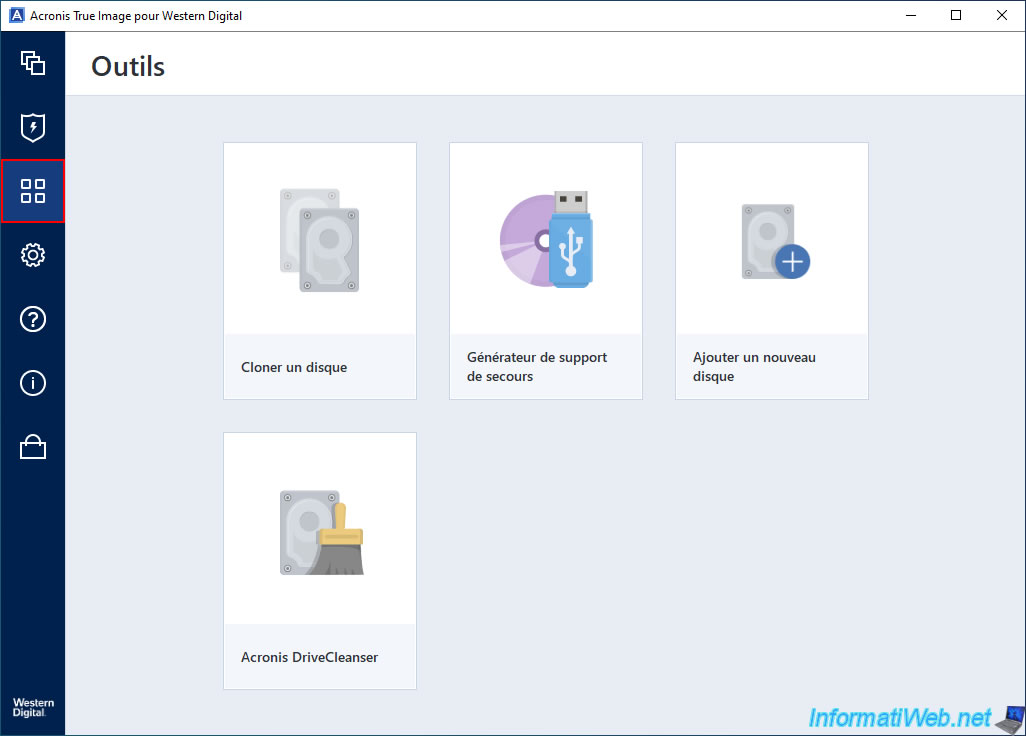
The main limitation lies in the "Tools" section of this program.
In fact, half of the tools are unavailable.
However, you still have the essential tools for backup, restore, disk cloning, ...
So, in reality, you only have what's truly useful.
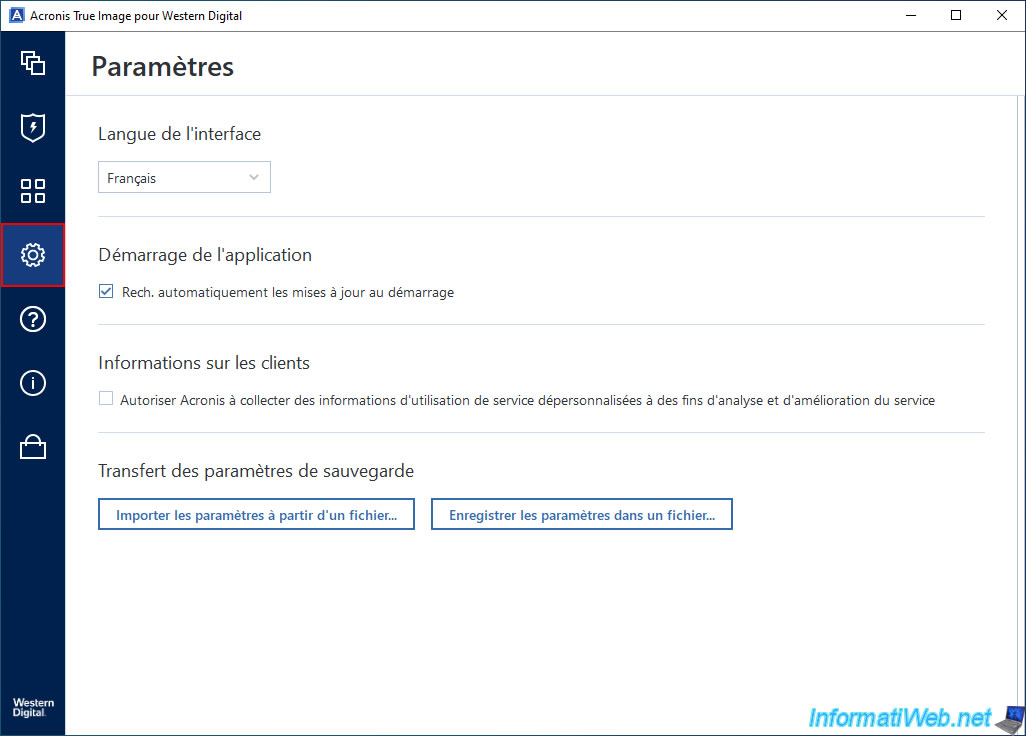
The main settings are all there.
You even have the update checker, which is quite surprising for an OEM version of a program managed by another manufacturer (originally Acronis).
What's missing are the settings related to backing up your smartphone to your PC.
But that's to be expected, since this backup feature isn't available in this OEM version.
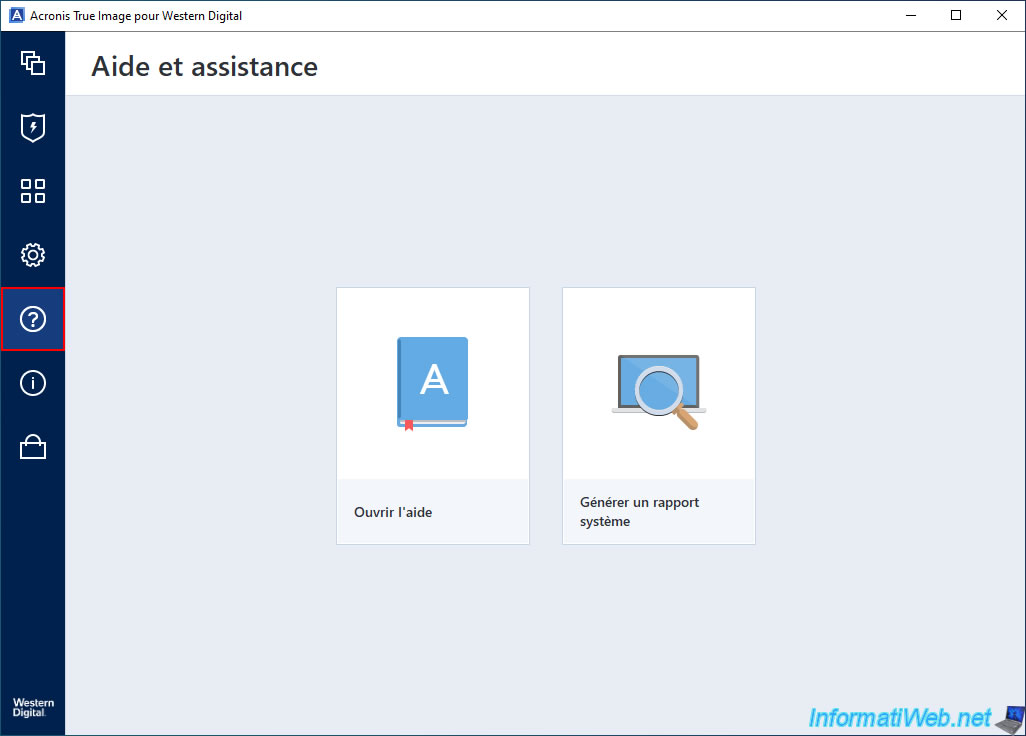
If you need help with this OEM version, you can click on the "?" in the left menu, then on the "Open help" option.
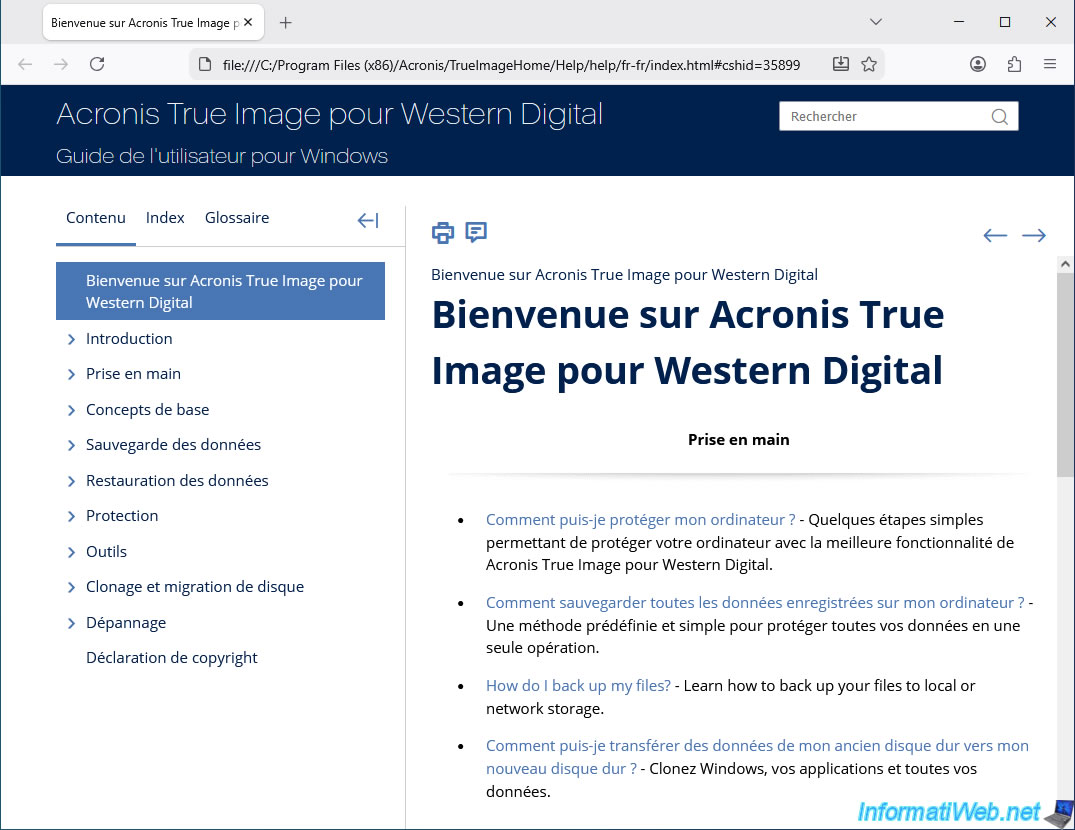
You will access the Windows user guide for this OEM version "Acronis True Image for Western Digital".
Alternatively, the easiest way is to visit our "Acronis True Image (Cyber Protect Home Office)" page to see all the tutorials we've created covering all the features of the full version of Acronis True Image.
If the feature you're looking for is available in this OEM version, simply access the corresponding Acronis True Image tutorial on our website and follow the instructions.
It's the same program, after all.
If you click the "i" in the left-hand menu, you will see your version, update status, and license expiration date.
As a reminder, the program will function for 5 years from the date you install it on your computer.
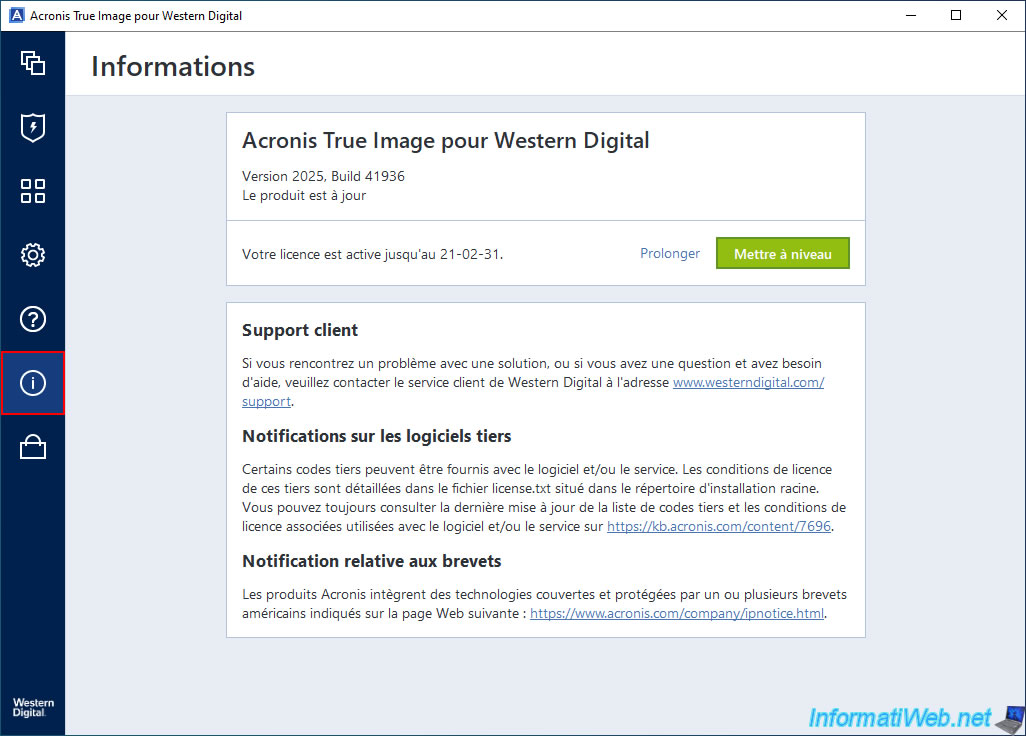
If you still wish to access the few features that are not available in this OEM version offered by Western Digital, click on the shopping cart (in the left menu), then on "Upgrade now".
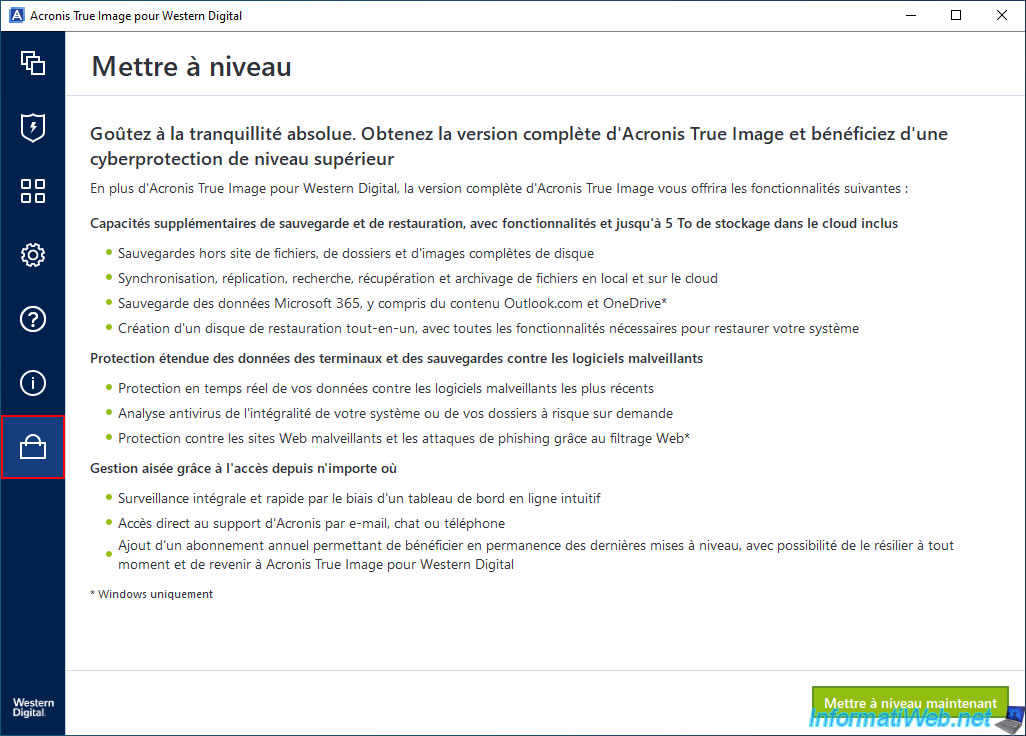
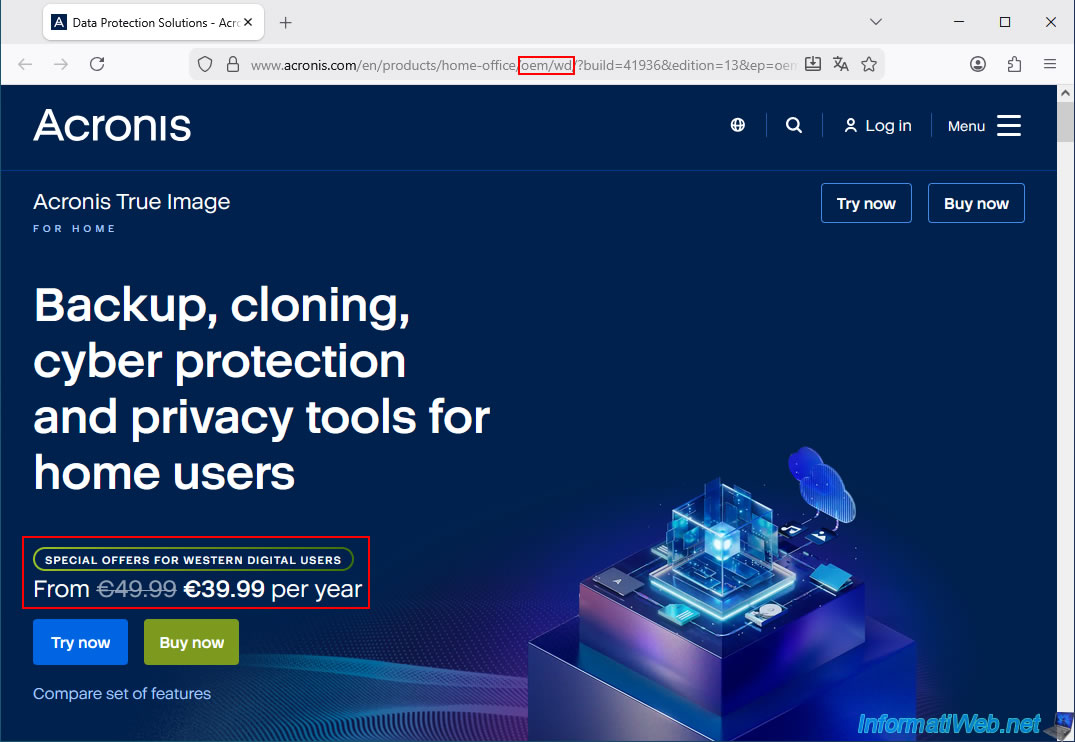
Indeed, this will redirect you to a special page on the Acronis website where you can take advantage of a €10 per year discount on the full version of Acronis True Image because you are currently a user of the Western Digital version of this program.
Share this tutorial
To see also
-
Backup 9/25/2025
Acronis True Image - Backup your Microsoft account to Acronis Cloud (encrypted backup)
-
Backup 9/8/2025
Acronis True Image - Clean up local smartphone backups
-
Backup 12/15/2025
Acronis True Image - Clone a disk (automatic mode)
-
Backup 8/18/2025
Acronis True Image - Replicate backups to Acronis Cloud
No comment