Back up your PC for free with the OEM version of Acronis True Image offered by Western Digital (WD)
- Backup
- Acronis True Image
- 05 October 2026 at 13:12 UTC
-

- 5/7
7. Create the Acronis True Image for Western Digital (OEM version) rescue media
To be able to restore your computer even if Windows stops working one day and you are unable to repair it, it's recommended to create an Acronis True Image for Western Digital rescue media.
To do this, go to the "Tools" section (in the left-hand menu), then click on "Rescue Media Builder".
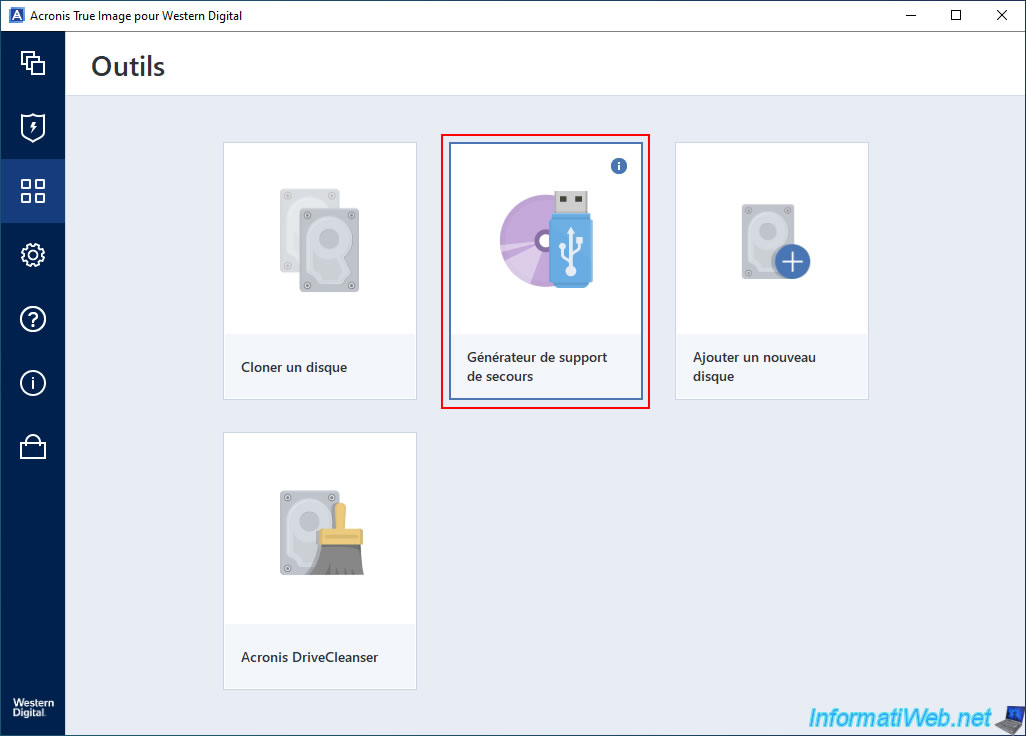
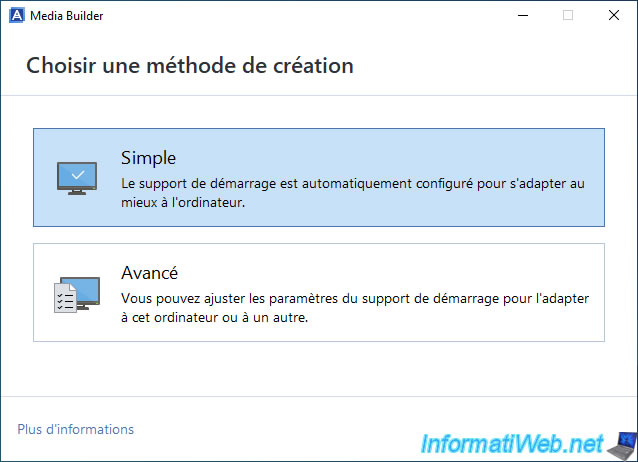
The simplest and fastest way is to use the "Simple" creation method.
However, if you wish to use one of the other options in this Media Builder, simply search for "Acronis True Image - Rescue Media - Create media" on our InformatiWeb website to learn how to use these other options.
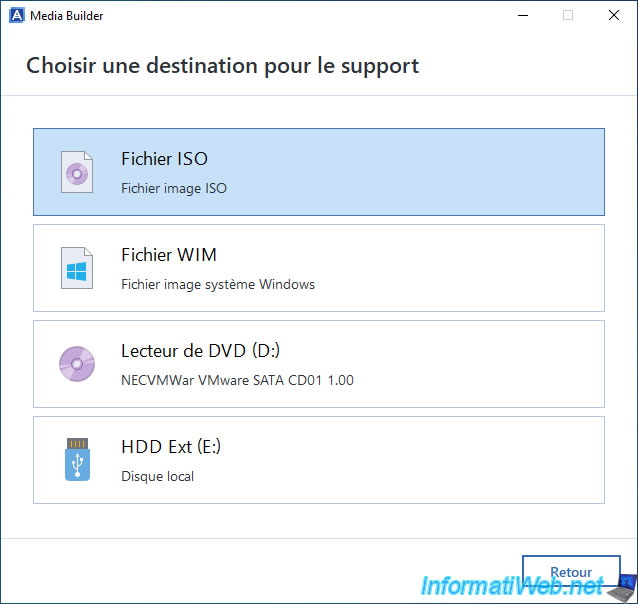
Next, click on "ISO File" to create an ISO file that you will need to burn to a CD/DVD.
Note: If you prefer to use a bootable USB key, plug it into your computer and then click on it at the bottom of this list.
For detailed steps on creating a bootable USB key for this recovery media, refer to our tutorial "Acronis True Image - Rescue Media - Create media easily (bootable USB key)".
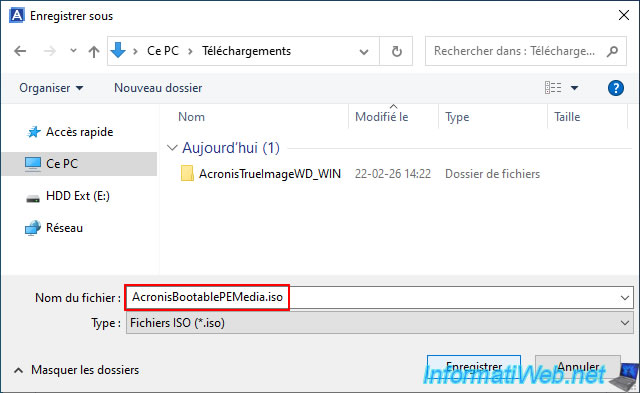
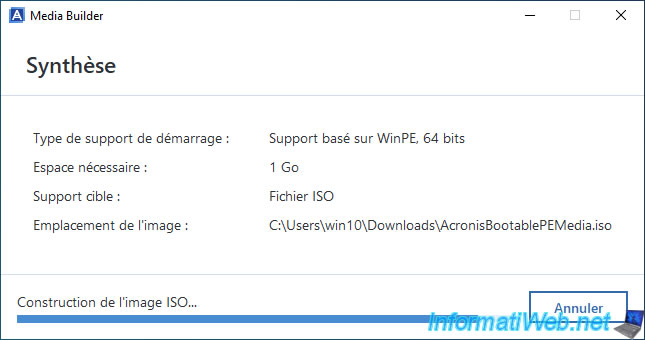
By default, the created file will be named "AcronisBootablePEMedia.iso".
Save it wherever you like.
By default, Acronis True Image for Western Digital will create a rescue media (boot media) using the same architecture (32-bit/64-bit) as your current Windows architecture (usually 64-bit).
Click "Continue".
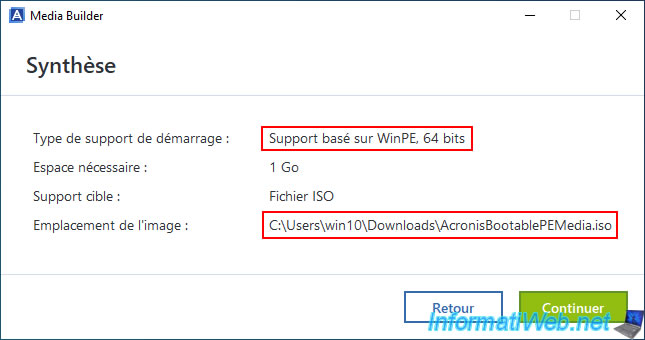
Several steps will appear, including mounting and unmounting the WIM file (i.e., the WinPE environment where the Acronis program will be added), automatically adding drivers to make it work better on your computer, ...
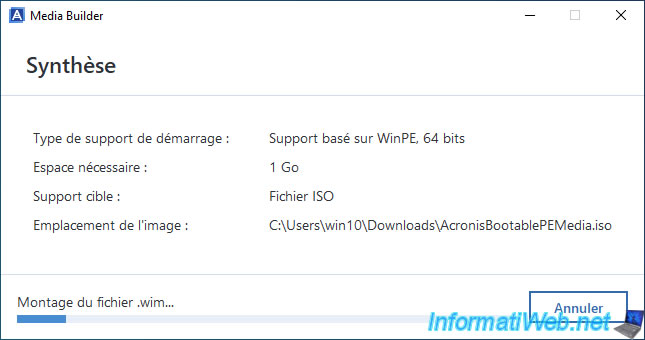
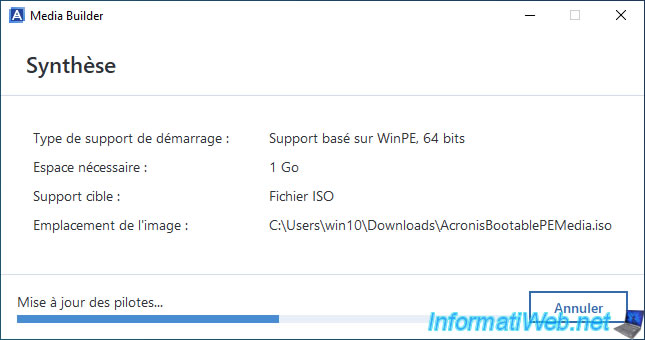
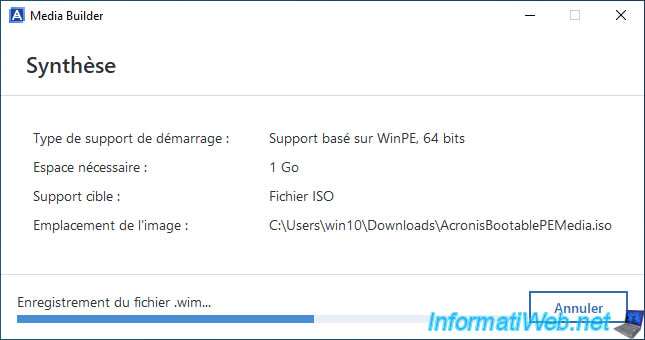
In the end, an ISO file will be created with the WIM file that Acronis has just modified.
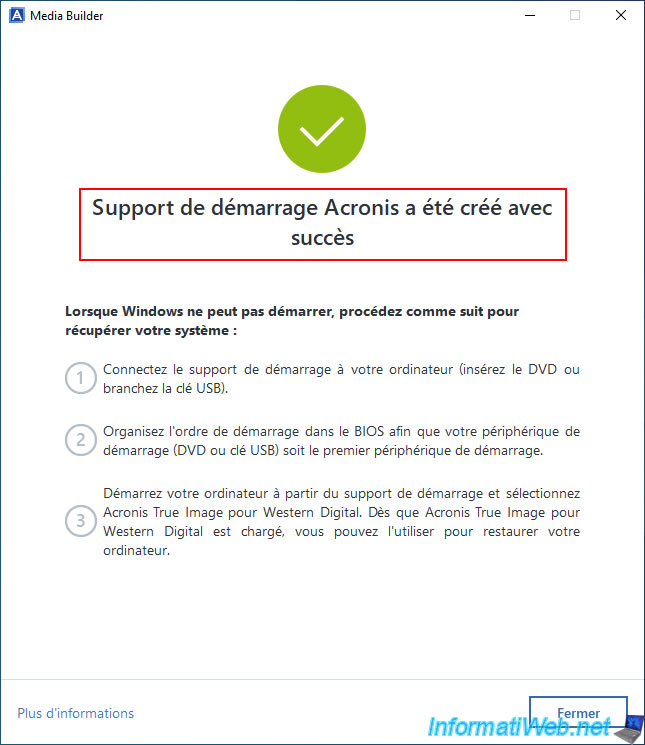
Finally, the message "Acronis boot media has been created successfully" will appear.
Click "Close".
Share this tutorial
To see also
-

Backup 10/13/2025
Acronis True Image - Active Protection (antivirus, vulnerabilities, ... scans)
-
Backup 10/27/2025
Acronis True Image - Archive your files locally (encrypted archive)
-

Backup 6/16/2025
Acronis True Image - Backing up your PC to a Synology NAS
-
Backup 9/8/2025
Acronis True Image - Clean up local smartphone backups
No comment