- Backup
- Acronis True Image, Acronis Universal Restore
- 18 May 2026 at 13:10 UTC
-

- 1/2
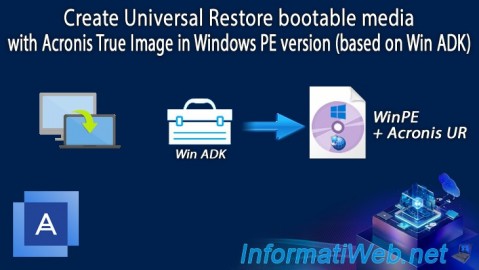
From the "Tools" section of Acronis Cyber Protect Home Office (True Image), you have the possibility to create an Acronis Universal Restore bootable media by basing it on a Windows PE environment.
Tutorial made under Windows 10 v2104 and also tested with Windows 11, 8.1 and 8.
Warning : when your Acronis Universal Restore bootable media is based on Windows PE, you only have access to the "Acronis Universal Restore" program.
You will therefore not be able to back up and restore your computer from it. To do this, you will need to create an additional Acronis rescue media via the "Rescue Media Generator" tool (as explained in our tutorial "Acronis True Image - Rescue Media - Create media (Win PE version)").
- Download the Windows Deployment Kit and Windows PE (Preinstallation Environment) add-on
- Create Acronis Universal Restore media based on Windows PE (Preinstallation Environment)
- Boot to your Acronis Universal Restore bootable media
1. Download the Windows Deployment Kit and Windows PE (Preinstallation Environment) add-on
To create an Acronis Universal Restore media based on Windows PE, you will first need the Windows Deployment Kit and the "Windows PE" add-on.
To do this, go to the "Tools" section of Acronis Cyber Protect Home Office (True Image) and launch the "Acronis Universal Restore" tool.
Warning : this free tool is not installed by default. So, Acronis Cyber Protect Home Office (True Image) will first ask you to download and install it.
If needed, refer to the step of "1. Download and install Acronis Universal Restore" of our tutorial on creating and using a Universal Restore media.
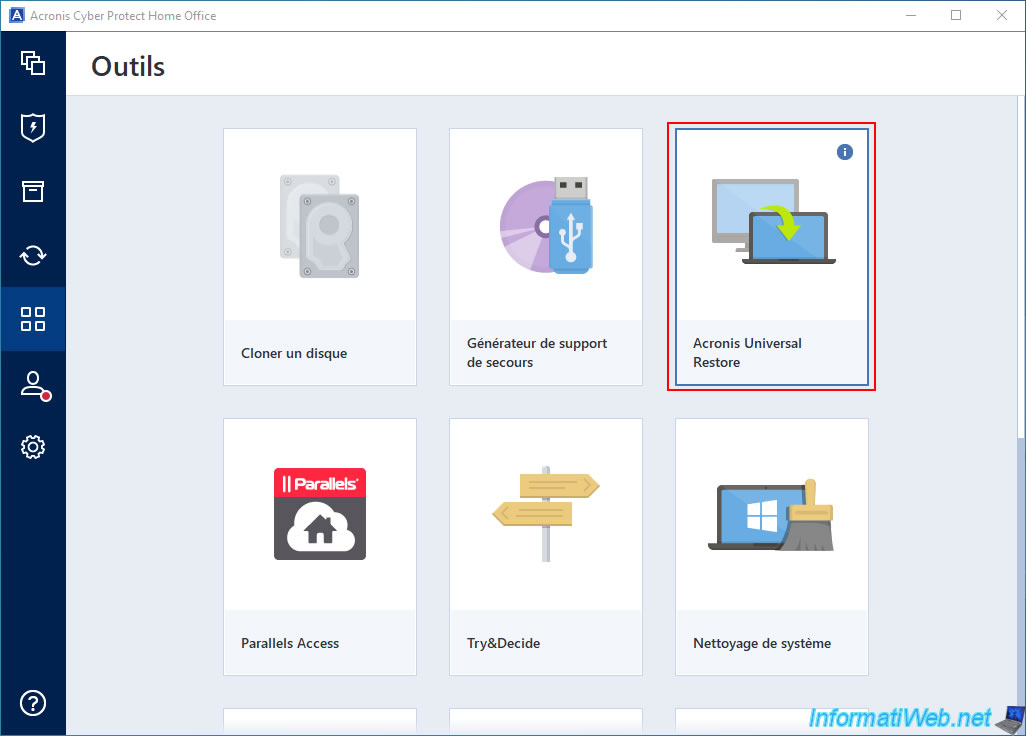
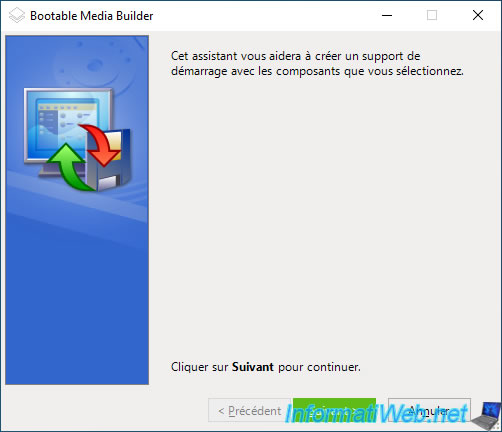
The "Bootable Media Builder" program will appear.
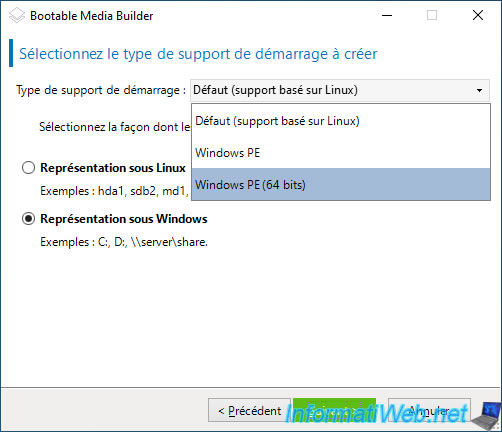
For Bootable Media Type, select "Windows PE" or "Windows PE (64-bit)" depending on your Windows architecture (32-bit (x86) / 64-bit (x64)).
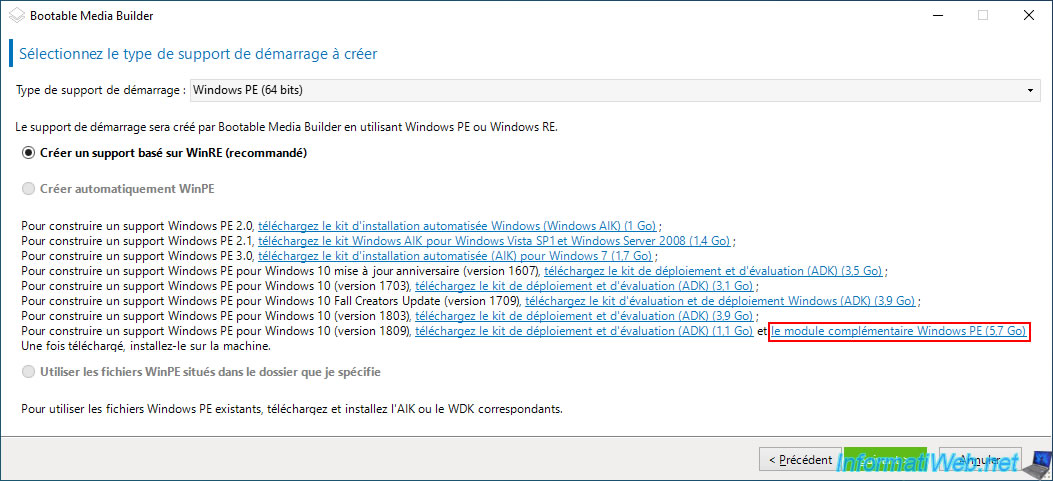
As you can see, by default, the "Automatically create WinPE" option is grayed out.
Indeed, as indicated at the bottom of the window, you will need the corresponding WDK (Windows Deployment Kit) to create a Windows PE media.
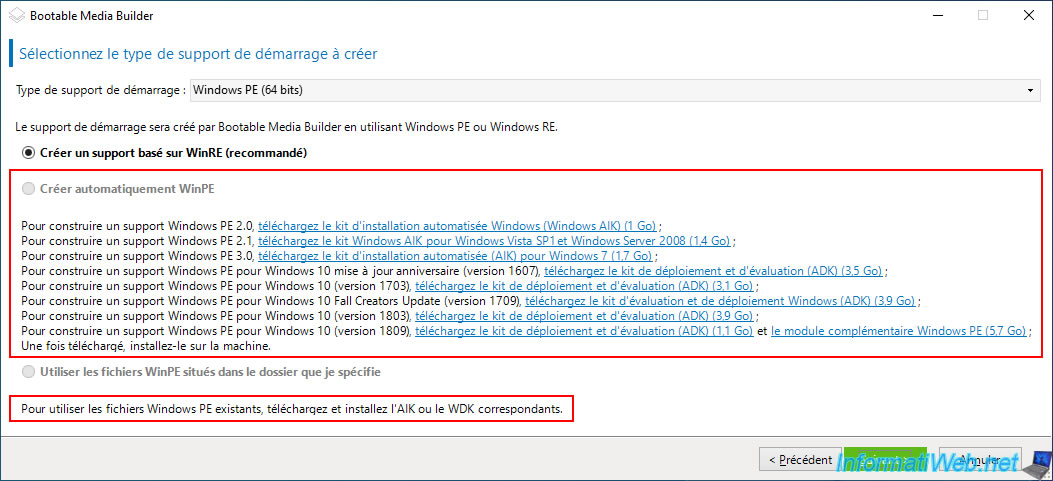
Whether you are on Windows 8, 8.1 or 10, download and install the latest version of the ADK offered by Acronis.
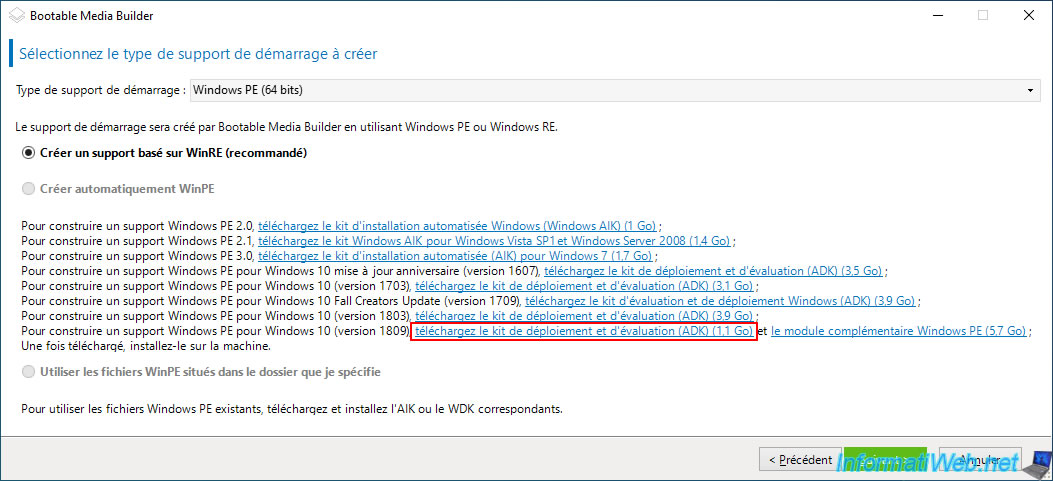
So, click on the link "download the Assessment and Deployment Kit (ADK) (1.1 GB)" to create a Windows PE media for Windows 10 (version 1809).
Note: installing a Windows 10 Deployment Kit on Windows 11, 8.1 or 8 is no problem.
This simply defines the version of the Windows PE media that will be created using this ADK.
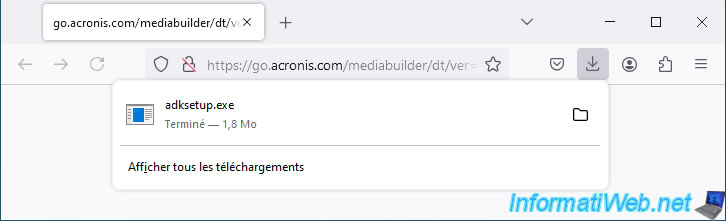
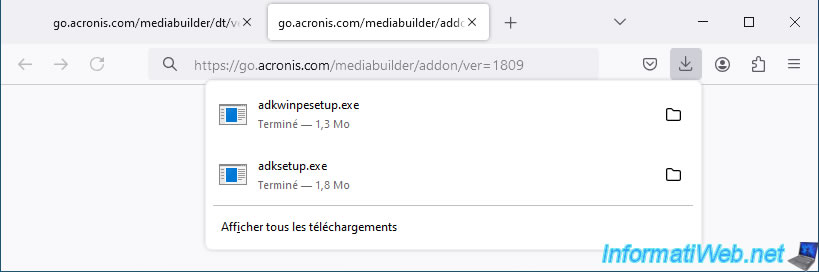
An "adksetup.exe" file will be downloaded from the Microsoft site (via a redirect link from Acronis).
The Windows Deployment Kit logo appears for a few seconds.

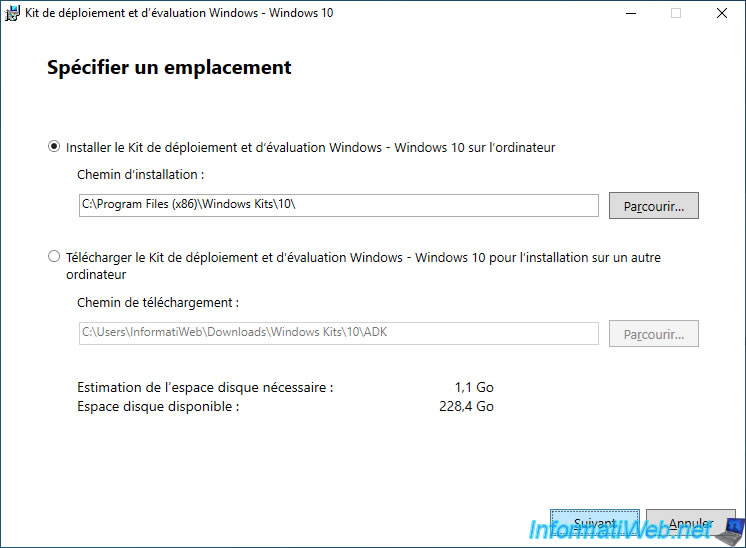
The "Windows Assessment and Deployment Kit - Windows 10" window appears.
Simply click "Next" leaving the default installation folder.
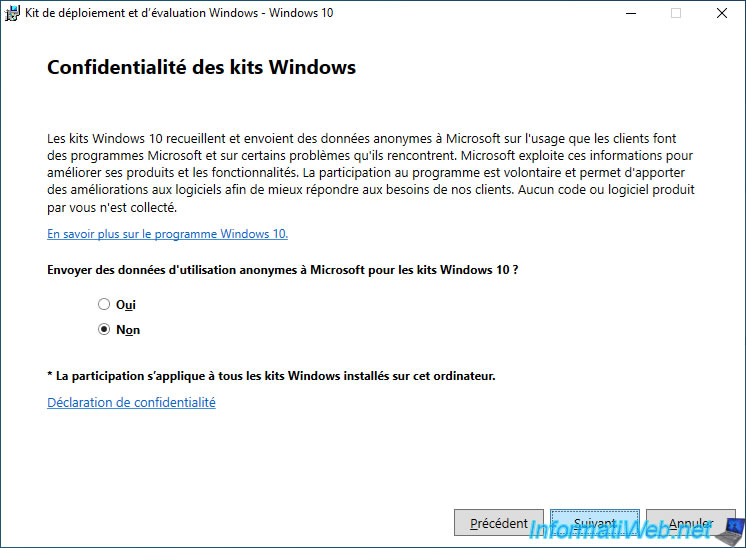
Opt out of sending data to Microsoft to protect your privacy.
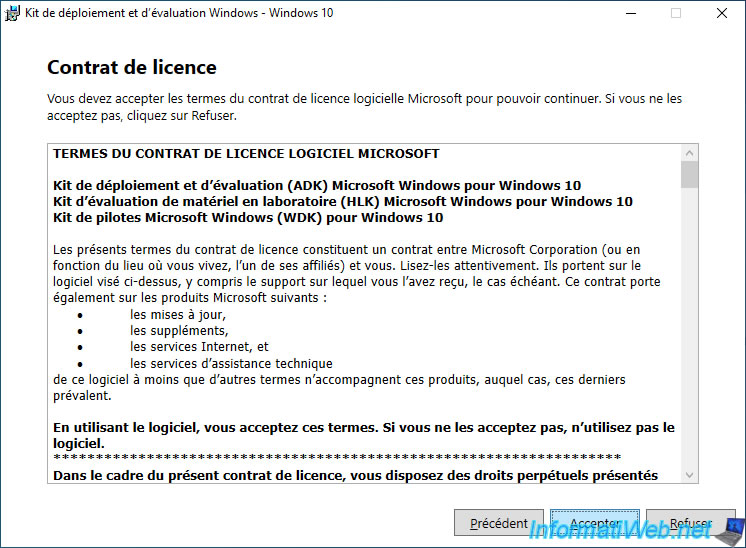
Accept the Microsoft license agreement.
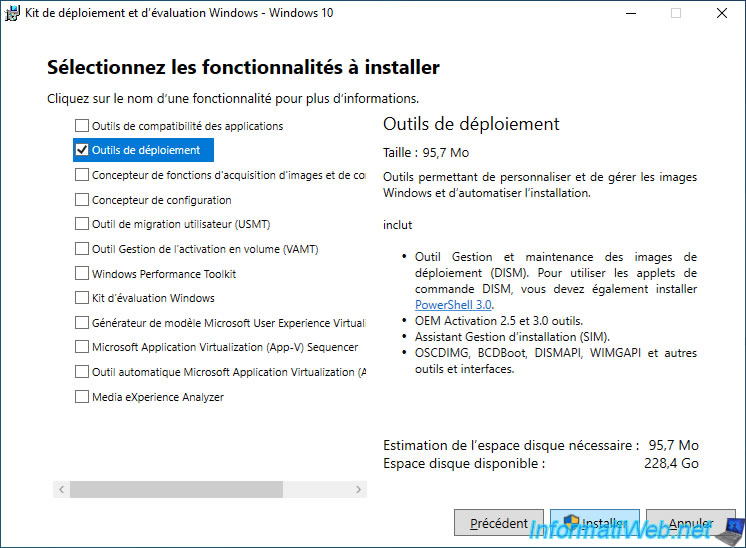
Install only the "Deployment Tools" feature that Acronis requires for creating your Acronis bootable media.
Note: this information is provided in the "Rescue Media Generator" tool of Acronis Cyber Protect Home Office (True Image) and this prerequisite is the same when creating Acronis Universal Restore bootable media (even if it is not provided in this case by Acronis).
In short, the goal is to save you time and disk space by installing only the feature that is needed in this case.
Please wait while the "Deployment Tools" feature is downloaded (acquired).
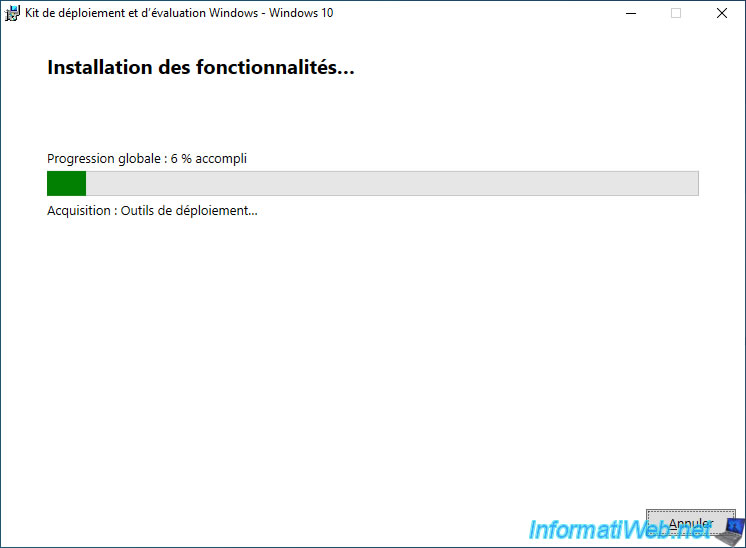
Then, wait while it installs.
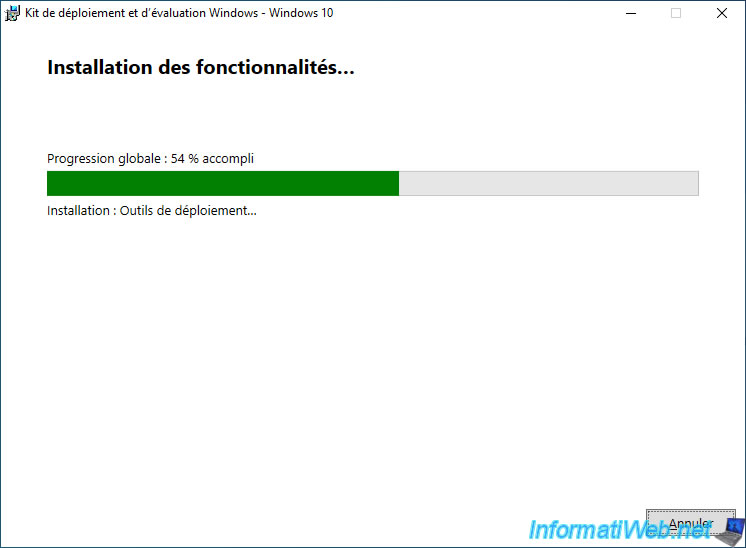
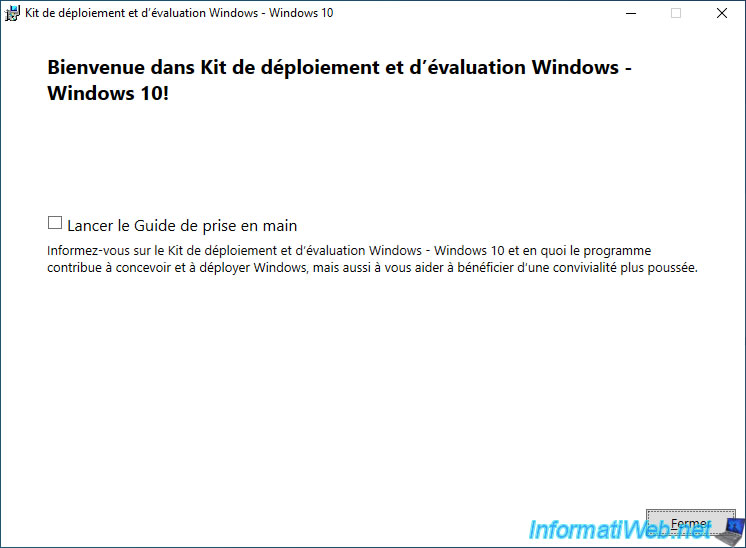
Once the Windows Deployment Kit is installed, click "Close".
Now, download and install the Windows PE add-on by clicking on the second link shown for Windows 10 (version 1809).
An "adkwinpesetup.exe" file will be downloaded from Microsoft's server.
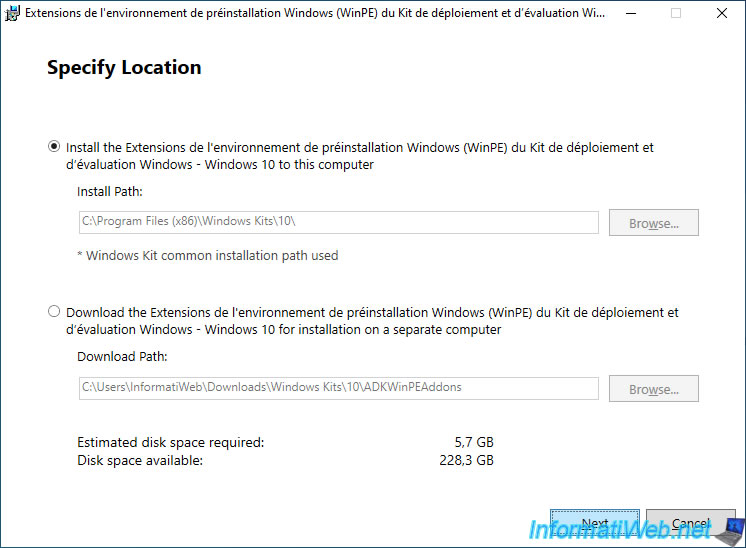
The installation folder is not editable, as it is the same as the Windows Deployment Kit you just installed on your computer.
Just click "Next".
As you can see, this add-on allows you to get Windows PE (x86) and Windows PE (AMD64).
In other words, the 32-bit (x86) and 64-bit (x64) versions of Windows PE.
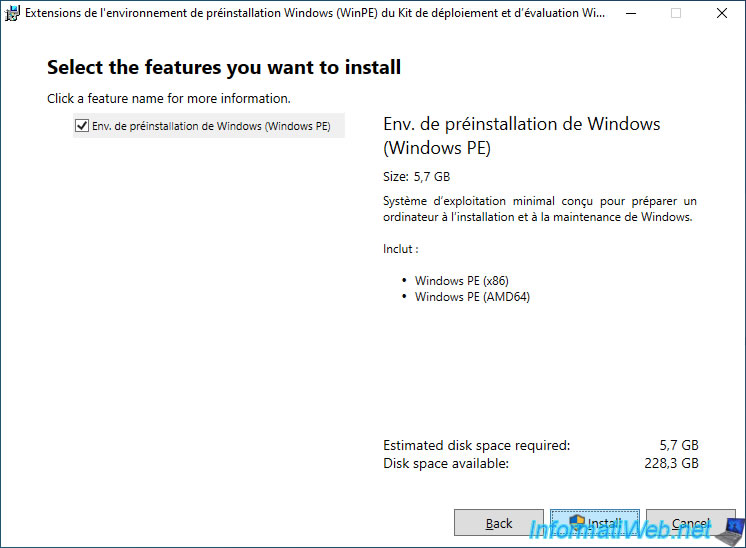
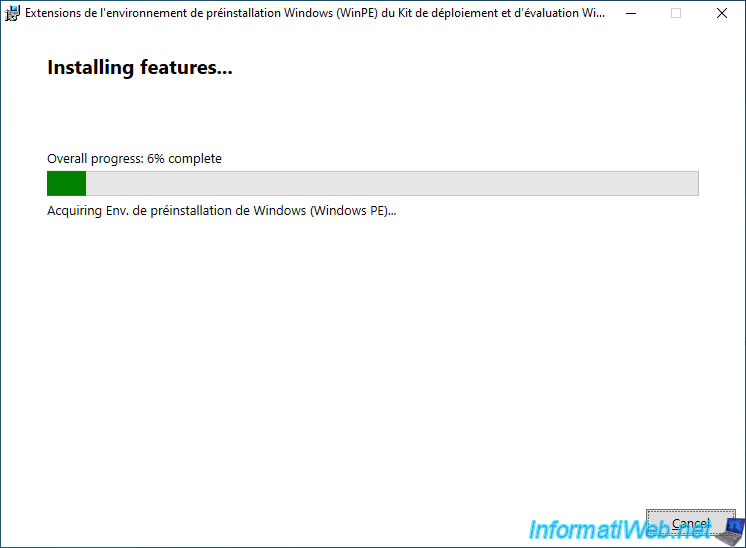
Please wait while Windows PE downloads.
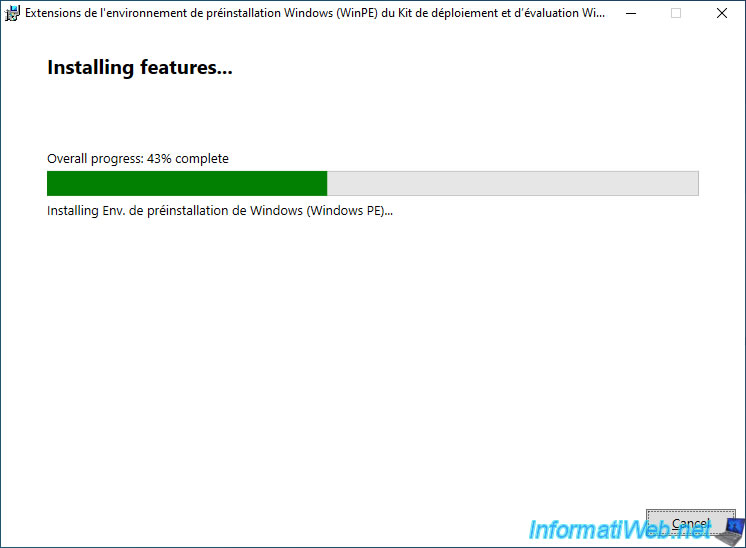
Then, wait while this "Windows PE" feature is installed.
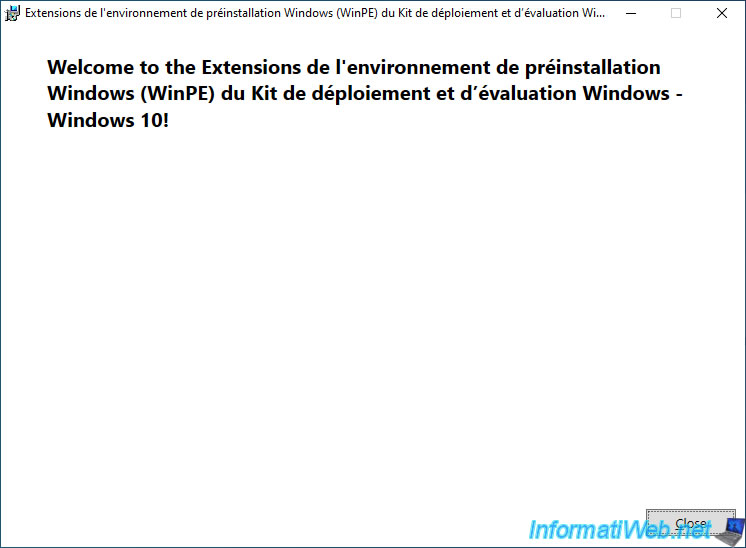
Once this Windows PE add-on has finished downloading and installing, click "Close".
Share this tutorial
To see also
-

Backup 9/11/2025
Acronis True Image - Backing up your smartphone to Acronis Cloud
-
Backup 3/9/2026
Acronis True Image - Rescue Media - Enable recovery option
-
Backup 5/25/2026
Acronis True Image - Universal Restore Media - Create media (Win PE version based on Win AIK)
-
Backup 5/11/2026
Acronis True Image - Universal Restore Media - Create media (Win PE version based on Win RE)
You must be logged in to post a comment