Create Universal Restore bootable media with Acronis True Image (Cyber Protect Home Office) in Windows PE version (based on Win ADK)
- Backup
- Acronis True Image, Acronis Universal Restore
- 18 May 2026 at 13:10 UTC
-

- 2/2
2. Create Acronis Universal Restore media based on Windows PE (Preinstallation Environment)
Now that you have installed the Windows Deployment Kit (ADK) and the "Windows PE" add-on, you need to close the "Bootable Media Builder" program and run the "Acronis Universal Restore" tool again.
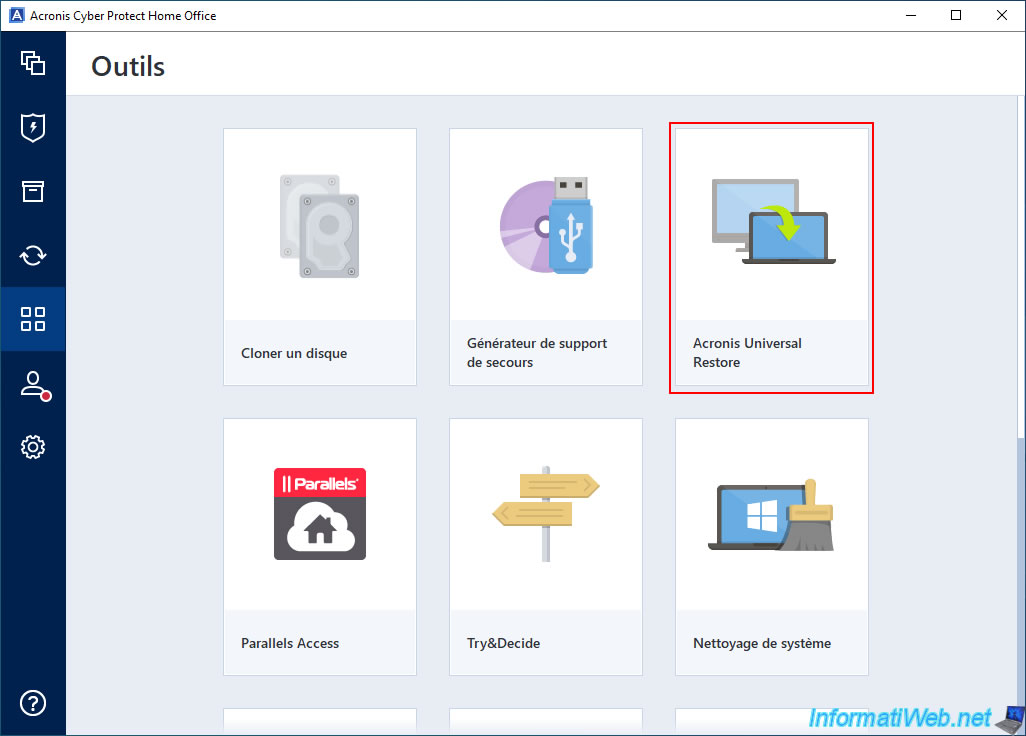
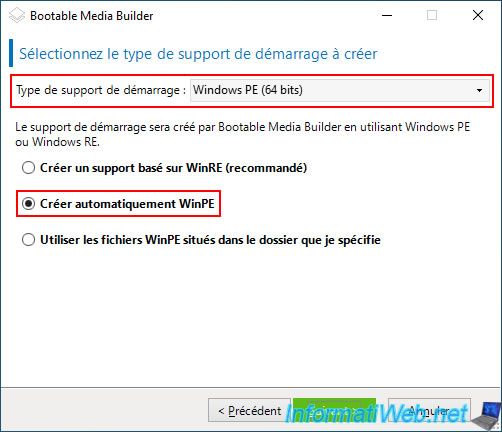
Again, choose "Windows PE" or "Windows PE (64-bit)" as the bootable media type.
As you can see, this time the "Automatically create WinPE" option is available and the download links are gone.
Select the "Automatically create WinPE" option and click "Next".
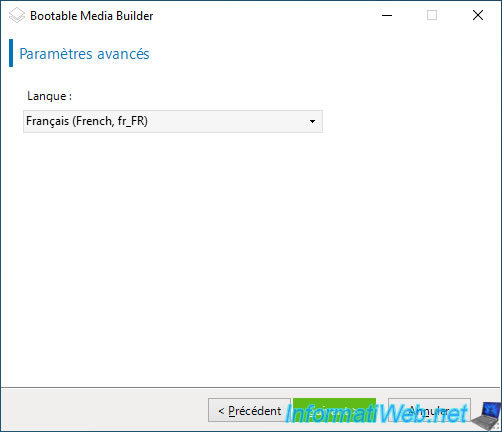
Select your language from the list to have the Windows PE environment in your language.
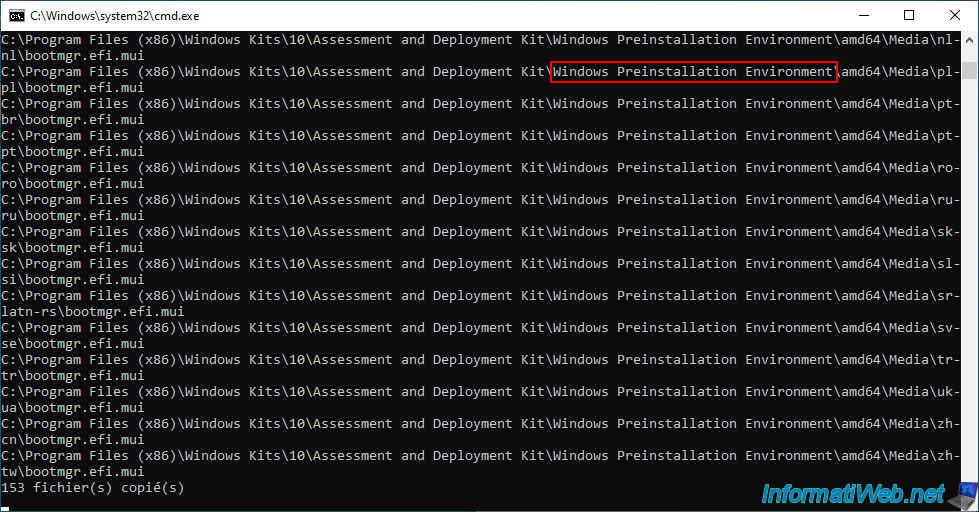
Please wait while the Windows PE environment that will be used by Acronis Bootable Media Builder is automatically created.
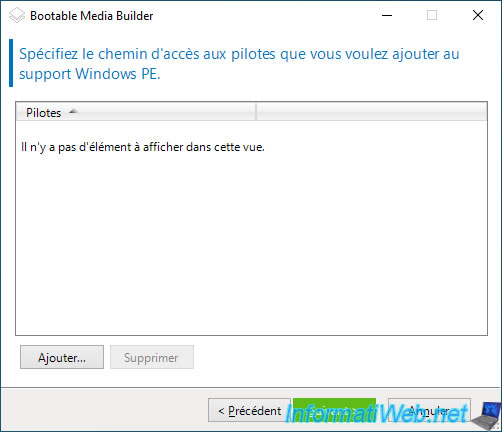
If needed, you can add drivers to your Windows PE media.
This can be useful to support a RAID controller, for example.
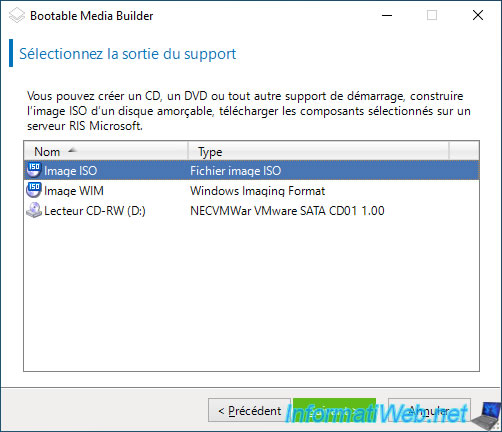
Select "ISO Image" for media output.
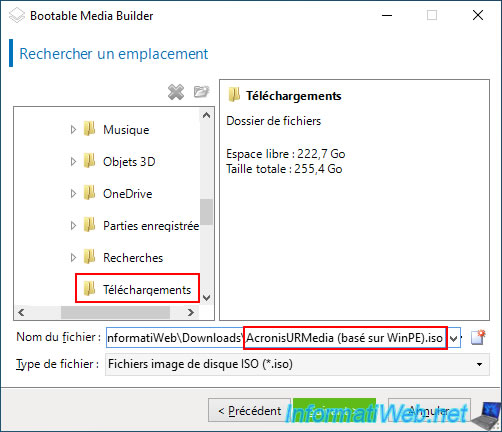
Select the destination folder where you want to create this ISO file and specify a name for it.
For example: AcronisURMedia (WinPE based).iso.
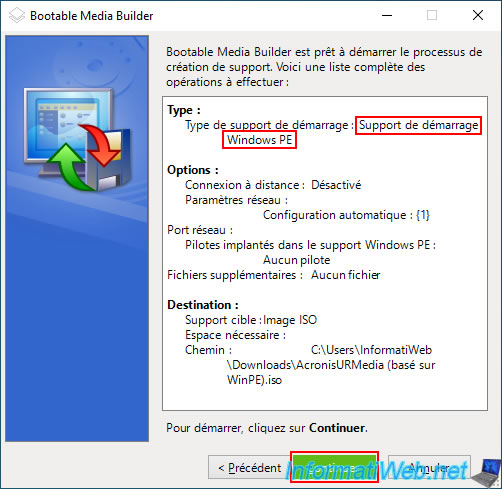
Click "Continue" to start creating your Acronis Universal Restore bootable media which will be based on Windows PE.
The "Bootable Media Builder" program will first create a copy of the source WIM file.
Plain Text
Copy of the source WIM file.

The "Bootable Media Builder" program will modify the contents of the newly created WIM file.
Plain Text
Updating the contents of the WIM file.

The "Bootable Media Builder" program will add several WinPE packages to add some features: NetFx (.Net Framework), PowerShell (for PowerShell scripts), ...
Plain Text
Deployment Image Servicing and Management tool
Version: 10.0.17763.1

Image Version: 10.0.17763.1

Processing 1 of 11 - Adding package WinPE-WMI-Package~31bf3856ad364e35~amd64~~10.0.17763.1
[==========================100.0%==========================]
Processing 2 of 11 - Adding package WinPE-NetFx-Package~31bf3856ad364e35~amd64~~10.0.17763.1
[==========================100.0%==========================]
Processing 3 of 11 - Adding package WinPE-Scripting-Package~31bf3856ad364e35~amd64~~10.0.17763.1
[==========================100.0%==========================]
Processing 4 of 11 - Adding package WinPE-PowerShell-Package~31bf3856ad364e35~amd64~~10.0.17763.1
[==========================100.0%==========================]
...
The operation completed successfully.
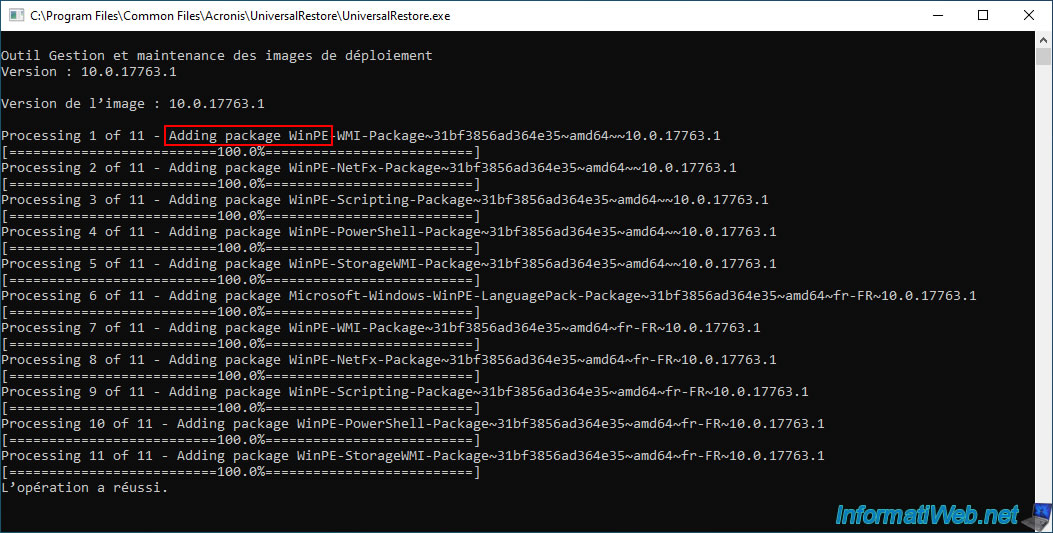
Once the WinPE packages needed for Acronis are added automatically, the "Bootable Media Builder" program will unmount the WIM image.
Plain Text
WIM image unmounting.

The "Bootable Media Builder" program will build the ISO image (including the created WIM file).

Your Acronis Universal Restore bootable media has been successfully created.

Now, burn this ISO file to a DVD using your favorite burning software.
If needed, refer to our tutorial: Burn a CD/DVD.
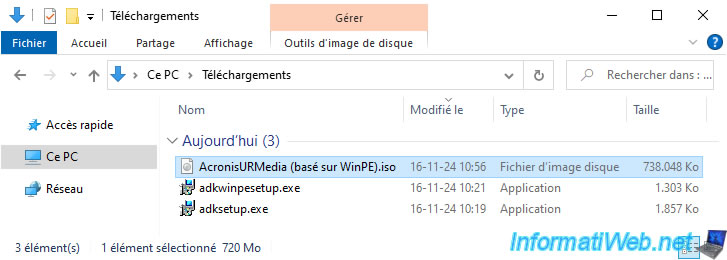
3. Boot to your Acronis Universal Restore bootable media
To boot to your Acronis Universal Restore bootable media, configure your motherboard boot order so that your computer boots to your CD/DVD drive first.
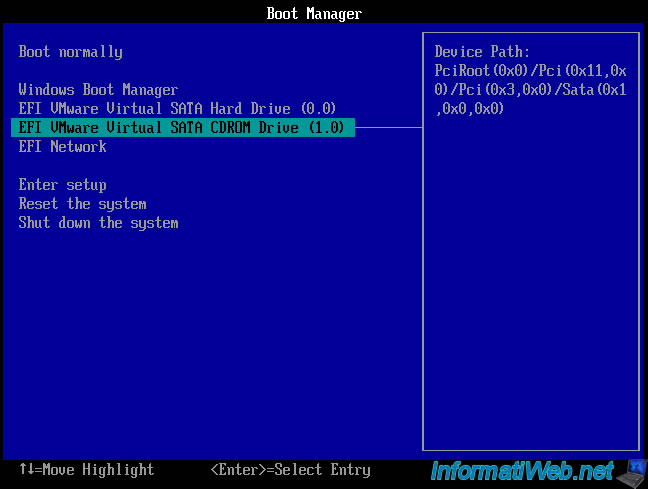
When your computer starts, you will see a message asking you to press a key.
Press Enter.

The Windows logo appears (since your Acronis Universal Restore bootable media is based on Windows PE).

A command prompt (cmd.exe) appears with a few commands, the last of which launches the Acronis program automatically installed in this Windows PE environment.
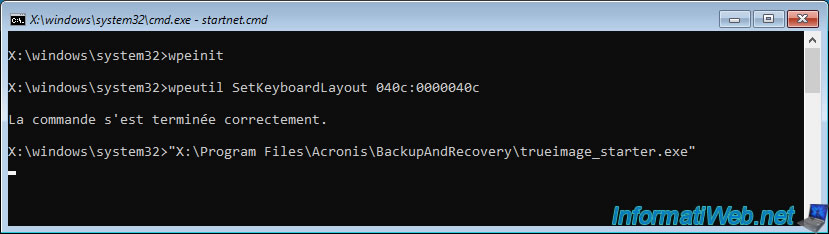
As expected, the Acronis program appears.
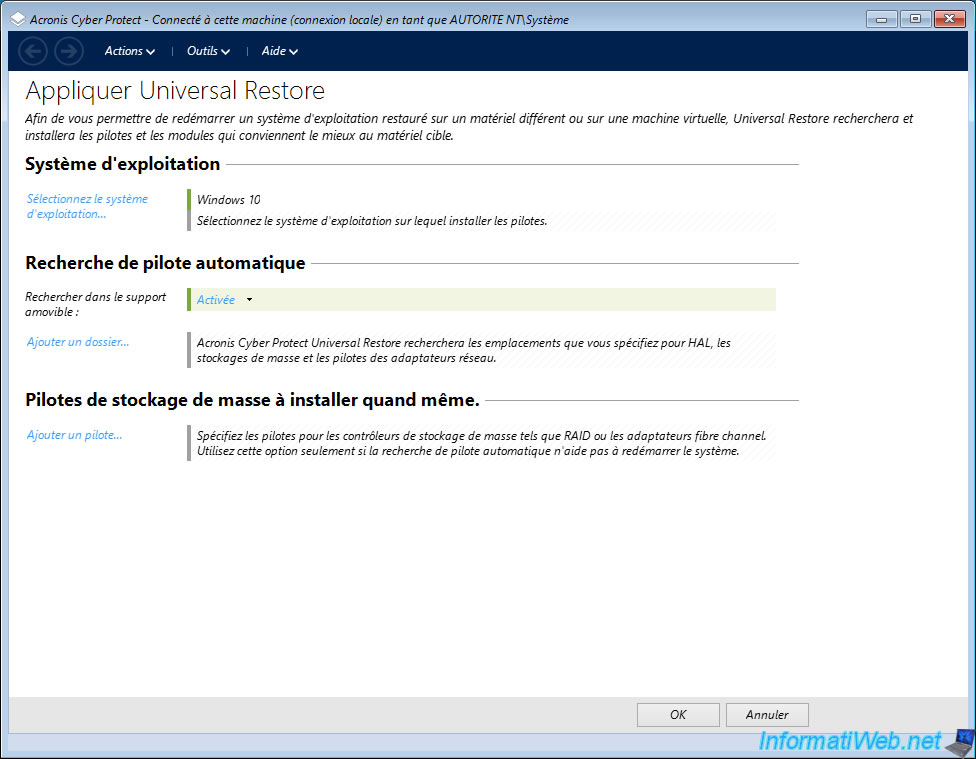
Note: the toolbar options of this Acronis program are the same as when you create this Acronis Universal Restore bootable media based on Windows RE.
So, for the information about these options, refer to the end of our tutorial: Acronis True Image - Universal Restore Media - Create media (Win PE version based on Win RE).
Share this tutorial
To see also
-

Backup 9/1/2025
Acronis True Image - Backing up your smartphone to your PC
-
Backup 9/8/2025
Acronis True Image - Clean up local smartphone backups
-
Backup 3/16/2026
Acronis True Image - Rescue Media - Partition a new disk
-

Backup 11/20/2025
Acronis True Image - Synchronize a folder from Acronis Cloud
No comment