- Backup
- Acronis True Image
- 12 October 2026 at 07:46 UTC
-

- 1/4
Acronis True Image is a well-known, reliable, and comprehensive backup and restore software.
However, it is usually a paid program.
Fortunately, thanks to the "SanDisk" brand (now owned by "Western Digital" (WD)), you can download and use this software for free as long as you have at least one SanDisk hard drive (internal or external) or USB flash drive.
Important : this OEM version of Acronis True Image is nearly complete, and the backup and restore options are not limited.
This is obviously also the case for the OEM version provided by Western Digital, since the "SanDisk" brand is now owned by "Western Digital." Therefore, the available options and limitations are identical.
- SanDisk disk or USB key required
- Download Acronis True Image for Sandisk (OEM version)
- Install Acronis True Image for SanDisk (OEM version)
- OEM version limitations: Acronis True Image for SANDISK
- Back up your computer using Acronis True Image for SANDISK (OEM version)
- Restore your computer using Acronis True Image for SANDISK (OEM version)
- Create Acronis True Image for SANDISK rescue media (OEM version)
- Introducing Acronis True Image for SANDISK rescue media
1. SanDisk disk or USB key required
As explained previously, to use the OEM version of Acronis True Image provided by SanDisk, you must own at least one SanDisk device.
In our case, this is a simple SanDisk USB key.
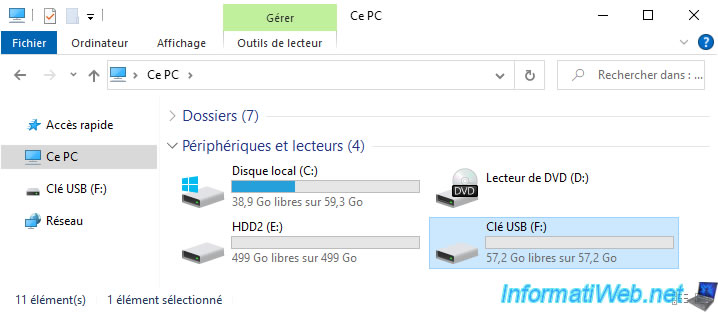
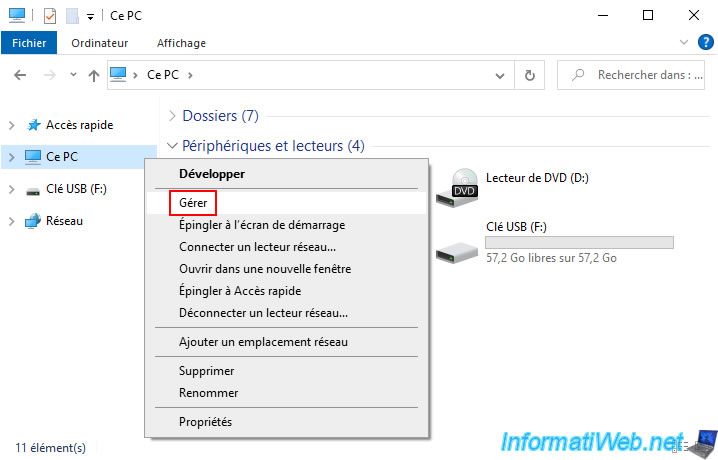
To see the brand of your hard drives, SSDs and USB keys, right-click "Manage" on "This PC".
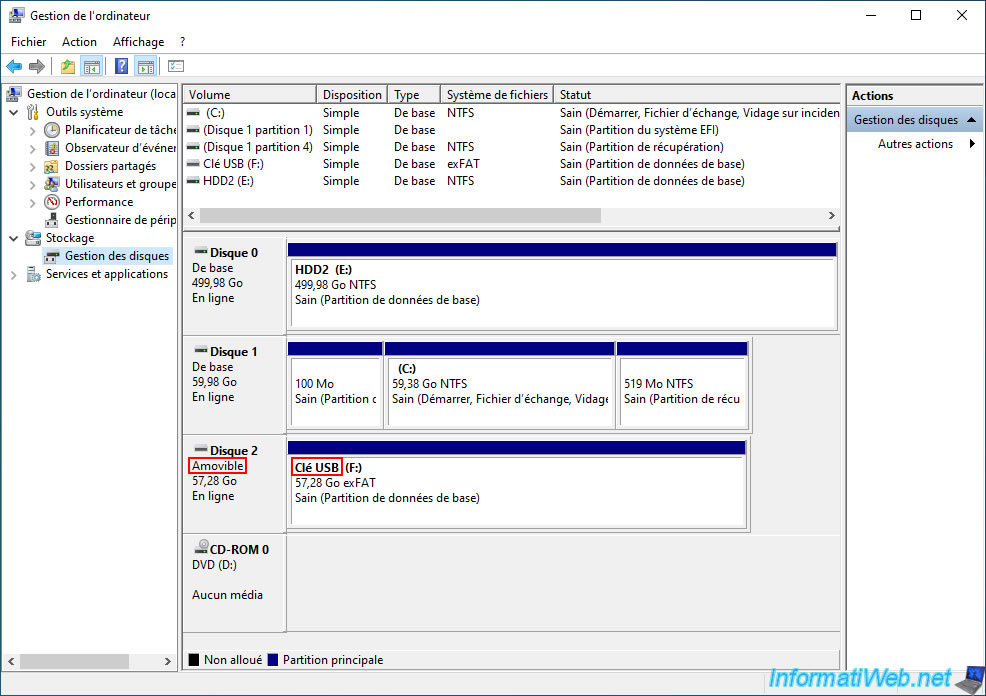
Next, go to the "Disk Management" section.
To see the model (and possibly also the brand) of a storage device, right-click on it and select "Properties".
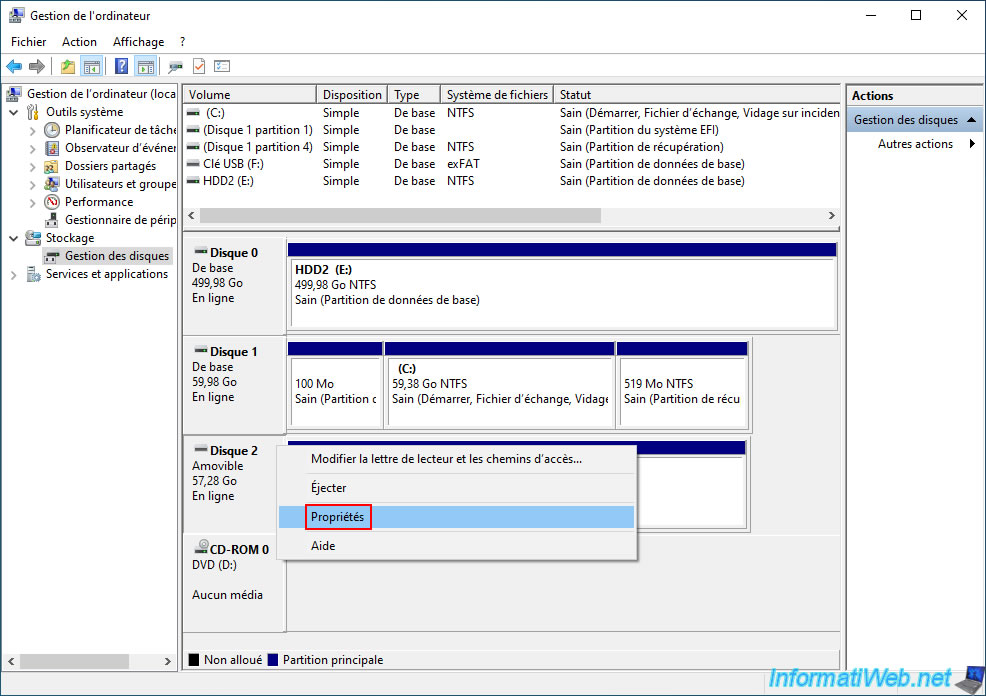
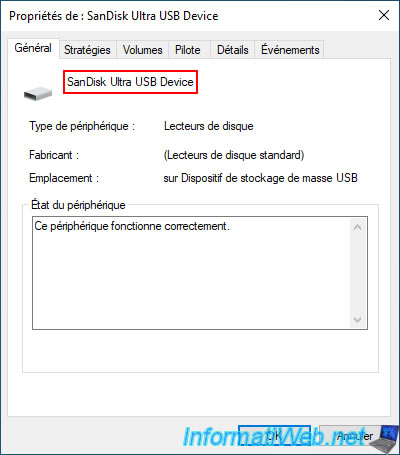
In our case, you can see that it is a simple "SanDisk Ultra" USB key.
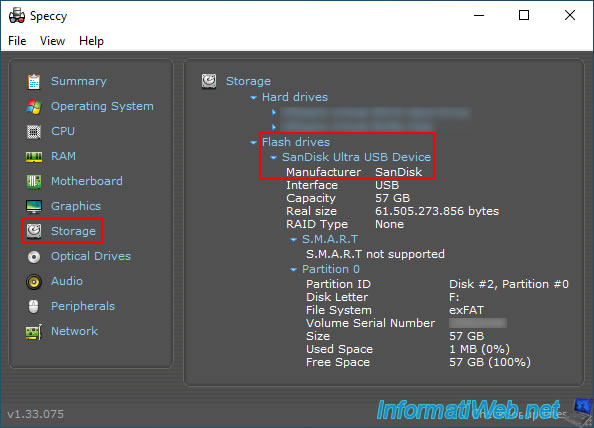
If needed, you can download the "Speccy" program and go to the "Storage" section to find out the manufacturer of your hard drives, SSDs, and USB keys.
Again, you can see that the manufacturer of our "SanDisk Ultra" USB key is "SanDisk".
2. Download Acronis True Image for Sandisk (OEM version)
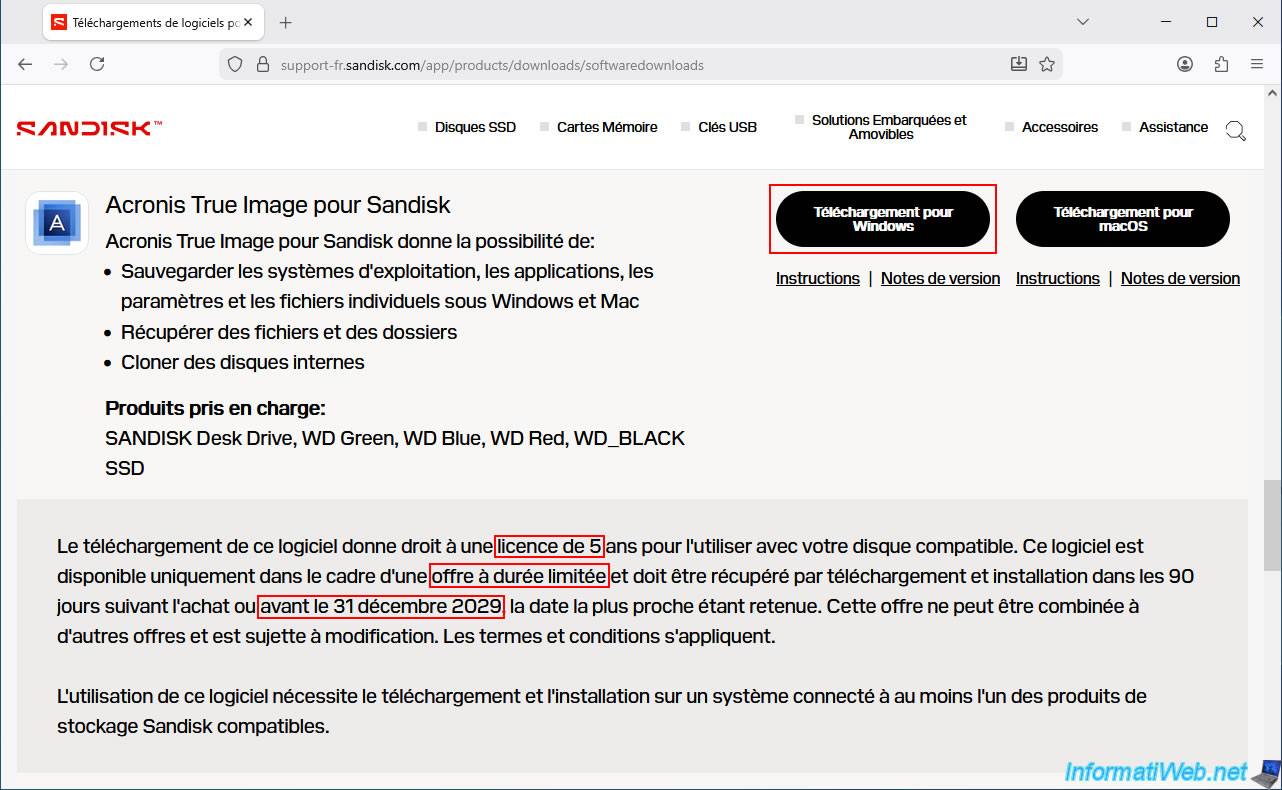
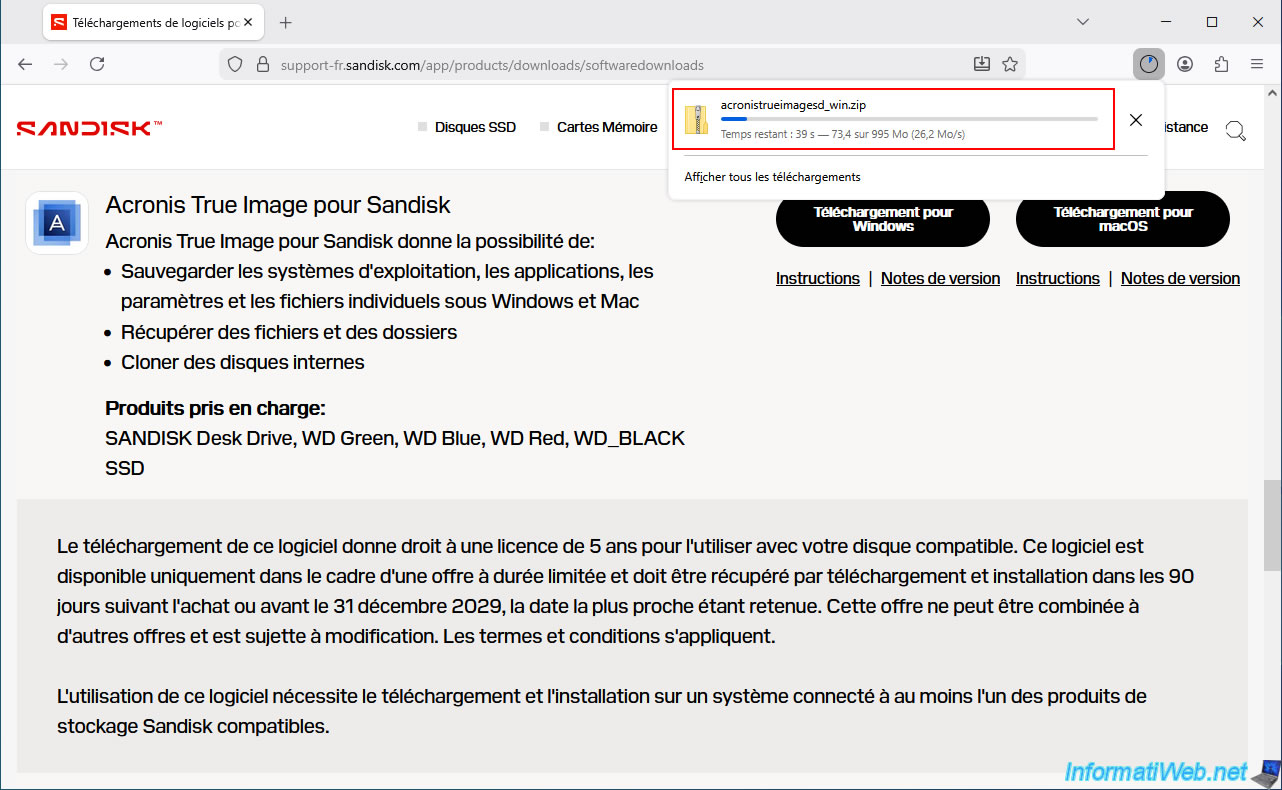
To download "Acronis True Image for SanDisk," go to the "Sandisk Product Software Downloads | Sandisk" page.
Then, click the "Download for Windows" button to the right of the "Acronis True Image for SanDisk" program.
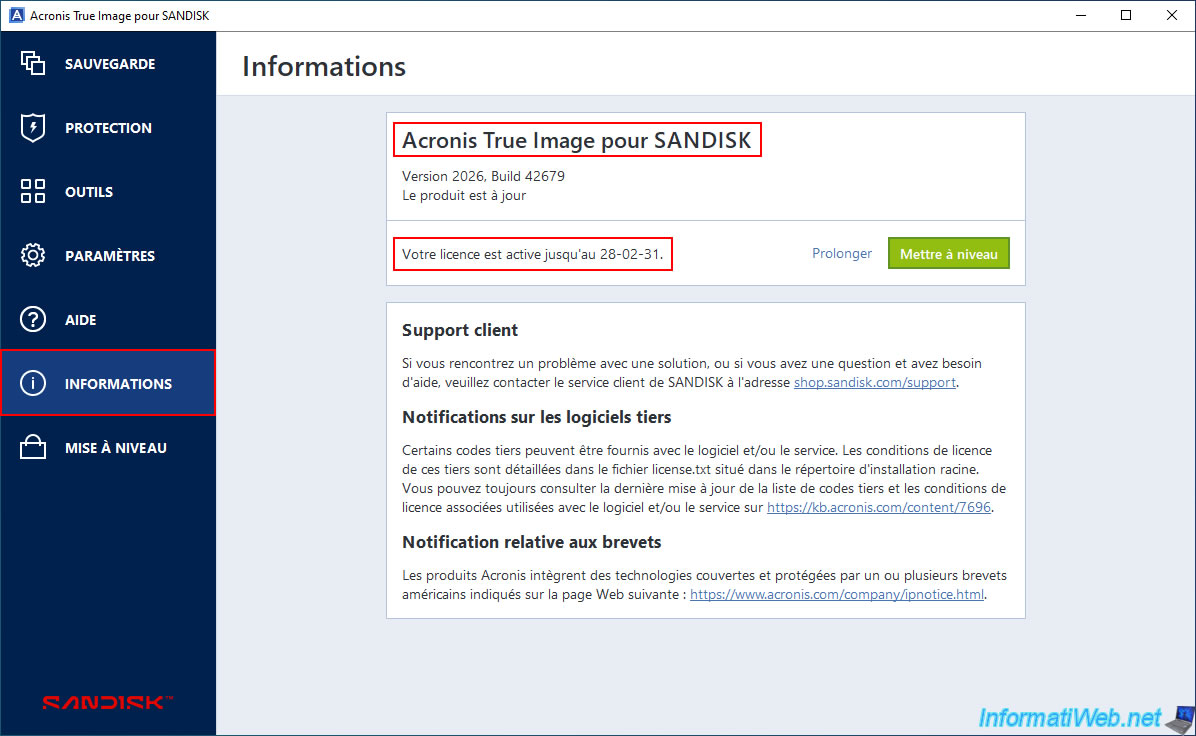
Important : As you can see, you must download this "Acronis True Image for SanDisk" program before December 31, 2029, and it will function for 5 years from the date of installation.
Please wait while the file "acronistrueimagesd_win.zip" is being downloaded.
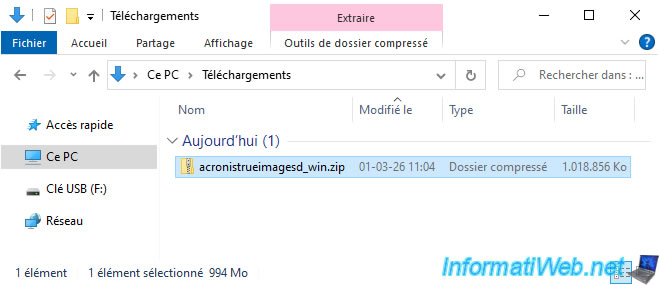
As you can see, the file "acronistrueimagesd_win.zip" currently weighs about 1 GB.
3. Install Acronis True Image for SanDisk (OEM version)
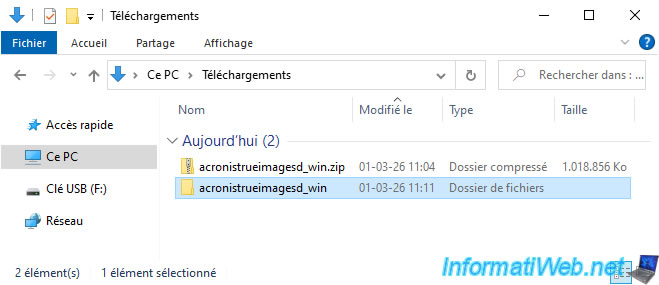
To install Acronis True Image for SanDisk, extract the downloaded "acronistrueimagesd_win.zip" file by right-clicking and selecting "Extract all".
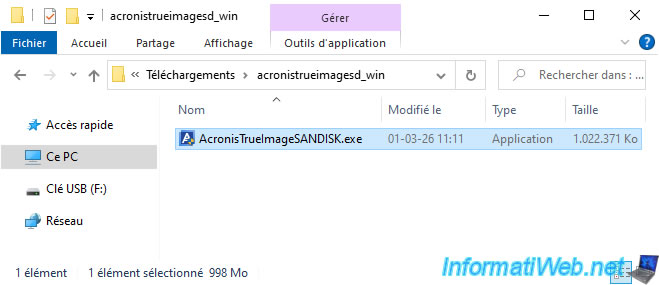
Next, launch the "AcronisTrueImageSANDISK.exe" installation file located there.
As you can see, this installation file was signed by "Acronis International GmbH" since Acronis, not SanDisk, developed this "True Image" program.
Click "Yes".
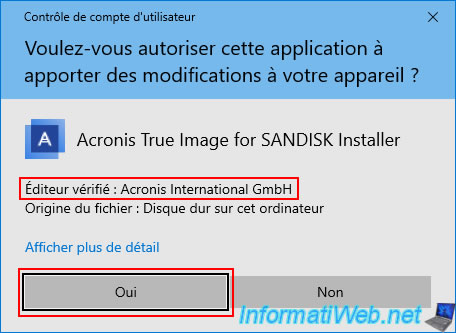
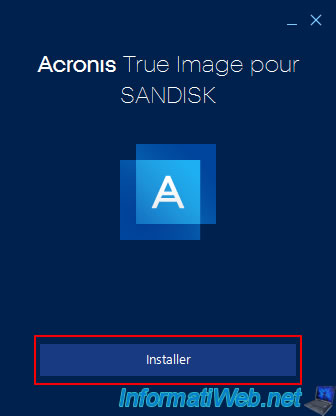
The "Acronis True Image for SANDISK" installer appears.
Click "Install".
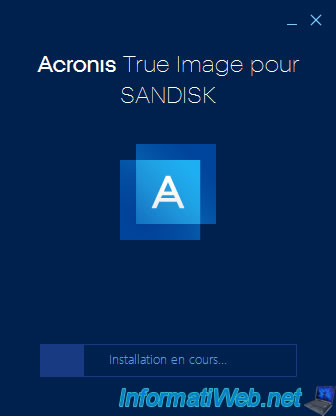
Please wait while Acronis True Image for SANDISK is being installed.
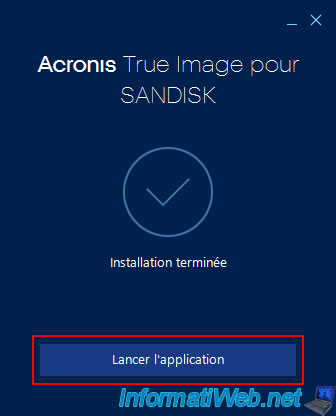
Once this OEM version provided by SanDisk is installed, click on "Launch application".
Please wait while Acronis True Image for SANDISK launches.
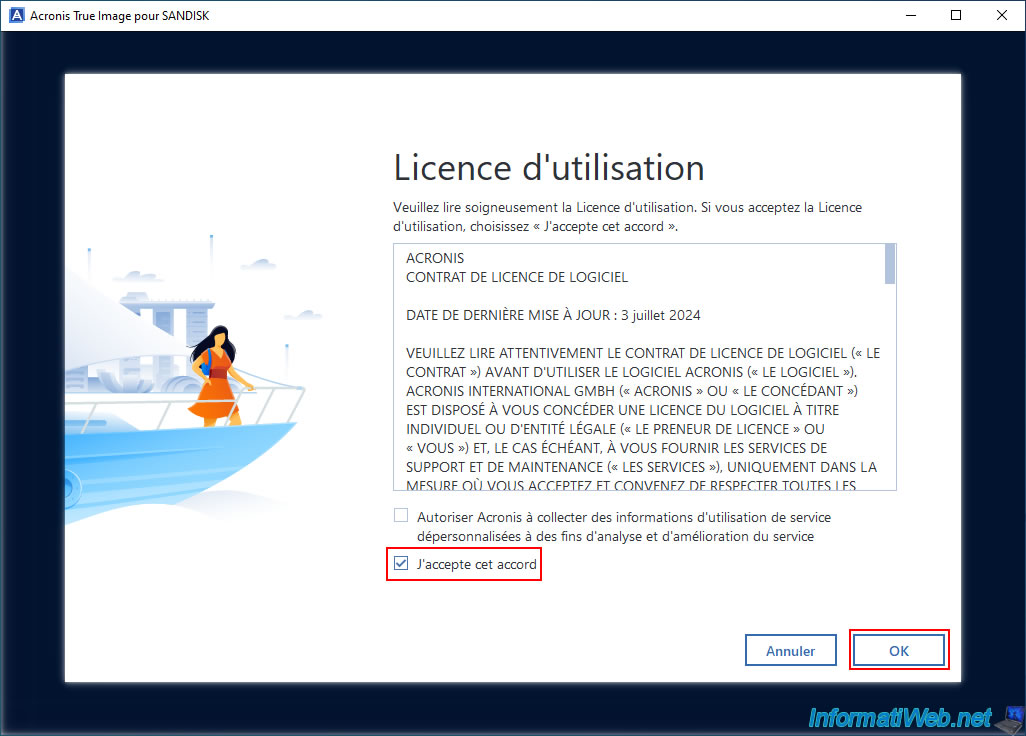
Check the "I agree..." box and click OK.
Warning : if no SanDisk drive is connected to your computer, the "Acronis True Image for SANDISK" program will refuse to launch and you will see the message "Product activation required".
Plain Text
Acronis True Image for SANDISK requires that an external or internal SANDISK drive be connected to the system.
Note: once your SanDisk hard drive or USB key is connected, click the "Re-scan" button.
This will resolve the issue.
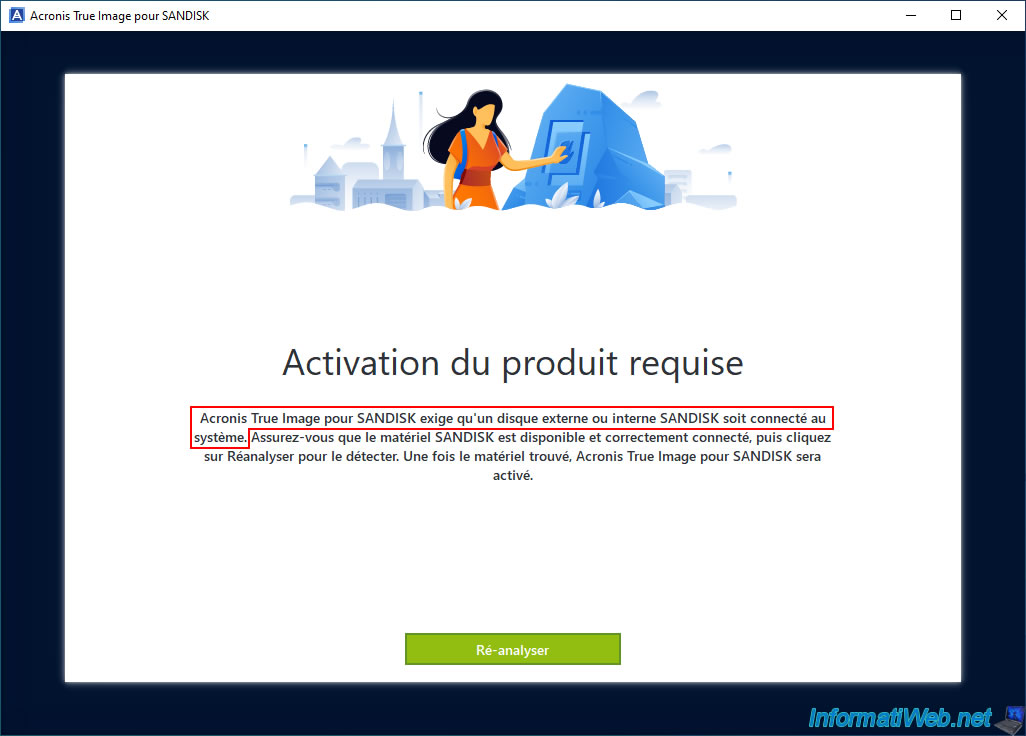
As indicated on the "Steps to Resolve Product Activation Required for Acronis True Image for Sandisk | Sandisk" page of SanDisk support, if you see this activation-required message when launching Acronis True Image for SanDisk, make sure you have connected at least one Western Digital brand storage device (WD, SanDisk, or G-Technology).
Note: as a reminder, the SanDisk brand is now owned by Western Digital, which is why SanDisk also accepts Western Digital storage devices.

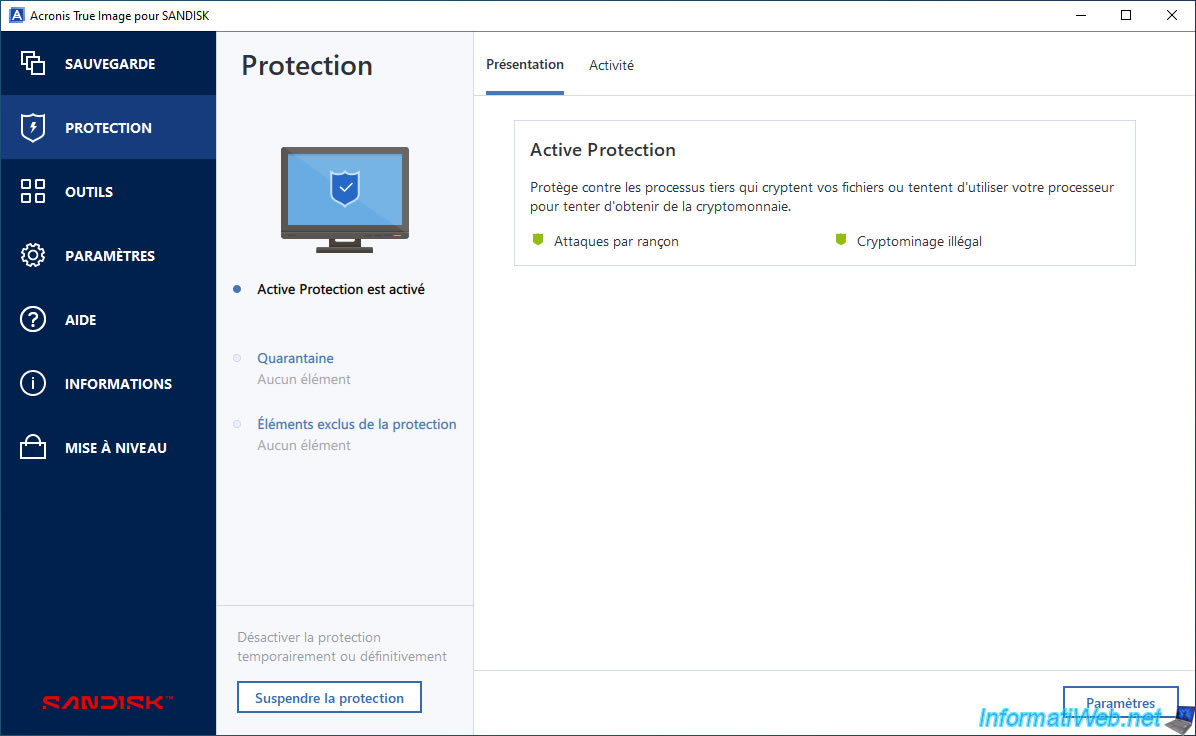
As expected, you get an interface very similar to that of Acronis True Image, given that this is an OEM version of the program.
The first difference you'll notice is the SanDisk logo displayed in the bottom left corner instead of the original Acronis logo.
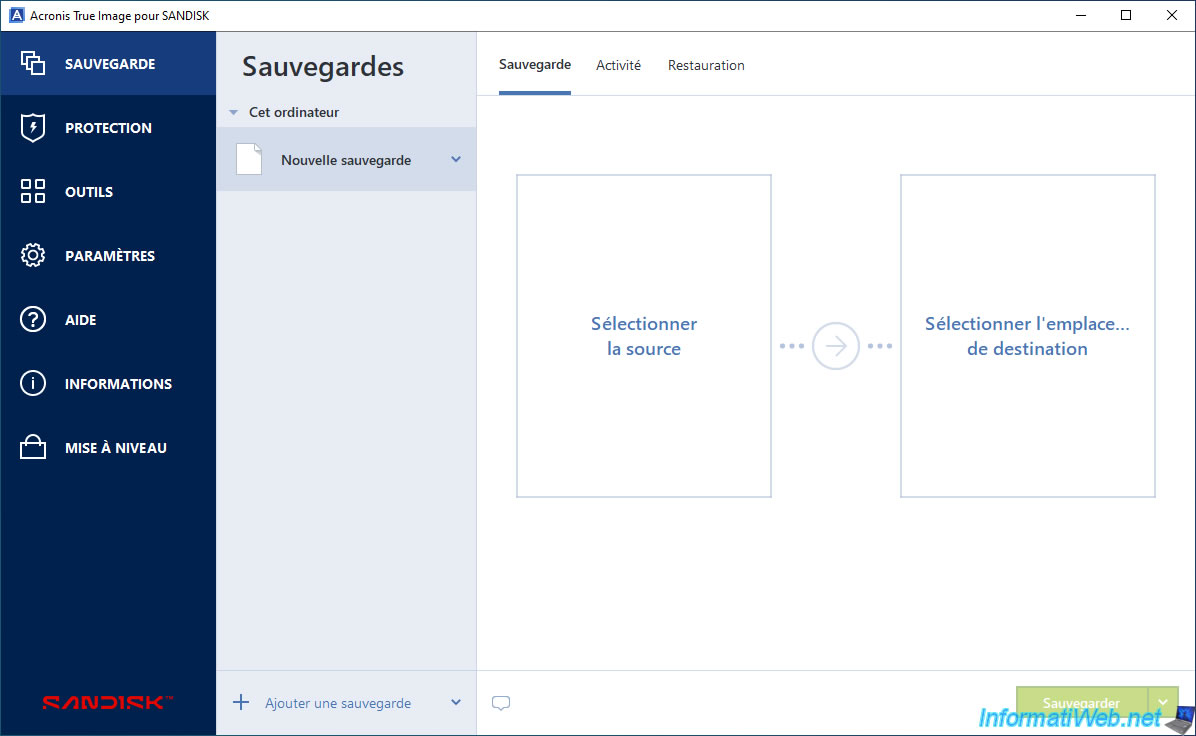
Note that in this OEM version provided by SanDisk, you also have access to active protection against ransomware or those who try to mine cryptocurrency without your knowledge.
In the "Information" section, you can see that this "Acronis True Image for SANDISK" program will work for 5 years (from the moment you installed it on your computer).
Share this tutorial
To see also
-
Backup 6/30/2025
Acronis True Image - Backup disks or partitions
-
Backup 8/14/2025
Acronis True Image - Move a backup
-
Backup 9/21/2026
Acronis True Image - P2V - Virtualize a physical PC to VMware ESXi
-

Backup 8/18/2025
Acronis True Image - Replicate backups to Acronis Cloud
You must be logged in to post a comment