Back up your PC for free with the OEM version of Acronis True Image offered by Sandisk
- Backup
- Acronis True Image
- 12 October 2026 at 07:46 UTC
-

- 3/4
5. Back up your computer using Acronis True Image for SANDISK (OEM version)
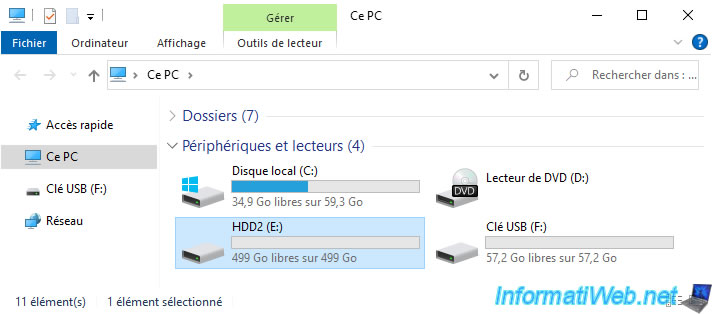
In our case, we're going to back up our computer (or rather, the disk where Windows is located) to our second internal hard drive.
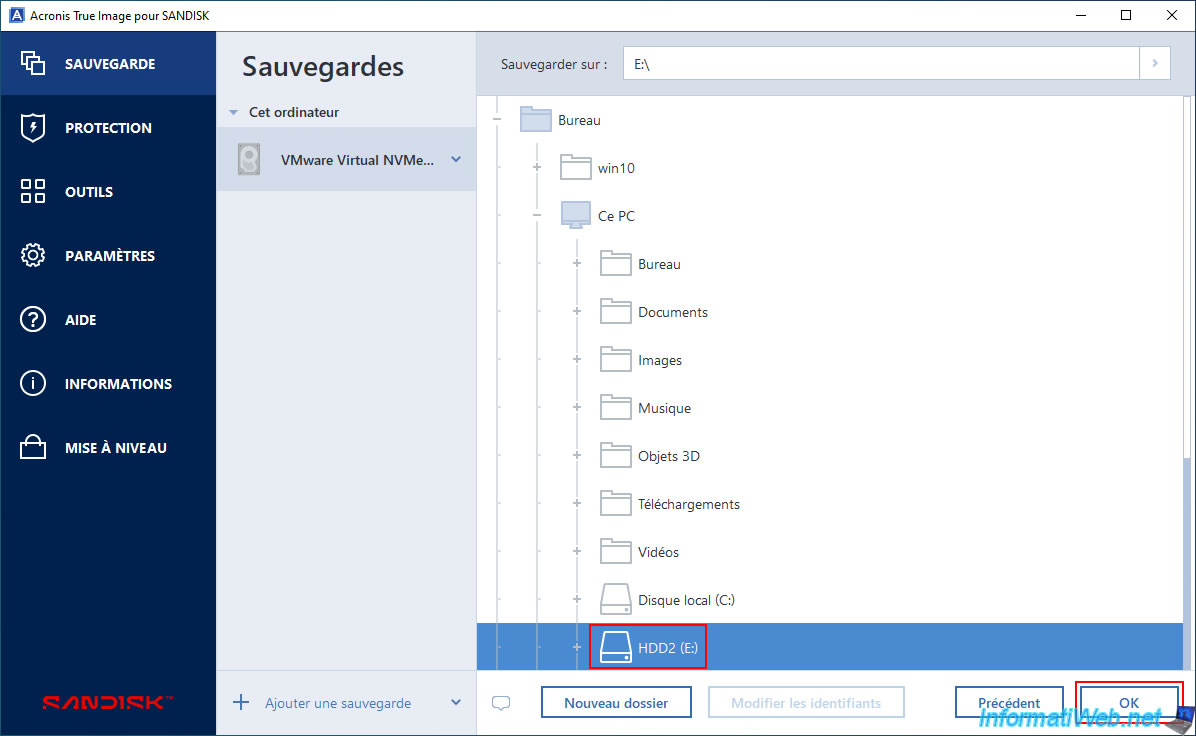
As you can see, the partition created on our second hard drive (with a capacity of 500 GB) is named "HDD2".
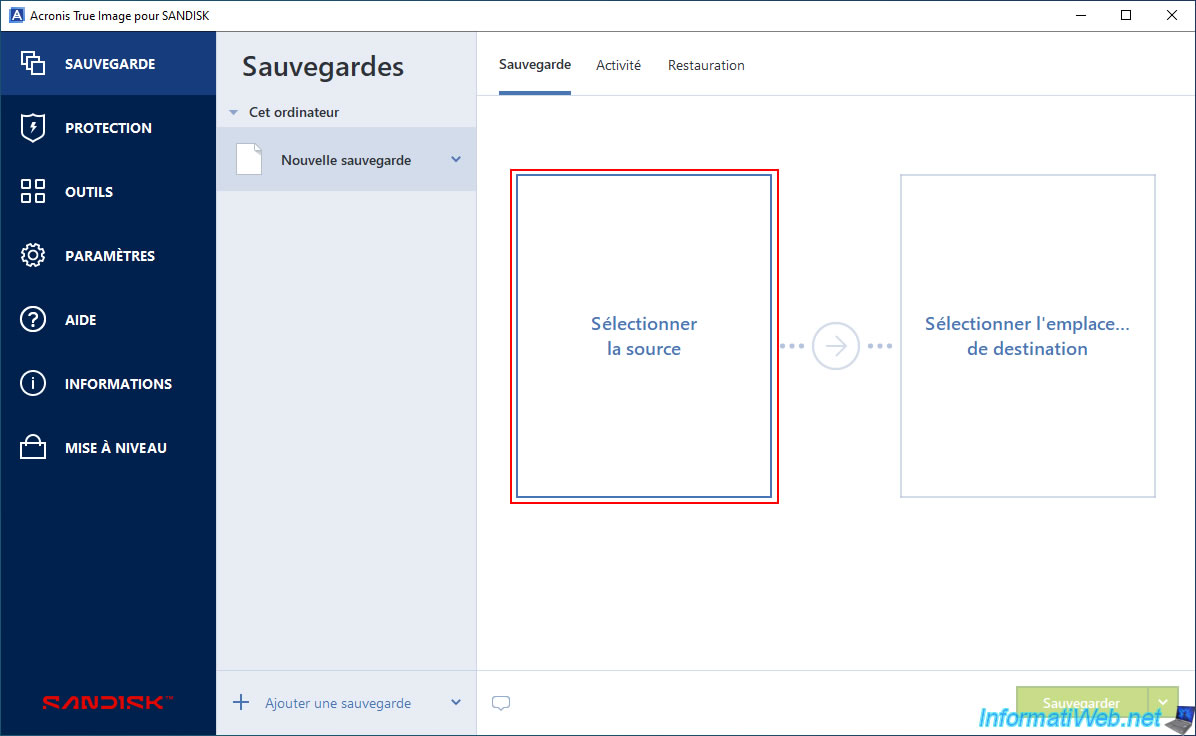
In the "Backup" section of Acronis True Image for SANDISK, click on "Select Source".
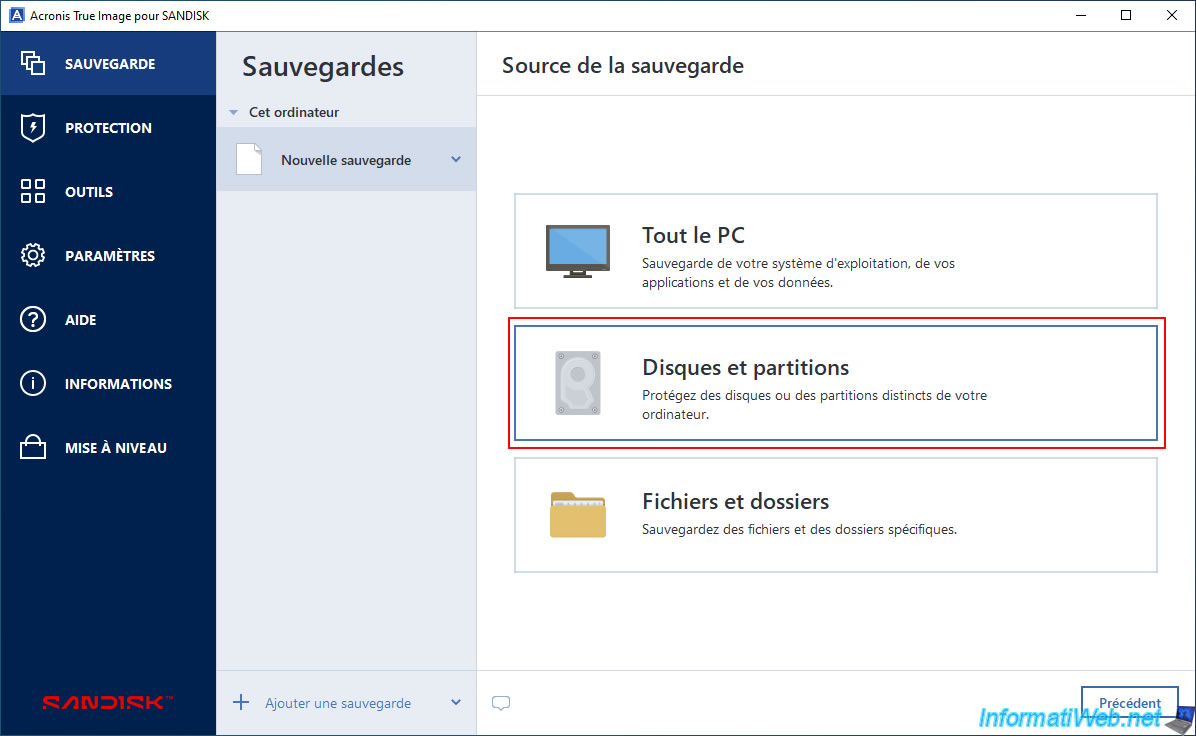
If your computer has only one hard drive, you can select the "Entire PC" source for faster backups.
Otherwise, it's also more useful to back up only the Windows hard drive (if your main goal is to be able to restore Windows to its previous state in case of a major problem).
In this case, select the "Disks and Partitions" option.
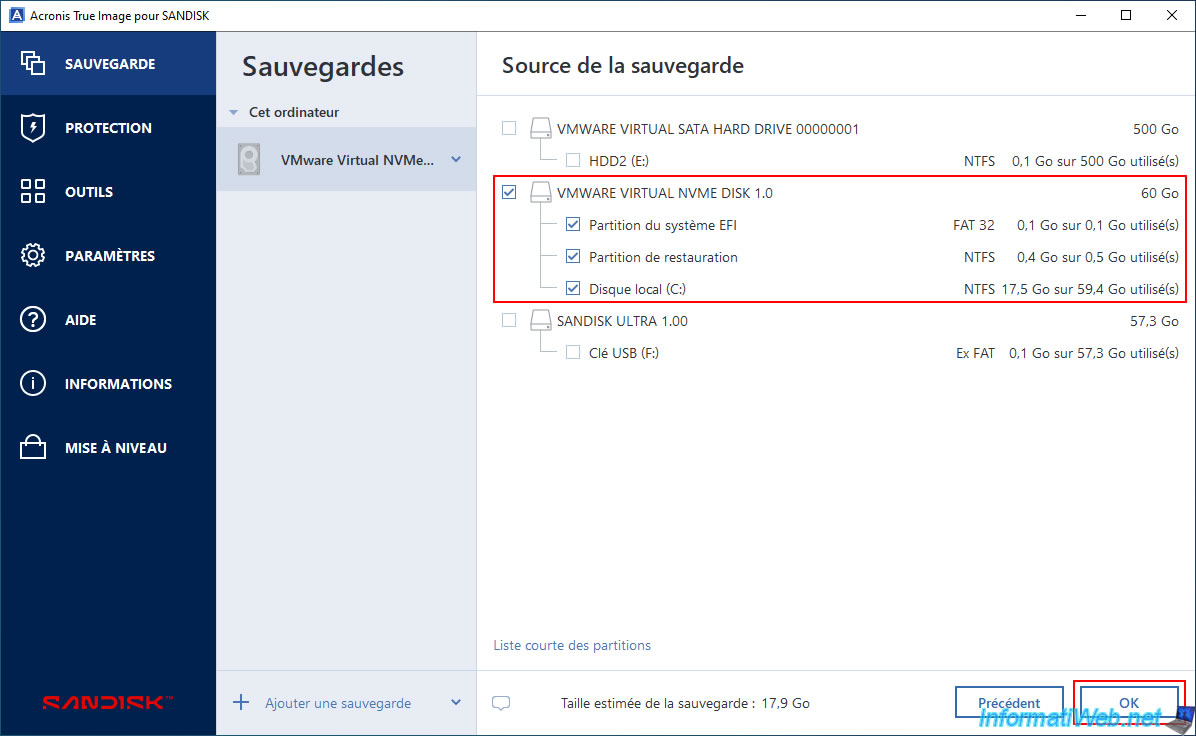
If you selected the "Disks and Partitions" option, check the box next to the disk you want to back up.
Then, click the "Full Partition List" link (located at the bottom) to see all the partitions on your disk (where Windows is installed).
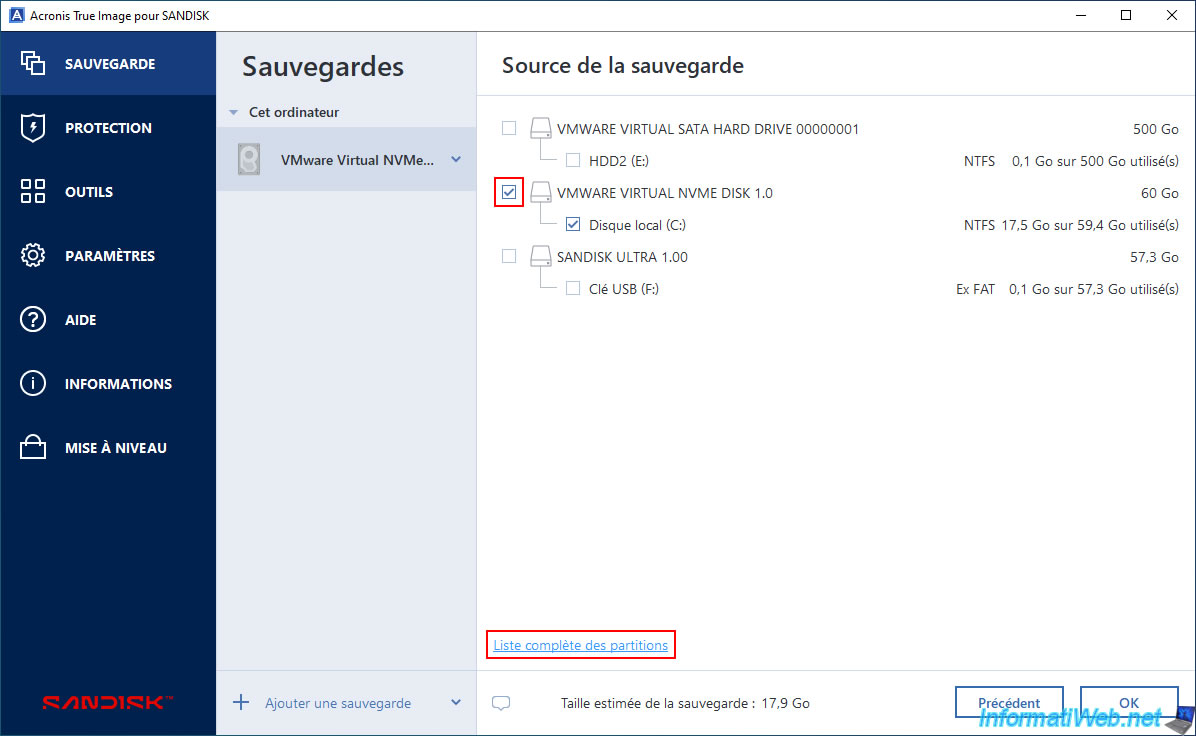
This time, the system partitions (EFI partition and recovery partition) also appear.
Click OK.
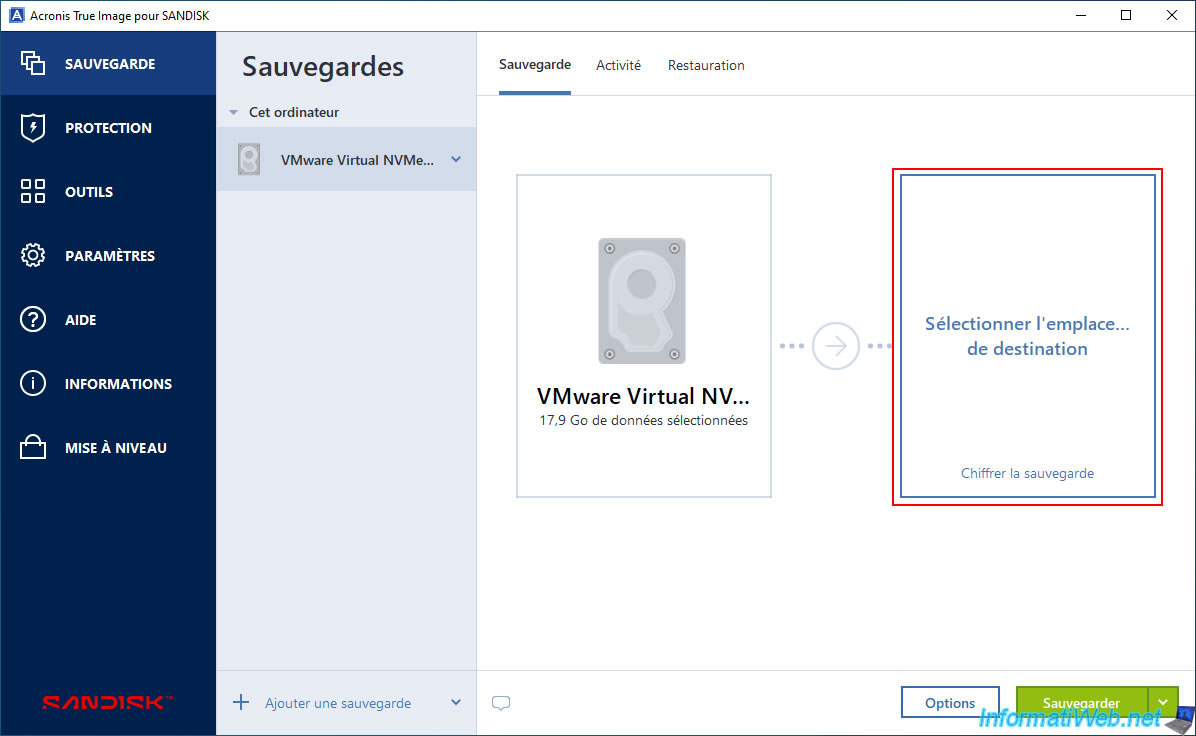
Now, click on "Select destination location".
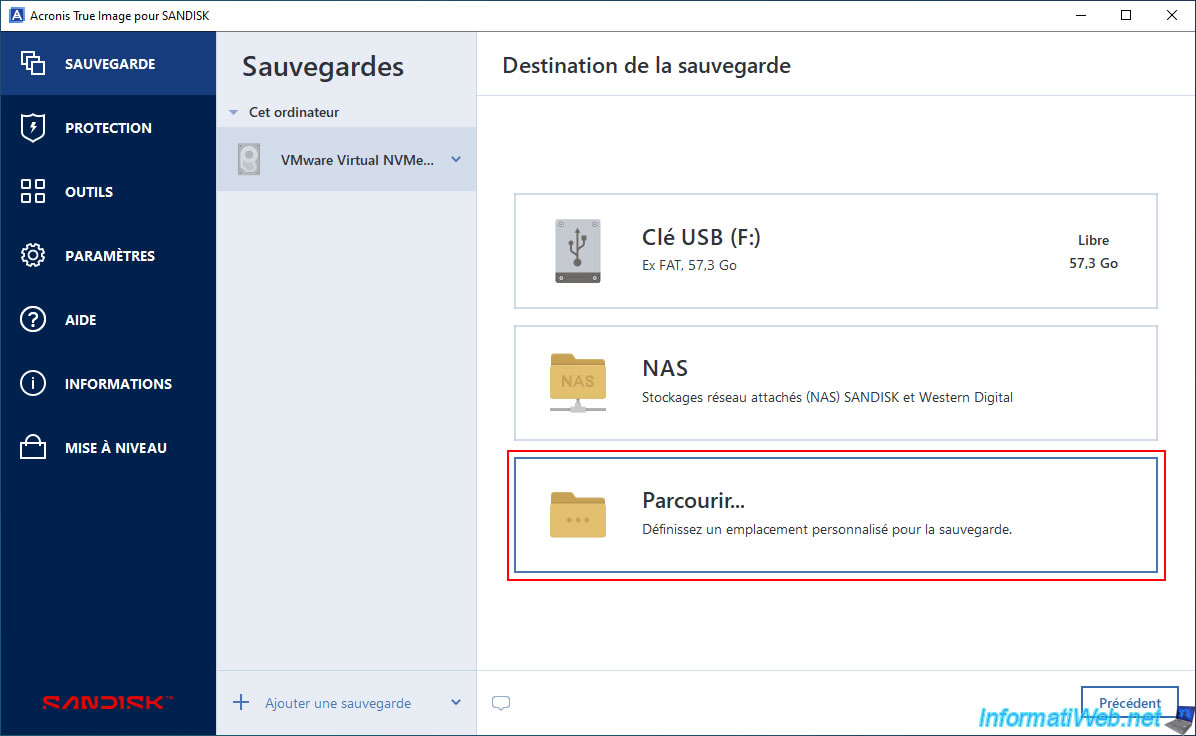
In our case, to store the backup on our 2nd hard drive, we must choose the "Browse" option as the destination.
Next, select the disk or folder where you want to store your backup and click OK.
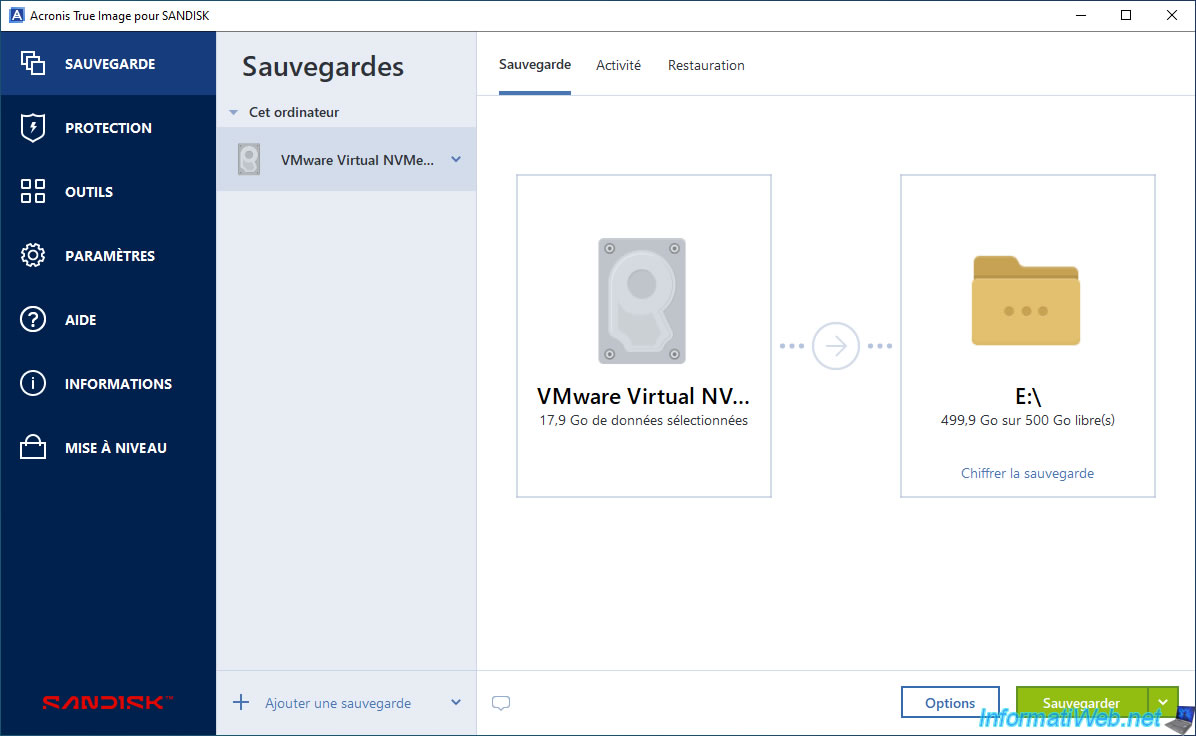
Finally, click the "Save" button.
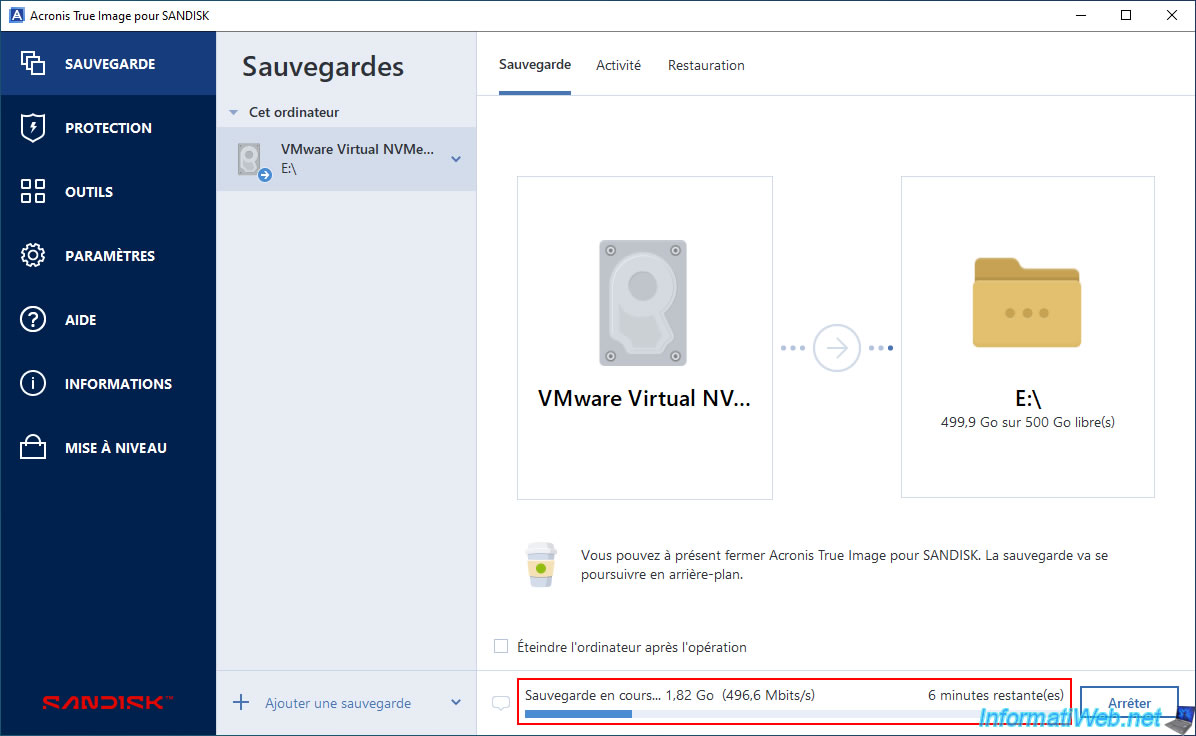
Please wait while your PC or disk is being backed up (depending on the source selected previously).
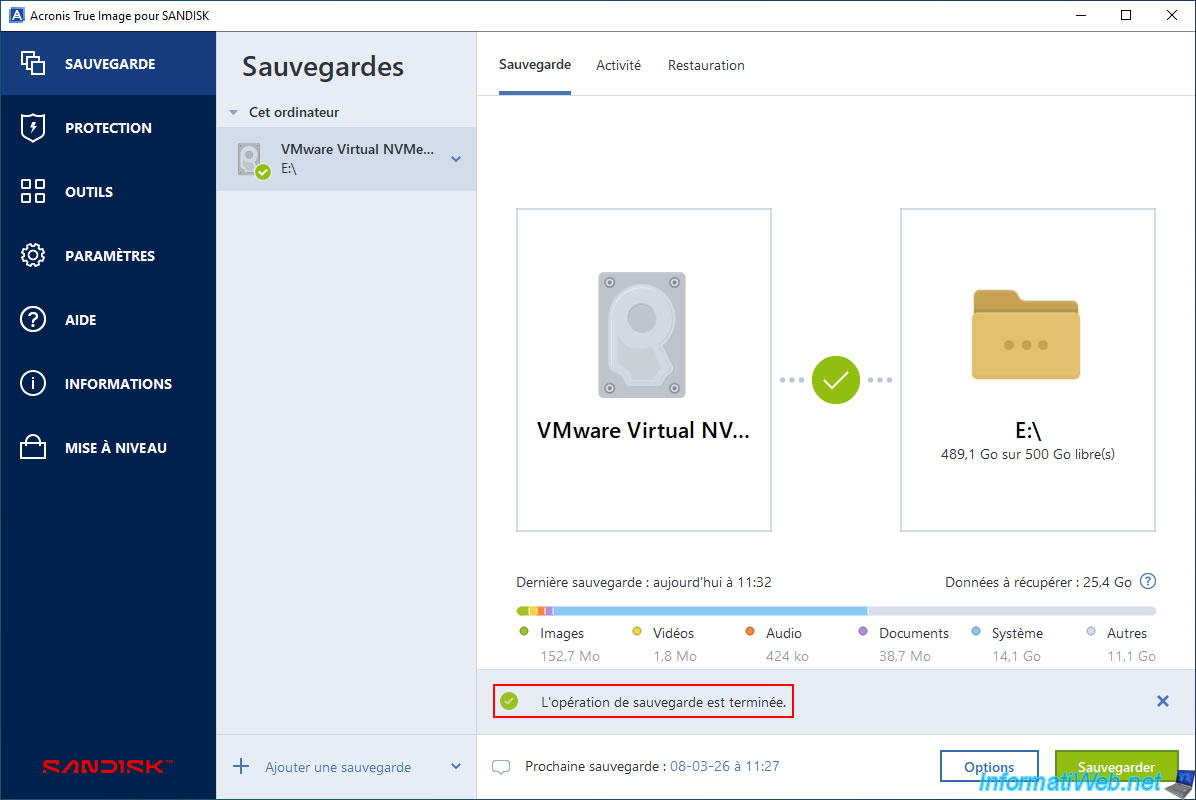
Once the backup is created, the message "The backup operation is complete" will appear.
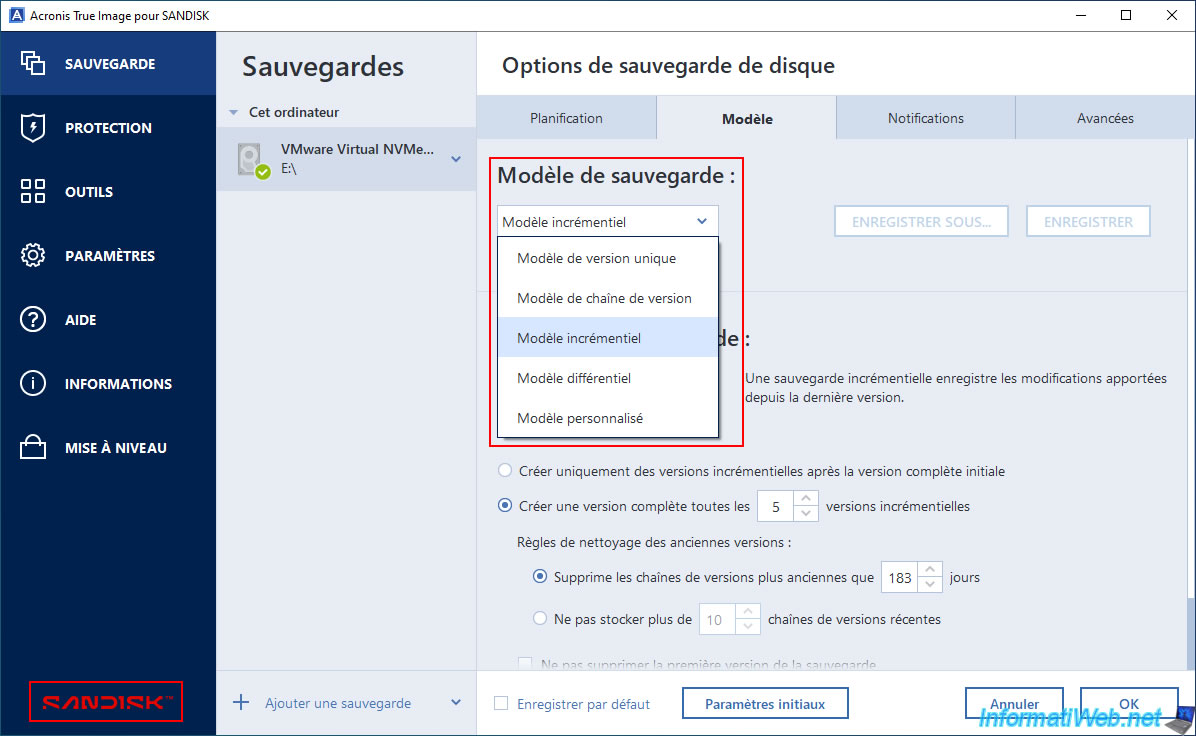
As you can see, backup options are not limited in the OEM version offered by SanDisk.
Note: The available backup options are the same as in the OEM version offered by Western Digital.
To verify this, refer to step "5. Back up your computer using Acronis True Image for Western Digital (OEM version)" of our tutorial on the OEM version provided by Western Digital.
6. Restore your computer using Acronis True Image for SANDISK (OEM version)
To restore your computer or disk using Acronis True Image for SanDisk, select your backup, then go to the "Restore" tab.
Next, go to the "Entire PC" or "Disks" sub-tab (depending on the source you selected when creating the backup).
If you chose to back up your disk (as in this case), select the checkbox for the disk you want to restore, and Acronis will automatically select the same physical disk in your computer.
Then, click "Restore".
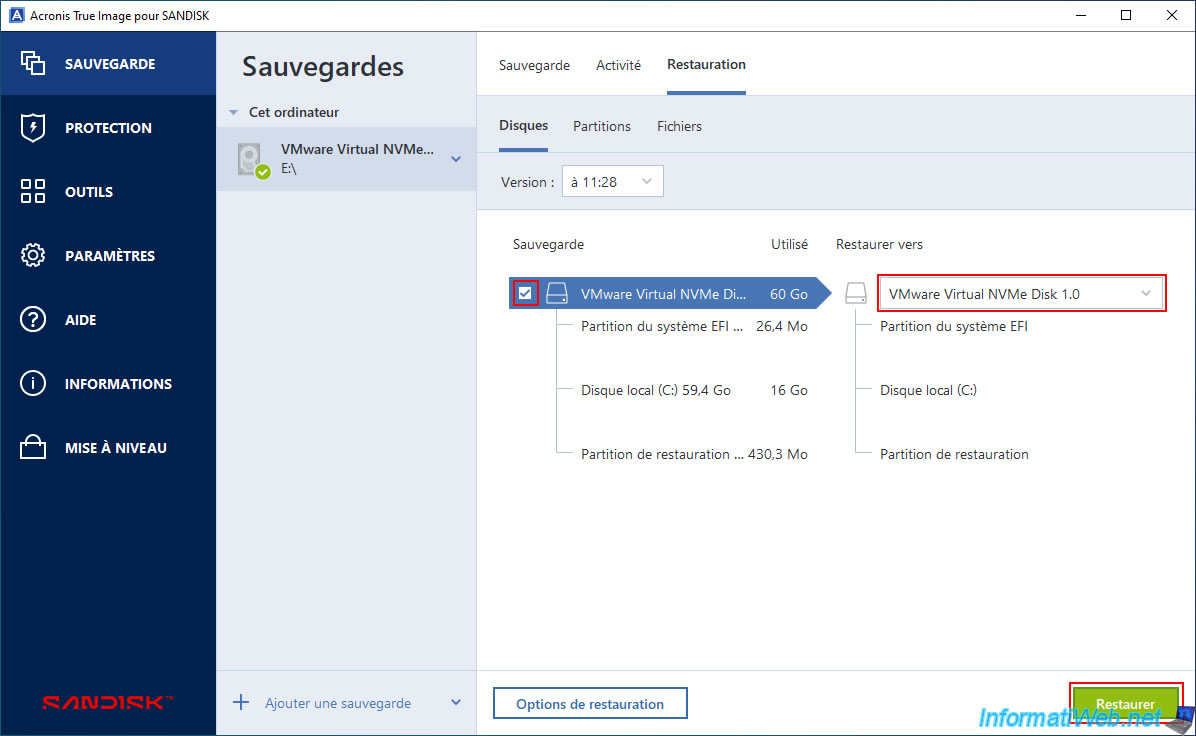
Since you are attempting to restore the backup to your disk, Acronis asks you to confirm the erasure of the disk in question before restoring the backup data to it.
Click "Yes".

Next, since the backup needs to be restored to the drive where Windows is installed, a message "A computer restart is required" will appear.
Click "Restart".
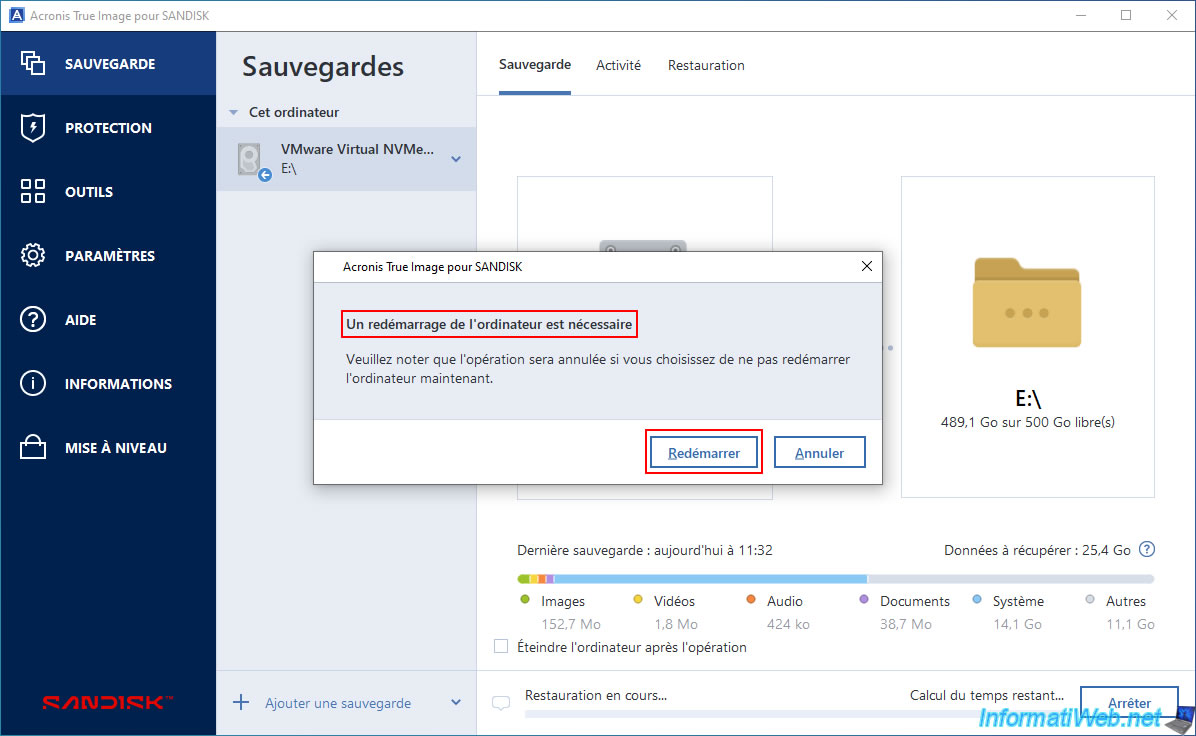
Please wait while your computer restarts.

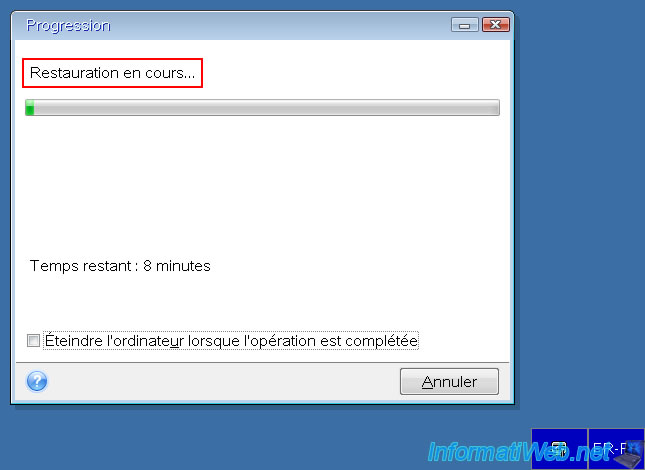
Your computer will automatically restart in a recovery environment.
Please wait while your computer is being restored; it will then restart automatically on Windows.
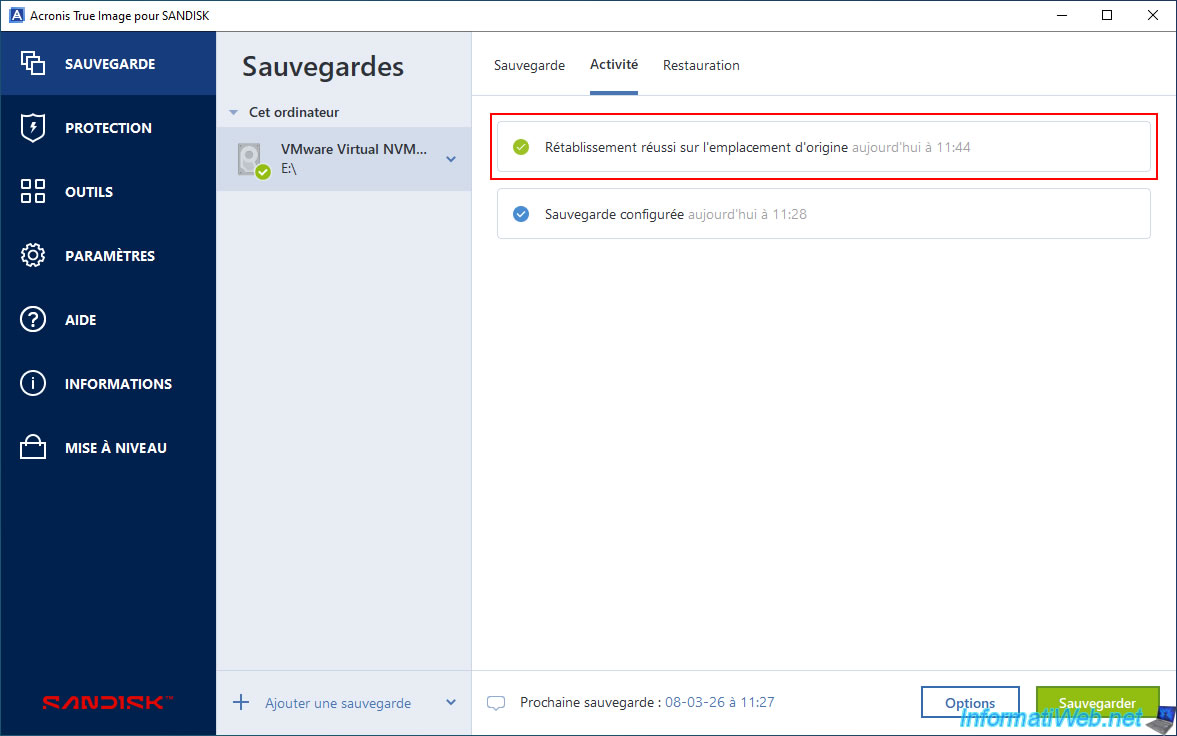
Once the backup has been restored to your disk, if you select your Acronis backup and go to the "Activity" tab, you will see that a "Successful restoration to original location" message will have appeared.
Share this tutorial
To see also
-

Backup 9/26/2012
Acronis - Restore a backup on a different hardware
-

Backup 9/22/2025
Acronis True Image - Backup your Microsoft account to Acronis Cloud
-

Backup 7/14/2025
Acronis True Image - Create incremental backups
-

Backup 8/7/2025
Acronis True Image - Search for files in a Cloud backup
No comment