- Backup
- Acronis True Image
- 05 January 2026 at 08:56 UTC
-

- 1/2
Acronis Cyber Protect Home Office (True Image) is a backup software that you can install on your computer to regularly and automatically back up your computer to an external hard drive and/or to Acronis Cloud (subscribing to this service).
If you want to restore your computer to an earlier date, simply go to the "Backup" section of the program, then use the "Restore" tab.
However, if the operating system (e.g. Windows) no longer starts, you will need a rescue media on which your computer can start.
Thanks to this rescue media (also commonly called a "live CD"), you can restore your computer using the ".tibx" file stored on your computer.
Notes :
- when restoring from Acronis Cyber Protect Home Office (True Image) program does not work (for example: by telling you a read error from disk X), sometimes restoring the same backup via this rescue media still works.
So it is interesting to create this rescue media even if you plan to use the Acronis Cyber Protect Home Office (True Image) program installed on your computer for the restoration to get around this kind of problem in case it happens to you one day. - there are different ways to create this rescue media, but in this tutorial, you will see how to create it very easily without having any computer knowledge.
Warning : the backup option of this Acronis Rescue Media will be available only if you have purchased Acronis Cyber Protect Home Office (True Image).
Indeed, this option will be disabled if you have created this Acronis Rescue Media with a trial version of Acronis Cyber Protect Home Office (True Image).
- Create Acronis Cyber Protect Home Office (True Image) rescue media easily and quickly
- Boot to Acronis Cyber Protect Home Office rescue media (True Image)
- Easily restore your computer with Acronis Cyber Protect Home Office (True Image) rescue media
1. Create Acronis Cyber Protect Home Office (True Image) rescue media easily and quickly
To create Acronis Cyber Protect Home Office (True Image) rescue media easily and quickly, go to the "Tools" section of Acronis Cyber Protect Home Office (True Image) and click the "Rescue Media Generator" tool.
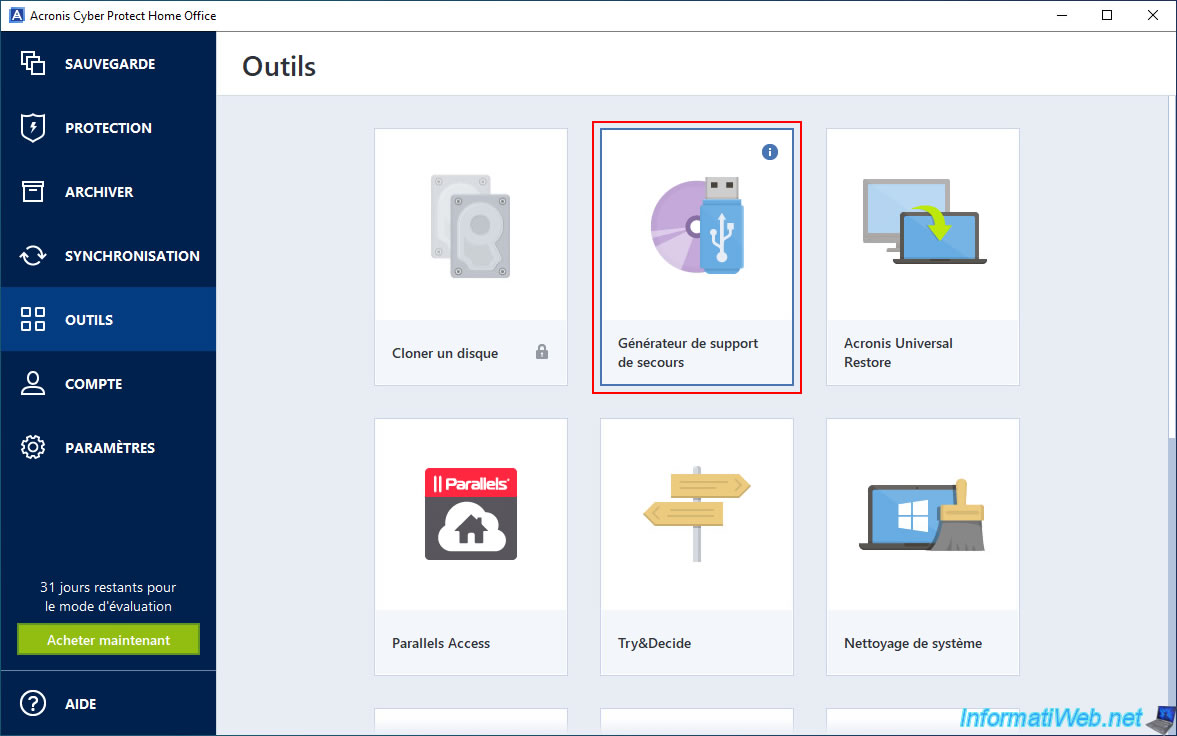
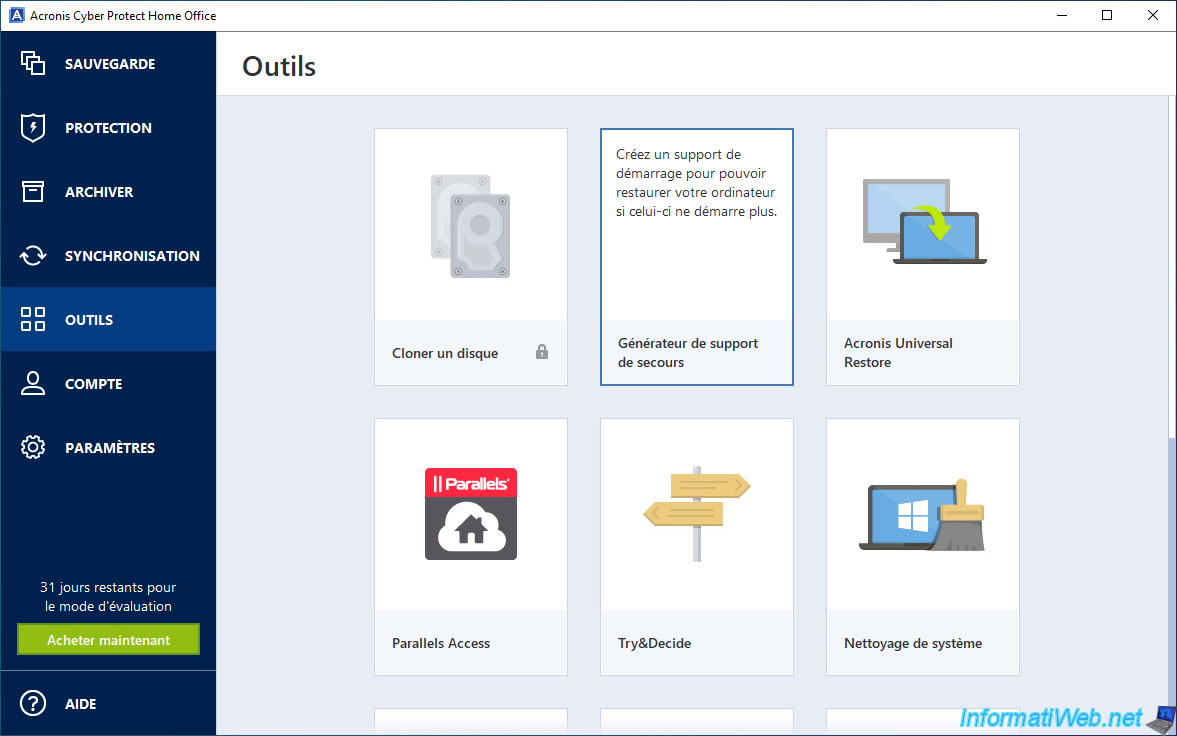
If you hover over the little "i" at the top right of this tool, you will see that Acronis Cyber Protect Home Office (True Image) tells you that this tool allows you to create bootable media so that you can restore your computer even if it no longer boots.
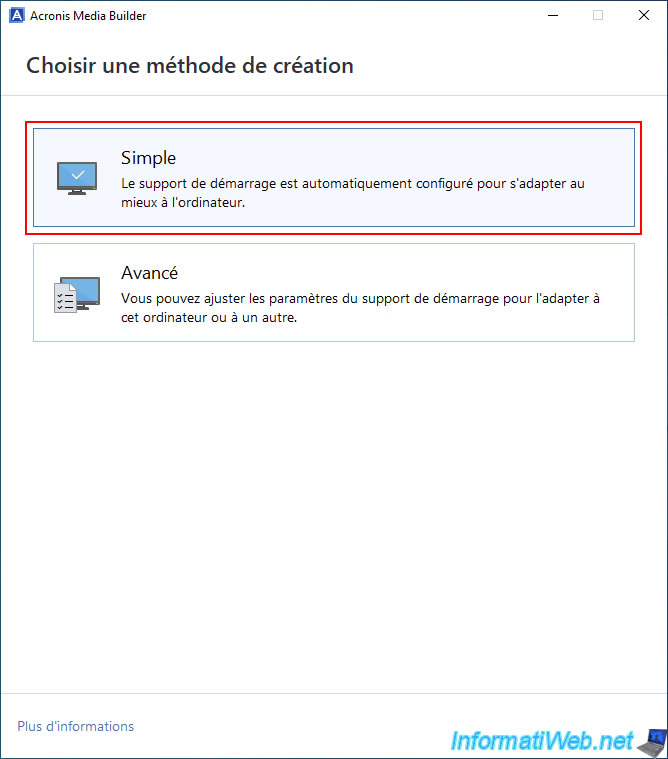
An "Acronis Media Builder" window will appear with a "Choose a creation method" step.
Click "Simple".
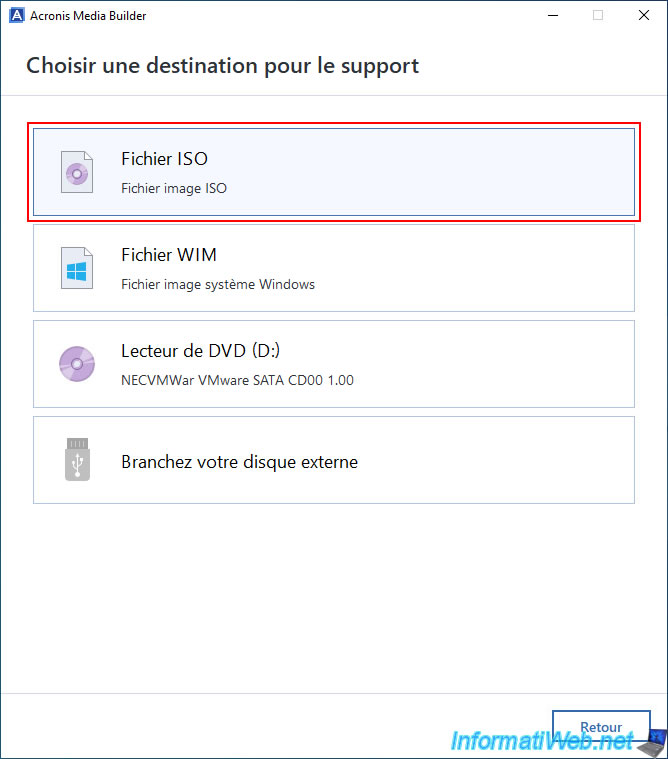
Then, in the "Choose a destination for the media" step, choose "ISO file" to be able to keep a copy of this rescue media on your computer and to be able to burn this ISO image using your favorite burning software.
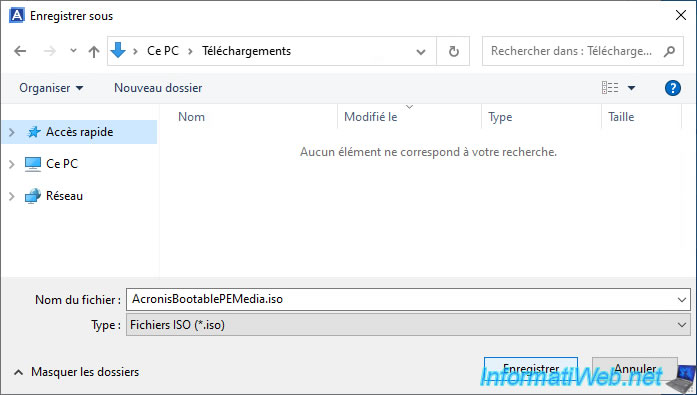
Select the folder where you want to save the ISO file that will be generated.
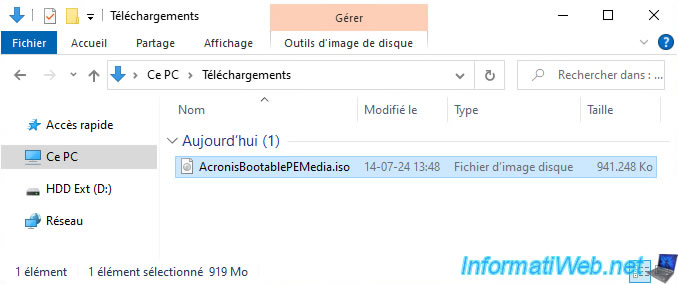
By default, this file will be named "AcronisBootablePEMedia.iso".
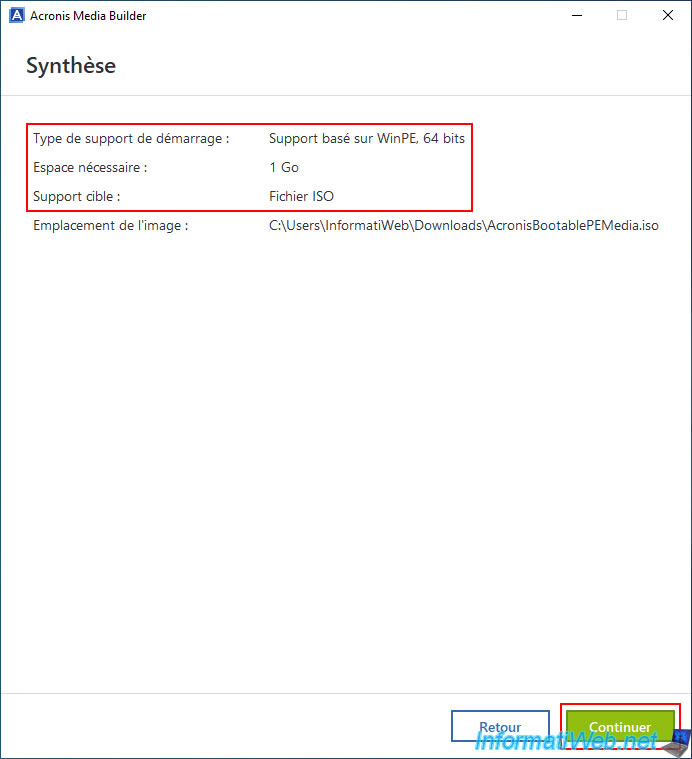
As you can see, the bootable media type is automatically adapted to your computer.
In our case, Acronis Cyber Protect Home Office (True Image) is installed on Windows 10 in 64-bit.
Hence, Acronis Cyber Protect Home Office (True Image) has chosen the bootable media type "WinPE-based media, 64-bit".
Just click "Continue".
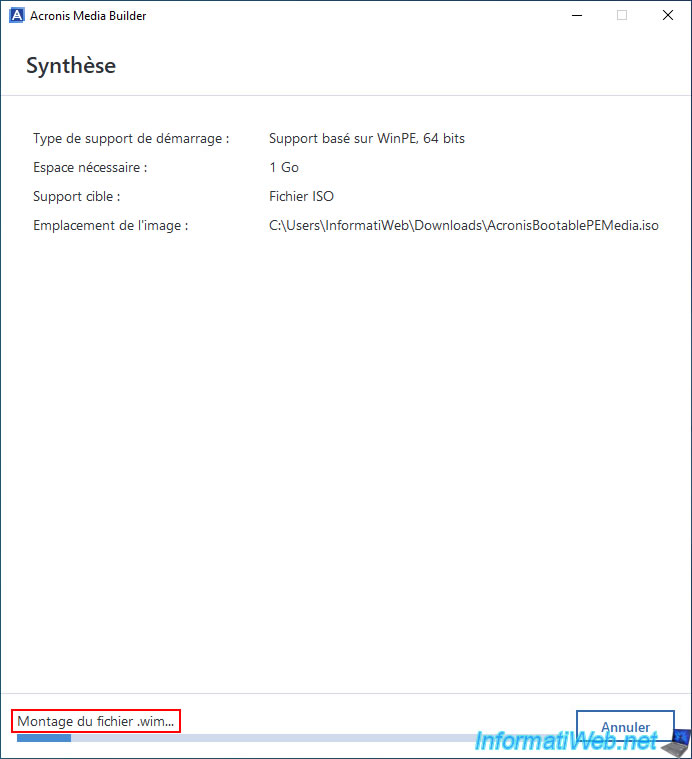
While creating the bootable media (rescue media), you will notice that Acronis is mounting a ".wim" file.
Note: you don't need to understand these steps, but for those who are interested, Acronis Cyber Protect Home Office (True Image) is mounting the Windows PE ".wim" file.
Windows PE is a pre-installed Windows environment provided by Microsoft that allows you to run Windows programs (including the Acronis recovery program) by booting your computer from a "live CD".
Plain Text
Mounting the .wim file...
Acronis Cyber Protect Home Office (True Image) updates the Windows PE environment drivers present in the mounted ".wim" file so that this bootable media works smoothly on your computer and especially so that it can access the network and the Internet if necessary.
Plain Text
Updating drivers...
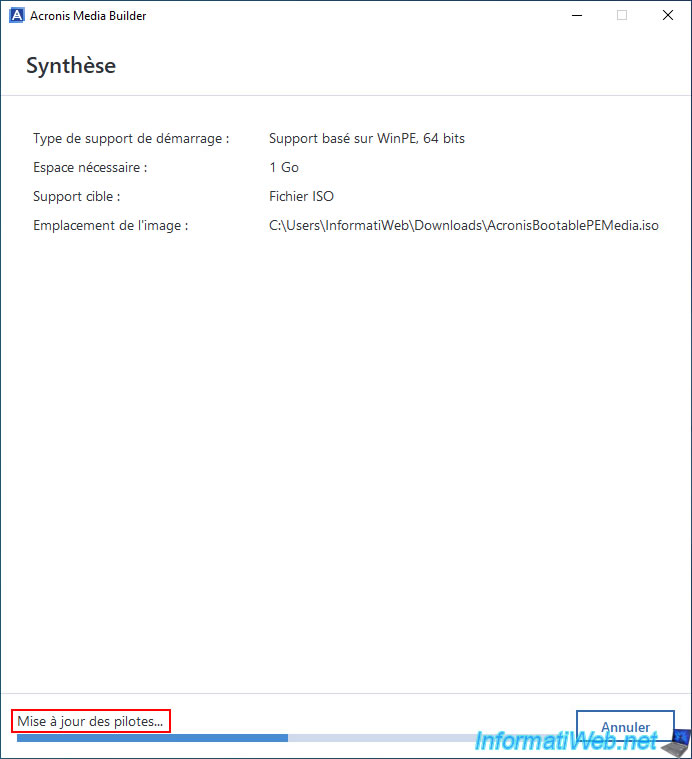
Once you have updated the ".wim" file to work properly with your computer, Acronis Media Builder will save this ".wim" file.
Plain Text
Saving the .wim file...
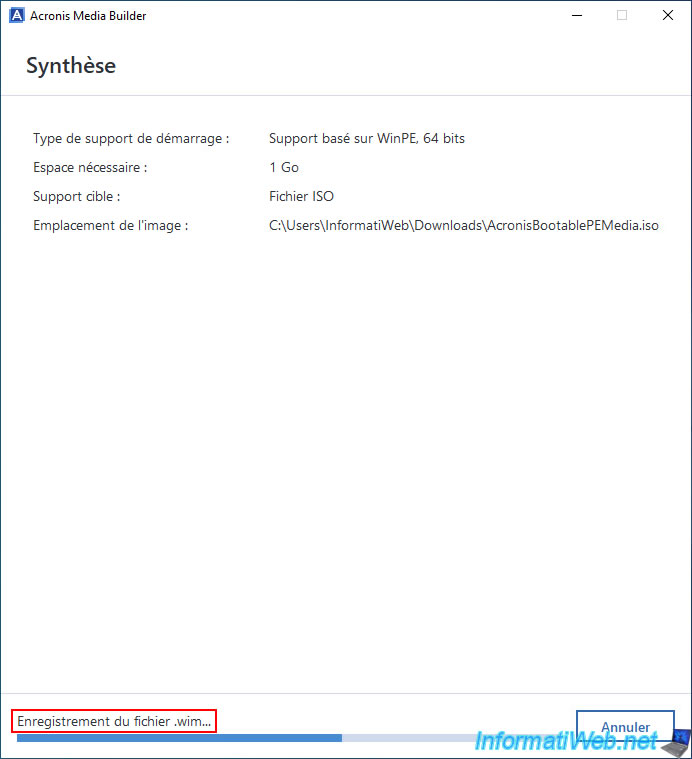
Once the ".wim" file is created and updated with your drivers, Acronis Media Builder will create the ISO file where this ".wim" file will be located.
Plain Text
Building the ISO image...
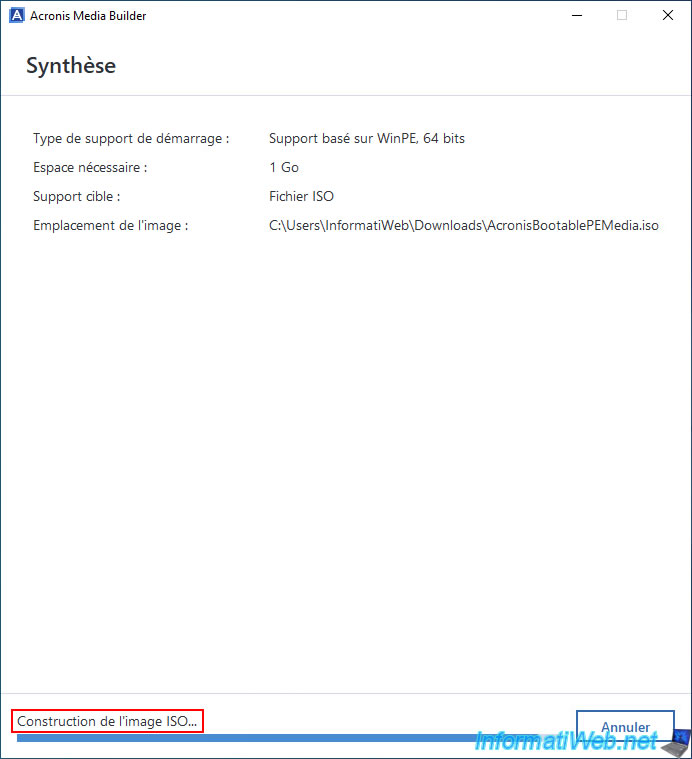
Once the ISO file creation is complete, you will see the message "Acronis bootable media has been created successfully."
As you can see, if Windows does not boot, you will need to insert your Acronis rescue media into your CD/DVD drive and then boot your computer from it.
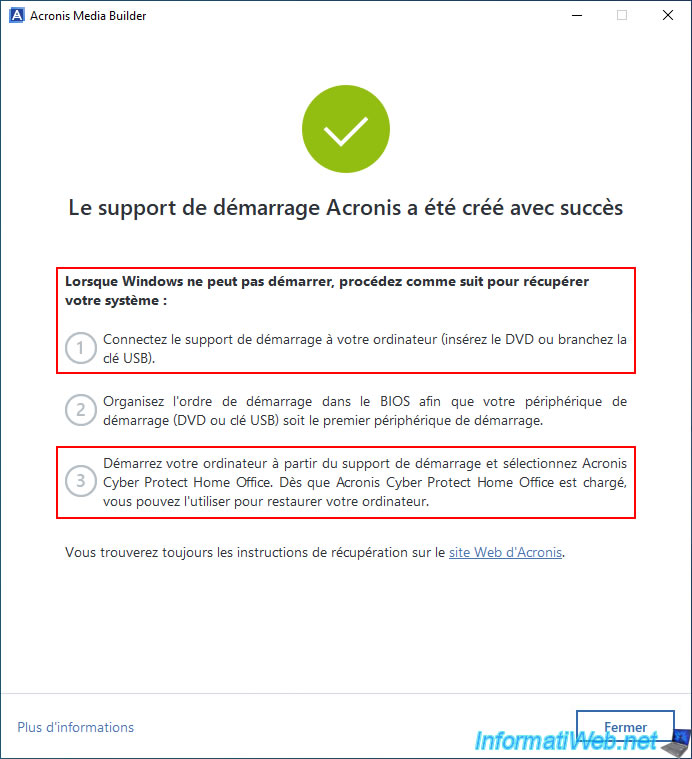
As expected, you will find the ISO file (default: AcronisBootablePEMedia.iso) suitable for your computer in the desired folder.
Share this tutorial
To see also
-

Backup 11/13/2025
Acronis True Image - Fix archiving issue: Error opening configuration file
-
Backup 1/26/2026
Acronis True Image - Rescue Media - Create media (Win PE version)
-
Backup 1/12/2026
Acronis True Image - Rescue Media - Create media easily (bootable USB key)
-
Backup 6/1/2026
Acronis True Image - Test software risk-free with Try&Decide tool
You must be logged in to post a comment