Access Acronis logs, get detailed information, ... with third-party tools for Acronis True Image (Cyber Protect Home Office)
- Backup
- Acronis True Image
- 29 June 2026 at 16:17 UTC
-

- 2/5
1.4. System Configuration
In the "System Configuration" section of "MVP Assistant", you will be able to see information about :
- your computer: precise version of Windows, the boot disk, the name of the computer, the brand and model of your motherboard and your processor, ...
- your internal disks (Fixed Drives) and their partitions
- your external disks connected by USB
- your CD/DVD drives (if applicable)
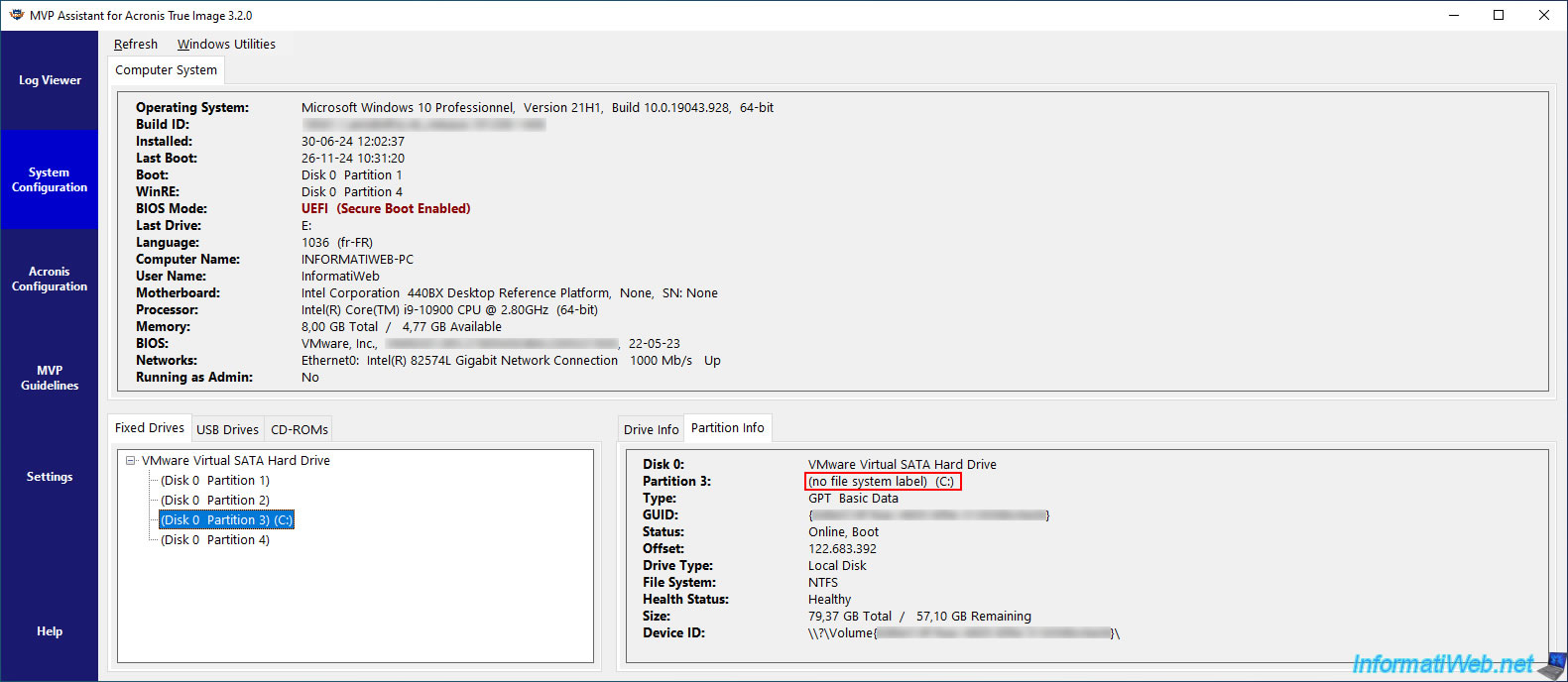
In our case, we can see that we are running Windows 10 v21H1, with an Intel i9-10900 processor, ...
We can see the "C" partition (where Windows is installed).
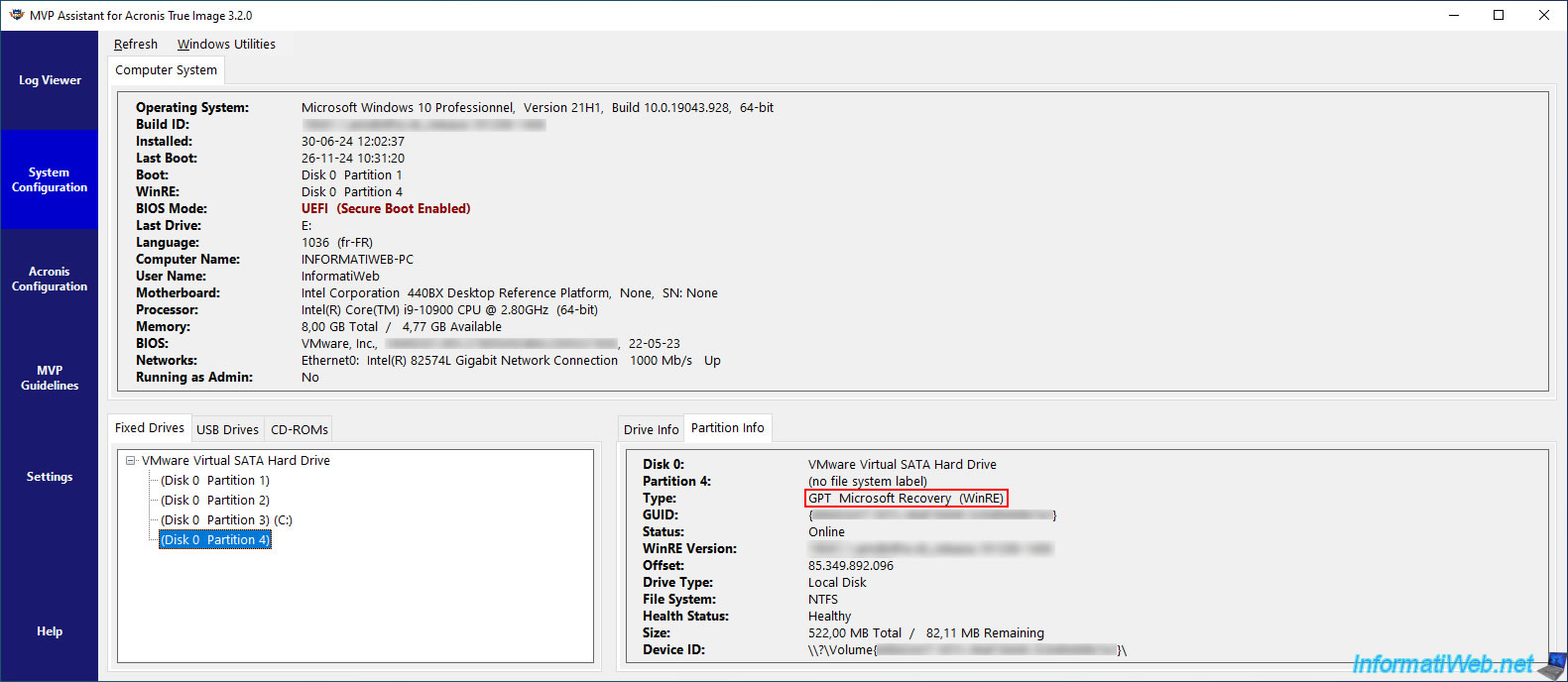
We can also see that partition 4 corresponds to the Microsoft recovery partition (WinRE).
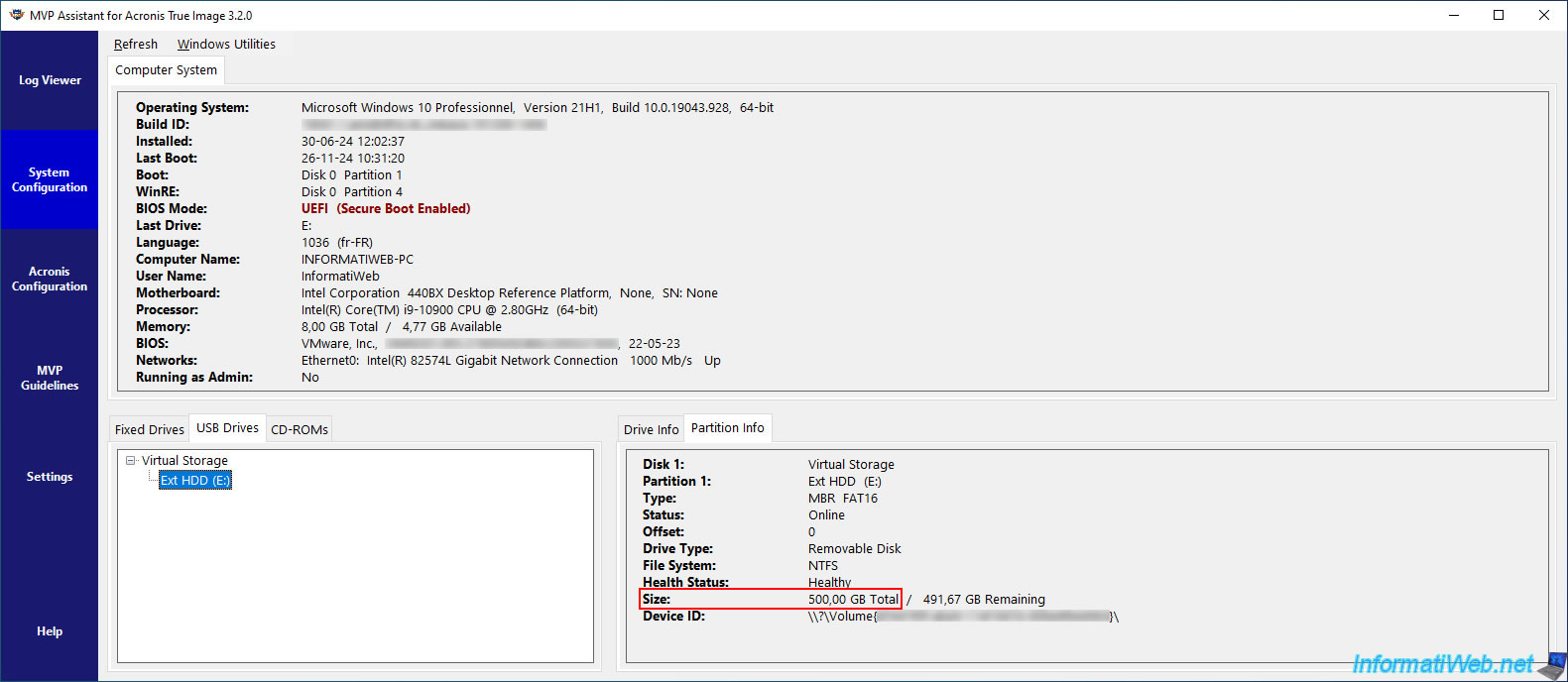
In the "USB Drives" tab, you will be able to see your external hard drives connected via USB (if applicable).
In our case, we can see our 500 GB USB external hard drive.
1.5. Acronis Configuration
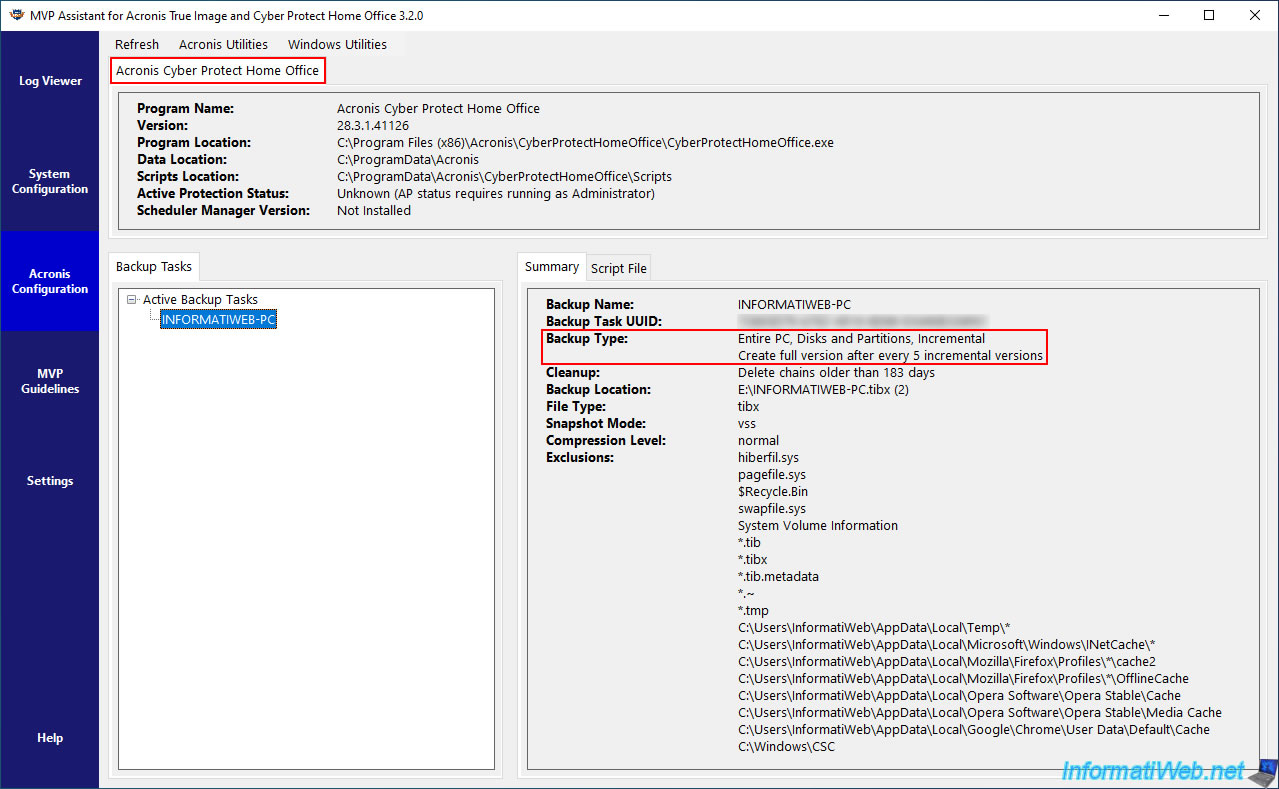
In the "Acronis Configuration" section of "MVP Assistant", you will be able to see information about:
- the configuration of Acronis Cyber Protect Home Office (True Image) including its version.
- the list of backup tasks configured in Acronis Cyber Protect Home Office (True Image).
For each backup task, you will be able to see:
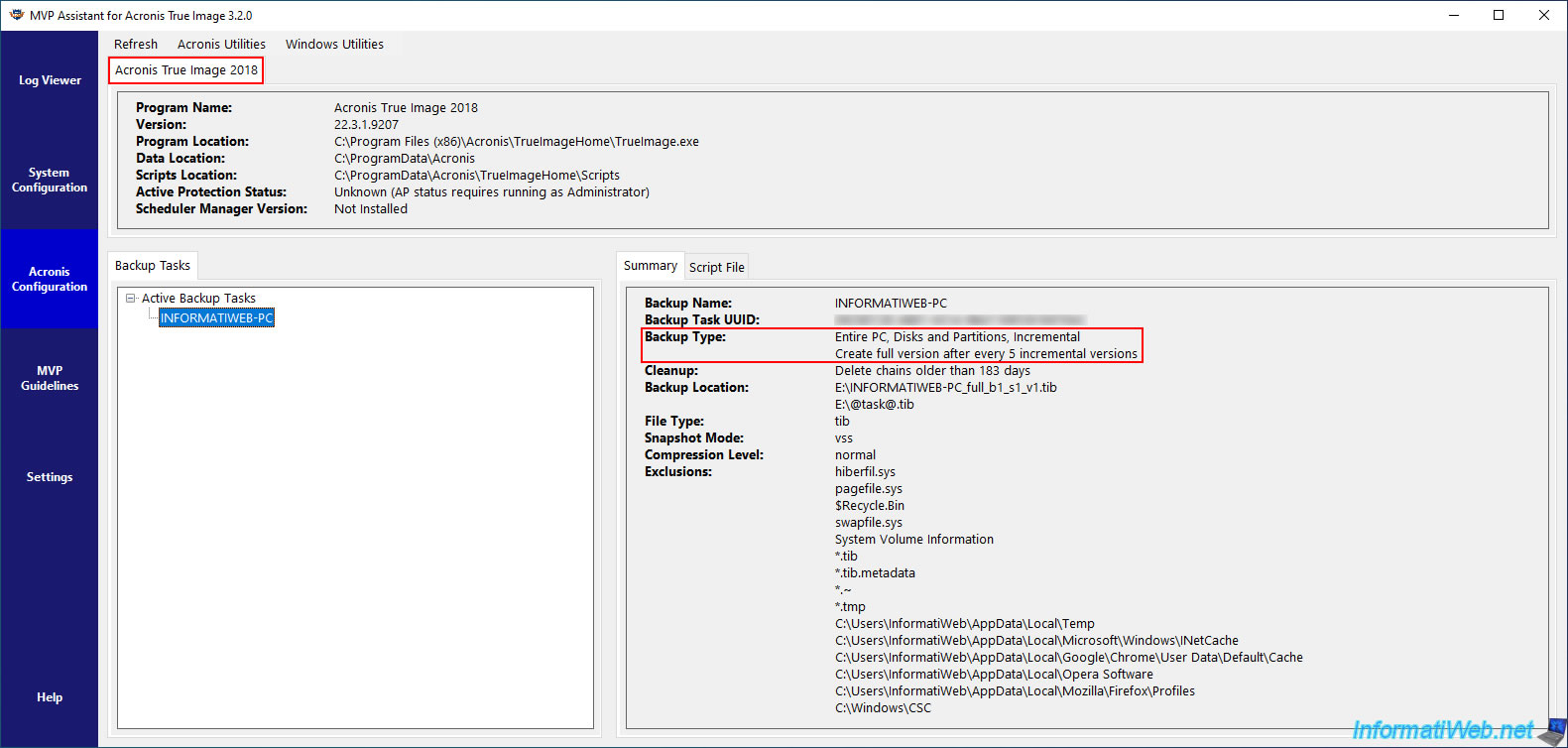
- its name (Backup Name): in our case "INFORMATIWEB-PC" for the full backup of our computer.
- its type (Backup Type): in our case, a full backup of our computer (Entire PC), of the incremental type (Incremental) and where a full backup (full version) will be created every 5 incremental backups (... after every 5 incremental versions).
- what is excluded from this backup process: in particular Windows files and other programs, the virtual memory file (pagefile.sys), ...
Here is a preview with Acronis True Image 2018.
As mentioned before, this "MVP Assistant" tool also works with Acronis Cyber Protect Home Office.
As you can see below.
1.6. MVP Guidelines (Acronis useful links)
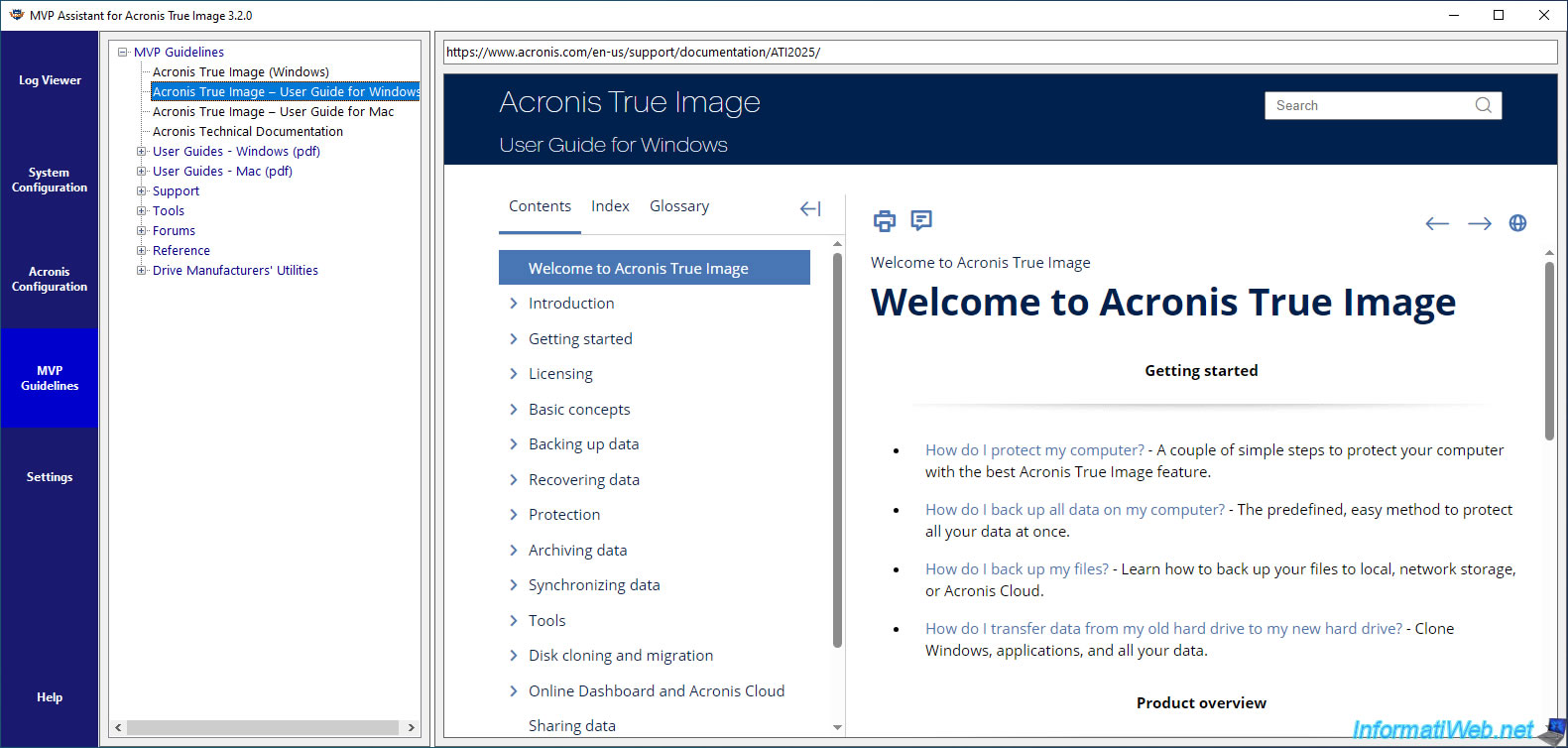
In the "MVP Guidelines" section of "MVP Assistant", you can find useful links to Acronis True Image User Guide, additional Acronis tools, as well as links to Acronis Forum for different Acronis versions.
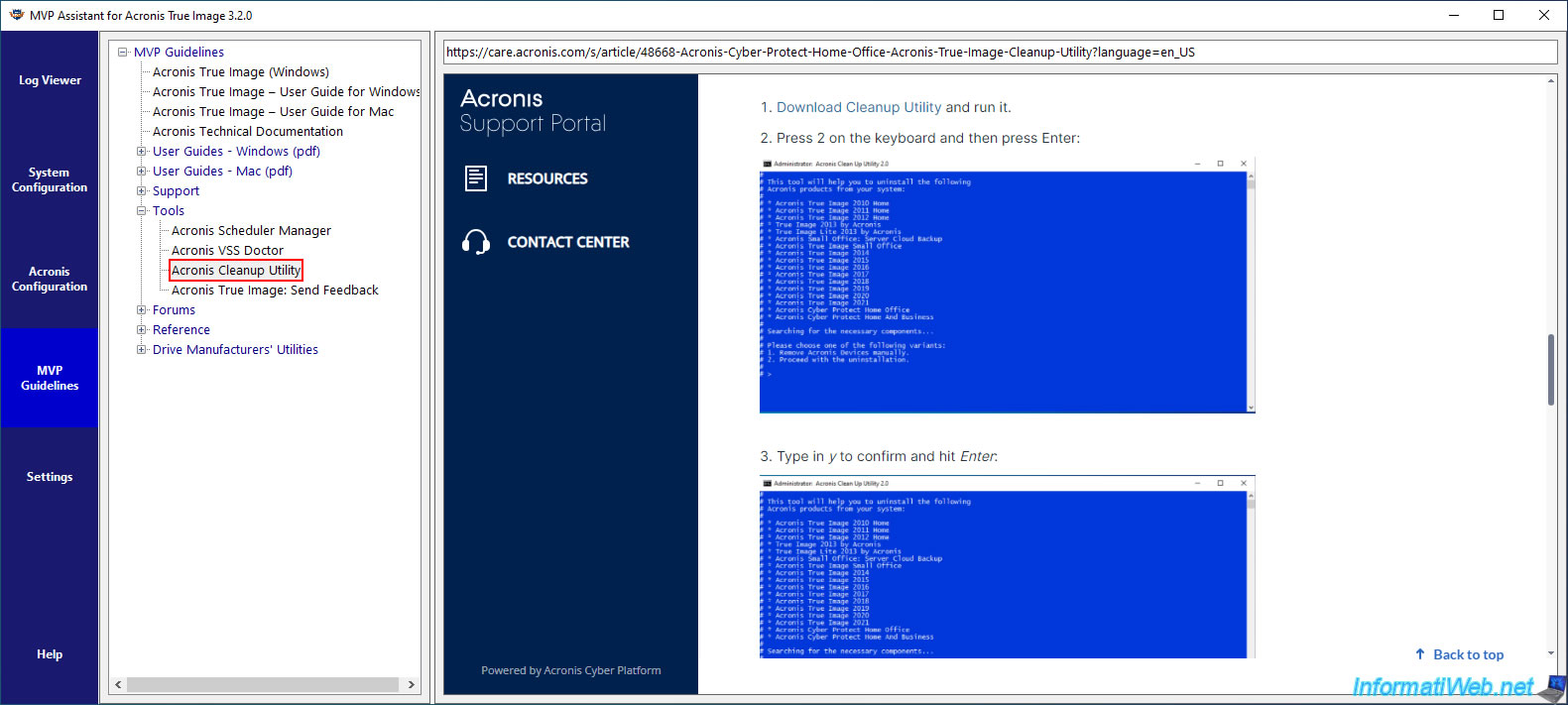
In the "Tools" section, you will find a link to the "Acronis Cleanup Utility" tool, which allows you to delete all files, registry keys and other Acronis components that may have remained on your computer after uninstalling Acronis True Image or Acronis Cyber Protect. This can be useful in case of problems, because you can uninstall your Acronis product, then clean your computer and reinstall the desired Acronis product without it causing any problems.
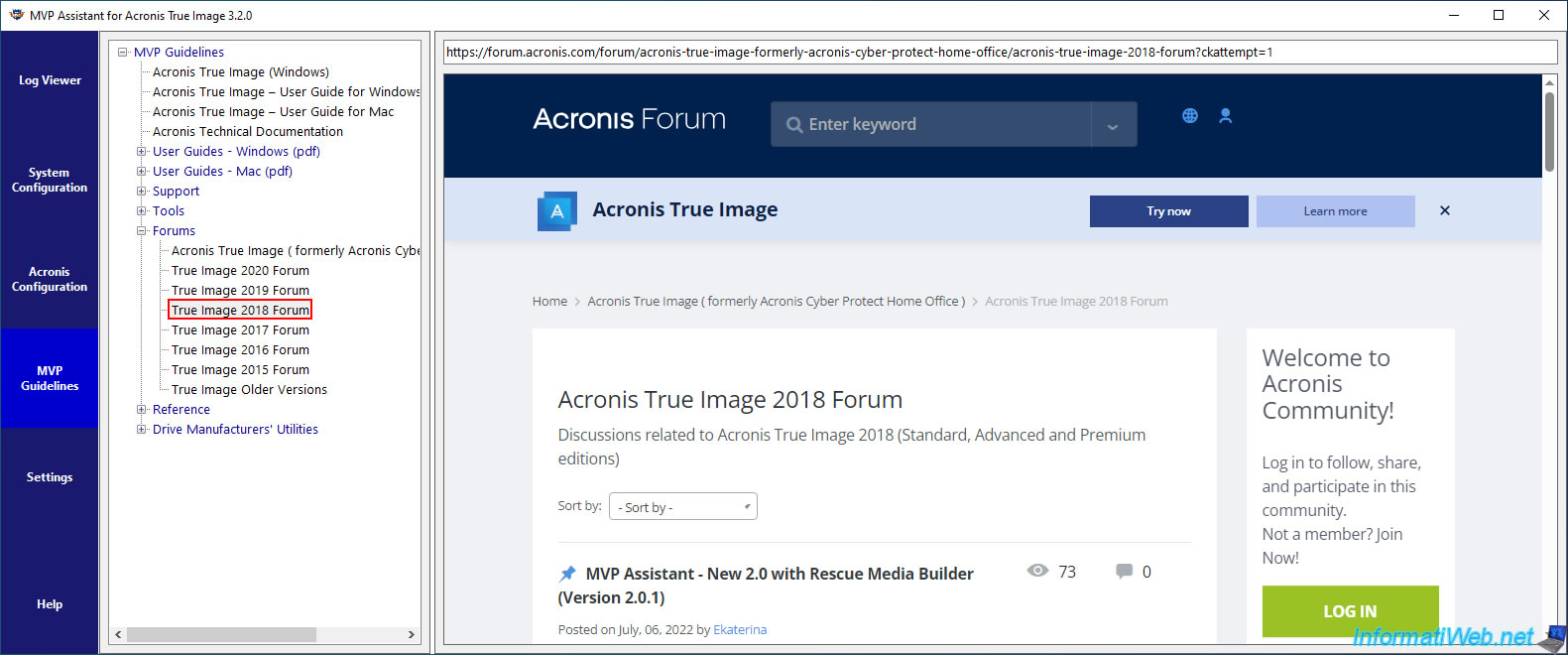
In the "Forums" section, you will find shortcuts to the different forum sections regarding the different versions of Acronis True Image.
1.7. Settings
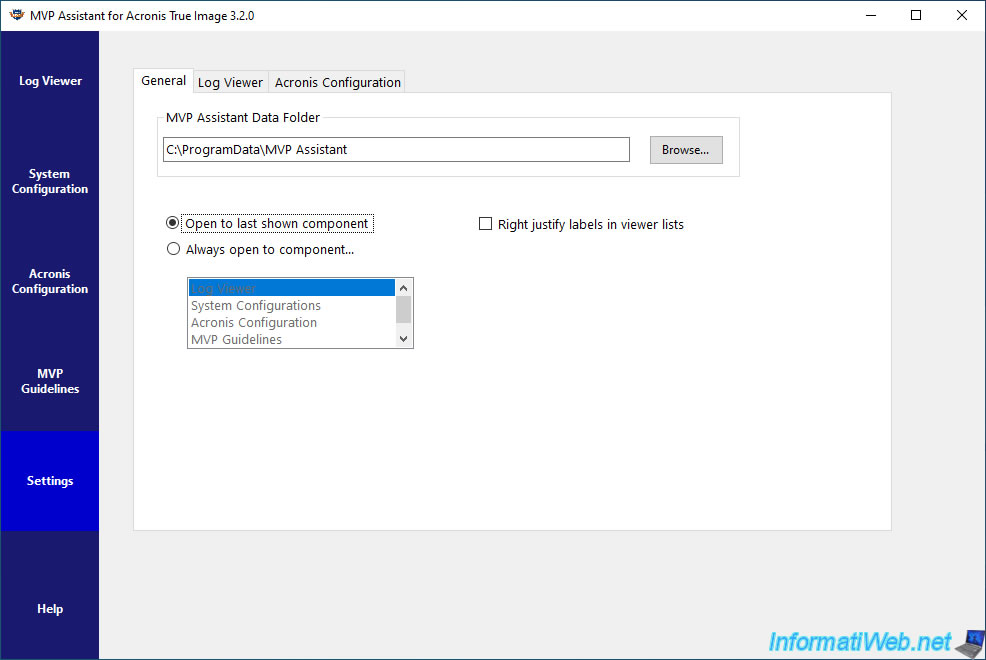
In the "Settings" section, you can manage the settings of this "MVP Assistant" tool.
You can notably choose the folder where this tool will store its data and choose whether to reopen the last opened component (Open to last shown component) or always open a specific component (Always open to component).
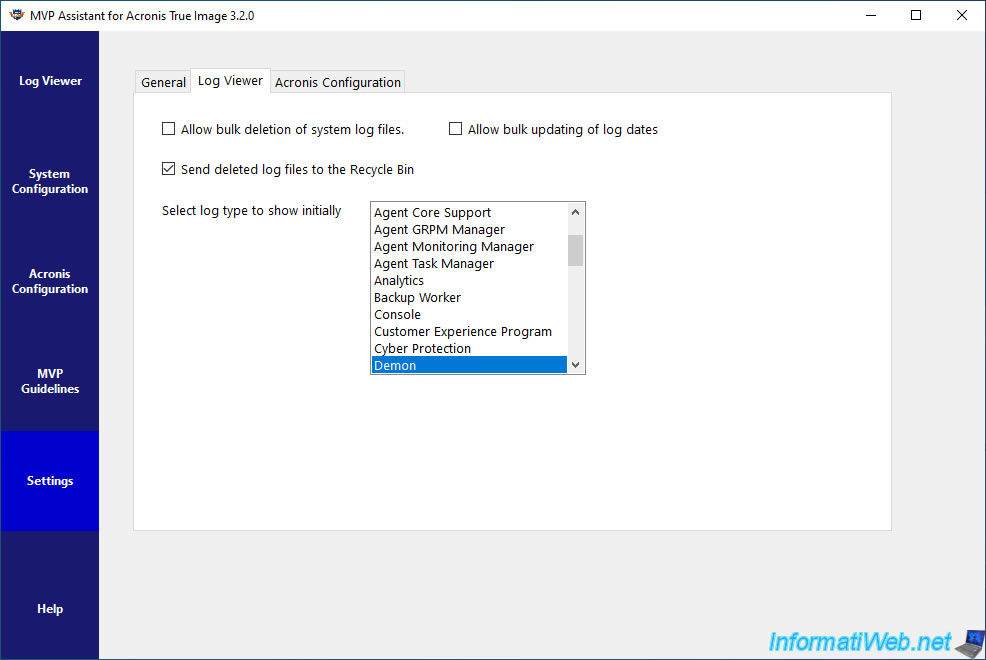
In the "Log Viewer" tab of these settings, you can choose the type of log to display by default in the "Log Viewer" section.
For example: Demon. To display by default the logs concerning your backups made with Acronis Cyber Protect Home Office (True Image).
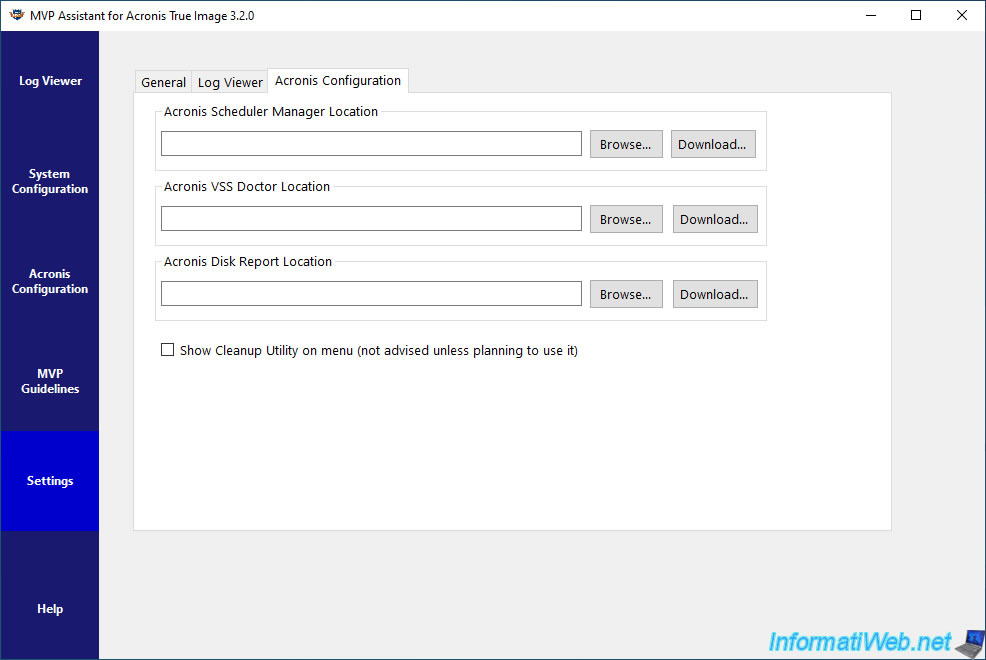
In the "Acronis Configuration" tab, you will be able to specify the location of the following Acronis programs: Acronis Scheduler Manager, Acronis VSS Doctor and Acronis Disk Report.
1.8. Help (MVP Assistant help)
To view help for this "MVP Assistant" tool, go to the "Help" section.
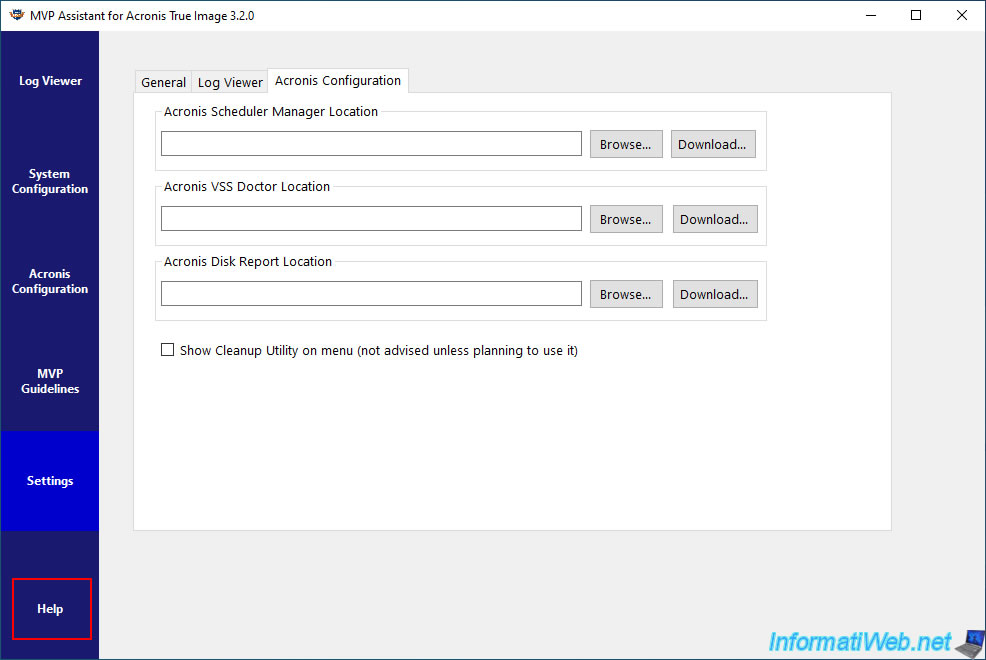
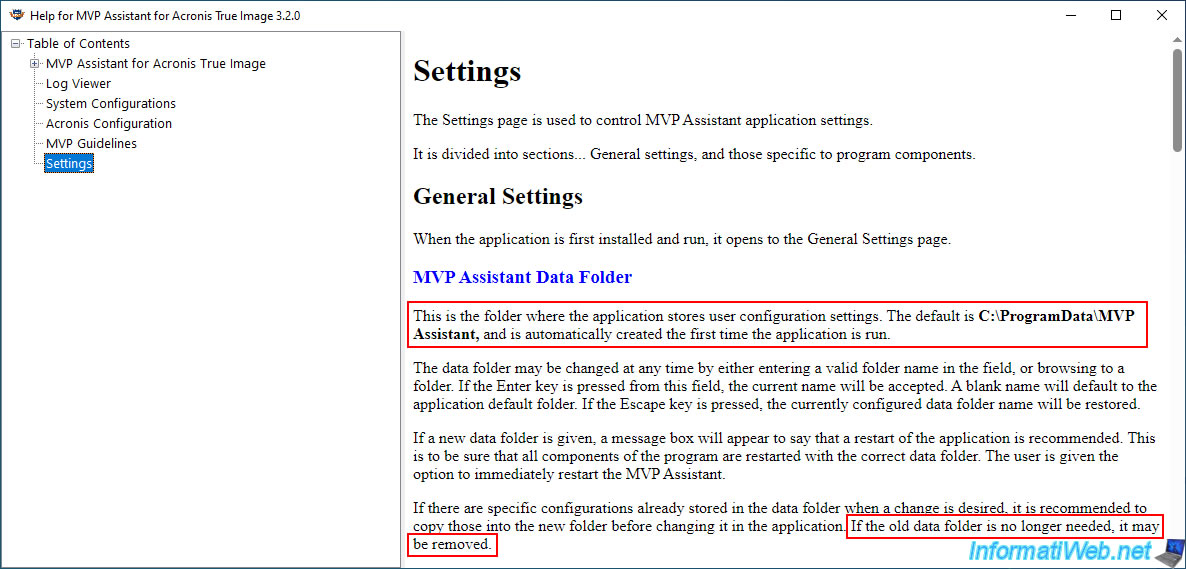
Which will display a "Help for MVP Assistant for Acronis True Image 3.2.0" window.
By default, the "Settings" section of this help will appear and you can see that this tool stores by default user settings in the "C:\ProgramData\MVP Assistant" folder (which is created automatically at the first launch of this tool).
A little further down, you can also see that if this folder is no longer needed, it can simply be deleted.
2. Log Viewer
The 2nd third-party tool is "Log Viewer" and it allows you to view Acronis True Image logs (up to version 2018 only).
Warning : this tool has become obsolete.
Indeed, this "Log Viewer" tool only supports Acronis True Image up to version 2018.
Acronis Cyber Protect Home Office is therefore not supported and no logs will be detected by this "Log Viewer" tool with this Acronis program.
Therefore, prefer to use the previous tool (MVP Assistant) which supports Acronis True Image and Acronis Cyber Protect Home Office and which has a "Log Viewer" section whose purpose is exactly the same as this "Log Viewer" tool. In addition, the "MVP Assistant" tool will allow you to access all of your Acronis logs by sorting them into different sections (by component).
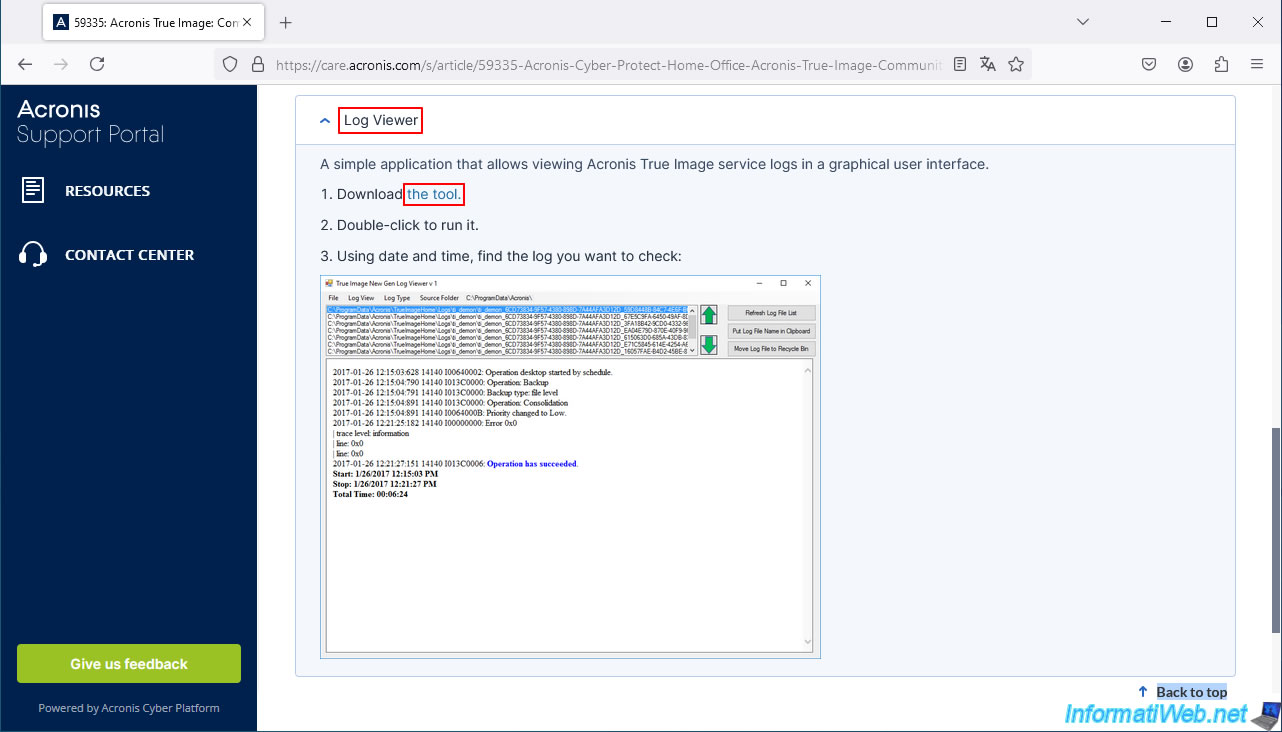
To download this tool, click on the "the tool" link present in step 1 of this tool.
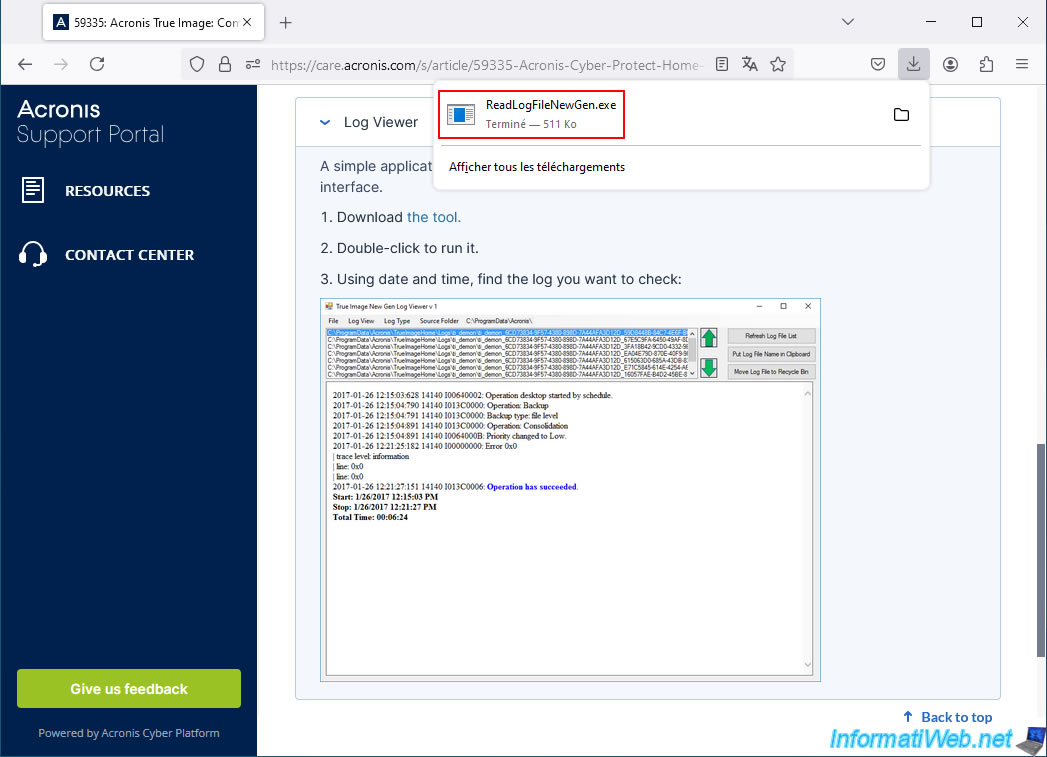
The downloaded file will be named "ReadLogFileNewGen.exe".
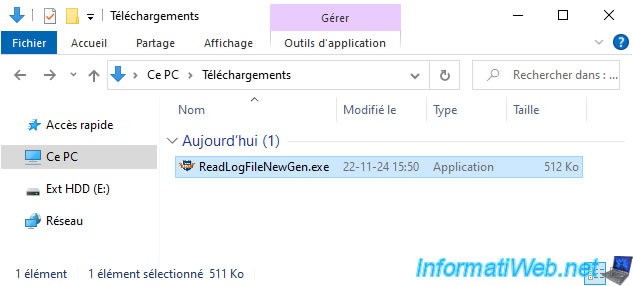
Run the downloaded "ReadLogFileNewGen.exe" file.
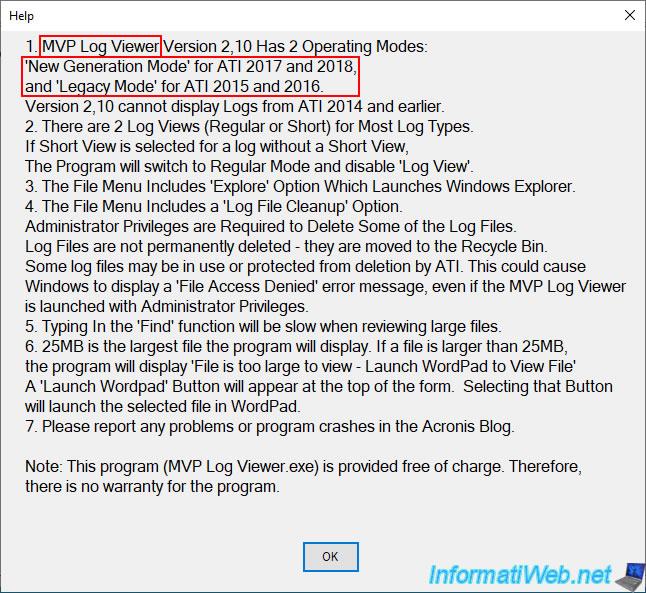
As you can see, version 2.10 of this tool "MVP Log Viewer" has 2 operating modes
- New Generation: for Acronis True Image (ATI) 2017 and 2018.
- Legacy Mode: for Acronis True Image (ATI) 2015 and 2016.
Click OK to hide this message.
Warning : as you can see, this tool does not support recent versions of Acronis True Image (newer than 2018) nor the equivalent "Acronis Cyber Protect Home Office".
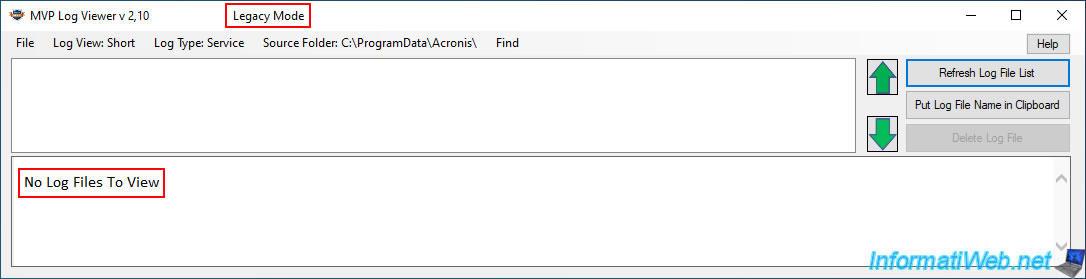
If you backup with Acronis Cyber Protect Home Office (or a too recent version of Acronis True Image) and then launch this "MVP Log Viewer" tool, you will see that it uses its "Legacy Mode" and will not detect any Acronis logs.
Also, if you refer to the message displayed earlier, this "Legacy Mode" is supposed to be used for older versions of Acronis True Image (2015 and 2016).
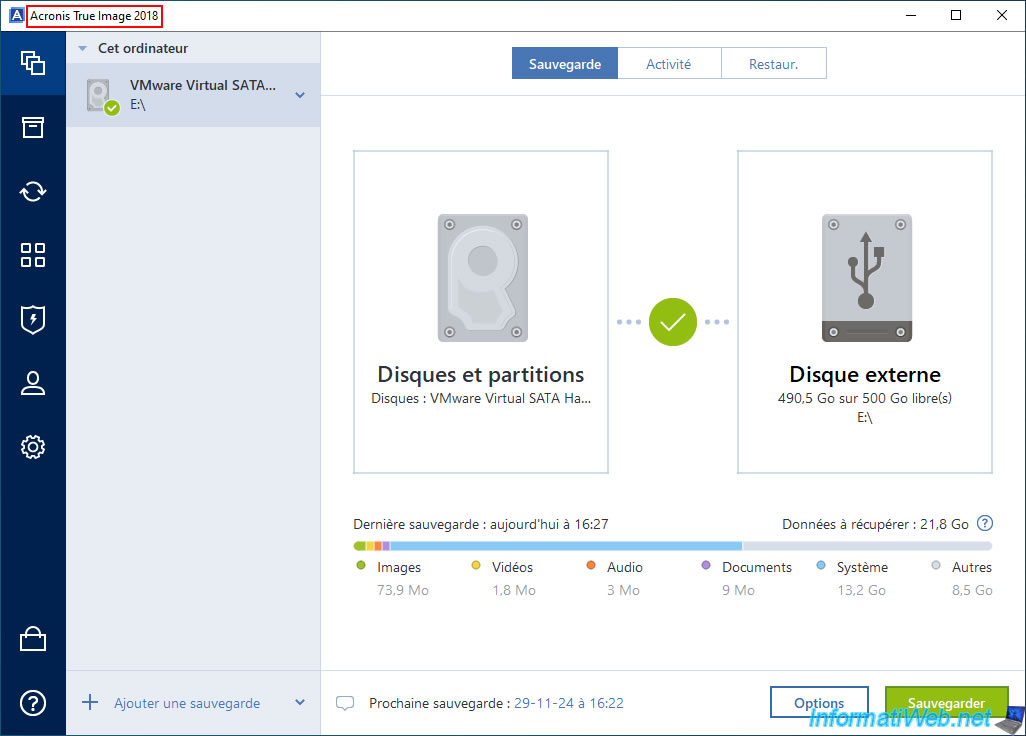
So we installed Acronis True Image 2018 just to quickly introduce this tool and we created a backup on our external hard drive.
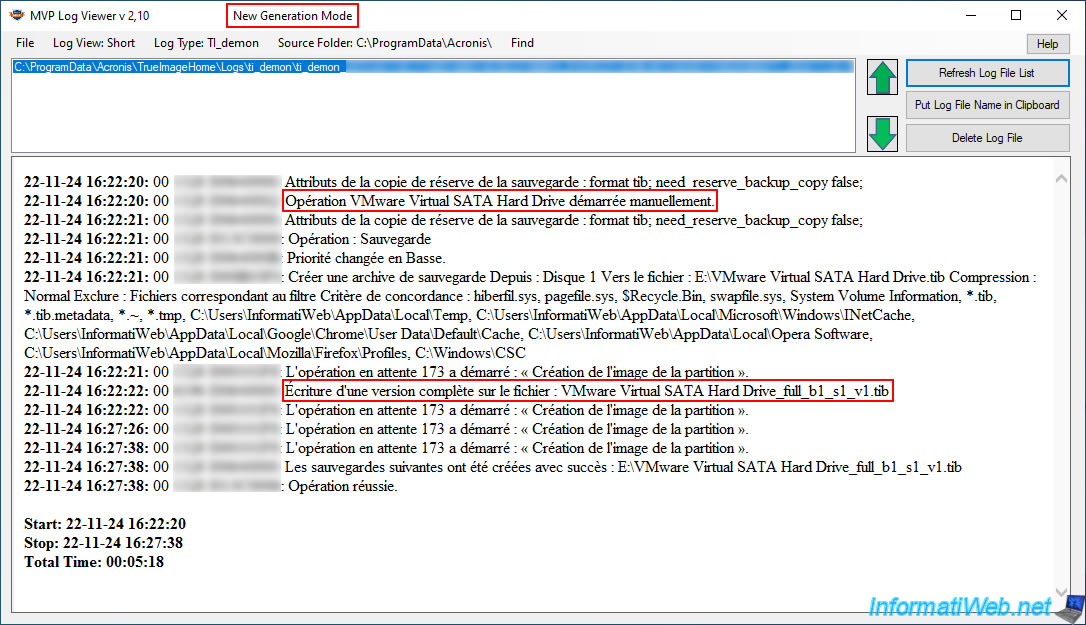
With this old version of Acronis True Image (which is the last version supported by this "Log Viewer" tool), this tool starts in "New Generation Mode" and it actually detects our log concerning the backup that we have just made with Acronis True Image 2018.
Share this tutorial
To see also
-

Backup 12/8/2025
Acronis True Image - Acronis Cloud presentation
-
Backup 6/16/2025
Acronis True Image - Backing up your PC to a Synology NAS
-
Backup 8/17/2026
Acronis True Image - Generate a report of your system
-
Backup 1/12/2026
Acronis True Image - Rescue Media - Create media easily (bootable USB key)
No comment