- Backup
- Acronis True Image
- 15 June 2026 at 15:37 UTC
-

- 1/3
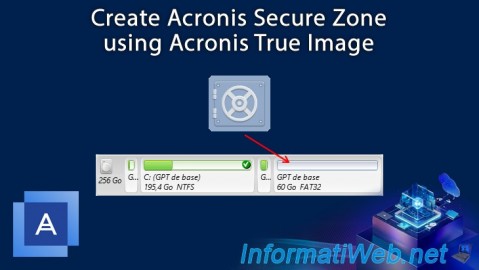
To protect your backups from unauthorized access (including preventing viruses from altering or encrypting them, in the case of ransomware), you can create a special partition called "Acronis Secure Zone" on a disk on your computer.
Although not mandatory, you can also protect it with a password.
- Create a special Acronis Secure Zone partition on Windows
- Backup your partitions to your Acronis Secure Zone partition
- View your backup stored in your Acronis Secure Zone partition from Windows file explorer
- Restore your partition data from the backup in your Acronis Secure Zone
- Limitations when using a special partition: Acronis Secure Zone
1. Create a special Acronis Secure Zone partition on Windows
For this tutorial, we used a 256 GB disk on which Windows 10 is installed and on which we will create the "Acronis Secure Zone" partition from the Acronis Cyber Protect Home Office (True Image) interface.
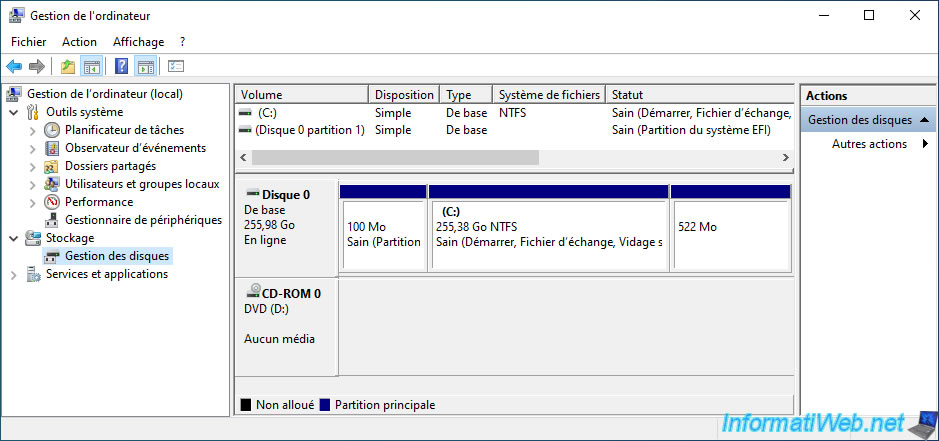
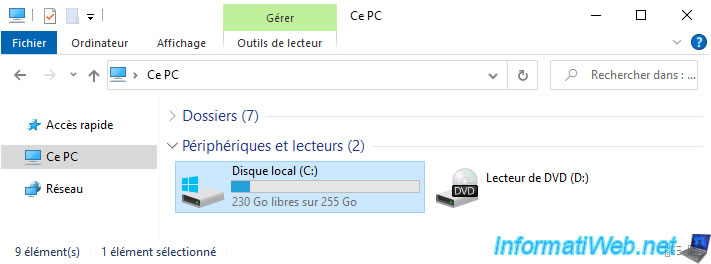
In file explorer, we can only see the "C" partition which is currently 255 GB in size.
This is normal since the other 2 partitions are system partitions created and used by Windows 10 for its startup and repair (Win RE).
To create the special partition "Acronis Secure Zone" from Windows, go to the "Tools" section of Acronis Cyber Protect Home Office (True Image) and launch the "Acronis Secure Zone" tool.
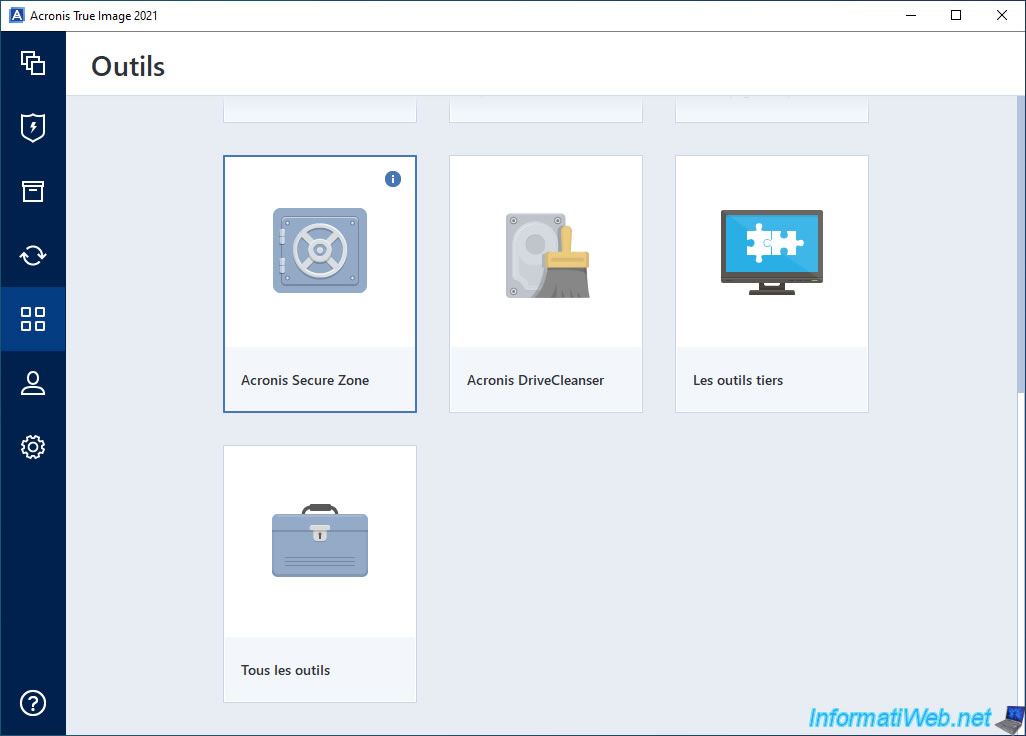
If you hover over the little "i" of this "Acronis Secure Zone" tool, you will see that it allows you to create a special protected partition where you can store your backups on your disk.
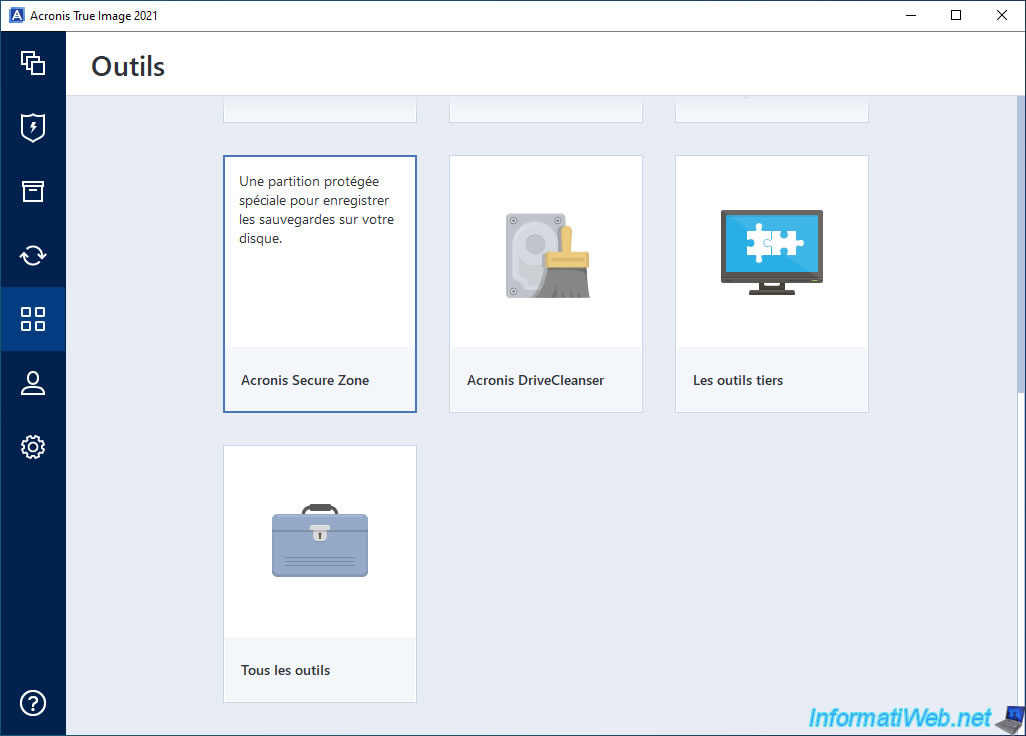
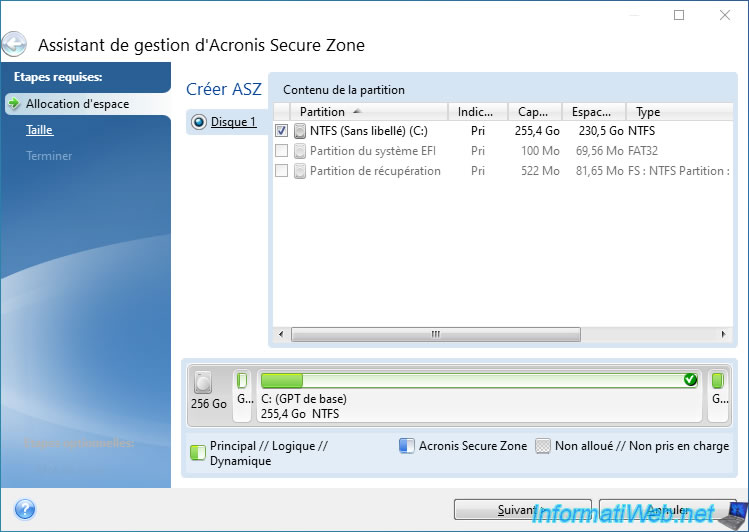
In the "Acronis Secure Zone Management Wizard" window that appears, you will need to select:
- the disk where you want to create this special "Acronis Secure Zone" (ASZ) partition.
- the partition you want to reduce the size of to allocate the freed space to the "Acronis Secure Zone" (ASZ) partition that will be created on this disk.
So, in our case, we selected the "C:" partition where Windows 10 is installed and which is about 255 GB in size.
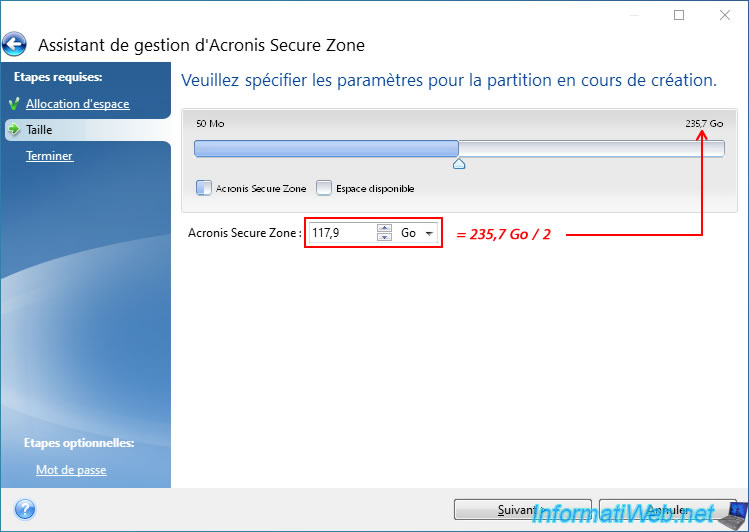
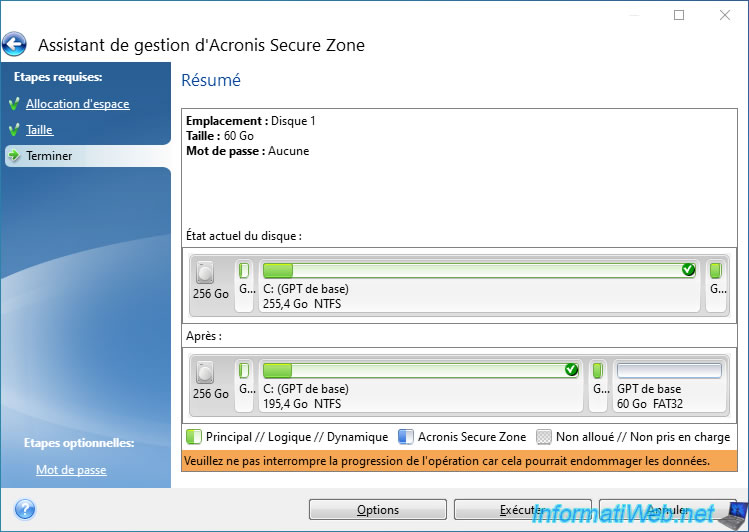
As you can see, the default size of this special "Acronis Secure Zone" partition is half the size of the partition selected in the previous step.
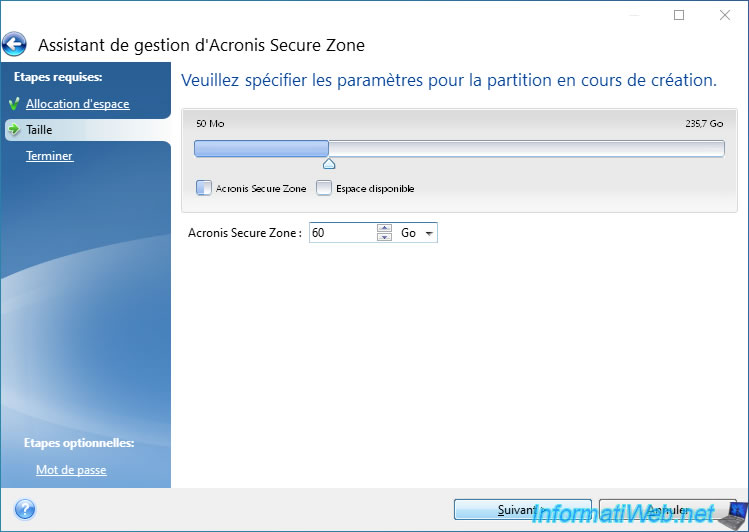
In our case, we indicated a size of 60 GB (which will be enough in our case for a backup).
A summary appears with the future partitioning of your disk where your new "Acronis Secure Zone" partition will be located.
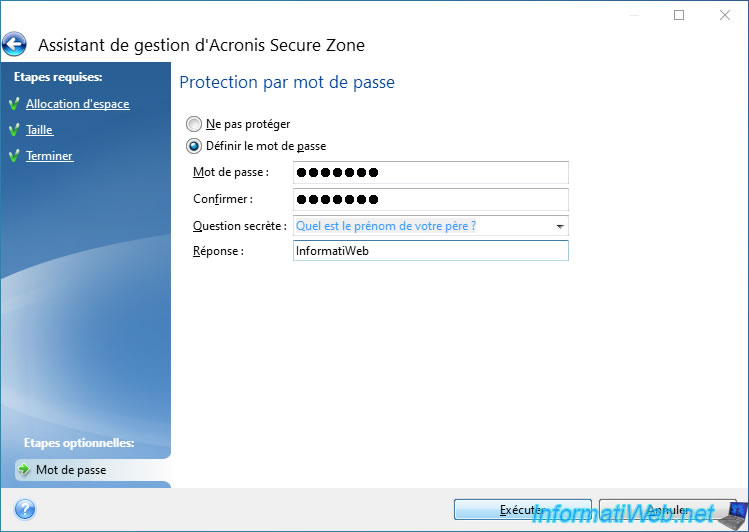
If you click on the optional "Password" step located at the bottom left, you will be able to choose the "Set password" option to protect access to this special partition with a password.
Then, click on the "Run" button to start creating this special "Acronis Secure Zone" partition.
A small loading window will appear for a few seconds or even a minute.
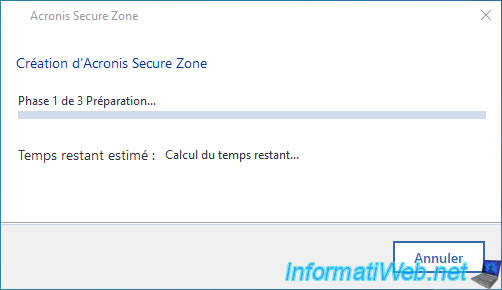
Then, a small window with the step "Creating Acronis Secure Zone" will appear.
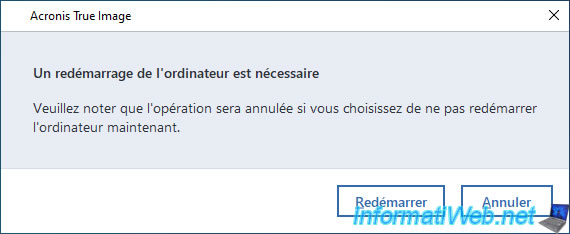
However, Acronis Cyber Protect Home Office (True Image) will directly ask you to reboot.
Plain Text
A computer restart is required.
Indeed, since Acronis Cyber Protect Home Office (True Image) has to repartition your disk (where Windows is in our case), you are forced to reboot to create it.
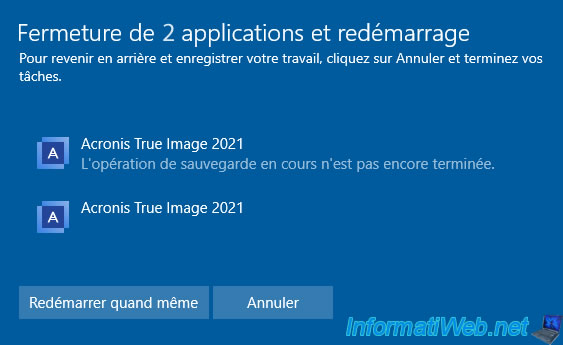
If Windows tells you that it is waiting for the Acronis Cyber Protect Home Office (True Image) program to close before restarting, force Windows to restart by clicking on the "Restart anyway" button.
In fact, it is Acronis Cyber Protect Home Office (True Image) that asked Windows to restart and Windows tells you that it is waiting for this same program (Acronis ...) to stop. Which does not make sense.
Note: this button can obviously have another name on other versions of Windows.
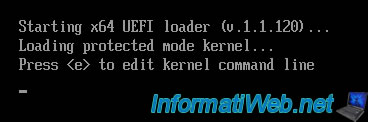
Your PC restarts.

Then, your PC will reboot into Acronis recovery environment.
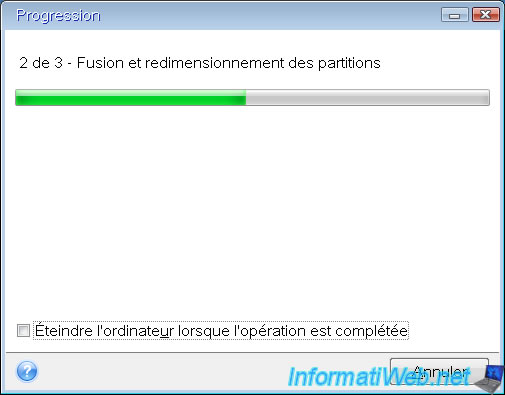
Then, a progress window will appear on its own on a light blue background.
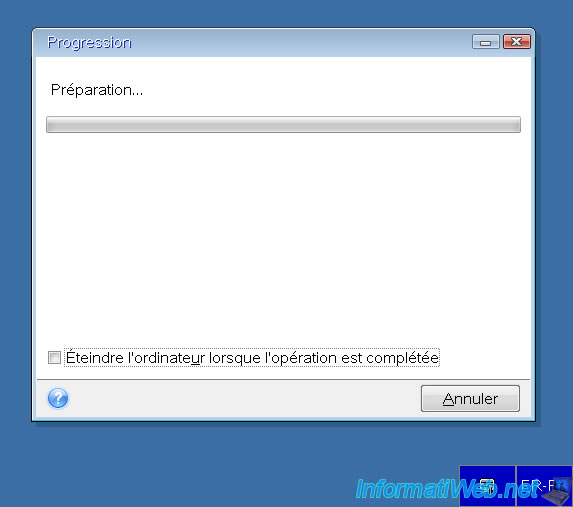
Please wait while your special partition "Acronis Secure Zone" is automatically created using the settings configured previously.
Plain Text
2 of 3 - Merging and resizing partitions.
Plain Text
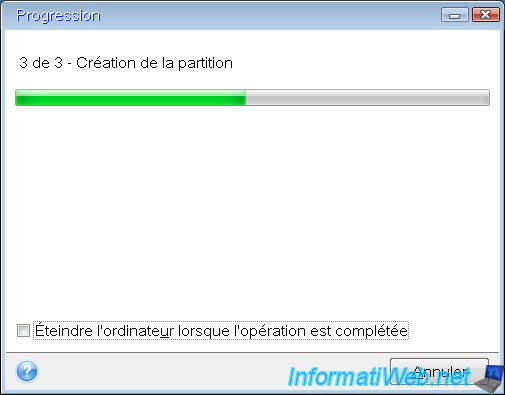
3 of 3 - Creating the partition.
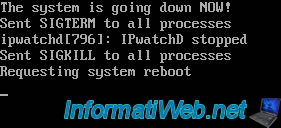
Once your "Acronis Secure Zone" partition is created, your computer will restart automatically.
This time, you will arrive in Windows.
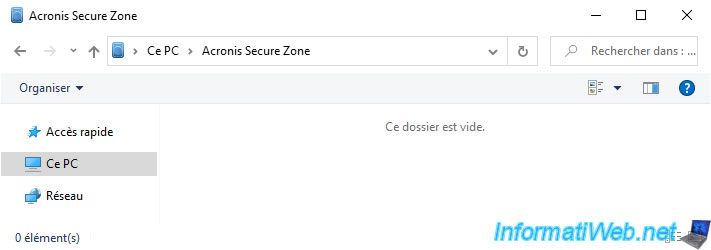
In the "This PC" section of Windows file explorer, you will see a new drive named "Acronis Secure Zone" appear.
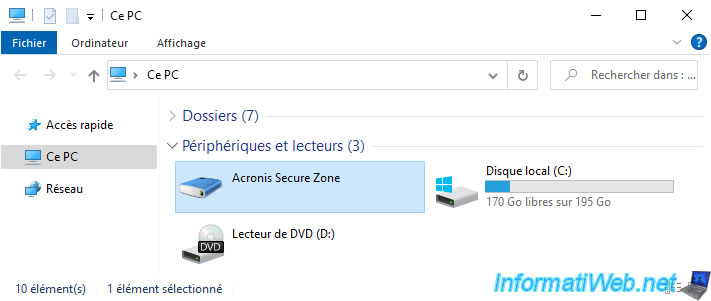
To see its contents, simply double-click on it.
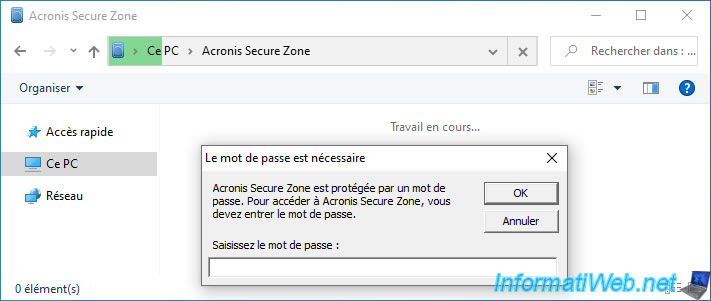
Of course, if you have protected your special partition "Acronis Secure Zone" with a password, a small popup "Password is required" will appear and tell you that Acronis Secure Zone is protected by a password.
In this case, type the password that protects your partition "Acronis Secure Zone" and click OK.
Important : this partition is only visible and accessible if Acronis Cyber Protect Home Office (True Image) is installed on your computer.
You will therefore not be able to access it from a live CD (except the Acronis rescue media that you can create from the "Tools" section of Acronis Cyber Protect Home Office (True Image)).
By default, this is obviously empty.
Share this tutorial
To see also
-
Backup 9/26/2012
Acronis - Restore a backup on a different hardware
-
Backup 6/19/2025
Acronis True Image - Backing up your PC to an external hard drive (encrypted backup)
-
Backup 7/7/2025
Acronis True Image - Backup files or folders
-
Backup 8/14/2025
Acronis True Image - Move a backup
You must be logged in to post a comment