Create Acronis Secure Zone using Acronis True Image (Cyber Protect Home Office)
- Backup
- Acronis True Image
- 15 June 2026 at 15:37 UTC
-

- 2/3
2. Backup your partitions to your Acronis Secure Zone partition
When you have a special "Acronis Secure Zone" partition on one of your disks, you can no longer back up your entire PC (which is Acronis' default choice) or back up the entire disk where it is located.
For more information about these restrictions, refer to the last step of this tutorial.
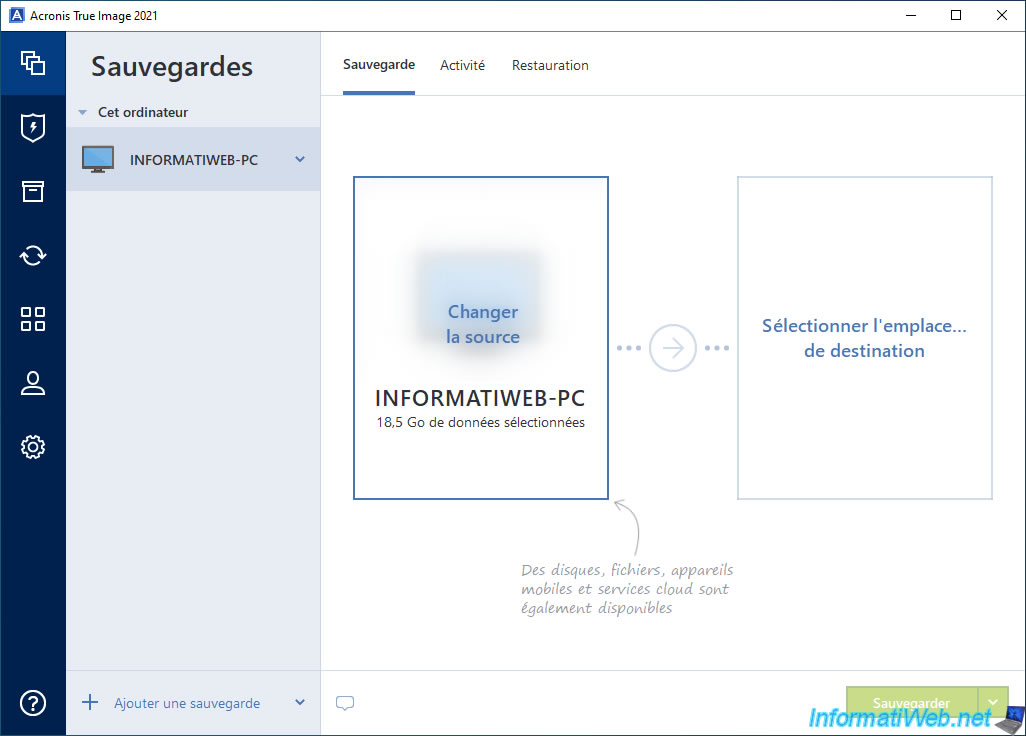
To back up the partitions of the disk where your "Acronis Secure Zone" partition is located, go to the "Backup" section of Acronis Cyber Protect Home Office (True Image) and change the source of your future backup.
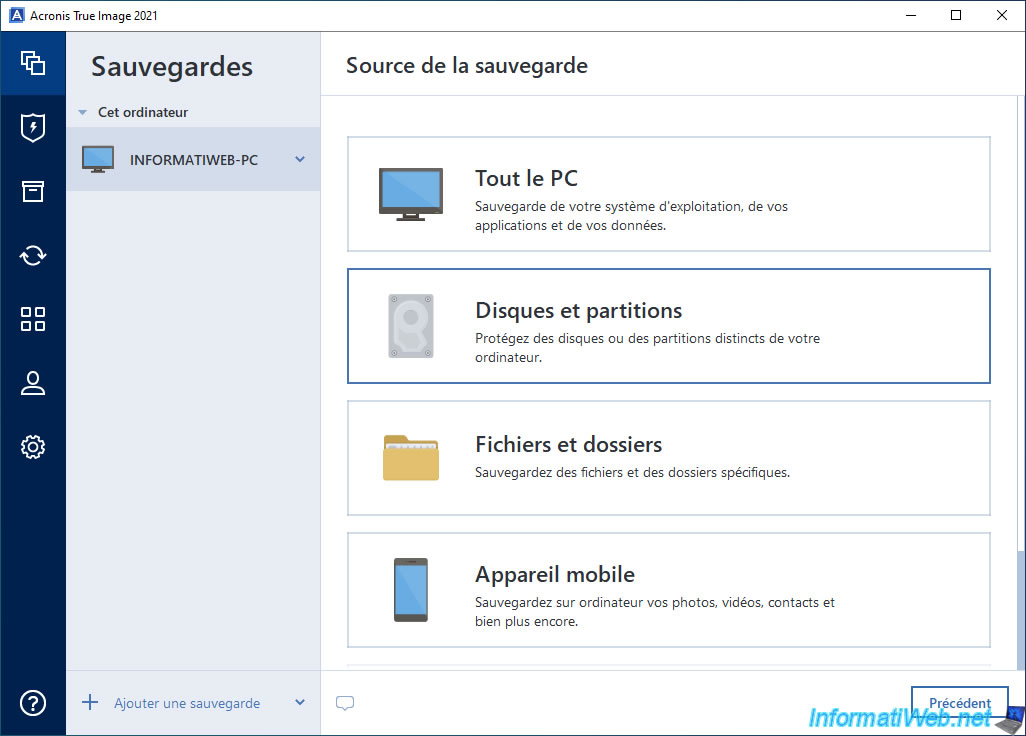
Select the backup source "Disks and Partitions".
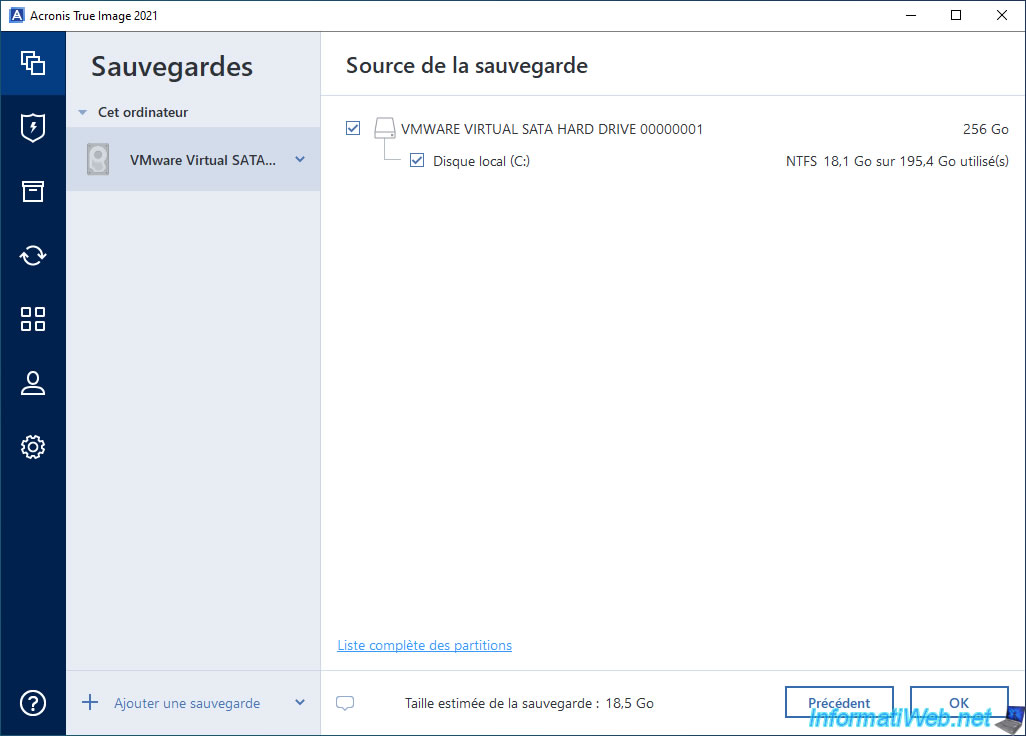
By default, Acronis Cyber Protect Home Office (True Image) selects your entire disk and only shows you the partitions visible in the file explorer.
Hence the fact that Acronis Cyber Protect Home Office (True Image) only shows the "C" partition of our 256 GB disk.
To see all the partitions on your disk, including system partitions and/or hidden partitions, click on the "Full list of partitions" link.
Warning : as a reminder, if you want to back up the disk where your "Acronis Secure Zone" partition is located, you will not be able to back up this entire disk.
To do this, you will first need to click on the "Full list of partitions" link located at the bottom as in this tutorial.
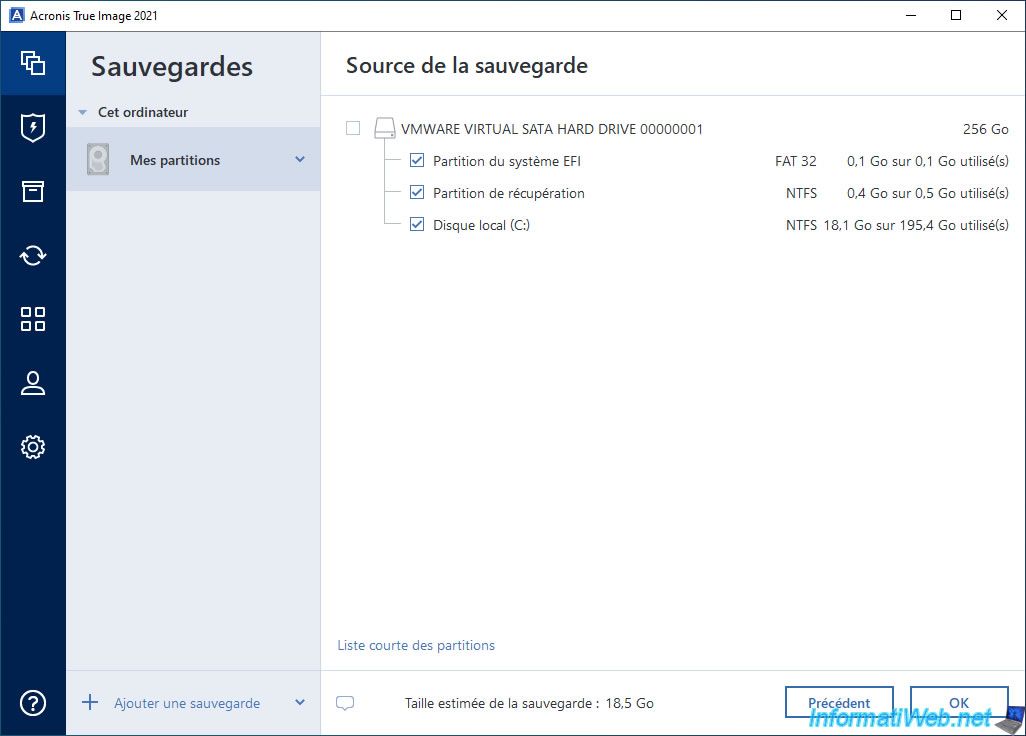
In our case, Acronis Cyber Protect Home Office (True Image) only displays 3 partitions for our 256 GB disk.
If you look at the size of these partitions, you will quickly notice that a certain number of gigabytes (GB) are missing. What is missing corresponds to the size of your "Acronis Secure Zone" partition.
Warning : if you check the box of your disk to select it in its entirety, Acronis Cyber Protect Home Office (True Image) will back up the contents of your "Acronis Cyber Protect Home Office (True Image)" partition in the created backup each time. This would cause problems during the restoration and would take up a lot of disk space unnecessarily.
Note that by selecting the entire disk, Acronis Cyber Protect Home Office (True Image) will also back up the "Acronis Secure Zone" partition even if it does not show it to you here.
Important : select only the partitions to be backed up (in our case: the "C:" partition, as well as the 2 Windows system partitions), then click "OK".
Then, click on the right rectangle to choose the backup destination.
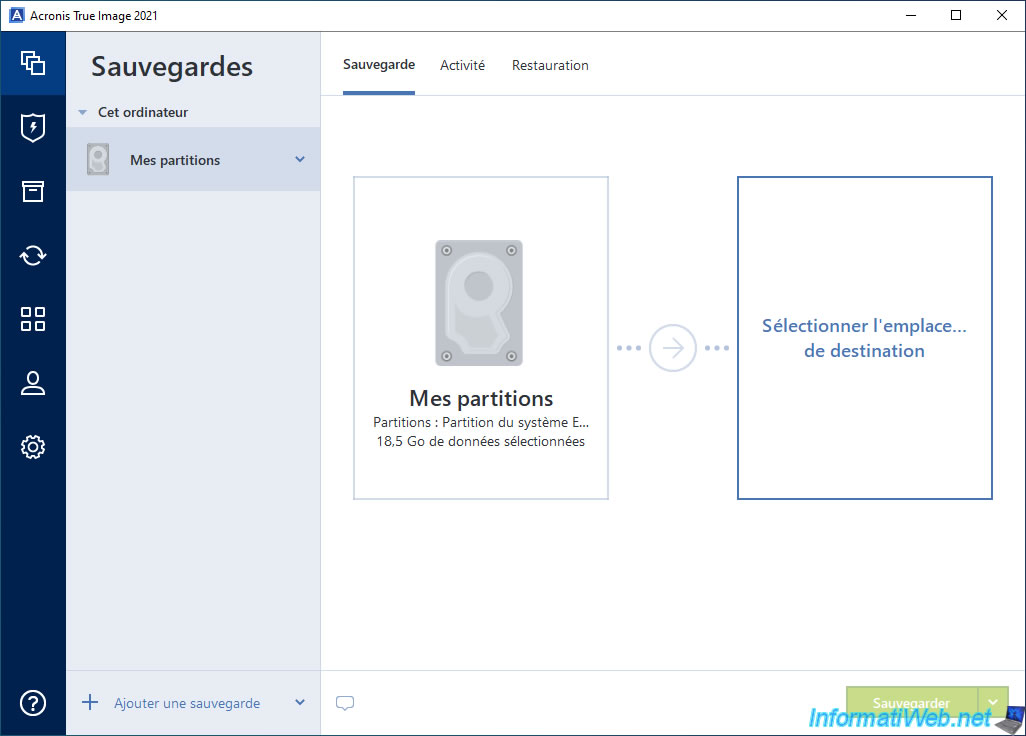
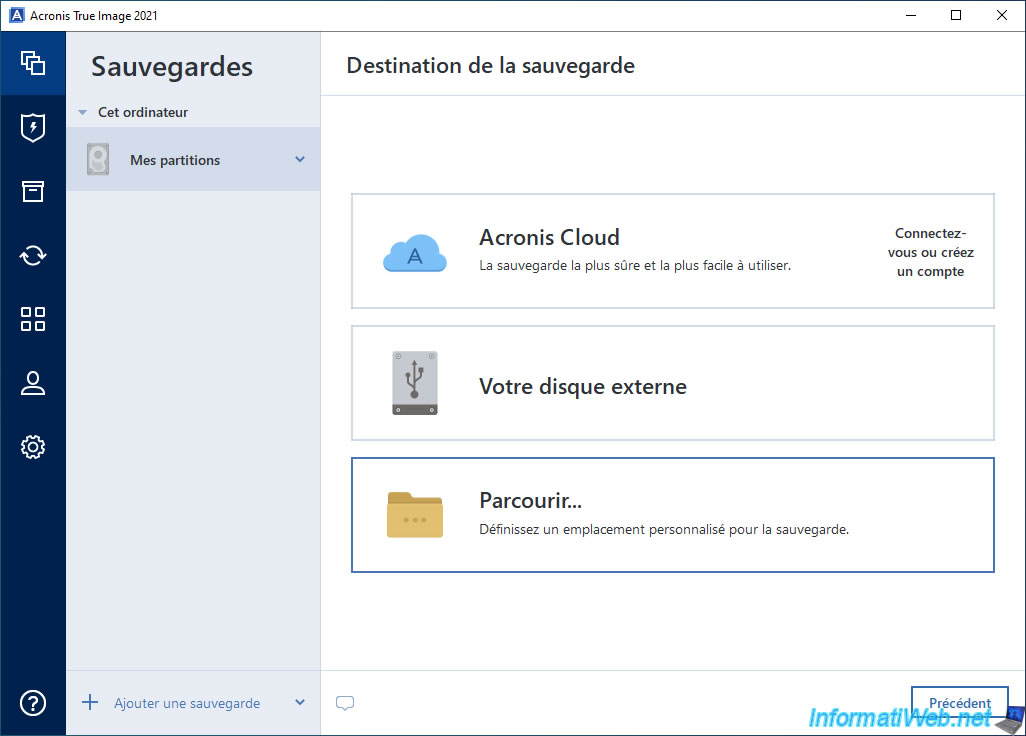
First select the "Browse" option for the backup destination.
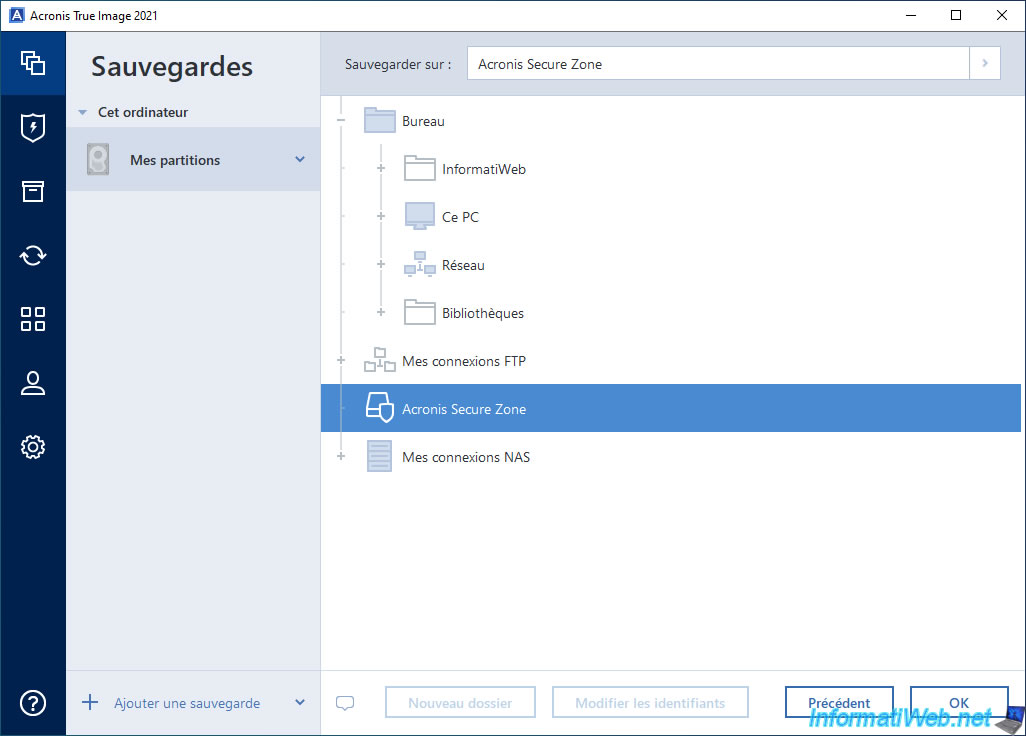
Now, select "Acronis Secure Zone" and click OK.
Note: this option appears only if this "Acronis Secure Zone" partition has already been created.
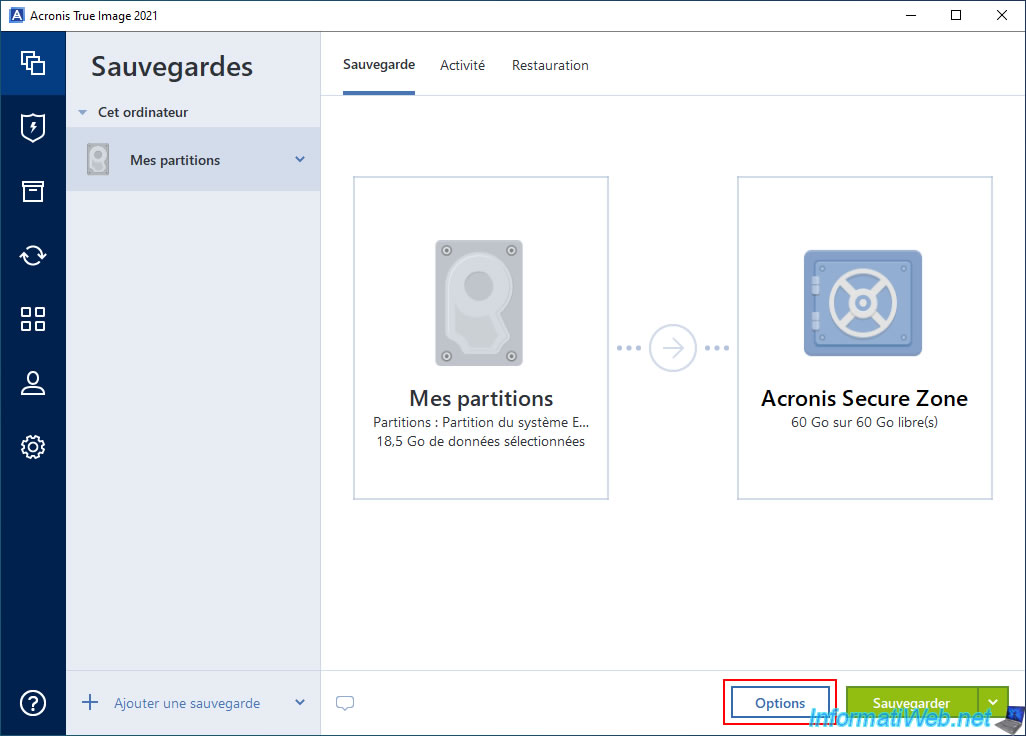
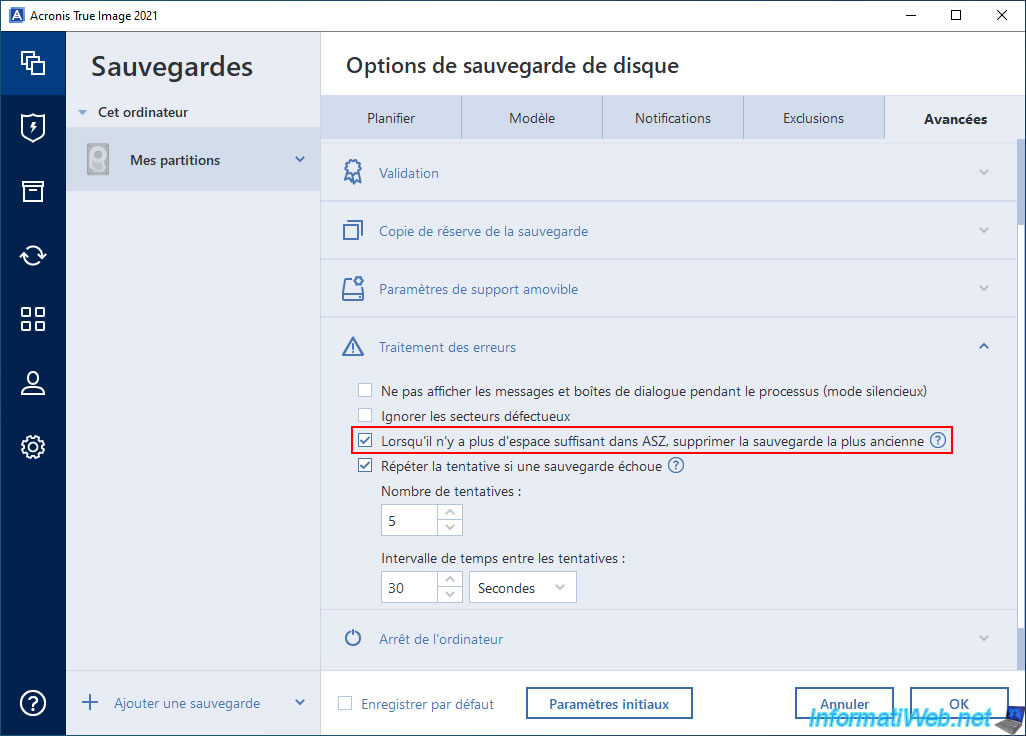
Optional: click the "Options" button (to see the specific option for using an Acronis Secure Zone).
In the "Advanced -> Error Handling" section of disk backup options, you will see that the "When there is no more space in ASZ, delete the oldest backup" option is checked by default.
This means that if you back up your computer to your "Acronis Secure Zone" (ASZ) partition several times, the oldest backups present on this special partition will be automatically deleted by Acronis Cyber Protect Home Office (True Image).
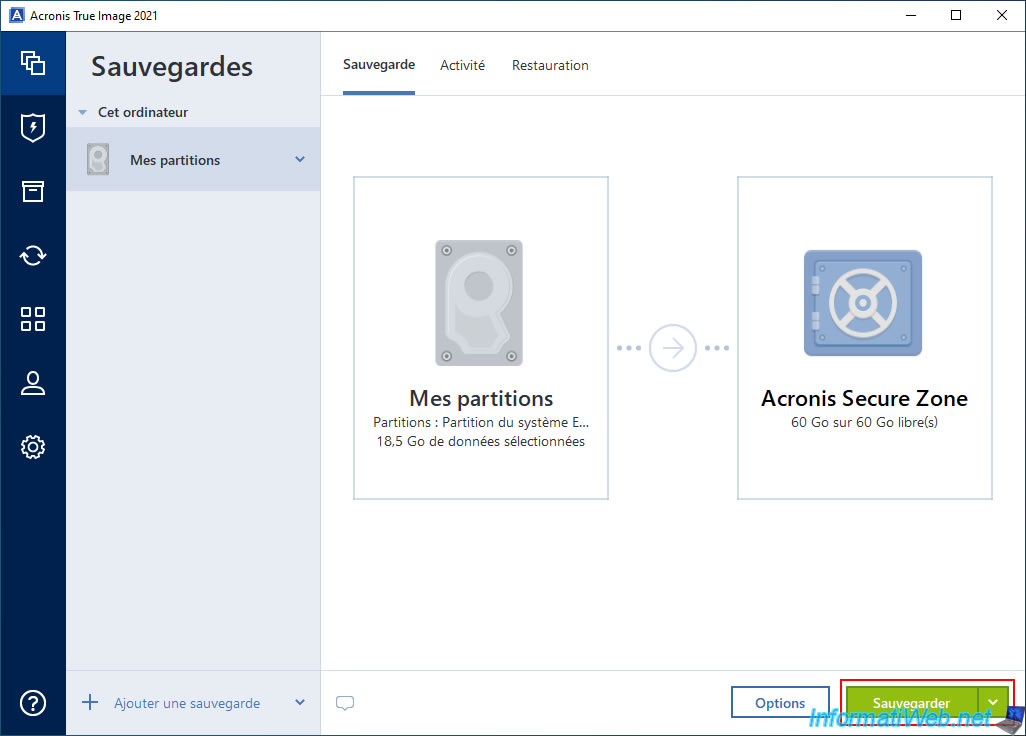
Click the "Backup" button to start backing up your partitions to your Acronis Secure Zone.
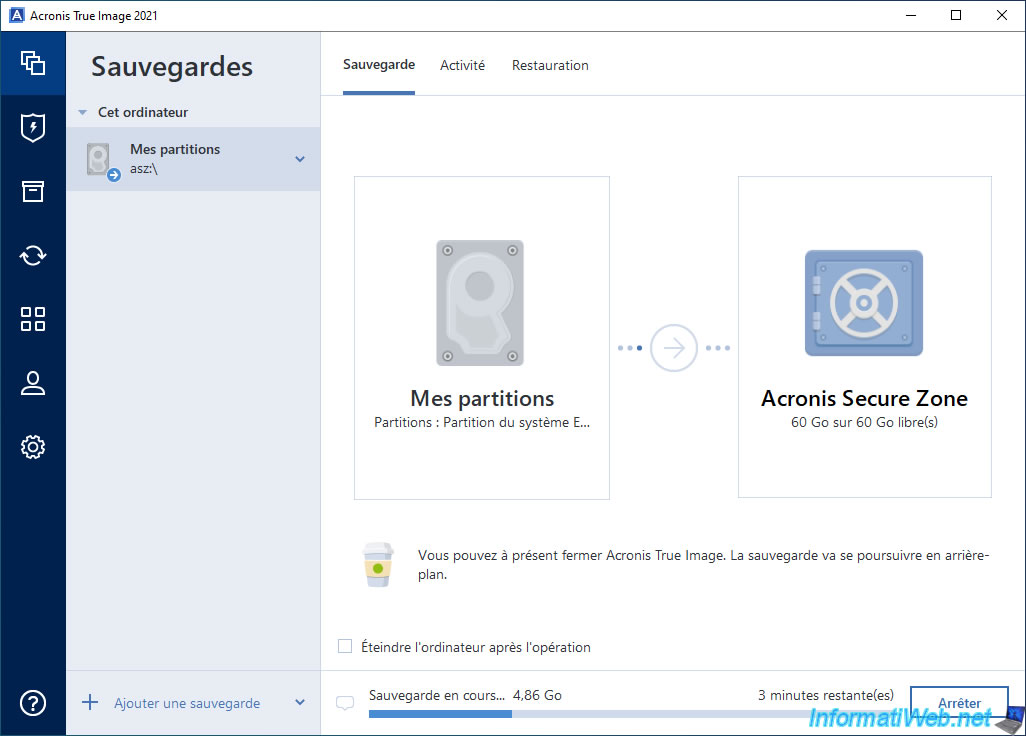
Please wait while your partitions are backed up to your special "Acronis Secure Zone" partition.
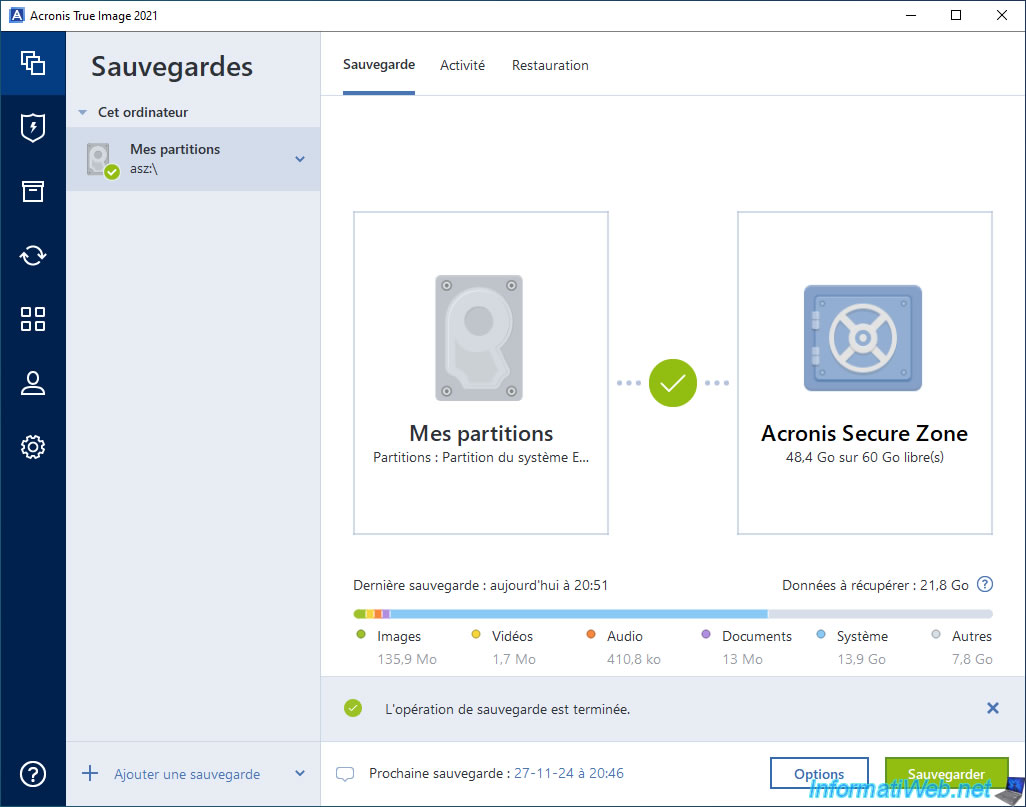
Once the backup is complete, the "The backup operation is complete" message will appear.
Share this tutorial
To see also
-
Backup 7/13/2026
Acronis True Image - Download backup from Acronis Cloud
-
Backup 8/17/2026
Acronis True Image - Generate a report of your system
-
Backup 11/20/2025
Acronis True Image - Synchronize a folder from Acronis Cloud
-

Backup 11/17/2025
Acronis True Image - Synchronize a folder to Acronis Cloud
No comment