Create Acronis Secure Zone using Acronis True Image (Cyber Protect Home Office)
- Backup
- Acronis True Image
- 15 June 2026 at 15:37 UTC
-

- 3/3
3. View your backup stored in your Acronis Secure Zone partition from Windows file explorer
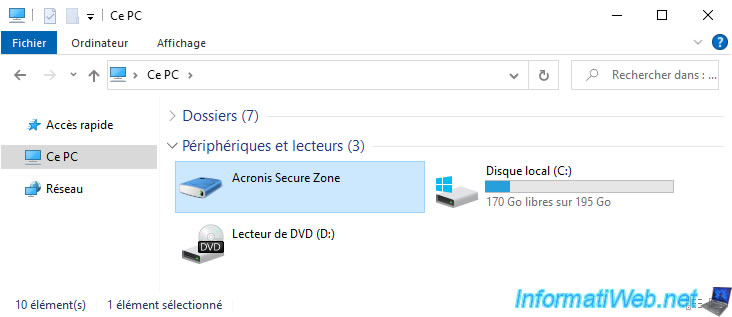
To view your backup, you can go to the "This PC" section of Windows file explorer and double-click on your "Acronis Secure Zone" drive.
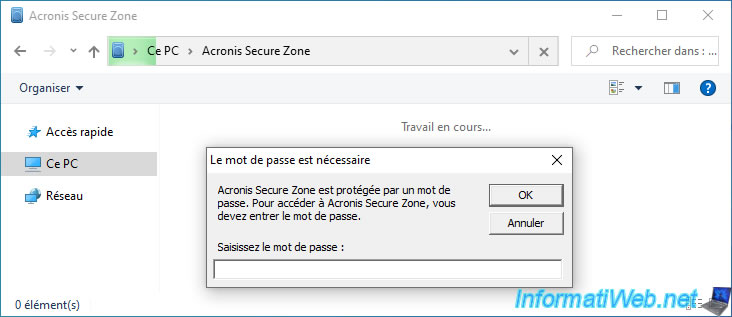
If you have protected your special partition "Acronis Secure Zone" (ASZ) with a password, you will be asked for it.
Type it in the box provided and click OK.
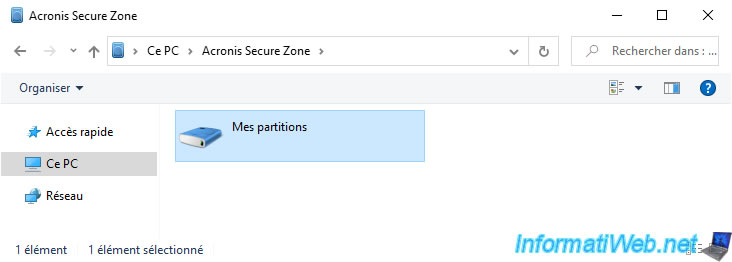
The name of your backup configuration appears.
In our case: My partitions.
Double-click on it to open it.
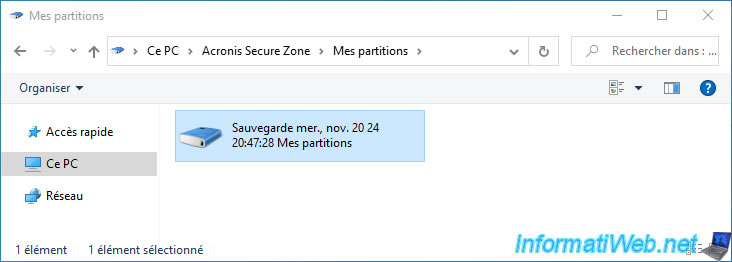
Then you will see your backup appear.
Again, double click on this backup to open it.
When opening your partition backup, you will notice that Acronis Cyber Protect Home Office (True Image) has indeed backed up only the partitions you wanted and therefore has not backed up your "Acronis Secure Zone" partition (which should never be backed up) present on the source disk.
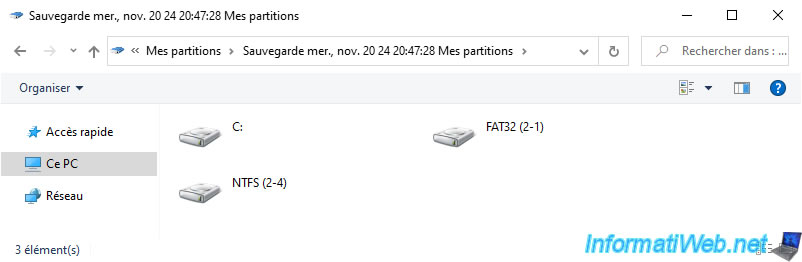
If you double-click on one of the saved partitions, you will be able to see its contents.
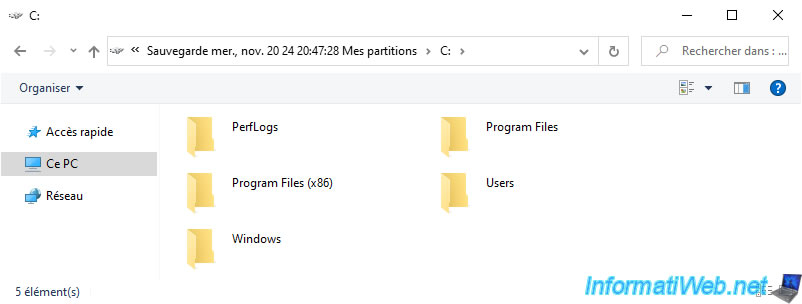
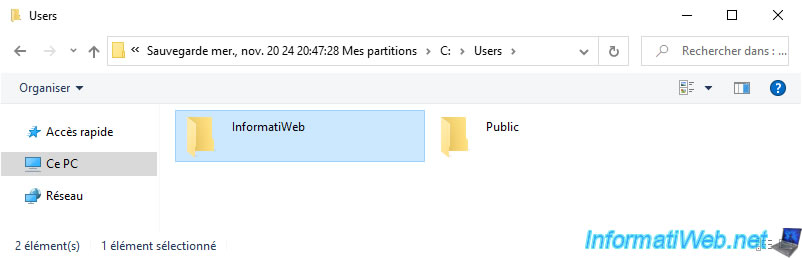
Idem pour les dossiers.
4. Restore your partition data from the backup in your Acronis Secure Zone
To restore data from your partitions using your backup stored in your special "Acronis Secure Zone" partition, go to the "Restore" tab of this backup.
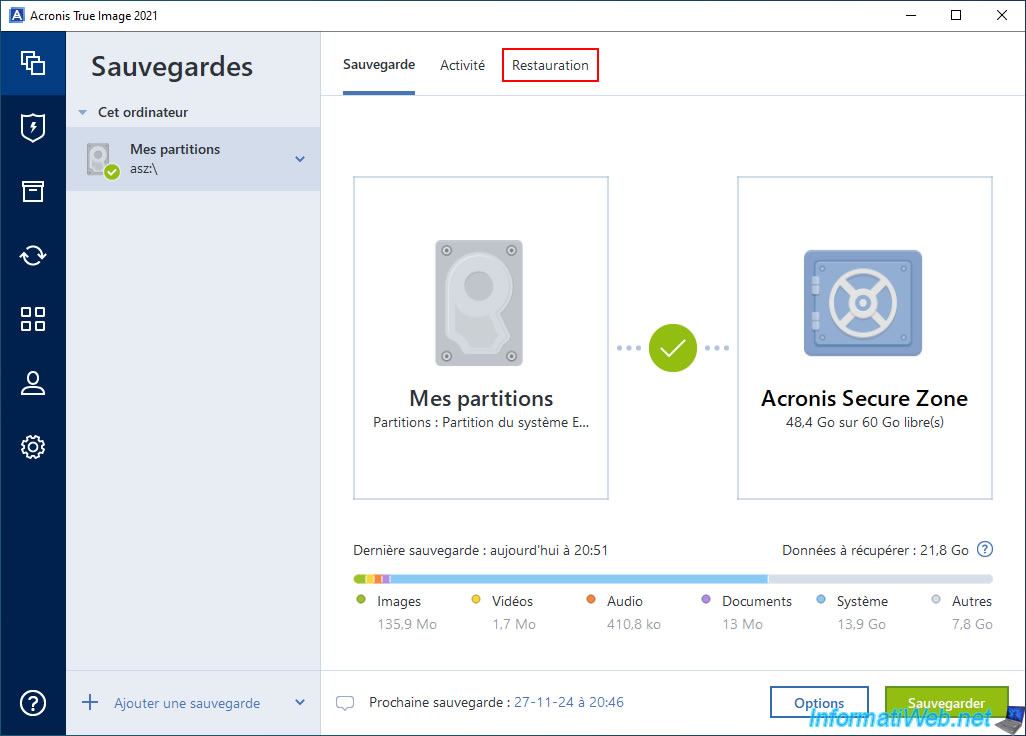
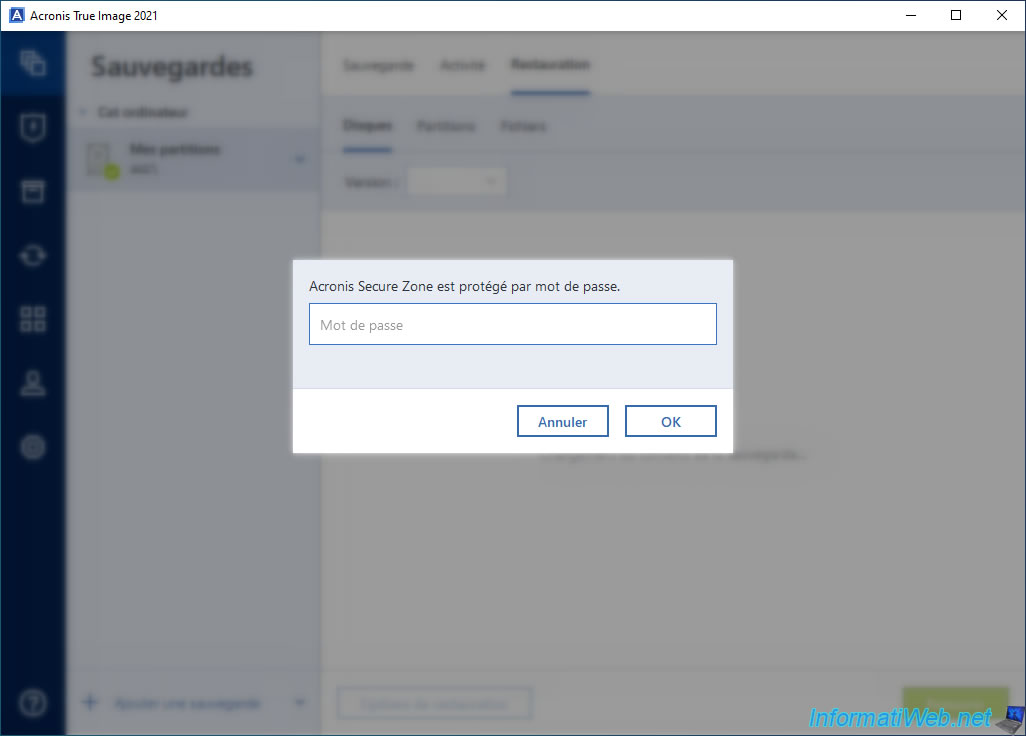
If your special partition "Acronis Secure Zone" is password protected, enter your password and click OK to access the restore options for this backup.
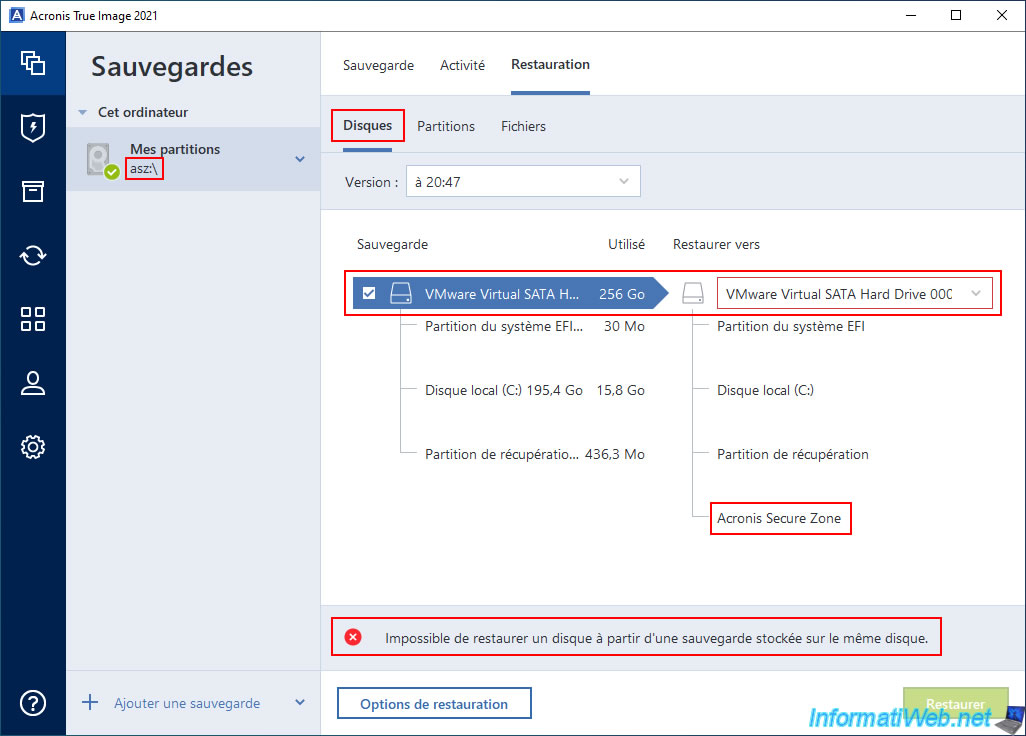
By default, you will arrive in the "Disks" tab to restore your backup.
However, even if you select the right destination disk, you will receive the error "Unable to restore a disk from a backup stored on the same disk".
Indeed, the backup from which you want to restore data is located on your "Acronis Secure Zone" partition and this "Acronis Secure Zone" partition is located on the destination disk.
Which causes this error. You can also see your "Acronis Secure Zone" partition appear for the list of partitions available on the destination disk.
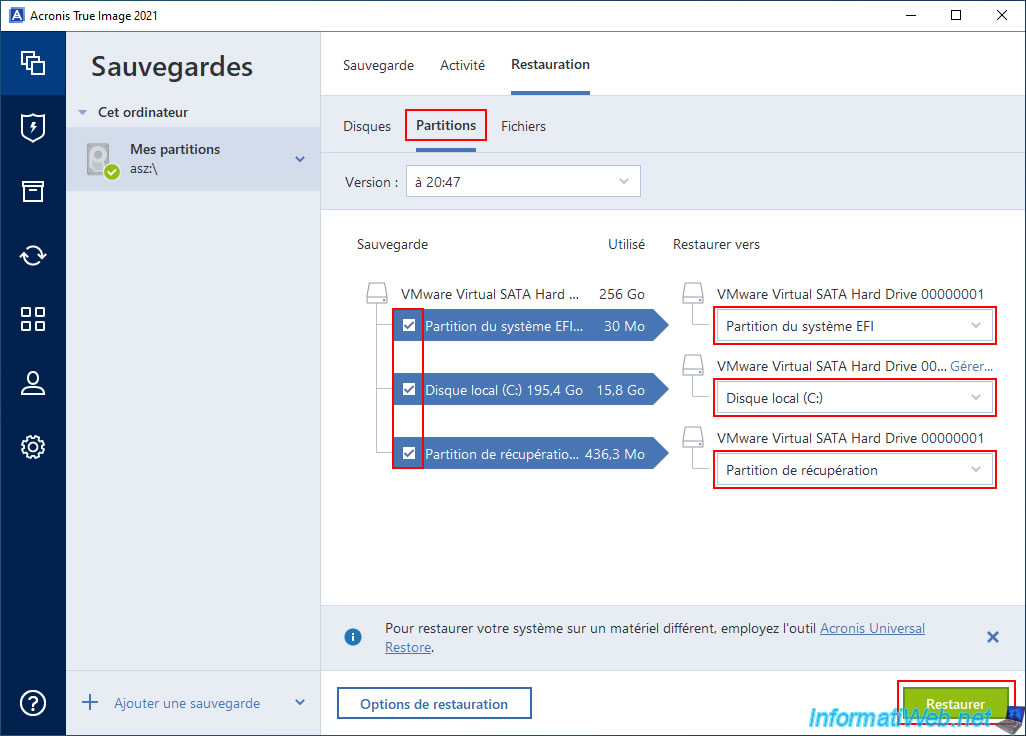
To restore data from your backup to your disk, the solution is simply to use the "Partitions" tab for the restore.
Then, check the boxes of all the partitions present in your backup and select the corresponding partition (of your physical disk) for each partition to restore.
By default, Acronis Cyber Protect Home Office (True Image) will automatically detect the correct partition of your physical disk for each partition to restore.
But you can change the destination partition for each partition to restore if needed.
Finally, click the "Restore" button.
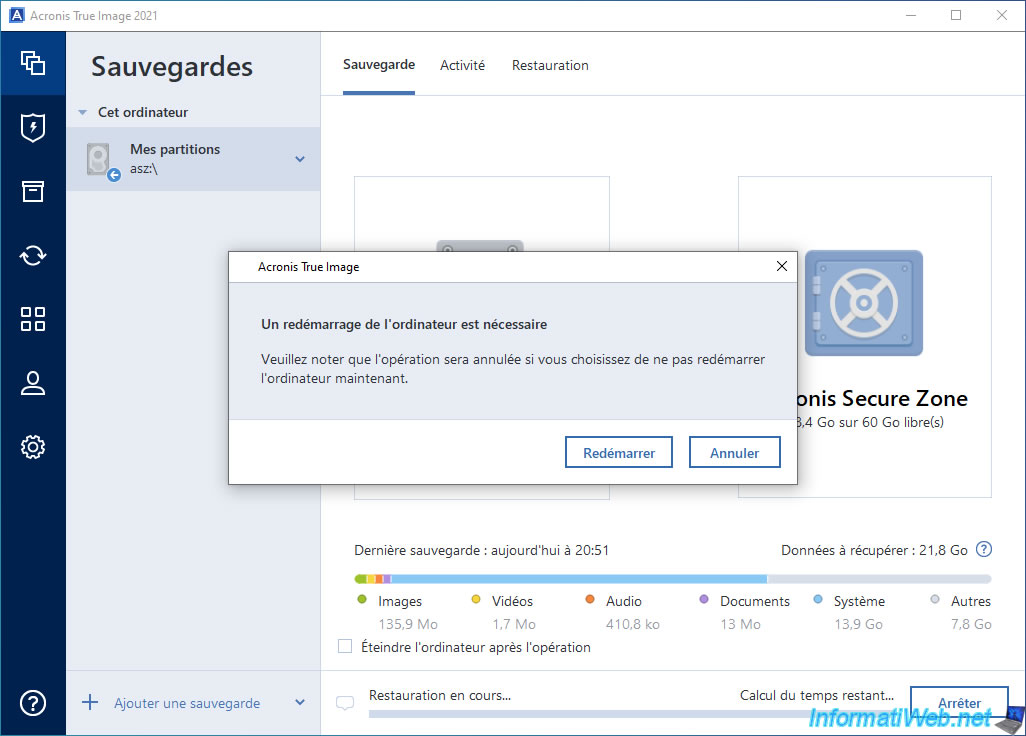
Since we are going to restore data from the partitions where Windows is located, Acronis Cyber Protect Home Office (True Image) will need to reboot to restore data from these partitions.
To do this, simply click the "Reboot" button.
Your computer restarts.

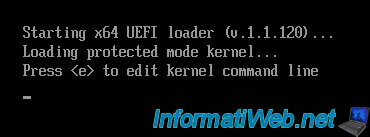
The "Starting x64 UEFI loader" message appears when your computer starts.
This is because your computer automatically restarts to the Acronis recovery environment installed on your computer.
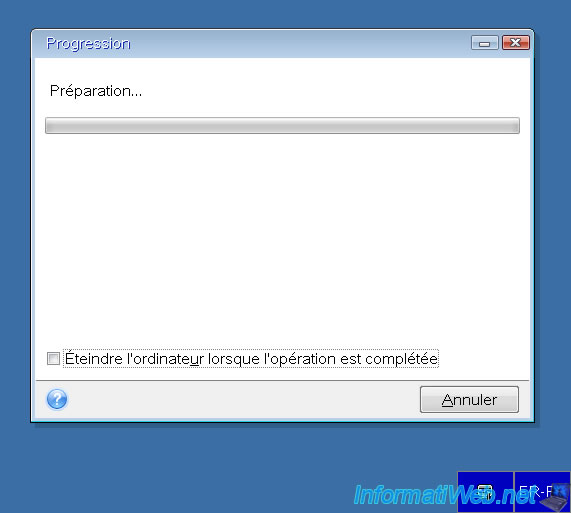
A small window will appear with the message "Preparing".
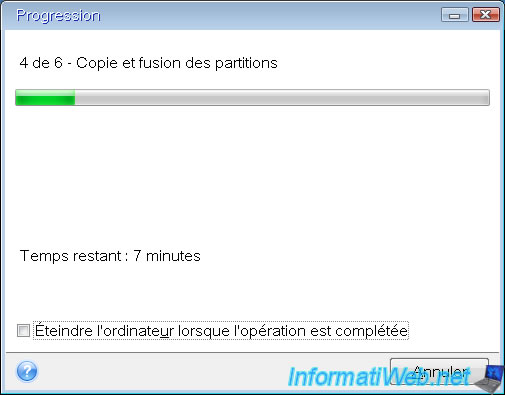
Please wait while your partition data is restored from your backup in your special "Acronis Secure Zone" partition.
Once the restore is complete, your computer will automatically restart into Windows.
Your Windows session opens.

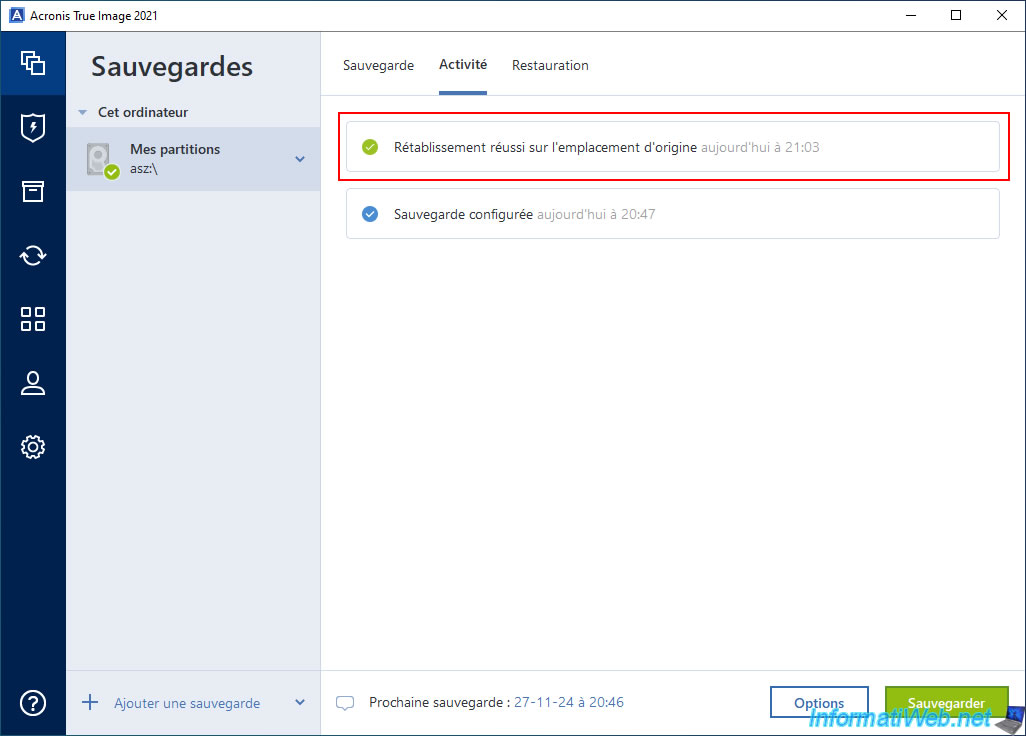
If you go back to the Acronis Cyber Protect Home Office (True Image) interface and go to the "Activity" tab of your backup, you will notice that the message "Successfully restored to original location" has appeared.
5. Limitations when using a special partition: Acronis Secure Zone
5.1. Unable to restore entire PC via Acronis Secure Zone
When you create a special partition "Acronis Secure Zone" on one of your disks, you should never select "Entire PC" as the source of your backup.
Otherwise, Acronis Cyber Protect Home Office (True Image) will spend its time saving the new backup files from your "Acronis Secure Zone" partition to the new backup file created on this same partition. This will use a lot of disk space unnecessarily.
In addition, restoring the entire PC will be impossible and you will receive the error below.
Unable to restore the partition because the backup file is on the disk you are going to restore. You can copy the backup file to another hard drive or try again.
In short, this is due to the presence of the "Acronis Secure Zone" partition on the PC you are trying to fully restore.
Which creates a conflict.
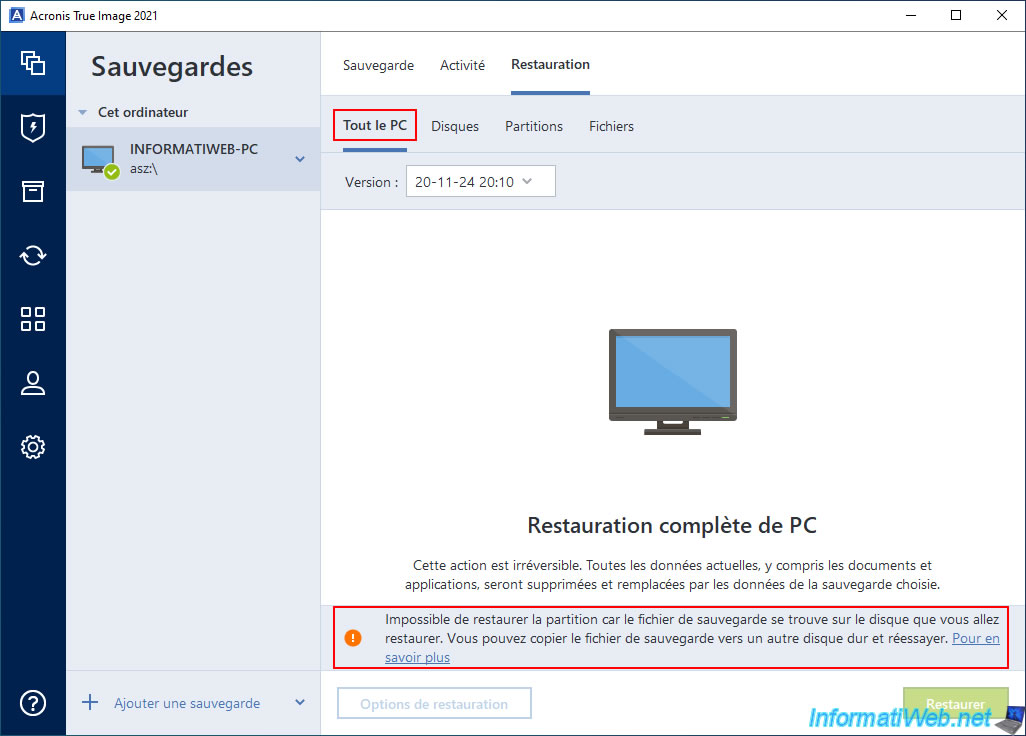
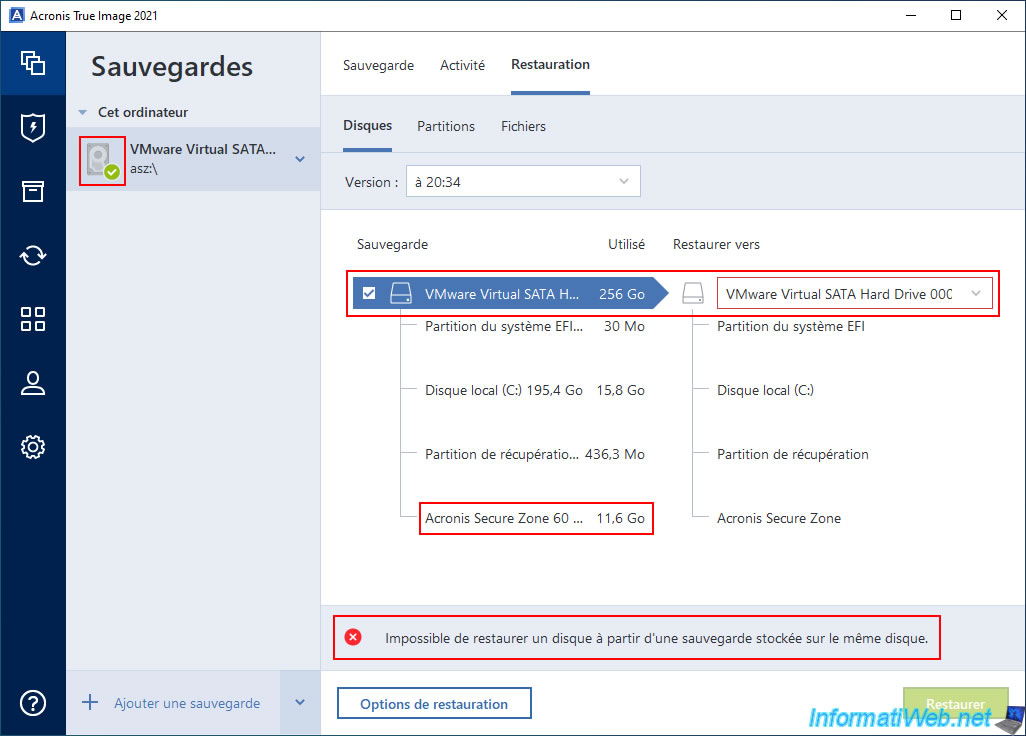
With a backup of an entire PC, if you go to the "Disks" tab, you would see the "Acronis Secure Zone" partition appear.
Also, you can see that this backup contains a copy of this "Acronis Secure Zone" partition whose used disk space is 11.6 GB in our case.
However, this data should never be part of your Acronis backup.
5.2. Unable to restore the entire disk where the special partition is located: Acronis Secure Zone
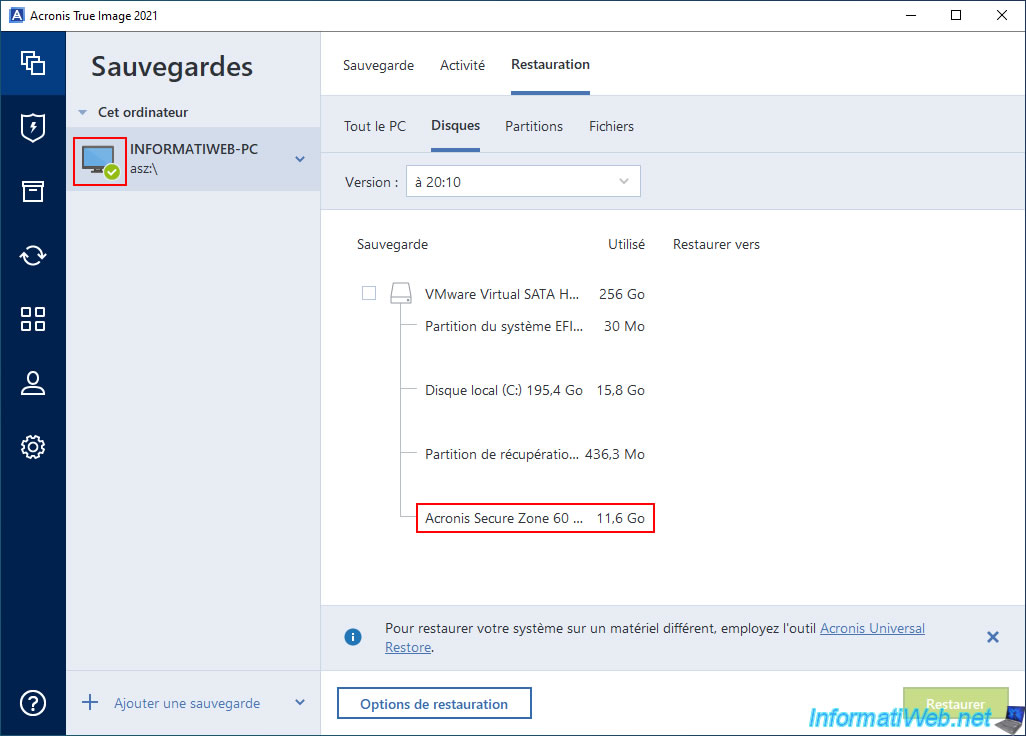
If you try to restore data from the entire disk where your "Acronis Secure Zone" partition is located, you will see that it will not work.
Indeed, Acronis Cyber Protect Home Office (True Image) will display the error "Unable to restore a disk from a backup stored on the same disk".
Acronis Cyber Protect Home Office (True Image) cannot restore data from this disk and therefore from the "Acronis Secure Zone" partition located there since you are trying to restore data from a backup located on this same "Acronis Secure Zone" partition.
Hence the interest in creating a partition backup by excluding the "Acronis Secure Zone" partition from the backup process (as explained in this tutorial).
Share this tutorial
To see also
-

Backup 11/3/2025
Acronis True Image - Archive your files on Acronis Cloud
-

Backup 4/20/2026
Acronis True Image - Rescue Media - Backing up your PC to a FTP server
-

Backup 11/17/2025
Acronis True Image - Synchronize a folder to Acronis Cloud
-

Backup 6/29/2026
Acronis True Image - Third-party tools
No comment