- Backup
- Acronis True Image
- 27 April 2026 at 08:01 UTC
-

From the Acronis Rescue Media that you can create from the "Tools" section of Acronis Cyber Protect Home Office (True Image), you have the ability to back up specific files and folders.
- Back up files and folders from Acronis rescue media
- Restore files and folders from Acronis rescue media
1. Back up files and folders from Acronis rescue media
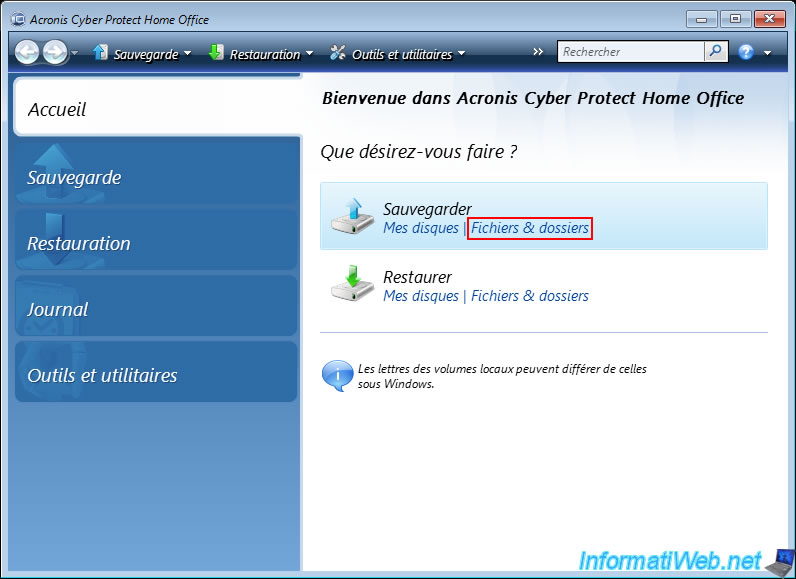
To back up files and folders from Acronis Rescue Media, click the "Files & Folders" link present under the "Backup" option.
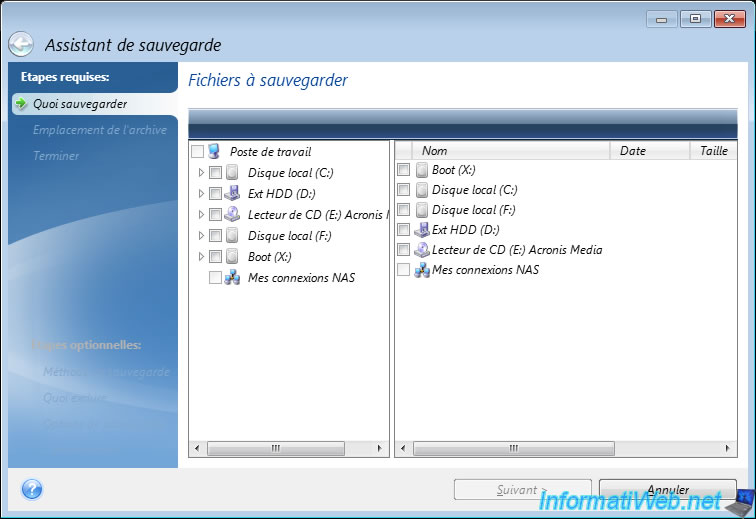
The backup bizard appears and allows you to select the folders and files you want to back up.
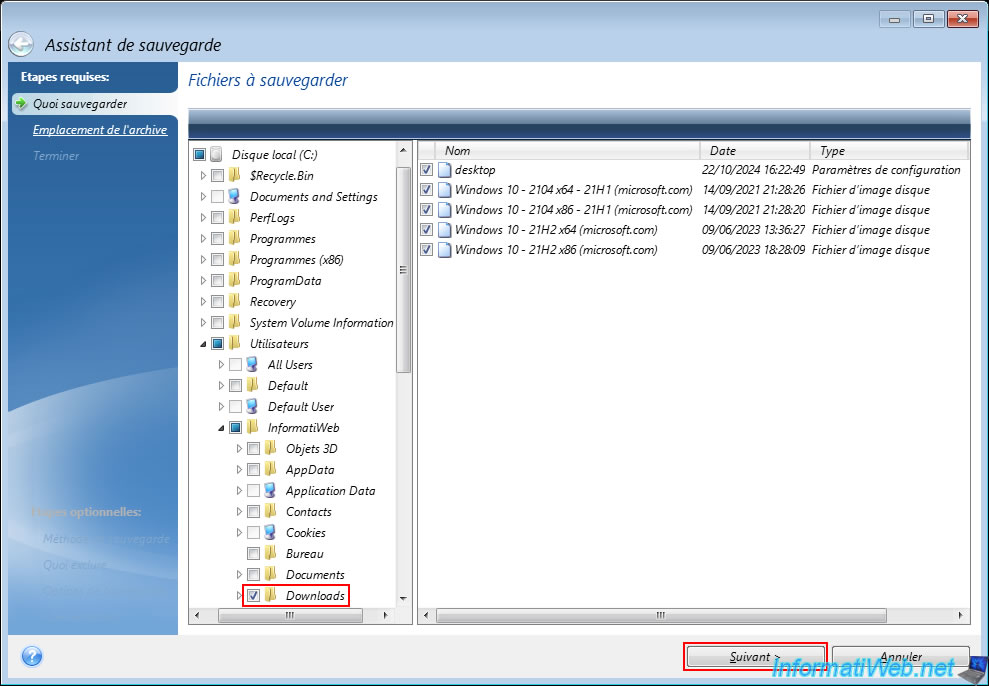
In our case, we will save the contents of our personal "Downloads" folder.
Select the "Create a new backup archive" option as the target and click the "Browse" button.
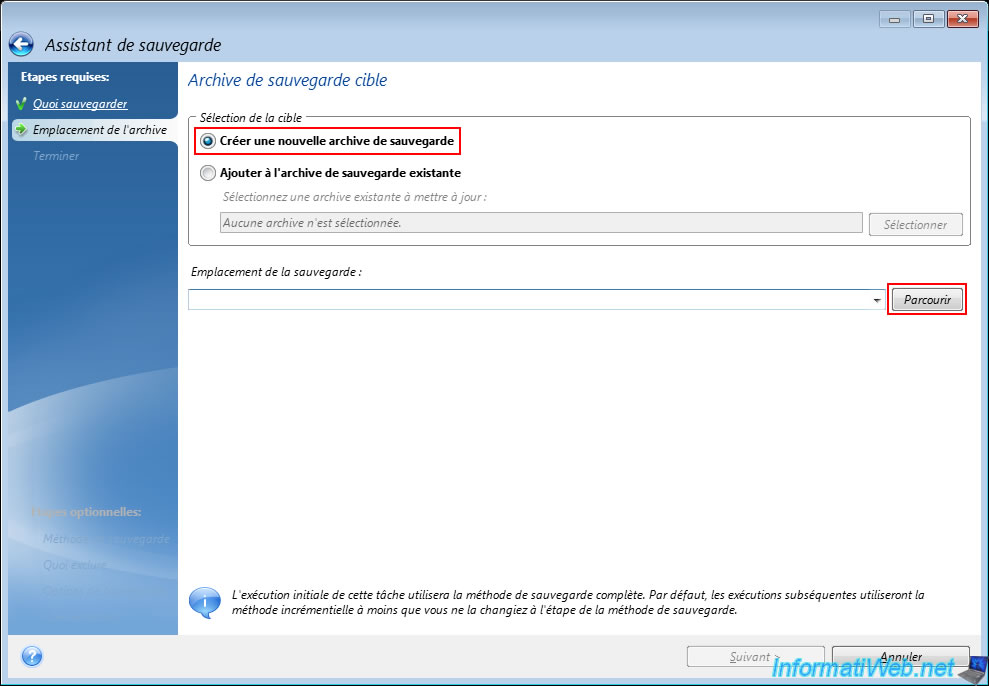
Select the location where you want to store your future Acronis archive and specify a file name with the ".tibx" extension (instead of the ".tibx" extension usually used for backups).
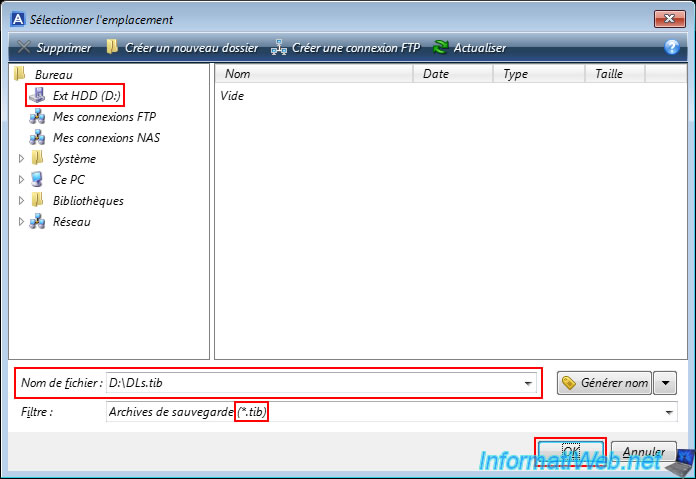
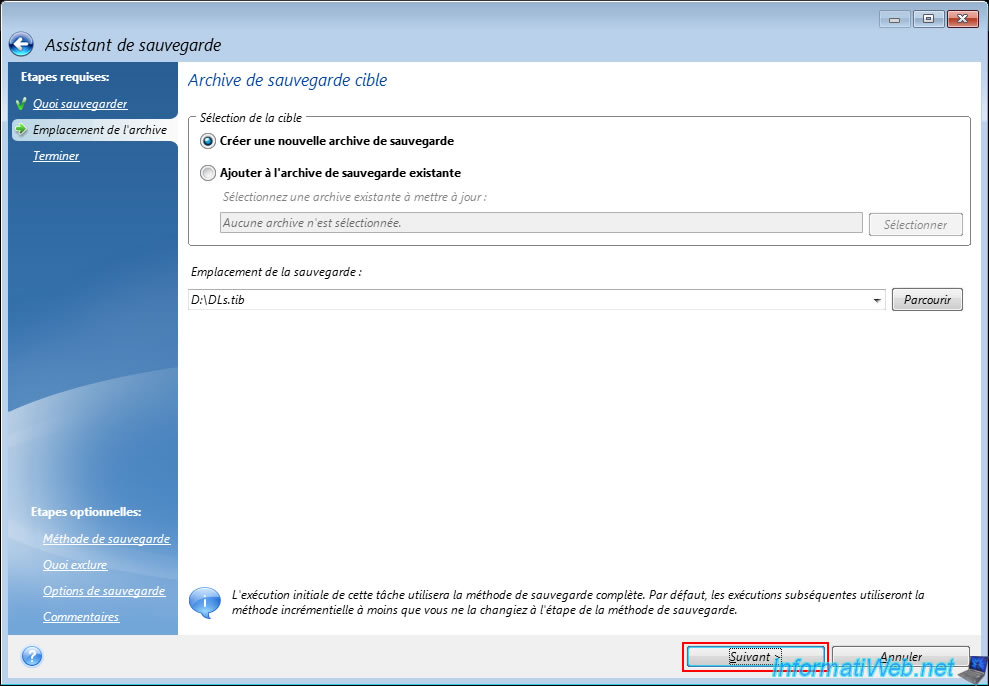
The path of the future ".tib" file appears in the "Backup location" box.
Click "Next".
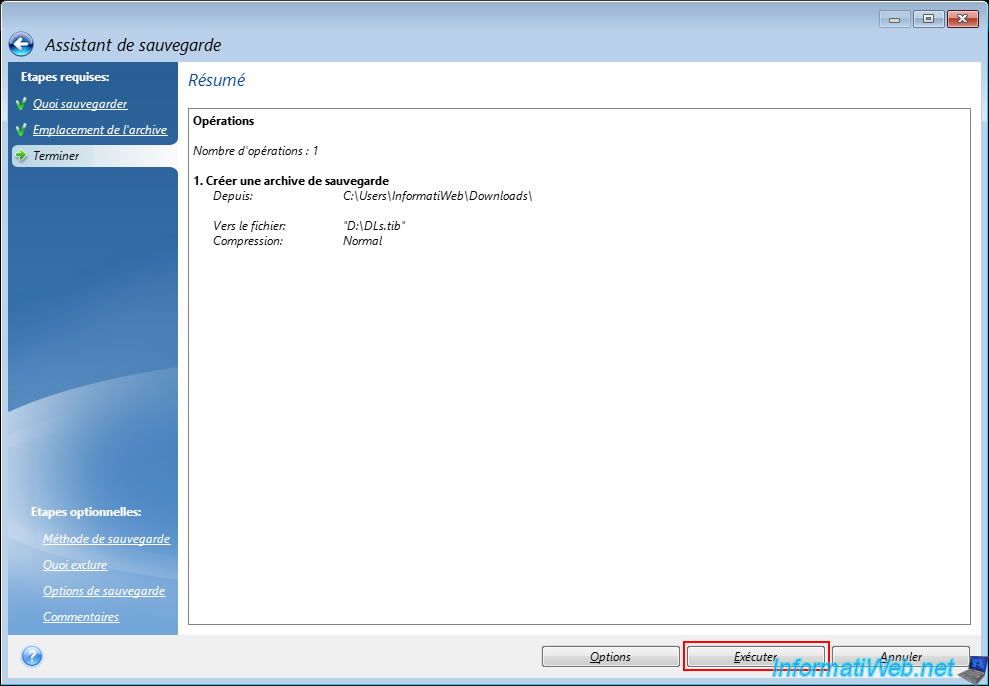
A summary appears.
Click "Run".
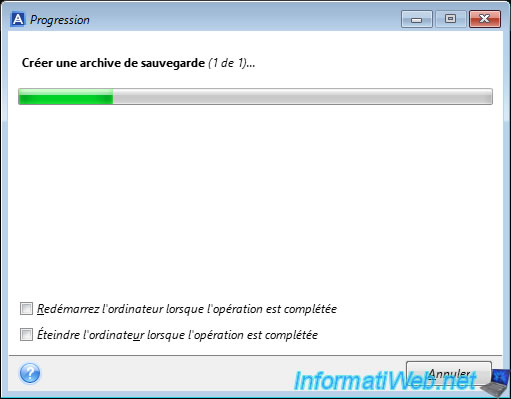
Please wait while the desired files and folders are saved.
Plain Text
Create a backup archive (1 of 1) ...
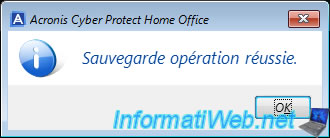
Once the backup of the desired files and folders is complete, the message "Backup operation successful" will appear.
2. Restore files and folders from Acronis rescue media
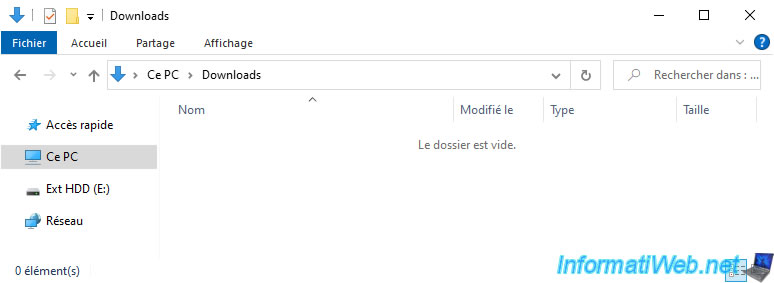
For this tutorial, we deleted the files from the previously backed up folder from our computer.
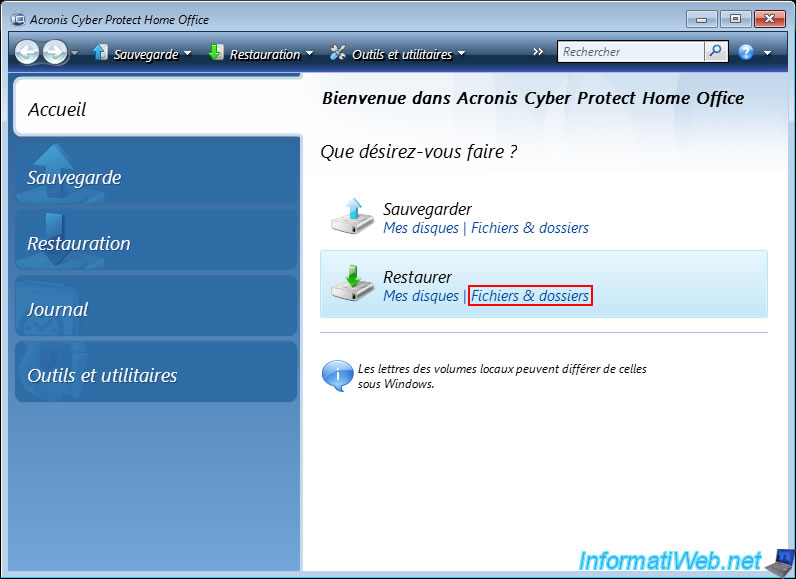
In Acronis Cyber Protect Home Office (True Image), click the "Files & Folders" link under the "Recover" option.
To restore a file and folder backup, right-click "Restore" on the desired file backup.
Note: if you clicked on the "Files & Folders" link above, you will automatically arrive in the "File Backups" tab below.
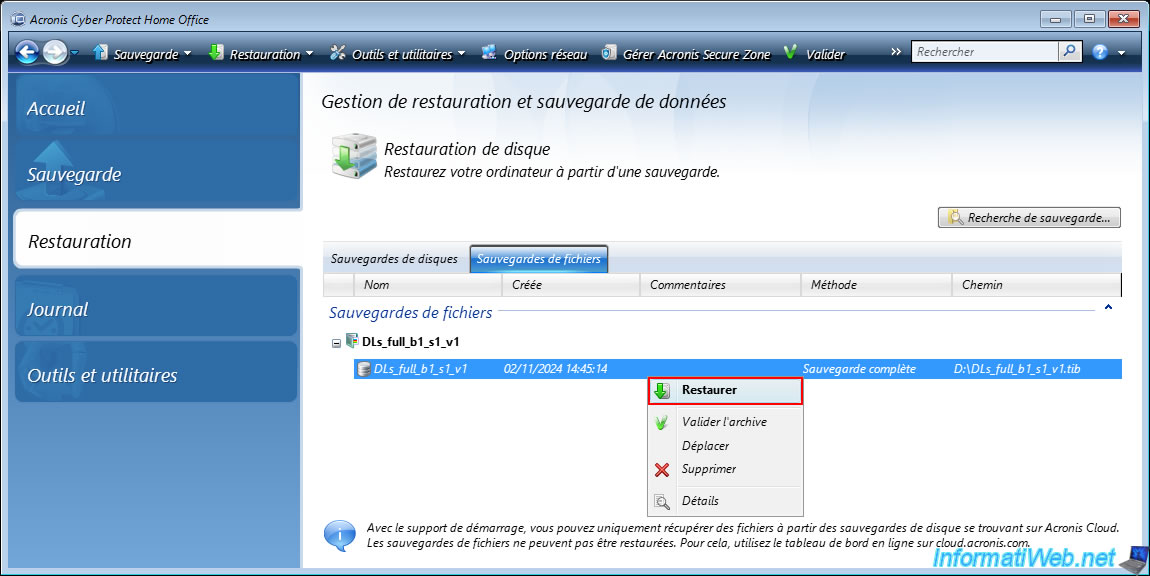
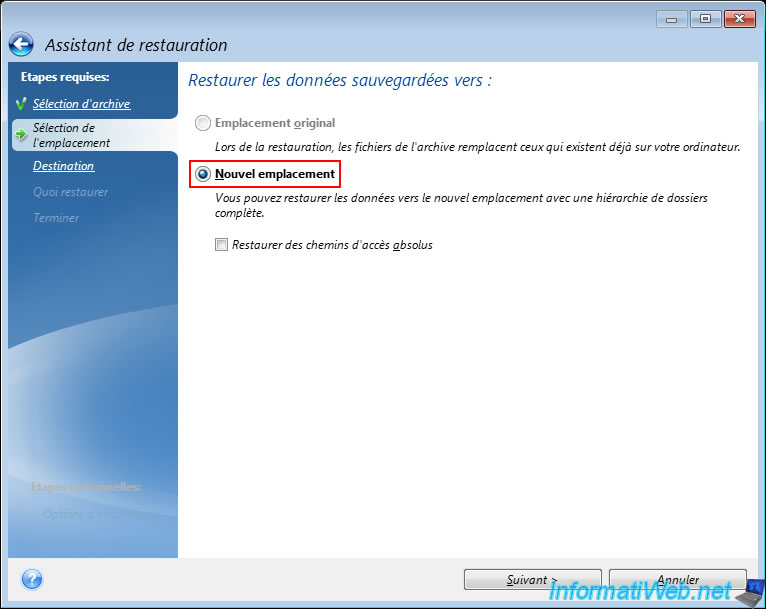
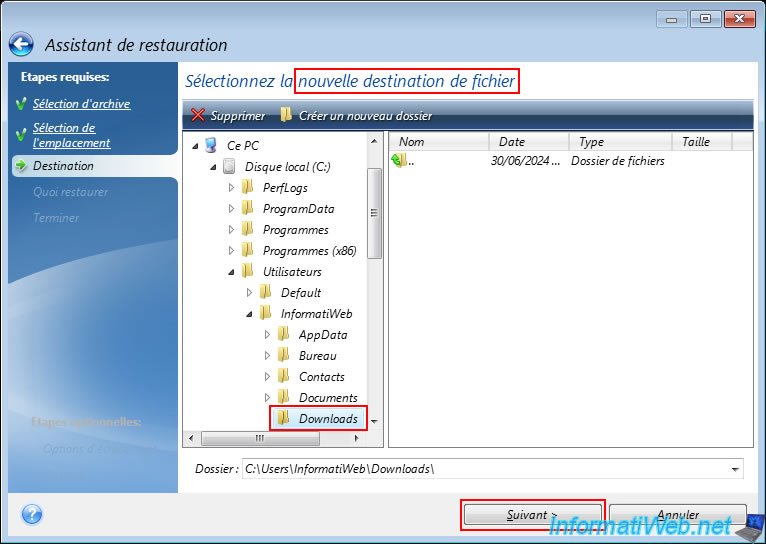
In the restore wizard that appears, select "New location" and click "Next".
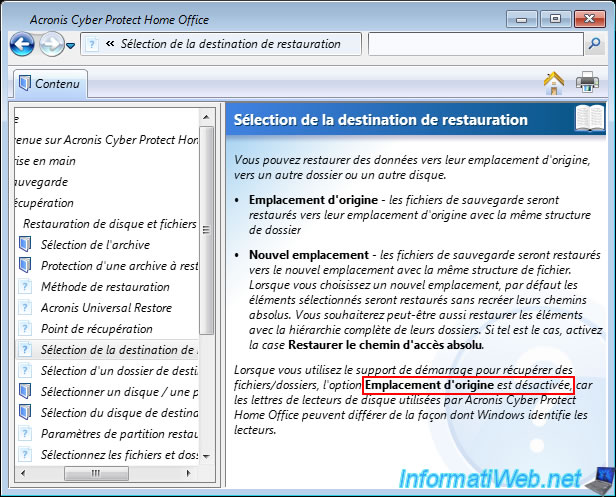
If you click the "?" icon at the bottom left, you will see the Acronis Cyber Protect Home Office (True Image) Help pop up and explain that the "Original location" option is disabled (grayed out) by default when you boot to your Acronis rescue media, because the drive letters assigned via this Acronis rescue media and those assigned by Windows may not be the same.
The wizard asks you to select the destination location for data restoration.
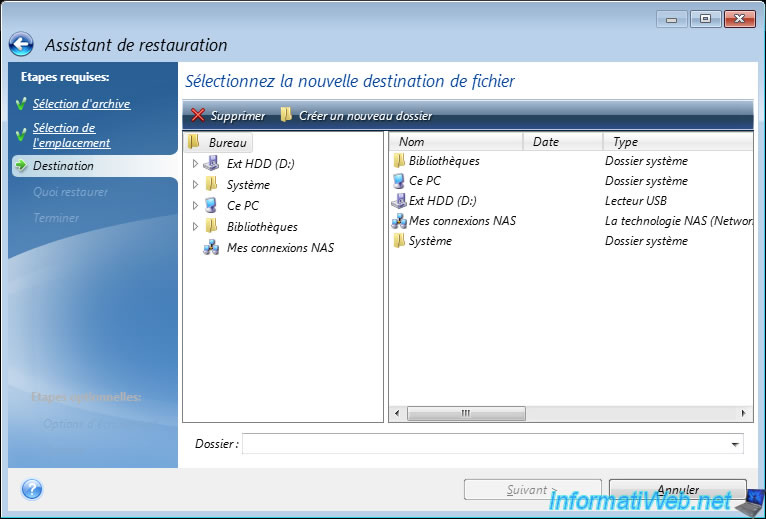
Select the desired destination folder and click "Next".
In our case, the original "Downloads" folder (which we have emptied in the meantime).
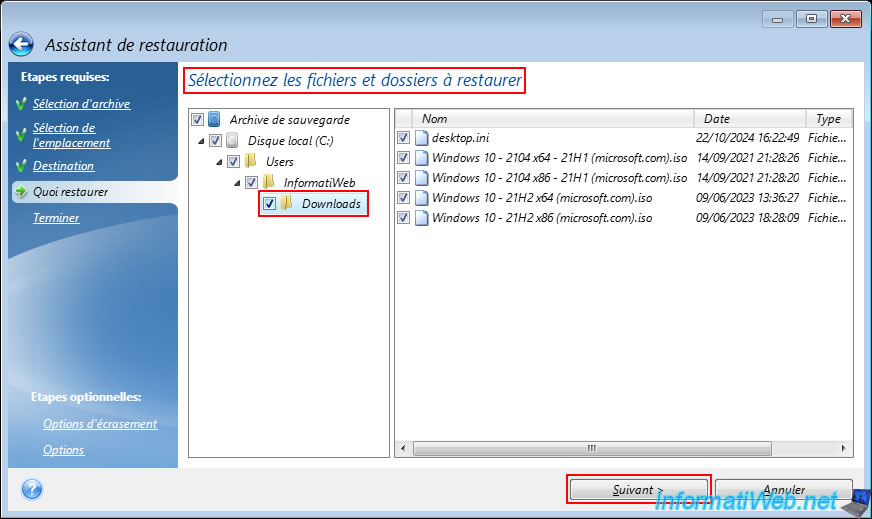
Select the folder or files to restore from the previously created archive (backup), then click "Next".
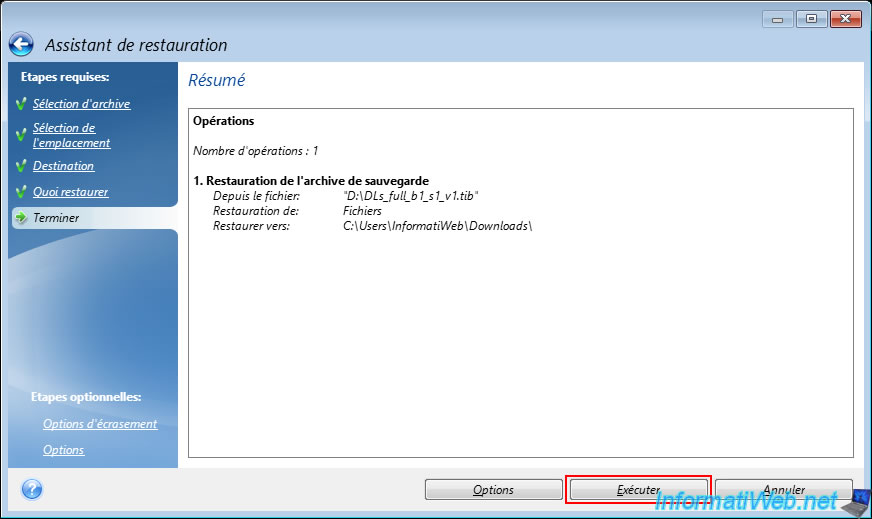
A summary of the restore operation appears.
Click "Run".
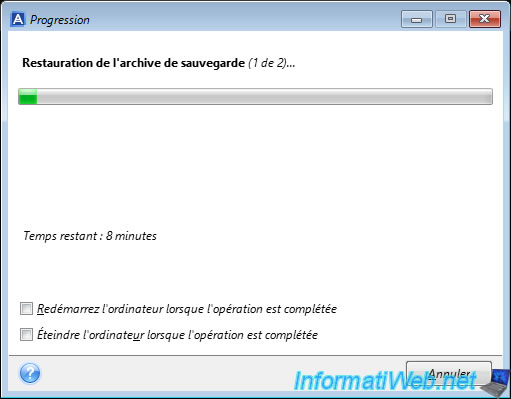
Please wait while the desired files and folders are restored.
Plain Text
Restoring the backup archive (1 of 2) ...
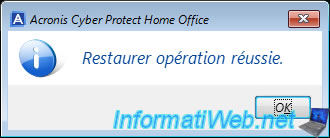
Once the restoration of the desired files and folders is complete, the message "Restore operation successful" will appear.
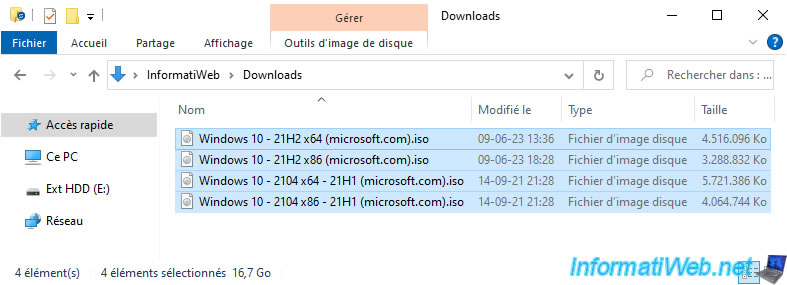
Once your computer restarts, you will see that your files and folders have been restored to the desired location (with their original dates).
Share this tutorial
To see also
-
Backup 9/26/2012
Acronis - Restore a backup on a different hardware
-
Backup 8/25/2025
Acronis True Image - Create backups and authenticate your files
-

Backup 10/19/2026
Acronis True Image - OEM version (free) of Seagate
-
Backup 5/4/2026
Acronis True Image - Universal Restore Media - Create and use media
You must be logged in to post a comment