Virtualize Unraid 6.9.2 with VirtualBox 7
- Virtualization
- VirtualBox
- 20 July 2026 at 07:58 UTC
-

- 4/5
8. Install the Community Applications plugin
To install applications on Unraid, you will need the plugin "Community Applications".
To install it, simply go to "Plugins -> Install Plugin" and paste the address "https://raw.githubusercontent.com/Squidly271/community.applications/master/plugins/community.applications.plg".
Note: since the latest version of this plugin is no longer compatible with our version of Unraid (6.9.2), we have installed an older version of this plugin using the address "https://raw.githubusercontent.com/Squidly271/community.applications/d075fda8b8337c4c6bbd0b6d1d66b80a8870d9ba/plugins/community.applications.plg".
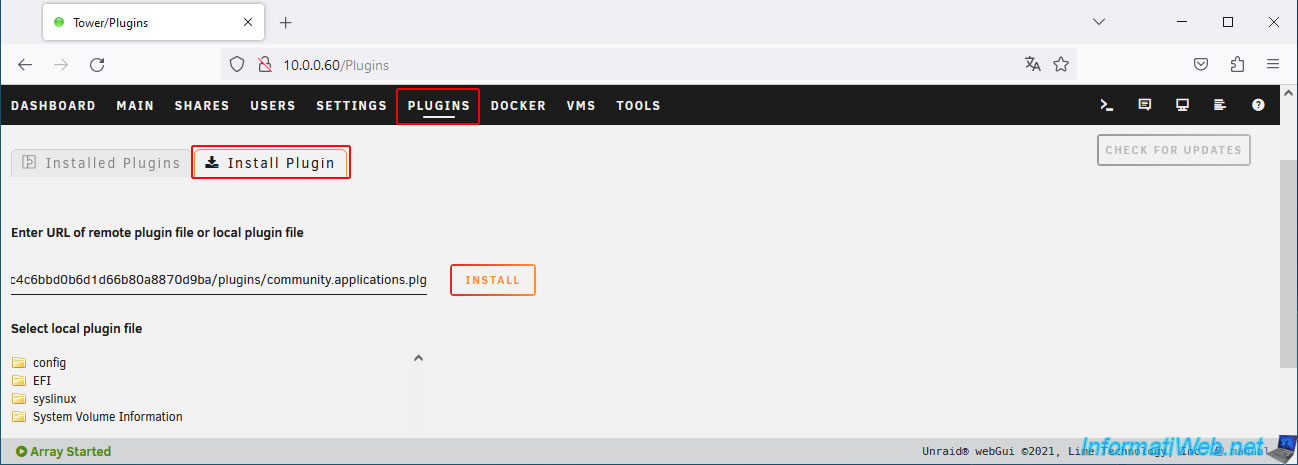
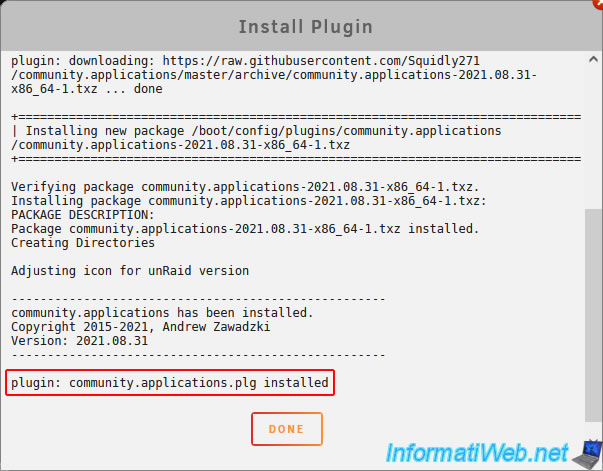
The "Community Applications" plugin has been installed.
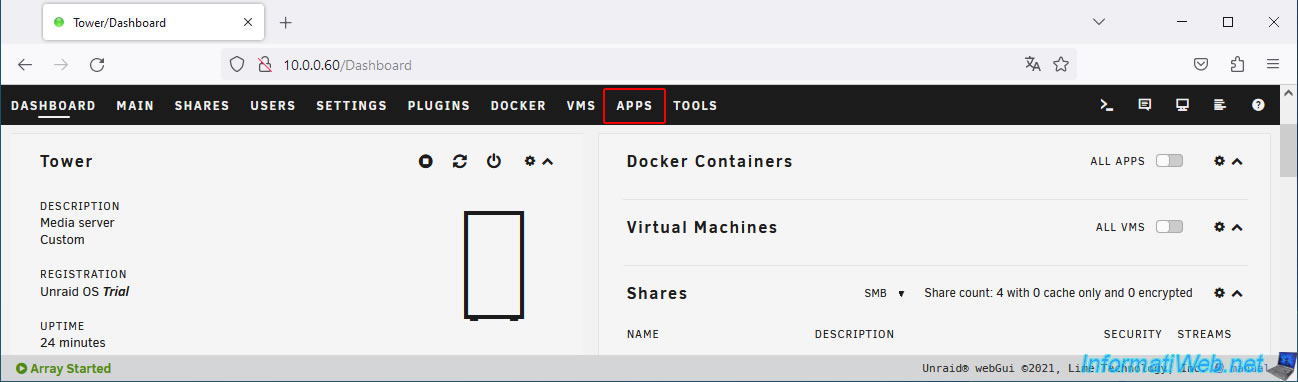
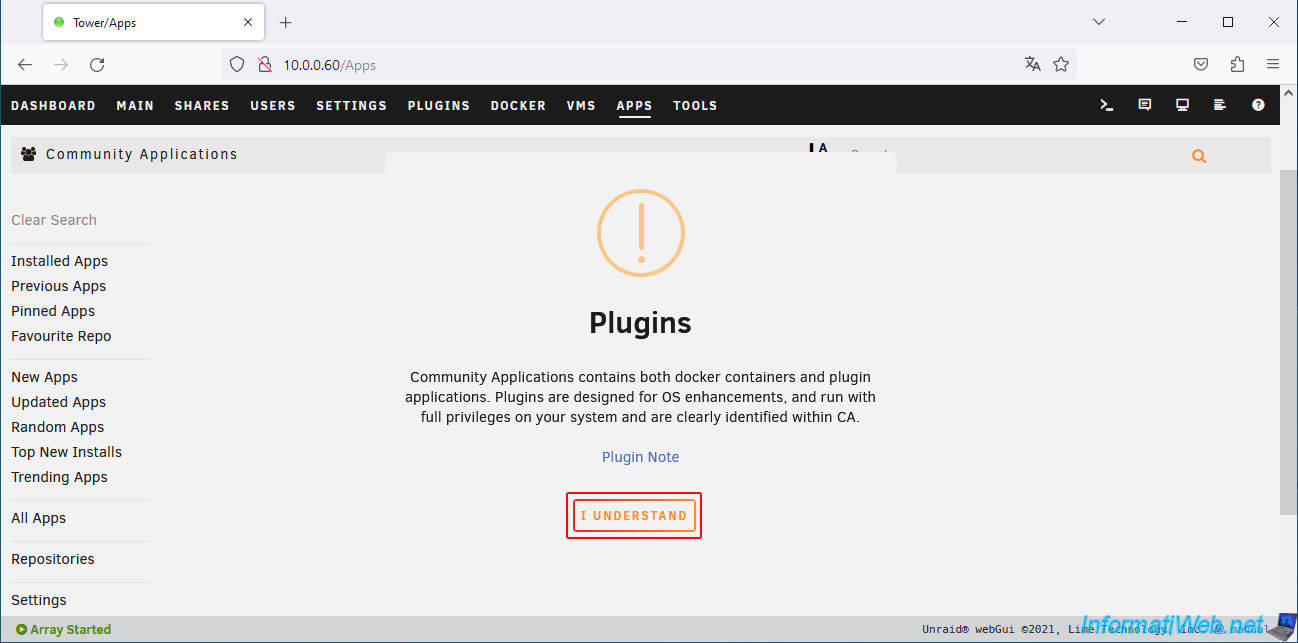
Once the "Community Applications" plugin is installed, you will see a new "Apps" tab appear.
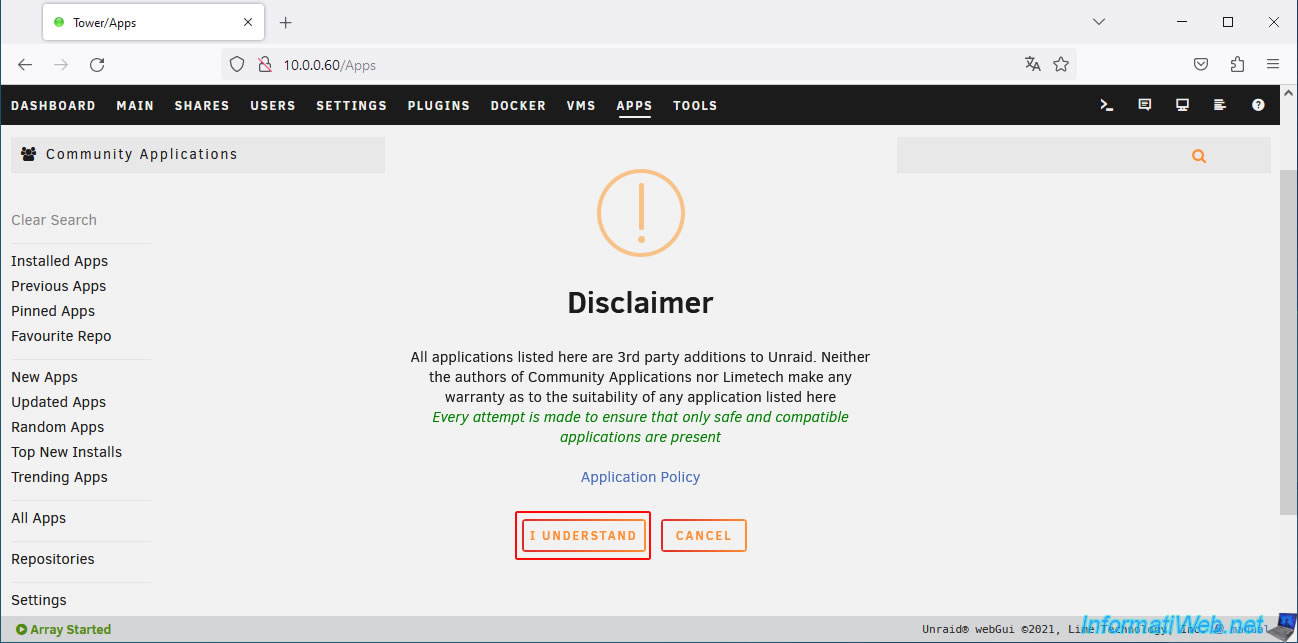
Ignore the messages that appear by clicking each time on: I understand.
9. Enable automatic array startup
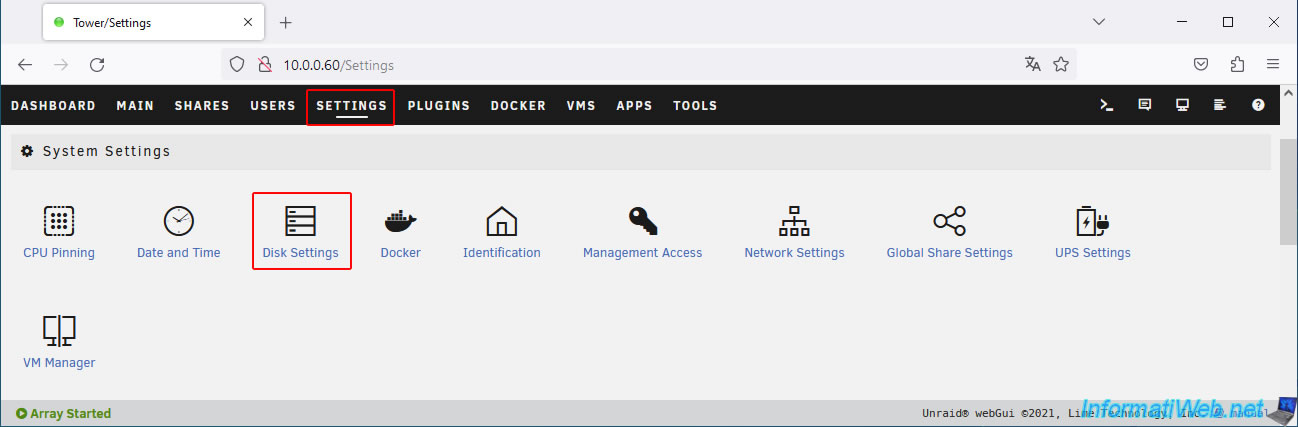
To avoid manually starting the array every time, go to: Settings -> Disk Settings.
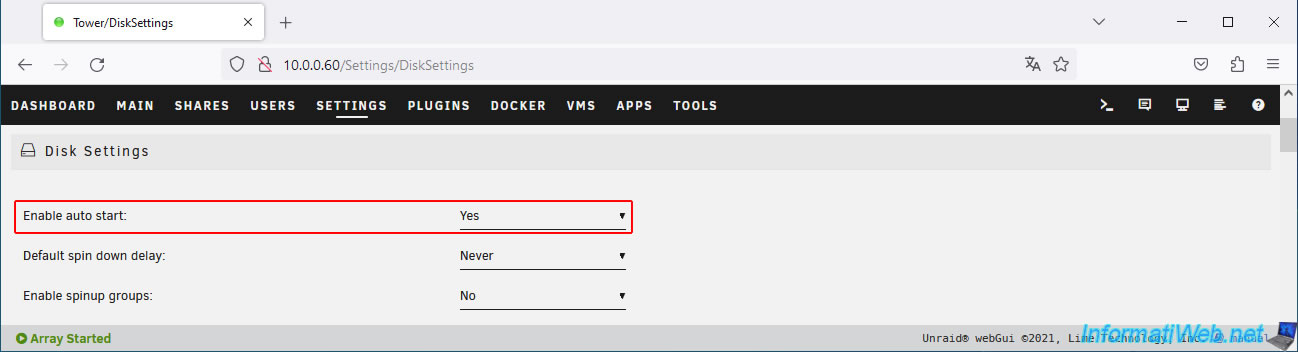
Change the value of the "Enable auto start" parameter to "Yes".
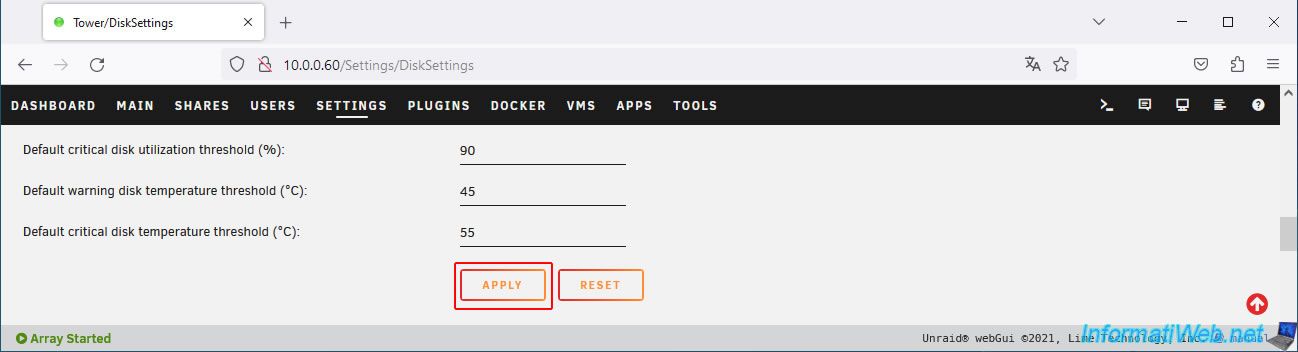
Then, click on "Apply".
10. Using applications via Docker on Unraid
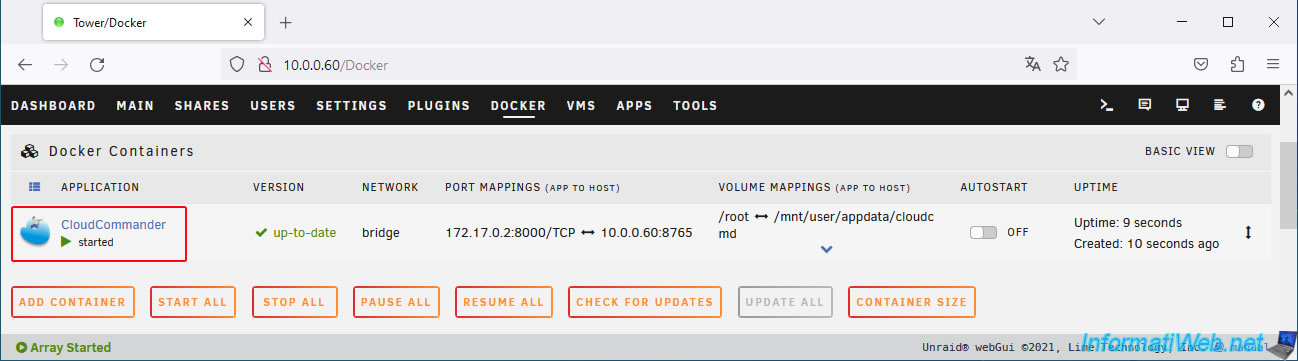
As you can see, you will be able to install applications via Docker on Unraid without any problems when you virtualize Unraid with VirtualBox.
For the example, we used the file explorer "CloudCommander" which is easily installable on Unraid.
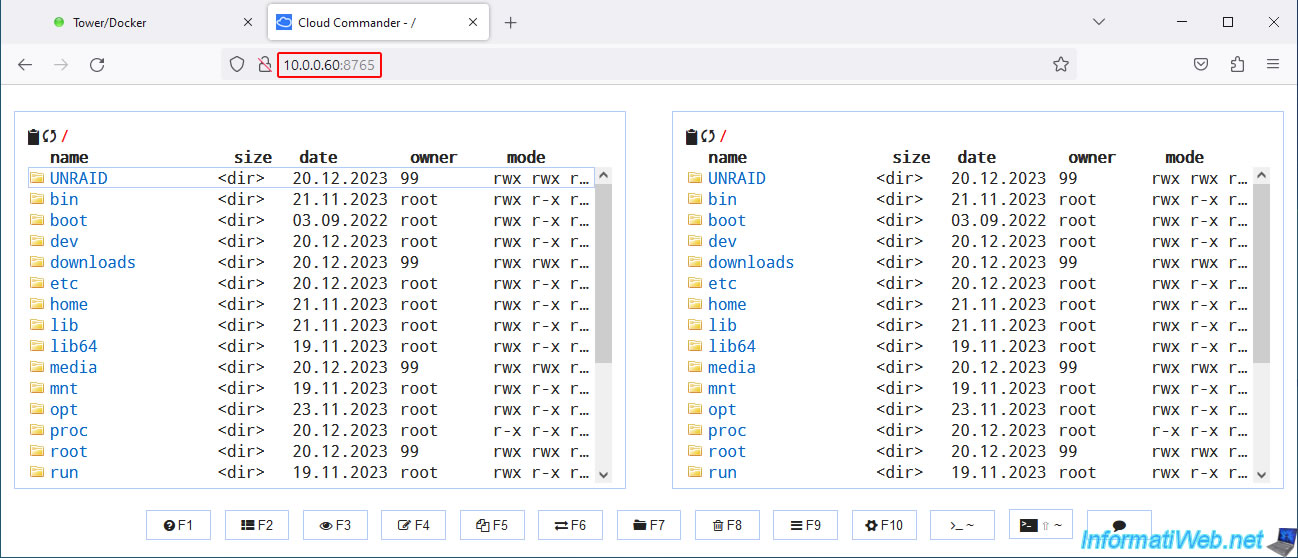
As you can see, the "Cloud Commander" application works without any problems.
11. Cleanly shut down your Unraid server
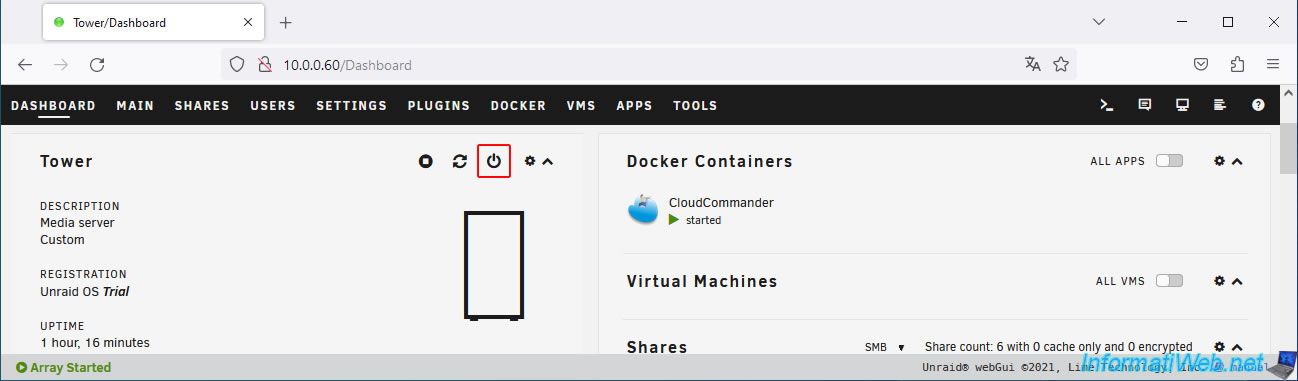
Since there are no VirtualBox guest additions for Unraid, you will need to shut down your Unraid server from its web interface (via the "Dashboard" tab) or via its console.
In the "Dashboard" tab, click on the 3rd icon (framed in red on the image) to shut down your Unraid server properly.
Warning : if you try to shut down your Unraid virtual machine from the VirtualBox window, it is very possible that the virtual machine will shut down abruptly.
This means that Unraid will recalculate the parity disk the next time it starts. This can take a long time depending on its size.
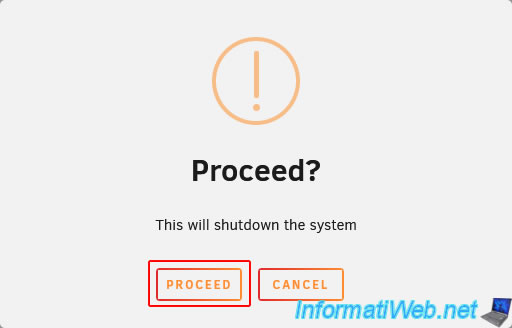
Confirm stopping Unraid by clicking Proceed.
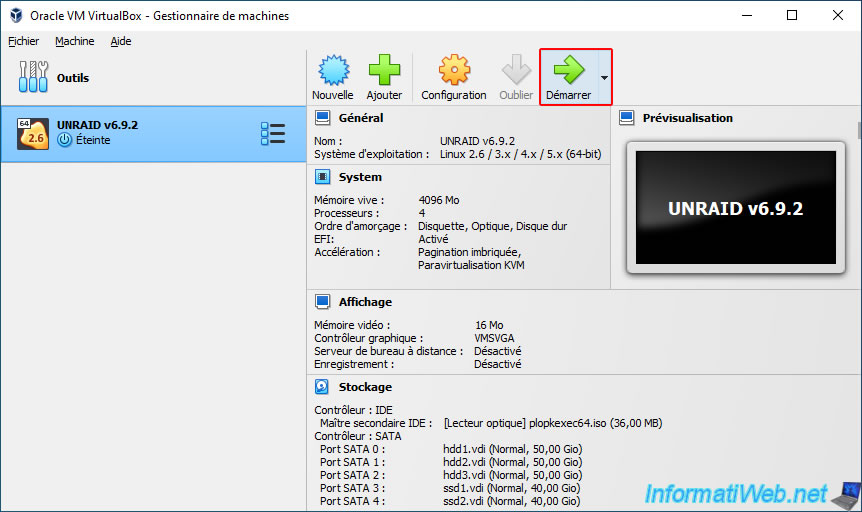
Then, once the virtual machine has been shut down cleanly, start it again.
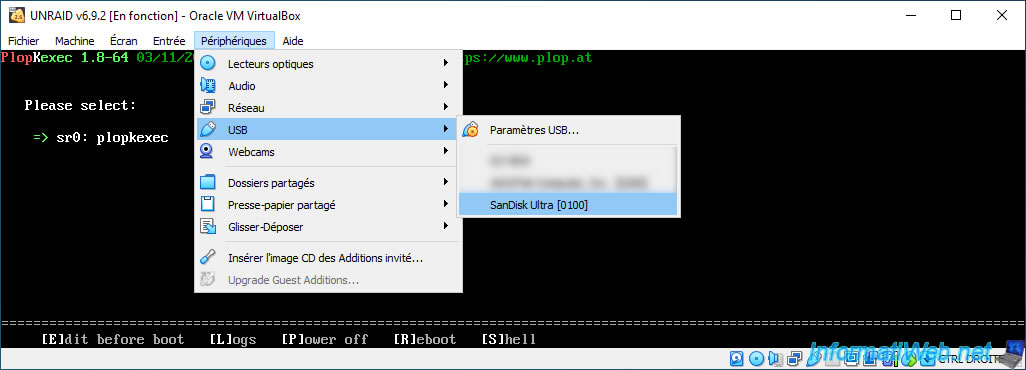
Connect your Unraid USB key to your virtual machine again by going to the menu: Devices -> USB -> [name of your USB key].
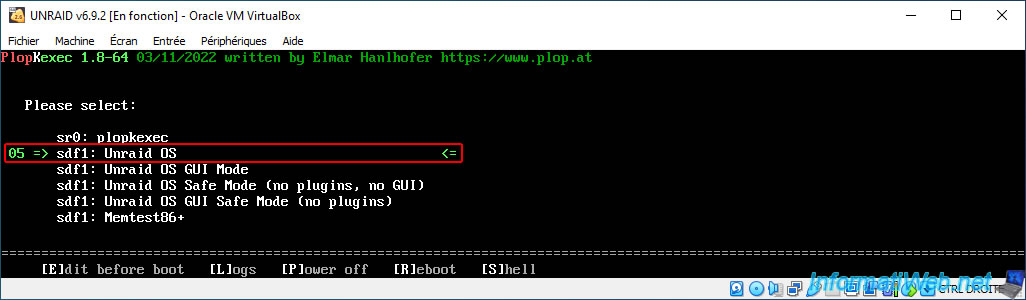
The Unraid boot options will appear.
Press Enter or wait 5 seconds to boot into "Unraid OS".
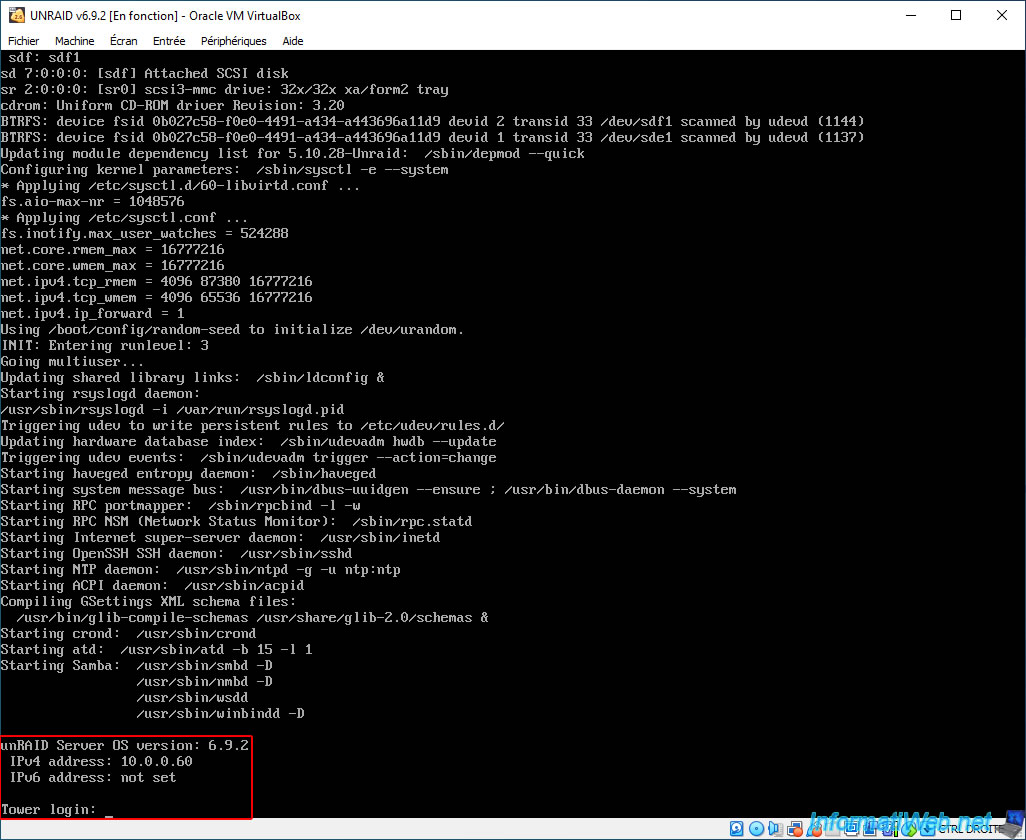
Once Unraid starts, you will see this at the bottom of the screen.
Plain Text
unRAID Server OS version: 6.9.2.
IPv4 address: 10.0.0.60
IPv4 address: not set

Tower login:
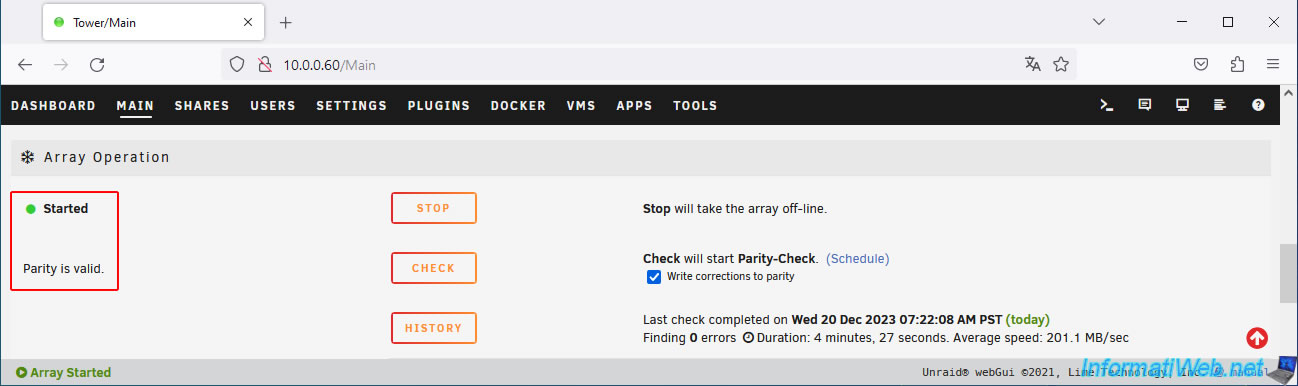
In the Unraid web interface, go to the "Main" tab and look at the bottom (in the "Array Operation" section).
If Unraid shut down successfully, you will see that the array is Started and the parity disk is valid.
Share this tutorial
To see also
-
Virtualization 10/20/2018
VirtualBox - Manage your VMs remotely with Hyperbox
-

Virtualization 11/13/2020
VirtualBox - Record the virtual machine screen
-

Virtualization 8/3/2018
VirtualBox - USB 3.0 support with Windows 7
-

Articles 7/1/2018
What is the virtualization ?
No comment