Virtualize Unraid 6.9.2 with VirtualBox 7
- Virtualization
- VirtualBox
- 20 July 2026 at 07:58 UTC
-

- 5/5
12. Non-functional nested virtual machines on Unraid (virtualized with VirtualBox)
While Unraid, its plugins, and applications running via Docker will work without any issues, you will see that using virtual machines will not be possible when Unraid is virtualized with VirtualBox.
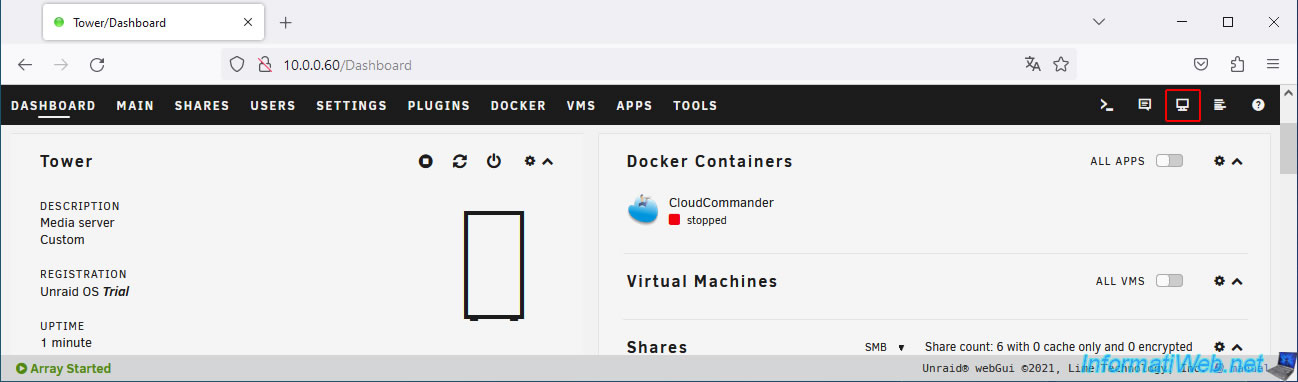
To get started, click on the 3rd icon on the top right to see the system information.
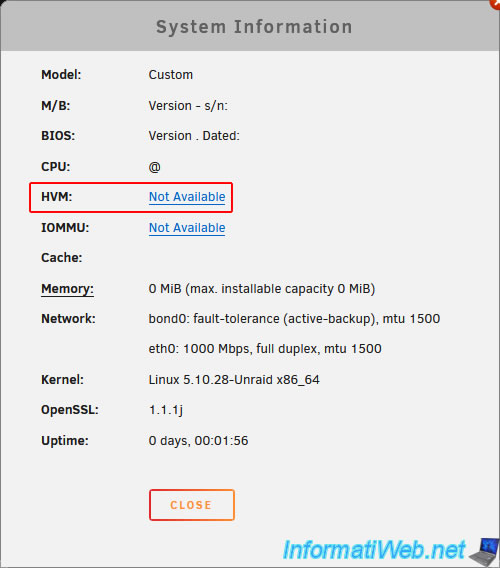
As you can see, CPU virtualization (HVM) is Not Available.
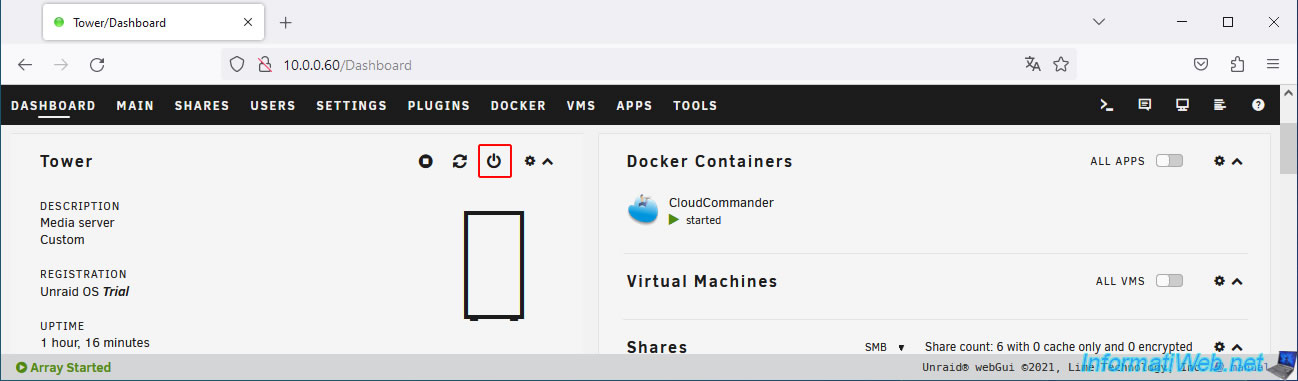
Stop your Unraid server from the Unraid Dashboard tab.
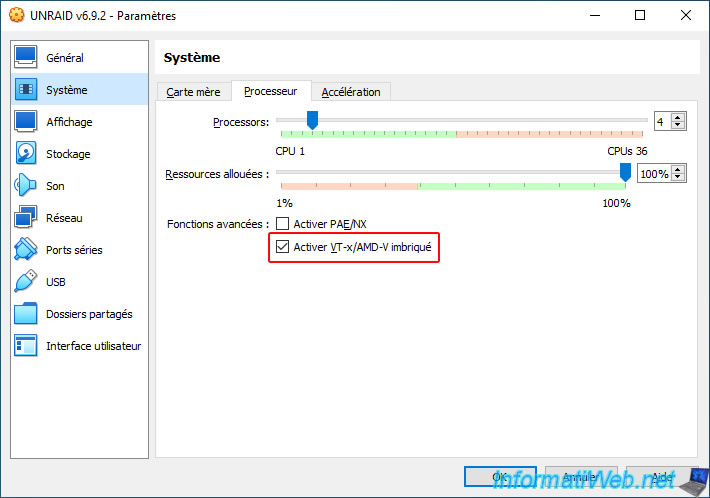
To enable nested virtualization in VirtualBox, you are supposed to check the "Enable nested VT-x/AMD-V" box in the "System -> Processor" section of your virtual machine configuration.
However, you will see that it is most likely grayed out.
To fix this, simply edit your virtual machine configuration from the command line.
To start, launch a command prompt and move to the VirtualBox folder.
Batch
cd C:\Program Files\Oracle\VirtualBox
Then, enable nested virtualization on your virtual machine "UNRAID v6.9.2" using the command below.
Note: replace "UNRAID v6.9.2" with the name of your virtual machine on VirtualBox.
Batch
VBoxManage.exe modifyvm "UNRAID v6.9.2" --nested-hw-virt on
If you open your virtual machine's configuration window, you will see that the "Enable nested VT-x/AMD-V" box is checked.
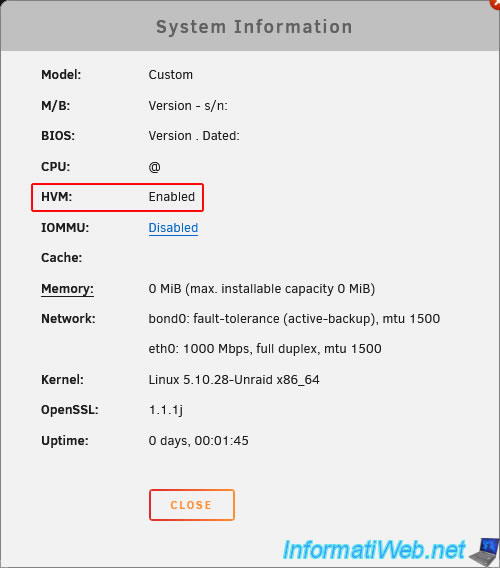
Start your virtual machine "UNRAID v6.9.2" and you will see that virtualization (HVM) is enabled.
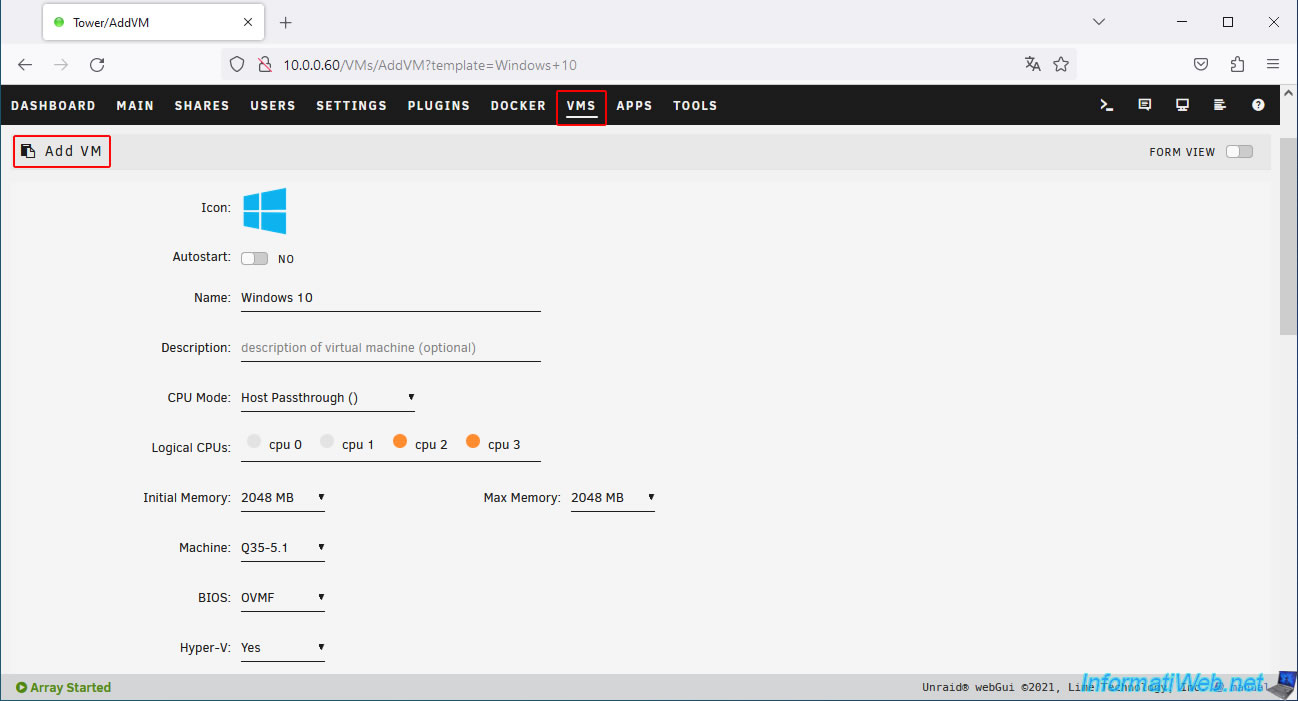
You are trying to create a Windows 10 virtual machine on your virtual Unraid server.
The TianoCore logo appears on the screen of the virtual machine created on Unraid (if you used UEFI firmware for it).

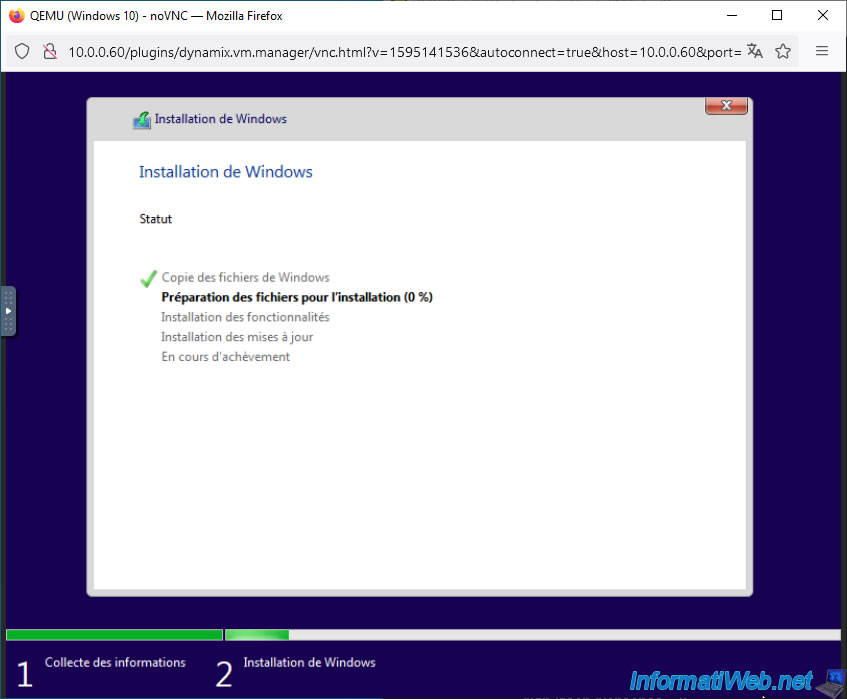
You are trying to install Windows 10 in this nested virtual machine.
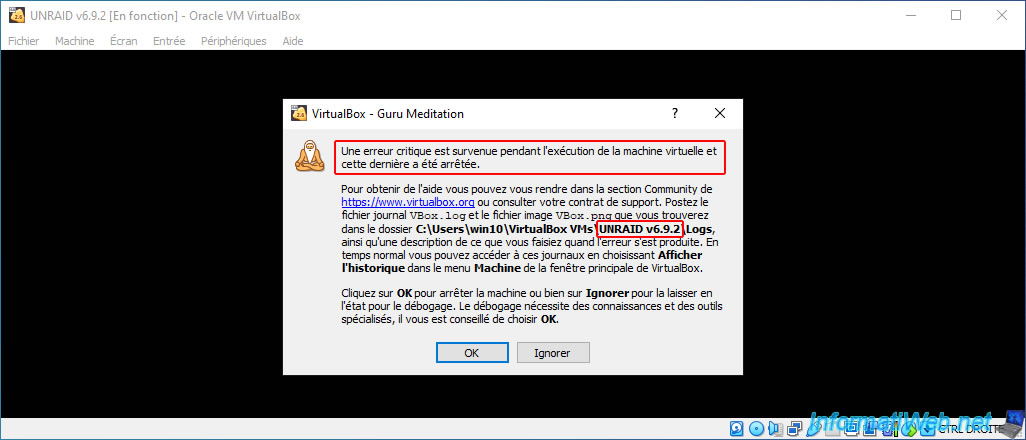
But your virtual machine created on VirtualBox will eventually crash randomly.
Hence the appearance of the "VirtualBox - Guru Meditation" window.
Click "OK" and your virtual machine will be abruptly shut down.
Note: clicking "Ignore" is useless, because your virtual machine will be paused and it cannot be restarted.
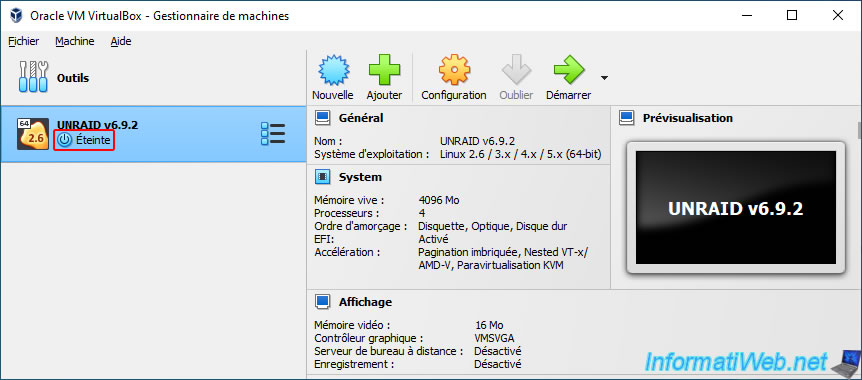
Now the virtual machine "UNRAID v6.9.2" created on VirtualBox is turned off.
If you want to completely virtualize Unraid, then use a professional virtualization solution (developed by VMware, for example):
- Virtualize Unraid 6.9.2 with VMware Workstation 17.5.1
- Virtualize Unraid 6.9.2 with VMware ESXi 6.7
- Virtualize Unraid 6.9.2 with VMware vSphere 6.7
Share this tutorial
To see also
-

Virtualization 5/23/2013
Virtualbox - Hardware virtualization not available
-

Virtualization 7/7/2018
VirtualBox - Installing and virtualizing your 1st machine
-

Virtualization 9/21/2018
VirtualBox - Para-virtual network (virtio-net)
-

Virtualization 1/10/2020
VirtualBox - Use VirtualBox and Hyper-V at the same time
No comment