- Backup
- Acronis True Image
- 08 December 2025 at 09:07 UTC
-

- 1/2
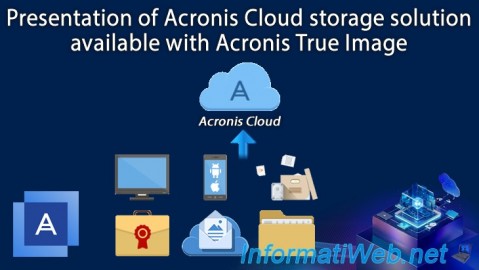
Acronis Cloud is a cloud storage solution that allows you to back up and protect your data in secure data centers around the world, ensuring compliance and data security. Data is encrypted at source with high-grade encryption (AES-256) and stored in a redundant infrastructure, ensuring continuous availability and protection against data loss.
- Activate 30-day trial for Acronis Cloud from Acronis Cyber Protect Home Office (True Image)
- Subscribe to Acronis Cloud
- Easily access Acronis Cloud
- What data can you back up to Acronis Cloud?
- Back up your computer to Acronis Cloud
- Back up your smartphone to Acronis Cloud
- Archive your old and large files to Acronis Cloud
- Store files to be authenticated to Acronis Cloud (Premium subscription only)
- Backup Cloud services (Microsoft 365) to Acronis Cloud
- Synchronize folder contents to or from Acronis Cloud
1. Activate 30-day trial for Acronis Cloud from Acronis Cyber Protect Home Office (True Image)
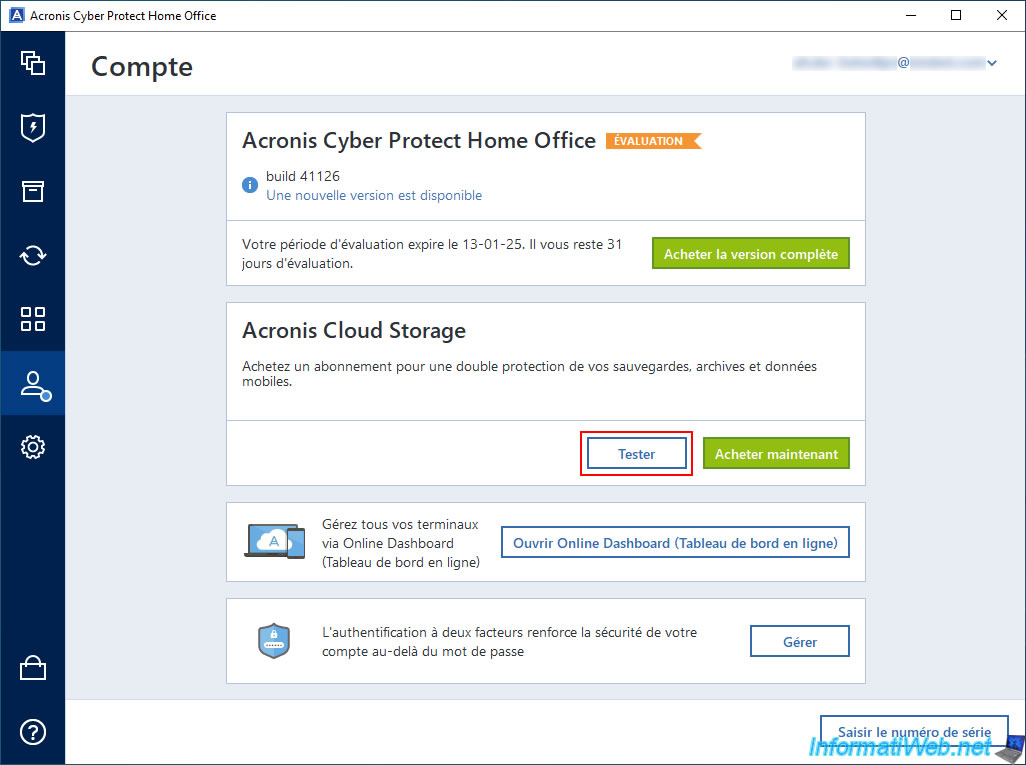
To test the Acronis cloud, go to the "Account" section of Acronis Cyber Protect Home Office (True Image) and locate the "Acronis Cloud Storage" section.
In this "Acronis Cloud Storage" section, click the "Test" button.
Important : if you do not see this section in your case, make sure you are logged in with an Acronis account at the top right.
Otherwise, the "Account" section is almost empty.
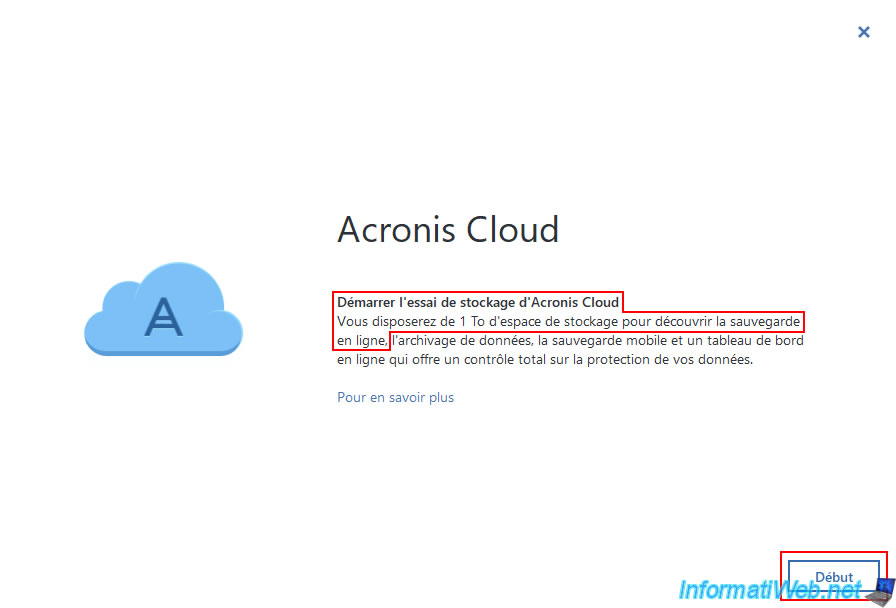
As Acronis Cyber Protect Home Office (True Image) tells you, by starting the Acronis Cloud storage trial, you will have 1 TB of storage space to experience the online backup.
Click "Start" to start it.
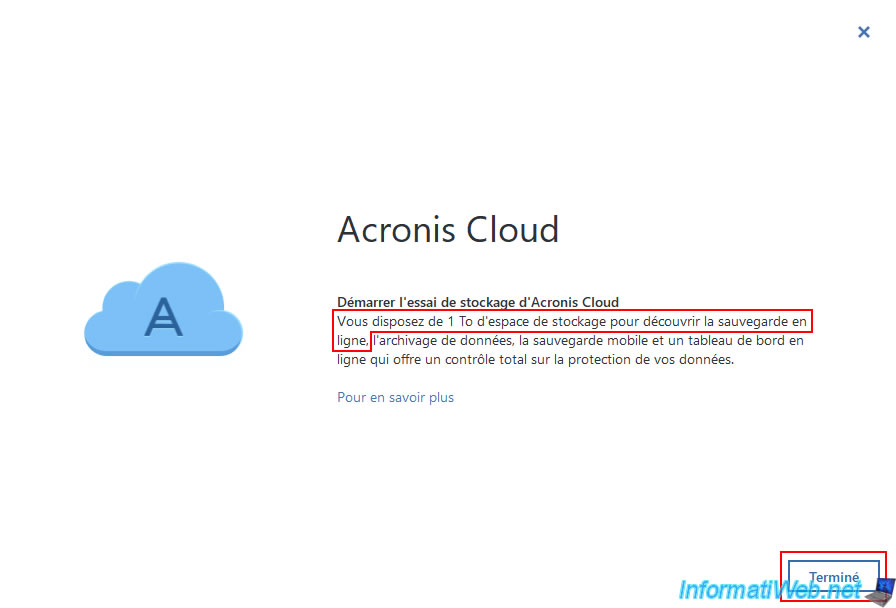
As expected, you now have 1TB of storage space for Acronis Cloud.
Click "Done".
Once the trial period for Acronis Cloud Storage starts, the "Test" button will disappear and will soon be replaced by the display of the used space on Acronis Cloud.
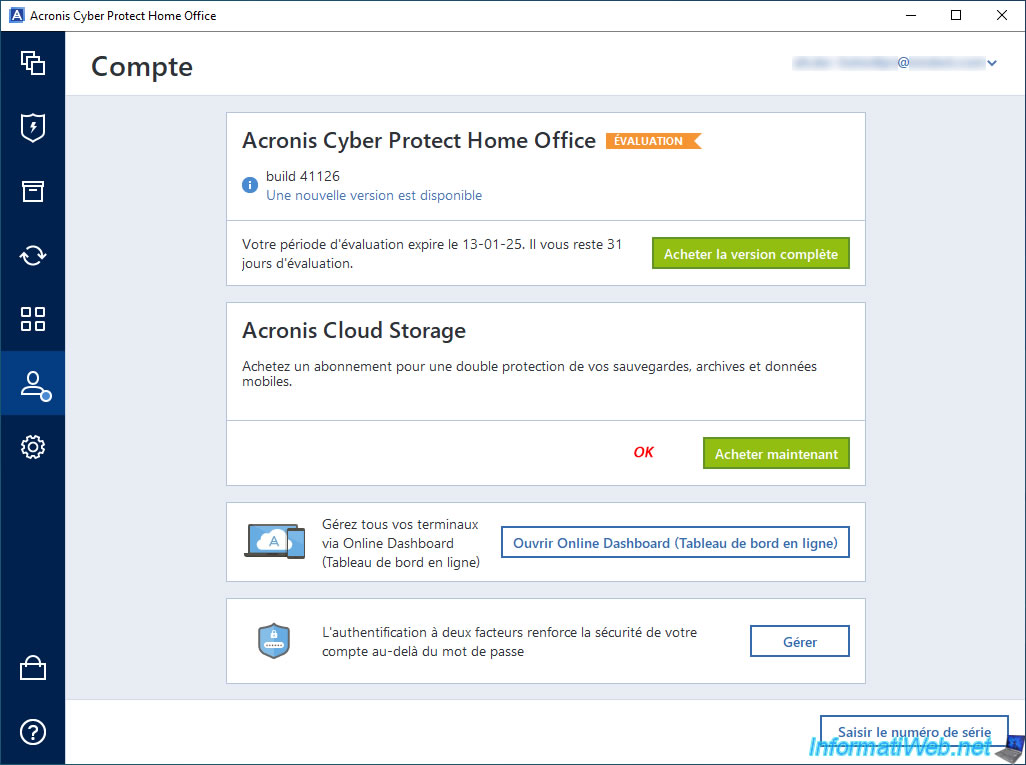
If you go to another section of Acronis Cyber Protect Home Office (True Image) and then go back to the "Account" section of this Acronis program, then you will see that you are now entitled to 1024 GB (1 TB) of disk space on Acronis Cloud.
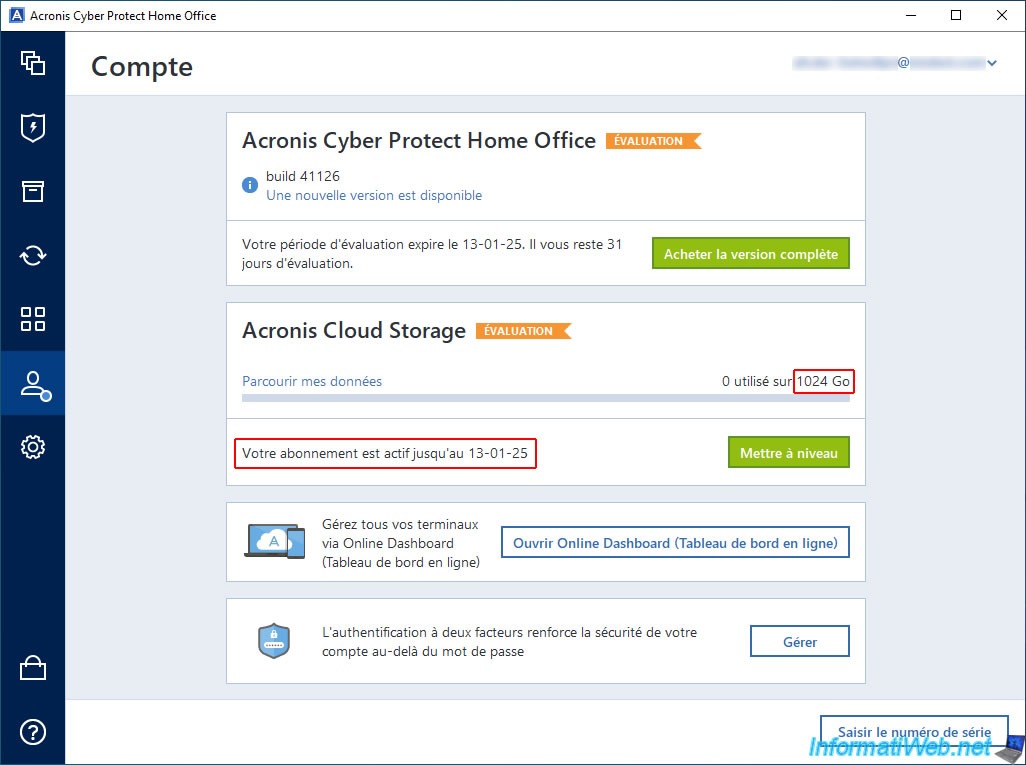
If you are sure you want to use Acronis Cloud Storage, then take out a subscription by clicking on the small shopping cart located at the bottom left of the program.
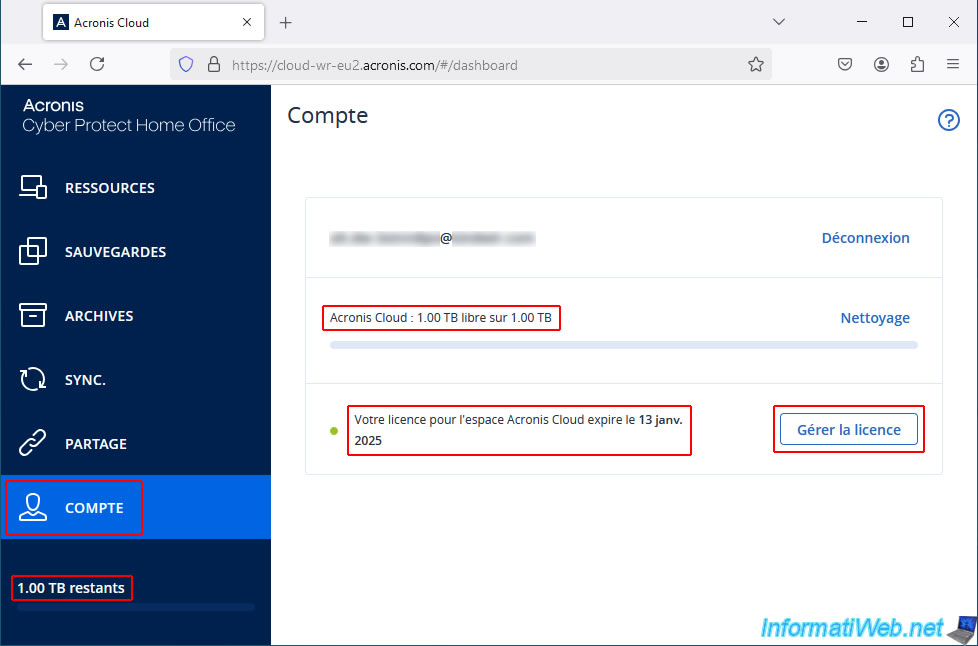
Click the "Browse my data" link to access Acronis Cloud while being automatically logged in with your Acronis account.
In the "Account" section of the "Acronis Cloud" website, you will see that your license will expire in 30 days (1 month) and that you are indeed entitled to 1.00 TB of disk space on Acronis Cloud.
Click "Manage License".
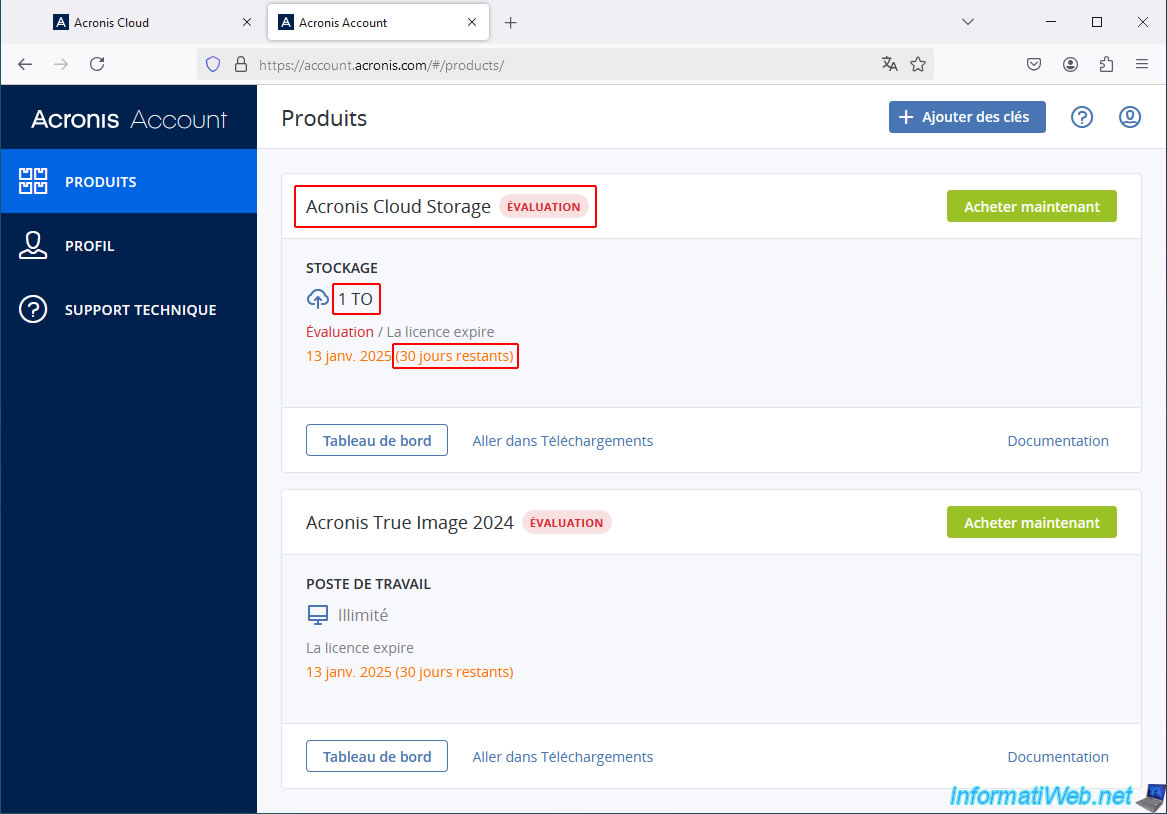
As expected, you have at least 2 products referenced in your Acronis account:
Acronis Cloud Storage: the 30-day (1-month) trial with 1 TB of disk space usable on Acronis Cloud for storing your backups (from a computer or from a smartphone), storing your Acronis archives, ...
2. Subscribe to Acronis Cloud
2.1. Subscribe to Acronis Cloud from Acronis Cyber Protect Home Office (True Image)
To purchase an Acronis Cloud subscription from Acronis Cyber Protect Home Office (True Image), click the shopping cart icon (located at the bottom left of the program).
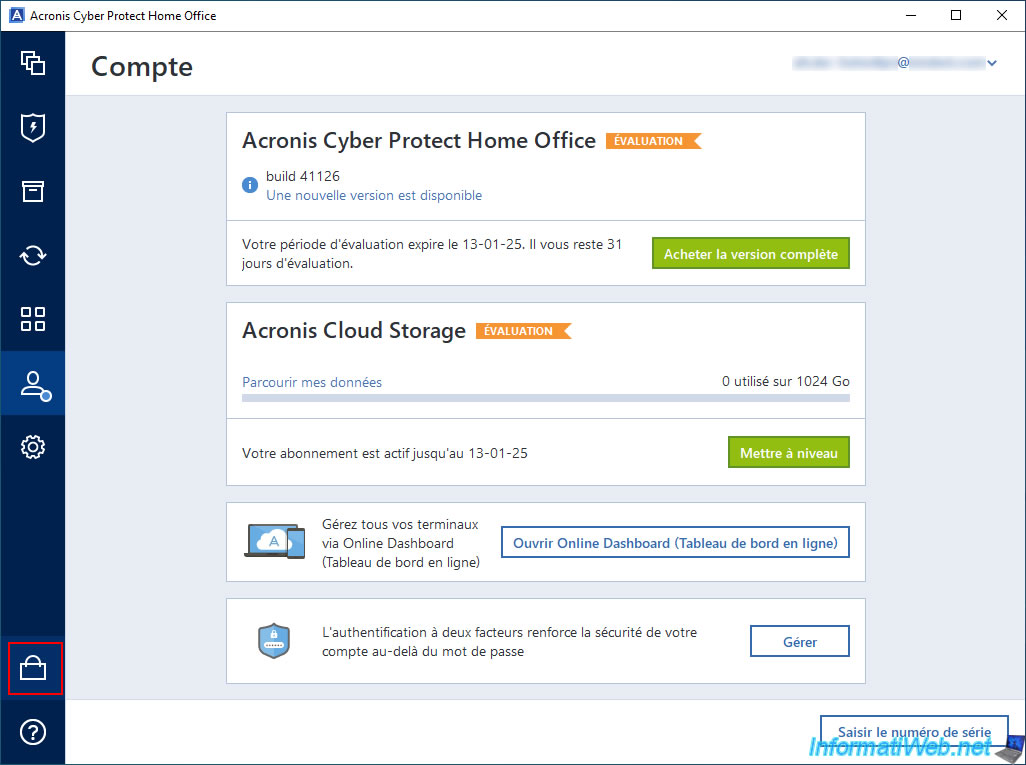
As you can see, at the moment there are 3 one-year subscriptions for Acronis Cyber Protect Home Office (True Image):
- Essentials: 1-year subscription WITHOUT Acronis Cloud.
- Advanced: 1-year subscription with access to Acronis Cloud (with available storage space of 50 GB or 500 GB, as desired).
- Premium: same as Advanced, but with storage space of 1 TB, 2 TB, ... up to 5 TB.
This Premium subscription also allows you to use the "Files to authenticate" feature visible when you want to change the source of your backup.
Warning : to benefit from access to Acronis Cloud, you will therefore need to choose the "Advanced" or "Premium" subscription.
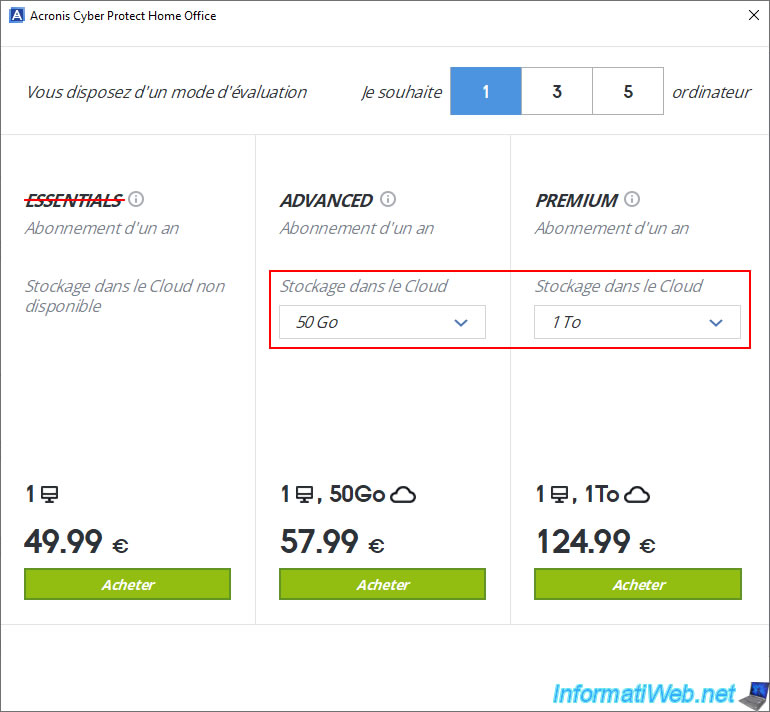
The other possibility to subscribe to Acronis Cloud from Acronis Cyber Protect Home Office (True Image) is to click on the "Upgrade" button (if you have already started the free trial for Acronis Cloud) or "Buy Now" button (if you have not started the free trial for this service) located in the "Acronis Cloud Storage" section.
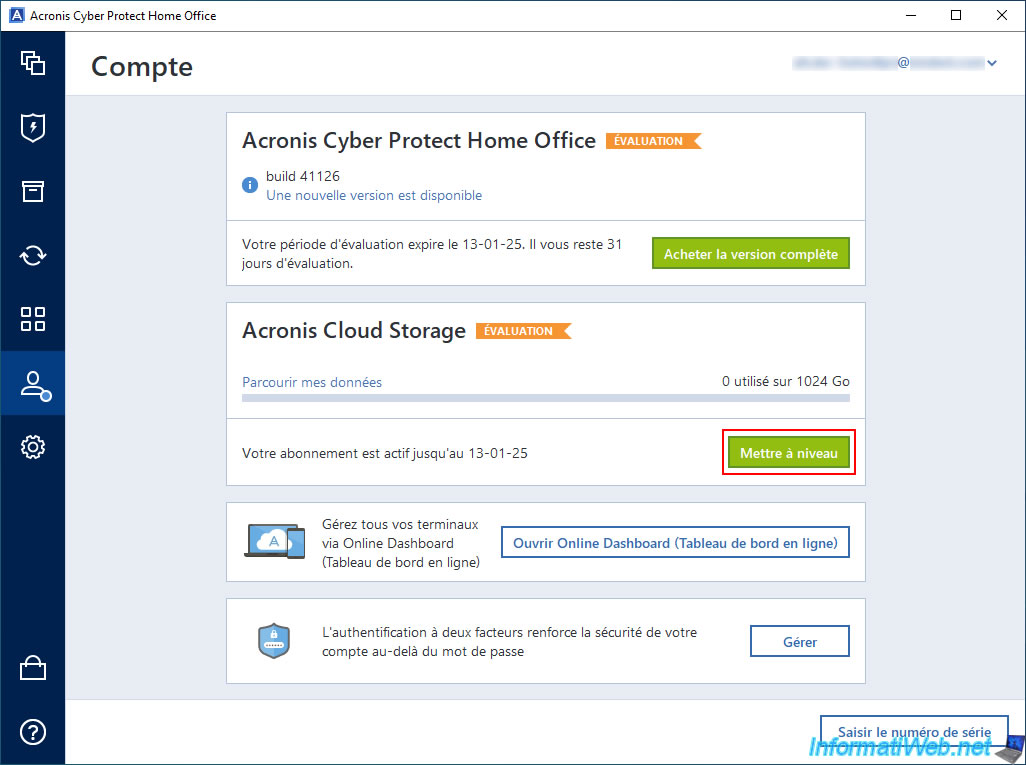
As expected, Acronis Cyber Protect Home Office (True Image) offers you to choose between only 2 subscriptions (as these are the only Acronis subscriptions that include access to Acronis Cloud).
2.2. Sign up for an Acronis Cloud subscription via the Acronis website
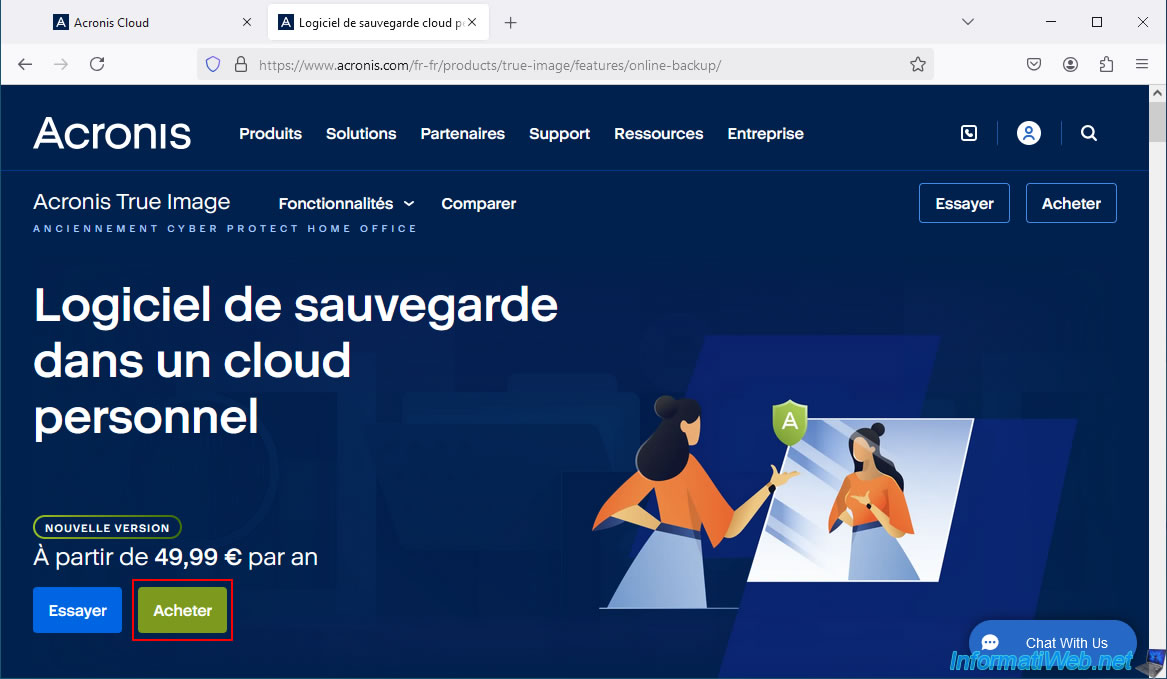
To purchase an Acronis Cloud subscription through the Acronis website, go to the "Secure personal cloud backup software - Acronis" page and click the "Buy now" button.
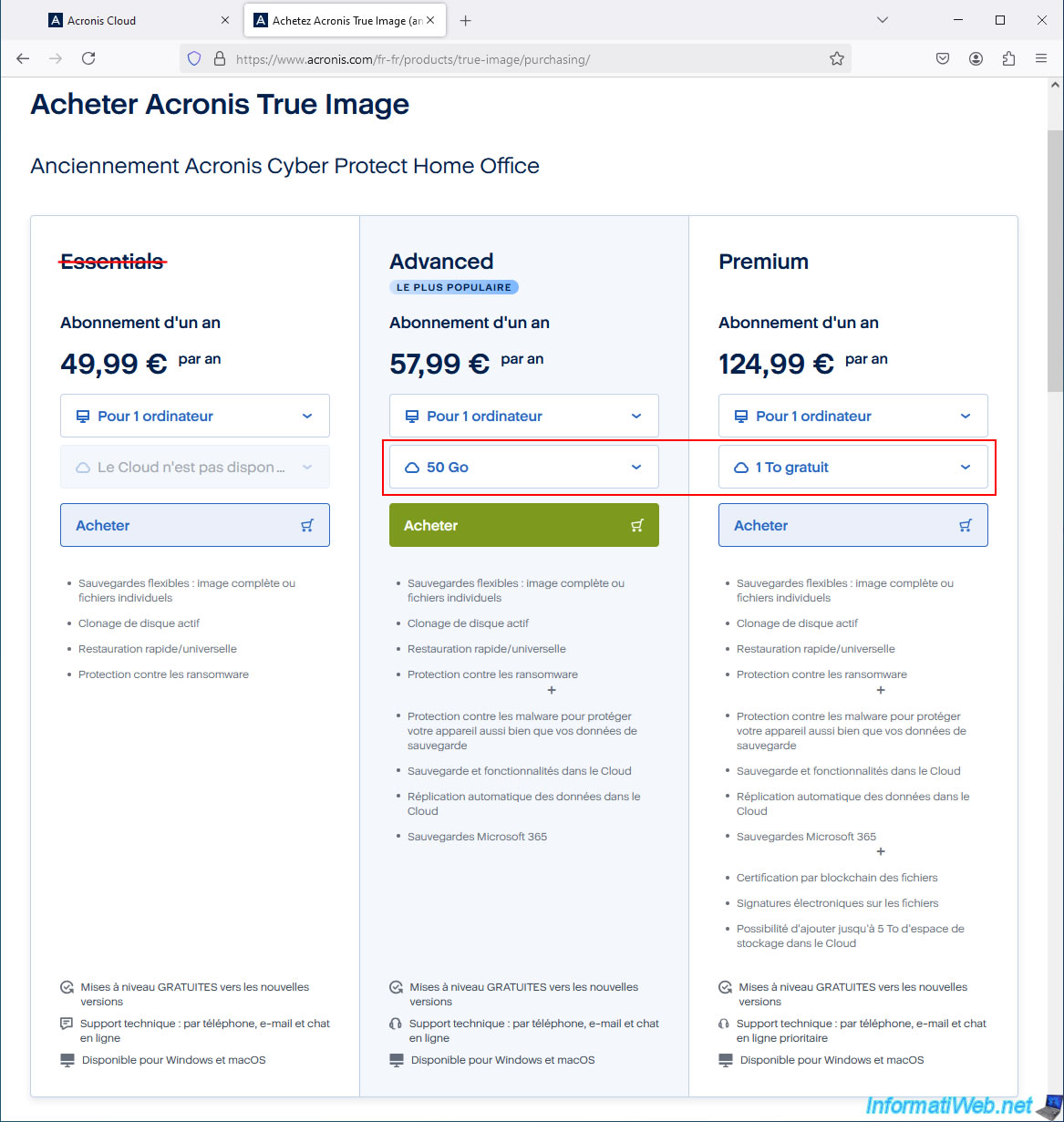
Next, choose between the "Advanced" and "Premium" subscription which are the only Acronis subscriptions to include access to Acronis Cloud.
- The "Advanced" subscription allows you to benefit from 50 GB to 500 GB of disk space on Acronis Cloud
Depending on the disk space selected here, the price will obviously be adapted accordingly. - The "Premium" subscription allows you to benefit from 1 TB to 5 TB of disk space on Acronis Cloud.
Note: you will notice that the "Premium" subscription allows you to access more features than the "Advanced" subscription.
Which is normal since it is clearly more expensive than the other one.
Nevertheless, the "Advanced" subscription is enough to access Acronis Cloud.
Share this tutorial
To see also
-
Backup 10/27/2025
Acronis True Image - Archive your files locally (encrypted archive)
-
Backup 7/21/2025
Acronis True Image - Create backups (via the version chain scheme)
-
Backup 7/24/2025
Acronis True Image - Create differential backups
-
Backup 6/22/2026
Acronis True Image - Secure disk erase
You must be logged in to post a comment