- Backup
- Acronis True Image
- 19 January 2026 at 09:16 UTC
-

- 1/2
With the "Acronis Media Builder" tool installed with Acronis Cyber Protect Home Office (True Image), you can create Acronis rescue media based on Windows PE or Linux (your choice).
The advantages of creating Linux-based rescue media are:
- compatibility with a PC that would refuse to boot on the Windows PE-based version.
- the ability to easily create this rescue media without having to install Microsoft tools (like the Windows AIK on Windows 7 or the Windows ADK and Windows PE on newer versions of Windows if the "Windows Recovery Environment" option is not offered or functional in your case).
Warning : it's not possible to add drivers to this Linux-based Acronis rescue media, even using the advanced mode of Acronis Media Builder.
Unlike creating Windows PE-based rescue media where it is possible, allowing you to add missing drivers if needed using the advanced mode of Acronis Media Builder.
Warning : if you create this Linux-based Acronis rescue media using the trial version of Acronis Cyber Protect Home Office (True Image), backup will not be possible from it.
Indeed, backup from this Acronis rescue media requires a full version of Acronis Cyber Protect Home Office (True Image).
- Create Linux-based Acronis rescue media
- Boot into your Linux-based Acronis rescue media (in Legacy BIOS mode)
- Boot into your Linux-based Acronis rescue media (in UEFI mode)
- Backup your computer from this Acronis rescue media (Linux based)
- Restore your computer from this Acronis rescue media (Linux based)
1. Create Linux-based Acronis rescue media
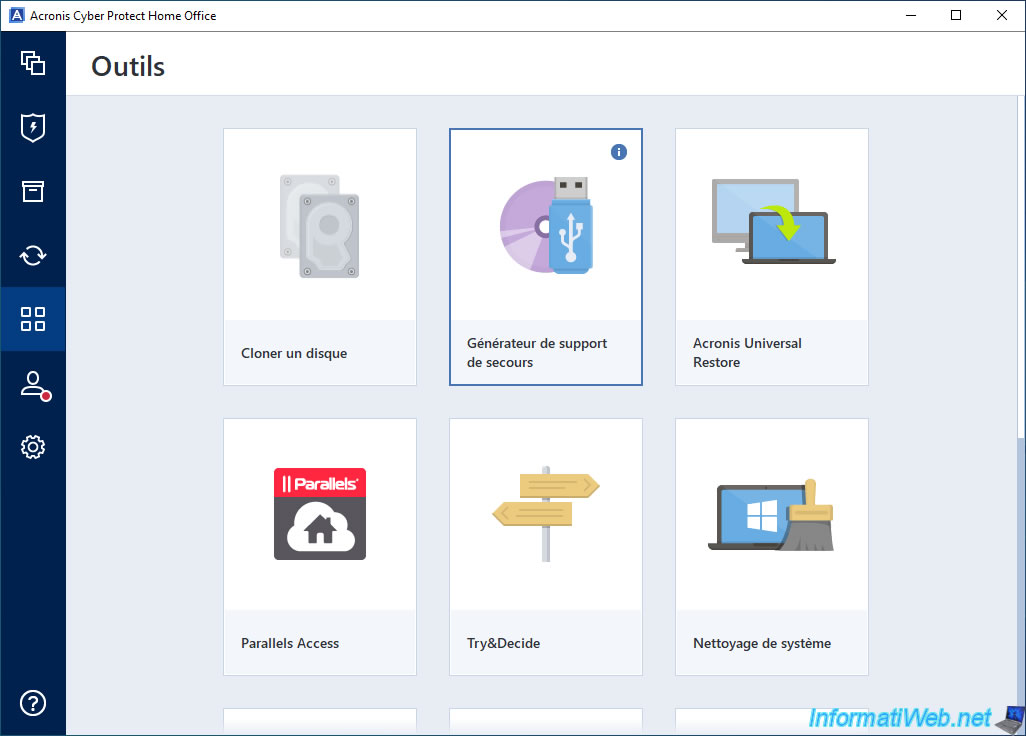
In the "Tools" section of Acronis Cyber Protect Home Office (True Image), click "Rescue media generator".
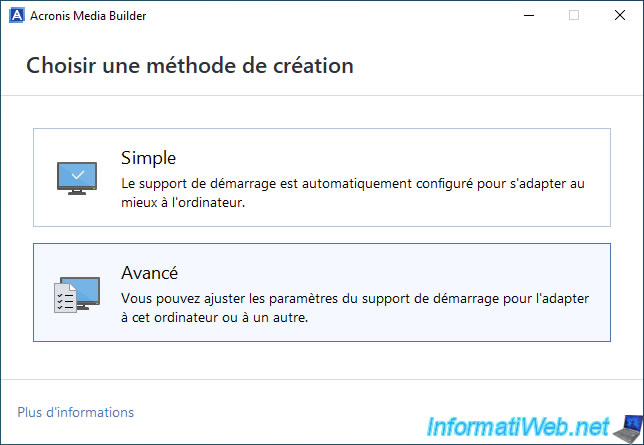
Then, in the "Acronis Media Builder" window that appears, click "Advanced".
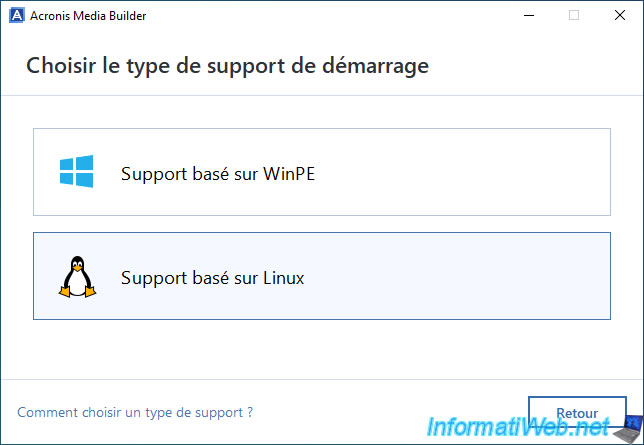
Choose the bootable media type "Linux-based media".
In our case, we chose "ISO file" as the destination for the media.
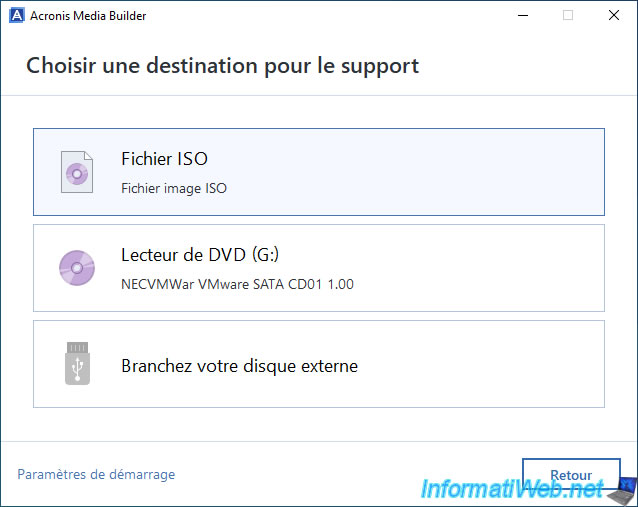
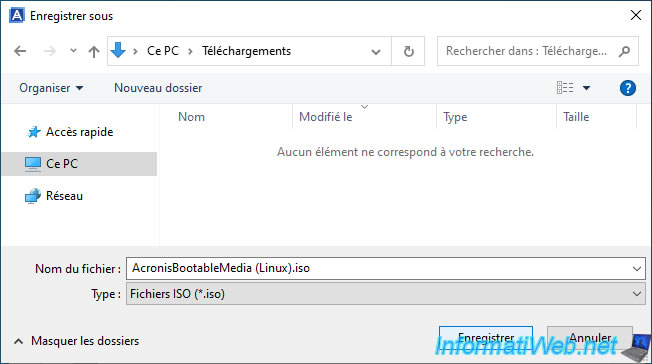
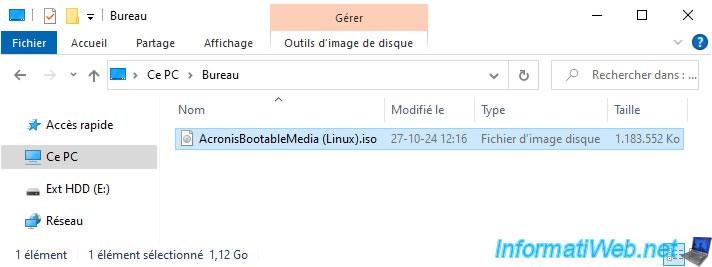
Save this ISO file as "AcronisBootableMedia (Linux).iso" (for example).
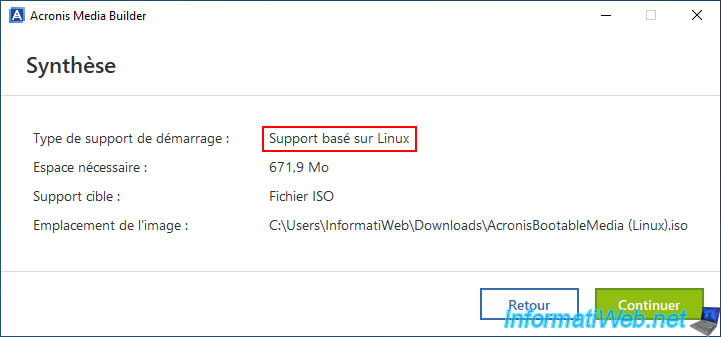
As expected, this will be Linux-based support.
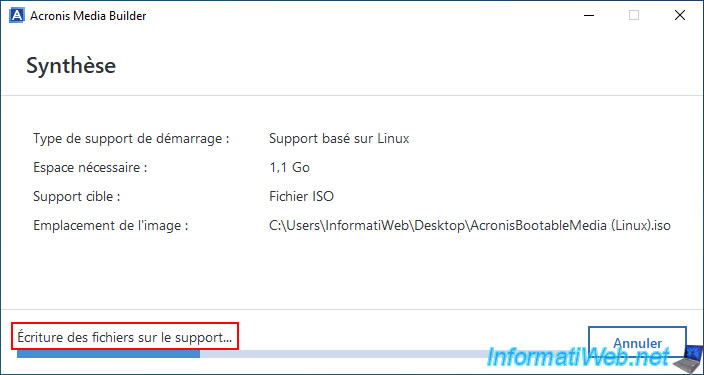
Please wait while the files are written to the media.
The Linux-based Acronis bootable media has been created.
Click "Close".
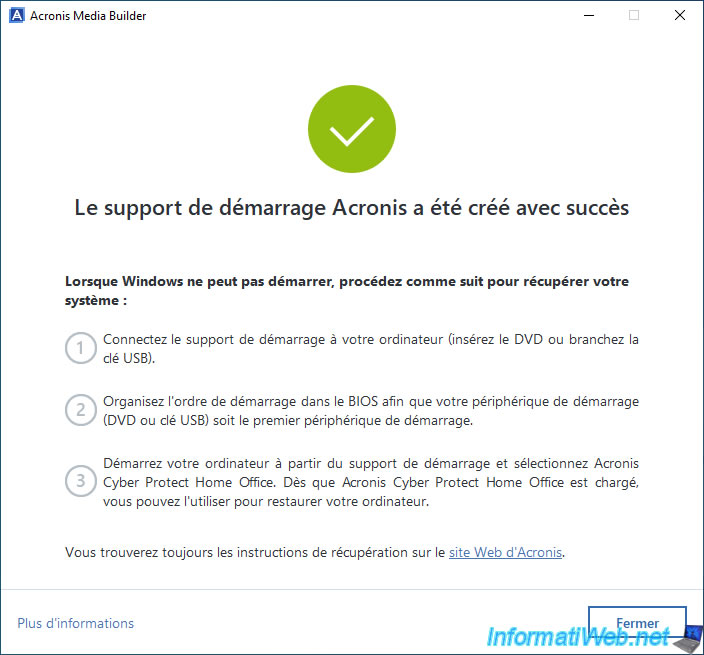
Burn the resulting "AcronisBootableMedia (Linux).iso" file to a DVD by following our "Burn a CD/DVD" tutorial if necessary.
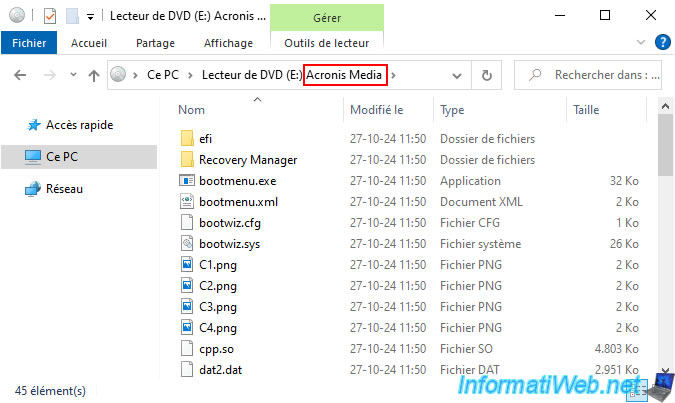
This is what the contents of this Linux-based Acronis rescue media look like.
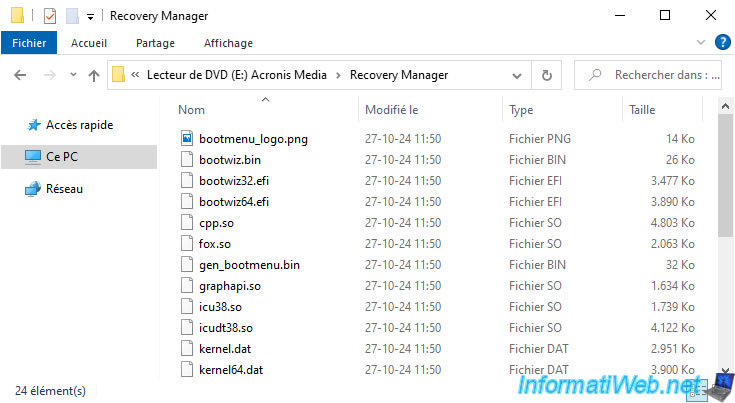
Here are the contents of the "Recovery Manager" folder of this Linux-based Acronis rescue media.
2. Boot into your Linux-based Acronis rescue media (in Legacy BIOS mode)
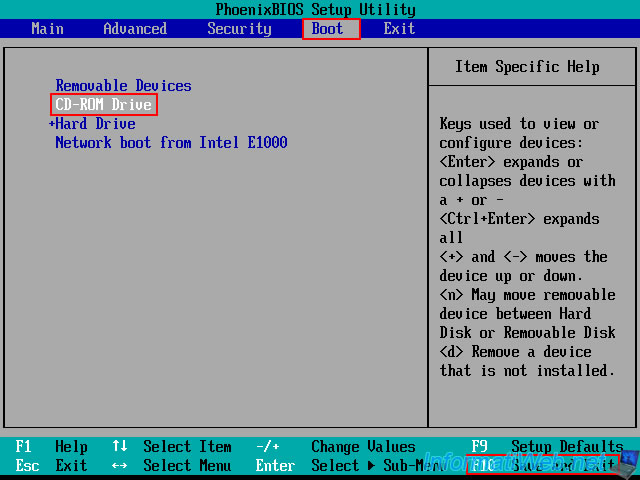
To boot to your Linux-based Acronis rescue media, you need to configure your motherboard BIOS boot order to boot from your CD/DVD drive first.
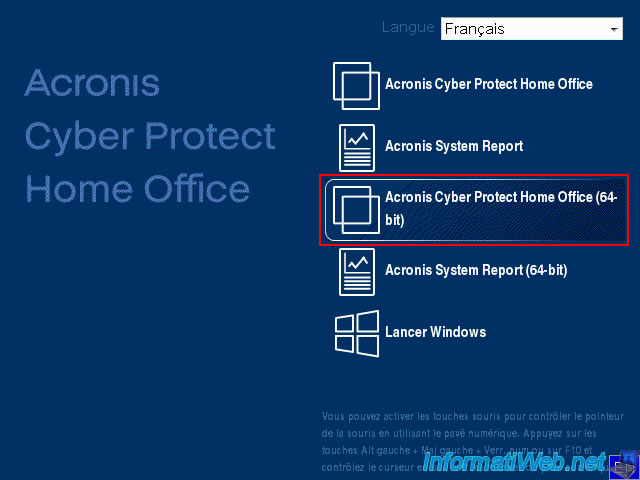
If your computer boots in Legacy BIOS mode on this Acronis rescue media, you will see this boot menu "Acronis Cyber Protect Home Office (True Image)" with a blue background.
In this case, click on "Acronis Cyber Protect Home Office" (if you have a very old PC with a 32-bit processor) or on "Acronis Cyber Protect Home Office (64-bit) on a recent PC (which therefore has a 64-bit processor, which has become very common).
Note: the 64-bit version is more powerful than the 32-bit version.
However, the 64-bit version can only work if you have a 64-bit processor. While the 32-bit version will always work (whether you have a 32-bit or 64-bit processor).
In both cases, the program remains the same.
A message "Loading, please wait..." will appear for a few seconds.

Then, an Acronis Cyber Protect Home Office (True Image) logo will appear for a few seconds.

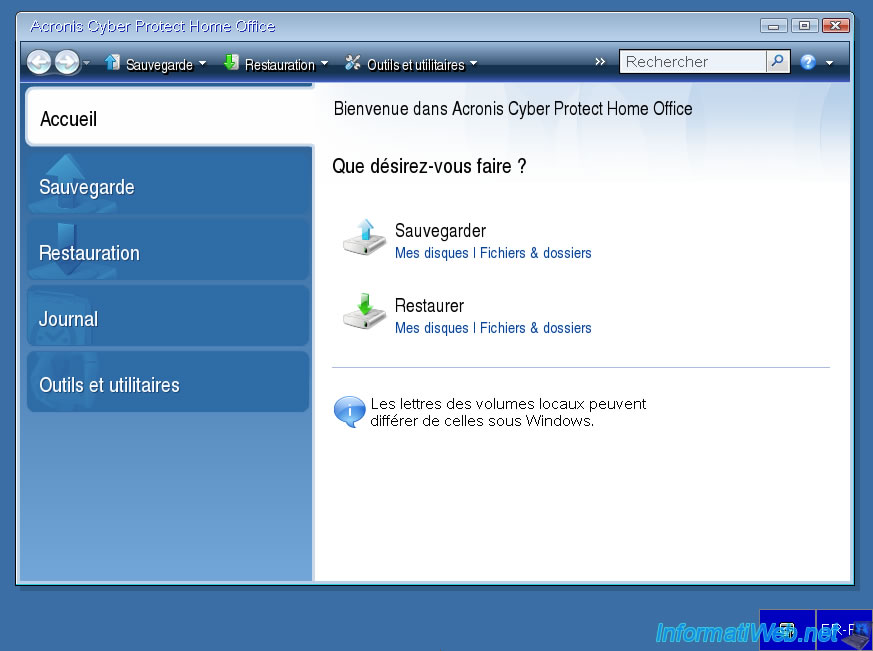
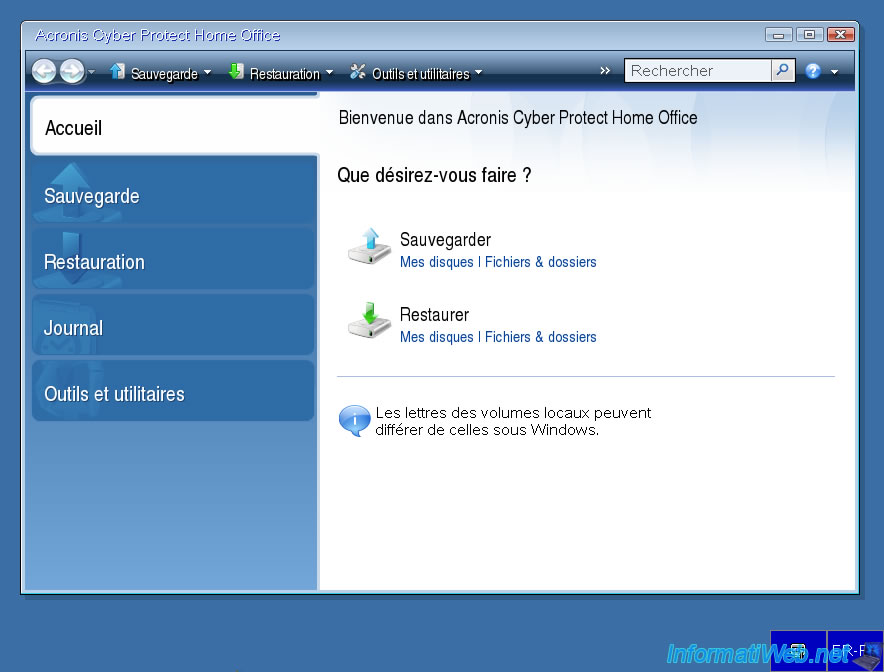
Finally, you will see the "Acronis Cyber Protect Home Office (True Image)" program appear.
3. Boot into your Linux-based Acronis rescue media (in UEFI mode)
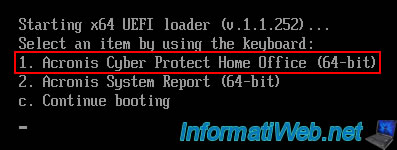
If your computer boots in UEFI mode on your Linux-based Acronis rescue media, then you will see a small text menu on a black background.
Type 1 to launch the "Acronis Cyber Protect Home Office (64-bit)" tool.
Please wait a few seconds while this Acronis program loads.
Plain Text
Please wait...
Loading protected mode kernel...
Press <e> to edit kernel command line
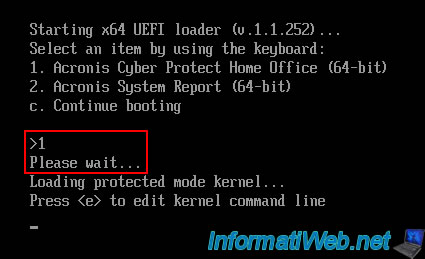
Please wait a few seconds while this Acronis program loads.
Share this tutorial
To see also
-
Backup 7/7/2025
Acronis True Image - Backup files or folders
-
Backup 7/24/2025
Acronis True Image - Create differential backups
-
Backup 4/20/2026
Acronis True Image - Rescue Media - Backing up your PC to a FTP server
-

Backup 11/20/2025
Acronis True Image - Synchronize a folder from Acronis Cloud
You must be logged in to post a comment