Create Acronis True Image (Cyber Protect Home Office) rescue media in Linux version
- Backup
- Acronis True Image
- 19 January 2026 at 09:16 UTC
-

- 2/2
4. Backup your computer from this Acronis rescue media (Linux based)
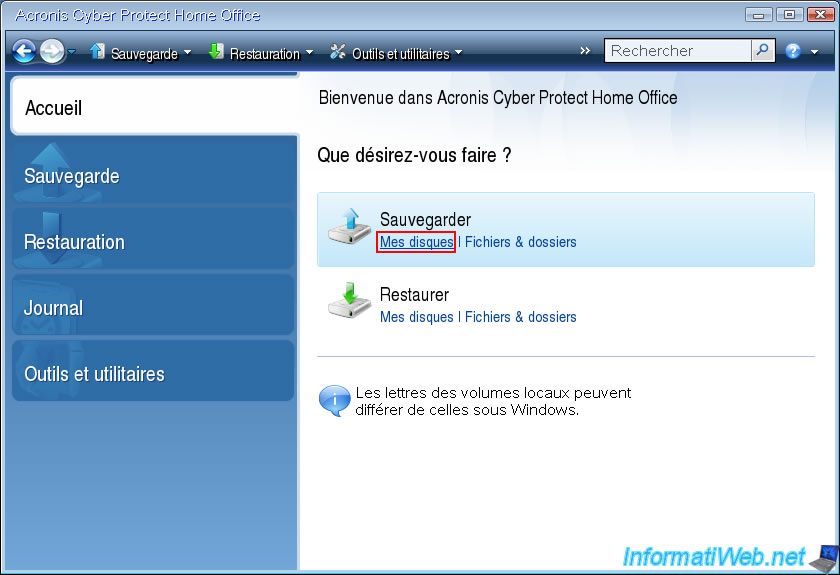
To back up your computer from this Acronis rescue media (Linux-based), click on the "My Disks" link located just below the "Backup" option.
Warning : as a reminder, backing up from Acronis rescue media is not available with the trial version of Acronis Cyber Protect Home Office (True Image).
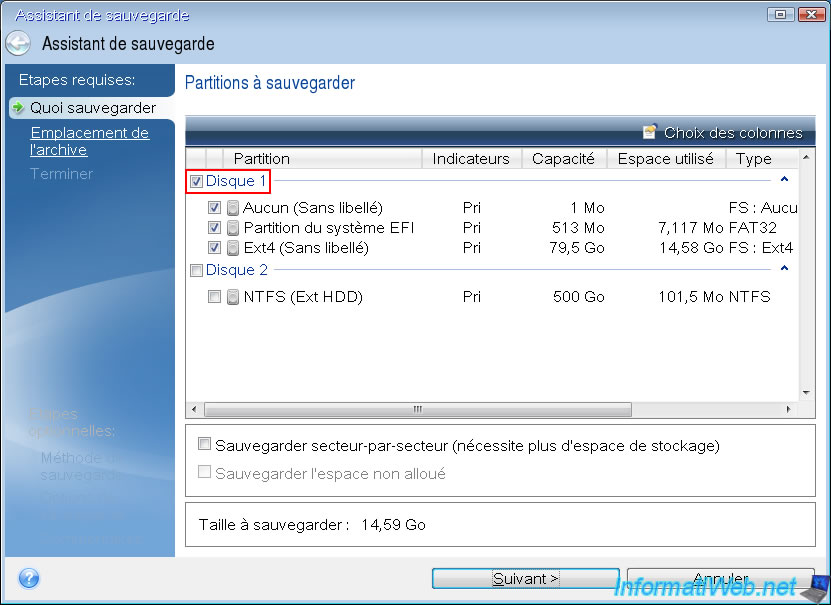
In the backup wizard that appears, check the box of the disk to backup.
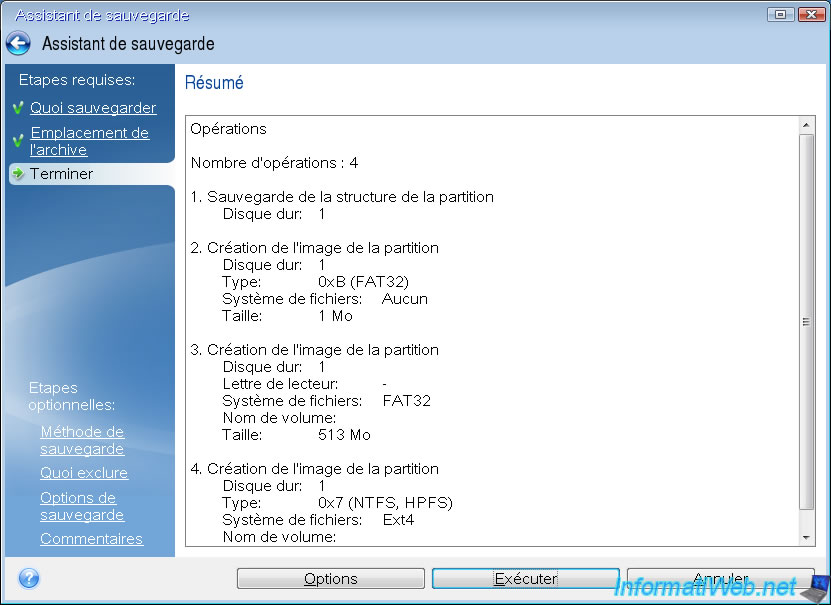
In our case, disk 1 where Ubuntu 22.04.5 LTS x64 is installed (hence the presence of a partition in Ext4 which is the file system commonly used under Linux).
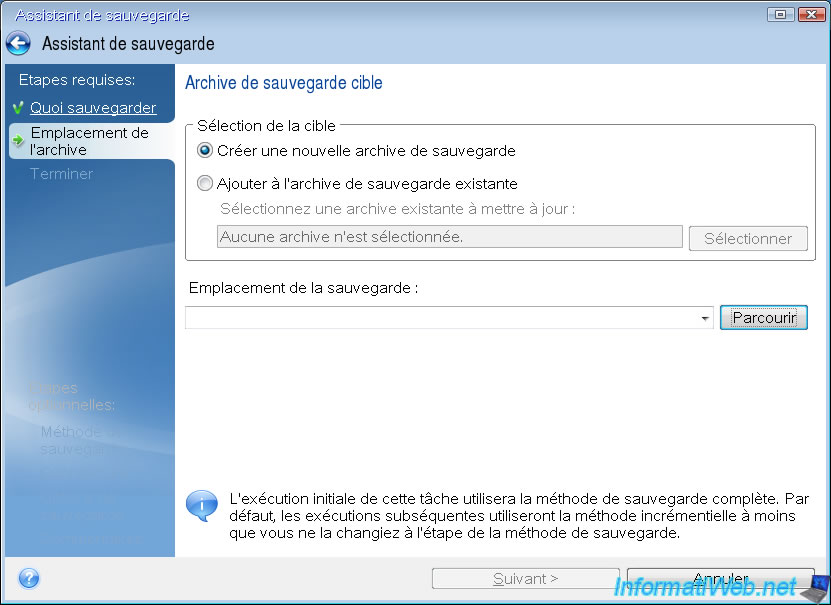
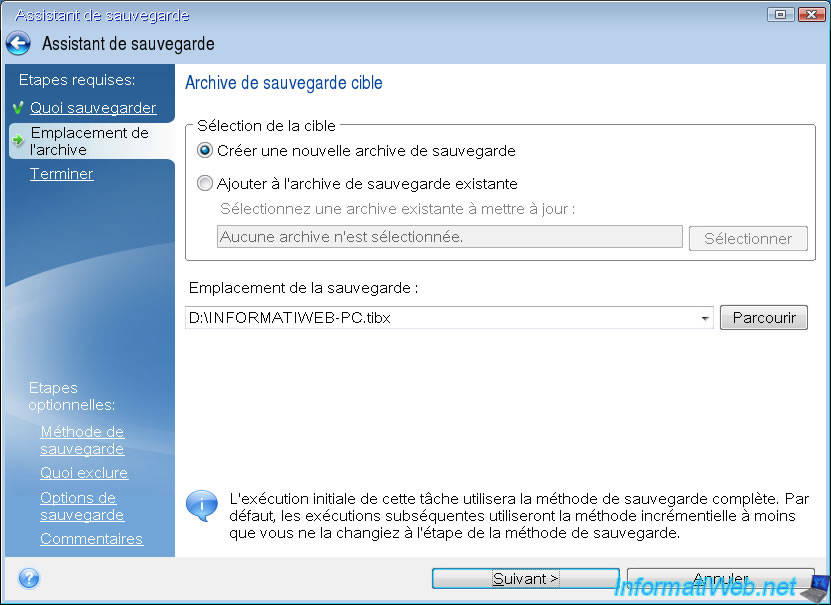
Leave the "Create a new backup archive" option selected and click the "Browse" button.
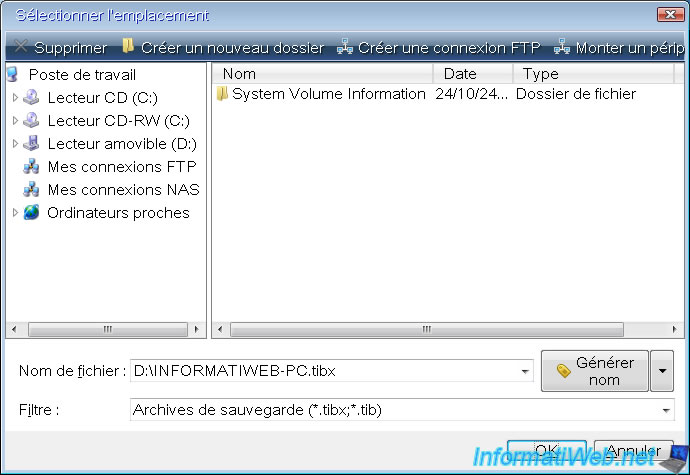
Select the location where you want to store your future backup.
In our case, our external hard drive (connected via USB) recognized as a removable drive (with the letter "D").
Then, indicate a name for your backup file.
In our case, it is the name of our PC under Linux, so "INFORMATIWEB-PC.tibx".
Then, click on "OK".
The backup location you just configured appears in the box.
Click Next.
A summary of the backup operation appears.
Click "Run".
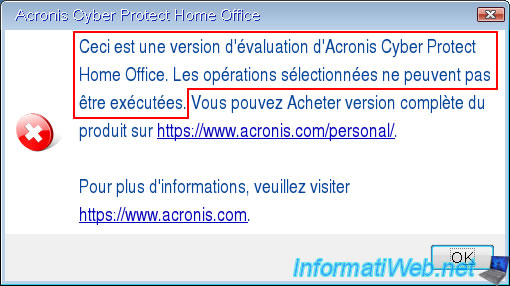
If you created this Acronis Rescue Media with a trial version of Acronis Cyber Protect Home Office (True Image), an error will appear.
Plain Text
This is a trial version of Acronis Cyber Protect Home Office. The selected operations cannot be performed.
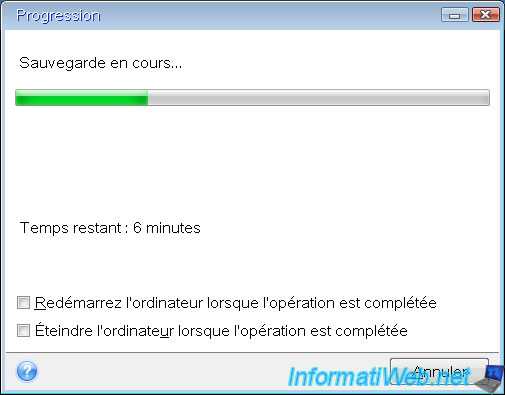
If you have a full (paid) version of Acronis Cyber Protect Home Office (True Image), then the backup of this PC will start without any problems.
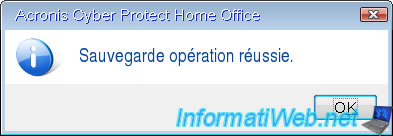
Once your PC backup is complete, the "Backup operation successful" message will appear.
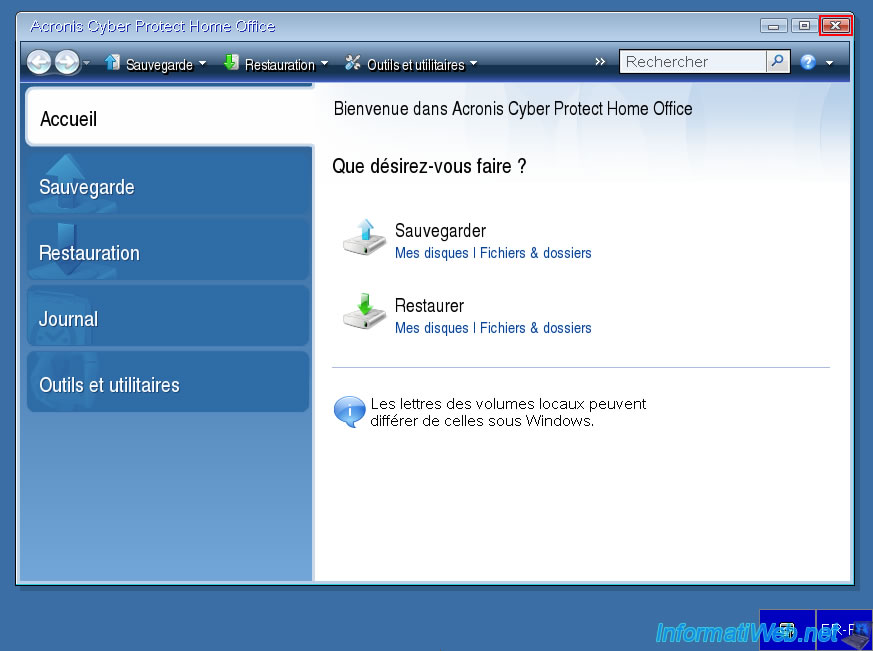
To restart your computer, click the cross at the top right of the Acronis Cyber Protect Home Office (True Image) window.
5. Restore your computer from this Acronis rescue media (Linux based)
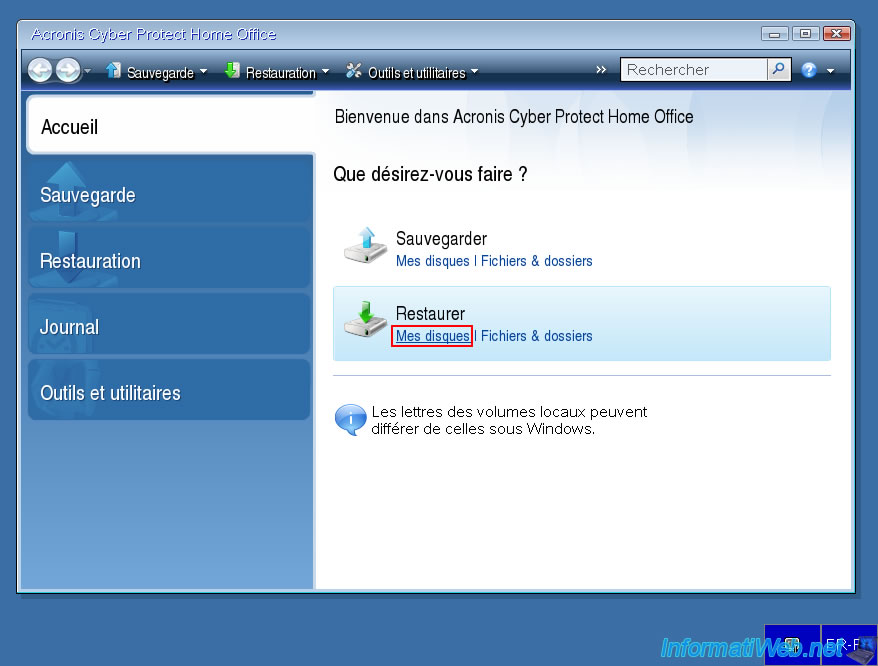
To restore your computer using this Acronis Rescue Media (Linux-based), click the "My Disks" link located just below the "Restore" option.
Note: restoring from this Acronis Rescue Media is possible in all cases (whether you created it with a trial or a full version of Acronis Cyber Protect Home Office (True Image)).
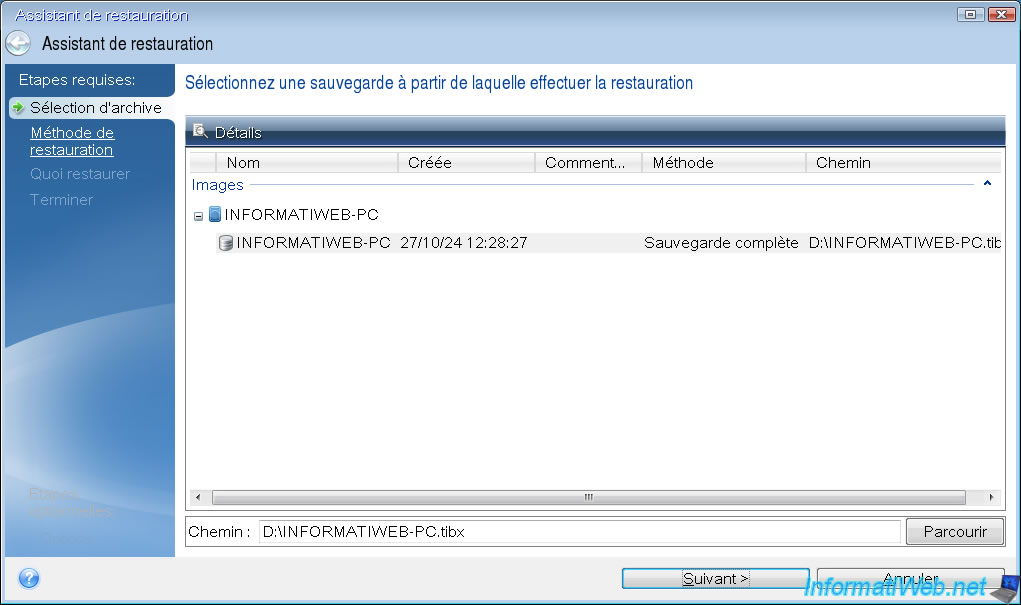
In the Restore Wizard that appears, select the desired backup automatically detected by this wizard or click the "Browse" button to manually select the ".tibx" file to use to restore the state of this computer.
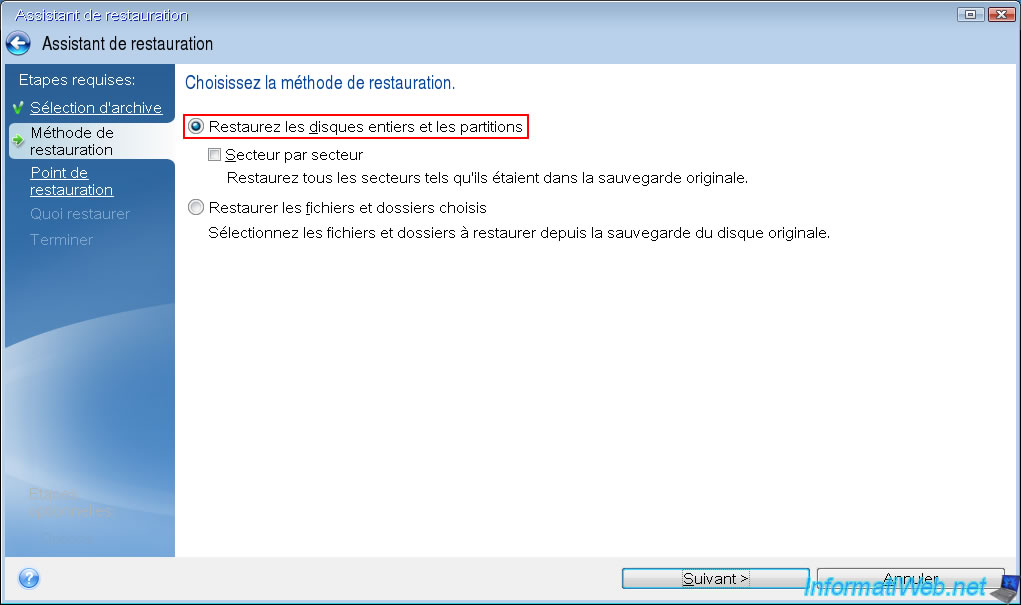
In the "Restore method" step, select "Restore entire disks and partitions".
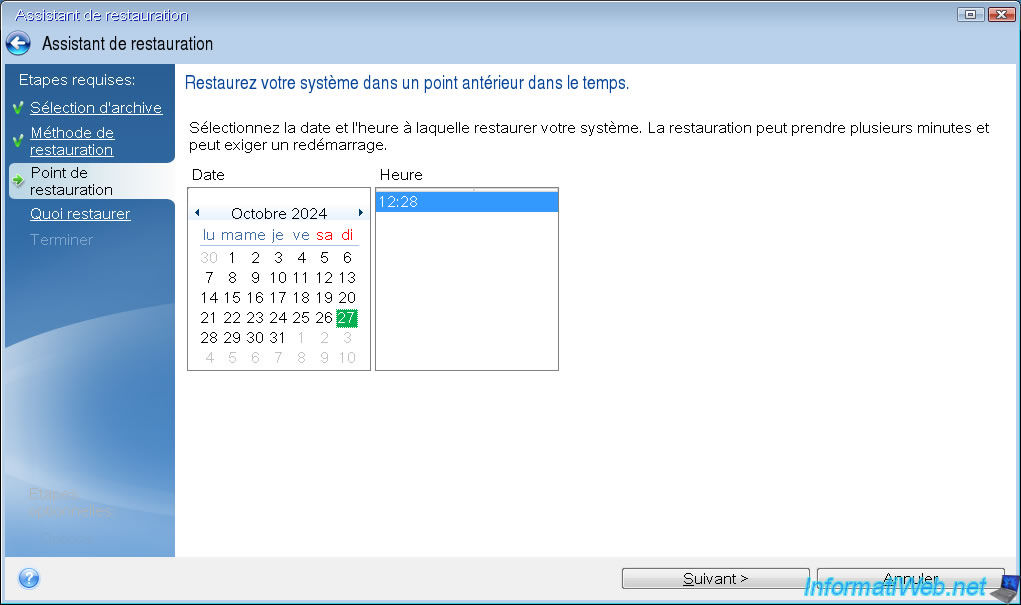
Select the date/time to restore your computer using this backup.
Note: a backup (and therefore a ".tibx" file) can indeed contain several backups (usually incremental) and you can therefore choose between several dates and times depending on the backups present in it.
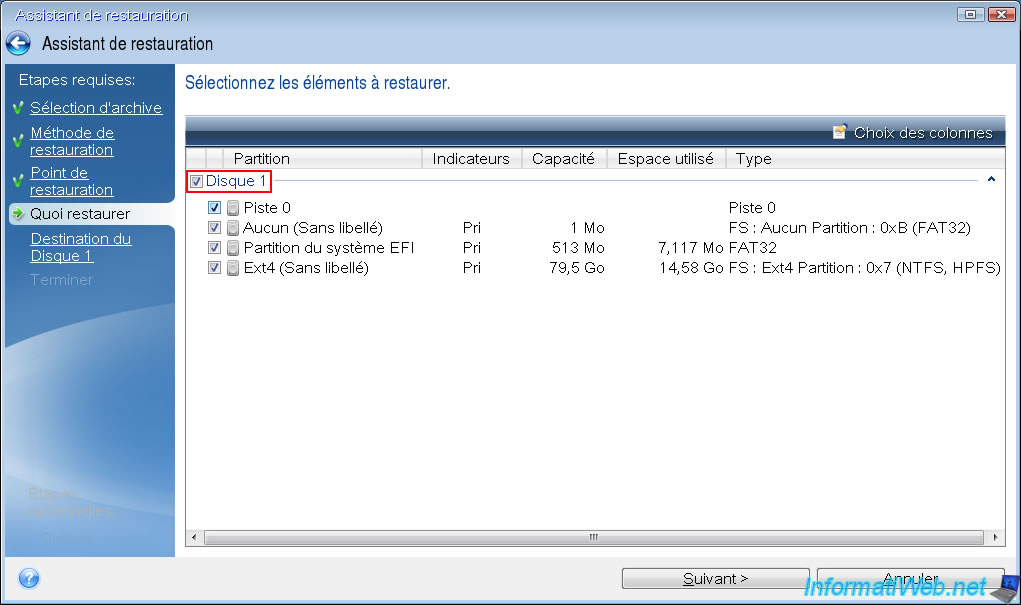
Select the disk (present in this backup) to restore.
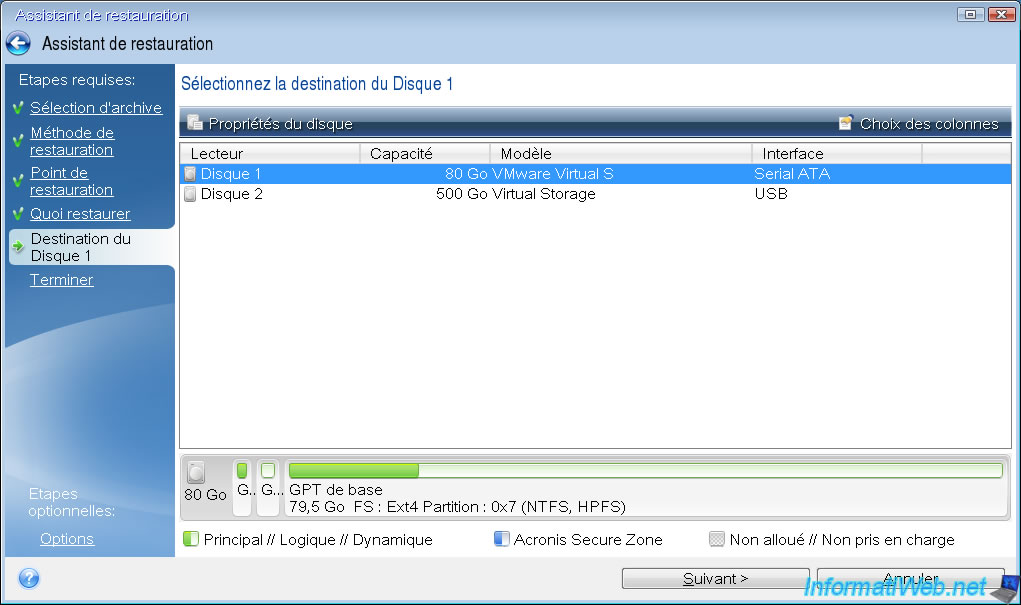
Then, select the destination disk (local to your computer) to which you want to restore disk 1 of the desired backup.
In our case, this was our 80 GB hard drive (where Ubuntu is installed).
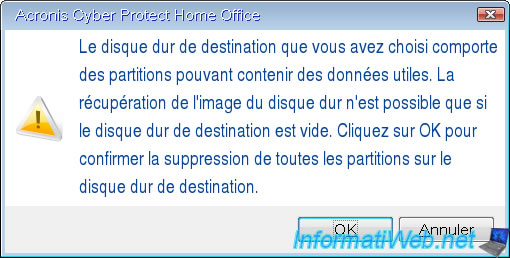
Acronis Cyber Protect Home Office (True Image) warns you that there are already partitions on the destination disk (which is normal since we just want to restore this disk to a previous state) and that its data will therefore be erased before restoring the backup data to it.
So, click OK.
Plain Text
The destination hard drive you chose has partitions that may contain useful data.
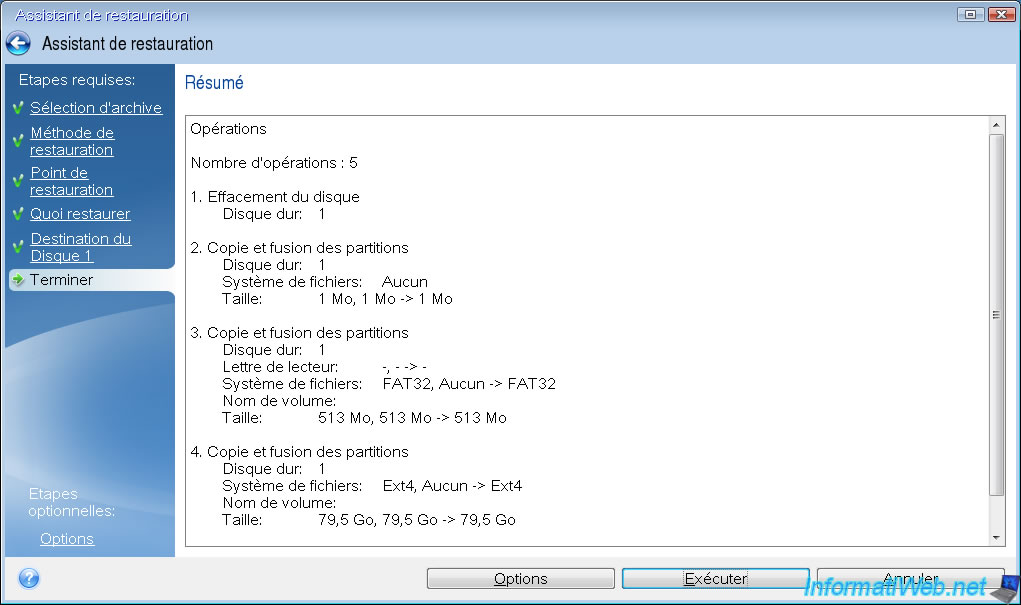
Click "Run" to start restoring the backup to this destination disk.
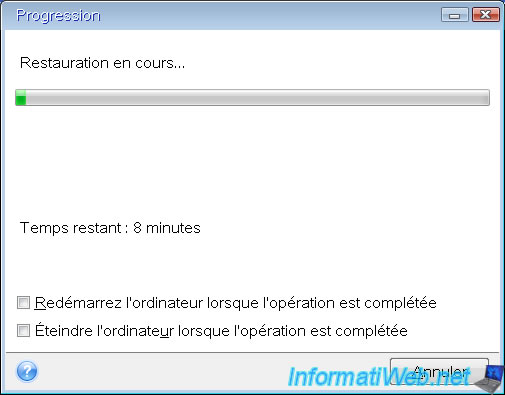
Please wait while your backup is restored to your local drive.
Once the restore is complete, the message "Restore operation successful" will appear.
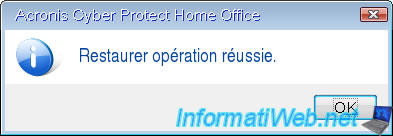
To restart your computer after restoring the backup, simply close the "Acronis Cyber Protect Home Office (True Image)" window.
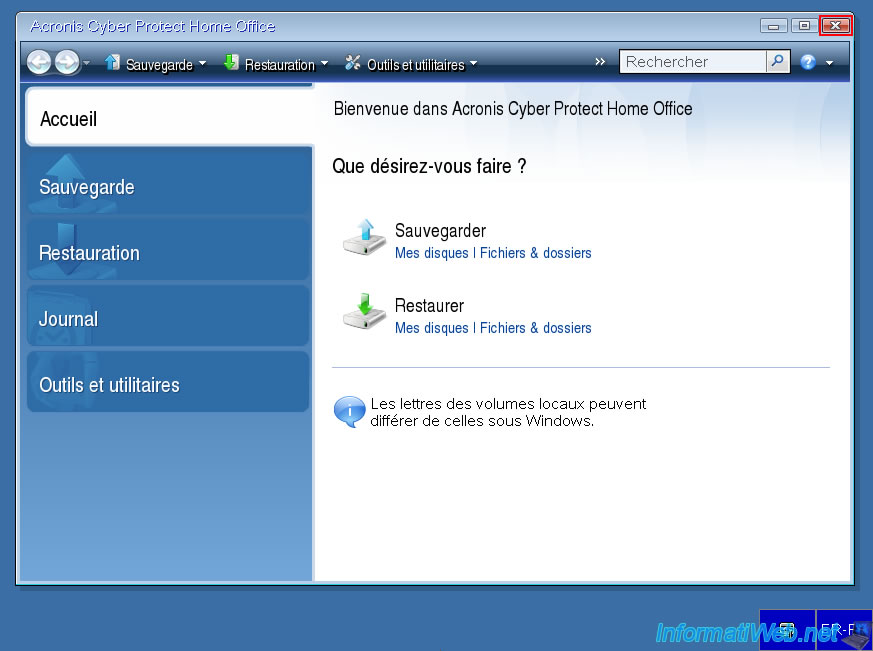
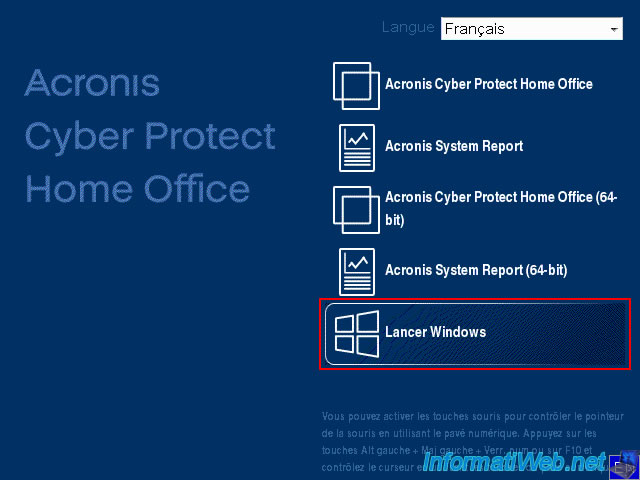
Upon reboot, if you see the Acronis Cyber Protect Home Office (True Image) boot menu again, simply click on the "Launch Windows" option.
Note: the option also works if you have Linux installed on your computer (as is the case for us with Ubuntu).
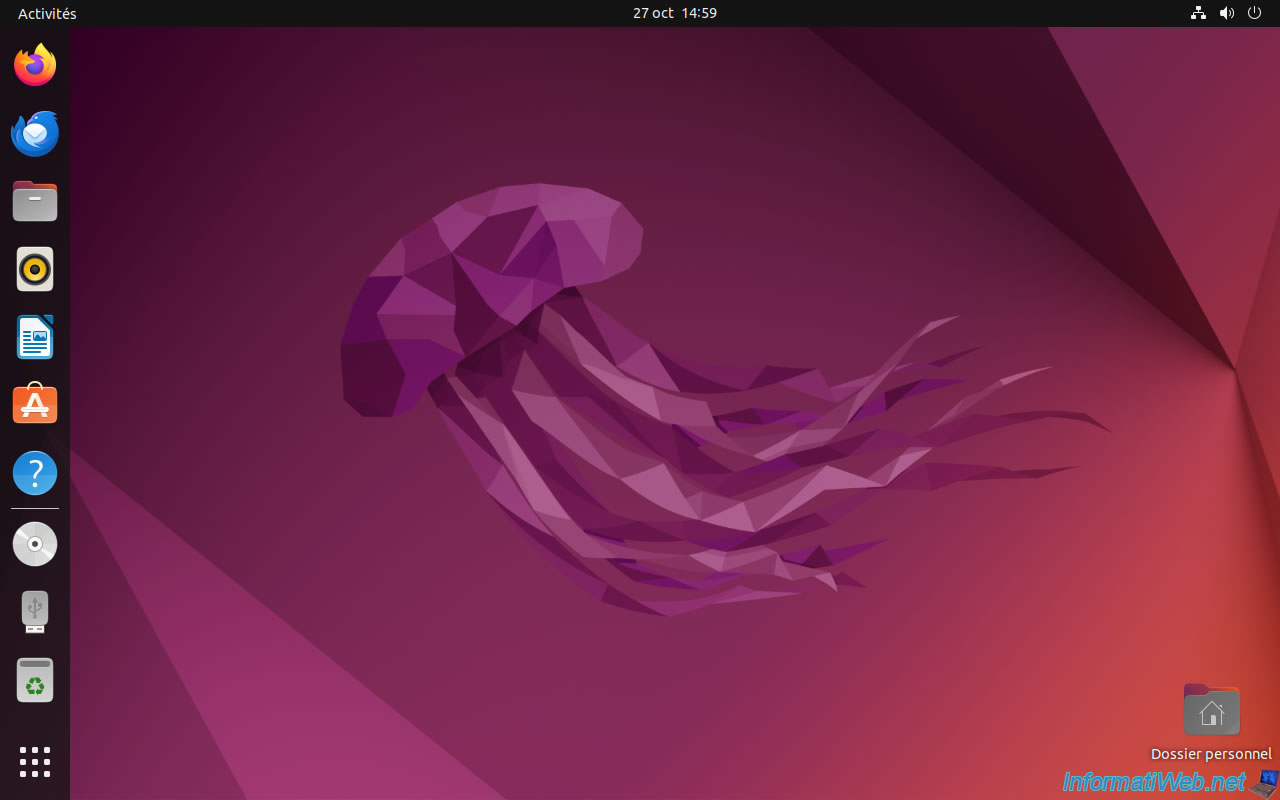
Ubuntu (in our case) starts.

And Ubuntu works without any problems after this restore via Acronis Cyber Protect Home Office rescue media (True Image).
Share this tutorial
To see also
-

Backup 6/5/2025
Acronis True Image - Backing up your PC to Acronis Cloud
-

Backup 9/11/2025
Acronis True Image - Backing up your smartphone to Acronis Cloud
-

Backup 6/12/2025
Acronis True Image - Delete an FTP connection
-
Backup 6/22/2026
Acronis True Image - Secure disk erase
No comment