Manually clone an old disk to a new disk using Acronis True Image (Cyber Protect Home Office)
- Backup
- Acronis True Image
- 22 December 2025 at 11:41 UTC
-

- 2/2
3. Clone a disk while keeping the current size of the copied partitions
If you wish, it is possible to copy partitions from one hard drive to another hard drive with a higher capacity while keeping the current size of your partitions.
This will allow you to use the remaining unallocated space at the end of your new hard drive (once the partition copy is complete) to create additional partitions later.
To do this, select the "Manual" cloning mode again (in the 1st step), then select your source hard drive.
In our case: our 500 GB disk 2.
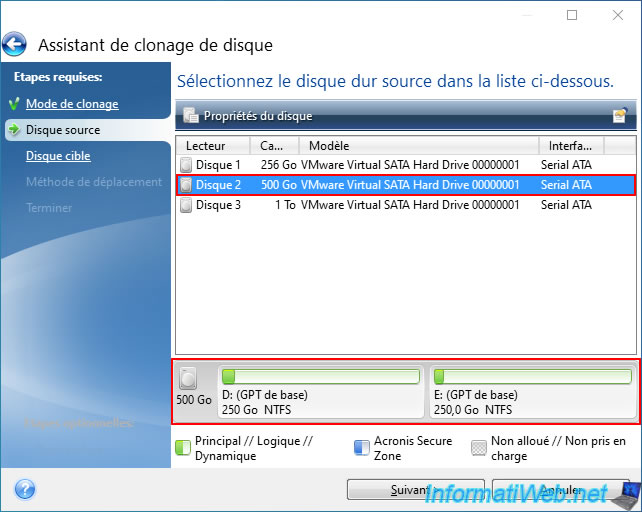
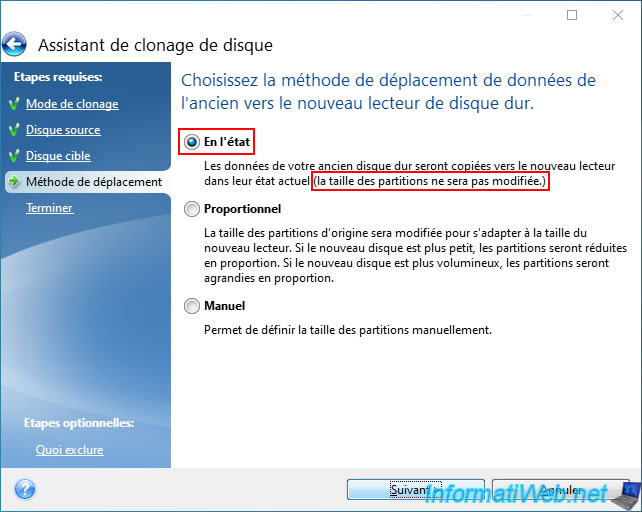
At the "Move method" step, select the "As is" option.
As this disk clone wizard tells you, the partition sizes will not be changed.
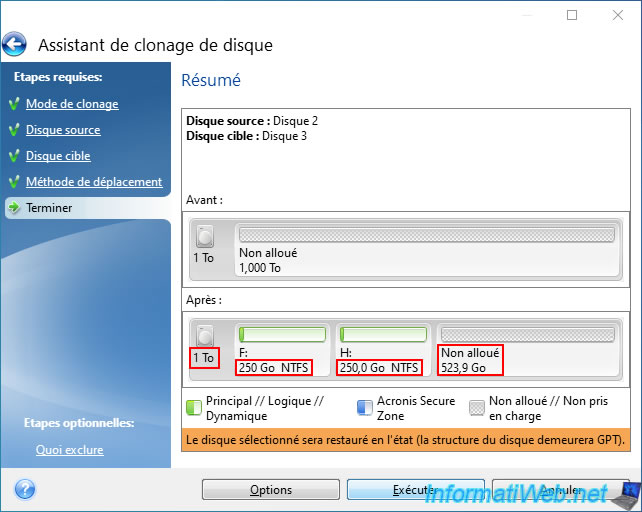
As expected, the wizard will copy our 2 partitions of 250 GB each to our 1 TB hard drive, leaving us with an unallocated (empty) space of about 500 GB at the end of this new hard drive.
Once the partition copy is complete, you will see the copy of these new partitions appear in the file explorer.
As expected, the size of these partitions has been preserved.

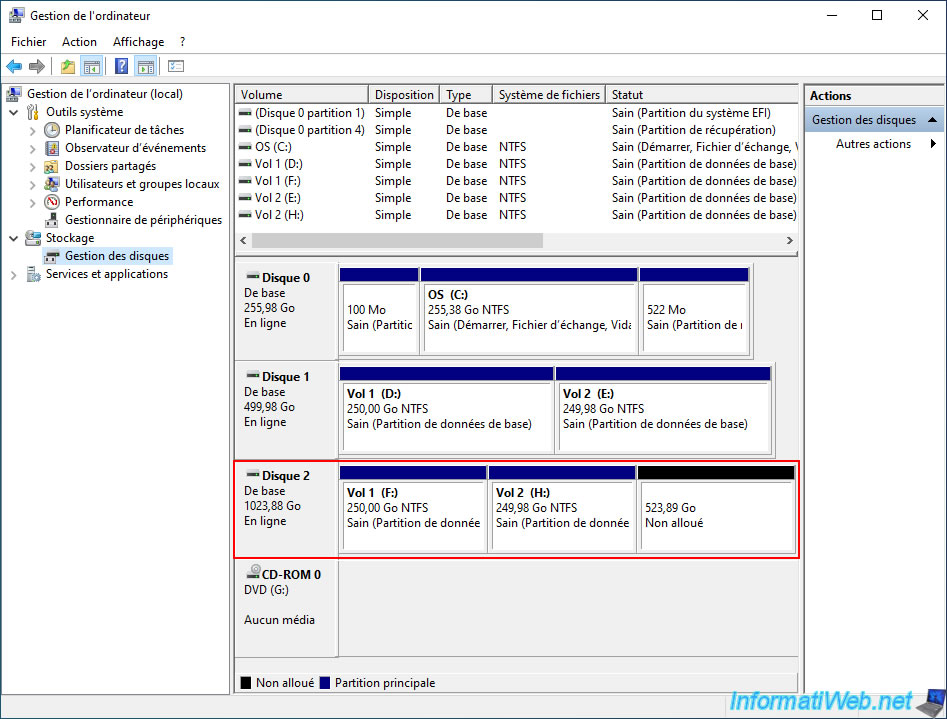
If you go to Windows Disk Management, you will easily see that the copied partition sizes have been preserved and that there is unallocated space available at the end of your new hard drive (with a higher capacity than the source disk).
4. Clone a disk by manually changing the size, name and other settings of your partitions
If you want, you can even go further by modifying some parameters of the partitions that will be copied.
You will be able to modify separately the size and name of each partition, their precise position on the target disk, ...
To do this, use the "Clone a disk" tool of Acronis Cyber Protect Home Office (True Image).
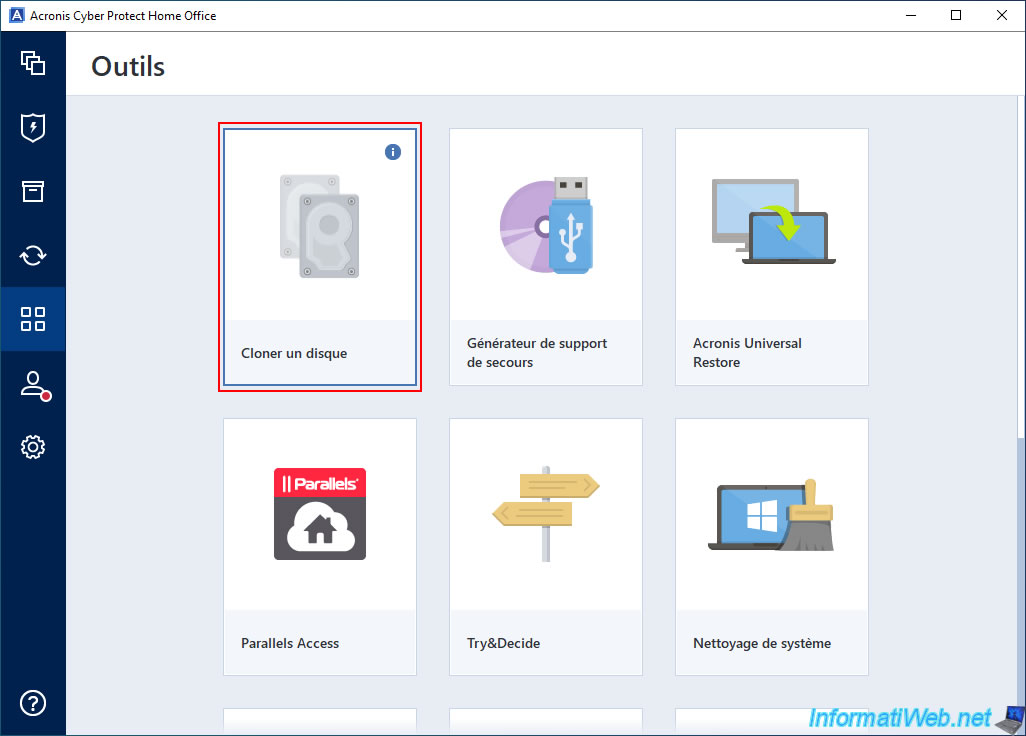
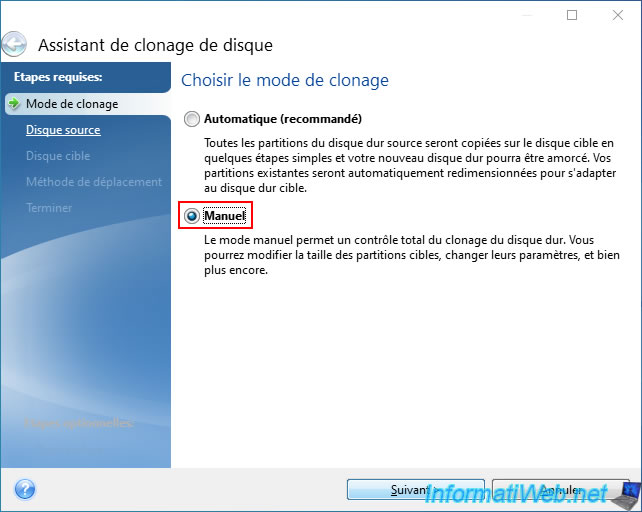
Select the "Manual" cloning mode.
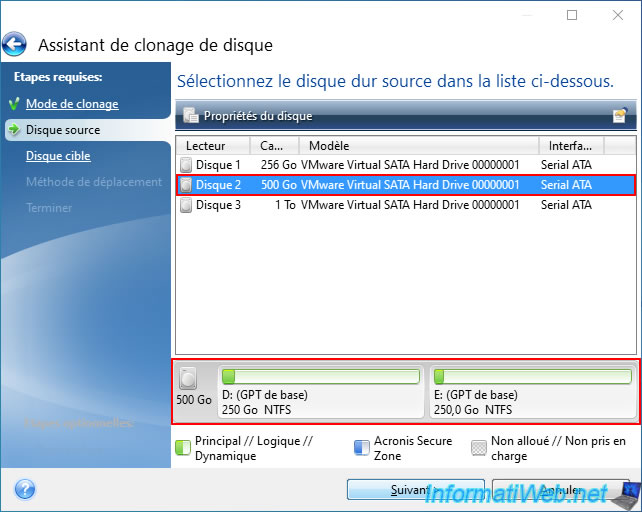
Select the source disk to clone.
In our case: our 500 GB disk with 2 partitions of 250 GB.
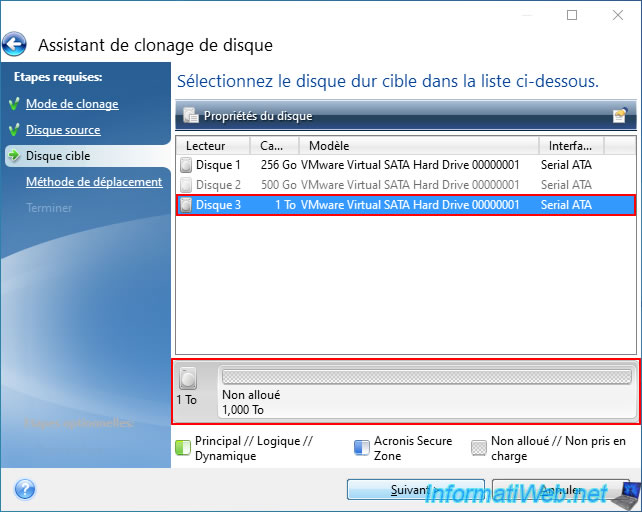
Next, select the target hard drive.
In our case, the 1TB one (which is empty at the moment).
Select the "Manual" moving method.
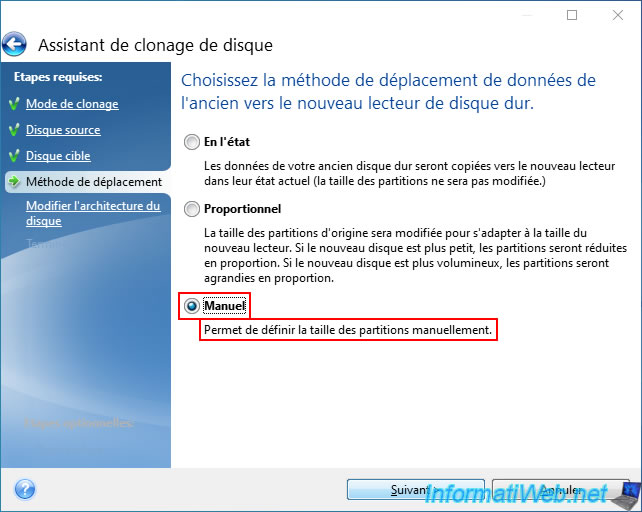
To change the parameters (name, size, position, file system, ...) of a partition, select the desired partition, then click on "Modify".
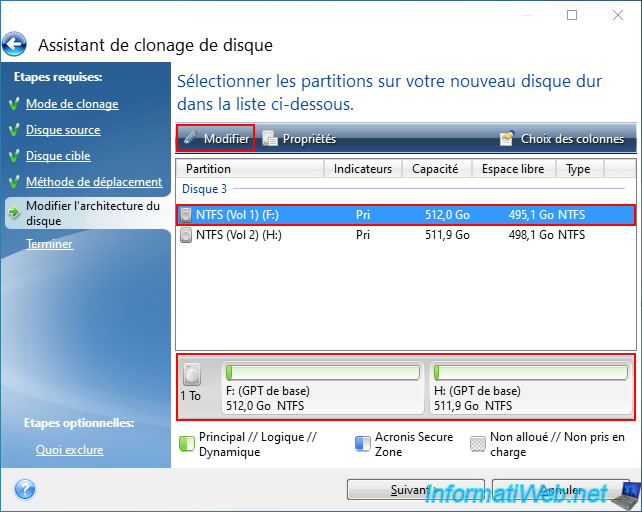
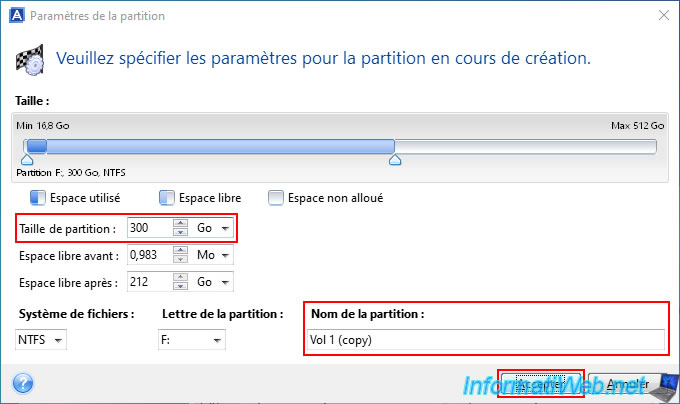
In our case, we will simply modify the size of the 1st partition, as well as its name.
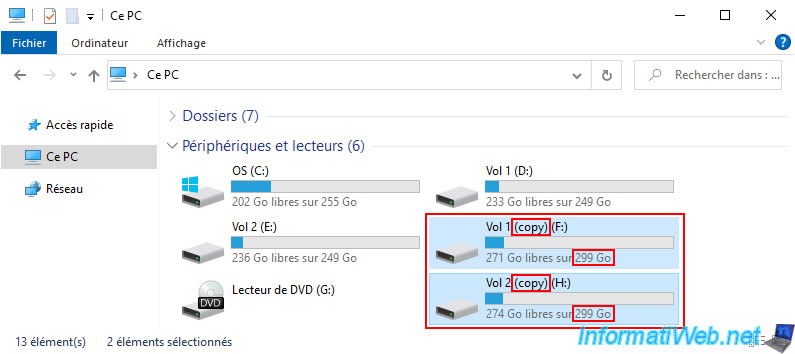
This partition "Vol 1" of 250 GB will therefore be copied to the target hard drive with a size of 300 GB and with the name "Vol 1 (copy)".
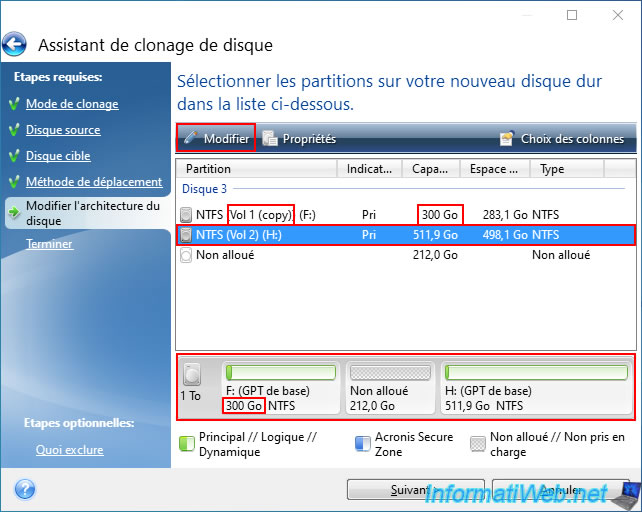
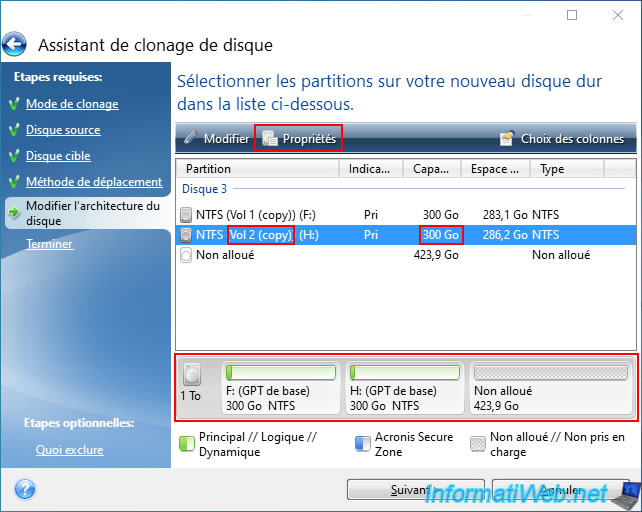
As expected, the capacity of this partition has changed on the diagram at the bottom of the wizard, as well as in the list of partitions that will be created on your new disk.
Also, since the new size specified for this partition is smaller than the original one, an unallocated space has appeared between our 2 partitions.
To avoid this, we have selected our 2nd partition "Vol 2" and we have clicked on "Modify".
Move the blue bar with your mouse to the left.
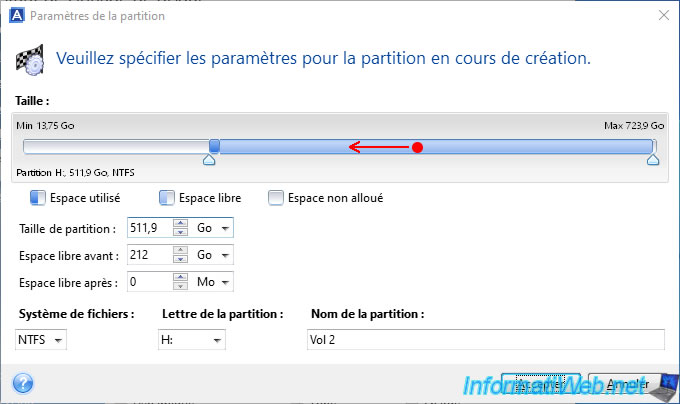
So, the unallocated space will be present only at the end of your new hard drive.
Now, we have specified a size of 300 GB for this partition and renamed it "Vol 2 (copy)".

As you can see, our 2 partitions of 250 GB each will be copied with a size of 300 GB each and the unallocated space will be located just at the end of the target hard drive.
Which is much more convenient to be able to create additional partitions on it.
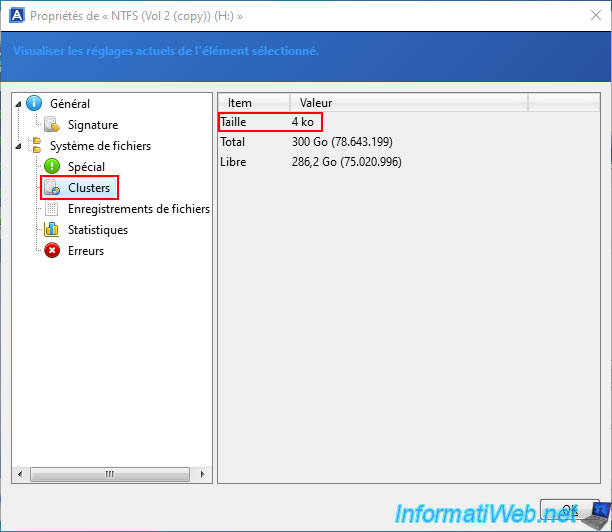
Note that it is possible to obtain detailed information about a partition by selecting it and then clicking on "Properties".
Among the available properties, you will find the size of the clusters used on this partition.
The default size is 4 KB.
Once you have the future partitions configured as you wish, click "Next".
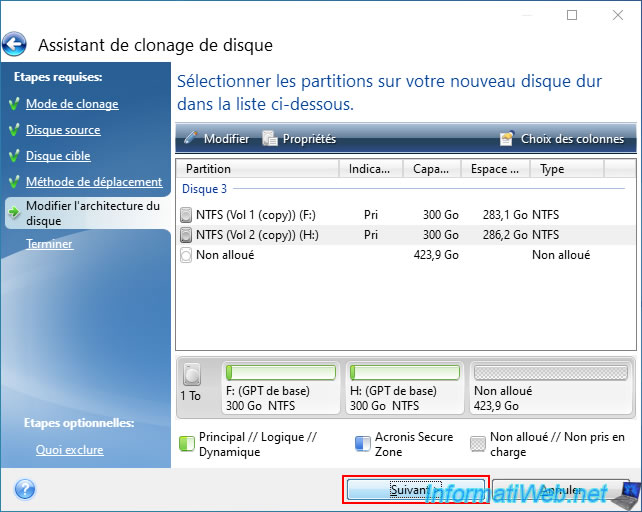
A summary appears.
Click "Run".

Please wait while your partitions are copied.
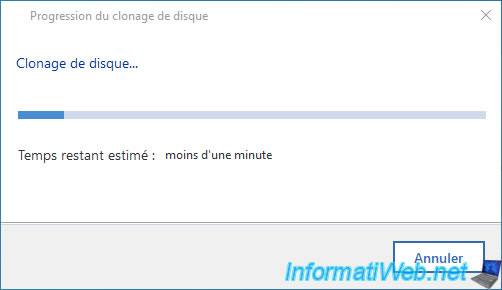
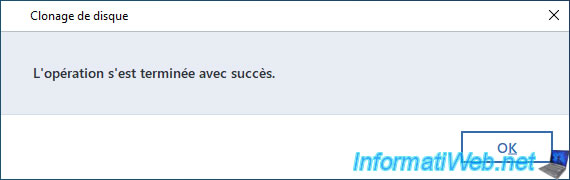
Once the copying of your partitions is complete, the "The operation completed successfully" message will appear.
Once the copying of your partitions is complete, you will see that your partitions appear with the desired size and name (which we had changed in our case).
If you open Windows Disk Management, you will be able to see your partitions in detail and see that there is an unallocated space (in our case) present at the end of the new hard drive.

Share this tutorial
To see also
-
Backup 10/27/2025
Acronis True Image - Archive your files locally (encrypted archive)
-
Backup 8/11/2025
Acronis True Image - Create Acronis Survival Kit media
-
Backup 10/12/2026
Acronis True Image - OEM version (free) of Sandisk
-
Backup 8/21/2025
Acronis True Image - Replicate encrypted backups to Acronis Cloud
No comment