- Backup
- Acronis True Image
- 22 December 2025 at 11:41 UTC
-

- 1/2
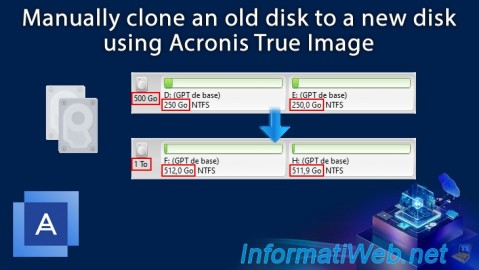
With the "Clone Disk" tool of Acronis Cyber Protect Home Office (True Image), you can clone a disk by adjusting at the same time the size and name of the partitions that will be cloned (copied), as well as other parameters.
- Source hard drive to clone
- Clone a disk by resizing partitions proportionally
- Clone a disk while keeping the current size of the copied partitions
- Clone a disk by manually changing the size, name and other settings of your partitions
1. Source hard drive to clone
For this tutorial, we used a 500GB hard drive with 2 partitions of 250GB each.
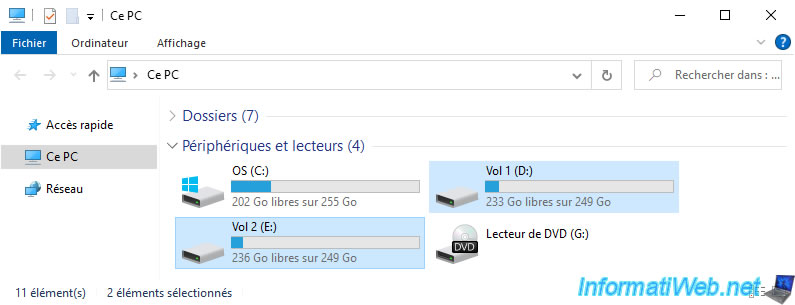
Here is the content of the 1st partition of this disk.
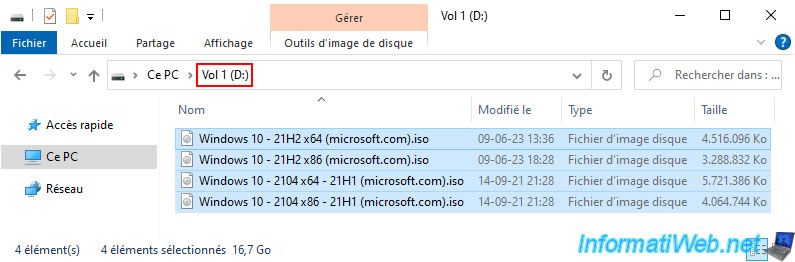
And the contents of the 2nd partition of this disk.

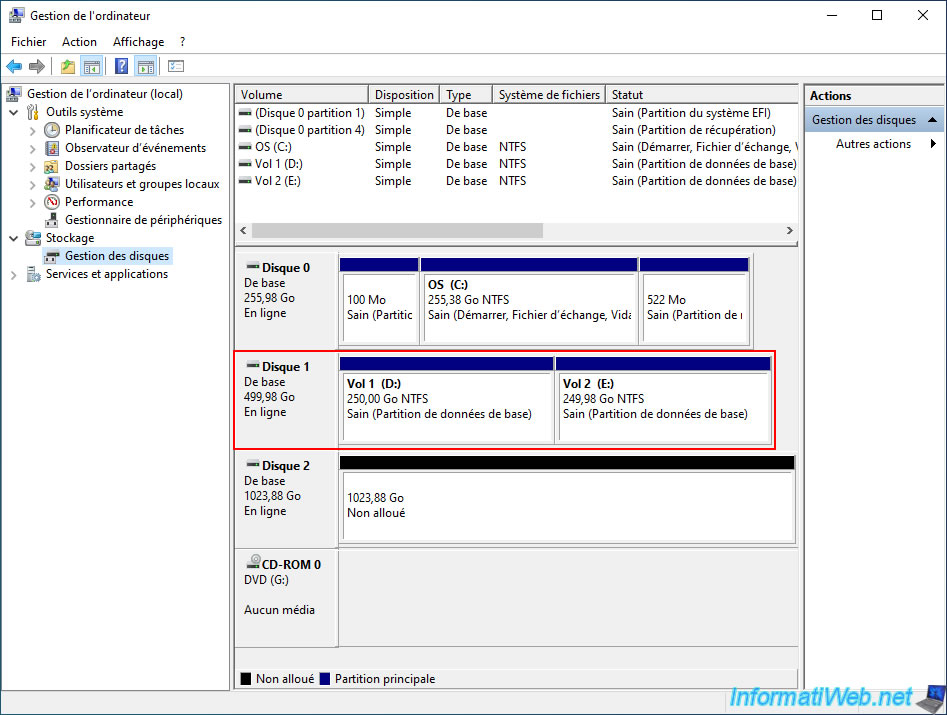
As you can see in Disk Management, we actually have a 500GB hard drive with 2 partitions of 250GB.
We also have a new 1TB (1024GB) hard drive which is empty at the moment and to which we will copy our 250GB partitions.
2. Clone a disk by resizing partitions proportionally
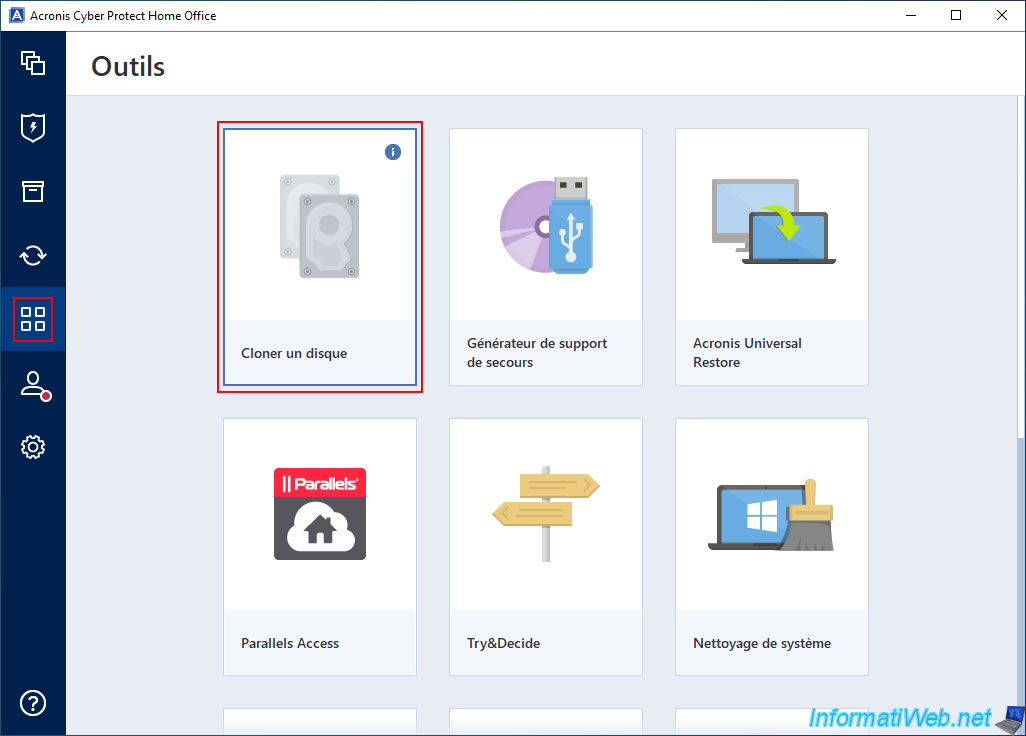
To clone a disk by resizing partitions proportionally, launch the "Clone Disk" tool.
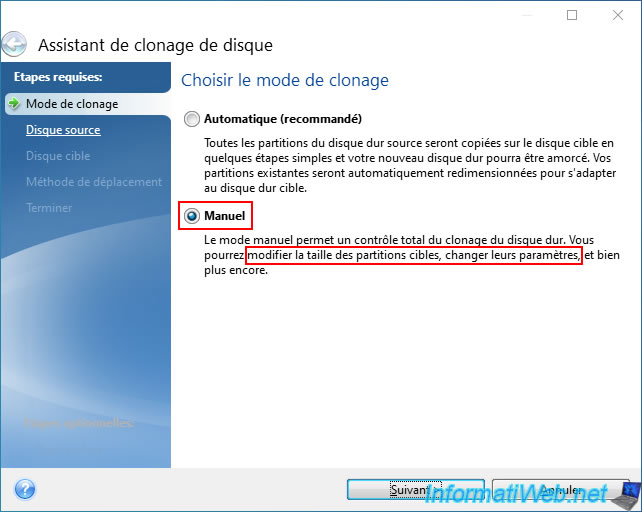
In the "Disk Clone Wizard" window that appears, select "Manual".
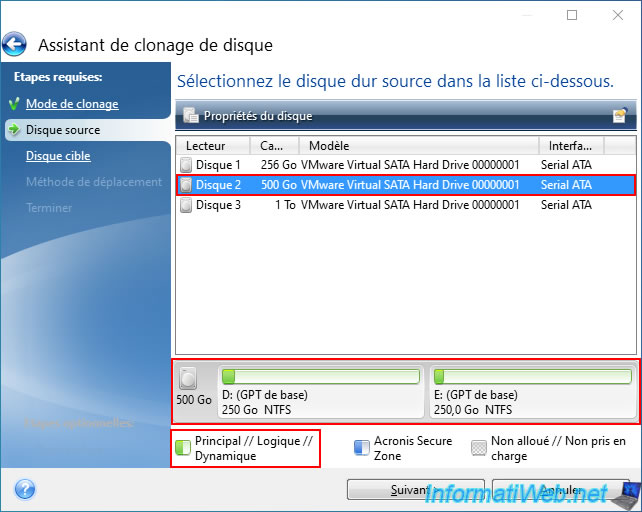
Select the source disk to select.
In our case: our 500 GB disk 2 (with our 2 250 GB partitions that appear at the bottom of the cloning wizard once this disk is selected).
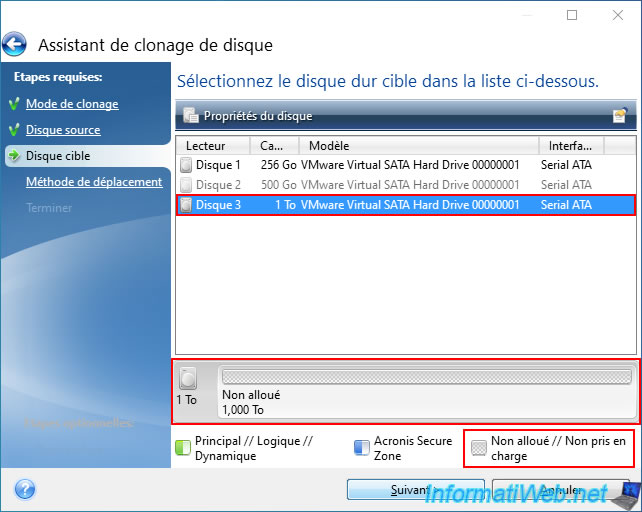
Next, select the target hard drive (for copying these partitions).
In our case, our new 1TB hard drive (which is empty at the moment, hence the appearance of unallocated space on it).
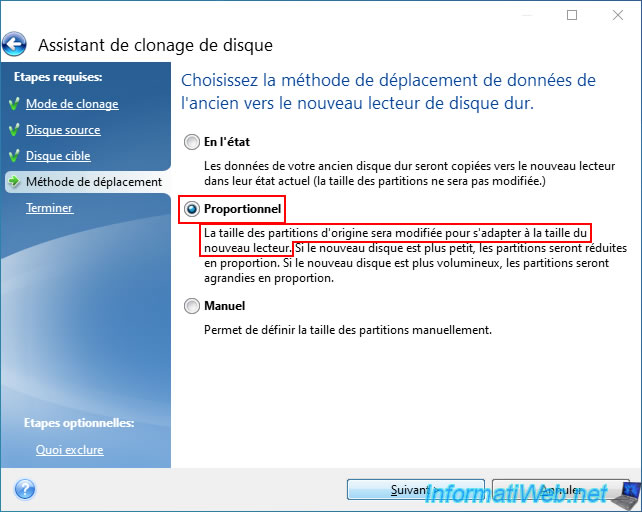
To automatically adapt the size of your partitions to your new hard disk (selected as the target disk), the best is to select "Proportional".
So, as indicated by this wizard:
- if the target hard disk has a larger capacity than the source hard disk (which is usually the case), the size of the partitions on the source hard disk will be increased proportionally when they are copied to the target hard disk.
- if the target hard disk has a smaller capacity than the source hard disk, then the size of the partitions on the source hard disk will be decreased proportionally when they are copied to the target hard disk.
Note: if the 2 hard drives have the same capacity, the size of the partitions will obviously remain identical.
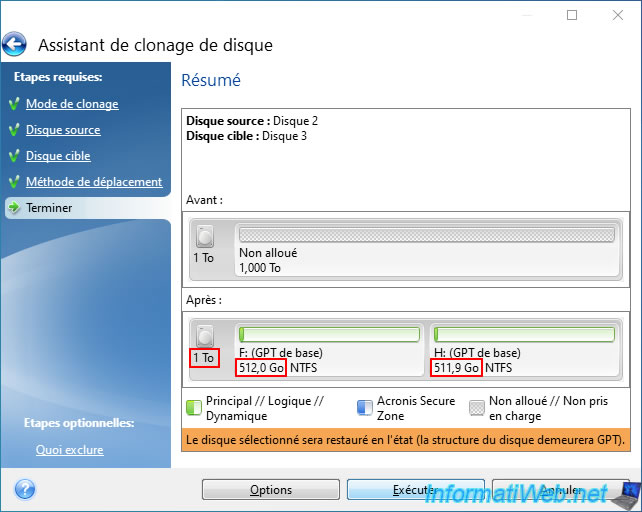
A summary is displayed.
As expected, in our case, this wizard will create 2 partitions of about 500 GB each on our new hard drive (disk 3) of 1 TB.
Note: as a reminder, our 500 GB disk 2 had 2 partitions of 250 GB each.
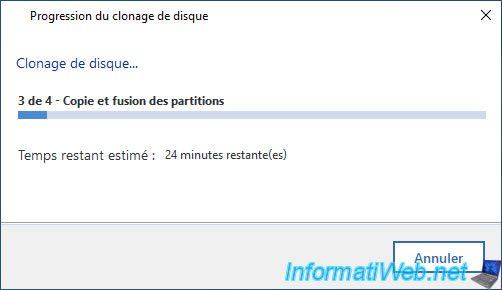
Please wait while the partitions are copied to your new disk.
Once the partition copy is complete, the "The operation completed successfully" message will appear.
In file explorer, you will notice that your partitions appear 2 times.
However, you can see that their sizes have increased since we went from a 500 GB hard drive to a 1 TB hard drive.
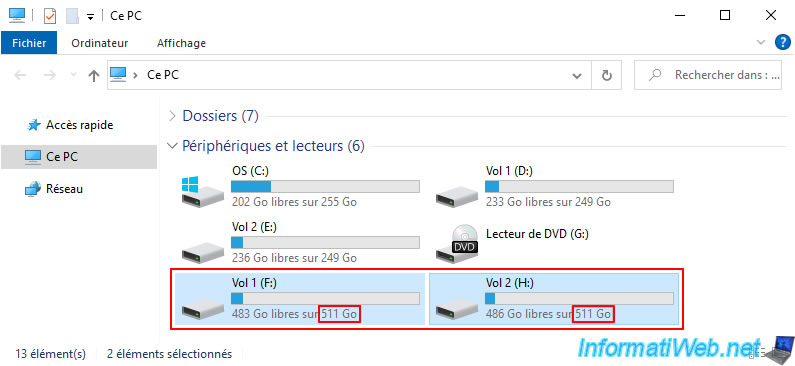
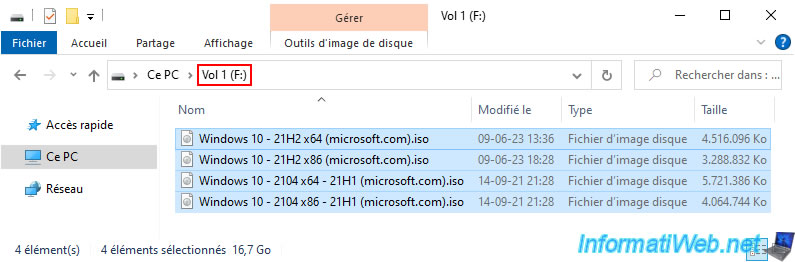
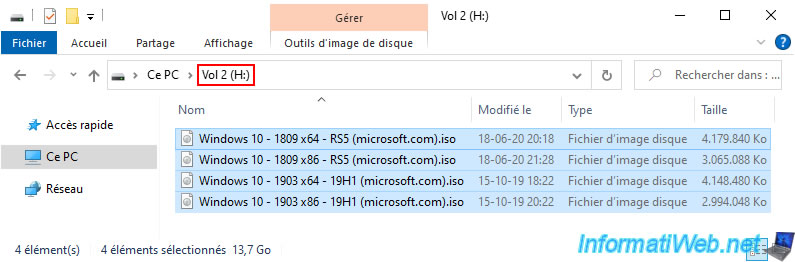
As expected, the contents of these 2 partitions have been copied successfully.
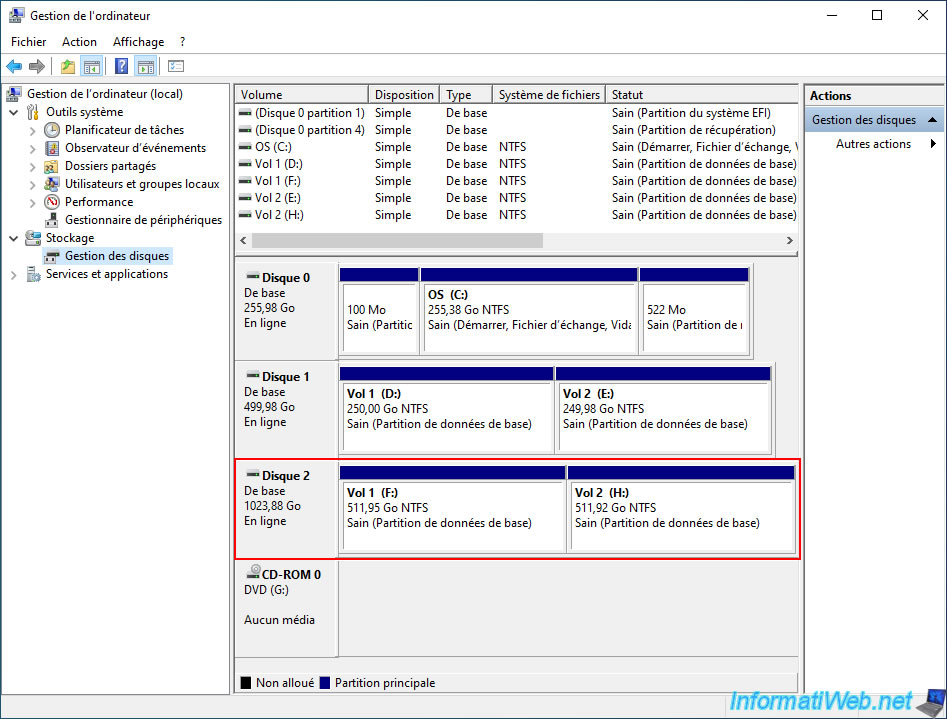
If you go to disk management, you will notice that your 2 disks have the same partitions and that the size of the partitions has been configured proportionally compared to the partitions of the source disk.
Share this tutorial
To see also
-
Backup 8/31/2026
Acronis True Image - Convert Acronis backup (.tibx) to Hyper-V format (.vhdx)
-
Backup 7/24/2025
Acronis True Image - Create differential backups
-
Backup 12/1/2025
Acronis True Image - Synchronize a folder between 2 PCs (Cloud instead of local)
-
Backup 11/24/2025
Acronis True Image - Synchronize a folder between 2 PCs (locally)
You must be logged in to post a comment