Convert Acronis backup (.tibx) to Hyper-V format (.vhdx) using Acronis True Image (Cyber Protect Home Office)
- Backup
- Acronis True Image
- 31 August 2026 at 07:21 UTC
-

- 4/4
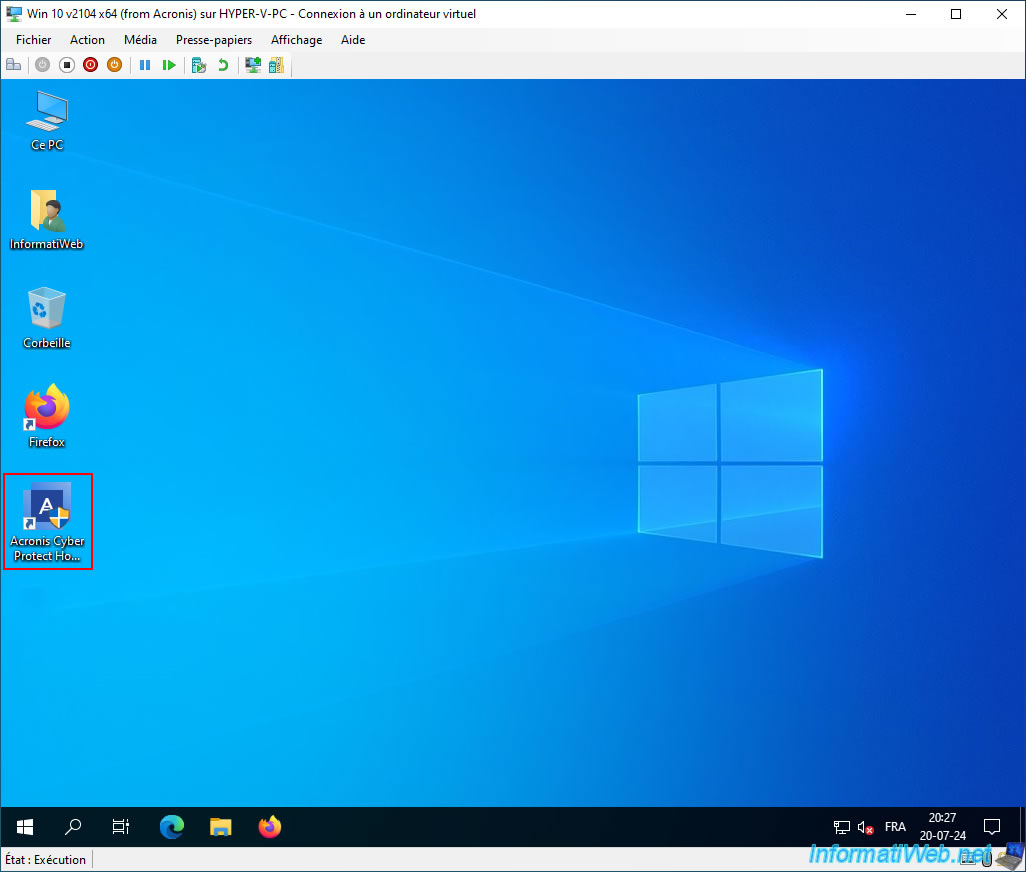
As expected, we arrive at our desktop without a blue screen.
However, in our case, the mouse no longer works in this virtual computer due to a conflict between Hyper-V and one of the VirtualBox drivers.
However, the keyboard works correctly and we used it to launch the uninstallation of the VirtualBox software.
Important : to avoid future problems, it is important that you uninstall the drivers in this virtual computer that were used by the physical PC backed up via Acronis Cyber Protect Home Office (True Image).
To do this, open the control panel and uninstall the programs that refer to the installed drivers.
Generally, these are developed by: Intel, Nvidia, AMD, Asus, Gigabyte, ...
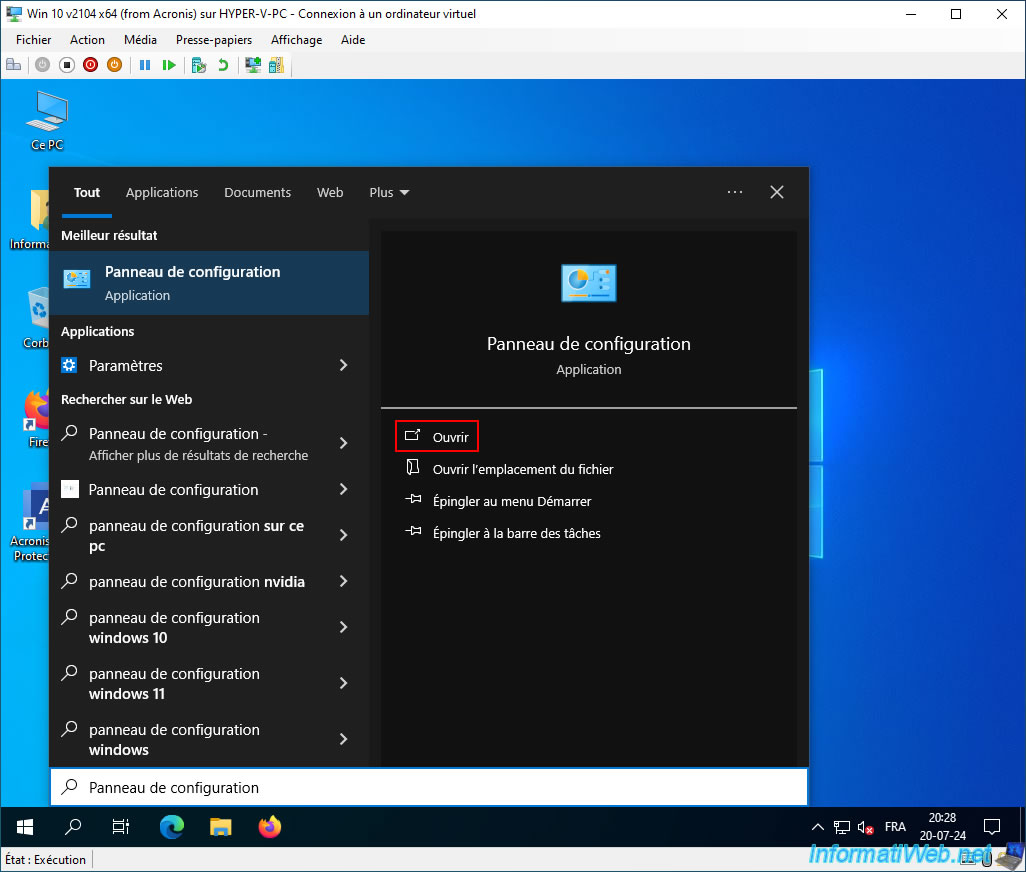
To do this, press the flag on your keyboard, then type "Panel".
Then, launch the proposed control panel.
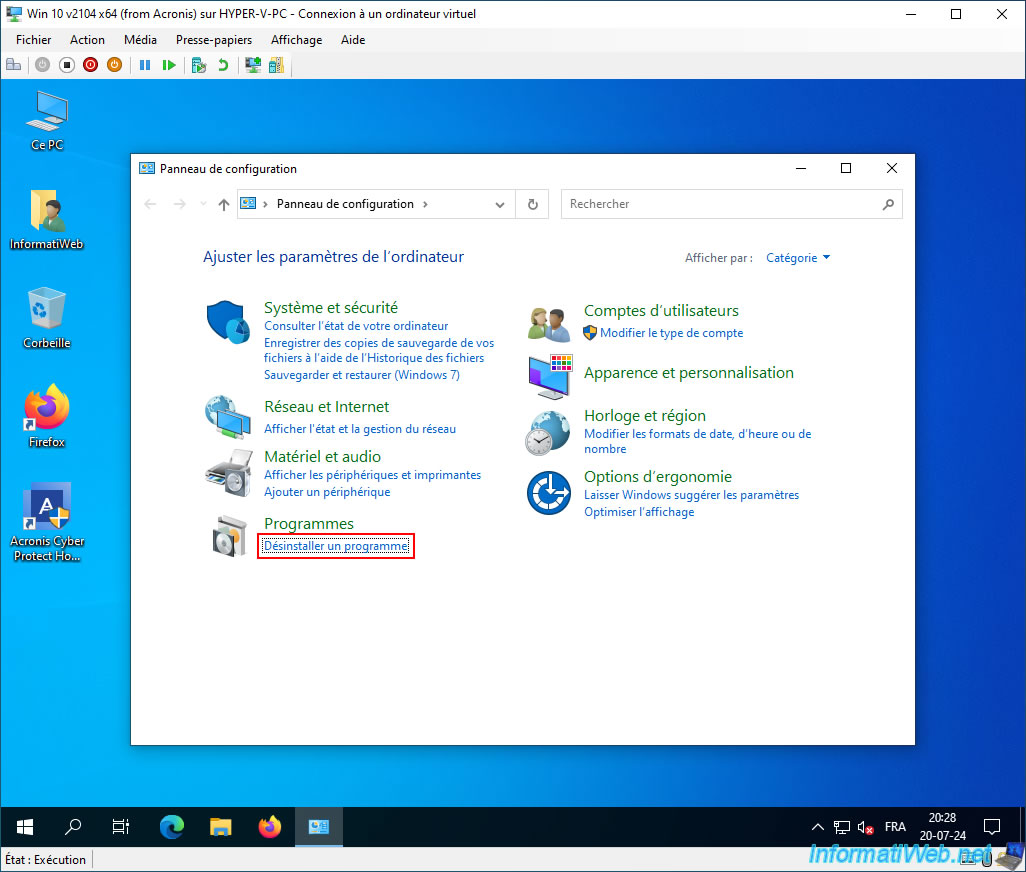
Use the "TAB" key to select the "Uninstall a program" link.
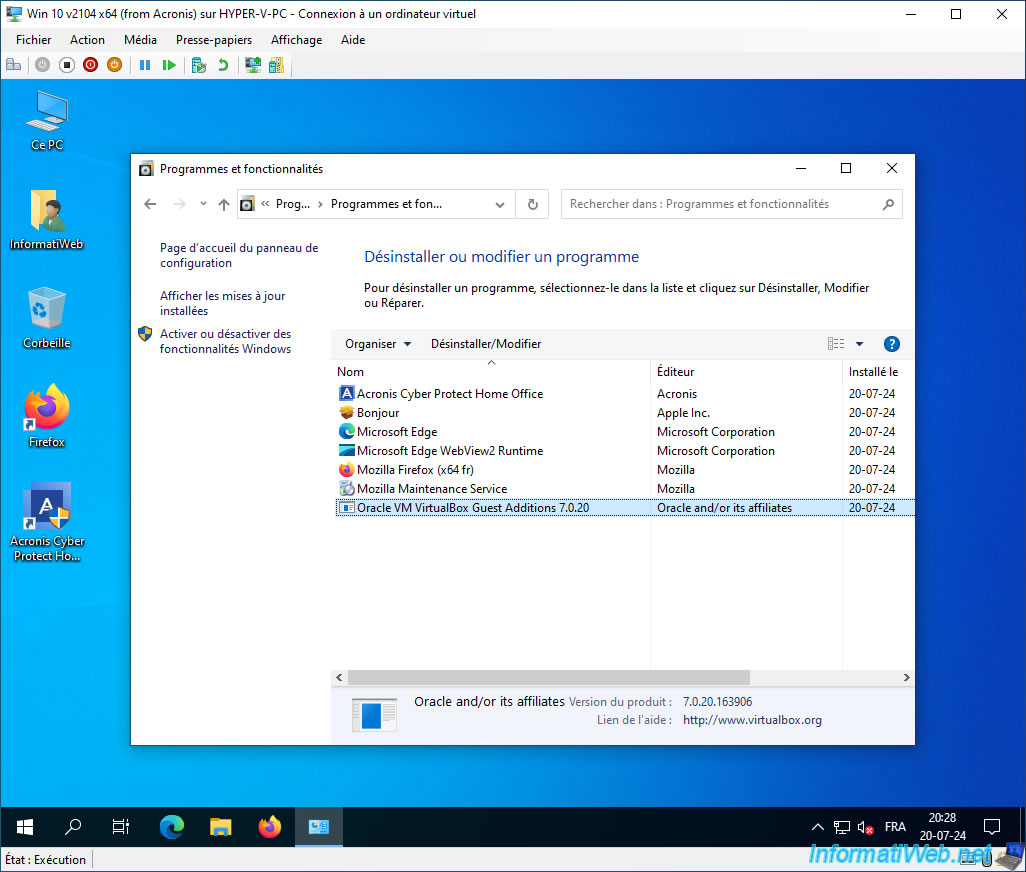
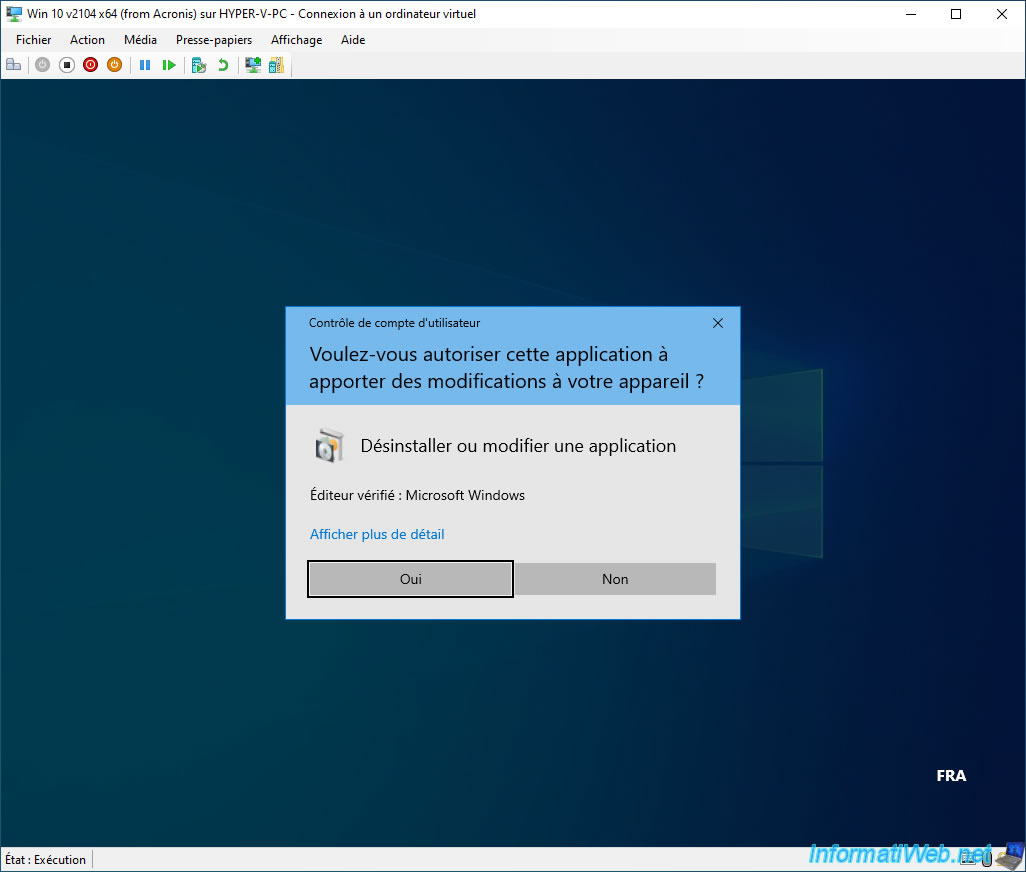
Again, use the "TAB" keys, as well as the keyboard arrows to select the "Oracle VM VirtualBox Guest Additions ..." program and press "Enter" to start its uninstallation.
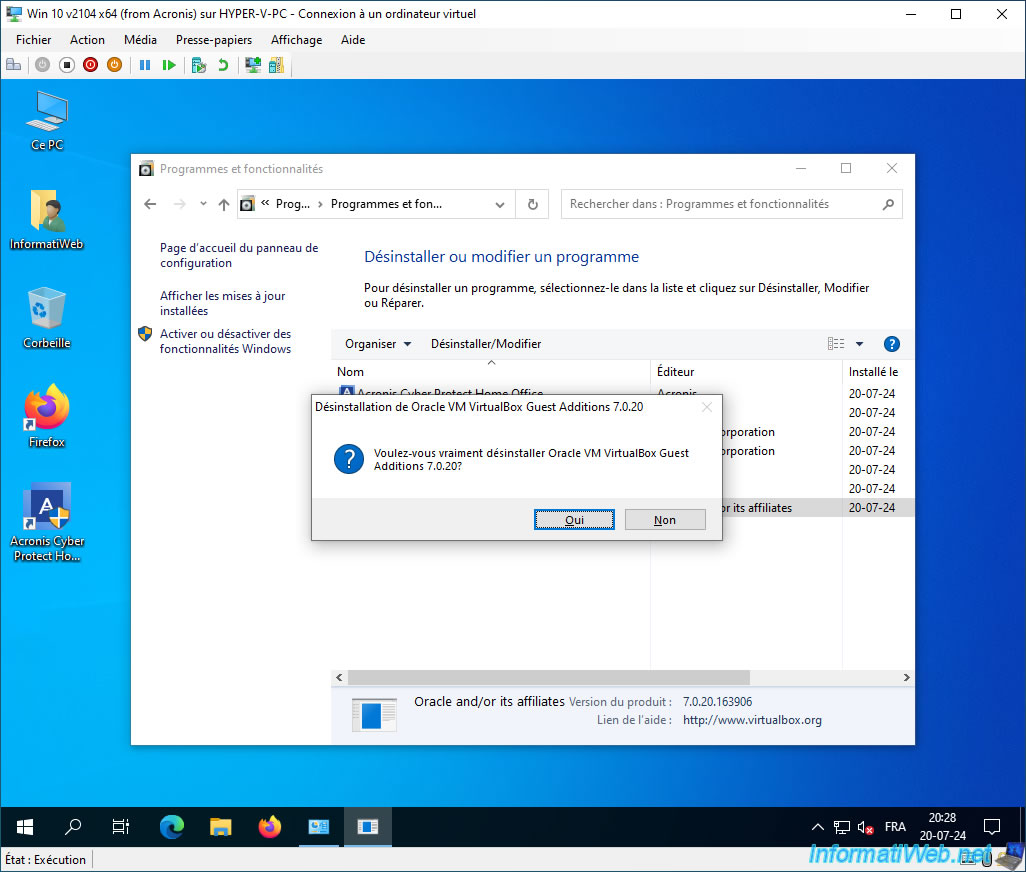
Select the "Yes" button with the keyboard arrows and press Enter.
Confirm uninstallation of VirtualBox Guest Additions (in our case).
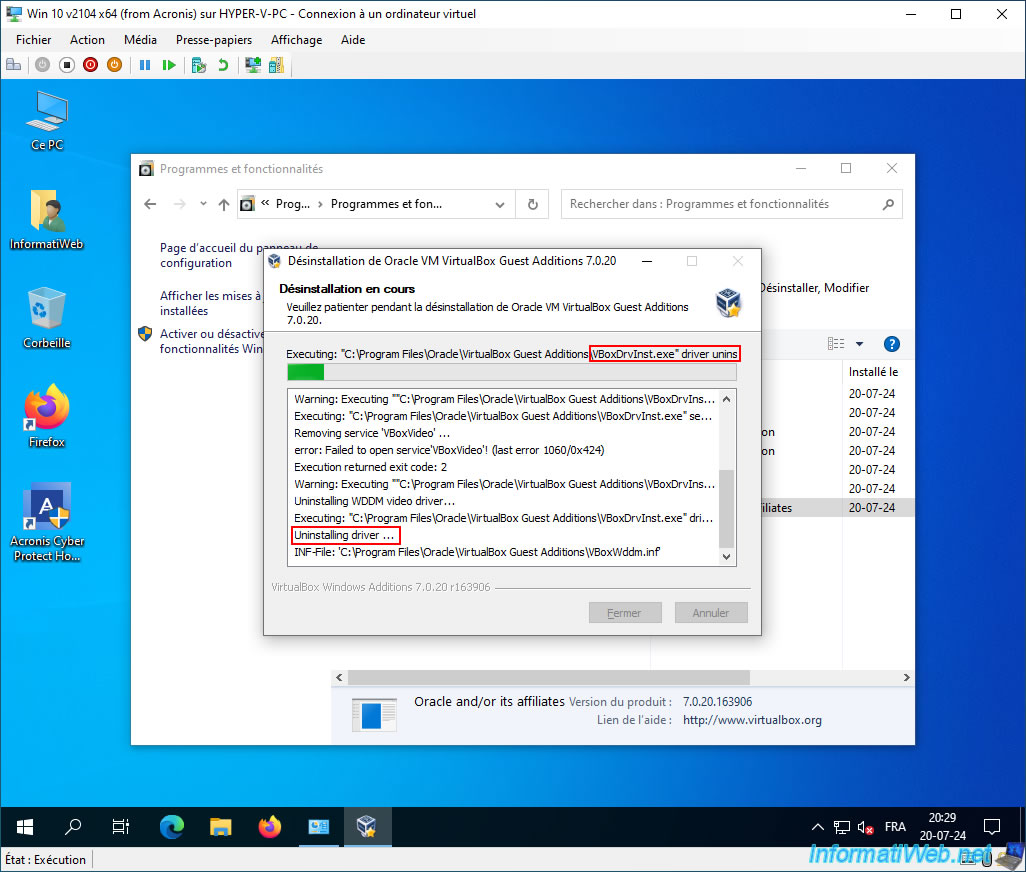
As expected, VirtualBox uninstalls these drivers.
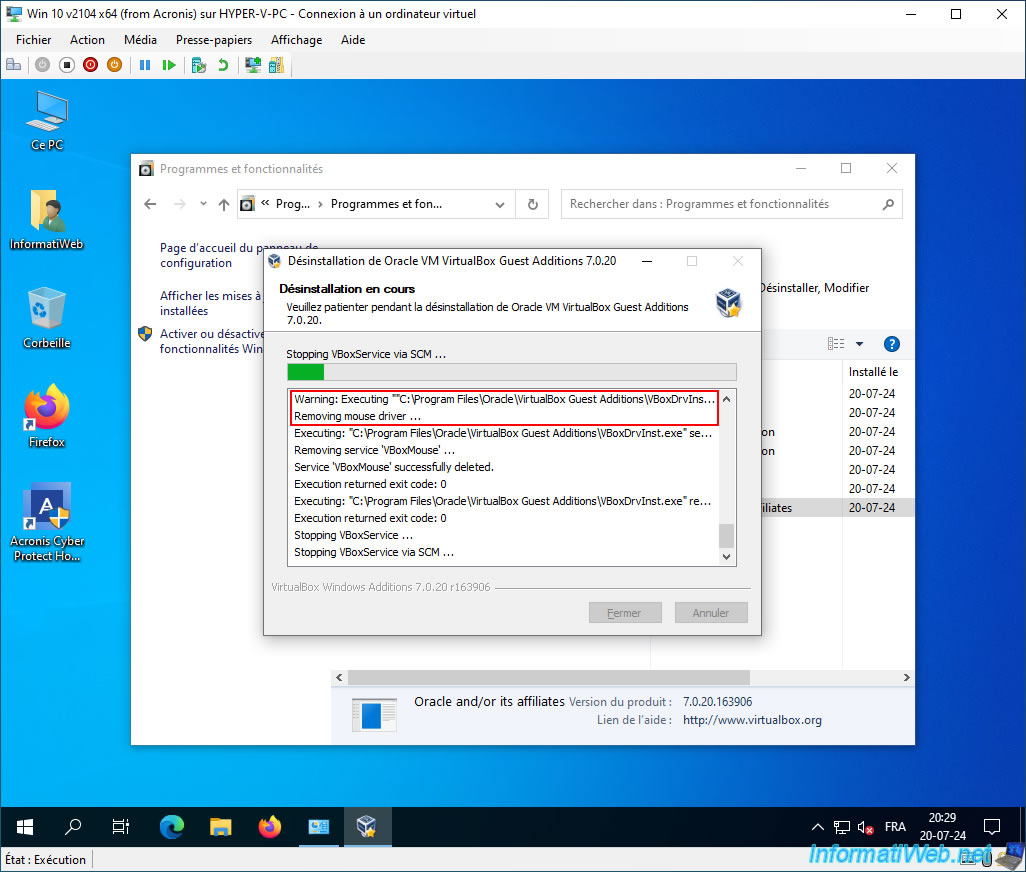
And especially the mouse driver.
Note that the warning is probably due to the fact that it cannot find the file "VBoxMouse.sys" which has been renamed or deleted.
Plain Text
Removing mouse driver.
When the reboot message appears, select the "Yes" button and press "Enter".
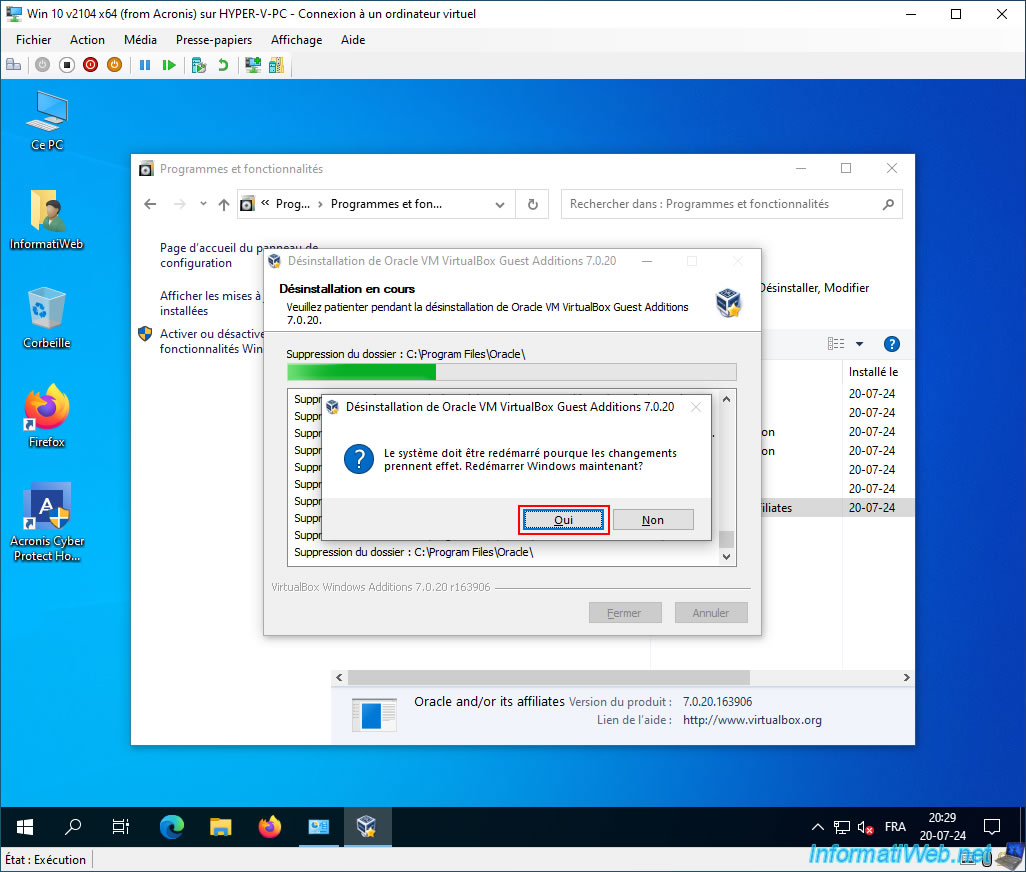
Your virtual machine restarts.
The Windows session opens.
Now that the old VirtualBox drivers are uninstalled, the mouse works in our virtual machine under Hyper-V.
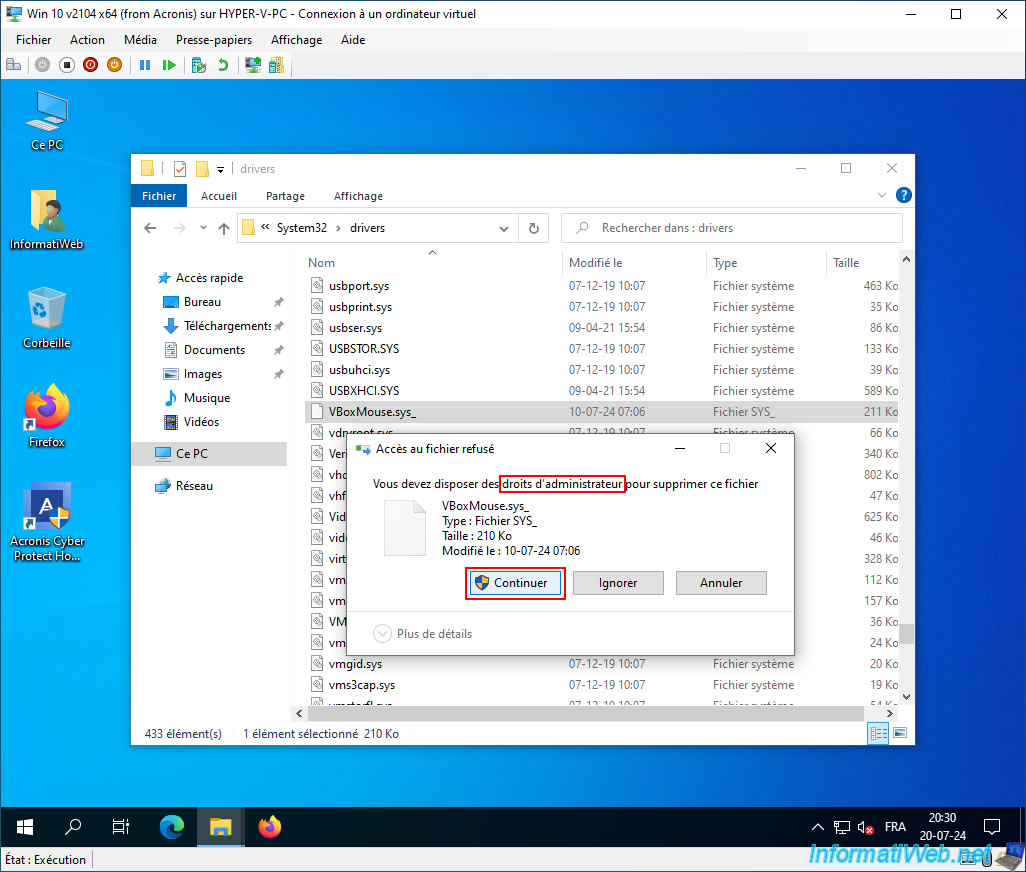
In our case, we also need to go to the folder "C:\Windows\System32\drivers" and delete the file "VBoxMouse.sys_" that the VirtualBox uninstaller could not find and is therefore still present.
To do this, select the file "VBoxMouse.sys_", hold down the "SHIFT" key on your keyboard and press the "Del" (or "Del") key.
Windows will tell you that the item will be permanently deleted (without going to the recycle bin).
Click "Yes".
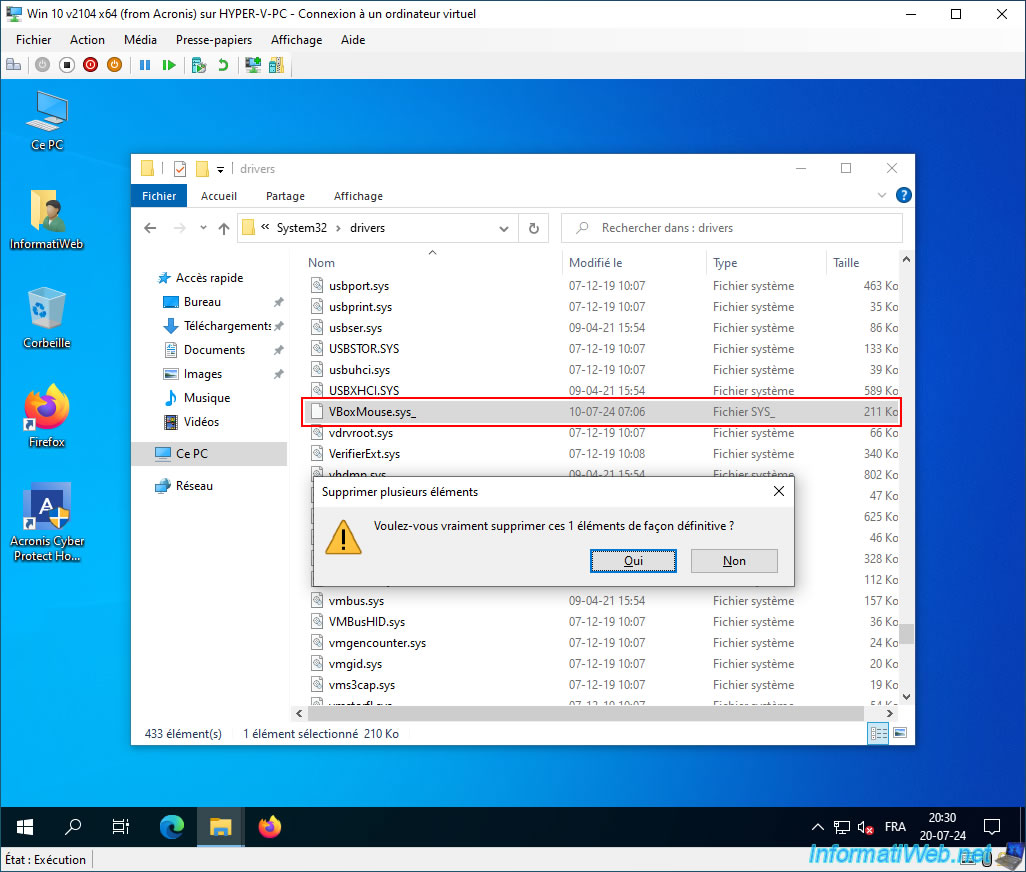
Since you are in a protected folder in Windows, you must have administrator rights.
So, click "Continue" to confirm the deletion of this file.
Note: this only works if you have an account with administrator rights in this virtual machine.
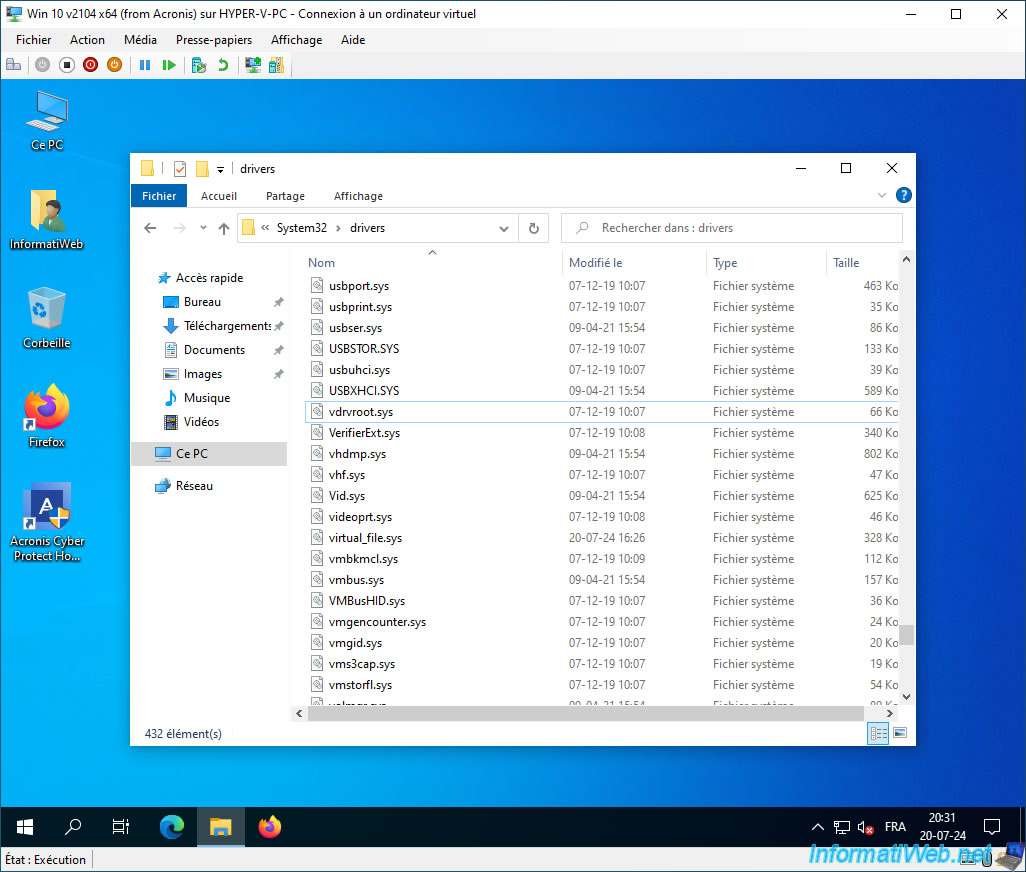
The file "VBoxMouse.sys_" has been deleted.
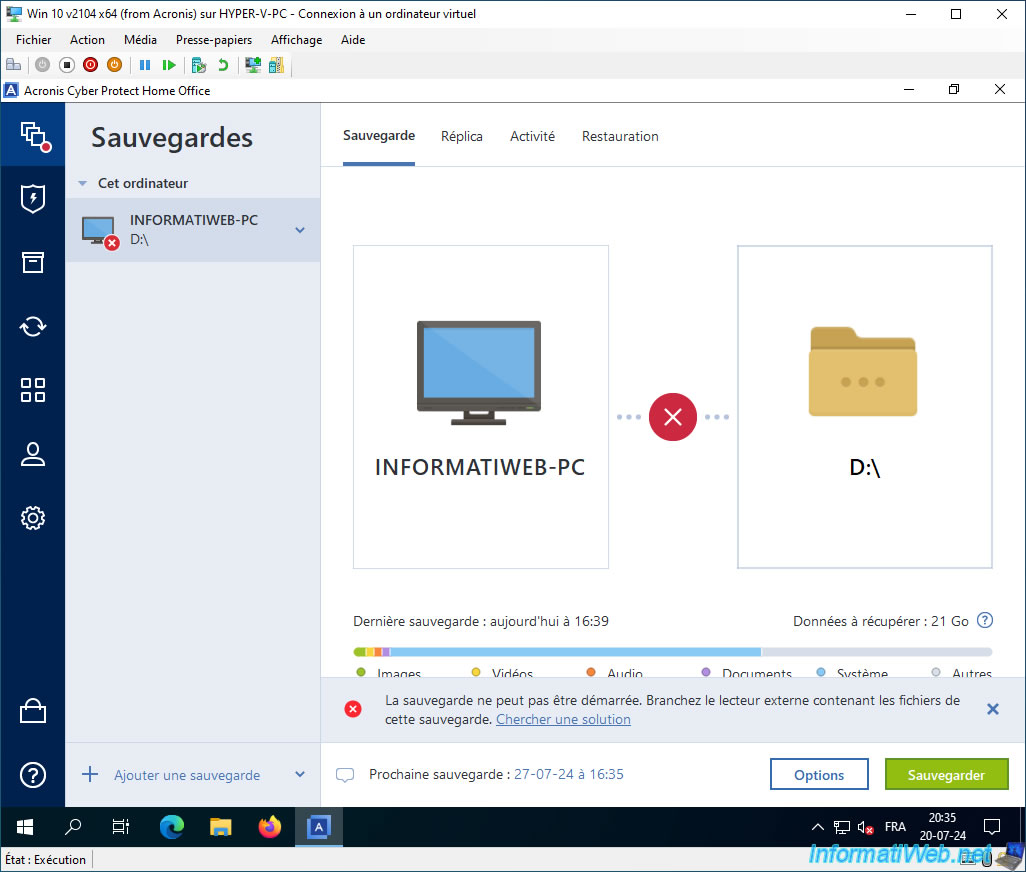
As you can see, if we launch the program "Acronis Cyber Protect Home Office (True Image)" installed in this virtual computer, you can see that it is indeed a copy of our computer "InformatiWeb-pc".
Of course, Acronis Cyber Protect Home Office (True Image) does not find our virtual hard disk "D:\" since it is no longer the same hardware.
Share this tutorial
To see also
-

Backup 12/8/2025
Acronis True Image - Acronis Cloud presentation
-

Backup 9/8/2025
Acronis True Image - Clean up local smartphone backups
-
Backup 3/16/2026
Acronis True Image - Rescue Media - Partition a new disk
-
Backup 6/22/2026
Acronis True Image - Secure disk erase
No comment