Virtualize a physical PC to VirtualBox (P2V) using Acronis True Image (Cyber Protect Home Office) and Acronis Universal Restore
- Backup
- Acronis True Image, Acronis Universal Restore
- 07 September 2026 at 13:50 UTC
-

- 8/8
11. VirtualBox virtual machine working and corresponding to the virtualized physical PC
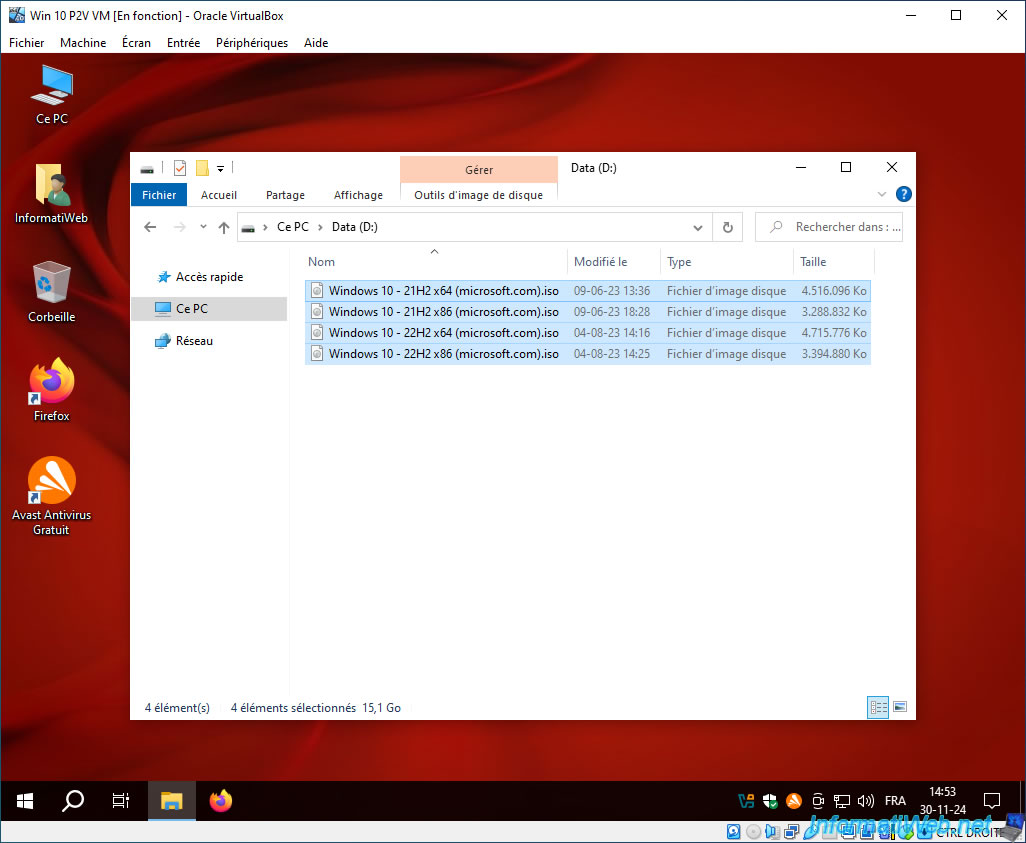
As you can see via file explorer, your partitions have been copied successfully (although you may have had to resize them to match the size of your virtual hard drive).
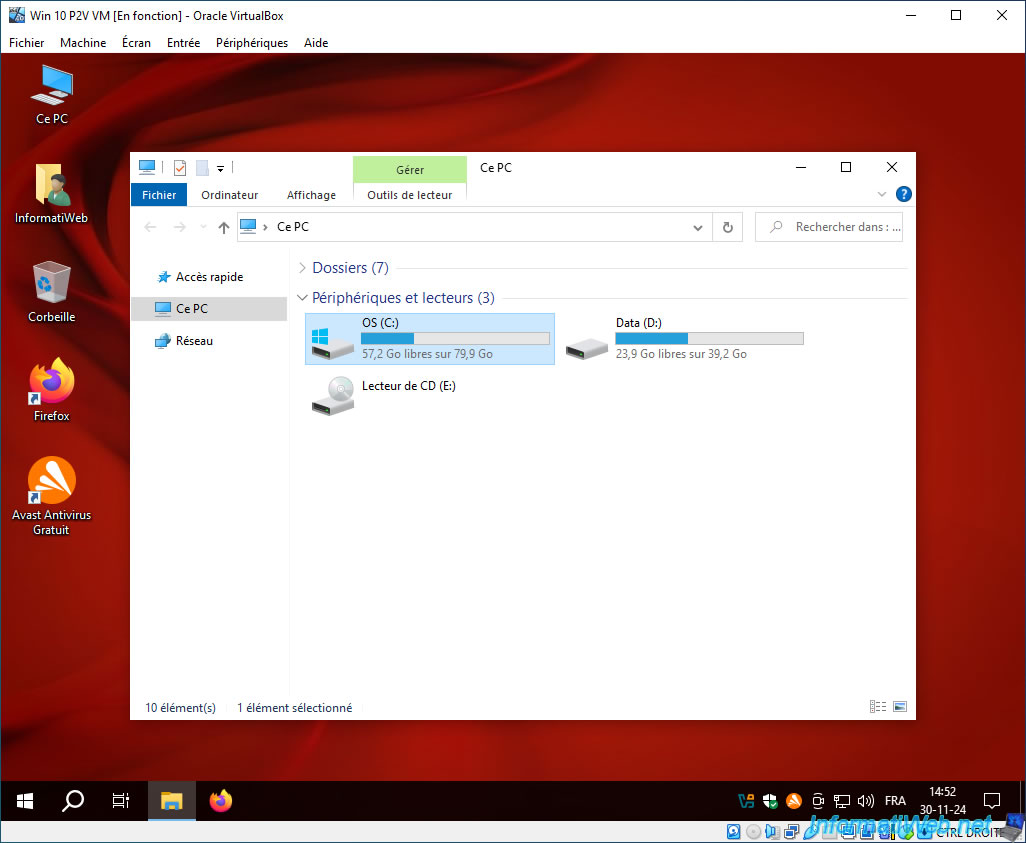
We find the contents of the Windows folder in our "OS (C:)" partition in our virtual machine.
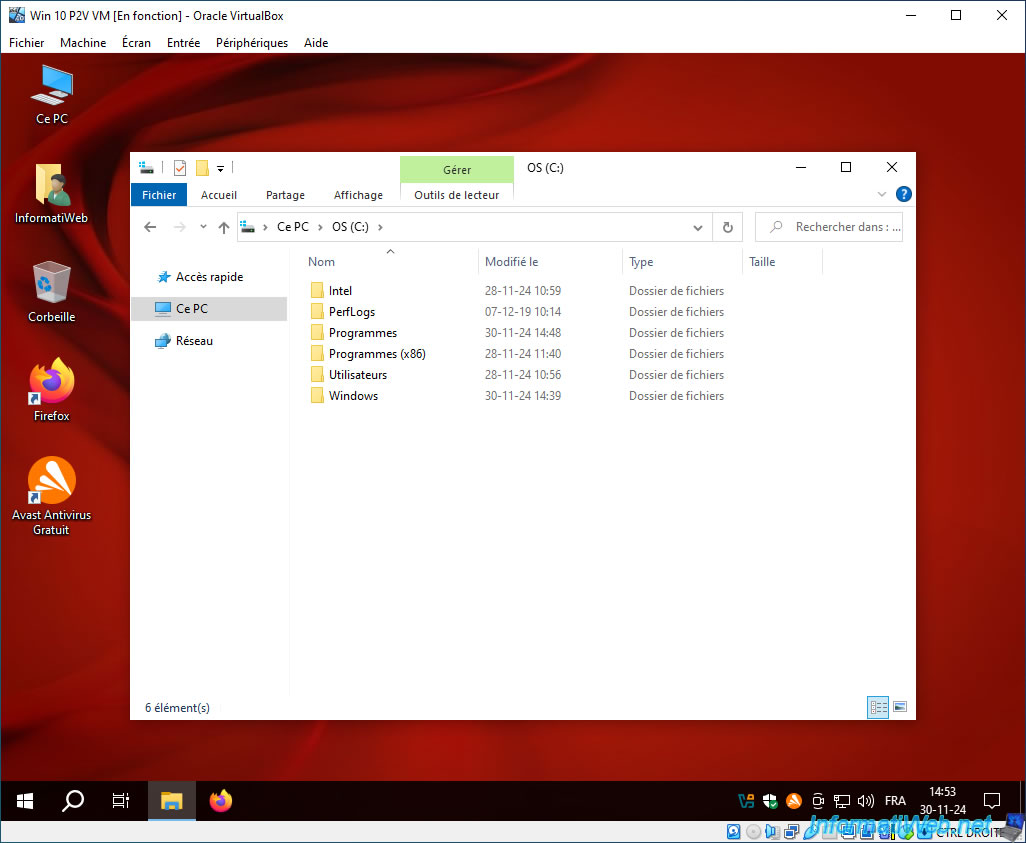
We find the contents of our data partition "Data (D:)" in our virtual machine.
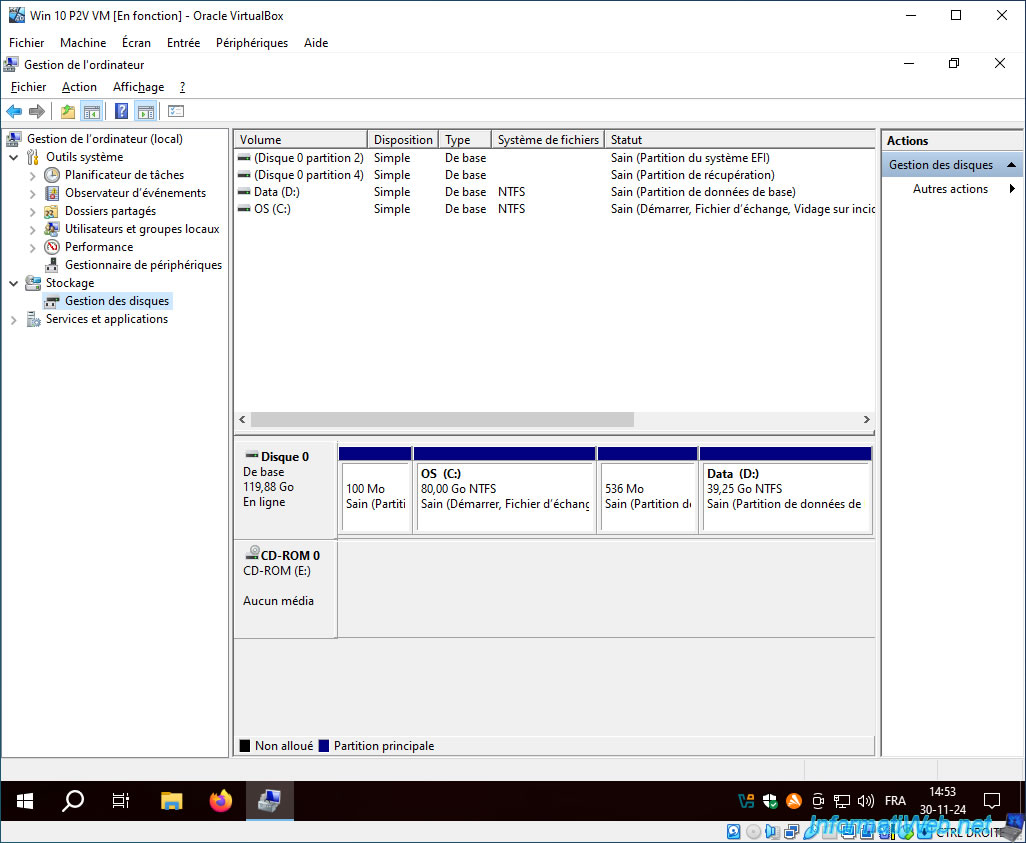
To better see the partitioning of your new virtual hard disk (in your VM), right-click "Manage" on "This PC" and go to the "Disk Management" section.
As you can see, in our case, our 4 partitions (including the 2 hidden system partitions used by Windows 10) have been copied.
12. Bonus: problem encountered if you try to restore the entire disk instead of its partitions
In our tutorial, we explained that you should restore all partitions (i.e. select all partitions to restore from your backup) of the backed up disk instead of restoring the entire disk.
This allows you to have a functional virtual machine corresponding to your PC virtualized via Acronis and VirtualBox.
Now, here is the problem you would have encountered if you had tried to restore the entire disk of your Acronis backup into your VirtualBox virtual machine (which uses a virtual hard disk with a much smaller capacity than the hard disk of your physical PC backed up via Acronis).
In the Acronis restore wizard, you would want to directly check the "Disk 1" box to restore the entire disk of your Acronis backup to the virtual hard disk of your VM (thinking that Acronis would resize the partitions correctly).
This seems much faster and easier to do.
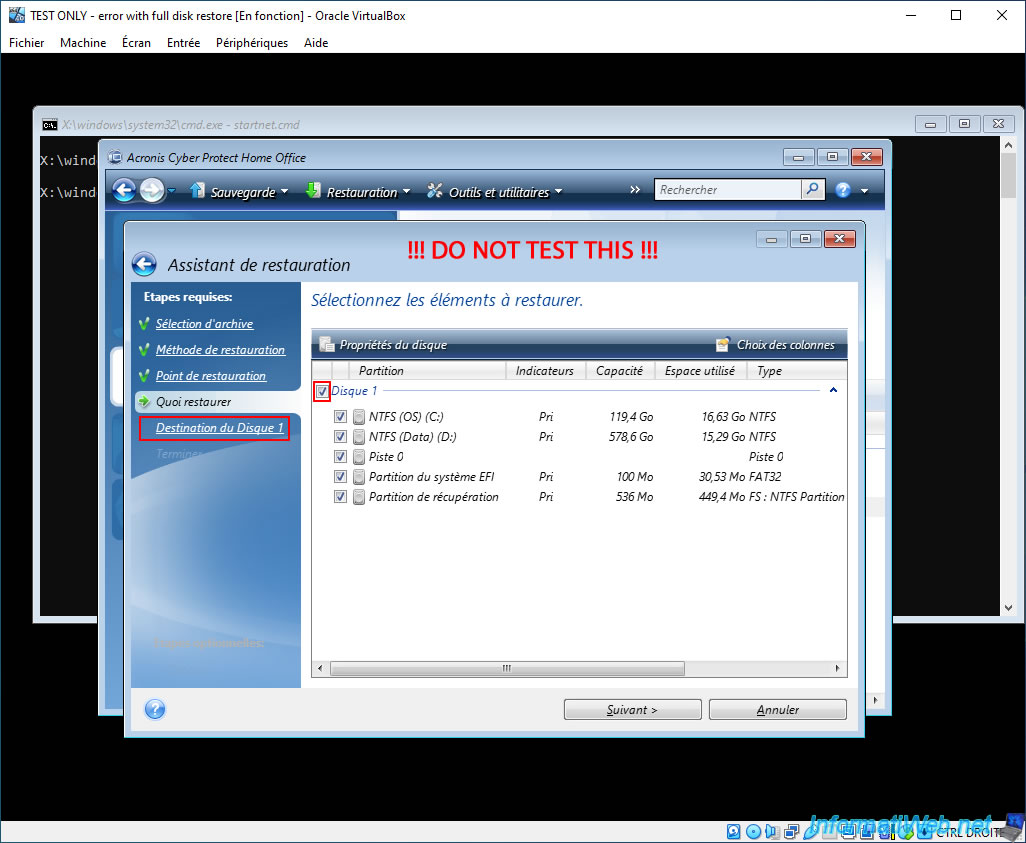
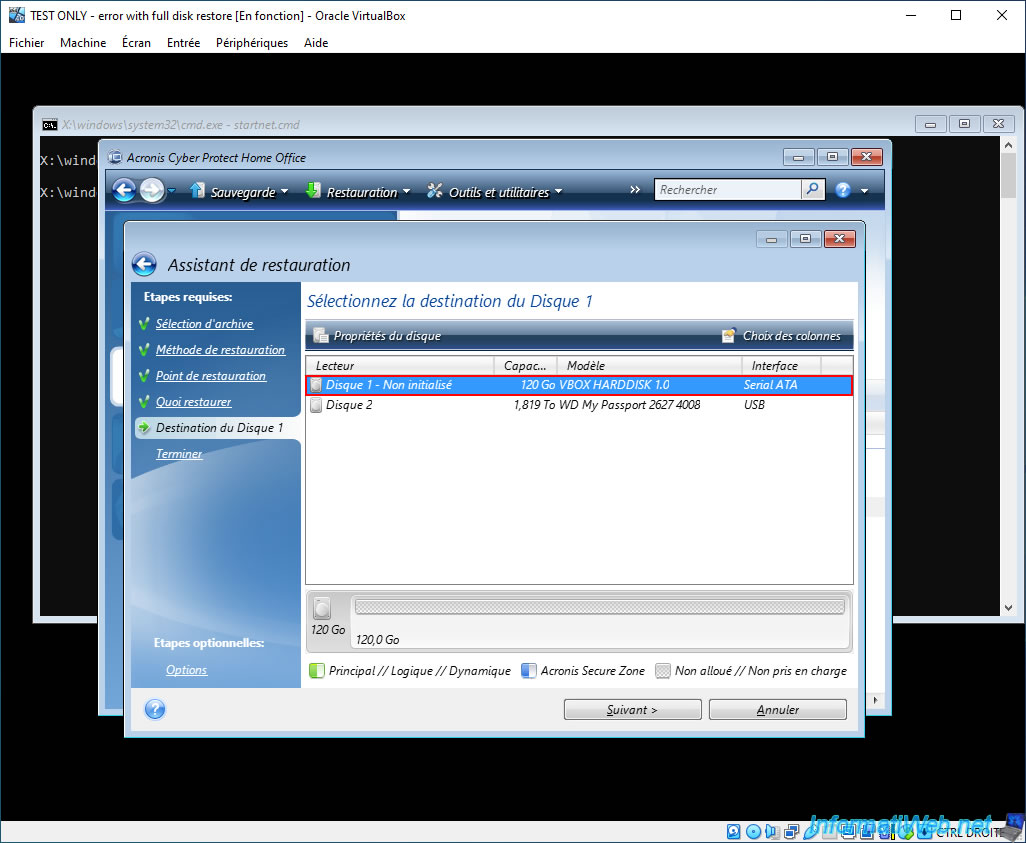
You select the virtual hard disk (VBOX HARDDISK) of your VirtualBox virtual machine for the destination of Disk 1 of your Acronis backup.
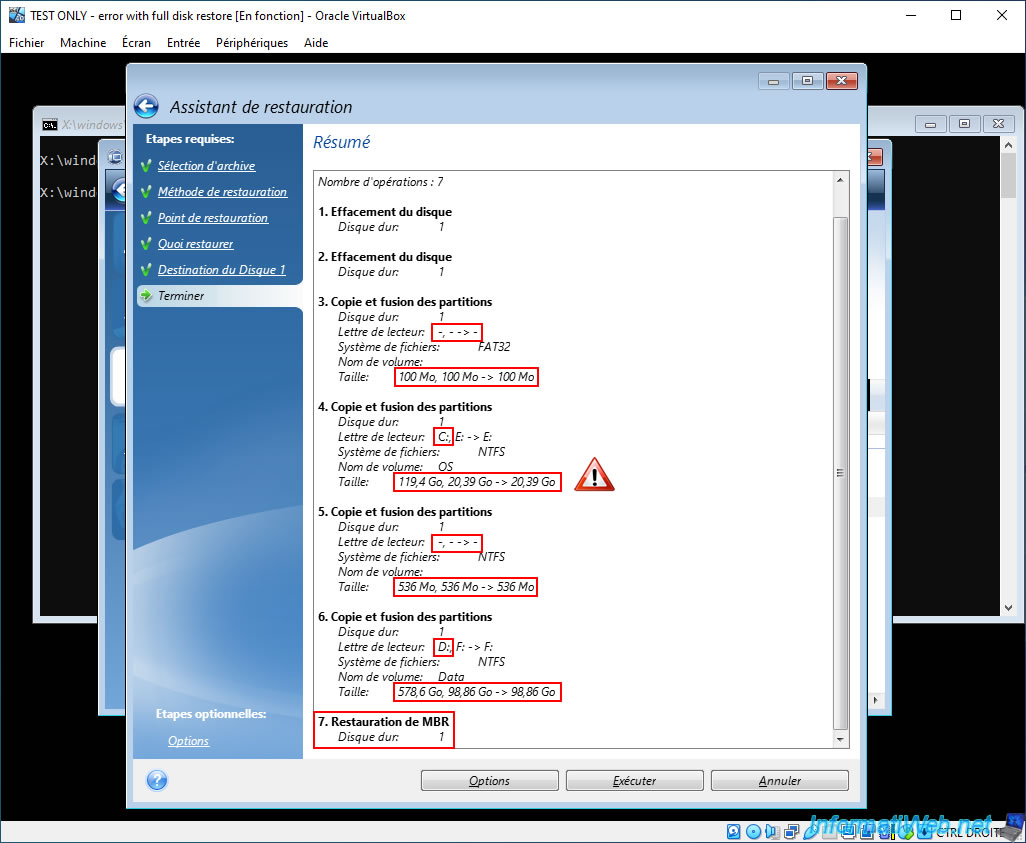
If you are a bit observant, you would notice in the summary of the restoration operations that the small hidden Windows system partitions (those of 100 MB and 536 MB (in our case) which do not have a drive letter (because they are hidden)) would keep their original size. Which is not a problem.
Be careful: on the other hand, the capacity of our "C" partition (where Windows 10 is installed in our case) would have gone from 119.4 GB to only 20.39 (which is much too low, and which actually corresponds exactly to the amount of data saved by Acronis from this partition on the physical PC).
For our data partition (with letter "D"), its size would have decreased from 578.6 GB to 98.86 GB.
For the MBR, it would have been restored correctly and the disk would have been initialized correctly (with an MBR or GPT partition table at the time of disk erasure, visible at the top of the summary).
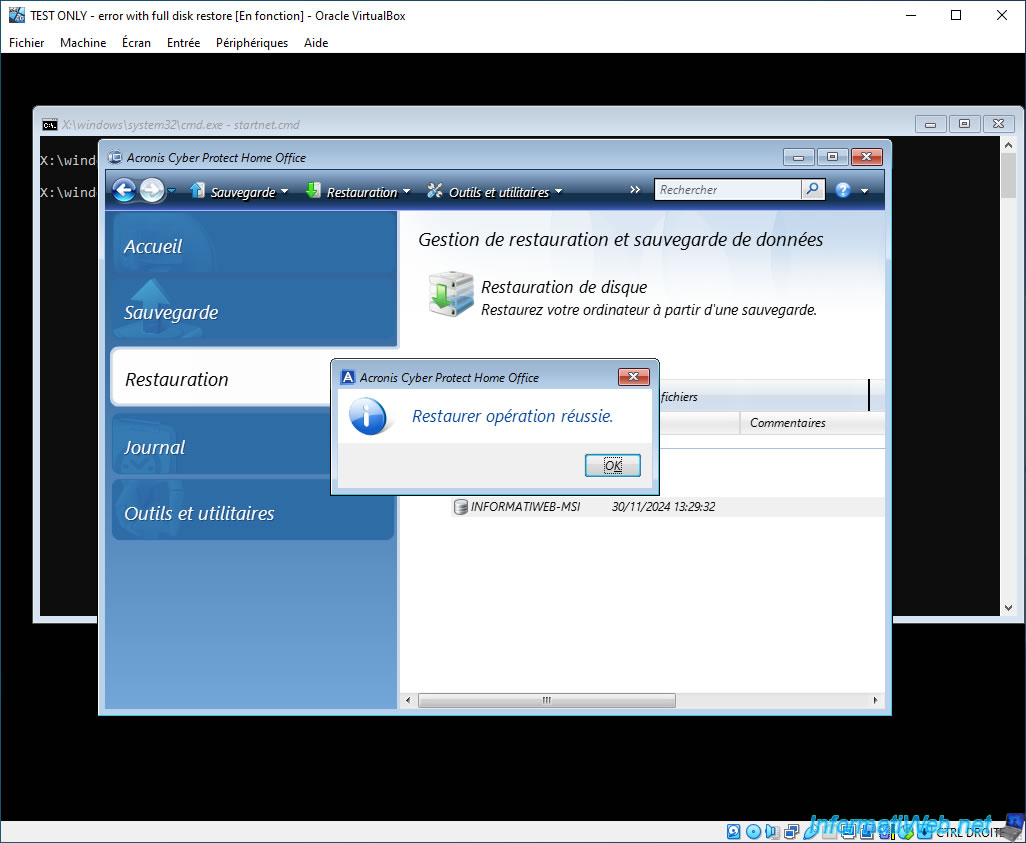
If you run data restore via Acronis, it will work.
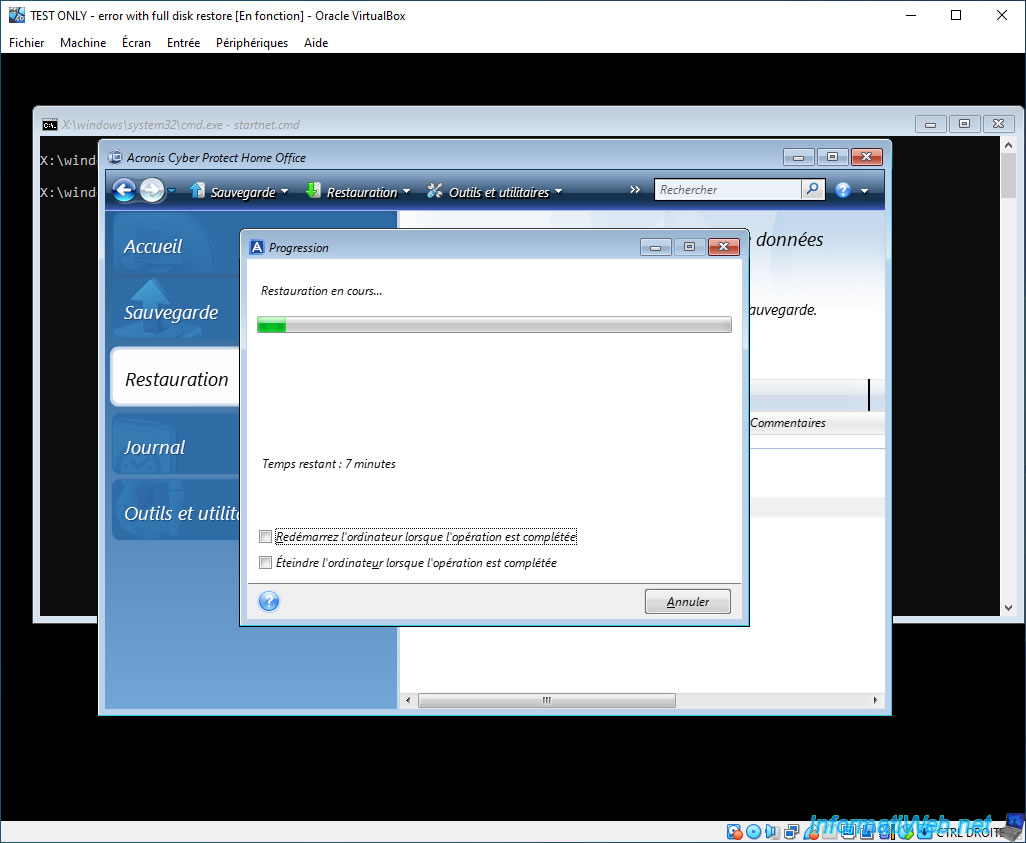
You will even see the message "Restore operation successful" appear at the end of this restoration.
But, if you close this Acronis program and relaunch it (by typing the same command that is visible in the command prompt "cmd.exe"), you will be able to see (via the backup wizard) that the capacity of the partition where Windows is installed is equal to the space used on this partition.
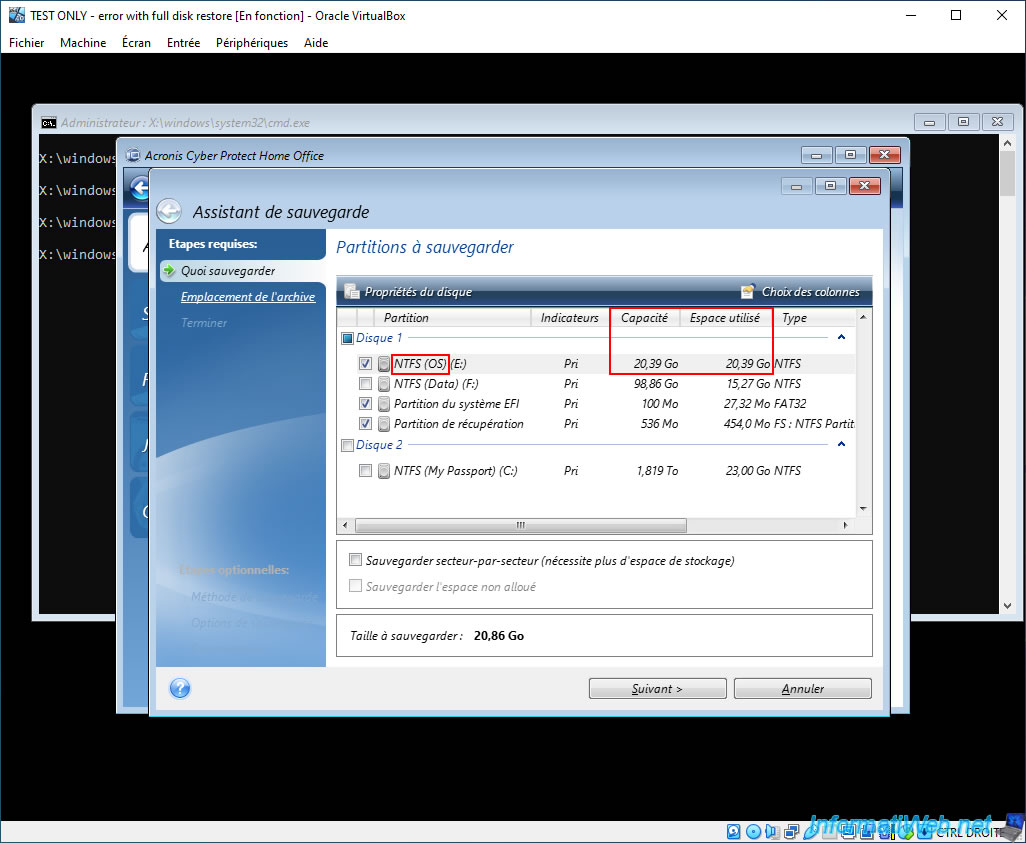
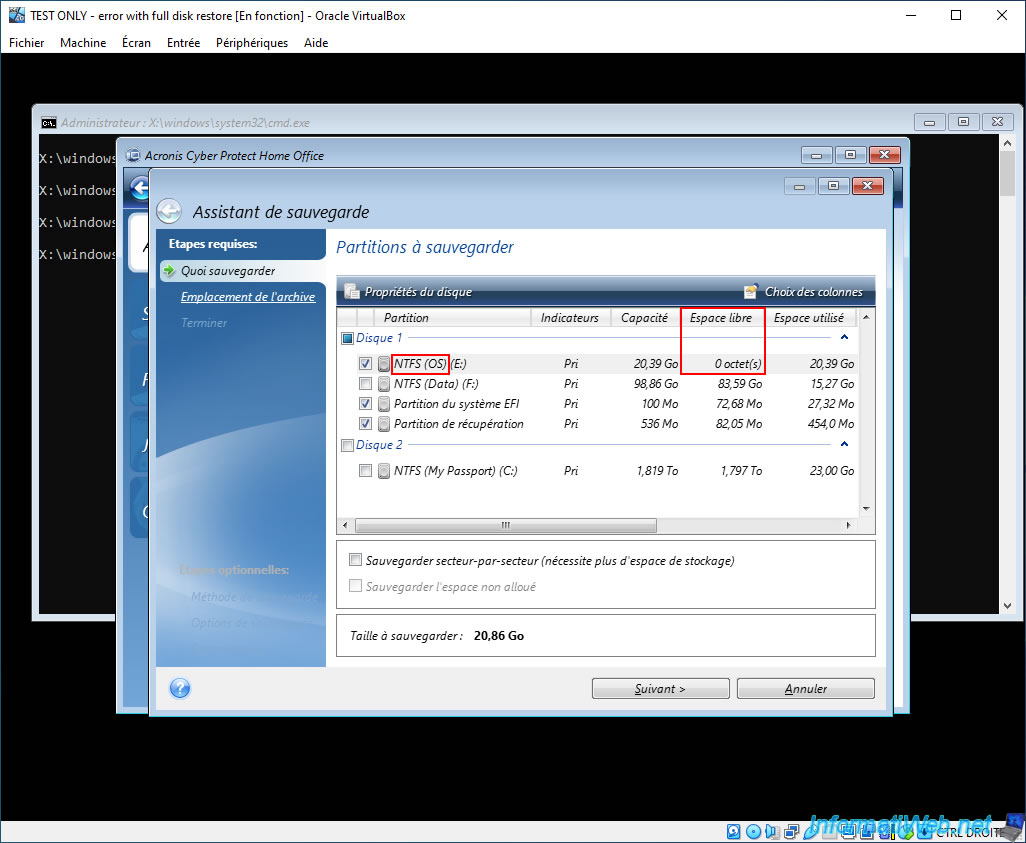
Warning : if it is not clear to you, right-click on the column title to also display the "Free space" column.
Now, you will clearly see that there are precisely 0 bytes free on the partition where Windows is installed.
In other words, Windows will never run in your virtual machine, because it still needs some space to run (whether it is temporary files or something else).
Let's say you didn't do this check and you try to move on to the next step of the tutorial.
You try to apply Universal Restore on your restored Windows installation in your virtual machine and you will notice in the history of this Acronis program that the result of this task is "Failed".
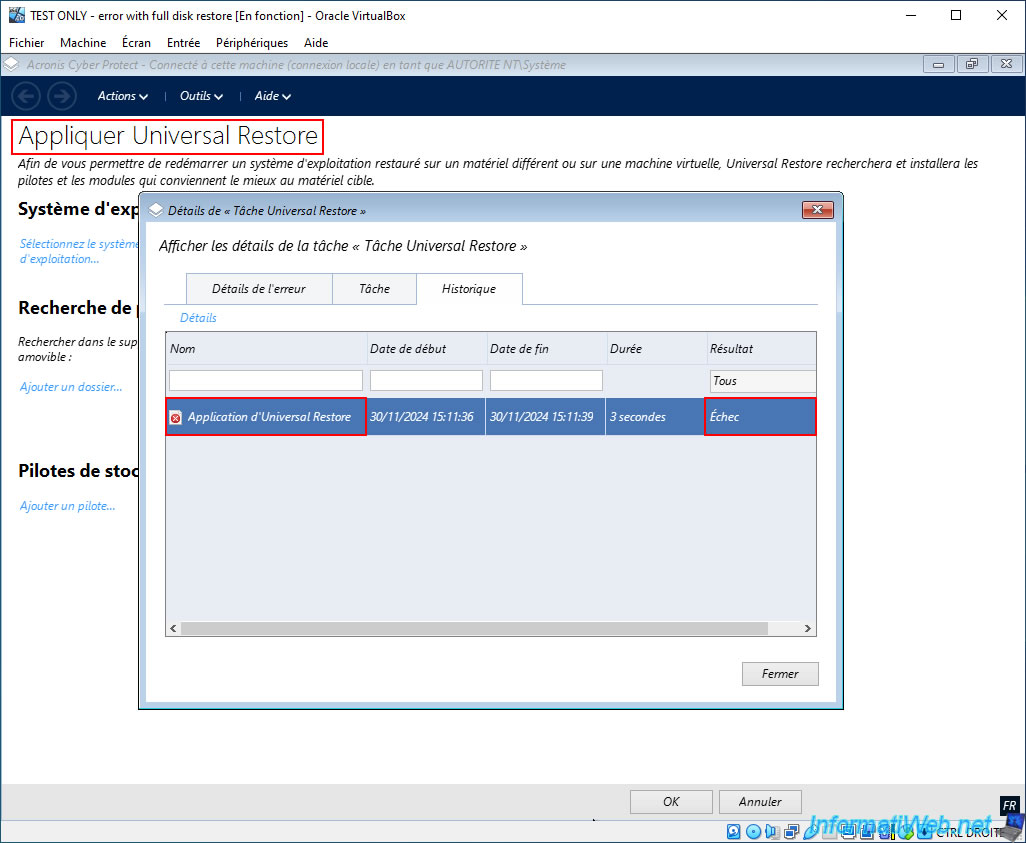
If you go to the "Error Details" tab and look at the latest error messages displayed, you will see that Acronis Universal Restore could not write a certain configuration file (it doesn't matter which file it is, it doesn't matter).
But most importantly, Acronis Universal Restore will tell you that the disk is full.
Plain Text
TOL: Failed to execute the command. Applying Universal Restore.
...
Message: cannot create target file "assistant.inf".
...
Message: The disk is full.
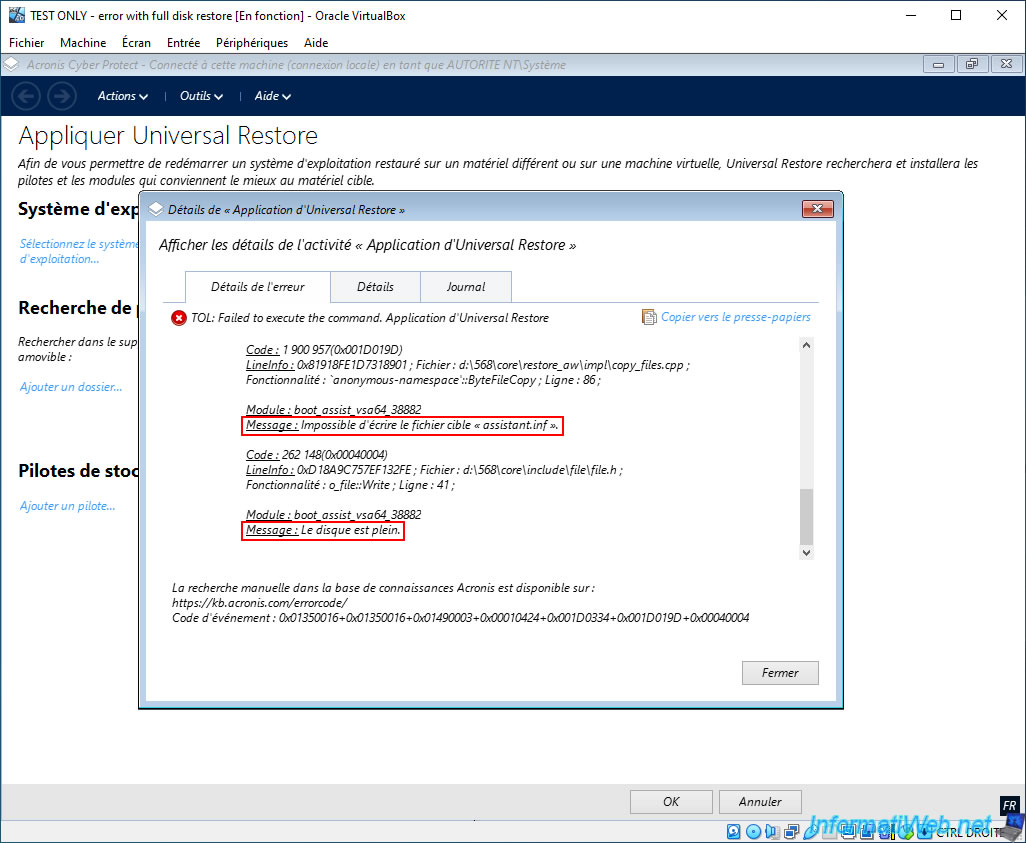
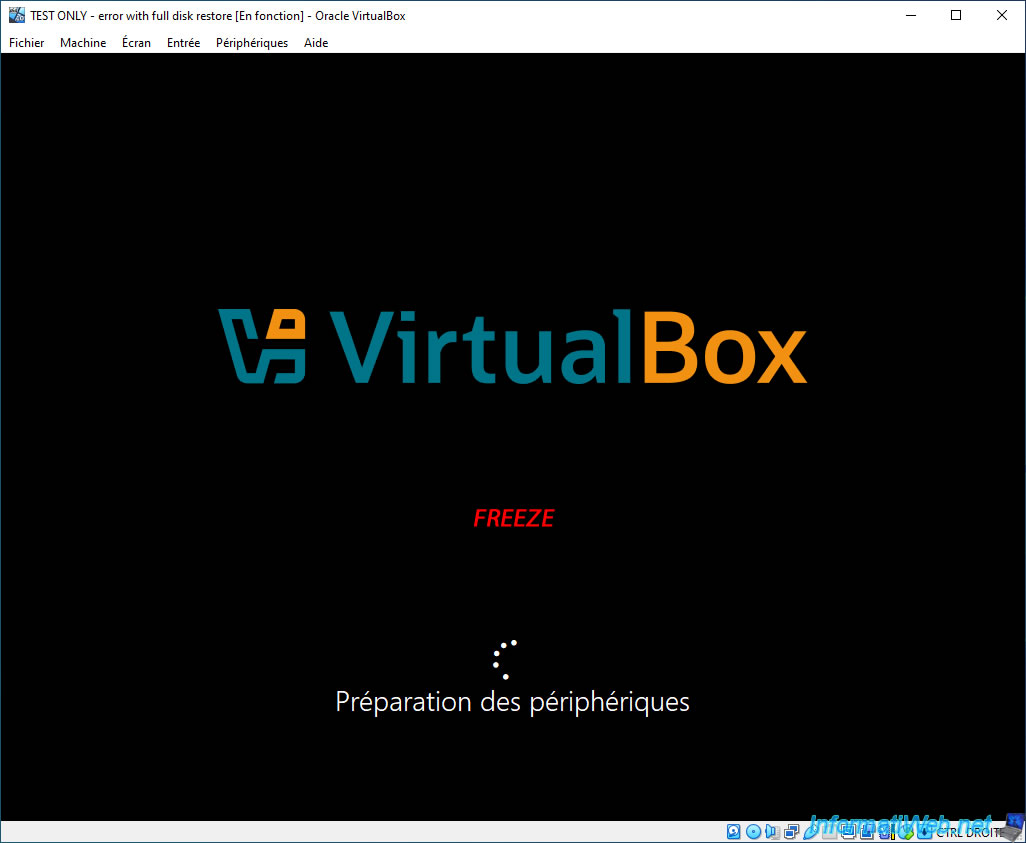
Let's say you didn't take the time to read the errors that occurred and you try to start your virtual machine on the Windows installation that you restored in it.
Well, it's not complicated, the virtual machine will block very quickly (whether it's when starting Windows, when logging in or elsewhere).
What is certain is that you will never be able to use Windows or reach the Windows desktop.
Important : hence the importance of restoring all partitions from the Acronis backup rather than the entire disk to be able to manually specify the size of each partition to restore and thus adapt the size of these partitions according to the space used on them and the capacity of the virtual hard disk created for your VirtualBox virtual machine.
Share this tutorial
To see also
-

Backup 10/20/2025
Acronis True Image - Archive your files locally
-

Backup 9/11/2025
Acronis True Image - Backing up your smartphone to Acronis Cloud
-
Backup 7/7/2025
Acronis True Image - Backup files or folders
-

Backup 4/13/2026
Acronis True Image - Rescue Media - Create an incremental backup
No comment