Virtualize a physical PC to VMware Workstation Pro (P2V) using Acronis True Image (Cyber Protect Home Office) and Acronis Universal Restore
- Backup
- Acronis True Image, Acronis Universal Restore
- 15 September 2026 at 07:02 UTC
-

- 8/8
8. Install VMware Workstation Pro drivers (VMware Tools) in your virtual machine
To install the drivers for your virtual machine, you need to install VMware Tools on it.
To do this, simply click on "VM -> Install VMware Tools".
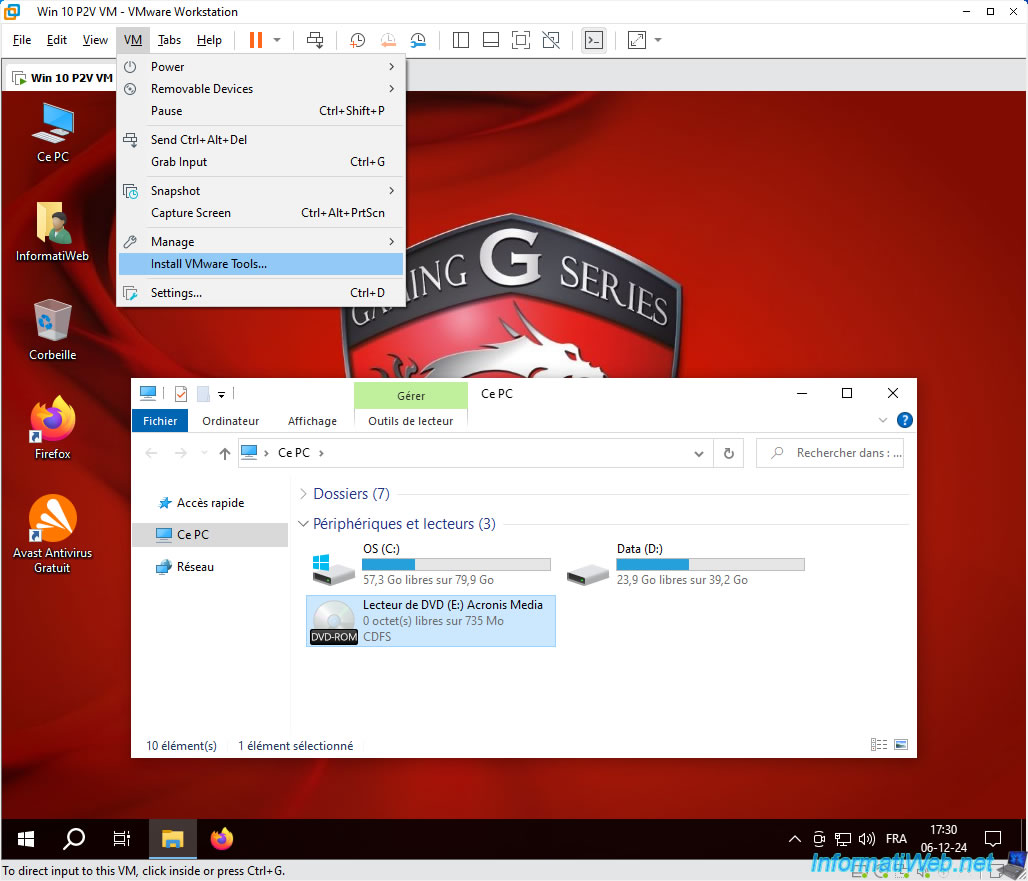
Double-click on the DVD drive.
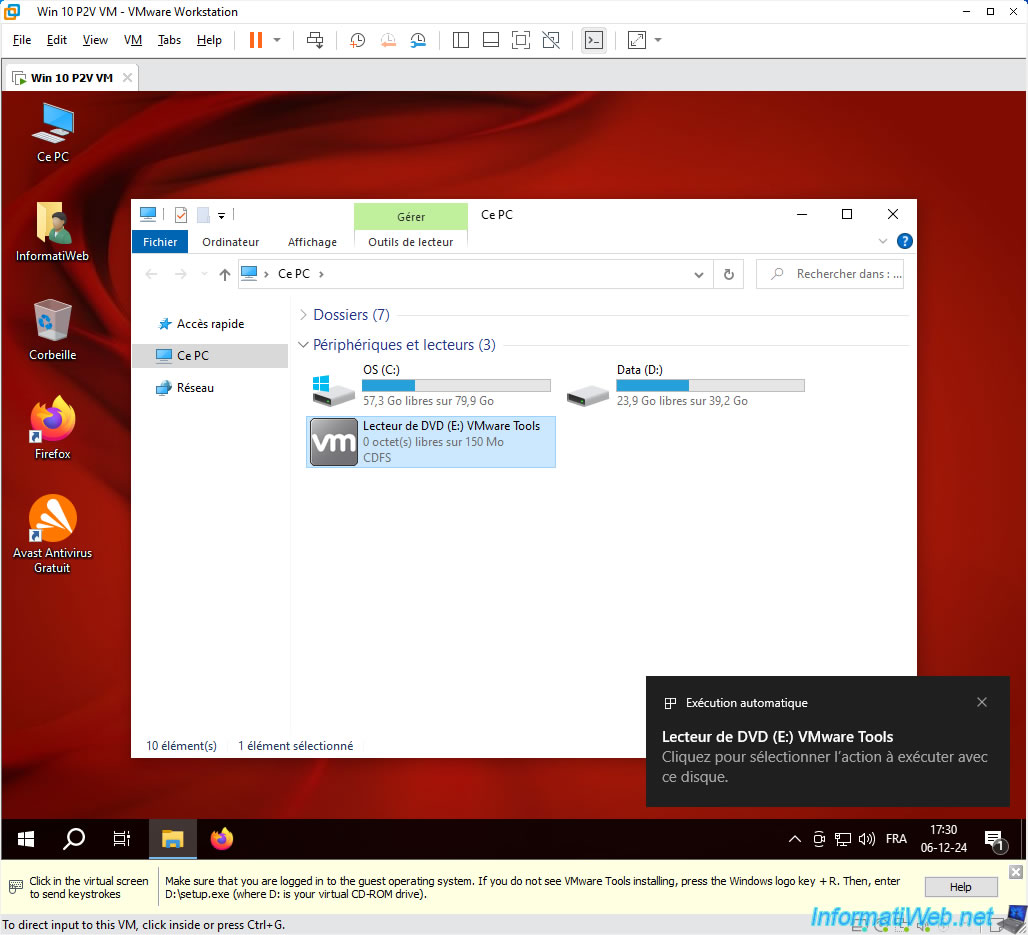
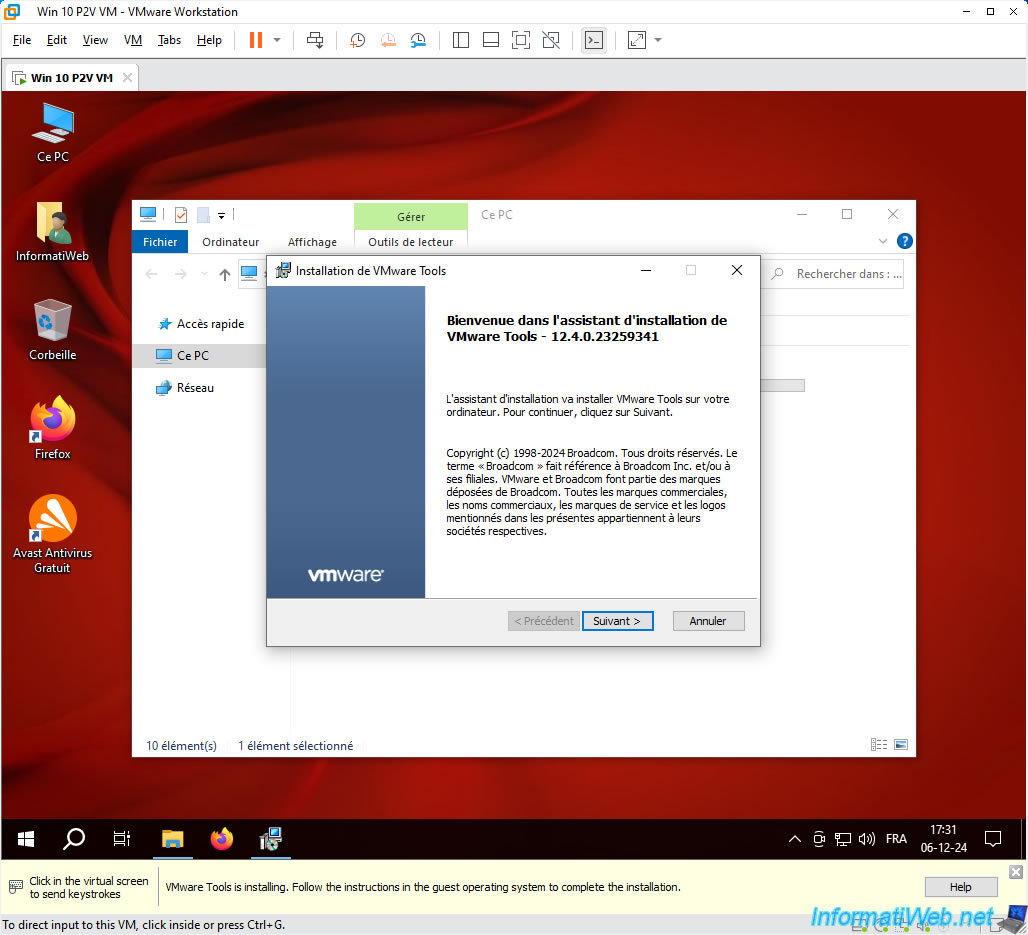
The VMware Tools installation wizard appears.
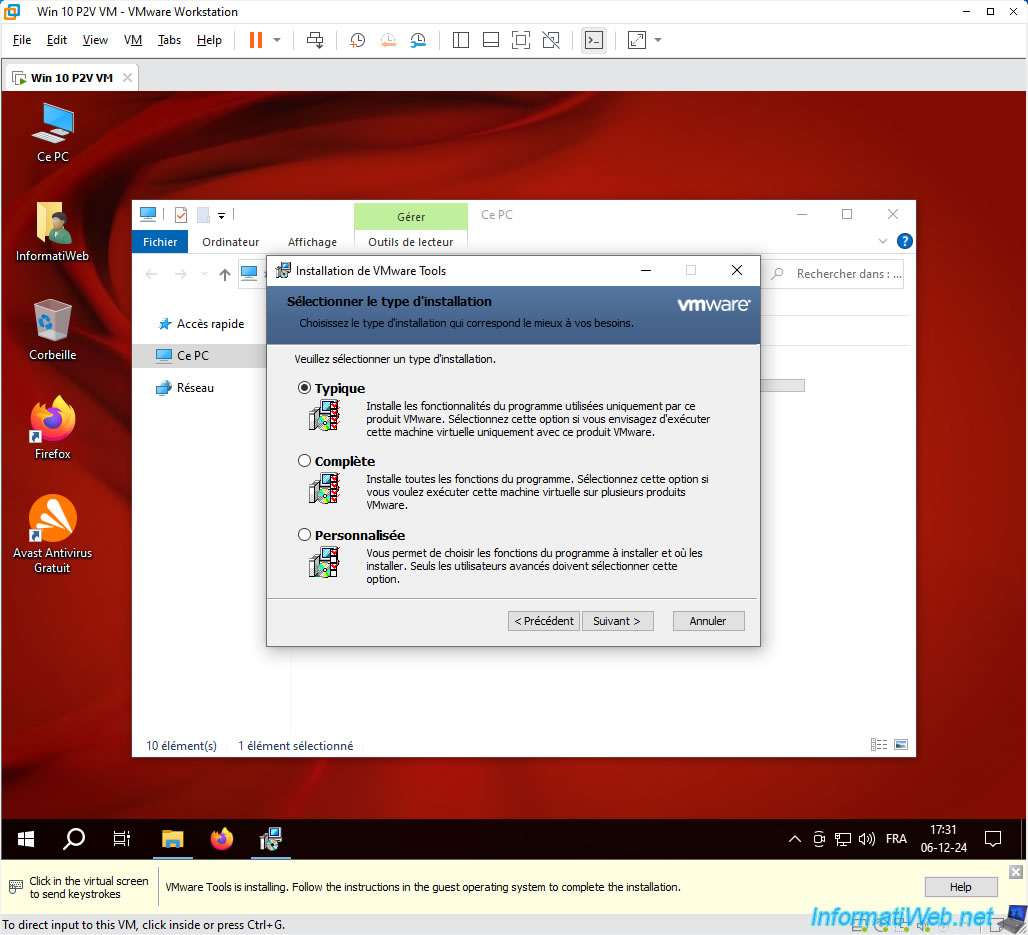
Perform a "Typical" installation as you normally do.
Please wait while VMware Tools (and the drivers it contains, including the video driver) is installed.
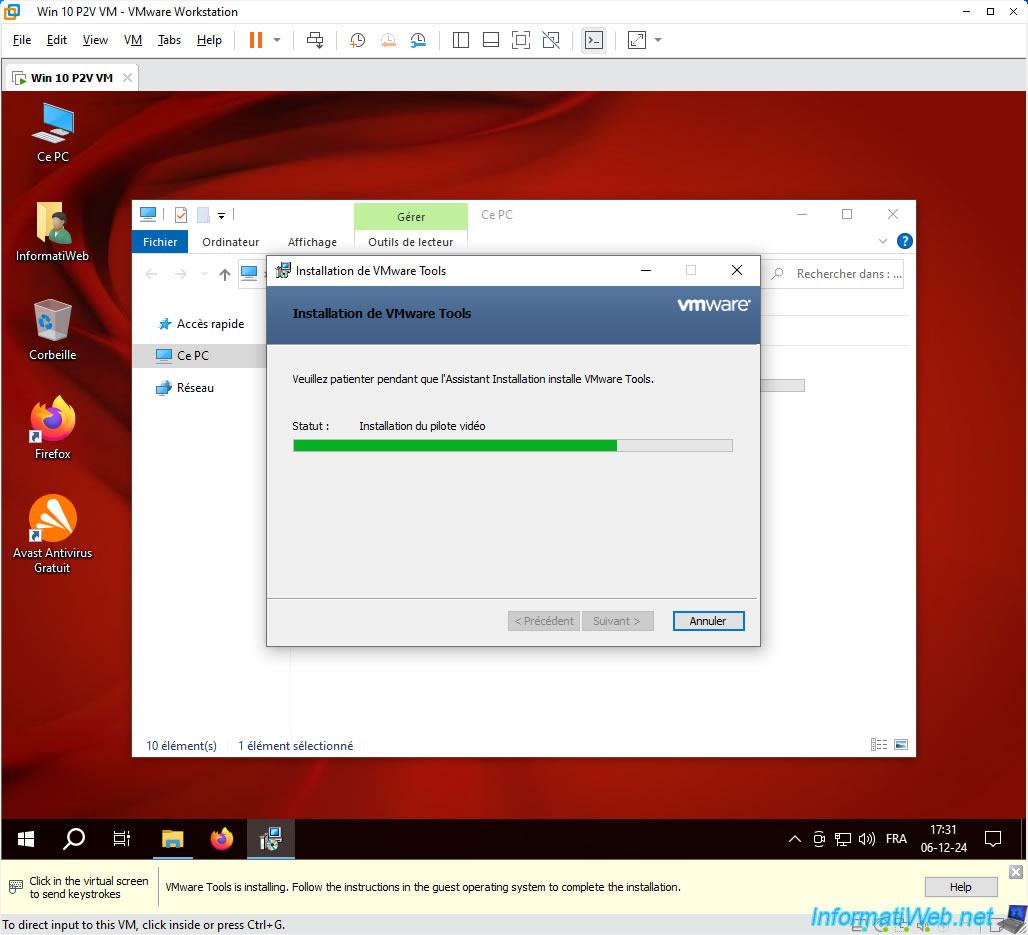
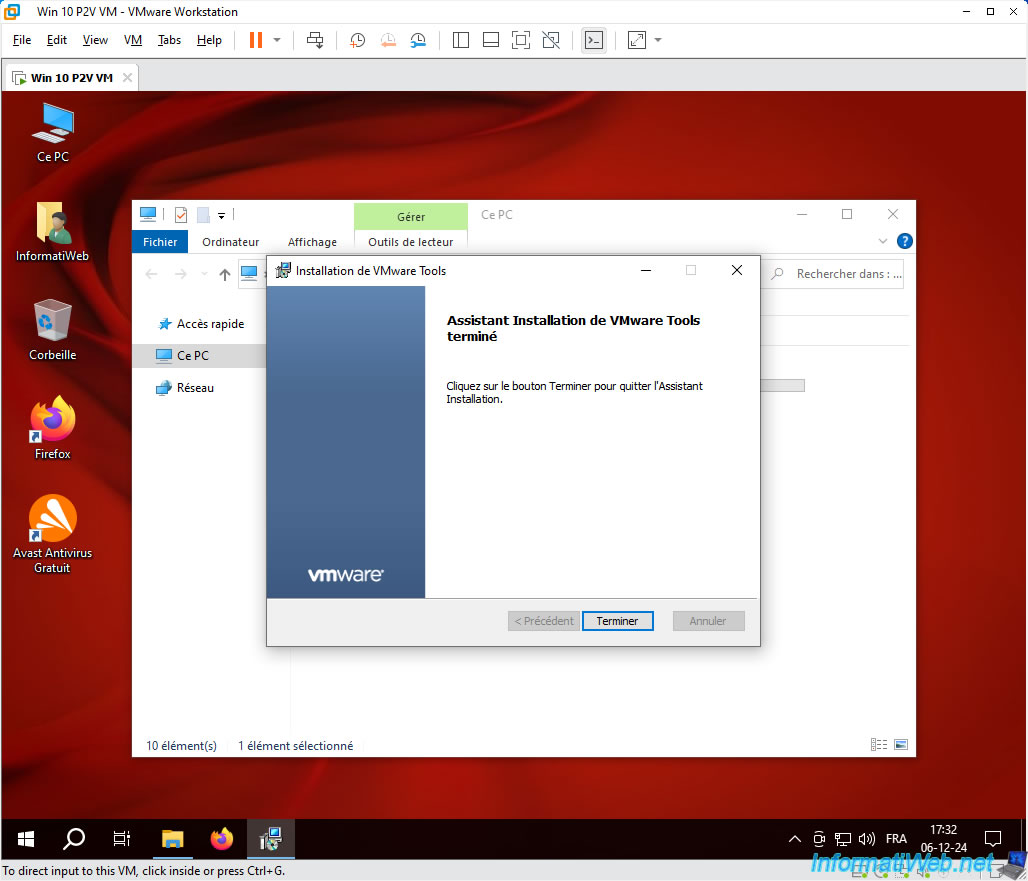
Once the VMware Tools installation is complete, click "Finish".
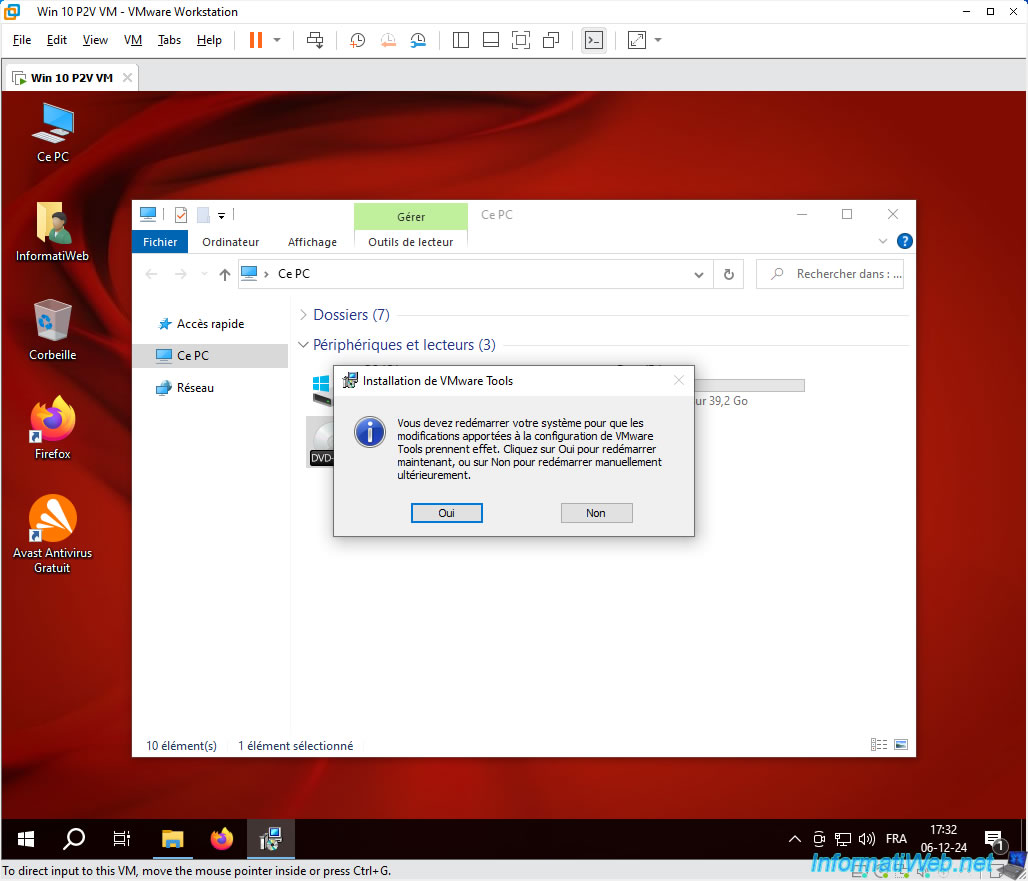
Confirm restarting your VM by clicking "Yes".
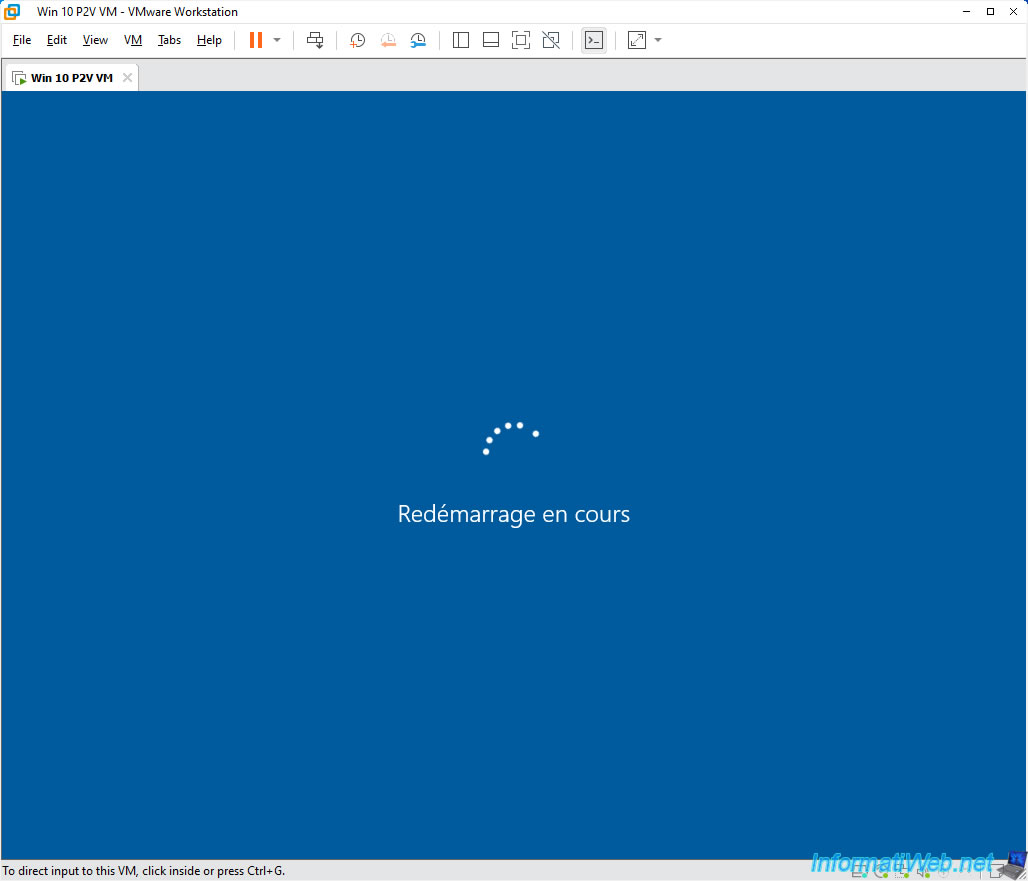
Your VM restarts.
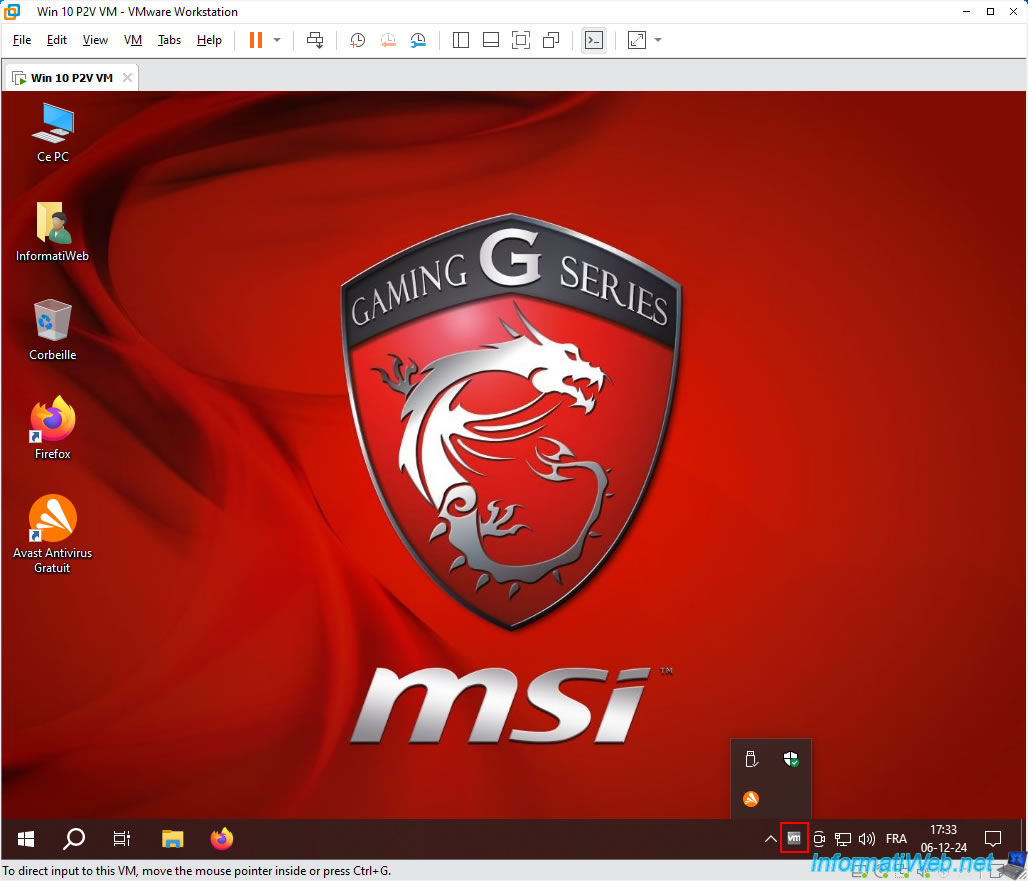
The VMware Tools icon will appear in the Windows taskbar.
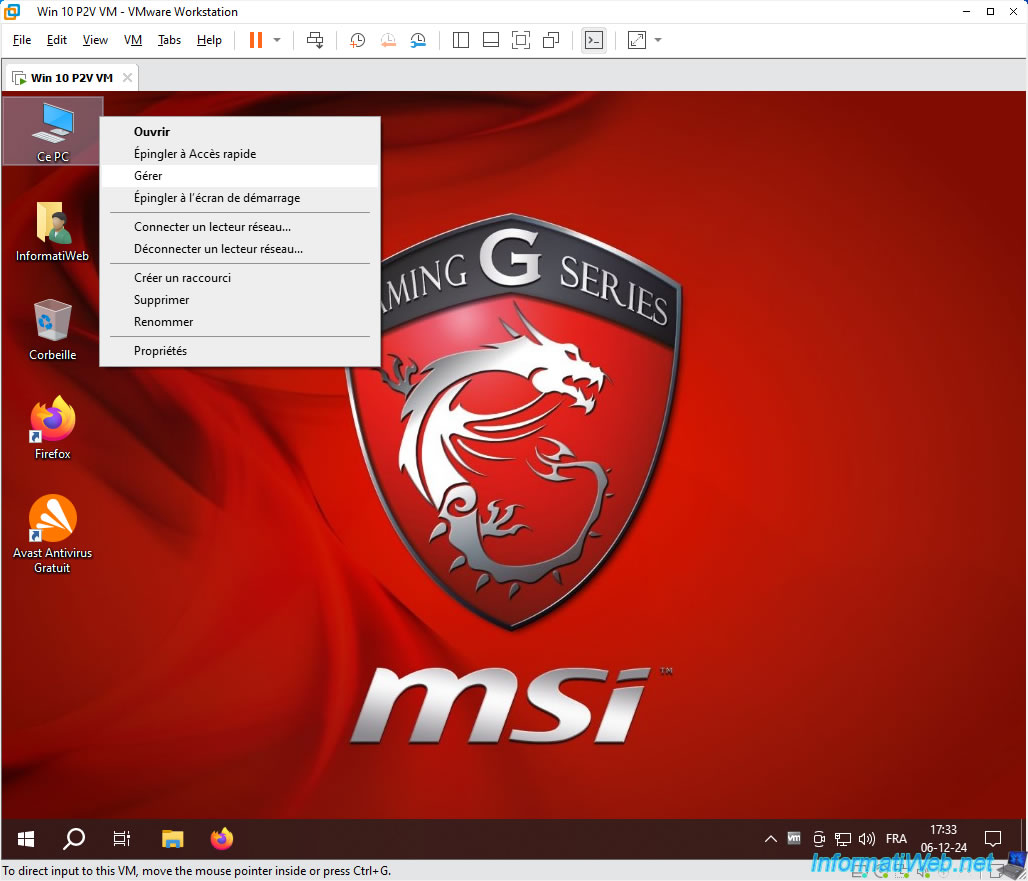
Right click "Manage" on "This PC".
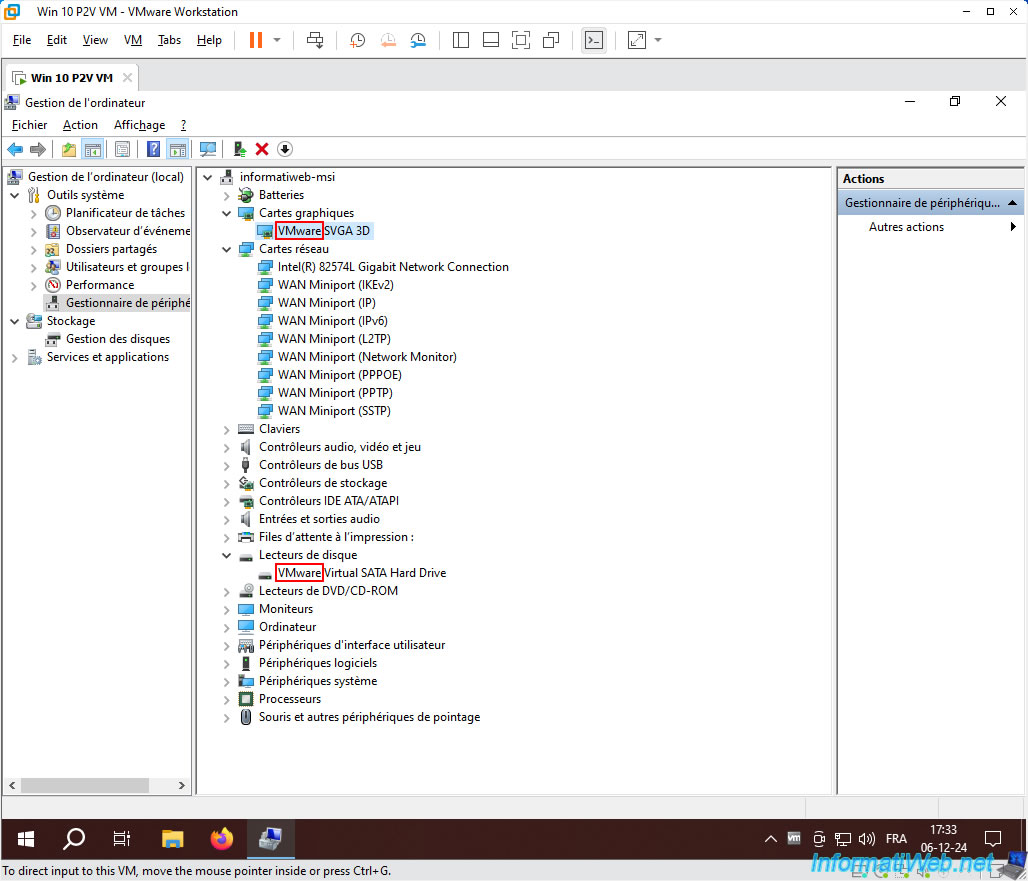
In the "Computer Management" window that appears, go to the "Device Manager" section and you will see that all the necessary drivers are installed.
In addition, you will see that it is now the virtual hardware of VMware Workstation Pro that is used.
- Graphics Cards: VMware SVGA 3D.
- Disk Drives: VMware Virtual SATA Hard Drive.
Since you don't need the Acronis ISO anymore, you can remove it by clicking: VM -> Removable Devices -> CD/DVD (SATA) -> Disconnect.
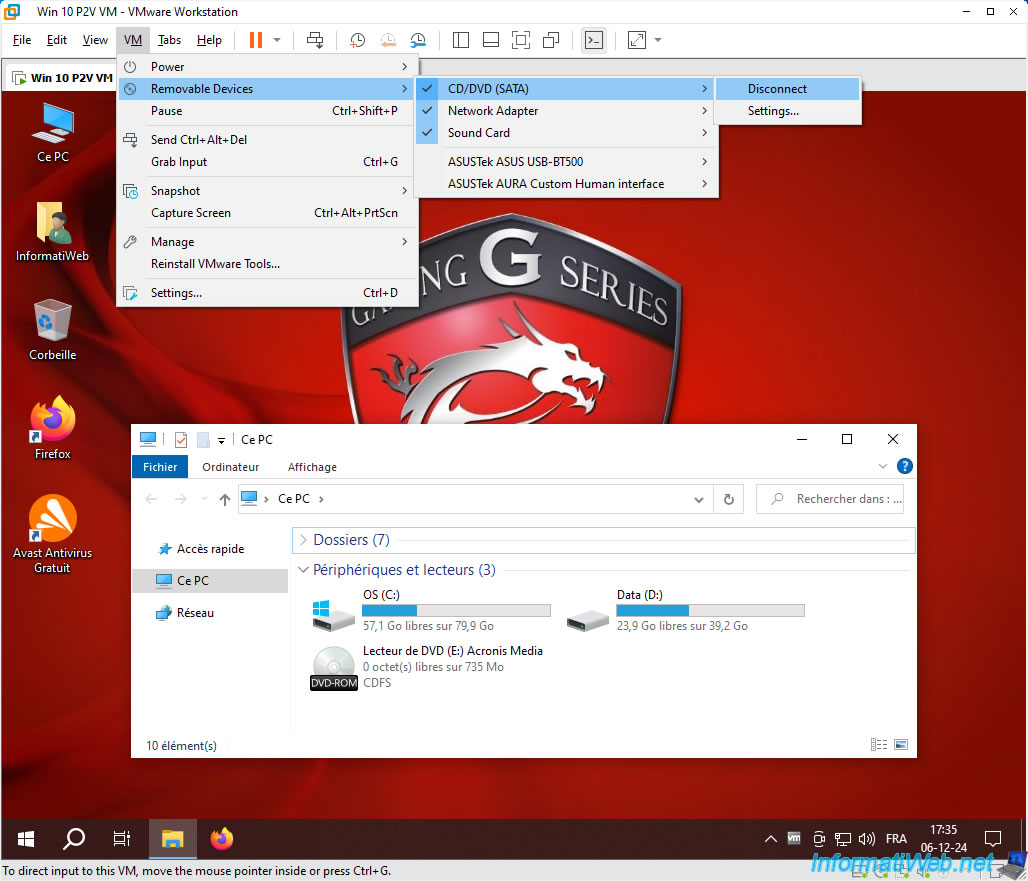
Now, your VM's DVD drive is empty.
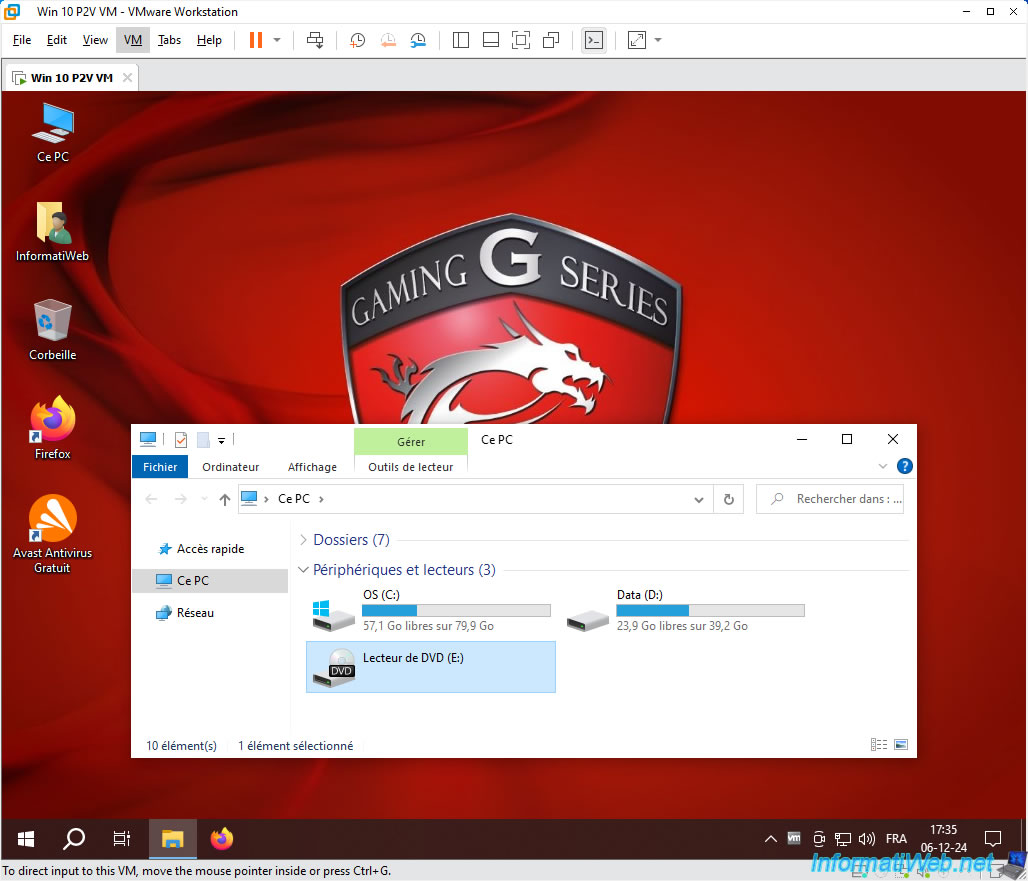
9. Virtual machine working on VMware Workstation Pro and corresponding to the virtualized physical PC
As expected, your physical PC's partitions have been copied to your virtual machine.
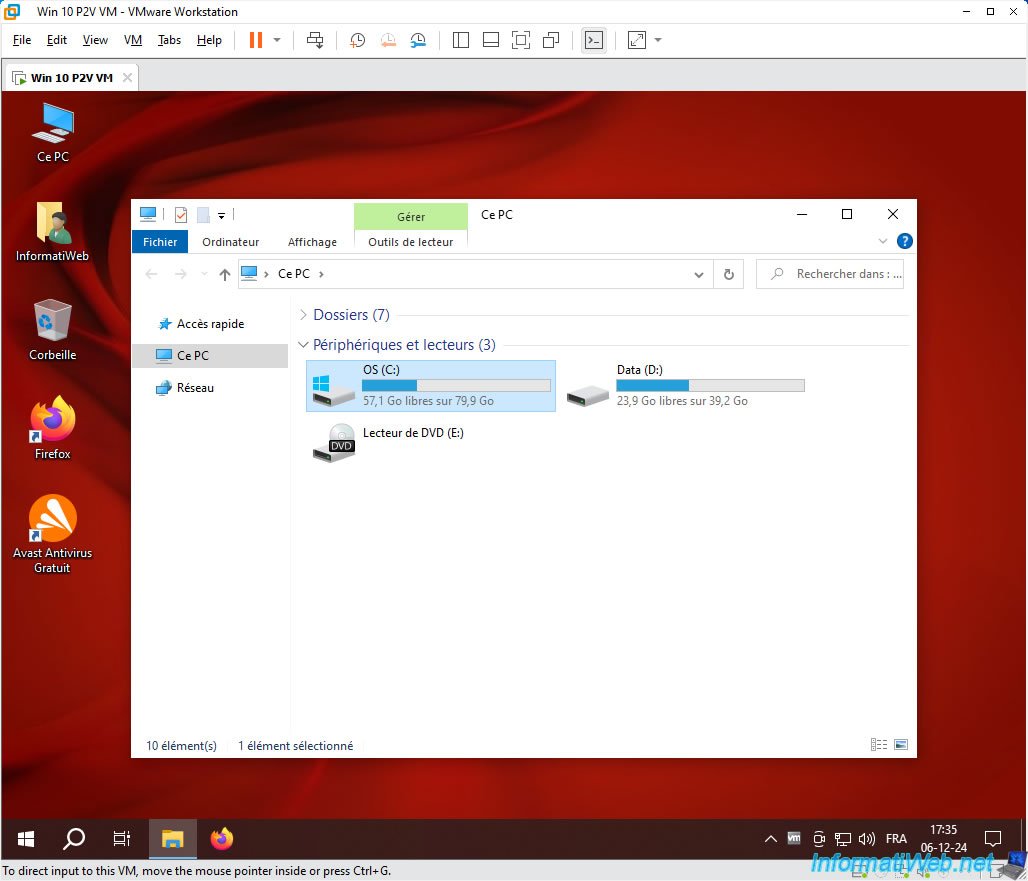
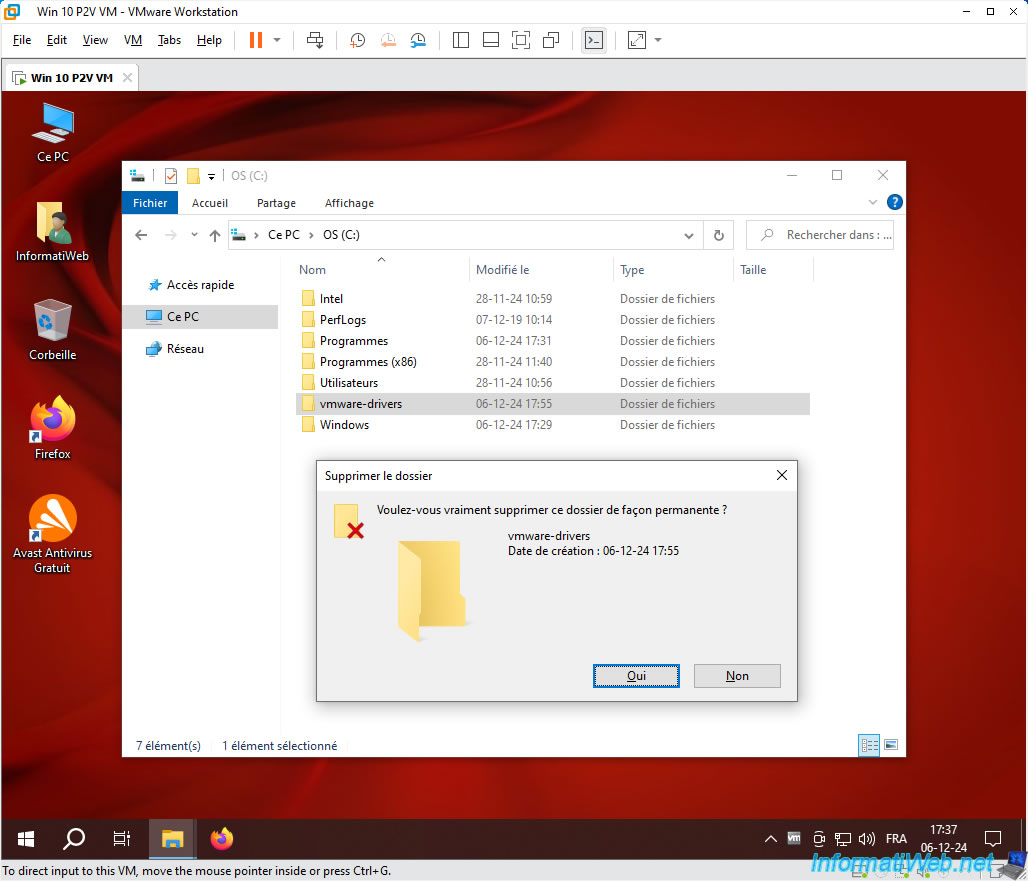
The contents of the "OS (C:)" partition have been successfully copied.
Note: you can permanently delete the "vmware-drivers" folder that was only temporarily needed when running Acronis Universal Restore.
To delete it permanently, select this folder and press "SHIFT" and "Del" simultaneously.
Then, confirm its permanent deletion.
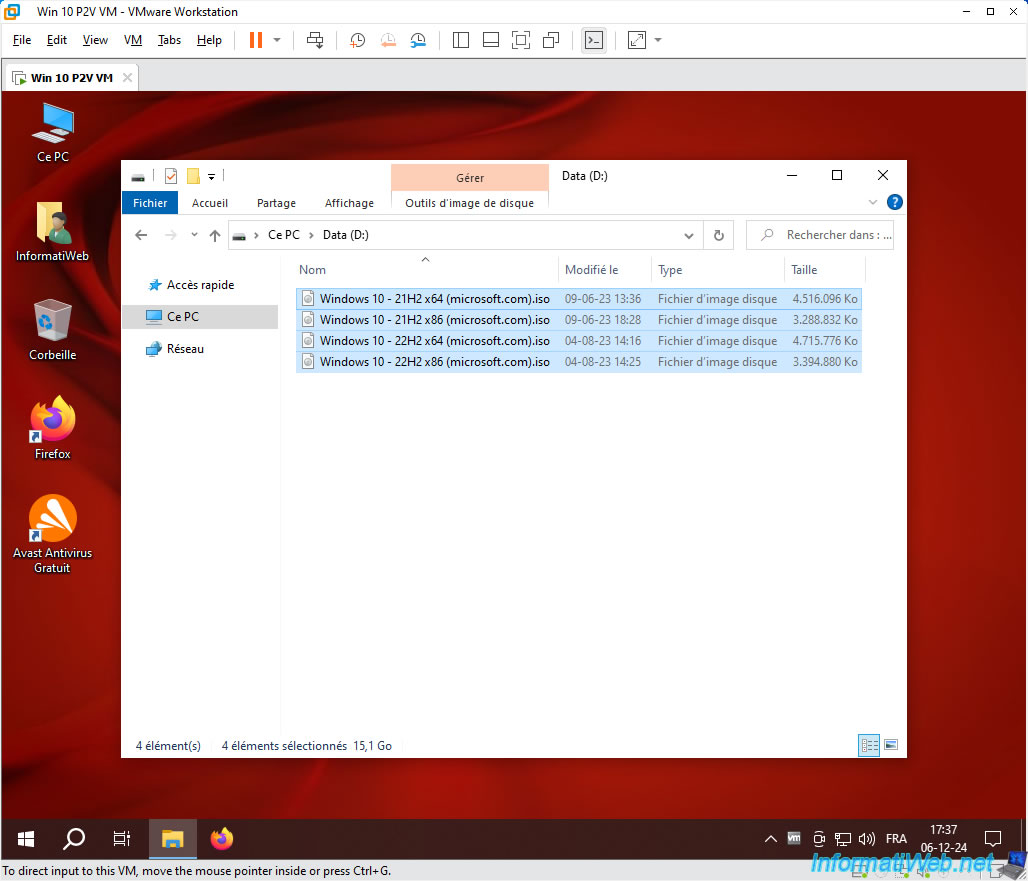
The contents of our "Data (D:)" partition were also copied without any problems.
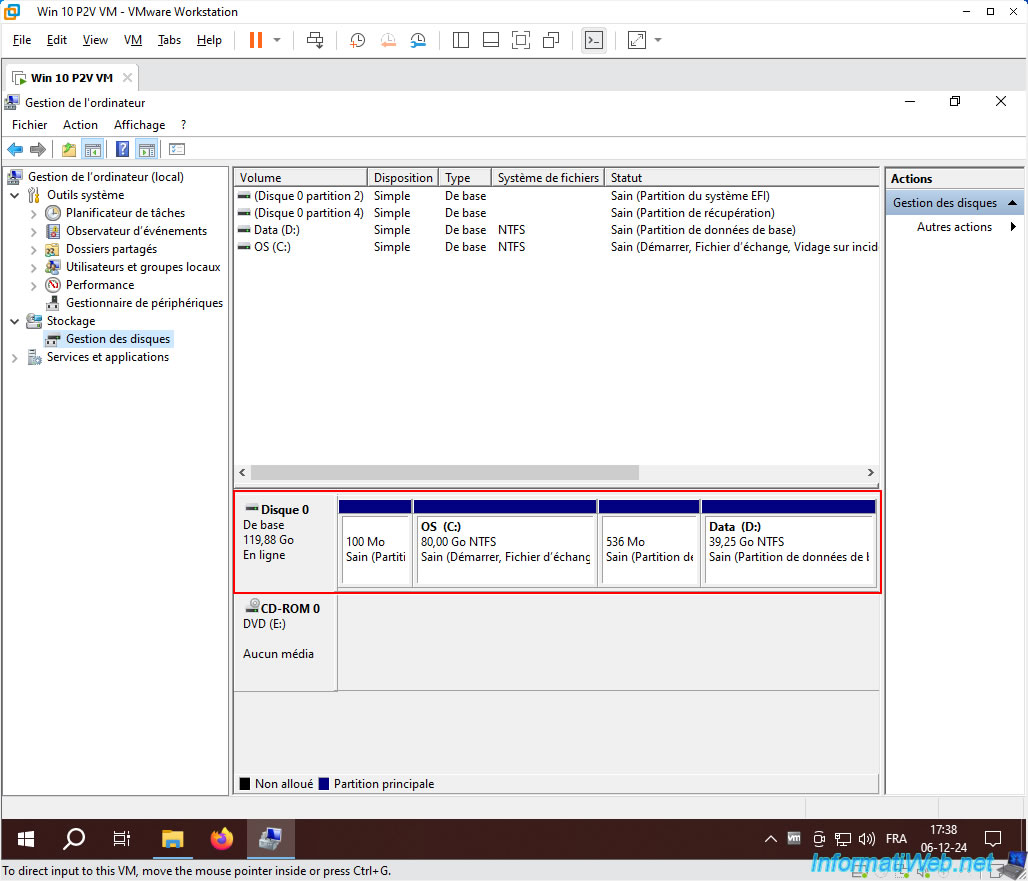
In Windows Disk Management, you will be able to see that the partitions have been copied correctly (using the new size of each partition that you sometimes modified via Acronis).
Share this tutorial
To see also
-
Backup 10/19/2026
Acronis True Image - OEM version (free) of Seagate
-
Backup 8/24/2026
Acronis True Image - Partition a new disk
-
Backup 4/27/2026
Acronis True Image - Rescue Media - Backup files or folders
-
Backup 10/9/2025
Acronis True Image - Validate a backup
No comment