- Backup
- Acronis True Image
- 01 December 2025 at 16:26 UTC
-

With Acronis Cyber Protect Home Office (True Image), you can synchronize files in a folder between multiple computers using only your local network (which avoids saturating your Internet bandwidth).
To do this, refer to our previous tutorial: Acronis True Image - Synchronize a folder between 2 PCs (locally).
However, if you have a local synchronization already configured in Acronis Cyber Protect Home Office (True Image), you should know that you can very easily convert it to a synchronization from Acronis Cloud if you wish.
Thus, Acronis Cyber Protect Home Office (True Image) will continue to synchronize the desired folder between your computers, but only using Acronis Cloud as an intermediary.
This eliminates the need for the 2 computers to be on the same network and to be turned on at the same time.
Warning : once you have enabled synchronization via Acronis Cloud, synchronization performed by Acronis Cyber Protect Home Office (True Image) will always be performed via the Internet (even if the 2 computers are on the same local network).
- Local synchronization already configured
- Replace local sync with sync via Acronis Cloud
- Add files to a PC whose folder is synced via Acronis Cloud
- Synchronizing files from Acronis Cloud
1. Local synchronization already configured
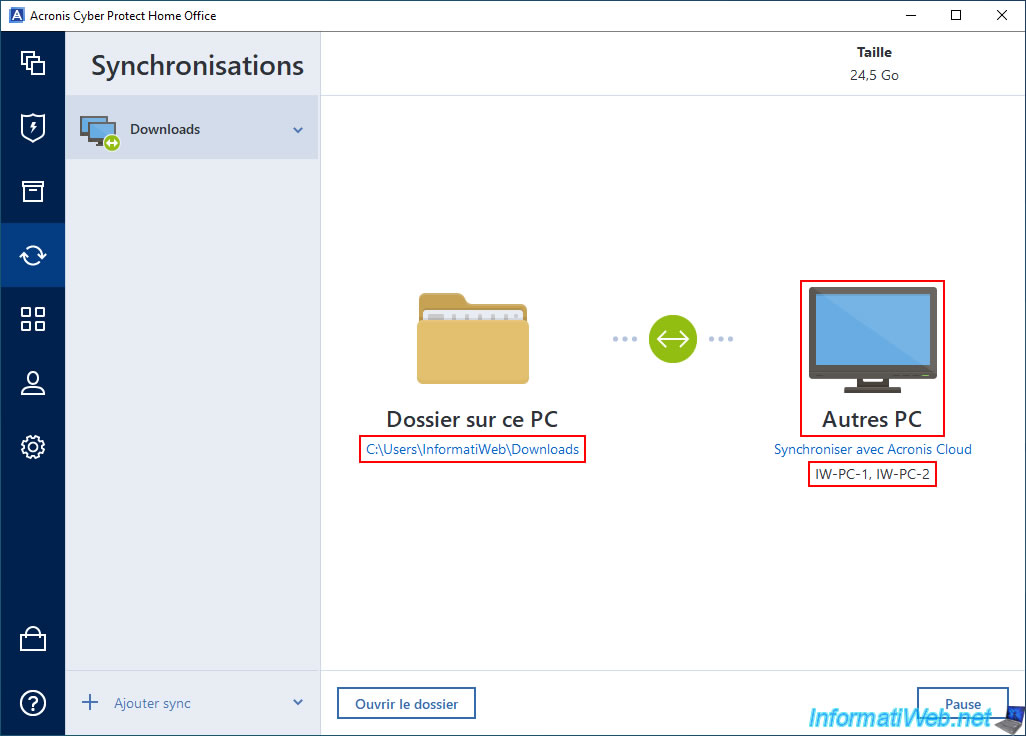
In our case, we have already synchronized the contents of a folder present on our 2 computers (IW-PC-1 and IW-PC-2).
As you can see, it is currently a local synchronization since Acronis Cyber Protect Home Office (True Image) displays a screen as an icon and the mention "Other PCs".
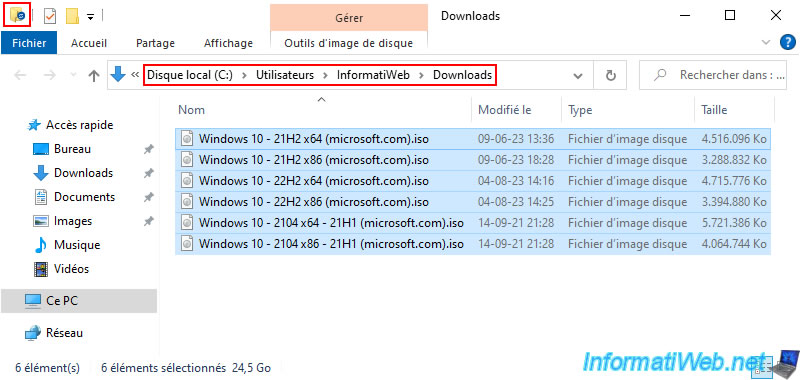
Here is the current content (on our 2 computers) of this synchronized folder (hence the synchronization icon visible at the top left of the window).
2. Replace local sync with sync via Acronis Cloud
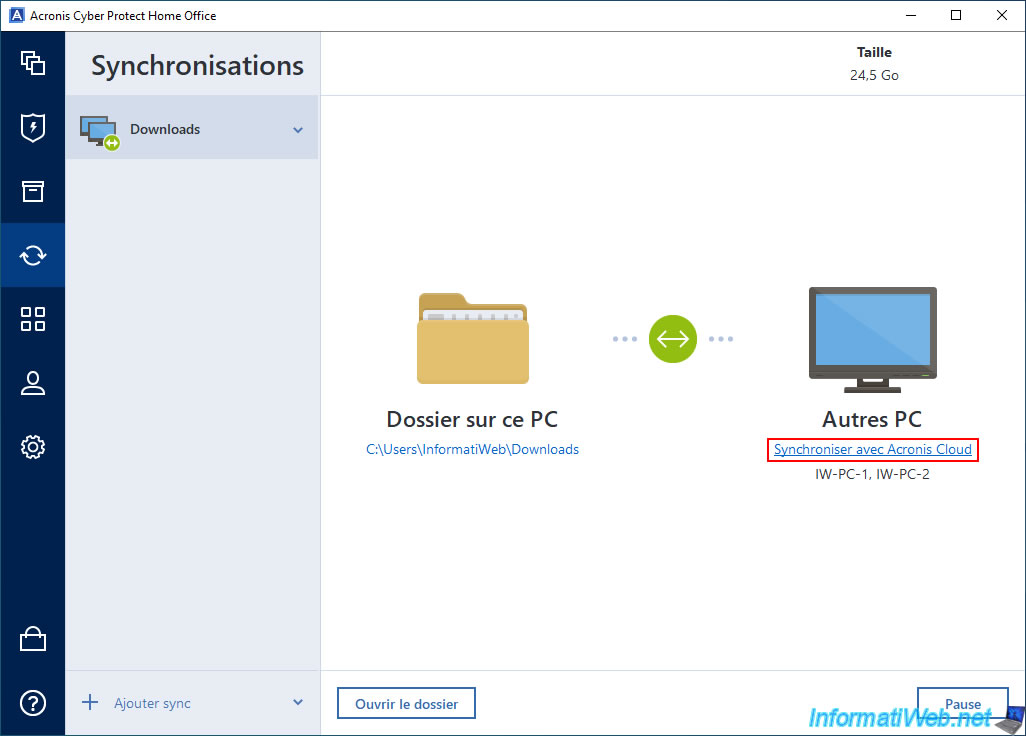
As you can see, when you have a sync configured in "local" mode, you can click on a "Synchronize with Acronis Cloud" link.
Of course, you need a trial period or a subscription for Acronis Cloud.
To do this, click "Start" to get a free trial of Acronis Cloud or "Buy" to buy a subscription for this service.
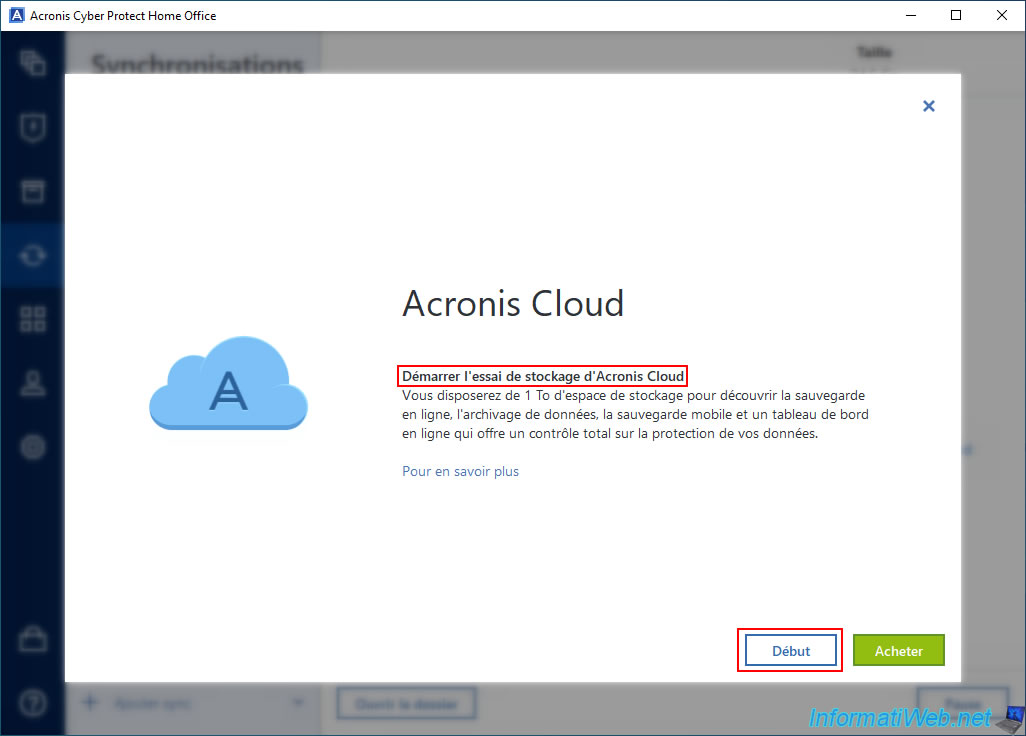
Once the free trial for Acronis Cloud is activated, simply click "Done".

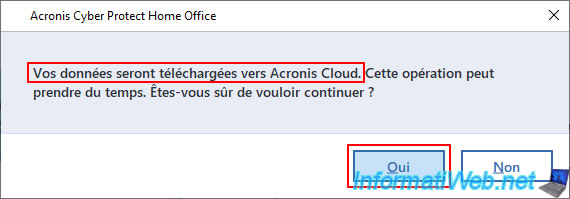
As instructed by Acronis Cyber Protect Home Office (True Image), your data will be uploaded to Acronis Cloud.
Confirm this sending of your data to Acronis Cloud by clicking "Yes".
As you can see, the screen icon has been replaced by the Acronis Cloud icon for your synchronization.
Now, Acronis Cyber Protect Home Office (True Image) will use Acronis Cloud exclusively to synchronize files in the desired folder between your different computers.
Note: if you restart Acronis Cyber Protect Home Office (True Image) on the other computer that was a member of your local synchronization, you will see that the icon for this synchronization will also have been replaced by the Acronis Cloud icon.
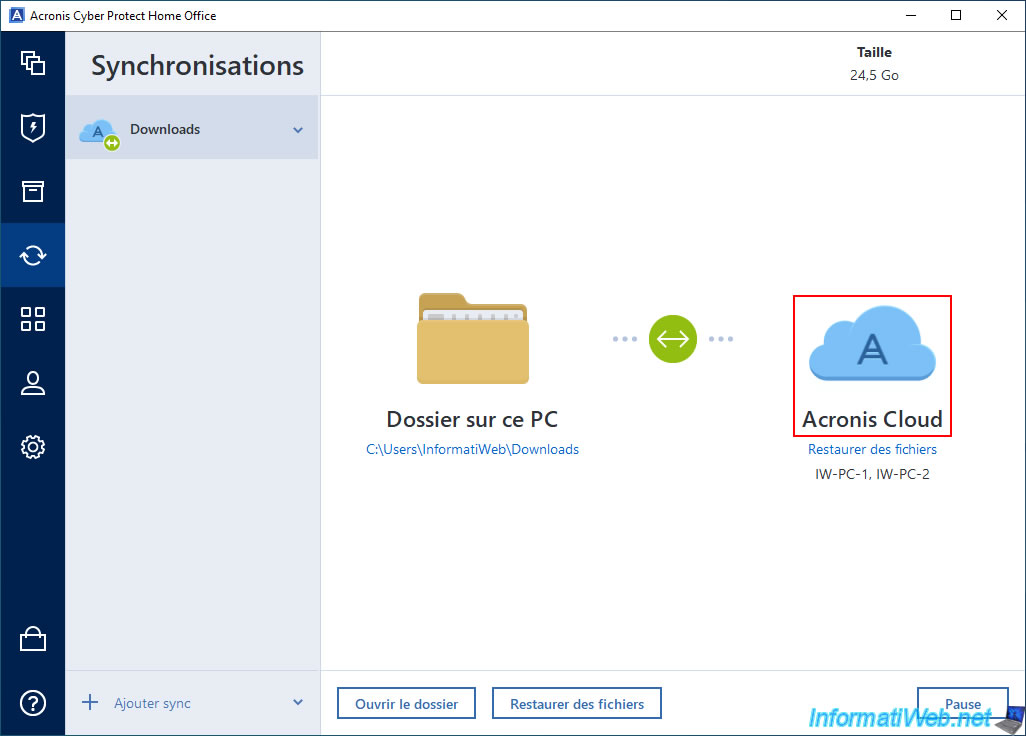
Click the "Recover Files" link displayed just below the Acronis Cloud icon and go to the "Sync" section of Acronis Cloud.
At first, Acronis Cloud may tell you that there is no synchronization in the Cloud at the moment.
Wait a while (a few minutes), then refresh the page.
You will see the name of the folder being synchronized appear and its size increase (even the files it contains will not appear directly).
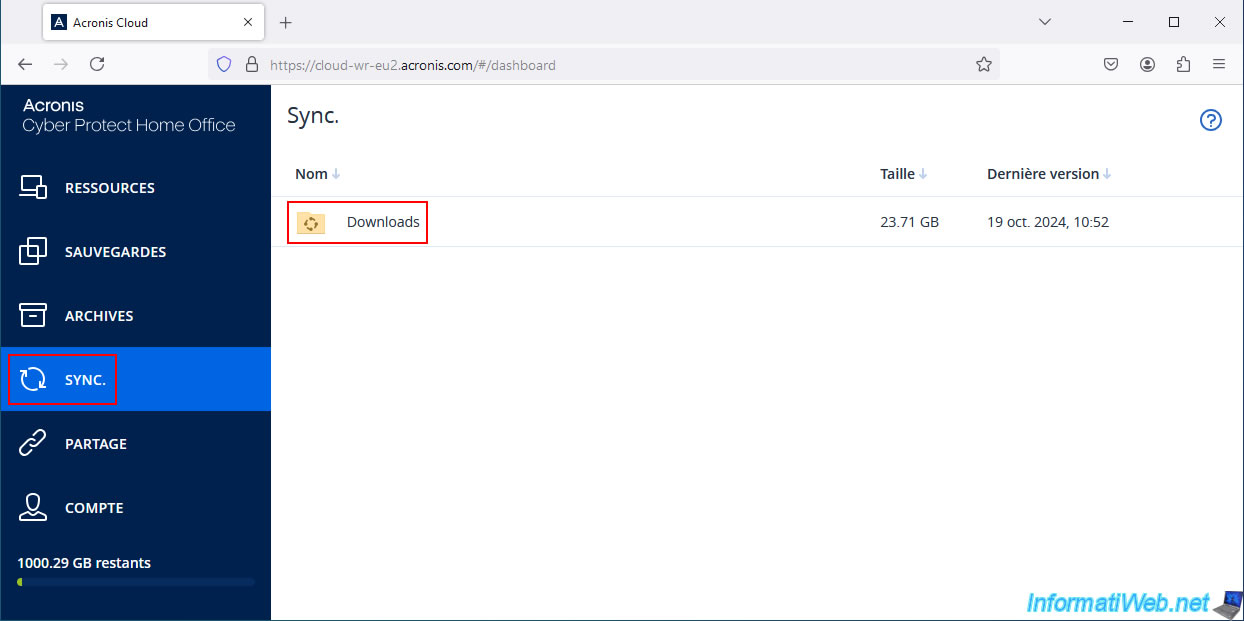
If you enter this folder while it is syncing to Acronis Cloud, you will first see that it is virtually empty and then it will fill up.
If you wait long enough, once the background sync to Acronis Cloud is complete, the files in this folder will appear.

3. Add files to a PC whose folder is synced via Acronis Cloud
Once the folder contents have been synced to Acronis Cloud, add a file to this folder on one of your computers.
In our case, we added this file to the synced folder on our 1st PC.
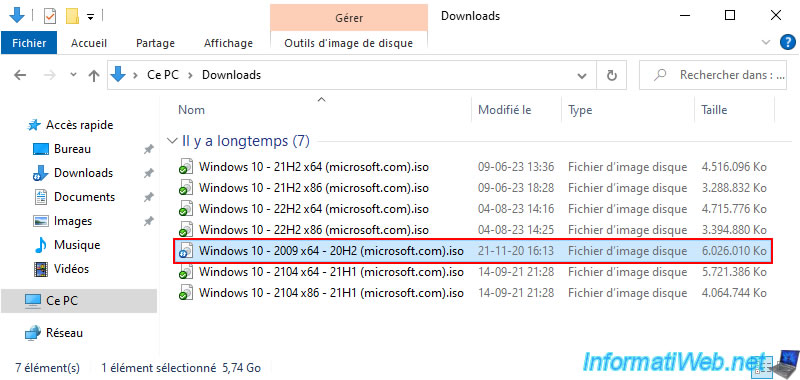
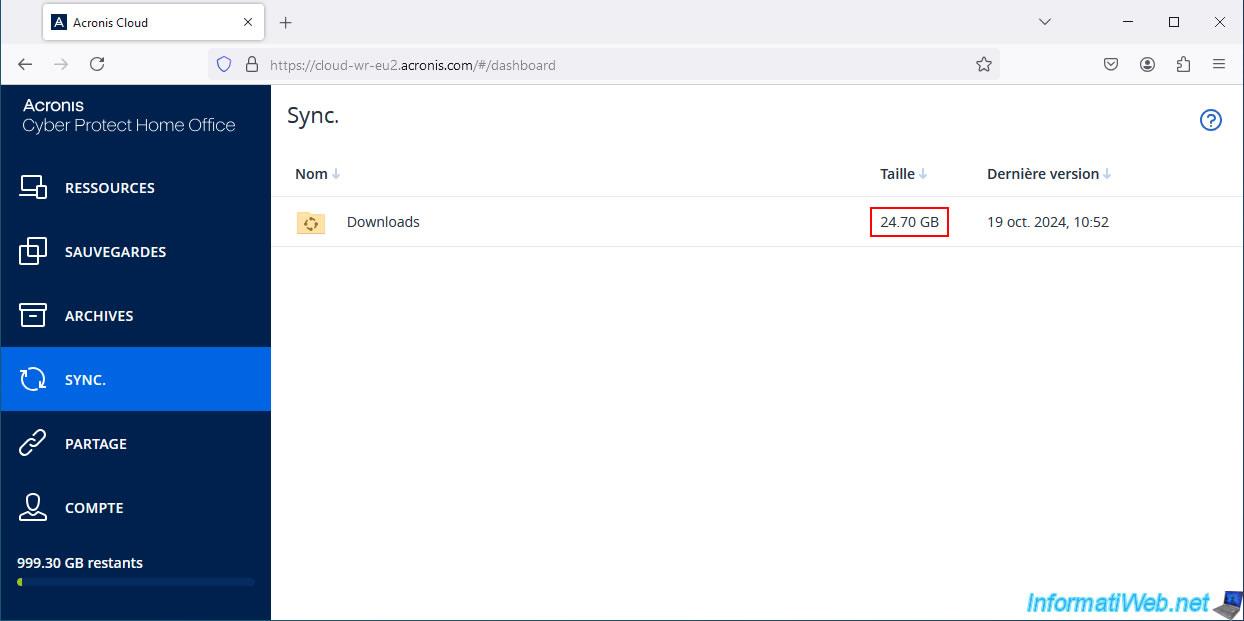
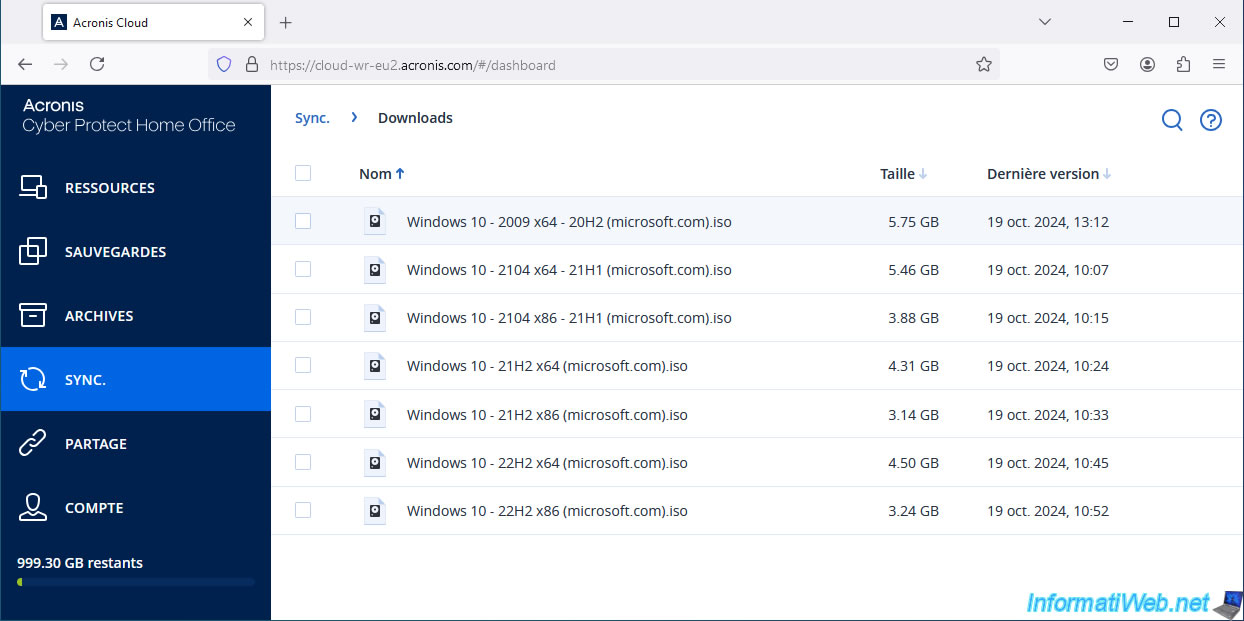
Once the desired file is added to your computer, go to the "Sync" section of Acronis Cloud and you will notice that the size of the folder being synced will increase.
Although the new file being synced will not appear instantly on Acronis Cloud.
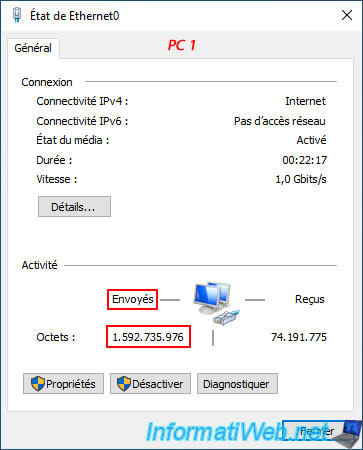
If you look at the amount of data sent from the PC where you add your files locally, you will see that it increases.
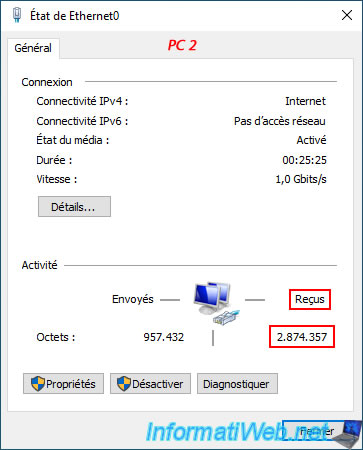
If you go to the other computer that is a member of your Acronis synchronization, you will notice that it does not receive anything.
Which proves that, although our 2 computers are still on the same local network, the 1st PC (where we added the new file) sends this new file only to Acronis Cloud.
A little later, if you view the contents of this synced folder on Acronis Cloud, you will see that the new file is there.
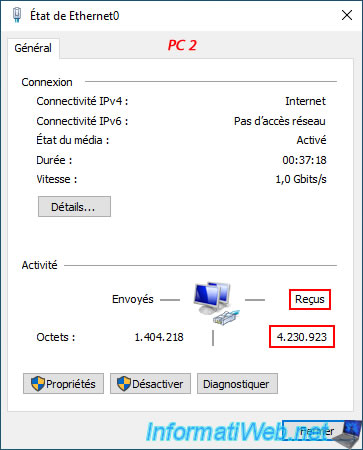
As expected, our 1st PC sent several gigabytes of data (which corresponds to the file added to Acronis Cloud via Acronis sync).

On the other hand, our 2nd PC has not received anything for the moment.
Which is perfectly normal.
4. Synchronizing files from Acronis Cloud
Now that the file added on our 1st PC has been automatically synchronized to Acronis Cloud by Acronis Cyber Protect Home Office (True Image), you just have to wait a little.
Then, the other computer that is a member of your Acronis synchronization (in our case, the 2nd PC) will detect the presence of a new file in the folder synchronized on Acronis Cloud and will start downloading it in the background.
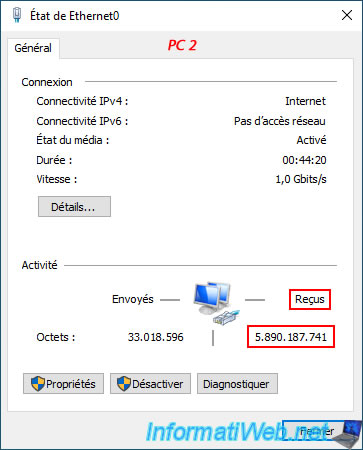
You will also be able to see in the properties of your network card that the amount of data received is increasing rapidly.
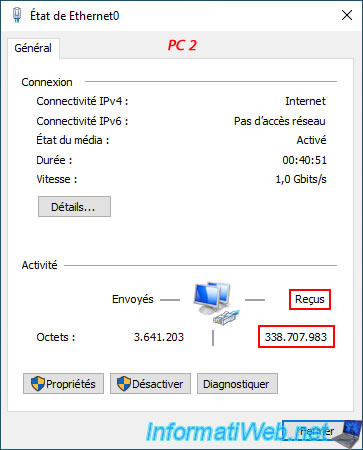
Note that Acronis Cyber Protect Home Office (True Image) does not display information about synchronization from Acronis Cloud.
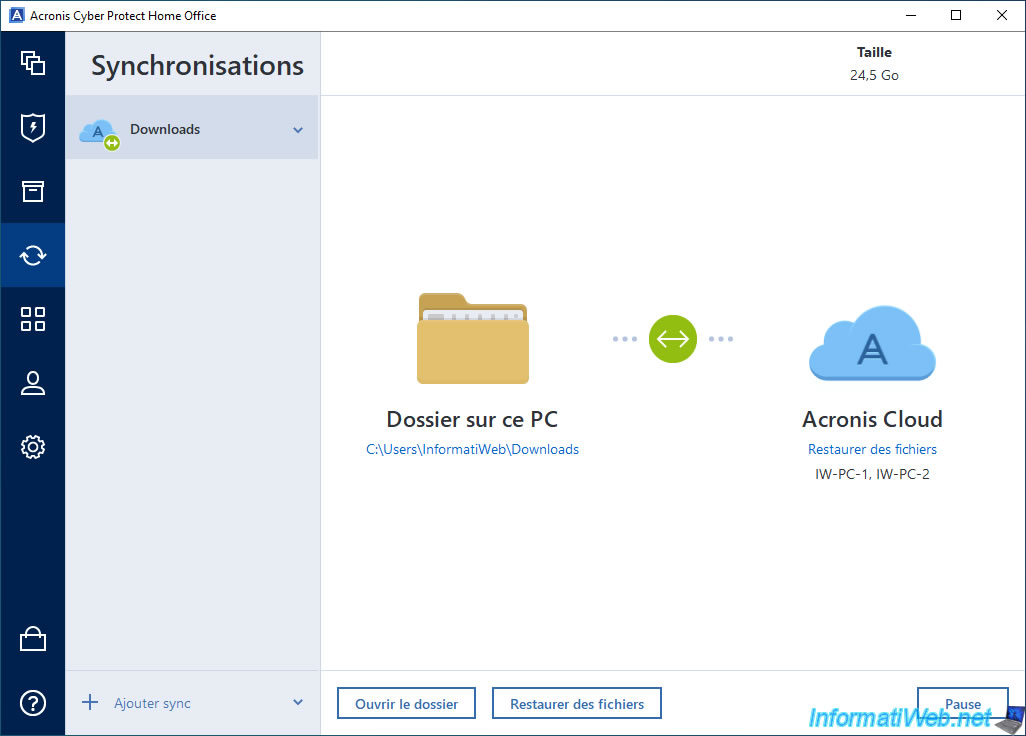
The amount of data received increases rapidly on this 2nd PC.
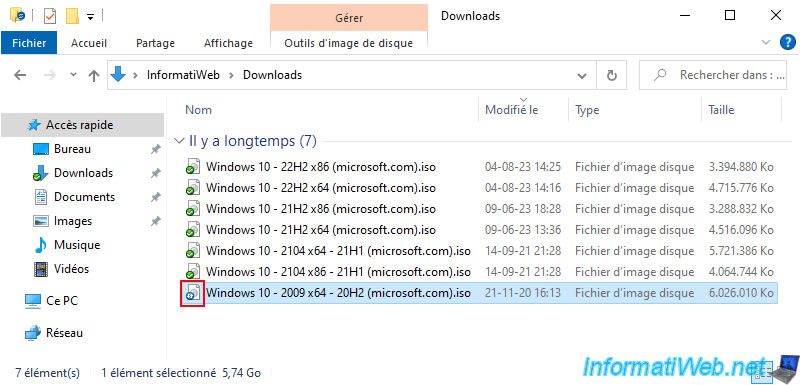
After a while, the file being synchronized will appear in the desired folder with a blue icon (which means that it is being synchronized by Acronis Cyber Protect Home Office (True Image)).
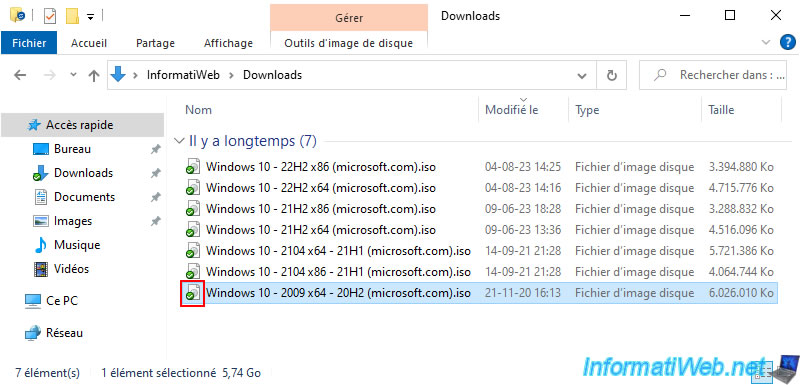
Then, the icon of this file will turn green.
Share this tutorial
To see also
-
Backup 10/27/2025
Acronis True Image - Archive your files locally (encrypted archive)
-
Backup 8/17/2026
Acronis True Image - Generate a report of your system
-
Backup 4/20/2026
Acronis True Image - Rescue Media - Backing up your PC to a FTP server
-
Backup 2/9/2026
Acronis True Image - Rescue Media - Create media (Win PE version) on Win 8
You must be logged in to post a comment