Virtualize a physical PC to VirtualBox (P2V) using Acronis True Image (Cyber Protect Home Office) and Acronis Universal Restore
- Backup
- Acronis True Image, Acronis Universal Restore
- 07 September 2026 at 13:50 UTC
-

- 4/8
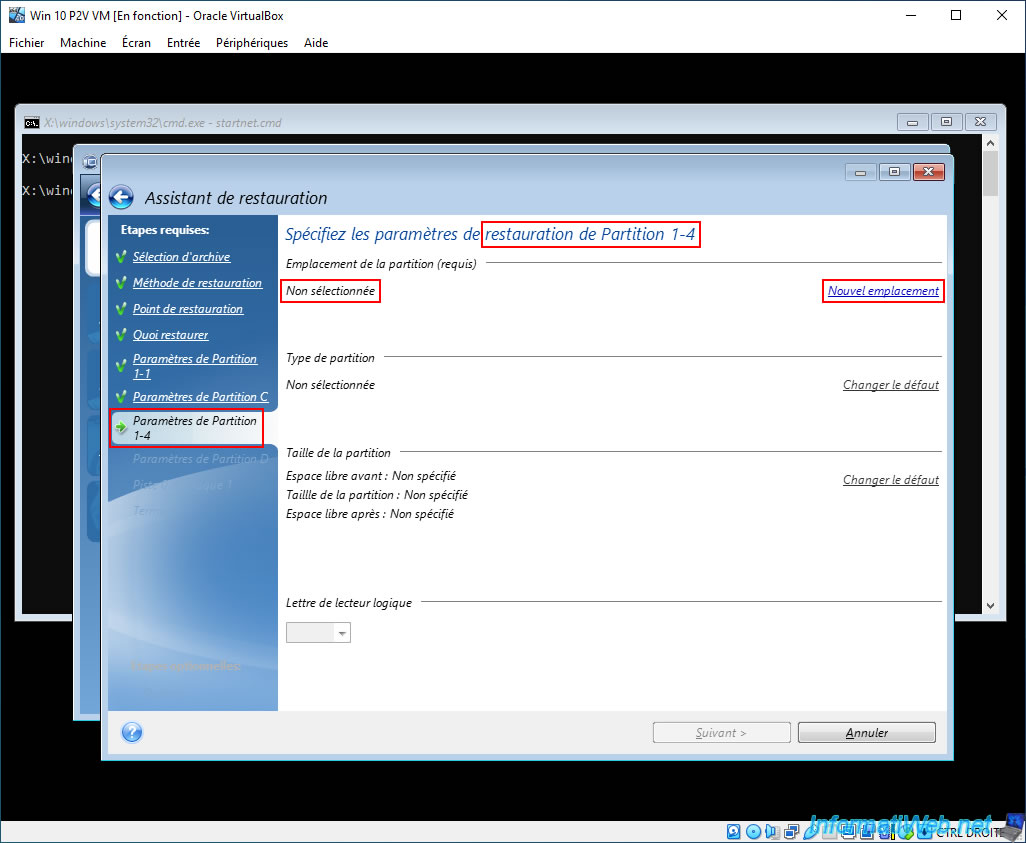
For the 3rd partition to restore (Partition 1-4), click the "New Location" link again.
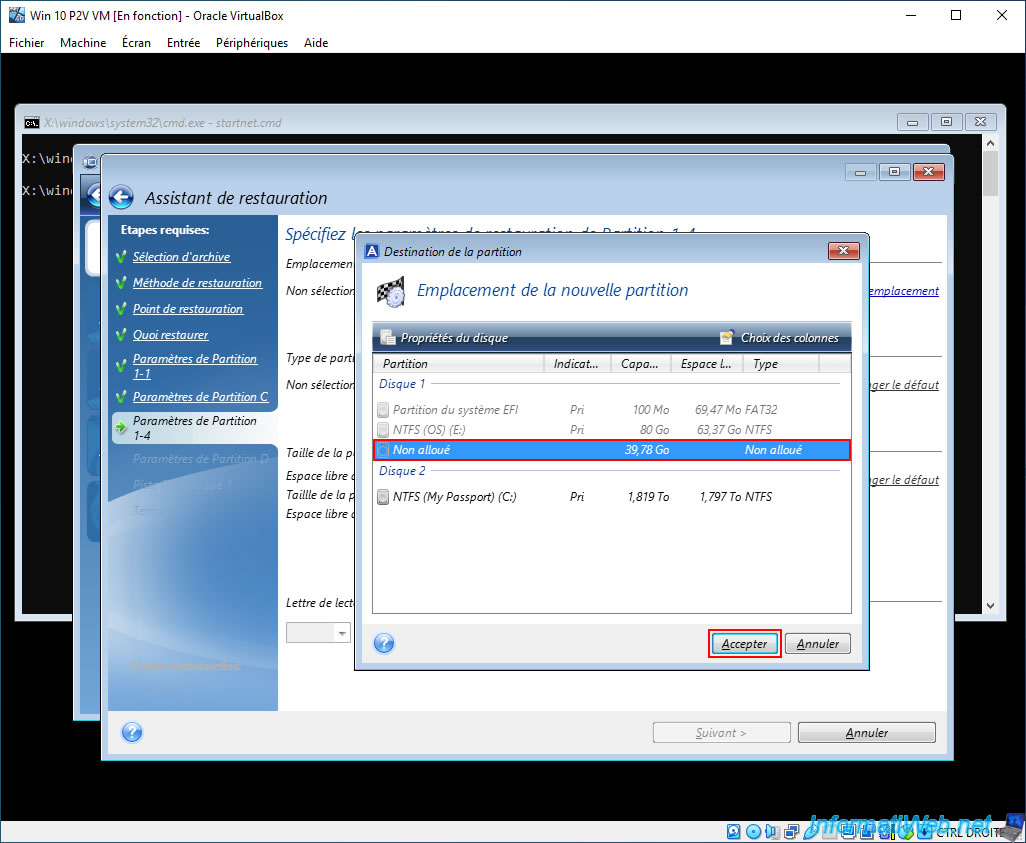
Again, select the "Unallocated" space of disk 1 and click "Accept".
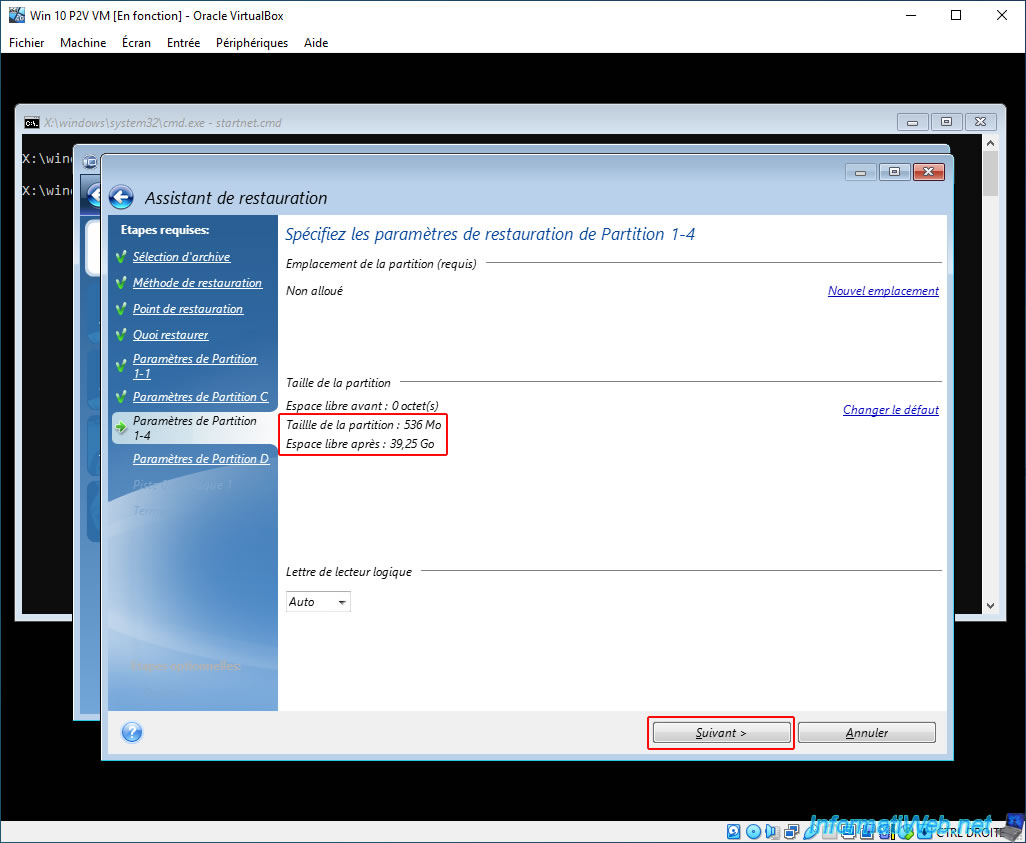
As you can see, this 3rd partition to restore (Partition 1-4) corresponds to the "Recovery Partition" (i.e. Windows RE) of Windows 10 which has a size of 536 MB in our case.
For this partition, Acronis already indicates the partition size adapted (536 MB in our case) for this system partition.
Which will therefore leave several gigabytes (GB) free on your virtual hard drive to restore the remaining partition.
So, click directly on "Next".
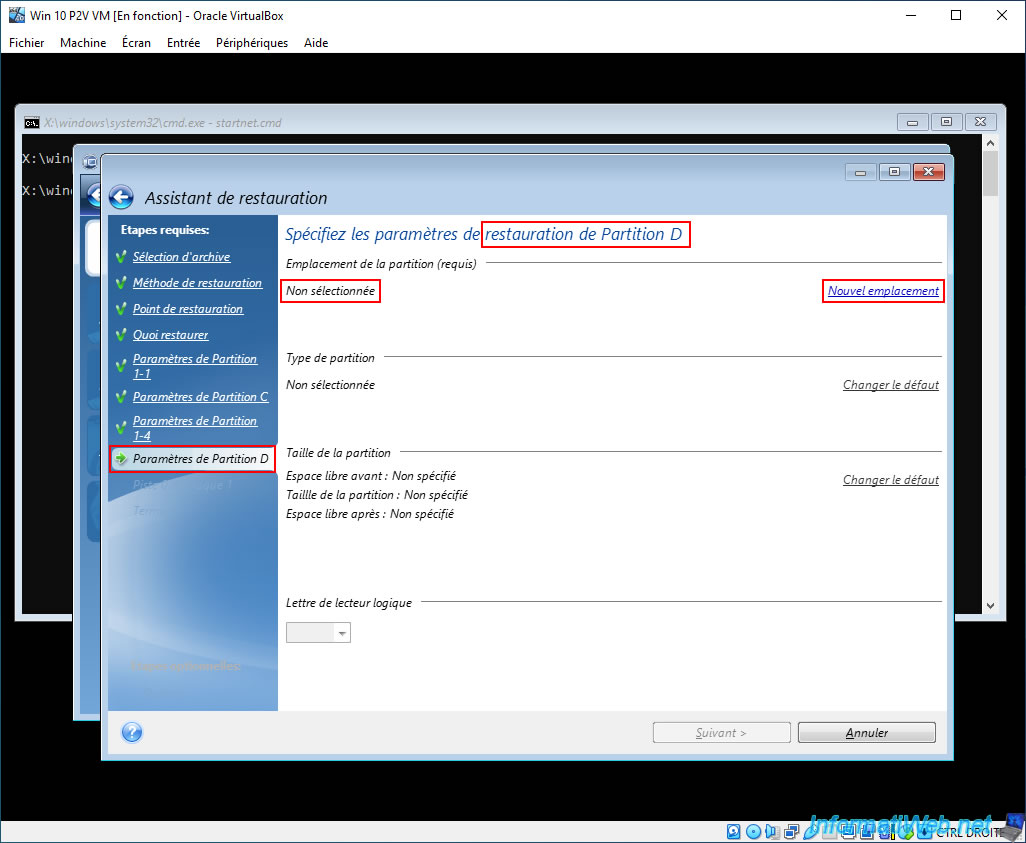
For the 4th partition to restore (Partition D), click the "New Location" link again.
Select the "Unallocated" space of Disk 1 again and click Accept.
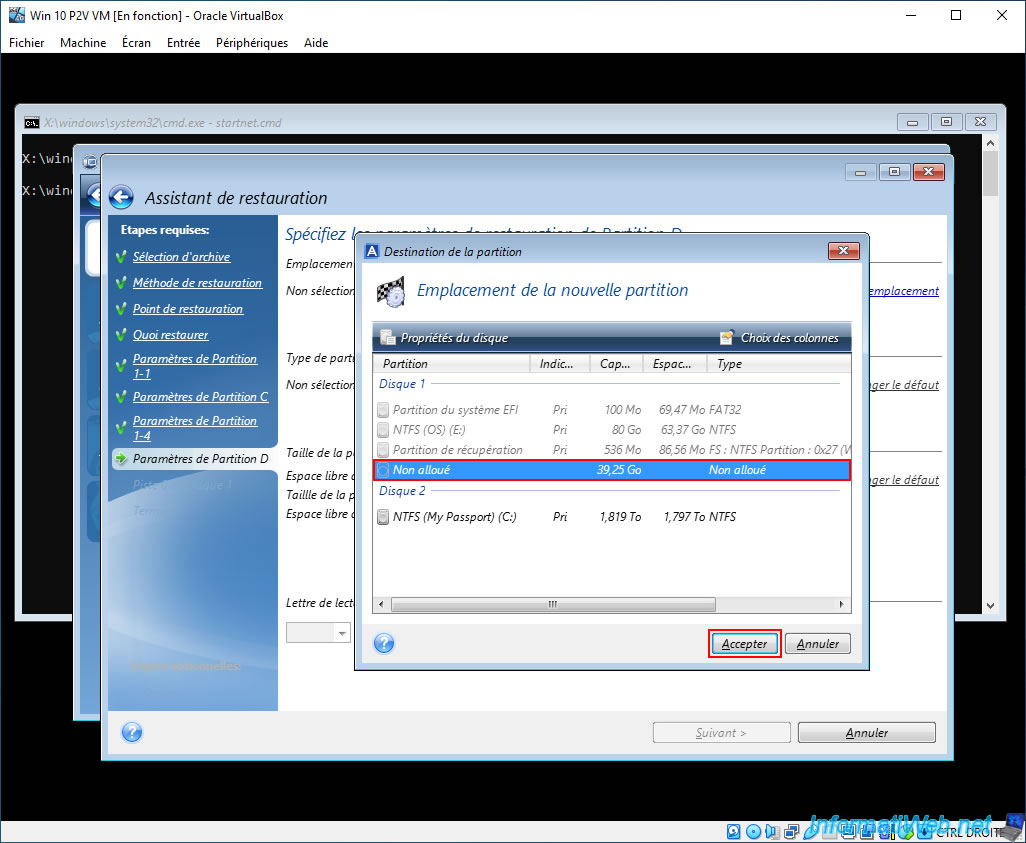
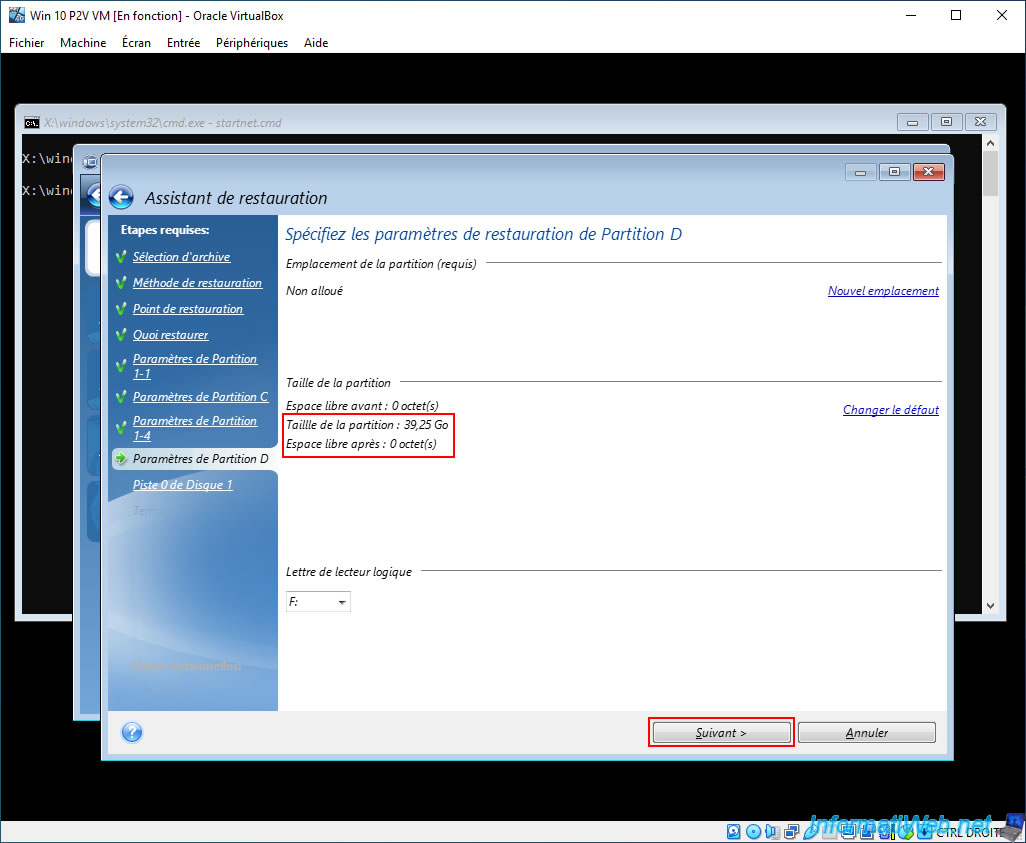
Since this is again a large partition, Acronis will use all the remaining space on our disk.
But, it doesn't matter and it's good this time, because this is the last partition to restore on our virtual hard disk.
So, click "Next".
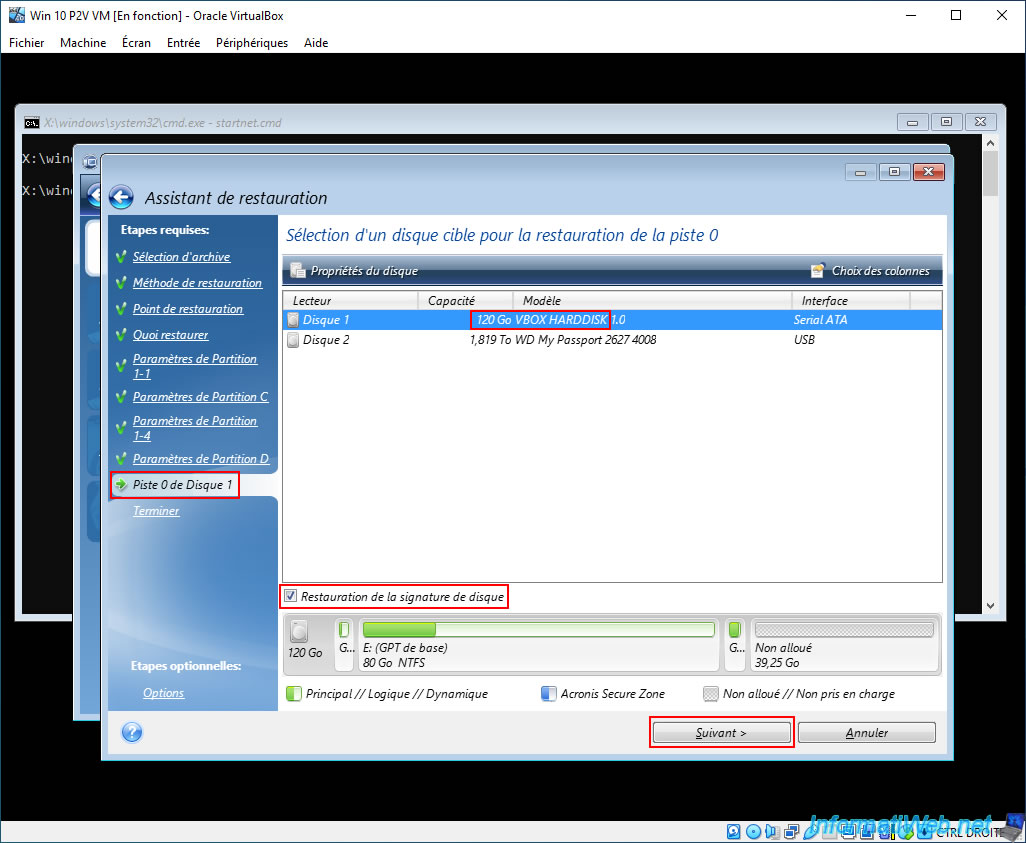
Note: there is no need for free disk space to restore "Track 0" (visible in the next step, in the left menu), because track 0 will be restored to the beginning of the hard disk (and therefore outside the disk space reserved for partitions).
To restore disk track 0 (= MBR), select disk 1 (i.e. the same one selected for partition restoration) with the model "VBOX HARDDISK ...".
When you want to restore a backup containing a Windows installation, Acronis recommends that you check the "Disk signature restoration" box.
Indeed, restoring this disk signature is necessary for:
- that Acronis Cyber Protect Home Office (True Image) installed on the backed up physical PC (if any) automatically recovers its tasks, because Acronis relies on the disk signature to find your disk.
- some applications whose license is linked to your disk signature.
- use Windows restore points (if any).
- use VSS snapshot restore when using the "Previous versions" feature available in Windows 7 and Vista.
Source : Selecting target disk for MBR recovery - Acronis True Image 2016.
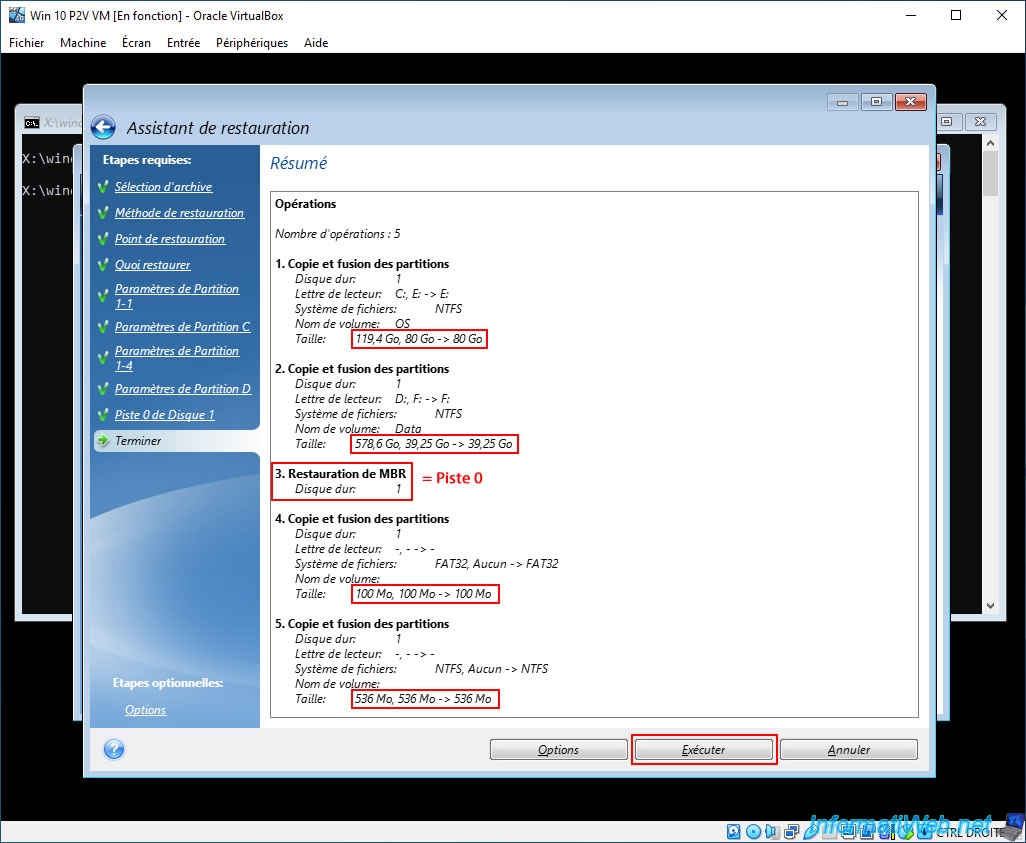
In the summary of this restore wizard, you will see that the partitions will have changed in size.
You will also see that the MBR (which corresponds to the "Track 0" previously proposed in the restore wizard) will also be restored on your disk 1 (which corresponds to the virtual hard disk "VBOX HARDDISK").
Click "Run" to start restoring the partitions and the MBR (Track 0) from your Acronis backup to the virtual hard disk of your virtual machine.
Please wait while the partitions and MBR (Track 0) are restored.
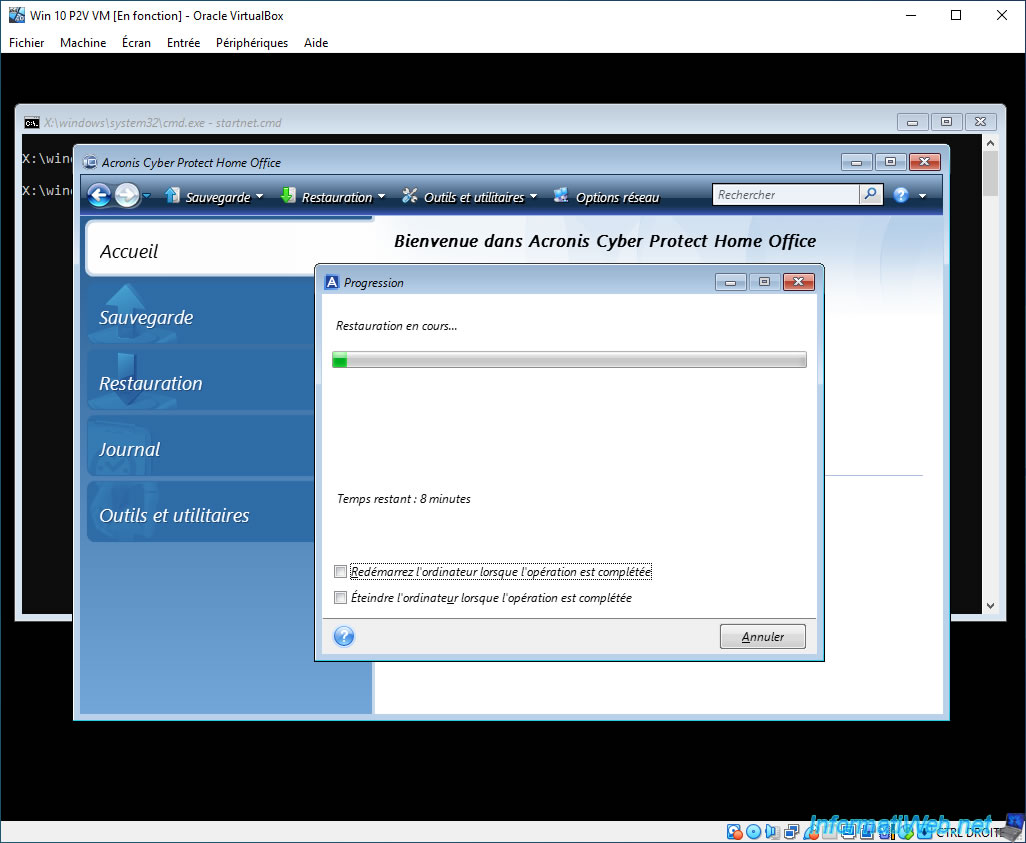
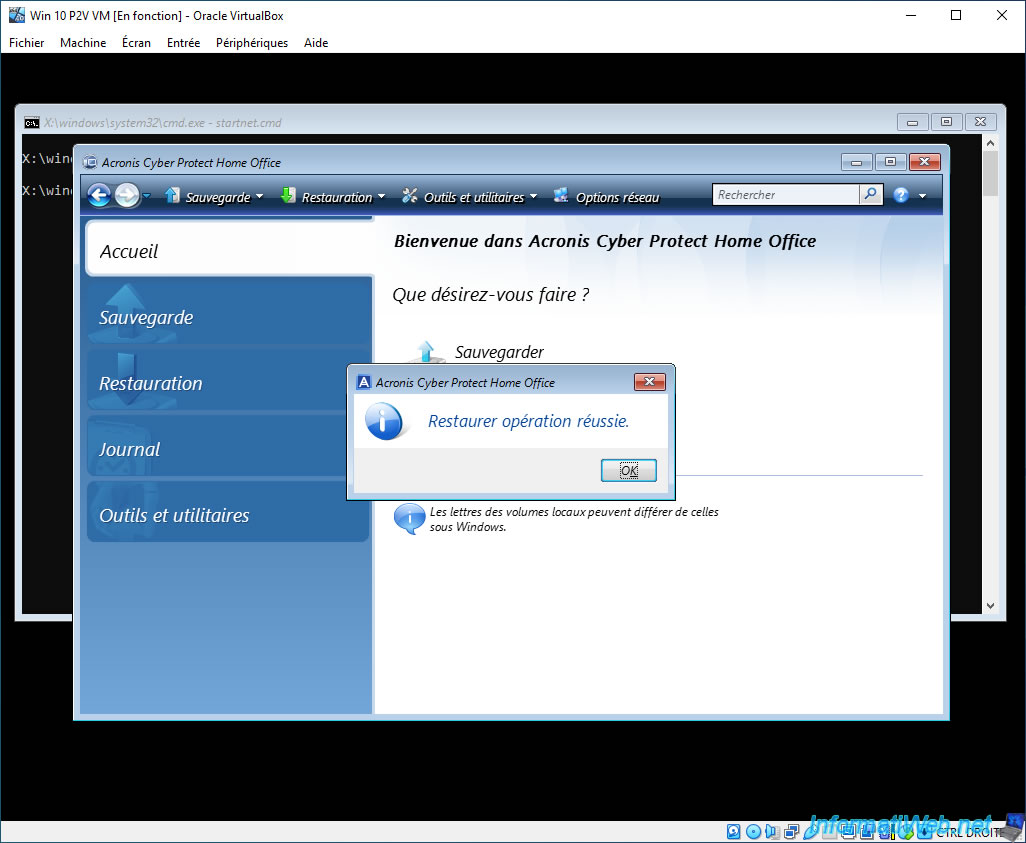
Once the restore is complete, the message "Restore operation successful" will appear.
Click OK.
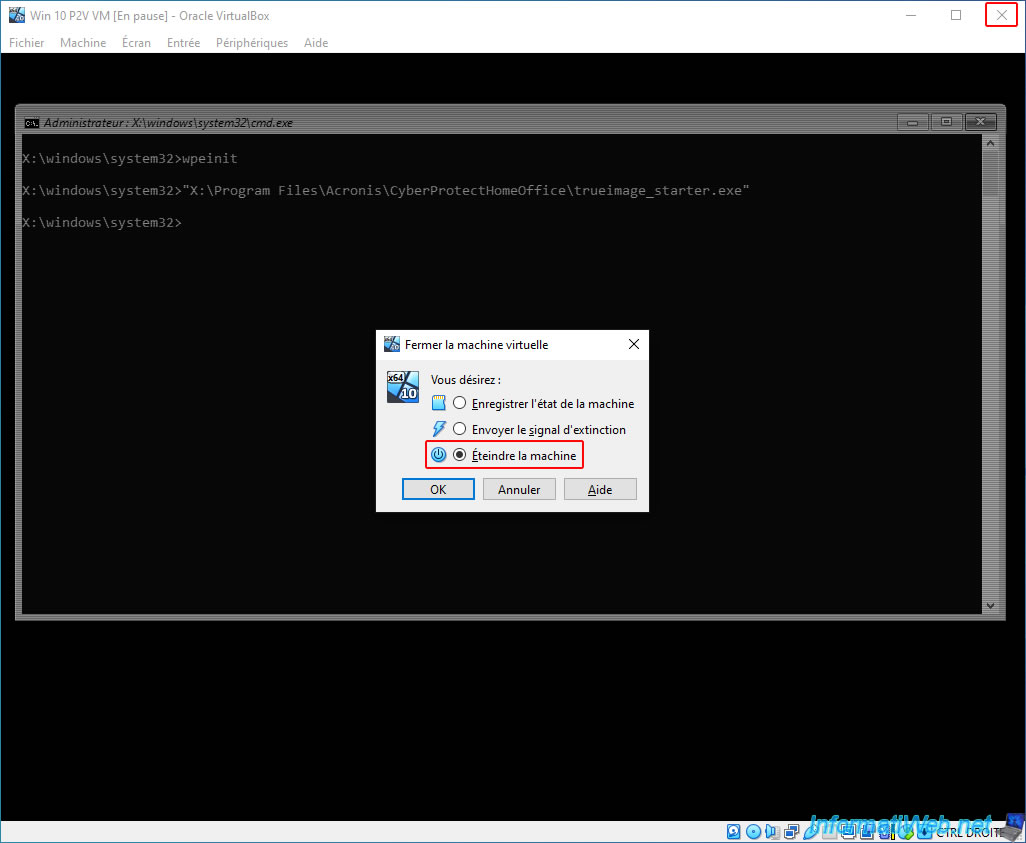
Close the Acronis program, then close your VirtualBox virtual machine window.
In the small "Close Virtual Machine" window that appears, select "Turn off machine" and click OK.
Share this tutorial
To see also
-
Backup 9/18/2025
Acronis True Image - Clean up Cloud smartphone backups
-
Backup 6/15/2026
Acronis True Image - Create an Acronis Secure Zone
-
Backup 8/28/2025
Acronis True Image - Create backups and authenticate your files (on Acronis Cloud)
-
Backup 1/19/2026
Acronis True Image - Rescue Media - Create media (Linux version)
No comment