Virtualize a physical PC to VMware ESXi (P2V) using Acronis True Image (Cyber Protect Home Office) and Acronis Universal Restore
- Backup
- Acronis True Image, Acronis Universal Restore
- 21 September 2026 at 13:05 UTC
-

- 4/8
5. Disconnect your external hard drive from your virtual machine (VM)
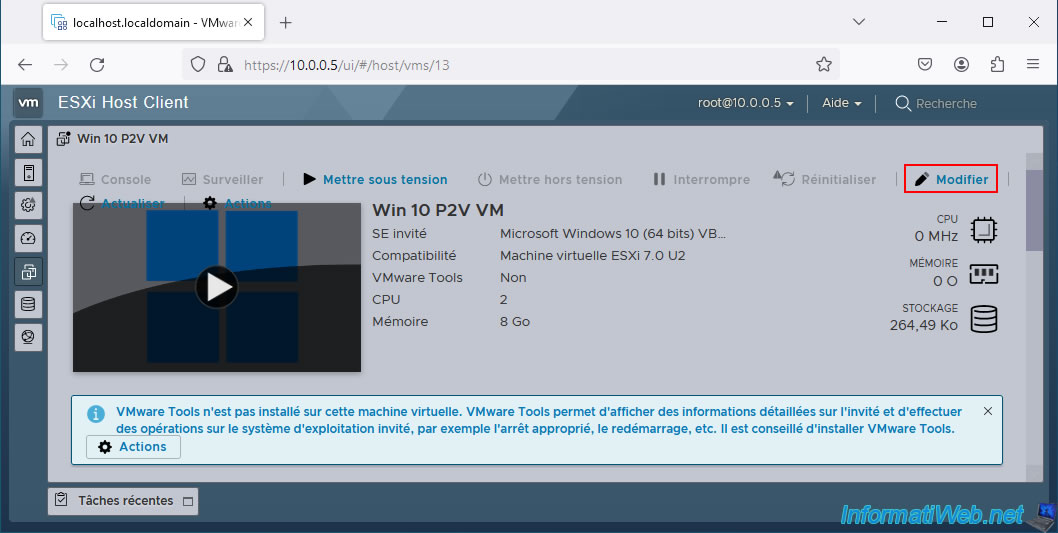
Now that you have restored the partitions from your backup, you can disconnect your USB external hard drive from your virtual machine.
To do this, click on "Modify".
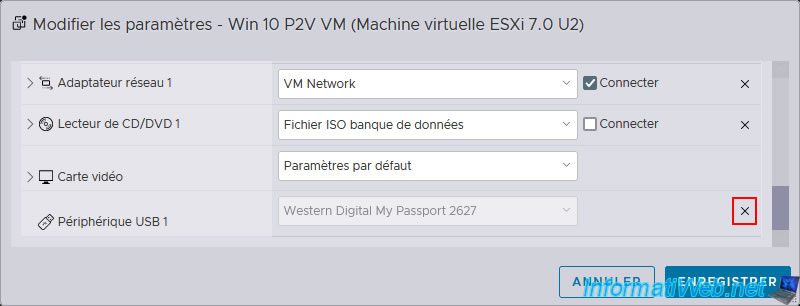
Next, click on the cross (X) to the right of "USB Device 1".
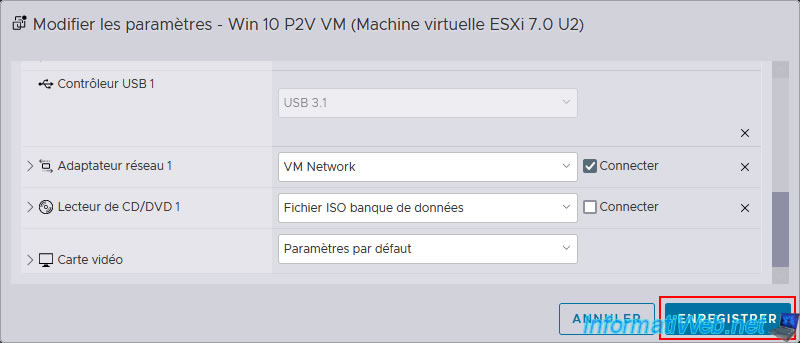
Then, click "Save".
6. Extract drivers from VMware Tools (recommended for using Acronis Universal Restore)
For Acronis Universal Restore to maximize your chances of being able to boot Windows into your VMware virtual machine despite the hardware change between the physical PC backed up via Acronis and your VM, you will need VMware drivers.
However, these are not directly visible in the VMware Tools ISO and you will need to extract them from the VMware Tools installer.
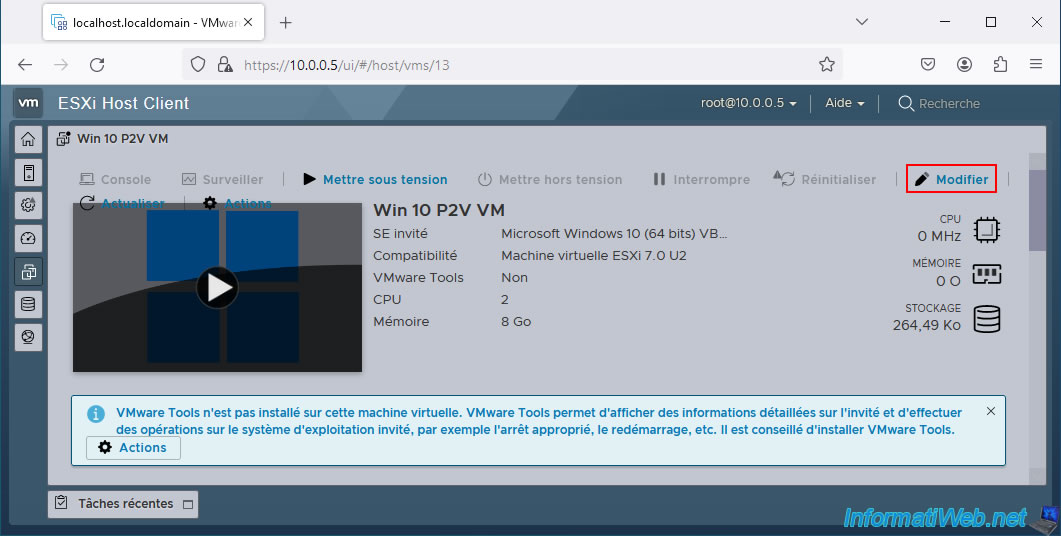
To do this, modify the configuration of your VM.
Expand the "CD/DVD Drive 1" section and click "Browse".
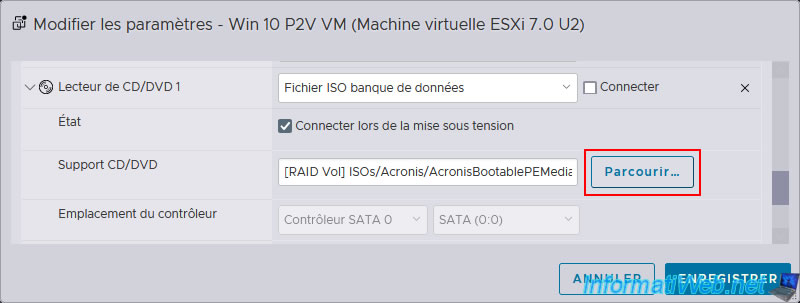
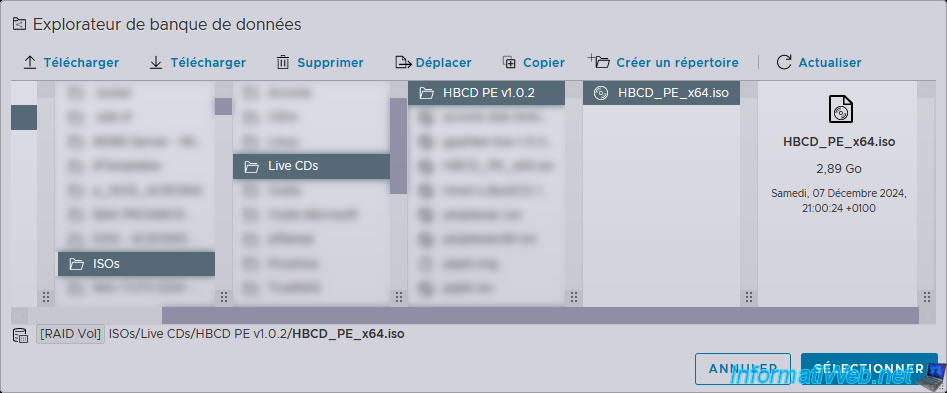
Download Hiren's BootCD PE version 1.0.2 and upload the downloaded "HBCD_PE_x64.iso" file to your datastore.
Then select this ISO file and click "Select".
Warning : it's important to use version 1.0.2 of this live CD to benefit from a Windows PE environment in Windows 10 version.
Which is no longer the case with the latest version (1.0.8) of this live CD where Windows PE has been updated to Windows 11.
Which would cause an error "The specified path 'X:\Users\Default\AppData\Roaming\Microsoft\' is unavailable" while trying to extract VMware Tools drivers.
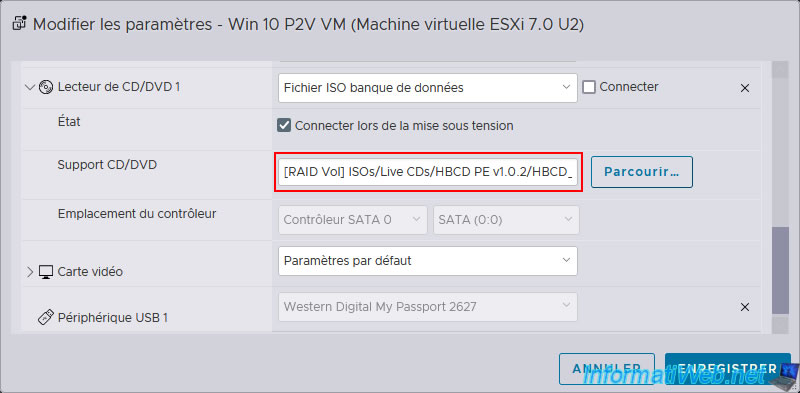
The HBCD PE ISO file has been inserted into your VM's CD/DVD drive.
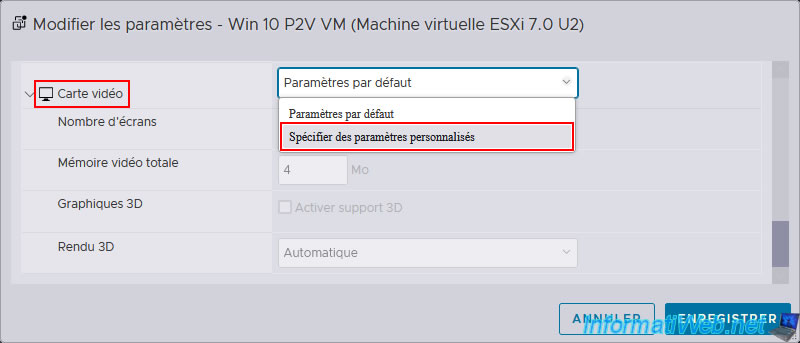
To avoid a display bug (where the screen of this live CD appears diagonally instead of displaying correctly) that occurs in some cases, you will need to temporarily change the video card settings of your VM.
As you can see, by default, the "Default settings" option is selected.
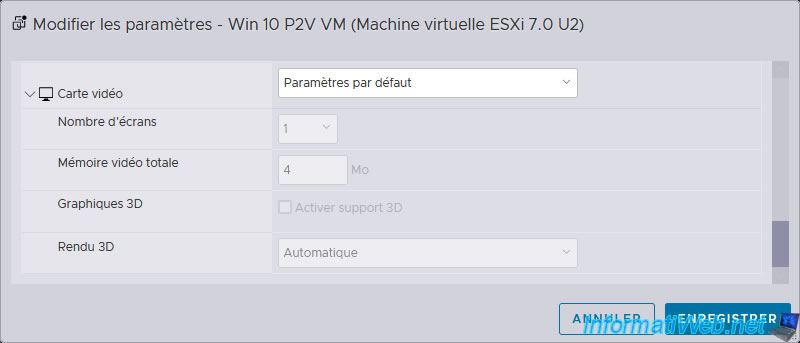
To fix the problem, simply select the "Specify custom settings" option for the video card.
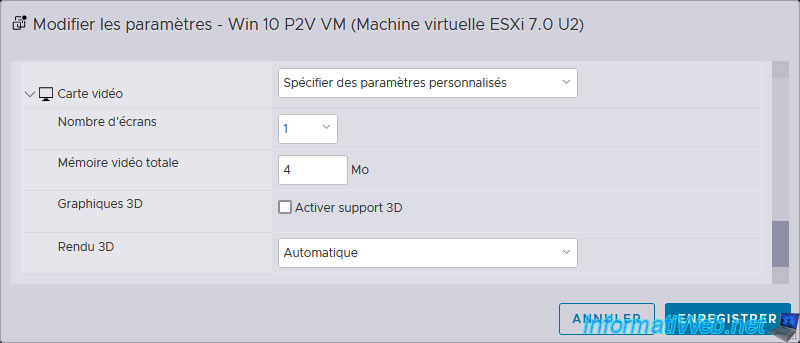
For the video card settings, leave the default values.
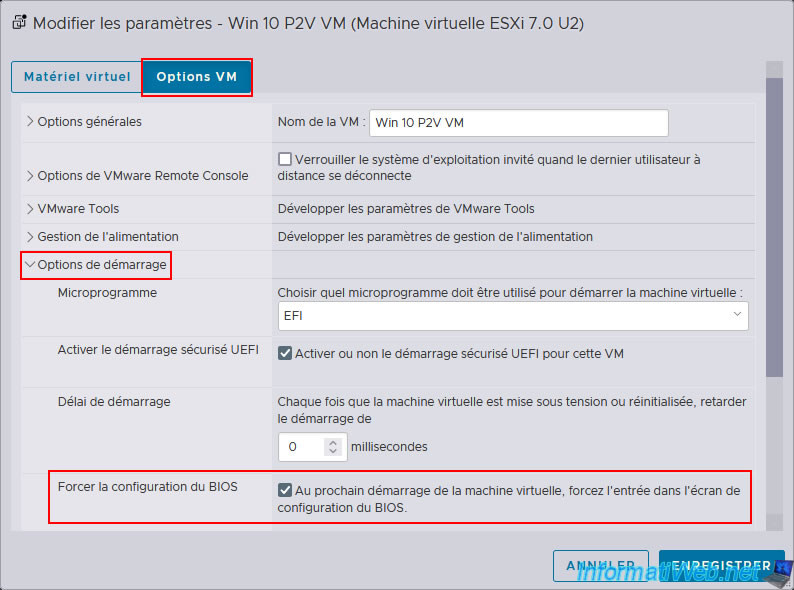
Then, in the "VM Options" tab (visible at the top), go to the "Boot Options" section and check the box for the "Force BIOS Configuration" option.
Now, click "Save".
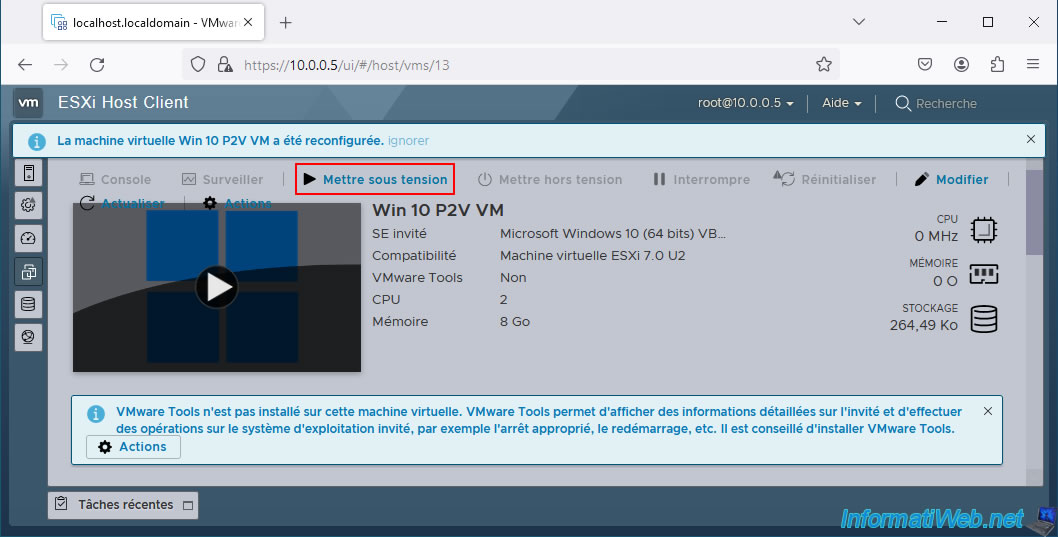
Start your virtual machine.
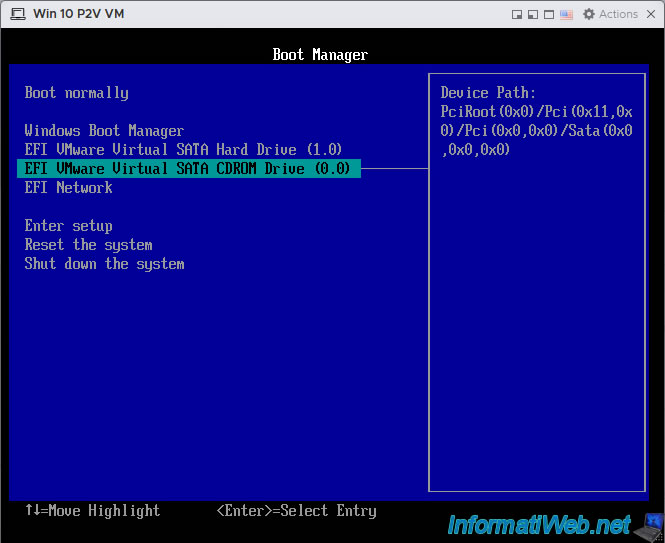
Select your VM's CD/DVD (EFI ... CDROM Drive) and press Enter to boot to the live "HBCD PE" you inserted earlier.
The "Loading files" message will appear.
The Windows loading logo will appear.
As you can see from the wallpaper of this HBCD live, Hiren's BootCD PE version 1.0.2 is based on Windows 10.
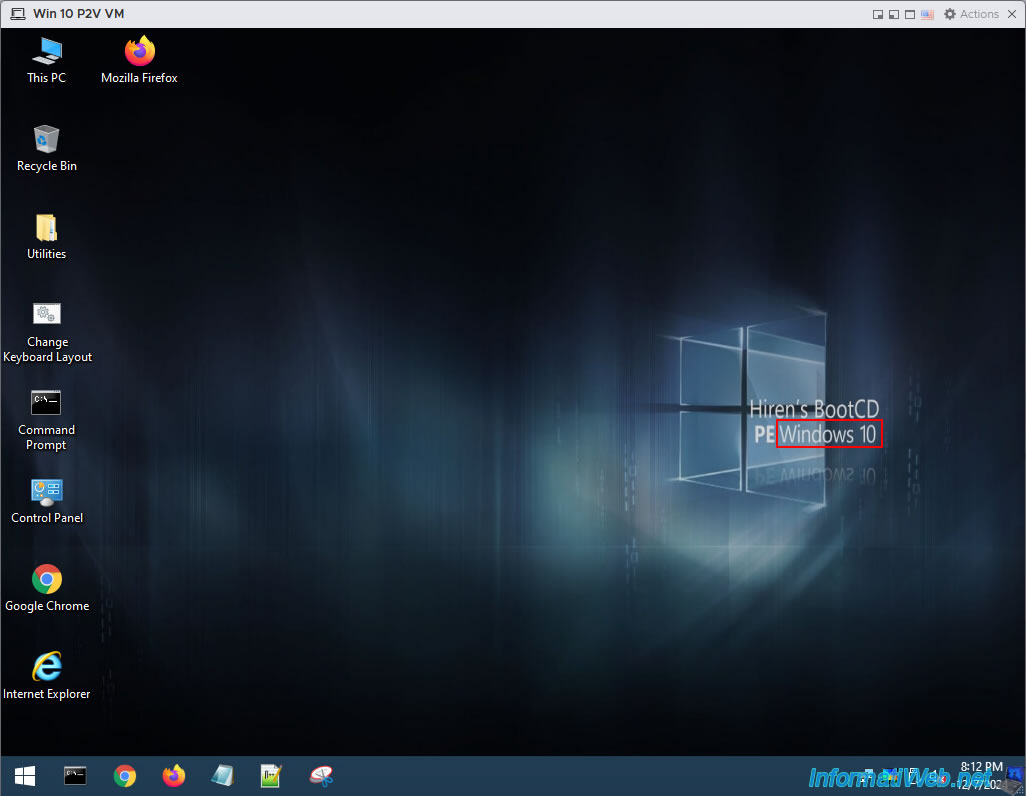
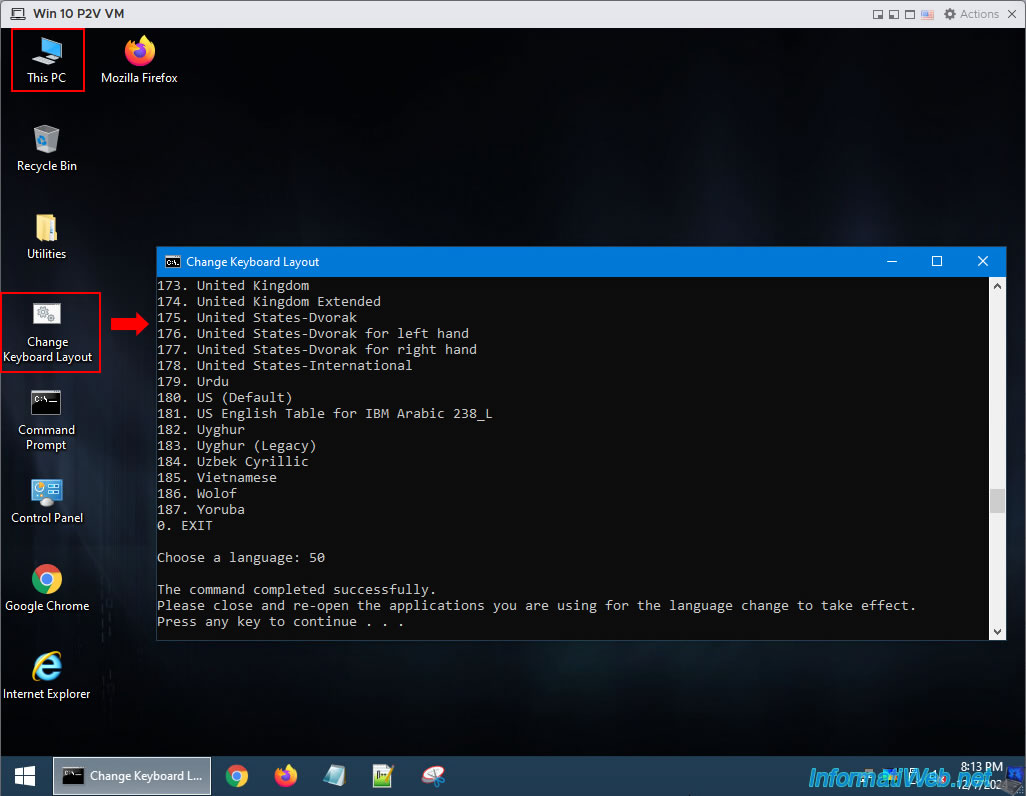
To get started, double-click the "Change Keyboard Layout" shortcut and choose your keyboard language.
- 50 for the "French (France)" keyboard.
- 16 for the "French (Belgium)" keyboard.
Then, press Enter and close all open applications (if applicable) and relaunch them to take into account the new keyboard layout chosen.
Now, double-click on "This PC" to open the file explorer.
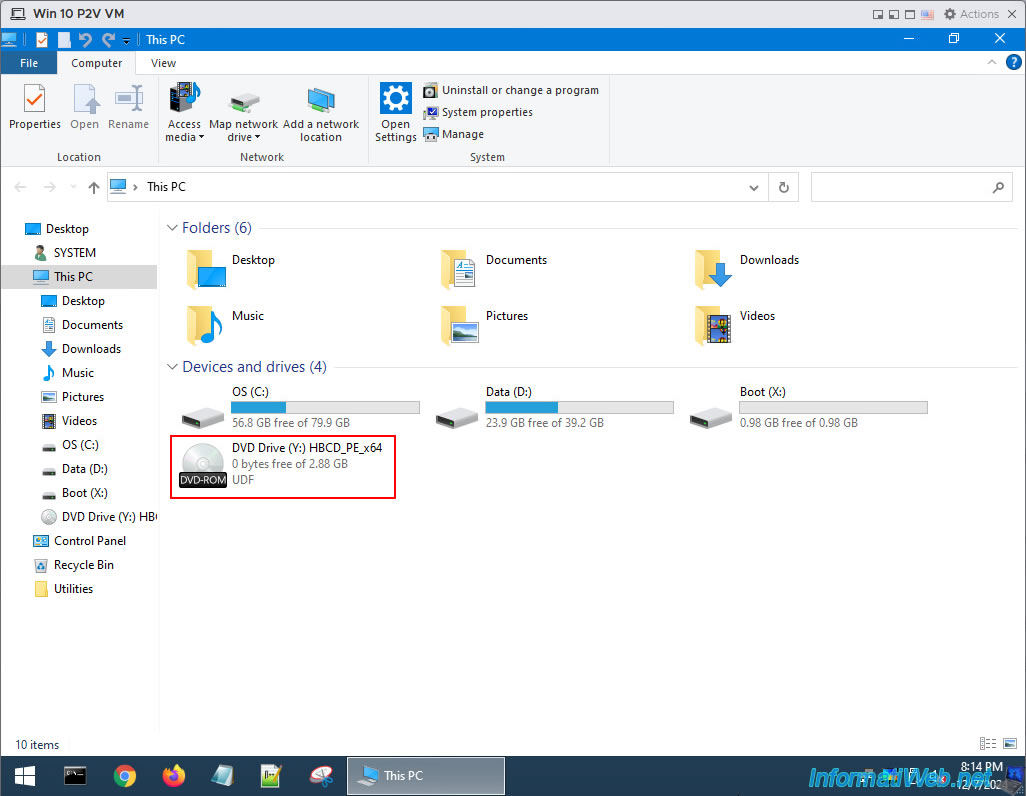
As you can see, at the moment, it is the "HBCD PE" live CD that is in your VM's CD/DVD drive.
However, since the Windows PE environment you are currently using is running entirely in your VM's RAM, you can remove this CD temporarily without any problem.
Share this tutorial
To see also
-
Backup 7/7/2025
Acronis True Image - Backup files or folders
-
Backup 9/25/2025
Acronis True Image - Backup your Microsoft account to Acronis Cloud (encrypted backup)
-
Backup 9/18/2025
Acronis True Image - Clean up Cloud smartphone backups
-
Backup 9/8/2025
Acronis True Image - Clean up local smartphone backups
No comment