Virtualize a physical PC to VMware ESXi (P2V) using Acronis True Image (Cyber Protect Home Office) and Acronis Universal Restore
- Backup
- Acronis True Image, Acronis Universal Restore
- 21 September 2026 at 13:05 UTC
-

- 5/8
To extract the drivers present in VMware Tools, you must first insert the VMware Tools ISO into your VM's CD/DVD drive.
To do this, click on: Actions -> Guest OS -> Install VMware Tools.
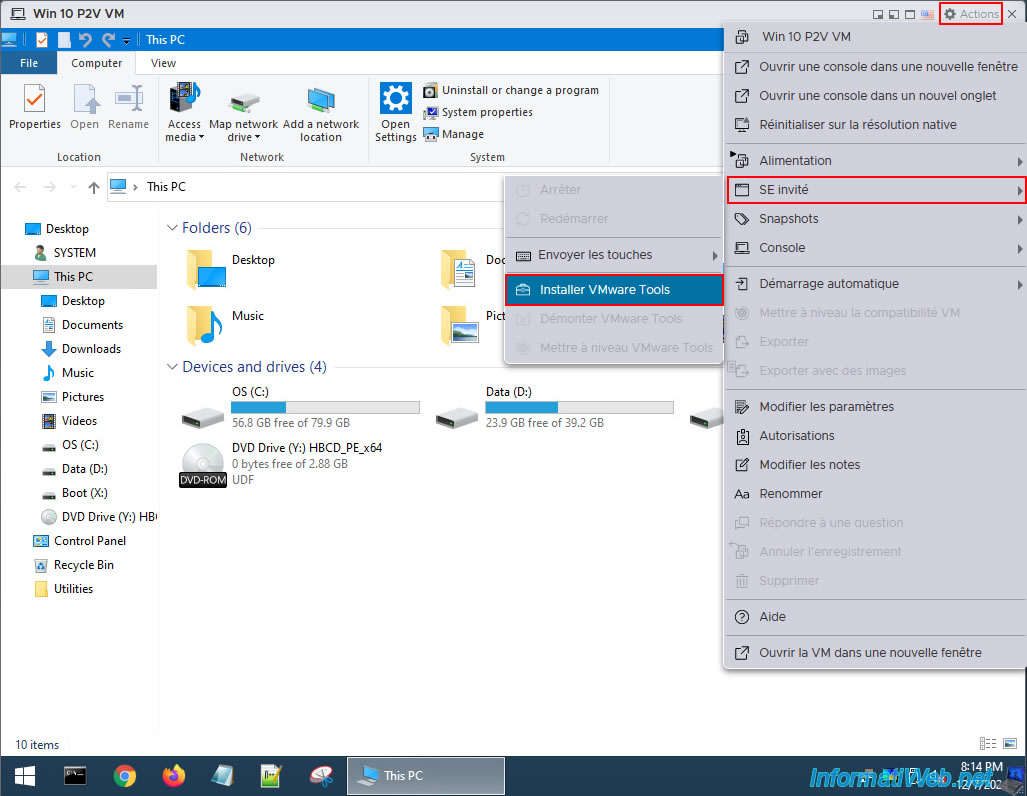
As expected, the VMware Tools CD has been inserted into your VM's DVD drive.
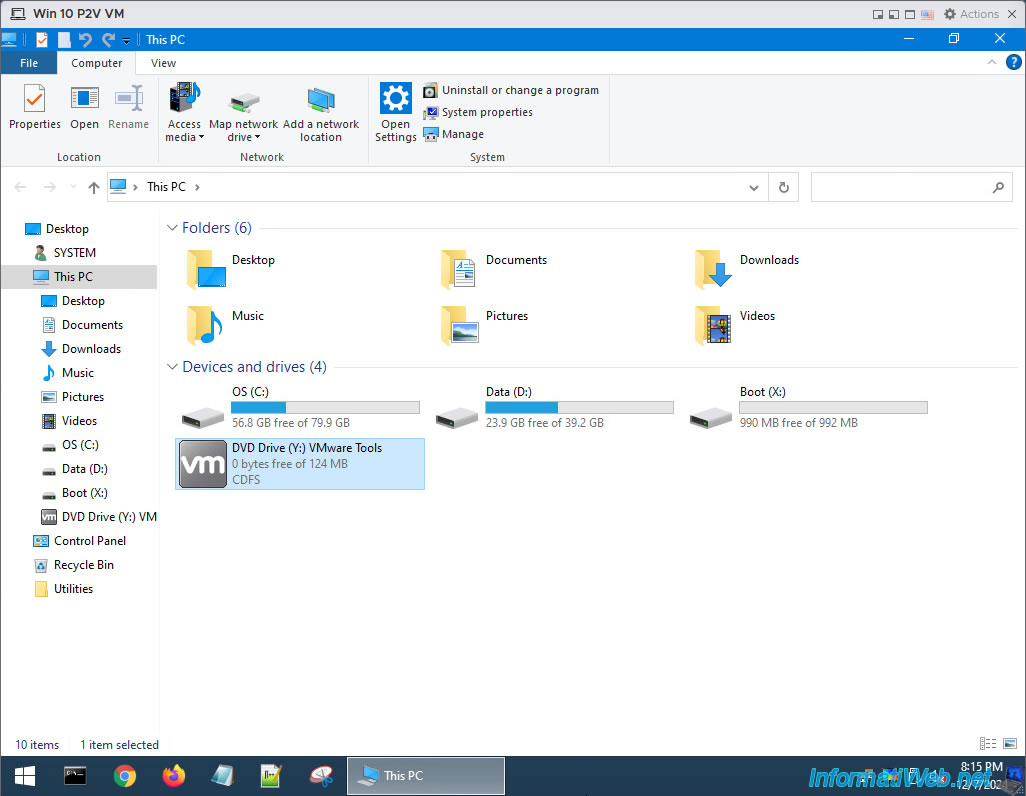
Right click on it and click "Open command windows here".
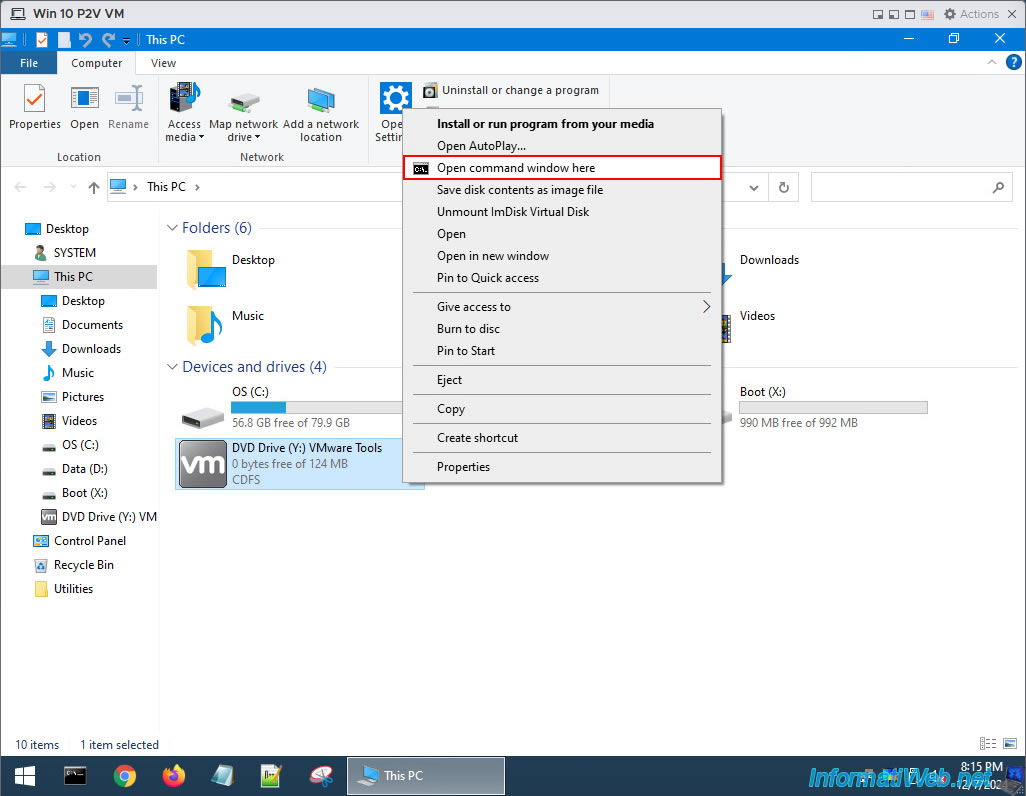
The goal is that the command prompt (cmd.exe) that appears uses by default the location of your CD/DVD drive as the current folder.
So, all you have to do is type the command below to extract the drivers to the desired location.
Batch
setup.exe /a C:\vmware-drivers
Warning : you must extract the drivers to a partition on your VM's virtual hard disk.
Do not use the "X:\" partition (which corresponds to Windows PE) as a destination, because its content is located in the VM's RAM and will therefore be erased when you stop or restart your VM.
Once the command is executed, you will see that the VMware Tools installer has launched in a different mode that allows you to create a VMware Tools server image.
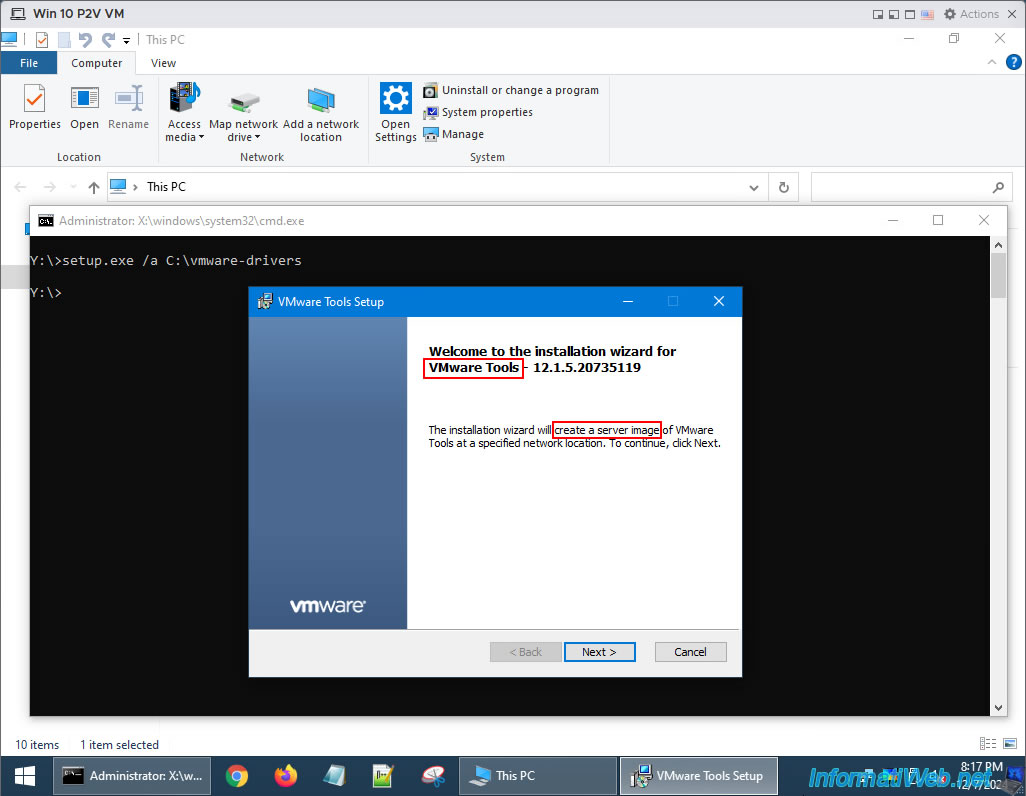
The destination path selected by the installer will be the one specified in the command executed previously.
So, just click "Install".
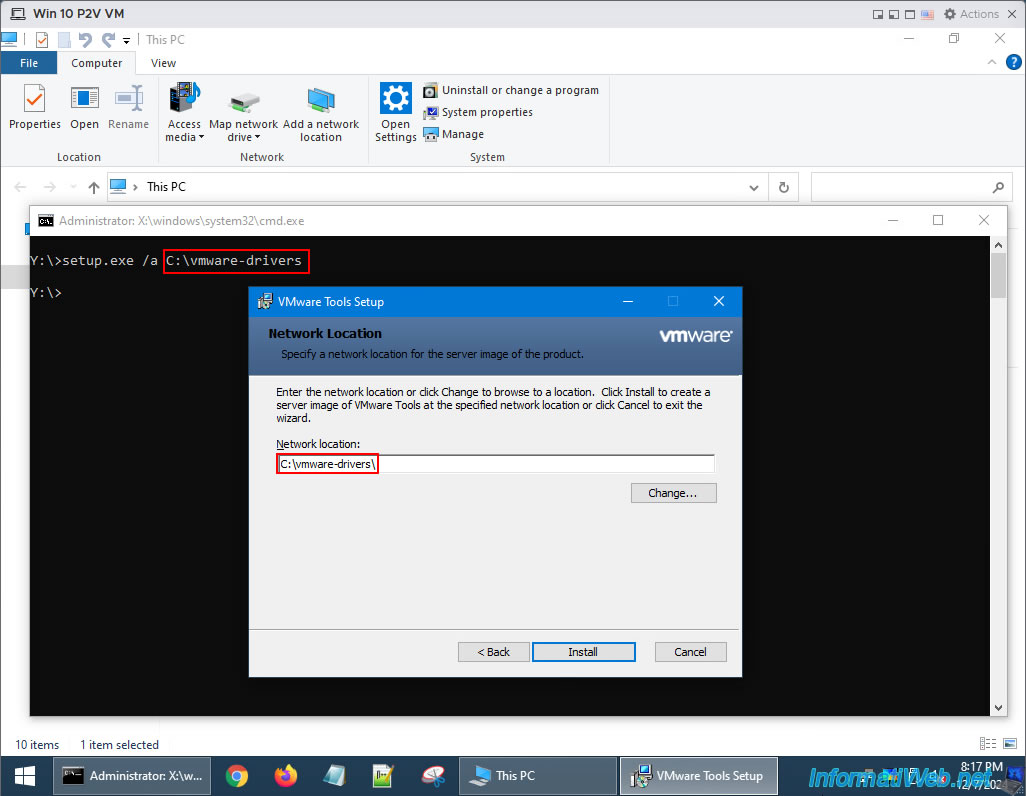
Wait while the VMware Tools files (including drivers you will need later with Acronis Universal Restore) are extracted.
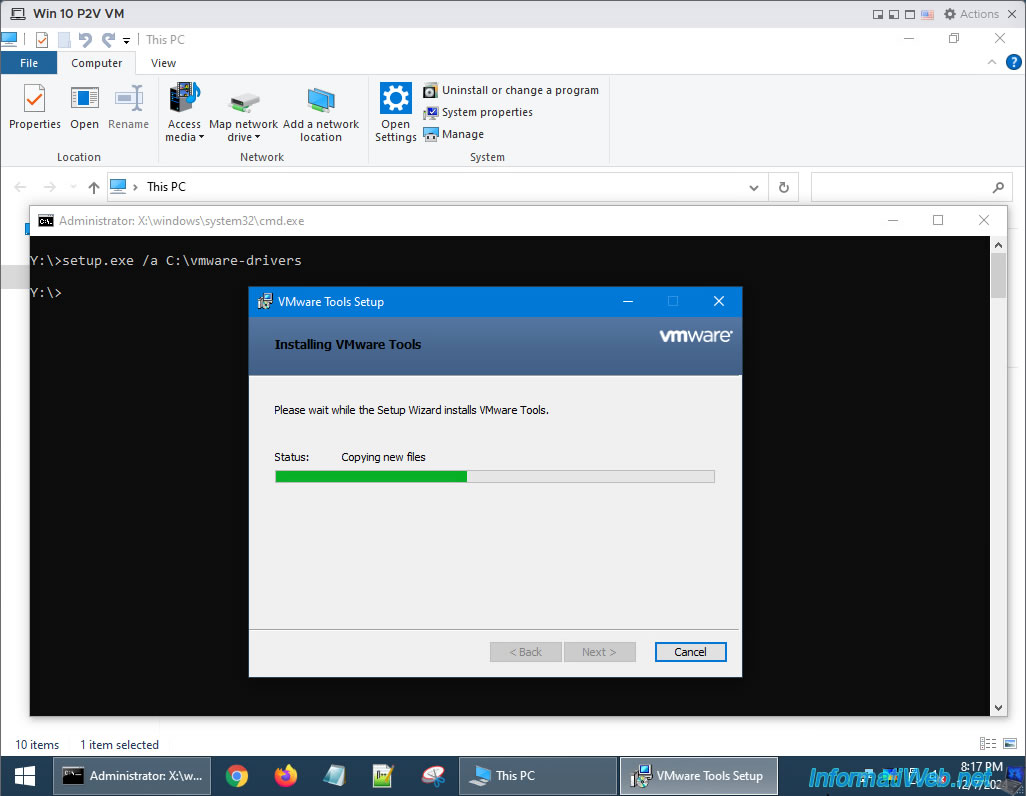
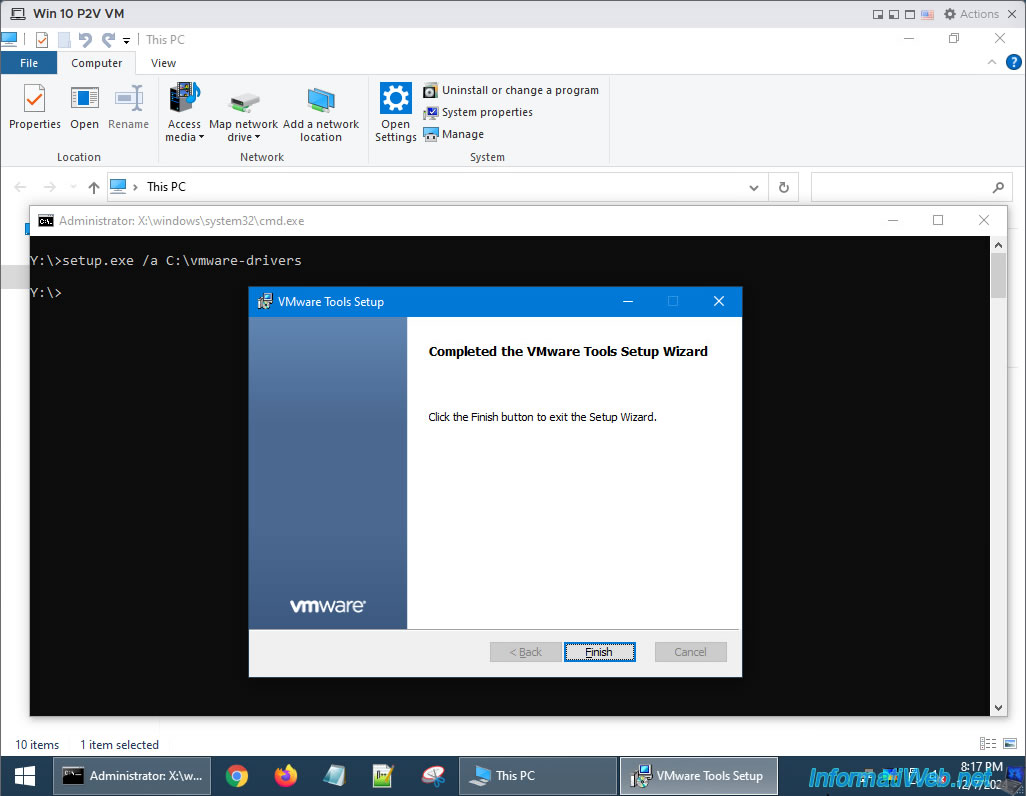
Once the VMware Tools files have finished extracting, click "Finish".
If the VMware Tools CD is not automatically removed by your VMware ESXi hypervisor, then click: Actions -> Guest OS -> Unmount VMware Tools.
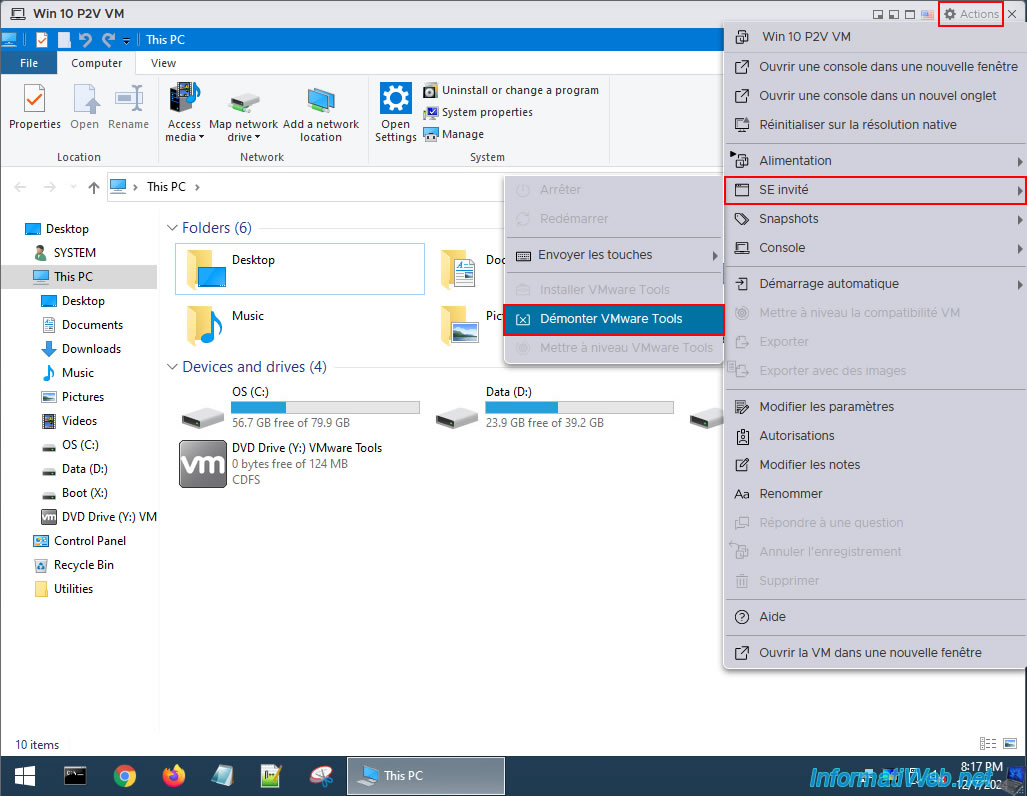
A few seconds later you will see that it is again the live CD "HBCD PE" which is in the DVD drive of your VM.
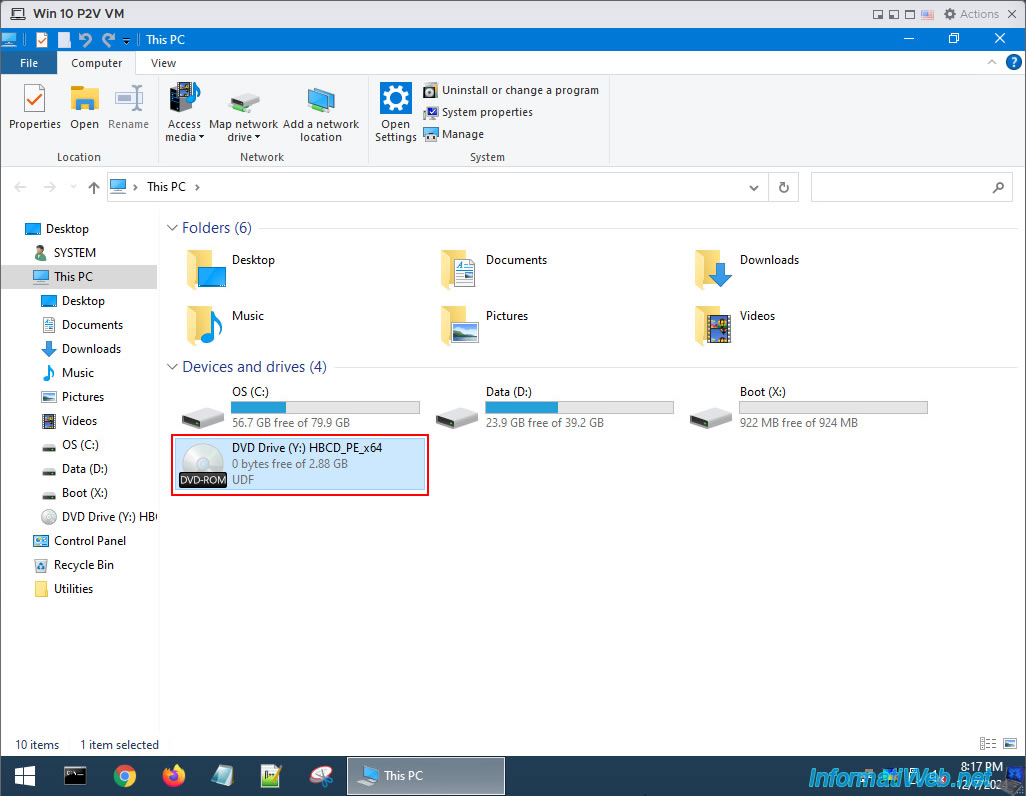
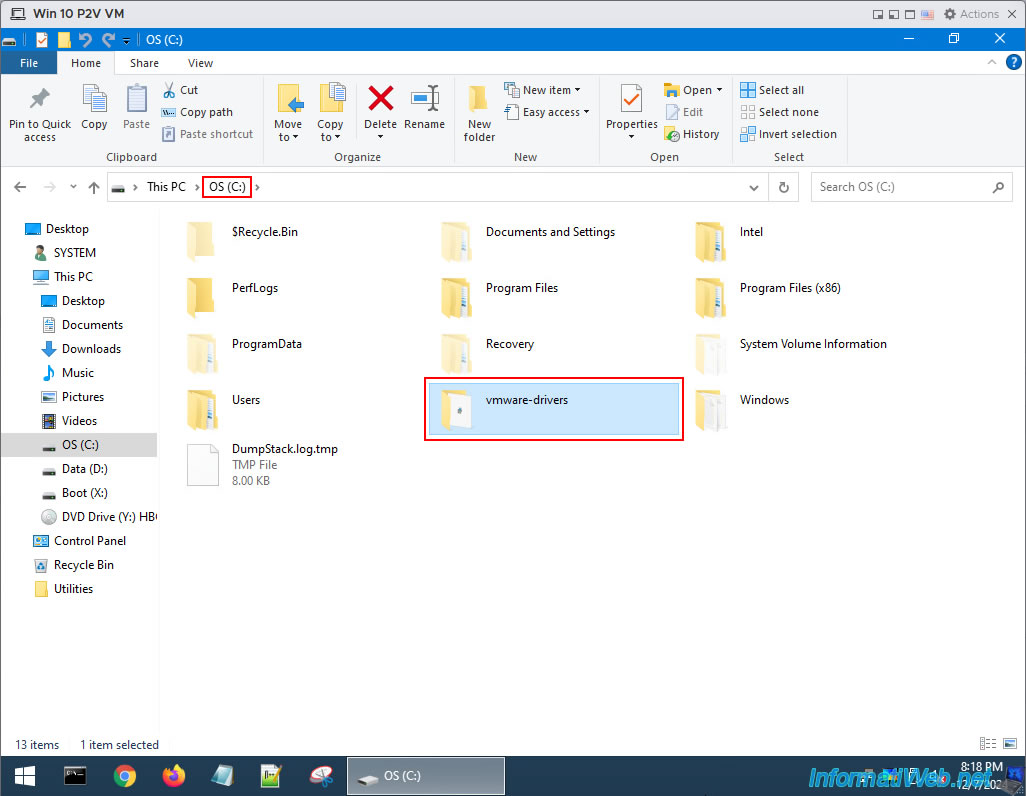
In the "C" partition, you will find the "vmware-drivers" folder which was created by the VMware Tools installer.
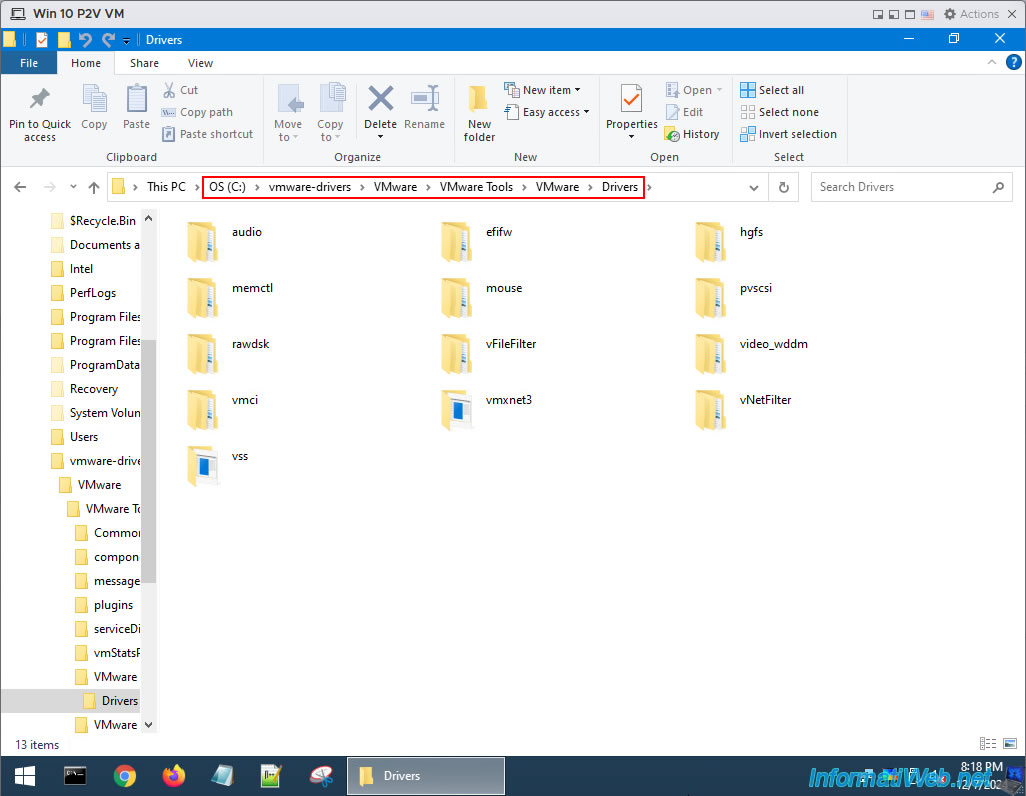
In the folder "C:\vmware-drivers\VMware\VMware Tools\VMware\Drivers", you will see that several folders are present and correspond to different devices.
For example: audio, hgfs (for network shares), mouse (for the virtual mouse), vmxnet3 (for the paravirtual network card of the same name), ...
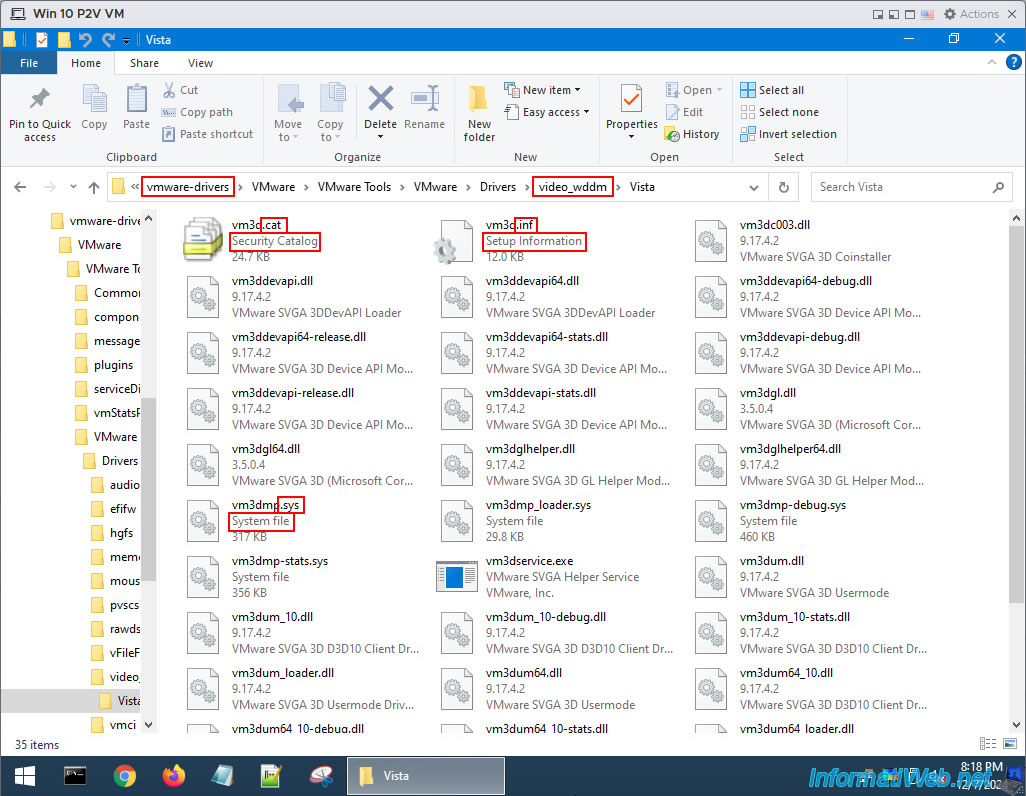
For example, in the "video_wddm" folder you will see that there are several configuration files (.inf), several system files (.sys) that correspond to the drivers, and catalog files (.cat) used by them.
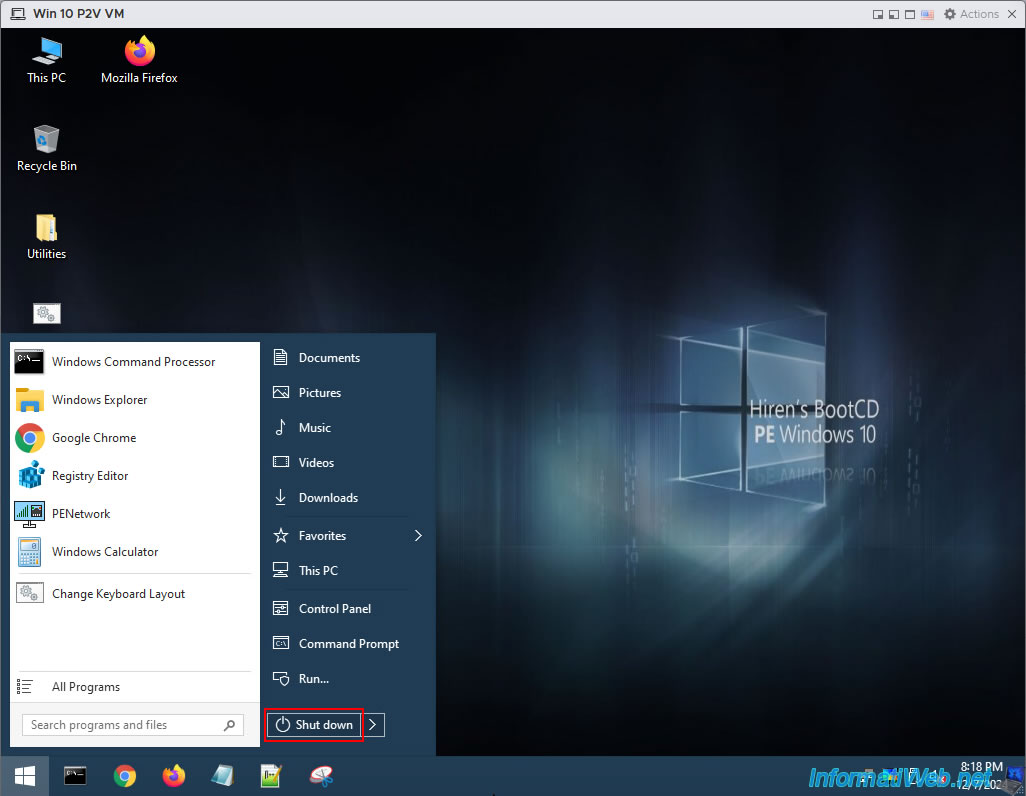
Now that you have extracted the VMware Tools drivers to your VM's virtual hard drive, you can shut down your VM by opening the Windows PE start menu and clicking "Shut down".
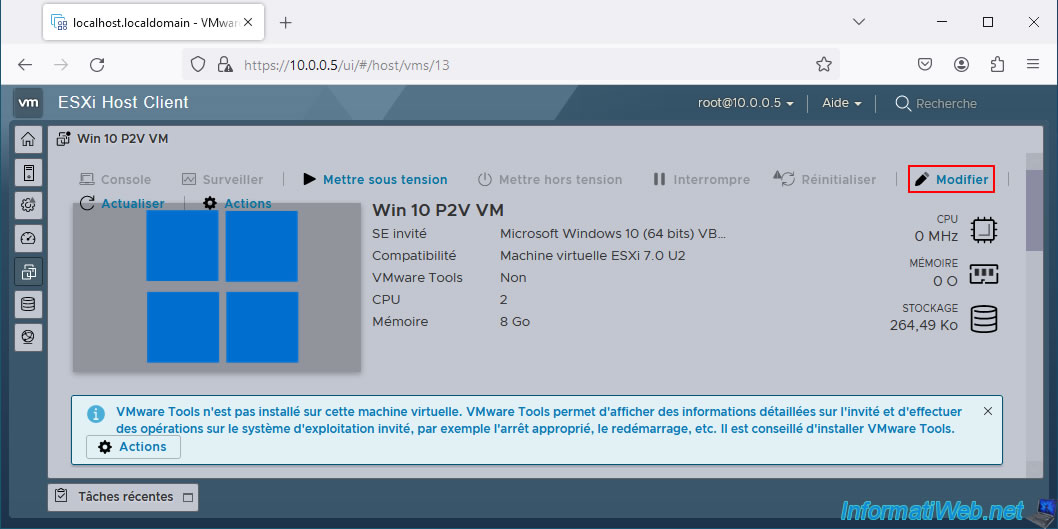
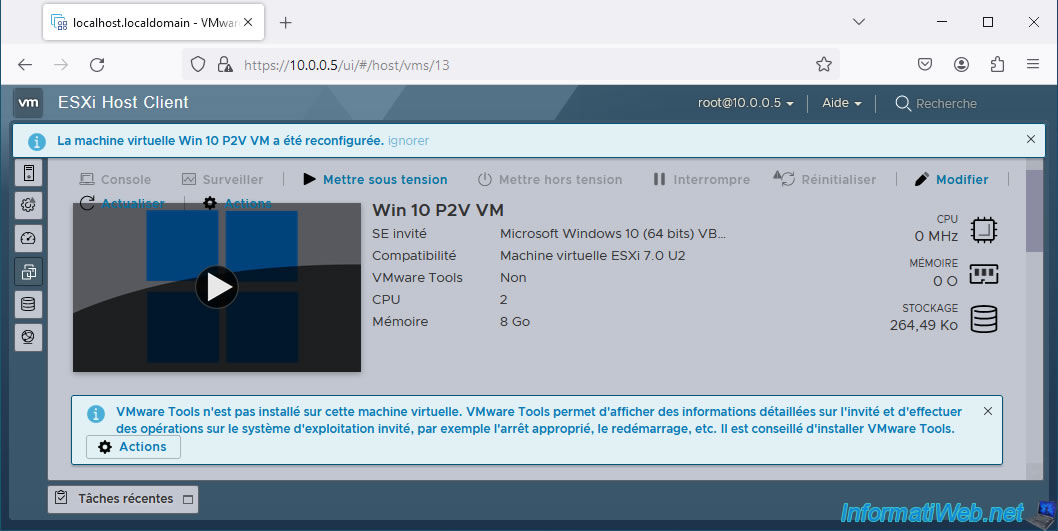
Once your VM is powered off, edit its configuration to restore its video card settings.
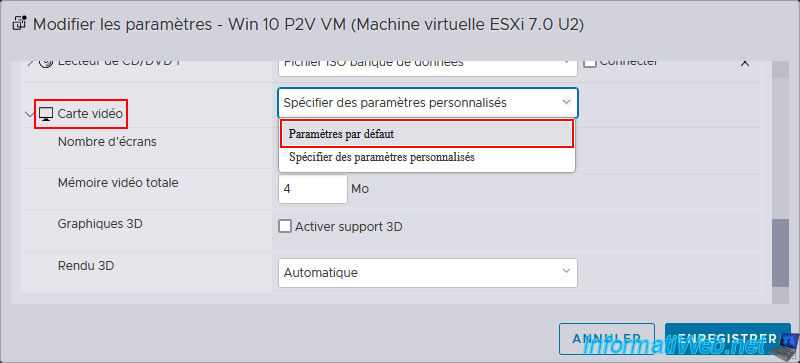
For the video card, select the "Default Settings" option.
Then, click "Save".
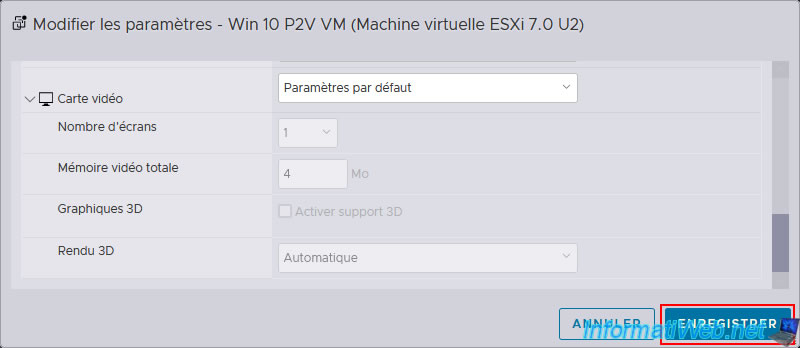
Your VM configuration has been successfully modified.
Share this tutorial
To see also
-

Backup 7/7/2025
Acronis True Image - Backup files or folders
-

Backup 9/18/2025
Acronis True Image - Clean up Cloud smartphone backups
-

Backup 4/13/2026
Acronis True Image - Rescue Media - Create an incremental backup
-
Backup 2/2/2026
Acronis True Image - Rescue Media - Create media (Win PE version) on Win 8.1
No comment